

Zoho Desk tags and routes tickets with AI through two Zia features: Auto Tags, included from the Standard edition ($14 per agent per month billed annually) once a department has 3,000 past tickets, and Field Predictions, on Professional ($23), which fill a field like category or team that your assignment rules then route on. Auto Tags never moves a ticket, and Field Predictions can set the owner but mostly fills a field that Zoho's workflows, direct assignment and round-robin rules route on, so a good setup is AI for the label and rules for the move. The catch is control. Auto Tags builds its own keyword clusters, which you can't edit, and Field Predictions only fill picklist fields and the ticket owner. If you want tickets sorted into your own categories with reasons you can read, eesel does the tagging and routing inside Zoho Desk from instructions you write, from $299 a month. An AI coding agent can set it up through the eesel CLI, from connecting Zoho Desk to switching on the first automation, though a person still approves the connection in Zoho.
Which Zoho Desk tool fits your tagging and routing job?
I build eesel's helpdesk integrations, so I spend a lot of time reading what a helpdesk's automation really does under the feature name. Zoho Desk has five separate tools that touch ticket tagging and routing, each on a different plan with a different data requirement. Pick the job you have and the chooser tells you which one to start with.
Pick the job you need done to see which Zoho Desk tool handles it and which plan it needs.
How does Zia Auto Tags work?
Zia Auto Tags reads your old tickets, groups words that appear together into keyword clusters, names a tag for each cluster, and then adds that tag to any new ticket whose words match. That is how Zoho's own Auto Tags guide describes it, and the details matter more than the headline:
- It needs history. A department must have at least 3,000 individual tickets before Zia trains. You can switch Auto Tags on earlier, but nothing happens until the count is reached.
- Not every channel counts. Training uses tickets from email, the help center, web forms, community and social. Tickets from chat (SalesIQ or IM), phone and custom channels are left out, so a chat-heavy team can have plenty of volume and still never reach 3,000.
- It works per department. Zia is switched on once for the whole account, then Ticket Auto Tags is switched on in each department under Setup > Zia > Intelligence.
- It only adds. As a conversation goes on, Zia adds new tags and never removes the old ones. Zoho's example is a faulty product ticket tagged "product issue" that later also gets "return and refund".
- It tags only what it recognises. The Auto Tags FAQ is plain about it: a ticket gets a tag only if its keywords match a learned cluster, so a new kind of issue goes untagged.
- It's listed for English. Zoho's edition comparison gives Ticket Auto Tags one supported language, English, while other Zia features cover more (Zia language support).
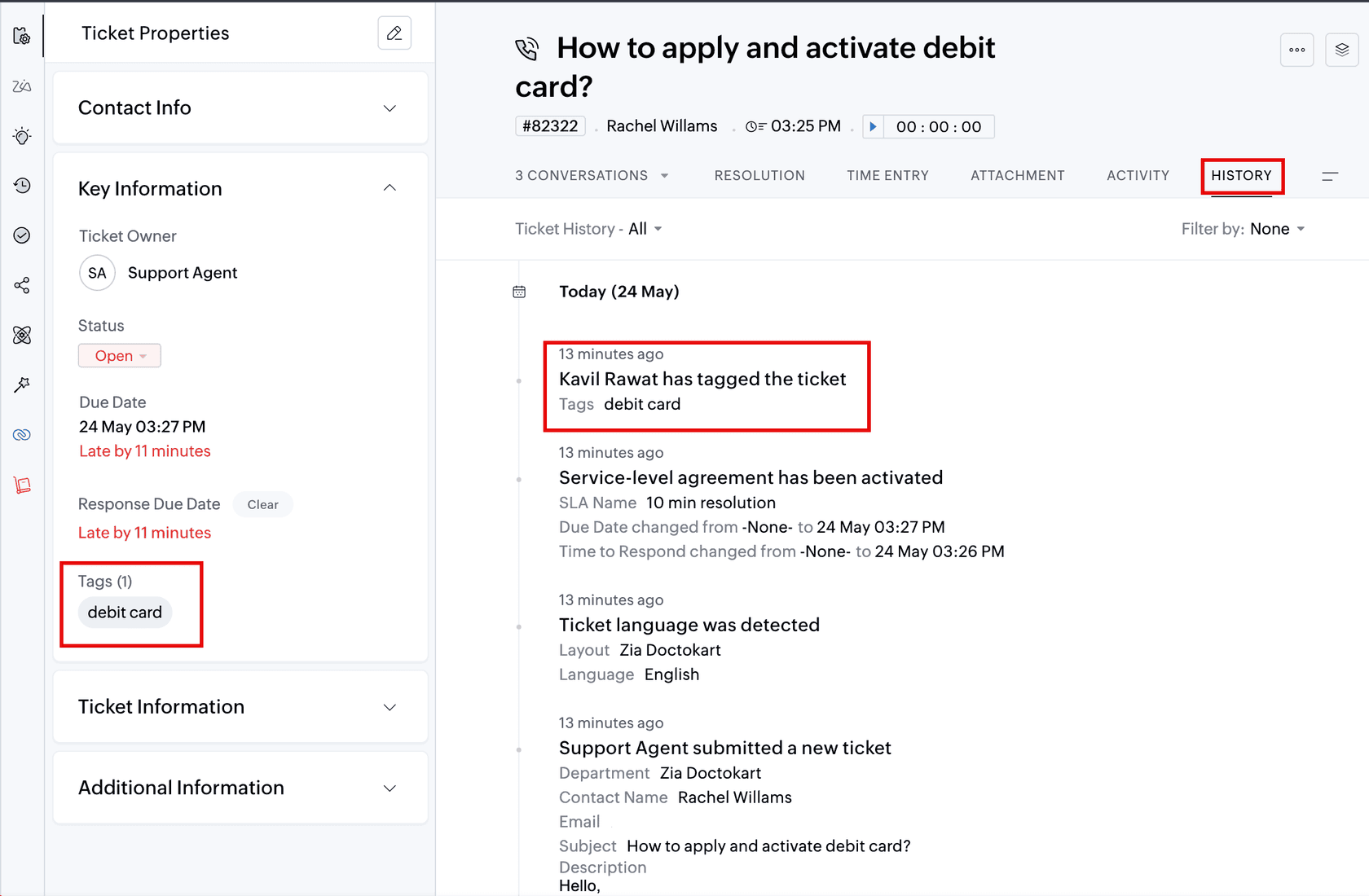
One detail tripped me up the first time I read it: in a ticket's History, Zoho always records the admin as the person who tagged the ticket, even when Zia did it. If you audit who changed what, read Zia's tags as system events.
Once tags exist, you can use them as criteria in a workflow. Zoho's example routes anything tagged "scam" or "fraud" straight to a security team. That is the first way AI touches routing in Zoho Desk: Zia labels, a rule moves. It's the same split most helpdesks use for auto-triage.
How do Zia Field Predictions route tickets?
Field Predictions is the Zia feature built for routing. Instead of inventing tags, it fills in a picklist field you already have (category, issue type, priority, support tier, a custom "team" field) or the ticket owner, based on how similar past tickets were filled in. The Field Predictions guide sets out the rules:
- It predicts picklist fields only, system or custom, plus the ticket owner, and the field has to be on the default layout.
- The trainable model needs at least 500 tickets in the department, and Zoho recommends 500 tickets for each value you want predicted.
- You choose when it runs: on ticket creation, on a customer reply, or both.
- You set an accuracy score (Zoho recommends 70 or higher). Above it, Zia writes the value into the field; below it, the field stays empty. You can also make agents confirm every prediction by hand.
- Each department can have up to 20 field predictions on Enterprise (50 on Ultimate), each with up to 50 values.
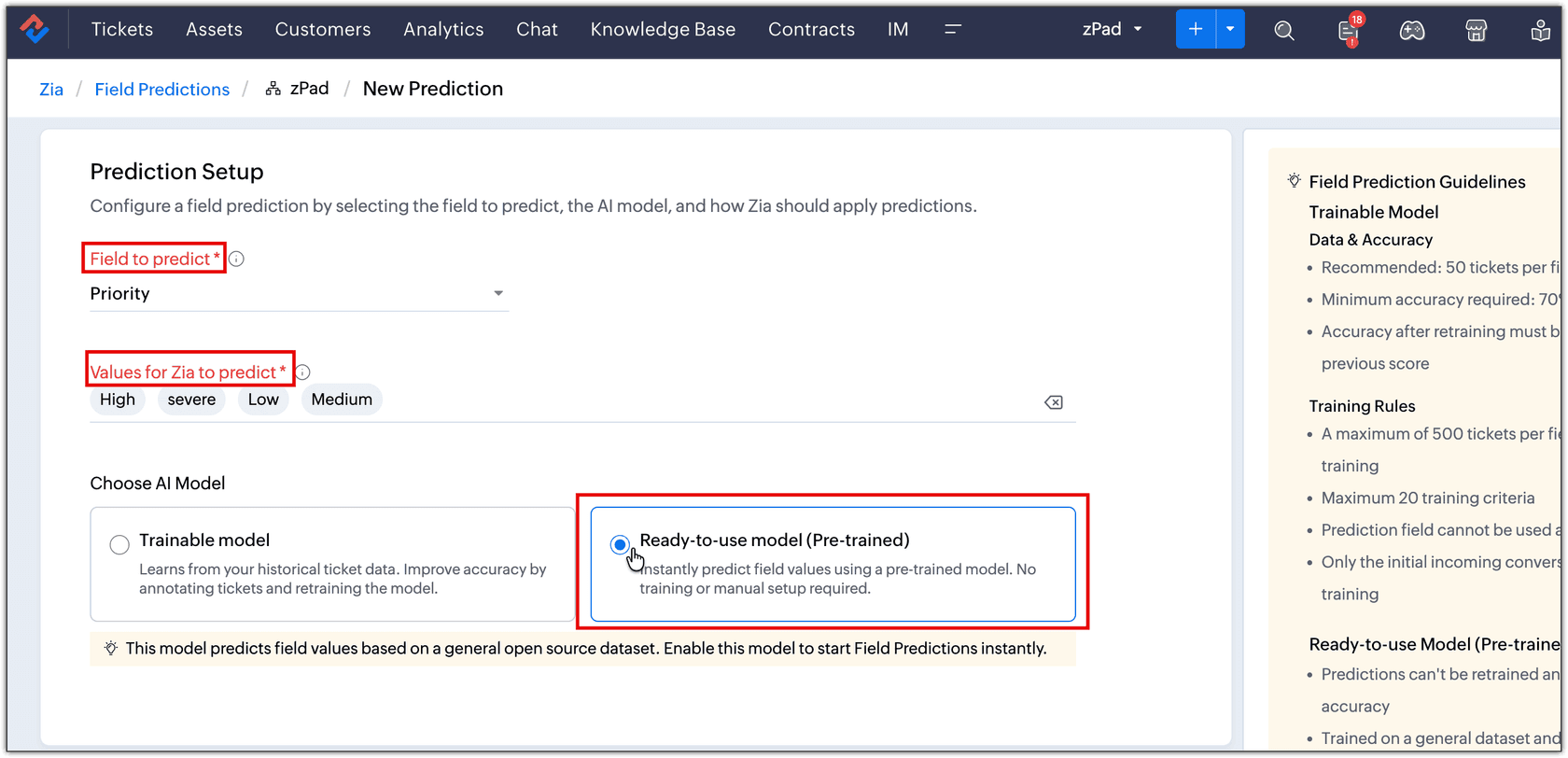
There are two models. The Trainable model learns from your own tickets and gets better when agents correct it. The Ready-to-use model is pre-trained on a general open-source dataset and works the day you switch it on, which helps a new department with no history, but it can't learn your categories.
The part that does the routing comes next: when Zia auto-updates a field, any workflow rule built on that field fires and assigns the ticket. Zoho notes the workflow has to execute on Create or Customer reply for this to happen. One trap is that the trainable model learns from the tickets that exist when you set it up. Tickets after that point have to be added to the prediction manually to retrain it, so a prediction set up a year ago is still sorting by last year's ticket mix.
If you want more on one prediction in particular, I covered Zia's priority prediction separately, and Zia's sentiment analysis is another field you can route on.
How do assignment rules route the ticket once it's labelled?
Zoho Desk moves tickets with three kinds of rule (round robin has three variants), described in its assignment rules guide:
| Rule | What it does | Plan |
|---|---|---|
| Workflow "Assign Ticket" | Assigns to an agent, team or agent in a team when your criteria match, on create, edit or customer reply | Express and up |
| Direct assignment | Sends matching tickets to a set agent or team, and can move them to another department | Express and up (2 rules on Express, 15 on Professional) |
| Round robin, load based | Gives the ticket to the agent with the fewest open tickets, up to a threshold | Professional and up |
| Round robin, sequential | Rotates through agents in a fixed order | Professional and up |
| Round robin, skill based | Matches the ticket's skills to agents who have them, then the lightest load | Enterprise and up |
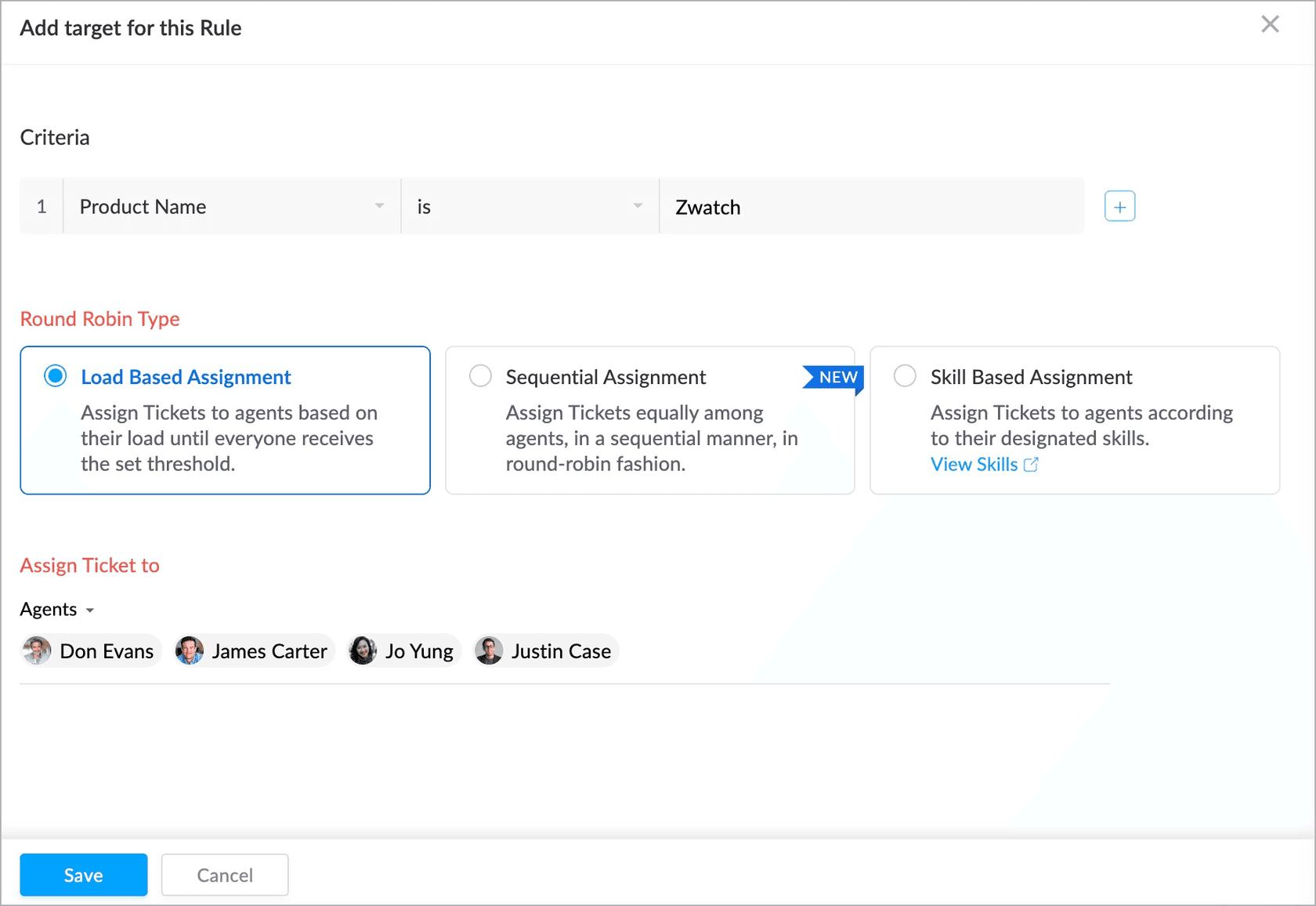
When several rules are active, Zoho runs them in a fixed order, and knowing it saves a lot of "why did this ticket go there?" debugging.
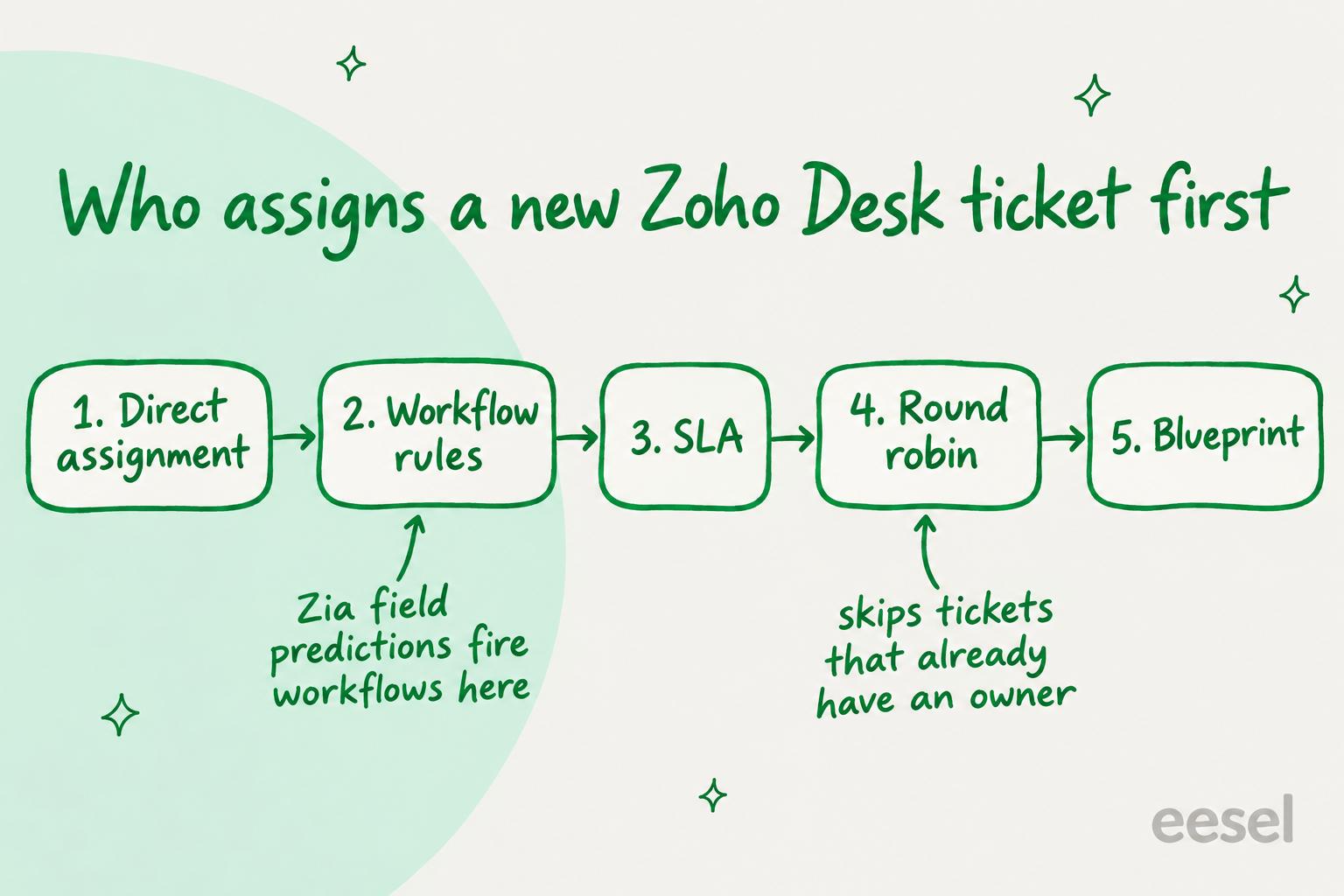
Round robin won't reassign a ticket that a workflow, direct assignment or macro already gave an owner, which makes it a good catch-all at the end. By default it only assigns to agents who are online on the email channel, and backlog tickets only go out if the customer replied within 30 days.
Skill-based assignment sounds like AI routing, but it isn't predictive. You define the skills and the criteria that attach them to a ticket (a language, a product field), and Zoho matches the ticket to agents with those skills. Zoho's own skill-based assignment announcement uses a German-language website ticket as its example. For the general idea, see skills-based routing.
Which Zoho Desk plan do you need for AI tagging and routing?
The AI parts got cheaper this year. On 7 July 2026 Zoho opened Zia to more editions: Auto Tags moved down to Standard and Field Predictions to Professional, where before they were Enterprise features. Prices below are per agent per month from Zoho's pricing comparison, checked 20 November 2026.
| Edition | Billed annually | Billed monthly | Tagging and routing you get |
|---|---|---|---|
| Free | $0 (3 users) | $0 | Manual tags only |
| Express | $7 | $9 | Workflows, direct assignment |
| Standard | $14 | $20 | Adds Zia Auto Tags |
| Professional | $23 | $35 | Adds Field Predictions, round robin, webhooks |
| Enterprise | $40 | $50 | Adds skill-based assignment, Zia Actions |
| Ultimate | $55 | $65 | Higher limits on rules and predictions |
For a 10-agent team, Professional comes to $230 a month billed annually ($23 × 10), the lowest plan that has both AI routing pieces. Getting to skill-based routing on Enterprise is $400 a month for the same team. The Zoho Desk pricing guide goes through every edition.
Zia Actions, which Zoho describes as automating tasks "like generating responses, extracting data, and categorizing tickets", is Enterprise and Ultimate only and is available in the US, Australia, EU, Canada and India data centers.
How to set up AI tagging and routing in Zoho Desk
This is the setup I would use on Professional: Zia labels, rules move. You need admin access.
- Switch on Zia. Go to Setup > Zia and toggle Zia on. This applies across all departments.
- Turn on Auto Tags per department. In the Intelligence tab, toggle Ticket Auto Tags. If the department has fewer than 3,000 eligible tickets, it stays idle until it does.
- Create the field you route on. Add a picklist such as "Team" or "Category" to the department's default layout, with one value per destination.
- Set up the prediction. Go to Setup > Zia > Field Predictions > Create New Field Prediction, pick the field and its values, choose the Trainable model if you have history, set it to run on ticket creation, and set the accuracy score to 70 or higher with auto-update on.
- Route on the field. Under Setup > Automation > Workflow Rules, create a rule on the Tickets module that executes on Create, with criteria "Team is Billing" and the Assign Ticket action, one per value. Direct assignment works too if you'd rather move the ticket to another department.
- Add a round-robin catch-all. Under Setup > Automation > Assignment Rules > Round-robin, create a load-based rule for the department so anything the prediction didn't fill still reaches someone.
- Retrain on a schedule. Put a monthly reminder to add recent tickets to the prediction, since it won't pick them up by itself.
Two things go wrong often. A workflow with criteria on the ticket's Description field won't fire for emailed tickets, because, as a Zoho support agent explained on the forum:
"when tickets created via email, the email content will not be added to the description field and only be listed under conversation view."
And there is no built-in trigger for "still unassigned after an hour". Zoho's suggested workaround chains a custom checkbox, a supervisor rule, a round-robin rule and a workflow.
Where Zia's tagging and routing falls short
Zia is good at what it was built for (my Zoho Desk AI review covers the rest of it): spotting volume patterns in a busy English email queue and filling a field that a rule can act on, with no extra vendor and nothing to pay on top of the plan. The limits show up when you want control over the categories.
You can't decide what goes into a cluster. You can rename a tag, point a cluster at one of your existing tags, or delete it, but the keywords inside each cluster stay as Zia built them, and a ticket that matches no cluster gets nothing. A customer asked on the forum how to fix a cluster with the wrong keywords, and Zoho's answer was short:
"Unfortunately it is not possible to edit the keywords cluster of auto-tags in Zia at the moment."
That reply is seven years old, and Zoho's current FAQ still says the cluster "cannot be edited". So if your reporting depends on a fixed set of categories, Auto Tags can label some of them but won't guarantee every ticket lands in one.
The thresholds rule out smaller and chat-first teams. 3,000 eligible tickets per department for Auto Tags, 500 per department (and ideally 500 per value) for trainable predictions. A team that lives in live chat or WhatsApp may never qualify for Auto Tags, since chat tickets don't count toward training.
Predictions go stale. The trainable model learns from the tickets that existed at setup, so a new product line or a new kind of complaint stays invisible to it until someone retrains it.
The reason isn't on the ticket. Zia shows a confidence score for each prediction, but it doesn't write a reason on the ticket for why it chose "Billing", which makes a wrong route slow to diagnose, and a missed route eats into your SLA. If that matters to you, reducing AI tagging errors is worth a read either way.
Tagging and routing Zoho Desk tickets with eesel
eesel takes a different approach from Zia's own agents, which draft replies from the knowledge base: instead of learning keyword clusters, it reads each ticket in full and follows instructions you write in plain language, like "tag billing questions billing and move them to the Finance department; anything about a damaged order goes to the Returns team with priority High". Its Zoho Desk integration can tag a ticket, change its status, priority, assignee, team, classification or any custom field, and move it to another department. It learns from your help center and past tickets, and can draft the first reply as a private comment in the same pass.
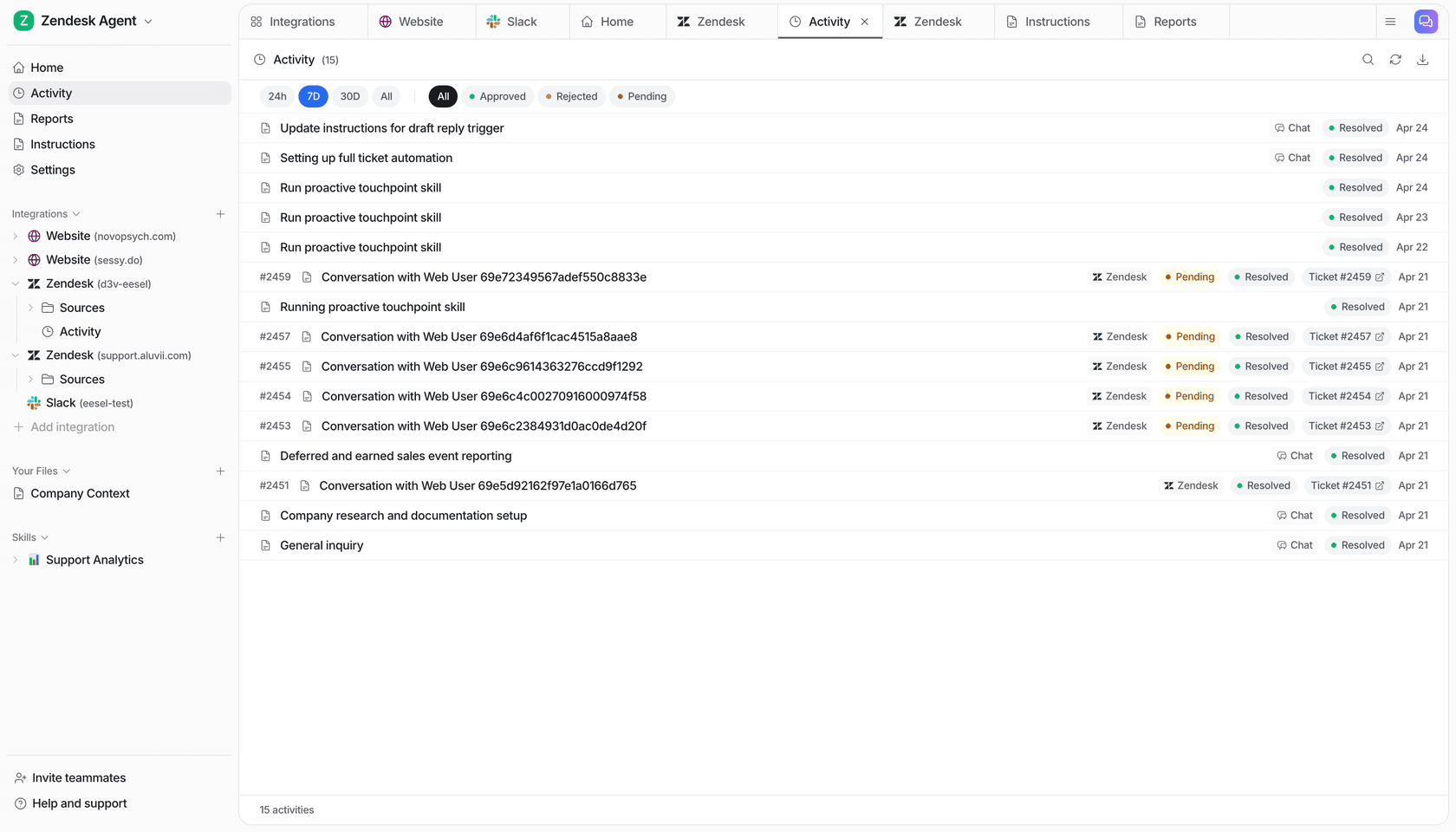
It's the same kind of intelligent routing a person does, with your rules in front of it. The difference shows in eesel's customer stories. Dokument 24 has eesel tag every new ticket by the product it's about (future power of attorney, will, prenuptial agreement or company formation) and write a Danish draft as an internal note: about 430 tickets tagged by product in a month. That runs on Zendesk, but the job is the same one this post is about. Cactus Club Cafe goes further on routing: its agent opens the team's routing matrix before it touches a ticket, and tagged 82 and routed 39 tickets in a month while drafting fixes from runbooks.
What eesel may do on its own is up to you: each action can run by itself, ask a person first, or stay off (actions and approvals). A sensible start is tagging on its own and routing behind an approval for the first week.
Know the limits before you start. eesel's automations need Zoho's webhooks, which Free, Express and Standard don't include, so you need Professional or above. eesel can add tags but not remove them. Replies go out by email, so a phone or chat ticket with no email address can be tagged and routed but not answered.
Try eesel on your Zoho Desk queue
If Zia's clusters don't match the categories your team reports on, or your department is under the 3,000-ticket line, try eesel next to Zoho Desk. You write your categories and routing rules once in plain language, and you can have it leave a private note on each ticket saying why it went where it did, so a wrong route is quick to trace. eesel connects with one Zoho authorization, and you can test it on real tickets before it touches anything: the free trial gives you 100 tickets over 7 days with no card, and plans start at $299 a month for 500 tickets, with no per-agent fee.
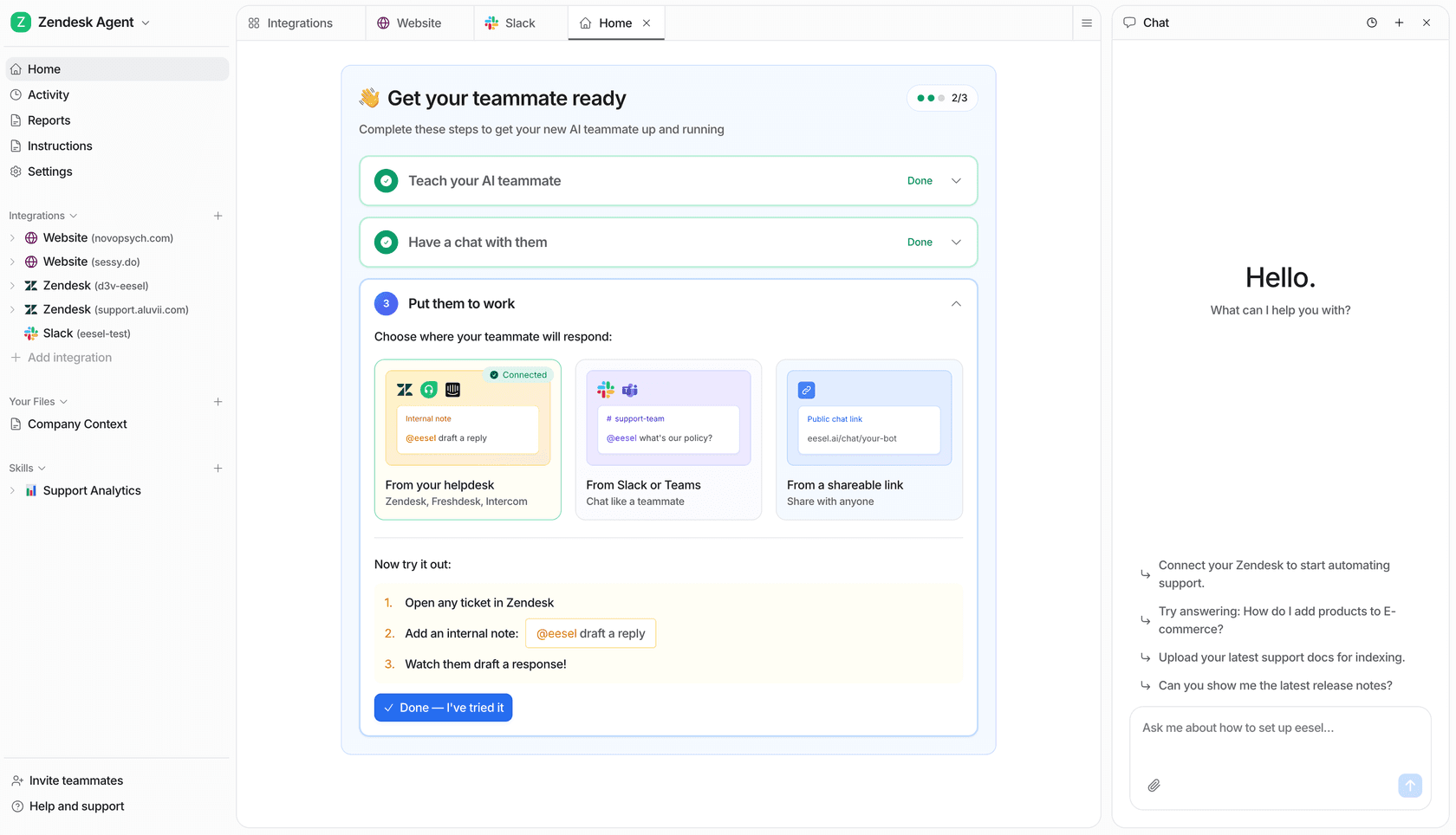
Try eesel on a slice of your Zoho Desk tickets, or read the best AI for Zoho Desk roundup first if you're still comparing.