

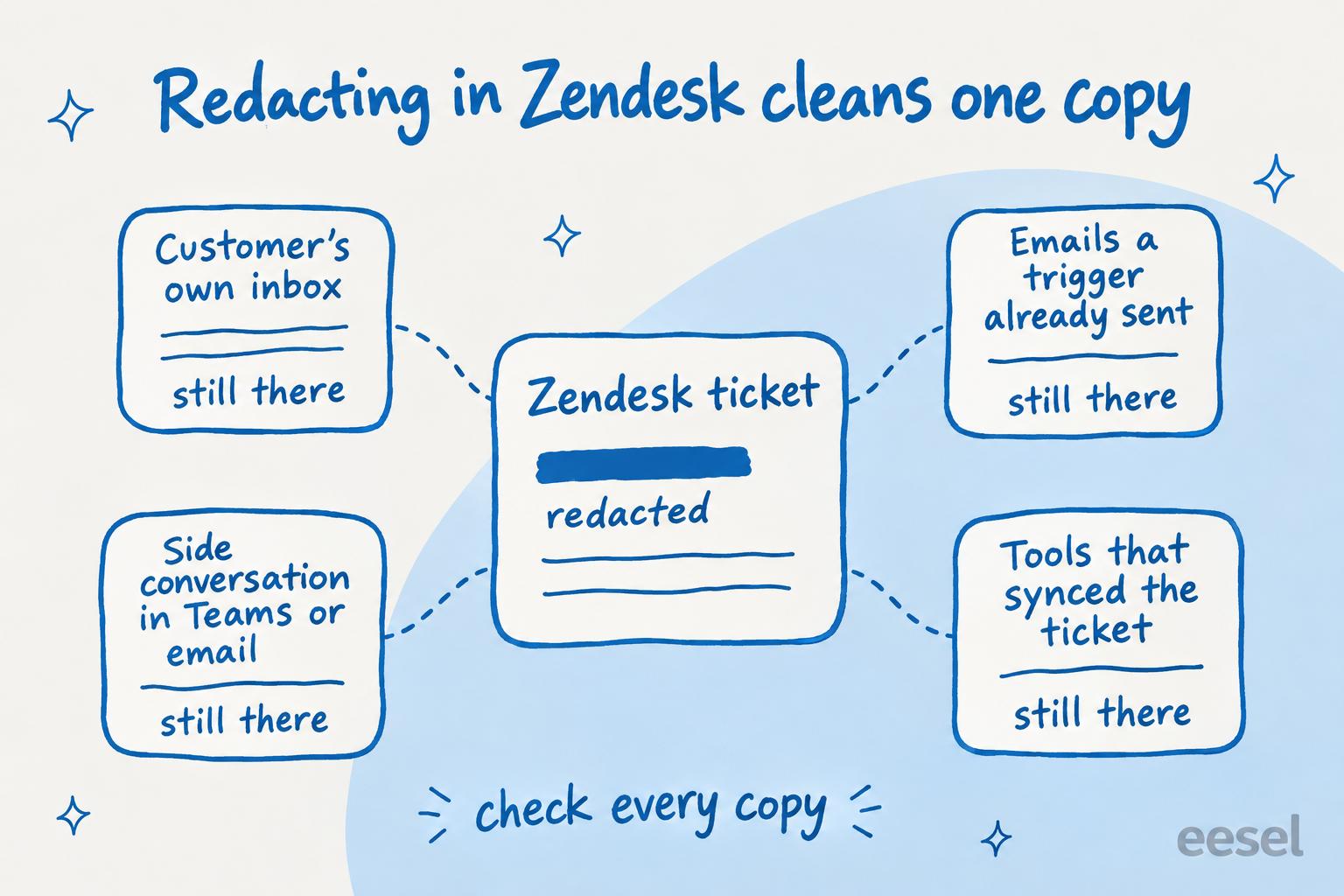
To protect customer data in support tickets, ask for less, limit who can see it, redact what arrives anyway, and delete it on a schedule; on Zendesk that means automatic credit card redaction (Suite Growth or above) and a deletion schedule, which acts on tickets closed 120 days or more. Add secure downloads so attachments need a sign-in. The catch is that redaction cleans the copy in Zendesk and nothing else: the customer's own inbox, emails a trigger already sent and any tool that synced the ticket keep theirs.
If an AI tool reads your tickets, eesel can mask card numbers, emails and names in past tickets before it stores them. An AI coding agent can load your approved macros and help articles into it with the eesel CLI and ask it test questions first, though connecting Zendesk still needs an admin's approval.
Where does customer data hide in support tickets?
I build parts of eesel that read helpdesk tickets, and the first thing you learn doing that is how much ends up in them that nobody asked for. Customers paste full card numbers into "why was I charged twice?" emails. They attach a photo of their passport to prove who they are. They send the password they "already tried" so you can check it. Zendesk's own help centre puts it plainly: the sensitive information is "visible to anybody with access to the ticket" and "automatically gets stored in a database with the rest of the ticket" (Zendesk, Redacting ticket content).
It hides in more places than the comment you're reading:
- Comments and internal notes, including the ones agents write ("customer confirmed DOB 12/03/1985").
- Attachments: IDs, bank statements, medical certificates. Zendesk names "driver's licenses, passports, medical certificates, and tax documents" as the usual ones (attachment deletion schedules).
- Subject lines, which Zendesk's redaction suggestions don't scan.
- CC lines, since everyone CC'd on a ticket gets each public reply in their own inbox.
- Copies outside the ticket: the email in the customer's Gmail, notifications your triggers sent, side conversations in Microsoft Teams, and every app that synced the ticket.
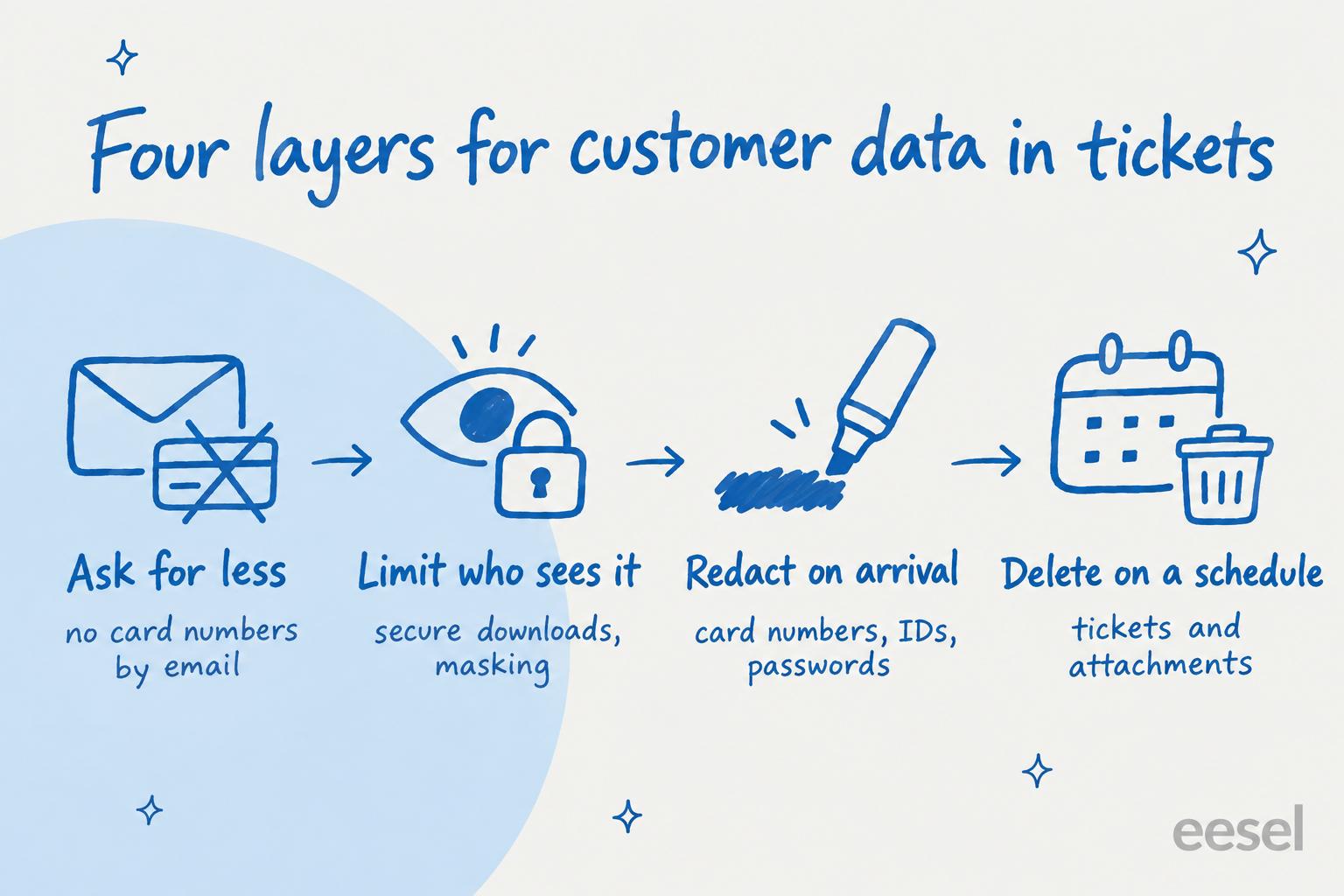
Step 1: Ask for less sensitive data
The cheapest data to protect is data you never received. Most of it arrives because a macro or a form invited it, so start there.
- Read your macros for requests. "Please reply with your card details" or "send a copy of your ID" teaches customers that email is where those go. Point them to a payment page or a verification flow instead.
- Say what not to send. One line in your auto-reply and your contact form ("never send card numbers or passwords by email") cuts down how often it happens.
- Give verification a home. If you must check identity, ask for the minimum that proves it (the last four digits, an order number) rather than a document.
This is also where an AI agent helps or hurts. An AI that asks "can you confirm your card number?" collects PII at scale. Swiftreg, a UK number-plate dealer, runs eesel on Zendesk under a rule it wrote itself: order details only ever go to the verified account holder, and private sellers are only ever "the seller" or "the current owner", never named.
Step 2: Limit who can see tickets and attachments
Access control is the layer people set at launch and rarely look at again. Three settings matter most on Zendesk.
Secure downloads. By default a ticket attachment uses "a URL with a complex, random attachment token, but anyone with the URL and token can access it", so a misdirected email notification can expose it (Zendesk, Configuring attachment security). Turning on Allow secure downloads (Admin Center > Objects and rules > Tickets > Settings) means agents must sign in to view attachments. Two side effects to plan for: it only works with the help center active, and agents can no longer paste images into comments. Accounts created after 29 October 2026 also get one-time passcode checks on emailed attachment links by default.
Roles. Review which roles can open which groups' tickets, and whether light agents and contractors need every ticket they can see today.
Data masking (ADPP add-on). Zendesk's Advanced Data Privacy and Protection add-on can hide end-user names, email addresses and phone numbers from agents in custom and light agent roles. Masking works "only at the presentation layer, so PII in the database remains unchanged" (About data masking). It narrows who sees it; it doesn't remove anything.
Step 3: Redact what arrives anyway
Some customers will send a card number whatever your form says. Zendesk gives you three ways to remove it, and they differ more than the names suggest. Which you have depends on your Zendesk plan.
| Manual redaction | Credit card redaction | Redaction suggestions and triggers | |
|---|---|---|---|
| Plan | Suite Team and above | Suite Growth and above, Support Professional and above | ADPP add-on (Enterprise only) |
| What it catches | Whatever an agent selects | Valid card numbers, 12 to 19 digits | 12 PII types, from names to IBANs and passwords |
| When | When an agent notices | As the ticket or comment arrives | Agent clicks a highlight, or a trigger fires |
| Old tickets | Yes, one ticket at a time | No | Triggers act only on tickets that aren't closed |
Manual redaction (our Zendesk ticket redaction guide has screenshots) is in the Agent Workspace: open the comment's menu, choose Mark text for redaction, select the text or attachment, then Redact. It works on email, messaging, internal notes and attachments, and adds a redacted_content tag. It can't be undone, and "bulk redaction is not supported", with a cap of 75 attachments at once (Redacting ticket content). A Zendesk community member asked for a bulk option in 2024:
"But still, I would like the feature of Bulk redaction that can be used on browser screen."
Credit card redaction is the one to switch on first if your plan has it (Admin Center > Account > Security > More settings > Redact credit card numbers). The full number isn't written to logs or the database: it's "kept in memory only long enough to check it" (Zendesk lists two exceptions, MIME-encoded emails and custom fields on suspended tickets), and Zendesk keeps the first six and last four digits, replacing the middle (Automatically redacting credit card numbers). It doesn't touch numbers already in your account, and Zendesk says not to run it alongside redaction suggestions.
Redaction suggestions (ADPP) highlight PII in orange for agents with redact permission: names, email addresses, addresses, card numbers, IBANs, passwords, Social Security numbers, bank account numbers, dates of birth, driver's licenses, IP addresses and phone numbers. A PDF that contains PII is flagged as a whole and redacted as a whole (redaction suggestions). Add a trigger with the Ticket > Redact action and it happens without an agent. Zendesk's own example is the one I'd copy: redact dates of birth when a tag confirms verification is complete, so the data lives exactly as long as you needed it (redaction with triggers). In messaging, those triggers fire only after the conversation ends.
Step 4: Delete old tickets and attachments on a schedule
Redaction handles the data you spot. A deletion schedule handles the data you didn't. Zendesk archives most tickets 120 days after they close, and deletion schedules only ever delete archived tickets, so for most accounts nothing is deleted until 120 days after close (Creating ticket deletion schedules).
The settings live in Admin Center > Account > Security > Deletion schedules, on every plan from Team up:
- Ticket schedules delete archived tickets by age, brand, group, type or organisation. Up to 200,000 tickets a day, starting within 72 hours, and deleted tickets can't be restored.
- Attachment schedules delete only the files and keep the ticket, up to 24,000 attachments a day. Use these when you need the conversation for reporting but not the passport scan (attachment deletion schedules).
- One active schedule of each kind, unless you have ADPP, which allows 10.
The trap is that the two layers fight. A "Last updated" schedule waits for tickets "closed and not modified", and redacting a ticket modifies it, so every redaction restarts that ticket's deletion clock. An attachment schedule deleting files does the same. Zendesk suggests deleting tickets by when they were created when attachment schedules run; I'd do the same whenever your team redacts. Track what went in the audit log, filtered to Deleted, and export it when an auditor asks. If you serve the EU, write the schedule into your retention policy; our Zendesk GDPR guide covers what that policy should say.
What should an agent do with the data in front of them?
The layers above are settings. This is the moment an agent actually faces: a ticket is open and something sensitive is in it.
Pick what landed in the ticket to see the fix for now and the setting that stops it next time.
Step 5: Check the copies outside Zendesk
This is the step the help centre buries in its limitations list. When you redact a comment that came in by email, "Zendesk does not redact the content of the original email in the email provider's channel (such as Gmail or Yahoo)". Messaging apps and third-party integrations keep their copy too, because "it is redacted only within Zendesk-controlled systems". And if a trigger already sent the comment somewhere, "redacted content may persist in the channels launched by these triggers" (Redacting ticket content). Side conversations work the same way: the email or Teams message that went out stays as sent.
So make a list of everywhere a ticket travels:
- Notification triggers that copy the latest comment into an email to agents, CCs or another team. Redaction doesn't reach what they already sent.
- Integrations and exports: the BI tool, the CRM sync, the Excel export someone runs each quarter.
- AI tools. Anything that learns from past tickets keeps a copy of them, often in a vector database you never see. Ask the vendor whether it stores tickets, whether it masks PII first and whether it trains models on them; our vendor security checklist has the full list.
If you have ADPP, turn on the access log too. It records which tickets, user profiles and searches agents and admins viewed over the last 90 days, but only from the moment you switch it on: "access events that occurred before you turned on the API aren't captured" (access log). It's the evidence you'll want the day someone asks who looked at a customer's record. Where that data is stored matters as well (AI support data residency), and our post on Zendesk AI security covers the rest of that conversation.
Try eesel on your Zendesk
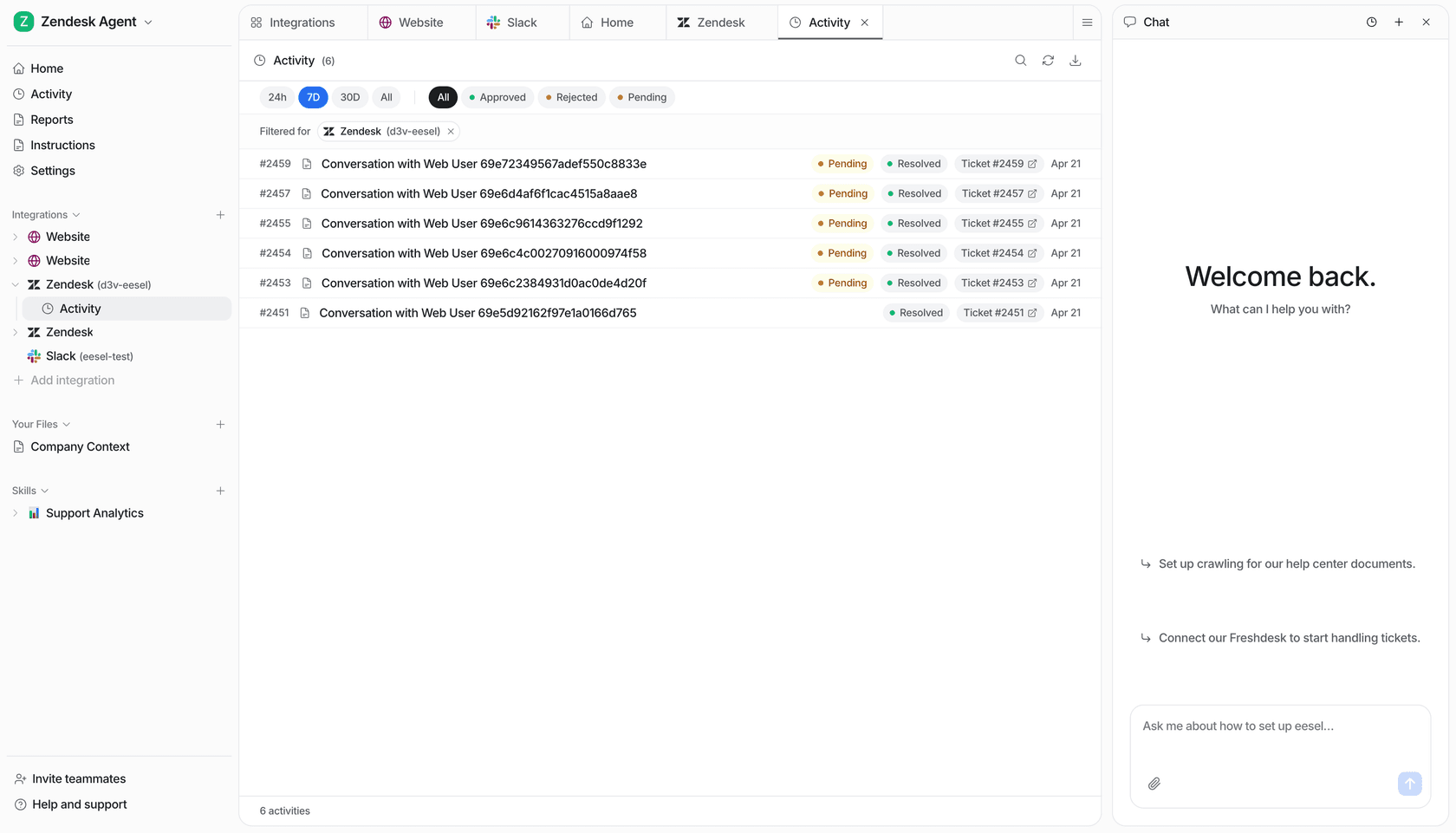
If an AI teammate is one of the copies on your list, pick one that strips the personal details before it keeps anything, and tell customers plainly what it does (explaining AI data use covers the wording). eesel joins your Zendesk, learns from your knowledge base, macros and past tickets, and answers or drafts replies inside the tickets your team already works. With PII redaction on, every past ticket it syncs goes through a detector first, and card numbers, emails, names, addresses, IBANs, passport numbers and API keys are replaced with a mask like [REDACTED:CC] before anything is stored or indexed. Check the Redact PII before indexing toggle on the Zendesk integration rather than assuming it's on, since newer workspaces start with it off. The first import runs when you connect, so on a newer workspace turn the toggle on, then delete and re-import those first tickets. And know that a ticket eesel opens live to draft a reply is read as it is.
What it may do depends on who's asking: it can act on its own for your team, ask first before a refund for a verified customer, and stay away from account details for an anonymous visitor. smava, a German consumer-credit comparison platform, runs three eesel agents on one Zendesk across about 27,000 tickets a month, and a ticket with attachments skips the AI draft and goes straight to a person.
Try eesel on your Zendesk, and keep one copy of your tickets clean from the start.