Email privacy in customer support is not something most teams think about until something goes wrong. Maybe an agent accidentally shares an internal note with a customer. Or a CC'd email address gets exposed to everyone on the ticket. These are not hypothetical scenarios. They happen daily in Zendesk accounts around the world.
The problem is that Zendesk's email integration is powerful but nuanced. How you reply to a ticket notification, whether you hit Reply or Reply All, determines whether your comment becomes public or private. Get it wrong, and sensitive information ends up where it should not be.
This guide breaks down exactly how Zendesk handles email replies, where the privacy risks hide, and what you can do to protect your conversations. We will also look at how eesel AI's Zendesk integration can help automate some of these protections through intelligent routing.
Understanding reply vs reply all in Zendesk
When an agent receives a ticket notification in their email client, they have two options: Reply or Reply All. This choice is not just about who receives the message. It directly affects whether the comment becomes public or private in Zendesk.
Here is how it works. When you use Reply (not Reply All), you remove the original requester from the recipient list. Zendesk interprets this as an intention to keep the conversation internal. The reply becomes a private comment, also known as an internal note. Only agents can see it.
When you use Reply All, you preserve all the original recipients, including the requester and any CCs. Zendesk sees this as a public response. The reply becomes a public comment visible to everyone on the ticket.

This distinction matters because agents often do not realize which button they are hitting. They are in a hurry, responding from their phone, or simply not thinking about the visibility implications. The result? An internal discussion about a customer's billing issue or a sensitive complaint suddenly becomes visible to that customer.
Zendesk actually performs a series of checks to determine comment privacy. These include verifying whether the author can edit the ticket, whether they're a CC or follower, and what settings the account has enabled. But the Reply vs Reply All behavior is the most common trigger for accidental public comments.
Let us break it down with a real scenario. An agent receives a notification about a ticket. They want to ask a colleague a quick question before responding to the customer. They hit Reply, thinking they are just emailing their teammate. But because they did not remove the support address from the CC field, or because they actually hit Reply All by mistake, the comment goes public. The customer now sees an internal discussion that was never meant for them.
The fix starts with training. Agents need to understand that Reply means private and Reply All means public. But training only goes so far. Understanding the difference between CCs and followers becomes critical.
CC vs followers: The privacy distinction
Zendesk gives you two ways to include additional people on a ticket: CCs and followers. They sound similar, but they function very differently, especially when it comes to privacy.
CCs work like traditional email carbon copies. When you add someone as a CC on a ticket, they become visible to everyone involved in the conversation. Their email address appears in the ticket header. Other participants can see who else is on the thread. CCs can respond to ticket notifications, and their replies become public comments by default.
There are some limits. You can have up to 48 email CCs on a single ticket. Both end users and agents can be CCs. And when an agent is CC'd on a ticket, their email address is visible to all end users in the thread. This is where privacy issues often start.
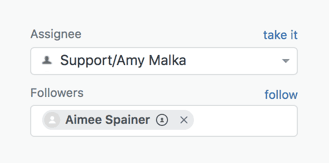
Followers are an internal-only feature. Only agents and administrators can be followers. They receive all ticket updates but remain completely hidden from end users and other CCs. Their names and email addresses don't appear in email notifications sent to other users. Followers can see both public comments and internal notes, and they can reply with either type of comment.
The key difference at a glance:
| Feature | CCs | Followers |
|---|---|---|
| Visibility | Visible to all participants | Hidden from customers |
| Who can be added | End users and agents | Agents and admins only |
| Reply capability | Can reply publicly | Can reply publicly or privately |
| Limit | 48 per ticket | Unlimited |
| Best for | External coordination | Internal team updates |
Zendesk explicitly recommends using followers for agents rather than CCs. Why? Because when you CC an agent, their email address gets exposed to customers. Customers can then contact that agent directly, bypassing your support system entirely. This creates gaps in your ticket history and can lead to a poor customer experience.
The follower feature also solves the Reply vs Reply All confusion for internal communication. Since followers receive notifications for all comments (public and private), they do not need to be on the CC line to stay informed. They can use Reply to send internal notes without worrying about accidentally exposing their comments to customers.

If you are currently using CCs for internal team coordination, consider switching to followers. The privacy benefits are significant, and it reduces the risk of accidental information exposure.
Common privacy pitfalls and how to avoid them
Even with a solid understanding of Reply vs Reply All and CCs vs followers, privacy issues can still slip through. Here are the most common pitfalls and how to prevent them.
Pitfall 1: Accidental Reply All when meaning to Reply
This is the classic mistake. An agent intends to send an internal note but hits Reply All instead of Reply. The comment goes public, potentially exposing sensitive information.
Prevention: Train agents to double-check the recipient list before sending. Some email clients allow you to disable Reply All as a default or show a confirmation prompt. Consider enabling these safeguards. Also, encourage agents to use the Zendesk web interface for internal notes rather than email when dealing with sensitive topics.
Pitfall 2: Customer forwards ticket to a third party
An end user forwards their ticket notification to someone not involved in the conversation. That third party replies to the notification. Zendesk detects this as a third-party reply and creates a private comment automatically, but the agent may not realize what happened.
Prevention: Train agents to watch for third-party reply warnings in the ticket interface. When these appear, the agent needs to manually add the person as a CC if future replies should be public. Otherwise, all their comments remain internal.
Pitfall 3: Agent email exposed through CC
When an agent is added as a CC rather than a follower, their email address becomes visible to all customers on the ticket. Customers can then contact the agent directly.
Prevention: Make followers your default for internal coordination. Only use CCs when external visibility is actually required. Train agents to add colleagues as followers from the ticket interface rather than CCing them on email replies.
Pitfall 4: "Make email comments from CCed end users public" setting
This setting, when enabled, changes the default behavior so that CC replies become public even if they use Reply instead of Reply All. This can expose internal discussions that CCs intended to keep private.
Prevention: Zendesk generally does not recommend enabling this setting. If you have it enabled, make sure you understand the implications. CCs who reply with the intention of sending a private comment find their replies public instead.
Pitfall 5: Notification suppression confusion
When internal notes are added to a ticket, the "Email user + (requester and CCs)" action is suppressed. CCs don't receive notifications even though the trigger fires. Agents might not realize this and assume CCs are seeing updates that never reached them.
Prevention: Educate your team about notification suppression rules. If CCs need to see an update after an internal note, you will need to add a public comment to trigger the notification.
Regular training and clear documentation go a long way toward preventing these issues. But for teams managing high volumes or complex routing scenarios, native Zendesk features might not be enough.
Configuring Zendesk for better email privacy
Zendesk offers several settings that can help you maintain better email privacy. Here's what to review in your Admin Center.
Agent comments via email are public by default
This setting controls whether agent replies via email become public comments by default. If you disable it, agent email replies become private comments (internal notes) unless the agent explicitly makes them public.
Consider disabling this if your agents frequently handle sensitive information and need internal discussions to stay private by default. Just be aware that agents need to actively choose to make comments public when responding to customers.
Make email comments from CCed end users public
As mentioned earlier, this setting changes how CC replies are handled. When disabled (the default), CC replies that don't include the requester become private comments. When enabled, CC replies become public regardless of whether they use Reply or Reply All.
Zendesk generally recommends keeping this disabled. The risk of exposing unintended internal comments outweighs the benefits for most teams.
Using the Mail API for explicit control
For teams that need granular control, Zendesk's Mail API offers commands to explicitly set comment visibility. The #note command makes a reply a private comment. The #public command controls whether a reply is public (true) or private (false).
These commands override the default behaviors, giving agents precise control over comment visibility regardless of whether they use Reply or Reply All.
Trigger configuration
Review your notification triggers to understand who receives what. The "Email user + (requester and CCs)" action includes CCs in notifications. The "Email user + (requester)" action sends only to the requester.
If you want to reduce CC exposure, consider modifying triggers to use the requester-only option where appropriate. Just be aware that this changes the customer experience, as CCs no longer receive updates automatically.
Best practices for trigger setup:
- Use "Email user + (requester and CCs)" for public updates that all participants should see
- Use "Email user + (requester)" for sensitive communications where CCs shouldn't be notified
- Test trigger changes in a sandbox before deploying to production
- Document your trigger logic so the team understands who gets notified when
Getting these configurations right takes time, but it significantly reduces privacy risks. For teams that need more sophisticated routing and automation, third-party solutions can extend Zendesk's native capabilities.
When to use eesel AI for intelligent routing
Zendesk's native automation works well for straightforward scenarios, but it has limitations. The "Add follower" action only accepts static user selections. You cannot use placeholders or custom field values to dynamically select who gets added. This becomes a real problem when you're managing complex routing rules across hundreds of organizations.
That is where we come in. At eesel AI, we have built an AI teammate that integrates directly with Zendesk to handle follower automation that goes beyond static macro actions.
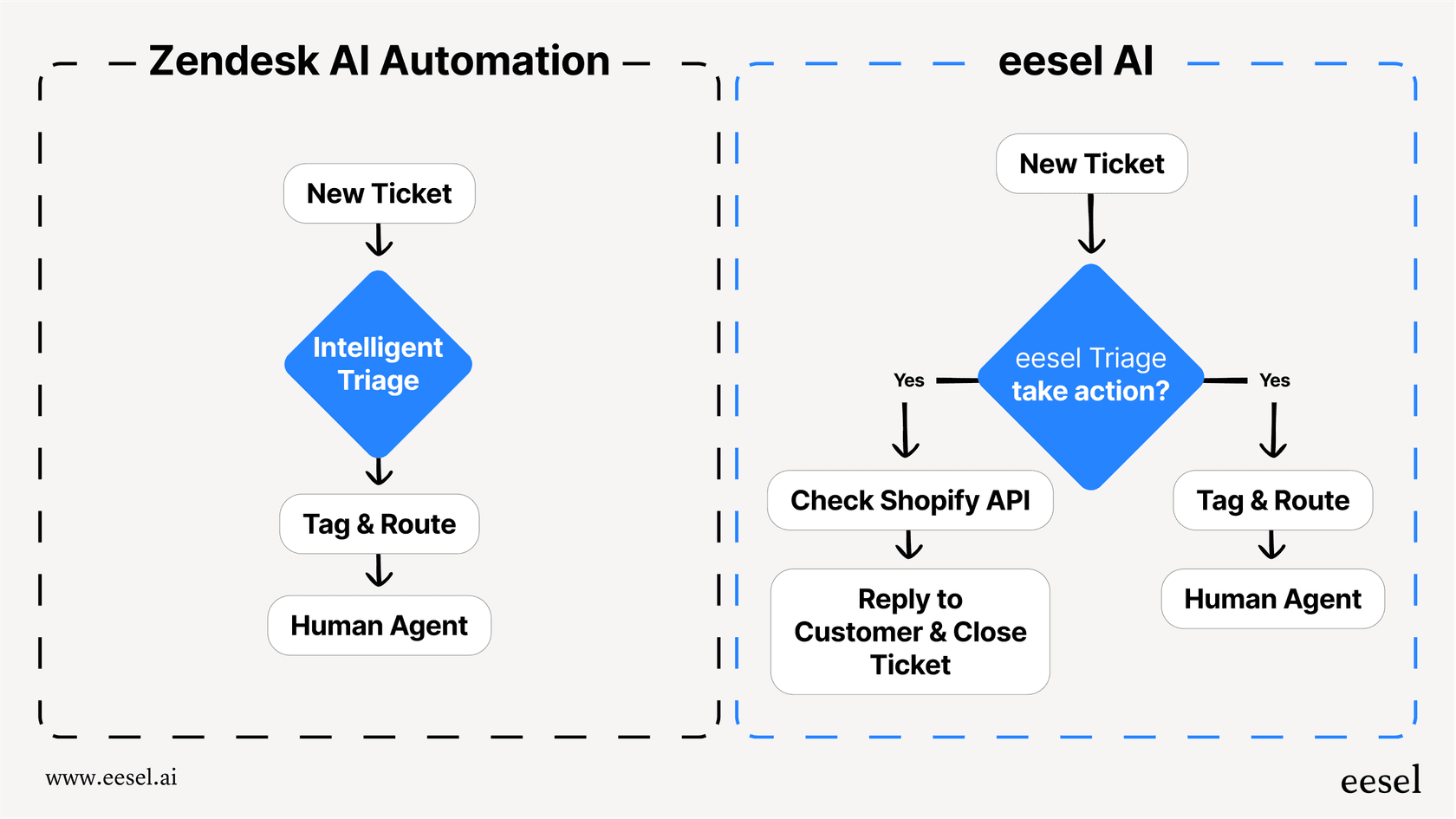
Here is how we complement Zendesk's native features:
-
Natural language rules instead of rigid configurations. Define rules like "add the enterprise account manager for tickets from organizations with over 500 employees" in plain English.
-
AI-powered routing based on ticket content. Our AI Triage reads ticket content to understand context, not just match field values. This means you can route based on sentiment, urgency signals, or complex combinations of factors.
-
No-code setup for complex logic. No JSON, Liquid markup, or API tokens required. Business users can create and modify rules without technical help.
-
Built-in error handling. We handle retries, edge cases, and failures automatically.
The privacy benefit is clear. By automating follower assignment intelligently, you reduce the risk of human error in manual CC and follower management. The right people get added to the right tickets automatically, without exposing agent emails or creating visibility gaps.
If you are already using Zendesk macros for follower management and finding they do not scale with your growth, we have a path forward. You can start with our simple setup, test against your historical tickets, and deploy with confidence.
Best practices for admins and agents
Good email privacy is not just about configuration. It is about habits and awareness across your team.
For admins:
- Train agents on the Reply vs Reply All distinction. Make it part of onboarding and refresher training.
- Monitor CC usage. If you see agents being added as CCs regularly, investigate why followers are not being used instead.
- Document your automation rules. Create a simple reference explaining what triggers and macros exist and when to use them.
- Test in sandbox first. Always verify new notification configurations in your Zendesk sandbox before deploying to production.
For agents:
- Use Reply (not Reply All) for private comments. When you want to add an internal note via email, use Reply instead of Reply All. This keeps your comment internal.
- Be protective of confidential information. Followers do not show in email headers, so your conversation might appear more private than it actually is. Convert public comments to internal notes if you do not want information exposed.
- Pay attention to third-party replies. If someone not on the ticket replies to a notification, a warning appears in the ticket interface. You might need to manually add them as a CC.
For end users:
- Use Reply All (instead of Reply) to preserve ticket CCs. When you are the ticket requester, reply to an email notification using Reply All if you want to preserve all the original CC'd end users on the ticket. Replying using Reply will remove all CC'd end users from the ticket.
- Avoid forwarding if possible. If you forward the ticket to a third party and they reply, you might end up with part of a conversation that is not recorded in the ticket unless the agent manually adds the reply.
Quick reference checklist:
- Reply = private comment (internal note)
- Reply All = public comment
- CCs = visible to everyone, email exposed
- Followers = internal only, hidden from customers
- Internal notes suppress CC notifications
- Third-party replies become private comments automatically
Protect your Zendesk email privacy today
Email privacy in Zendesk comes down to understanding a few key behaviors and configuring your account to match your team's needs. The risks are real: accidental public comments, exposed agent emails, and unintended information disclosure. But they are manageable with the right setup.
Here is what to do next:
-
Audit your current trigger configuration. Are the default CC notification triggers still active and appropriate for your workflow?
-
Review your follower usage. Are agents being added as CCs when they should be followers?
-
Check your privacy settings. Is "Make email comments from CCed end users public" enabled when it shouldn't be?
-
Train your team. Make sure everyone understands Reply vs Reply All and when to use CCs versus followers.
-
Document your setup. Create a reference guide so new team members can get up to speed quickly.
If you find yourself creating dozens of macros to handle different routing scenarios, or if you need dynamic follower assignment that Zendesk cannot provide natively, try eesel AI. We will handle the complexity of intelligent follower routing so you can focus on delivering better customer experiences while keeping sensitive conversations private.