
Managing tickets with attachments is a common challenge for support teams. Whether it's a customer sending a screenshot of an error, a receipt for a refund request, or a log file for technical troubleshooting, attachments often signal that a ticket needs special handling. That's where Zendesk's trigger condition attachment present comes in.
This guide walks you through everything you need to know about using this condition to automate your support workflows. You'll learn how it works, how to set it up, and what to do when the native functionality doesn't quite meet your needs. We'll also look at how modern AI tools like eesel AI can handle attachment-based routing more intelligently. If you're exploring AI options for Zendesk, check out our guide to the best AI chatbots for Zendesk.
Understanding Zendesk's attachment trigger condition
The "Ticket > Attachment" condition in Zendesk triggers lets you detect when a ticket contains attachments and take automated actions based on that information. It's a straightforward concept, but the implementation has some nuances that are worth understanding before you start building workflows.
What the attachment condition does
When you add the "Ticket > Attachment" condition to a trigger, you're telling Zendesk to check whether the ticket update that caused the trigger to run includes any attachments. According to Zendesk's trigger conditions documentation, the condition supports several operators:
- Is present - fires when the update contains one or more attachments
- Is not present - fires when the update has no attachments
- Is / Is not - can be used with specific attachment-related values depending on your Zendesk configuration
Both appended files and inline attachments count toward this condition, with one exception: inline attachments added through macros are excluded. This matters if your team uses macros to standardize responses that include images or other files.
Key limitations to know
Before you build your automation, you'll want to understand how Zendesk evaluates attachments. The most important thing to remember is that attachments are properties of comments, not tickets themselves. This means:
- The condition only evaluates attachments that arrive with a comment in the same update
- A ticket that already has attachments from previous comments won't trigger the condition on subsequent updates unless a new attachment arrives
- The condition won't fire if there's no comment accompanying the attachment
Here's a practical example. Let's say a customer creates a ticket with an attachment in the initial message. Your trigger with "Ticket > Attachment is present" fires and adds a tag. Later, an agent updates the ticket status without adding a comment or attachment. If you have another trigger looking for "Attachment is not present," it won't fire on that agent update because the ticket technically still has attachments from the original comment.
This behavior trips up a lot of administrators who expect the condition to check the ticket's total attachment history. It doesn't. It only checks what's happening in the specific update that caused the trigger to run.
Setting up a trigger with the Zendesk trigger condition attachment present
Now let's walk through the actual setup process. These steps assume you have administrator access to your Zendesk instance.
Step 1: Access the triggers settings
Navigate to the Admin Center by clicking the gear icon in your Zendesk sidebar. From there, go to Objects and rules > Business rules > Triggers. This opens the triggers management page where you can view existing triggers or create new ones.
Step 2: Create a new trigger
Click the Add trigger button in the top right corner. Give your trigger a descriptive name that makes its purpose clear to other administrators. Something like "Tag tickets with attachments" or "Route attachment tickets to Tier 2" works well. Avoid vague names like "Trigger 1" that won't make sense to anyone else (or to you in six months).
Step 3: Configure attachment conditions
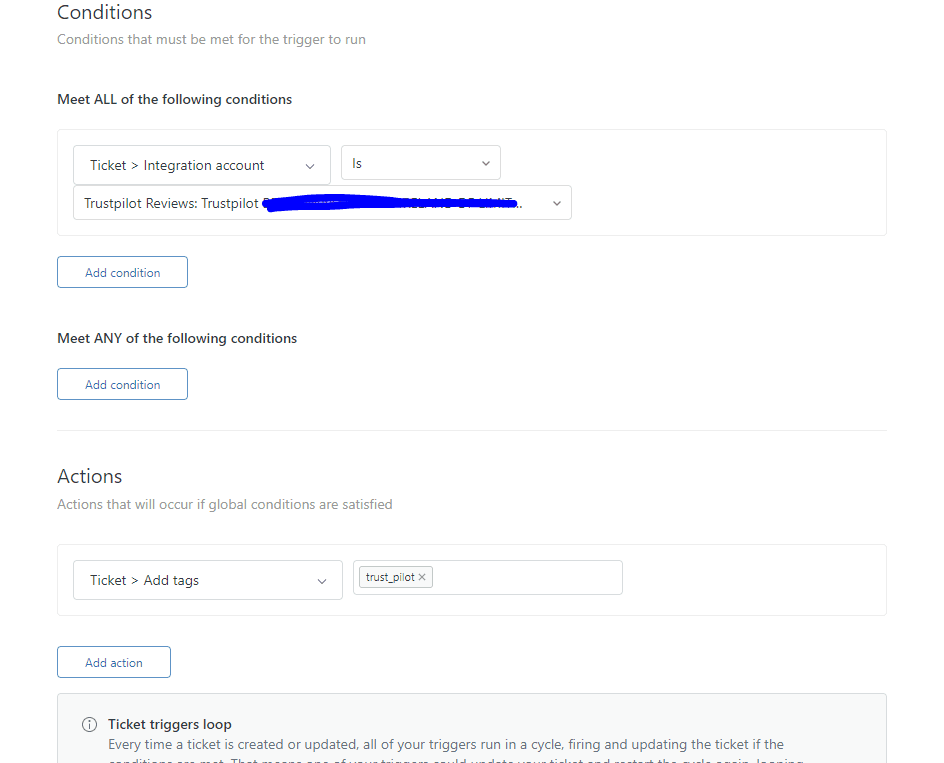
In the Meet ALL of the following conditions section, click Add condition. From the first dropdown, select Ticket. From the second dropdown, select Attachment. From the third dropdown, choose your operator:
- Select Is present if you want the trigger to fire when attachments are included
- Select Is not present if you want the trigger to fire when no attachments are included
You'll typically want to add at least one more condition to narrow down when this trigger runs. The most common pairing is Ticket > Is > Created so your trigger only evaluates new tickets, not every update to existing tickets.

Step 4: Set up trigger actions
Now define what happens when your conditions are met. Common actions for attachment triggers include:
- Add tags - Apply a tag like "has_attachment" or "screenshot_attached" for routing and reporting
- Set group or assignee - Route tickets with attachments to a specific team or agent
- Notify target - Send a webhook or email notification to an external system
- Set priority - Bump the priority level for tickets containing visual evidence or documentation
For most use cases, adding a tag is the best first action. Tags give you flexibility to route through other triggers, create views, and generate reports without locking you into a specific assignee or group.
Step 5: Test and activate
Before activating your trigger, test it with a few sample tickets. Create tickets with and without attachments to verify the trigger fires when expected. Check that your actions are working correctly (tags are applied, notifications are sent, and so on).
Once you're confident everything works, click Create to activate the trigger. Monitor your tickets for the first few days to catch any unexpected behavior.
Common use cases for attachment triggers
The attachment condition opens up several practical automation opportunities. Here are the most common ways support teams use it. For more Zendesk automation ideas, read our guide on how to use AI to classify or tag support tickets.
Routing tickets with attachments to specialized teams
Different types of attachments often require different expertise. A ticket with a .log file probably needs your technical support team, while a receipt attachment should go to billing. You can build trigger logic that checks for both attachment presence and ticket category to route appropriately.
Some teams create separate triggers for different attachment types by combining the attachment condition with comment text conditions that check file extensions. While not perfect, this approach can catch most routing scenarios.
Flagging tickets for security review
If your organization handles sensitive data, you might want to review all tickets with attachments before they're processed. A trigger can automatically add a "security_review" tag and route these tickets to a compliance queue.
This is particularly useful for industries with strict data handling requirements. The flag ensures attachments get proper scrutiny before agents access them.
Prioritizing visual evidence tickets
Tickets with screenshots or photos often represent urgent issues that customers can demonstrate visually. These might deserve higher priority than general inquiries. A trigger can automatically set priority to High or Urgent when attachments are present, ensuring faster response times.
Preventing external forwarding
Some teams use the attachment condition to prevent tickets with attachments from being forwarded to external systems or partners. This protects sensitive customer data from leaving your controlled environment. The trigger can check for attachment presence and route to internal-only targets.
Workarounds when native conditions aren't enough
The native attachment condition works for basic scenarios, but it has limitations. When you need more sophisticated attachment handling, you have a few options.
Using Liquid markup and API
For more complex logic, you can use Zendesk's API with Liquid markup in webhook targets. This approach lets you check the actual number of attachments or examine attachment properties that triggers can't access directly.
The basic concept involves creating an HTTP target that calls the Zendesk API with a JSON payload containing Liquid code. The Liquid checks comment.attachments.size to determine attachment count, then your external system can take action based on that data.
This workaround requires technical expertise and ongoing maintenance. It's powerful but adds complexity that many teams prefer to avoid.
Third-party automation tools
Several Zendesk app marketplace vendors offer attachment-focused automation:
- Knots provides an OCR Reader that extracts text from PDFs and images, making attachment content searchable and usable in automation
- SnapCall offers media analysis for tickets with image and video attachments, automatically categorizing content
These tools fill gaps in native functionality but add cost and another system to manage. They're worth considering if attachment processing is central to what you do.
eesel AI for intelligent attachment handling
An alternative approach is using AI to handle tickets more intelligently, including those with attachments. eesel AI integrates directly with Zendesk and can analyze ticket content holistically, including attachments. For a broader look at AI-powered support, see our overview of AI for customer service.

Instead of building complex trigger logic, you can use eesel AI's triage capabilities to automatically categorize and route tickets based on their full context. The AI reads attachments alongside ticket text to understand what the customer needs and route accordingly.
This eliminates the need for workarounds, API scripting, or third-party apps. You get intelligent routing without the technical overhead or maintenance burden.
Troubleshooting common issues
Even with proper setup, attachment triggers sometimes behave unexpectedly. Here's how to diagnose and fix the most common problems.
Trigger not firing on attachments
If your trigger isn't firing when you expect it to, check these items:
- Is a comment present? Remember, the attachment condition requires a comment in the same update. If an attachment arrives without a comment text, the trigger won't fire. Also verify your condition logic (ALL vs ANY) and that no earlier trigger is intercepting the ticket.
- ALL vs ANY logic - Verify you're using the right condition grouping. "Meet ALL" requires every condition to be true, while "Meet ANY" fires if any condition is true.
- Trigger position - Zendesk evaluates triggers in order. If an earlier trigger modifies the ticket in a way that affects your conditions, your trigger might not fire as expected.
False positives or missed attachments
Understanding the difference between inline and appended attachments helps explain some confusing behavior. Inline attachments embedded in rich text might not trigger the condition the same way as explicitly appended files. Similarly, attachments added through macros are excluded from evaluation.
If you're seeing inconsistent results, test with different attachment methods (drag-and-drop vs. inline paste vs. macro) to identify the pattern.
Performance considerations
Triggers with attachment conditions can impact Zendesk performance if overused. Each trigger evaluation consumes resources, and attachment checking involves additional processing. If you have dozens of attachment triggers firing on every ticket update, you might notice slower response times.
Best practices include:
- Limiting attachment triggers to ticket creation when possible
- Combining conditions to prevent unnecessary evaluations
- Regularly auditing and deactivating unused triggers
Best practices for attachment-based automation
To get the most from your attachment triggers, follow these recommendations:
Combine attachment conditions with other criteria for precision. A trigger that fires on every ticket with an attachment might be too broad. Add conditions for specific ticket categories, requester types, or keywords to target the automation where it matters most.
Use consistent tagging conventions across your triggers. If one trigger uses "has_attachment" and another uses "attachment_present," you'll create confusion when building views and reports. Document your naming standards and stick to them.
Document your trigger logic for team reference. When multiple administrators work on triggers, it's easy to lose track of what each one does. A simple shared document explaining trigger purposes and dependencies saves time during troubleshooting.
Regularly audit and clean up attachment triggers. Over time, business needs change and triggers become obsolete. Quarterly reviews help you identify triggers that can be deactivated or consolidated.
Consider AI alternatives for complex workflows. If you find yourself building elaborate trigger chains to handle attachment routing, it might be time to look at AI-powered solutions that can understand ticket context more holistically.
Start automating your Zendesk attachment workflows today
Zendesk's trigger condition attachment present gives you a solid foundation for automating ticket handling based on file attachments. While it has limitations, understanding how it works lets you build effective workflows for routing, tagging, and prioritizing tickets.
For basic use cases, native triggers work well. When you need more sophisticated attachment handling, you have options ranging from API workarounds to third-party apps to AI-powered alternatives.
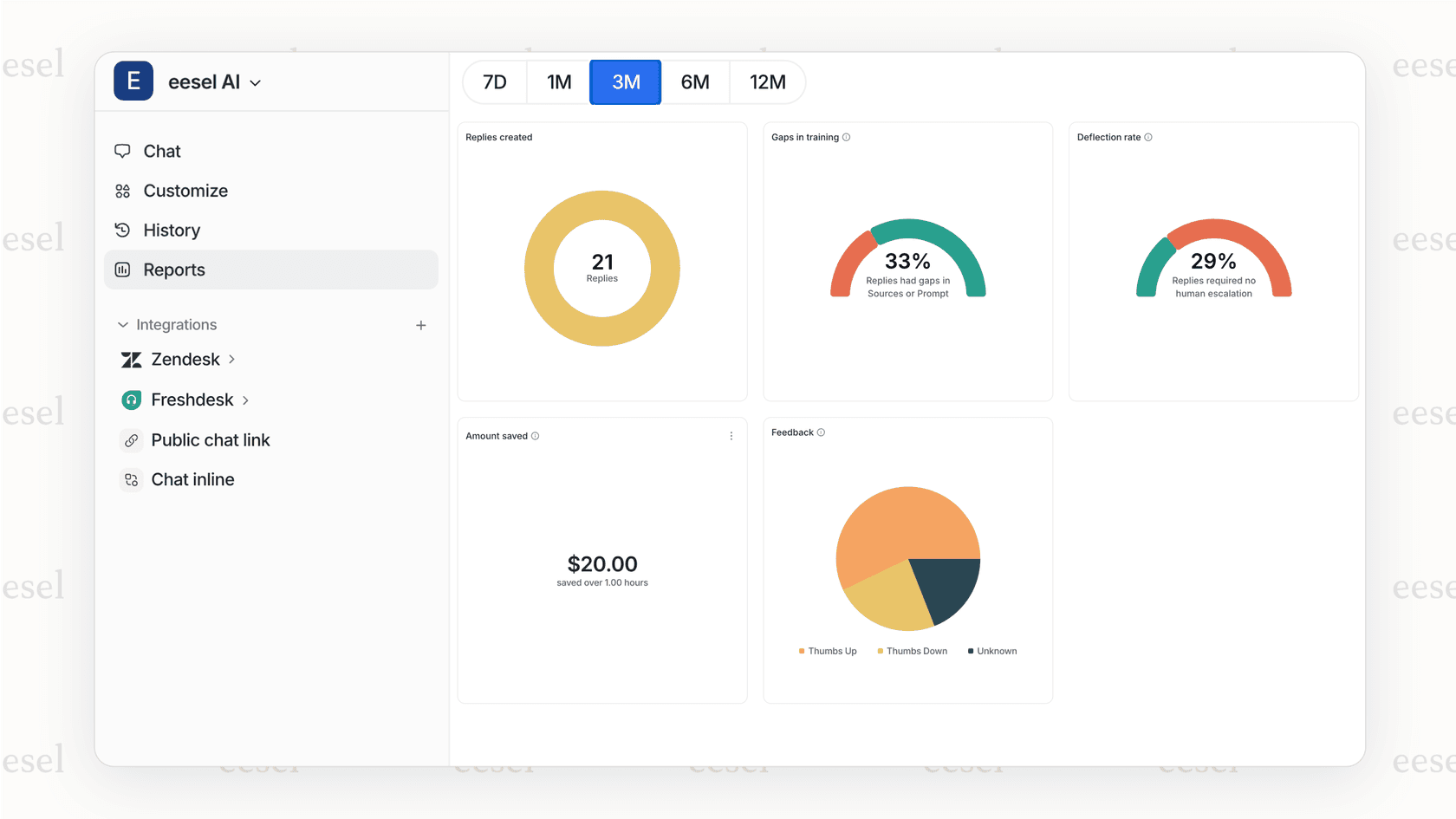
If you're spending too much time managing complex trigger logic or finding gaps in what native automation can do, consider exploring how eesel AI can simplify your ticket handling. Our pricing scales with your usage, and you can start with a small pilot to see how AI automation compares to rule-based triggers.


