

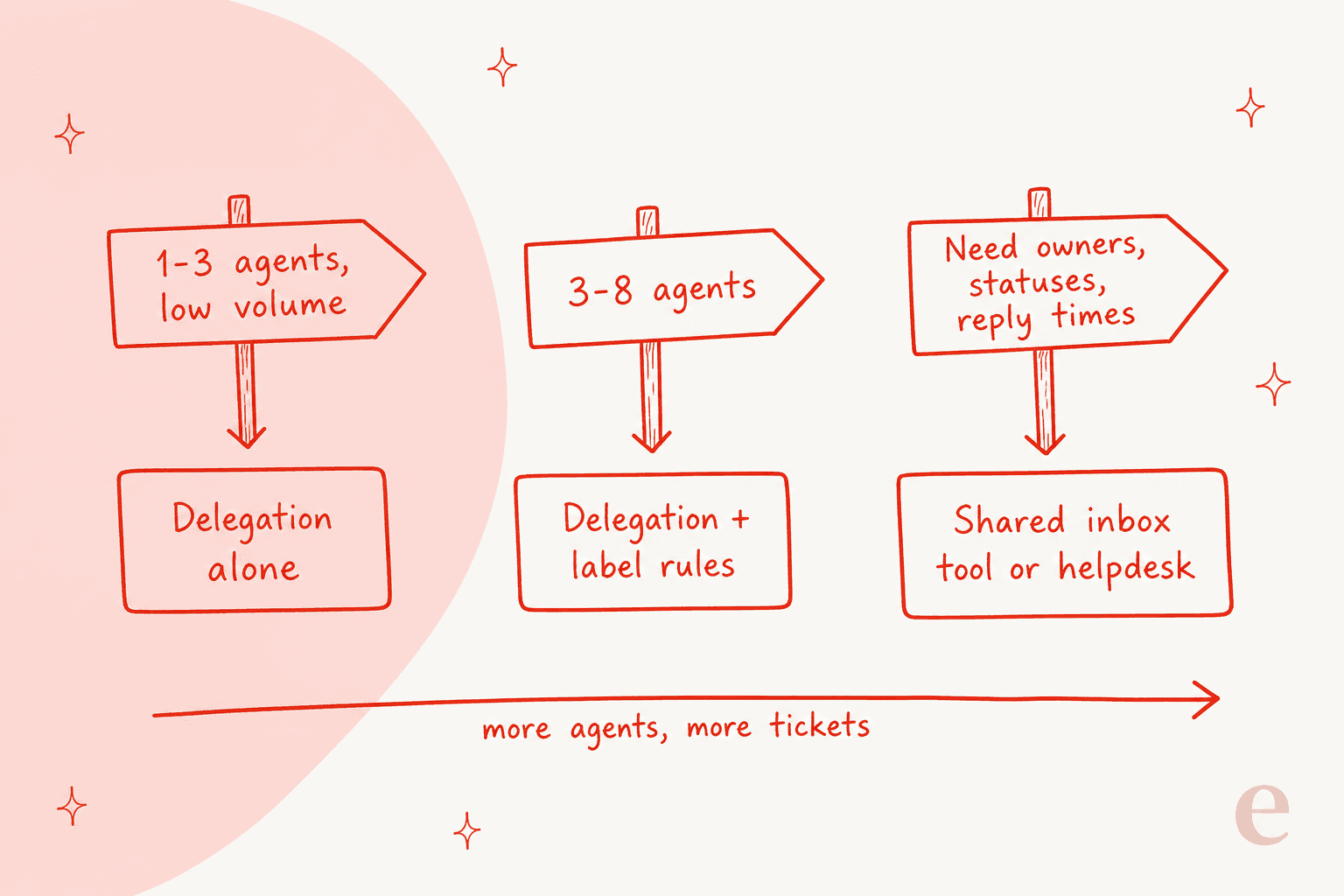
Gmail delegation works for a support team of about two or three people. One person owns a mailbox like support@, adds teammates as delegates, and everyone replies from that address. Workspace accounts allow up to 1,000 delegates, but Google says only about 40 can use the mailbox at once, and every reply counts toward one shared 2,000-a-day send limit. The real gap is that delegation gives everyone access and nobody ownership: no assignee, no "someone is replying" warning, no reply-time report.
Use label rules until that hurts, then move to a shared inbox tool. For routine questions, eesel can draft replies in the shared mailbox for a person to send, and its CLI lets a coding agent set that up and test it first.
How does Gmail delegation work for a support team?
Gmail delegation lets the owner of one Google account give other people in the same organization access to its inbox. Per Google's delegation help page, a delegate "can read, send, and delete emails" in that account. When a delegate sends a message, their own address shows up next to the mailbox's.
For a support team, the setup usually looks like this. You have one address customers write to, say support@yourcompany.com, which is a normal Google Workspace account. You add each agent as a delegate. Each agent then opens the support inbox from the account switcher in their own Gmail, in a separate tab, and replies from there. Google's own guide for technical support teams suggests exactly this: add support staff as delegates "so they can monitor and reply to incoming questions."
I build integrations at eesel, and I spend a lot of time inside other people's support setups. Email is where most small teams start. In a March 2026 sales call with a founder who ran several young companies straight out of Gmail, eesel's cofounder Amogh came away convinced that email is the world's biggest helpdesk, and that eesel had to support it properly. Most of those Gmail teams share their support address through delegation, because it's free and already built in.
A few facts from Google's docs that shape everything below:
- Work and personal accounts differ. A personal @gmail.com account can add up to
10delegates. A work or school account can add up to1,000. - Delegates must be in your organization. On Workspace you can only add people or groups from the same organization, per the admin help page.
- Aliases can't be delegated. An alternate address or alias isn't a Google Account, so you can't add delegates to it. The support address has to be a real account.
- Delegates manage email only. They can't change the password, use Chat as the account, or open the account's Google settings.
The key word is share. Delegation hands everyone a key to the same room. It doesn't tell anyone which email is theirs.
How do you set up Gmail delegation for a support inbox?
There are two parts: an admin switches delegation on for the organization, and then someone adds the agents to the support mailbox. Budget a day, because Google says both the admin change and new delegate access can take up to 24 hours to apply.
Step 1: Turn on mail delegation as an admin
In the Google Admin console, go to Apps > Google Workspace > Gmail > User settings > Mail delegation, per Google's admin steps. You need the Gmail Settings admin privilege. Then:
- Check Let users delegate access to their mailbox to other users in the domain. You can apply it to the whole organization or only to one organizational unit, like your support team.
- Pick the default sender information. Show the account owner and the delegate who sent the email puts both addresses on the message. Show the account owner only hides the agent.
- Optionally check Allow users to customize this setting so the support mailbox can choose for itself.
- Optionally check Allow users to grant their mailbox access to a Google group. This lets you add a whole group, like
support-team@, as one delegate. - Click Save.
The group option has a catch that trips people up. It must be turned on for the organizational unit of the support mailbox and for the unit of every group member. Anyone whose unit doesn't have it can't open the inbox, even though they're in the group.
Step 2: Create or pick the support mailbox
If you don't have a support account yet, Google's shared inbox page walks an admin through it: in the Admin console, under Users, click Set up a shared email address, enter the address, and add the people who need access. Google lists this for Business Starter, Business Standard and Business Plus. You can also convert an existing account, which is handy if support@ has been one person's login until now.
Step 3: Add each agent as a delegate
From the support mailbox itself, on a computer (you can't do it in the Gmail app):
- Open Settings > See all settings > Accounts (or Accounts and Import).
- Under Grant access to your account, click Add another account.
- Enter the agent's email and click Next Step, then Send email to grant access.
Google asks you to verify your identity before you can add delegates. Each agent gets an invite that expires after a week, so tell them to look for it.
Step 4: Show agents how to open the inbox
Once an agent accepts, they click their profile picture in Gmail and pick the account marked Delegated. It opens in a new tab. Google's tip here saves a lot of "it stopped working" messages: don't bookmark the delegated inbox, because the link can change. Use the account switcher every time.
If you manage dozens of mailboxes, a developer can do steps 3 and 4 in bulk with the Gmail API's delegates resource. That route needs a service account with domain-wide authority, and it skips the email invite: delegates created through the API are accepted straight away.
What are the limits of Gmail delegation?
The headline number, 1,000 delegates, is rarely the one you hit. The two that matter for support are the concurrent-use limit and the shared sending limit.
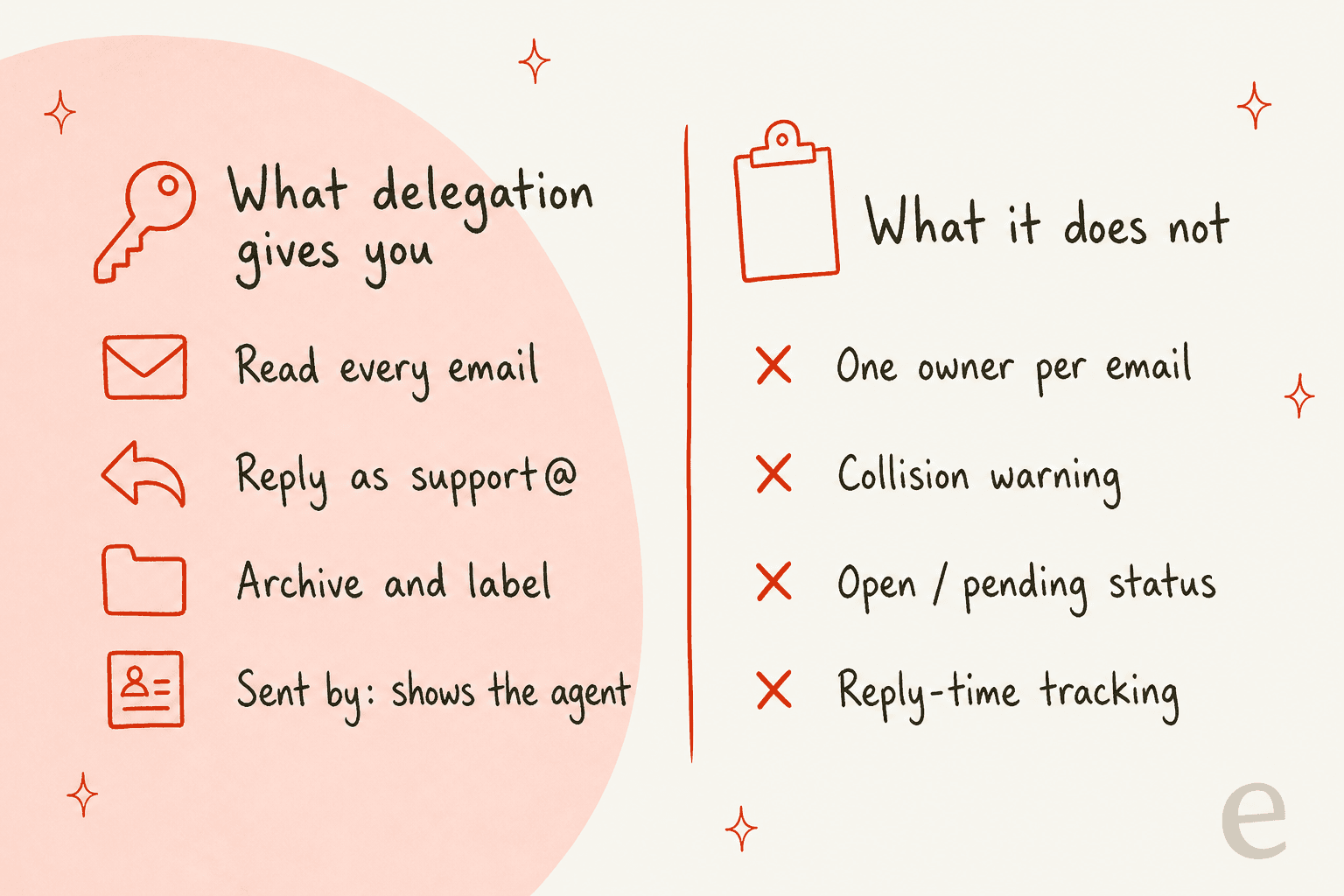
| Limit | Number | Where it comes from |
|---|---|---|
| Delegates on a personal @gmail.com account | 10 | Gmail help |
| Delegates on a work or school account | 1,000 (a group counts as one) | Admin help |
| Delegates per user, as stated in the API guide | 25 | Gmail API guide |
| Delegates using the mailbox at the same time | About 40 with typical use | Gmail and admin help |
| Messages sent per day by the whole mailbox | 2,000 (500 on a trial) | Gmail sending limits |
| Unique recipients per day | 3,000, of which 2,000 external | Gmail sending limits |
| Time for a new delegate to get access | Up to 24 hours | Gmail help |
| Invite expiry | 1 week | Gmail help |
Two of these deserve a closer look.
About 40 at once, and fewer if you add tools. Google says above-average use by a delegate can lower the number, and so can "automated processes that frequently access Gmail," which it defines as APIs or browser extensions. So every add-on that polls the inbox (a CRM sync, a reporting tool, an AI assistant) eats into the same capacity your agents use. Google also warns that when many people sign in to one account from different places, Gmail might temporarily lock the account down. For a support inbox, a lockout during a busy morning is the failure you plan around.
One send limit for everyone. Google lists "messages sent by delegated users" among the messages that count toward the account's limit. Delegation "does not increase the limits for a Gmail account." That means five agents don't get five times 2,000 sends a day. They share one budget. If you also send order updates or newsletters from the same address, those come out of it too. Hit the limit and the mailbox can't send new mail for up to 24 hours.
The API guide's 25 is worth knowing if you script delegates. The help center and the API guide state different caps, and I'd plan around the lower number for anything you automate.
What do agents lose when they work in a delegated inbox?
This surprises most teams. Google turns off a set of features for delegates, for security and privacy, and several of them are writing helpers your agents probably rely on in their own inbox. Per Google's list, delegates don't get:
- Gemini in Gmail
- Smart Reply and Smart Compose
- Spelling and grammar checks, autocorrect, and autocomplete
- Adding attachments from Drive, or photos from Google Photos
- Add to Tasks, Chat in Gmail, and Meet in Gmail
- Emoji reactions and client-side encryption
On the Gmail phone apps, delegates also lose notification settings, nudges, conversation summaries and background sync.
So the inbox where your team writes to customers all day is the one place they can't use Gemini's Help me write or a spelling check. A typo in a refund reply to a customer is a small thing. Twenty a week starts to show. Some teams draft in their own inbox and paste across, which works but adds a step to every reply. If your team leans on Gemini for Google Workspace, know that it stops at the delegated tab.
Where does Gmail delegation break for a support team?
Delegation was designed for an assistant managing an executive's email. A support queue is a different job: many people, many conversations, and a customer waiting on each. Here's where the gap shows.
Nobody owns an email. Every delegate sees the same inbox. Gmail has no assignee field, so two agents can open the same complaint and both start typing. Nothing warns the second one. The customer gets two replies, sometimes with different answers.
There's no status. An email is read or unread, archived or not. There's no "waiting on customer" or "pending" state, so the team improvises with stars, labels or a shared spreadsheet. Google's own support guide suggests tracking requests and assignments in a Google Sheet, which tells you the inbox can't do it on its own.
Read status is shared. Because everyone works the same mailbox, one agent opening an email can mark it read for the whole team, depending on the shared inbox's Mark as read setting. On a busy day an email that someone glanced at and left can look handled.
You can't measure the queue. There's no first reply time, no count of open emails, no per-agent numbers. You can't tell whether the queue is getting worse until a customer tells you. If you have reply targets (see my SLA best practices), delegation alone gives you nothing to check them against.
Removing access is a manual job. Only the mailbox side can remove a delegate. Google notes a delegate "can still access the account, even if the account password has expired," so offboarding means deleting the person under Grant access to your account, and resetting a password isn't enough. It also cuts the other way: a person who was added can't easily remove themselves. One Hacker News thread tells the story of a delegate who spent years unable to leave a mailbox:
"multiple chats with Google support reps have indicated that the only way to do this is by contacting the account admin and asking to be removed."

None of this makes delegation a bad choice. For two people answering 20 emails a day, it's free, quick and fine. It just doesn't scale into a queue, and the cracks appear around the third or fourth agent.
How do you run a delegated support inbox without stepping on each other?
If you're staying on plain Gmail for now, a few house rules close most of the gaps. None of them need new software.
- Use labels as owners. Create labels like
Owner/MariaandOwner/Sam. The first rule of the inbox: before you start a reply, label the email with your name. Everyone else skips labelled emails. It's a manual assignee, and it works if everyone sticks to it. - Use labels as statuses. Add
Waiting on customerandEscalated. Archive only when an email is truly done, so the inbox itself is your open queue. - Keep "Sent by" on. Leave the admin default as Show the account owner and the delegate who sent the email. It's your only record of who answered what.
- Set up filters for the obvious stuff. Gmail filters can label billing emails, order questions or anything with "urgent" in it as they arrive, as Google's support guide suggests. Agents then work label by label instead of scrolling one long inbox.
- Keep a reply library. Since delegates don't get Smart Compose, put your common answers in a shared doc or use email templates so replies stay consistent.
- Offboard on the day. Add "remove from support@ delegates" to your leaver checklist.
These rules hold up to roughly a handful of agents. Past that, the labelling discipline usually slips on the busiest days, which is exactly when you need it.
When should a support team move past Gmail delegation?
Move when you need to know who owns an email, what state it's in, or how fast you're replying. Those are the three things delegation can't give you, and no label scheme fully fakes them.
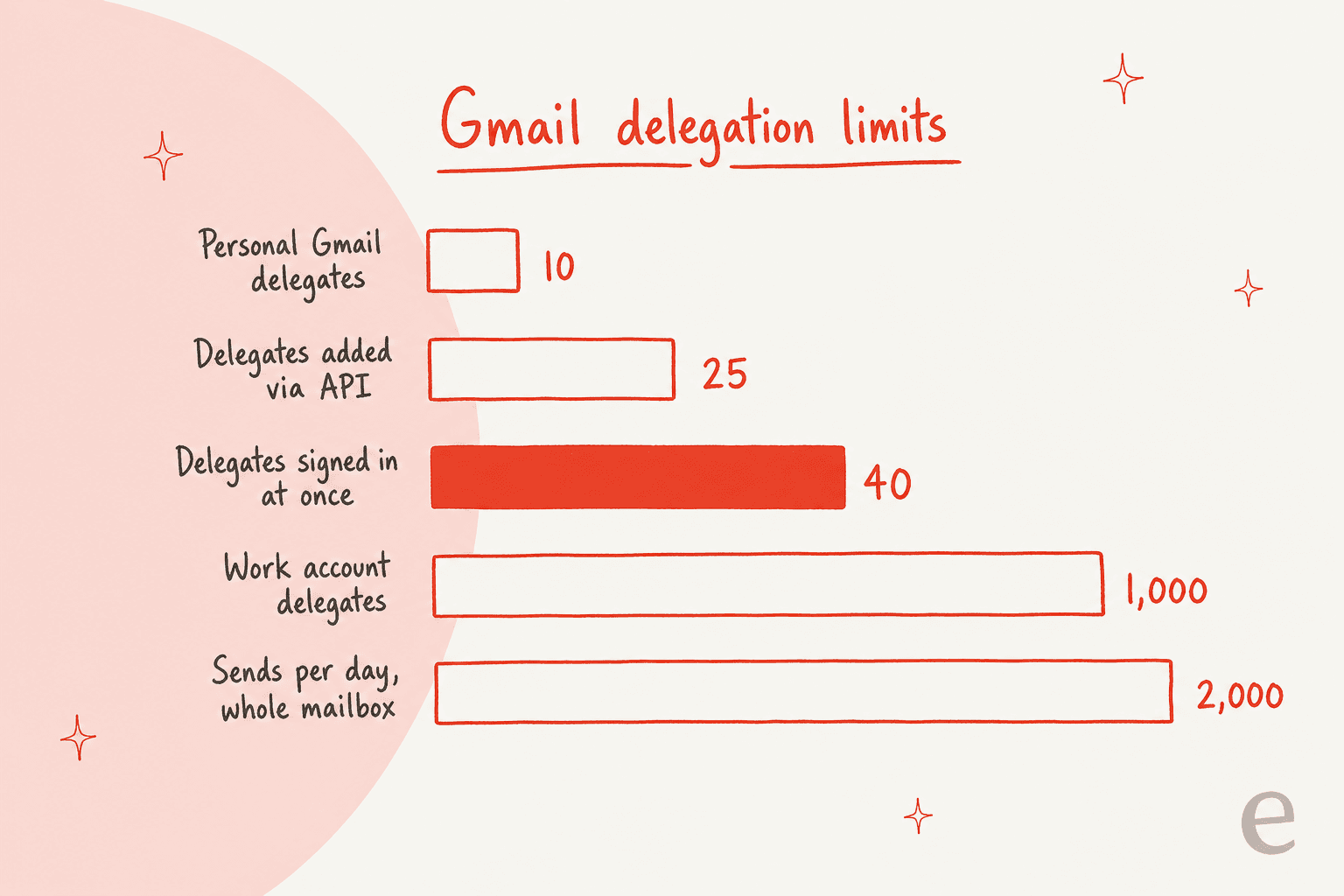
You have three realistic next steps:
| Option | What it adds | Cost | Best for |
|---|---|---|---|
| Gmail delegation + label rules | Shared access, Sent by, manual owners | Included with Workspace | 1-3 agents, low volume |
| Shared inbox tool that runs inside Gmail | Assignees, statuses, collision alerts, SLA reports | Hiver from $25/user/month billed yearly | Teams that want to stay in Gmail |
| Full helpdesk | Ticket queue, automations, reporting, more channels | Per-seat plans (see Zendesk pricing) | Teams adding chat, phone or many channels |
The middle row is the gentlest move. Tools like Hiver add ownership and statuses inside the Gmail screen your team already knows. Hiver's pricing page lists Growth at $25, Pro at $55 and Elite at $85 per user per month billed yearly ($35, $65 and $95 monthly). I break down the plans in my Hiver pricing guide.
If you're comparing tools, start with my Hiver alternatives list. Freshdesk publishes its per-seat prices too, which I cover in Freshdesk pricing.

That screenshot shows the gap in one picture: Unassigned, Mine and Due Soon SLAs are exactly the views plain delegation can't give you. If you're weighing the bigger jump, my shared inbox vs ticketing system post covers when a full queue is worth it, and my shared inbox software roundup compares the field.
Front works a little differently again; my Front shared inbox ownership post explains how its assignment rules behave.
Where does AI fit in a delegated Gmail inbox?
Before you add seats or switch tools, look at what's actually in the inbox. If most of it is the same few questions (where's my order, how do I get a refund, can I change my plan), those are the emails that pile up and cause the double replies, and they're the ones an AI can draft.
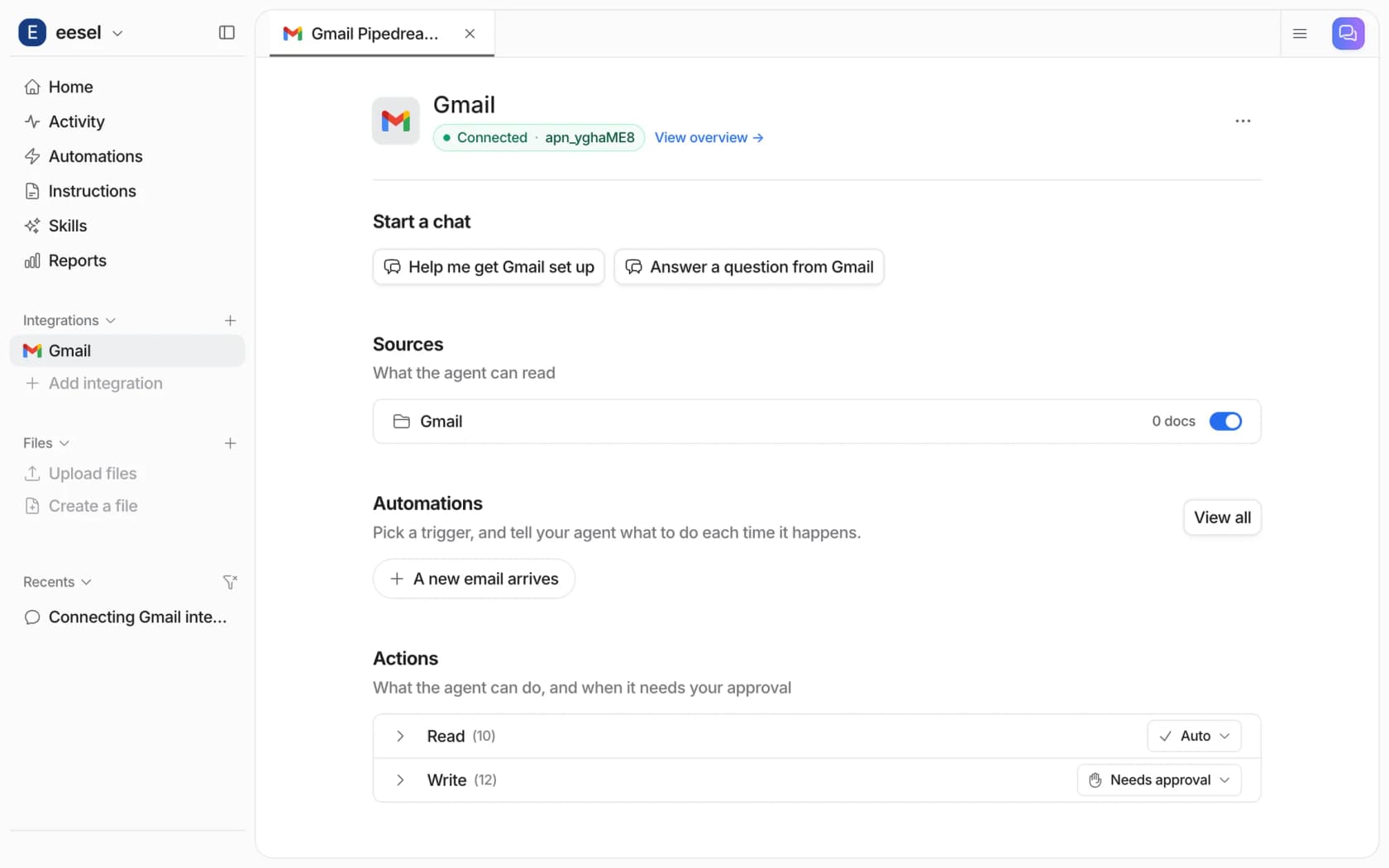
An AI agent connected to the support mailbox can take that load. This is what eesel's Gmail integration does: you connect the shared mailbox with a Google sign-in, and the agent can search mail, read whole threads, draft or send replies, and add labels. It answers from your help center, policies and other connected sources, as well as the email itself.
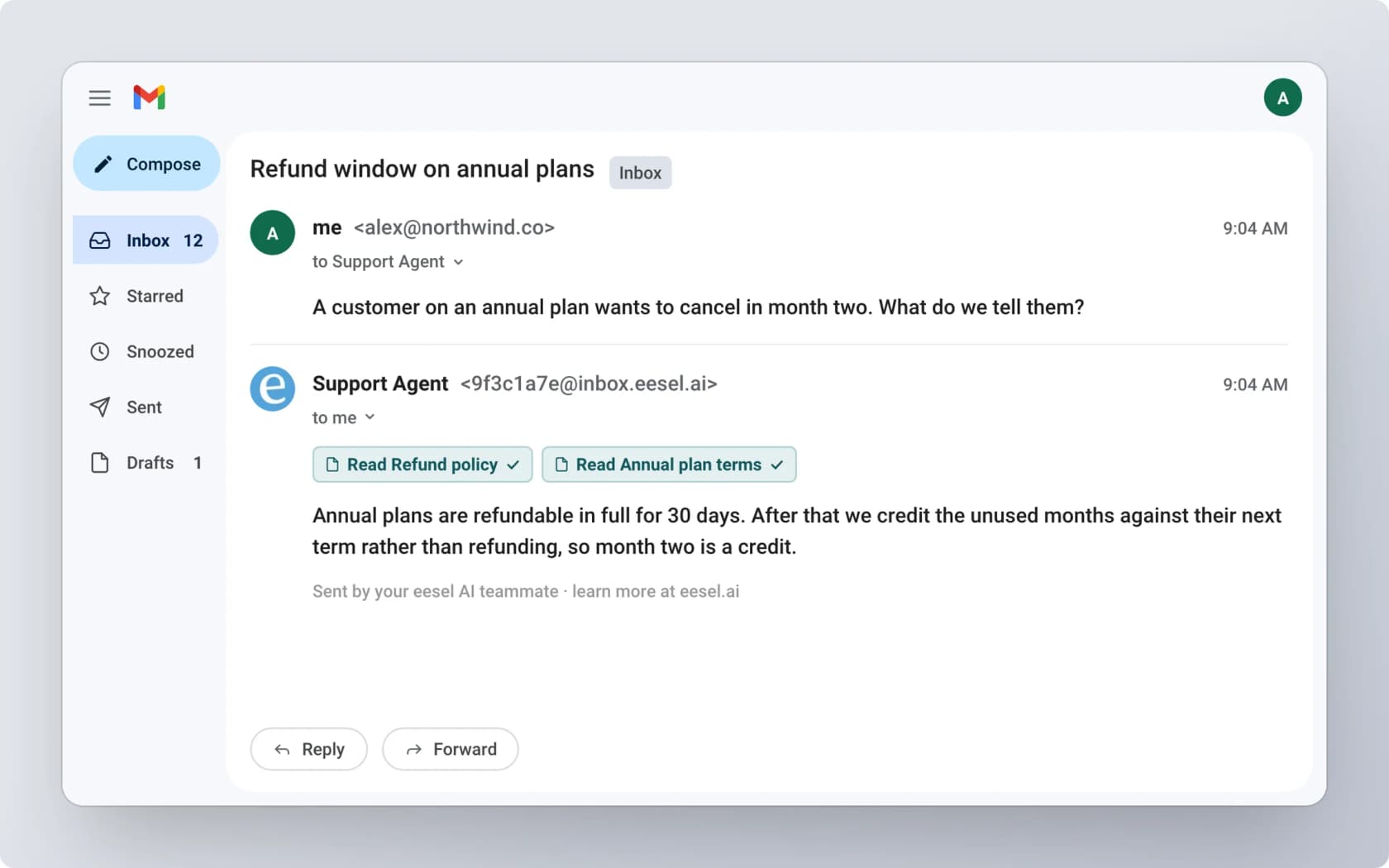
A few things make it fit a delegated inbox in particular:
- It can draft instead of send. Turn on Create Draft and leave Send Email off, and every reply waits in Drafts for an agent to check and send. That keeps a person on every email while removing most of the typing, and it covers the writing help delegates lose.
- Labels become the queue. The New labeled email trigger only fires on labels you pick. So an agent can label an email
AI draft, and the agent picks it up. Or a filter does the labelling, and people never touch the routine ones. - Scope it with search. The New email matching search trigger takes a Gmail query like
label:support -from:me, so it only touches the emails you choose. - It works the mailbox you connect, and only that one. It sends as that account and sees only what that mailbox can see.
Two honest limits. New mail reaches the agent on a polling interval, so replies follow after a short delay rather than instantly. And because it's an automated process reading the mailbox, it's the kind of tool Google says can reduce how many delegates can use the inbox at once. On a team of four that won't matter. On a team pushing toward 40, I'd move to a shared inbox tool or helpdesk anyway.
The draft-first pattern is the same one eesel customers run on helpdesks. STIL Classics, a stationery brand in Vancouver, gets a drafted reply on each ticket after eesel checks the Shopify order, and a person checks it and sends it: 430 draft replies in a month. Koffer.ch, a small Swiss luggage shop, gets drafts in whichever of four languages the customer wrote in, and a person sends every one. Both teams kept their existing setup and added the AI on top.
If a developer or an AI coding agent sets this up, the eesel CLI can run eesel integrations connect gmail_pipedream, which prints the Google sign-in link, then create the automation and test it. The sign-in itself still needs a person with access to the support mailbox to approve it.
For a wider view, see my roundup of AI apps for Gmail. If you want the agent angle specifically, the AI email agent guide goes deeper, and the email ticketing system guide explains what changes when you leave the shared inbox entirely.
Try eesel on your shared Gmail inbox
If your team shares support@ through delegation and keeps tripping over the same five questions, eesel is a teammate for that mailbox. It reads each thread, checks your help docs and policies, and leaves a draft your agents check and send, so the inbox stays in Gmail and a person stays on every reply. Connect it from the Integrations page in a few minutes and try it on your own email first. Try eesel.