
What you can actually set up in Kustomer
Before touching a setting, it helps to know which AI you are configuring, because the menu path and the steps change depending on the product. Kustomer rebranded its AI in 2026 into four named pieces, all sitting on top of its customer-centric data model.
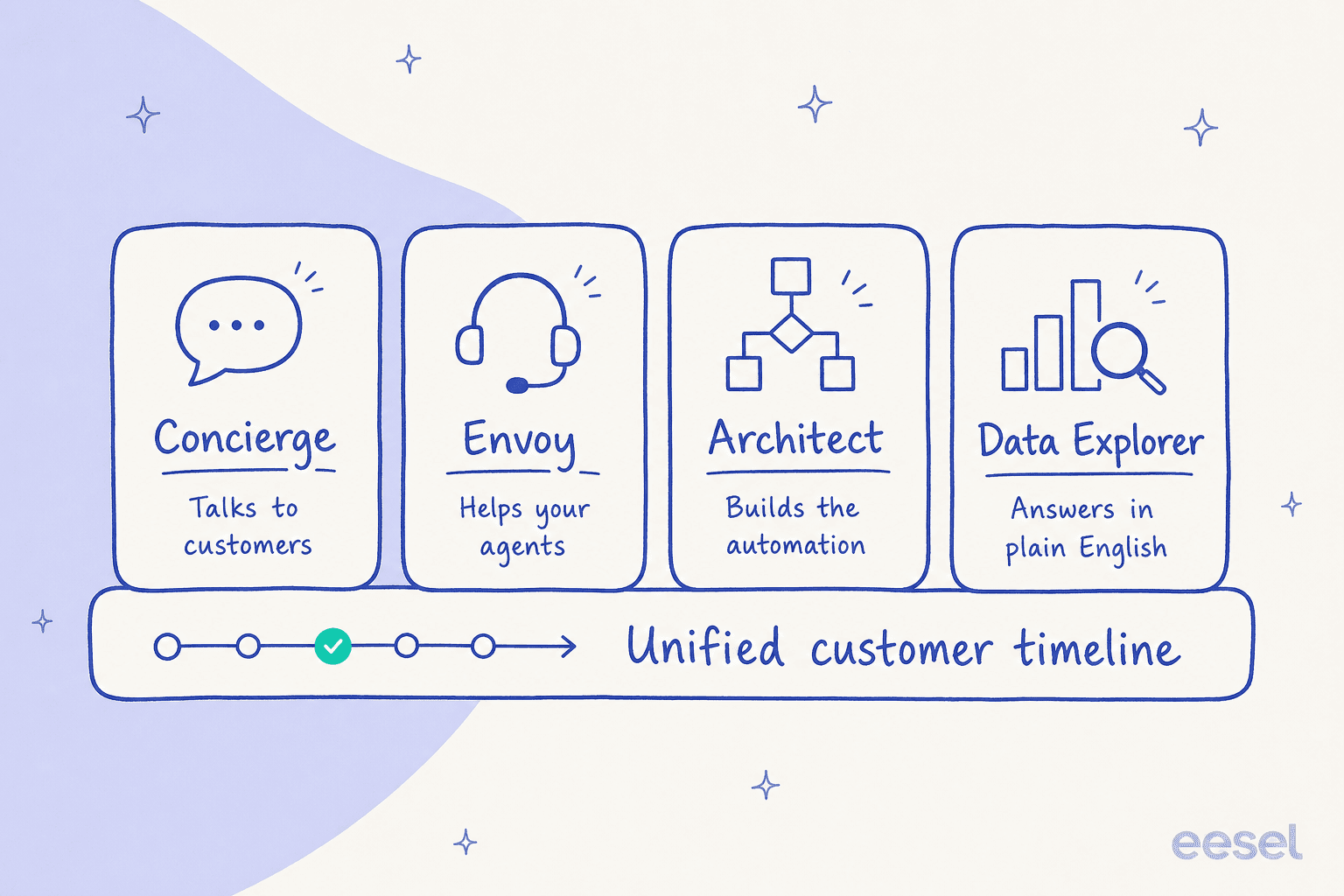
- Concierge is the customer-facing autonomous agent. It is the thing that resolves "where is my order" or "increase my credit line" end to end across chat, email, SMS, WhatsApp, and voice.
- Envoy is the agent-side copilot: suggested replies, surfaced knowledge, auto-summaries. It assists your humans rather than replacing them.
- Architect is the no-code builder, the "AI that builds your AI." You describe what you want and it assembles the automation.
- Data Explorer is conversational analytics: ask a plain-language question, get a chart back.
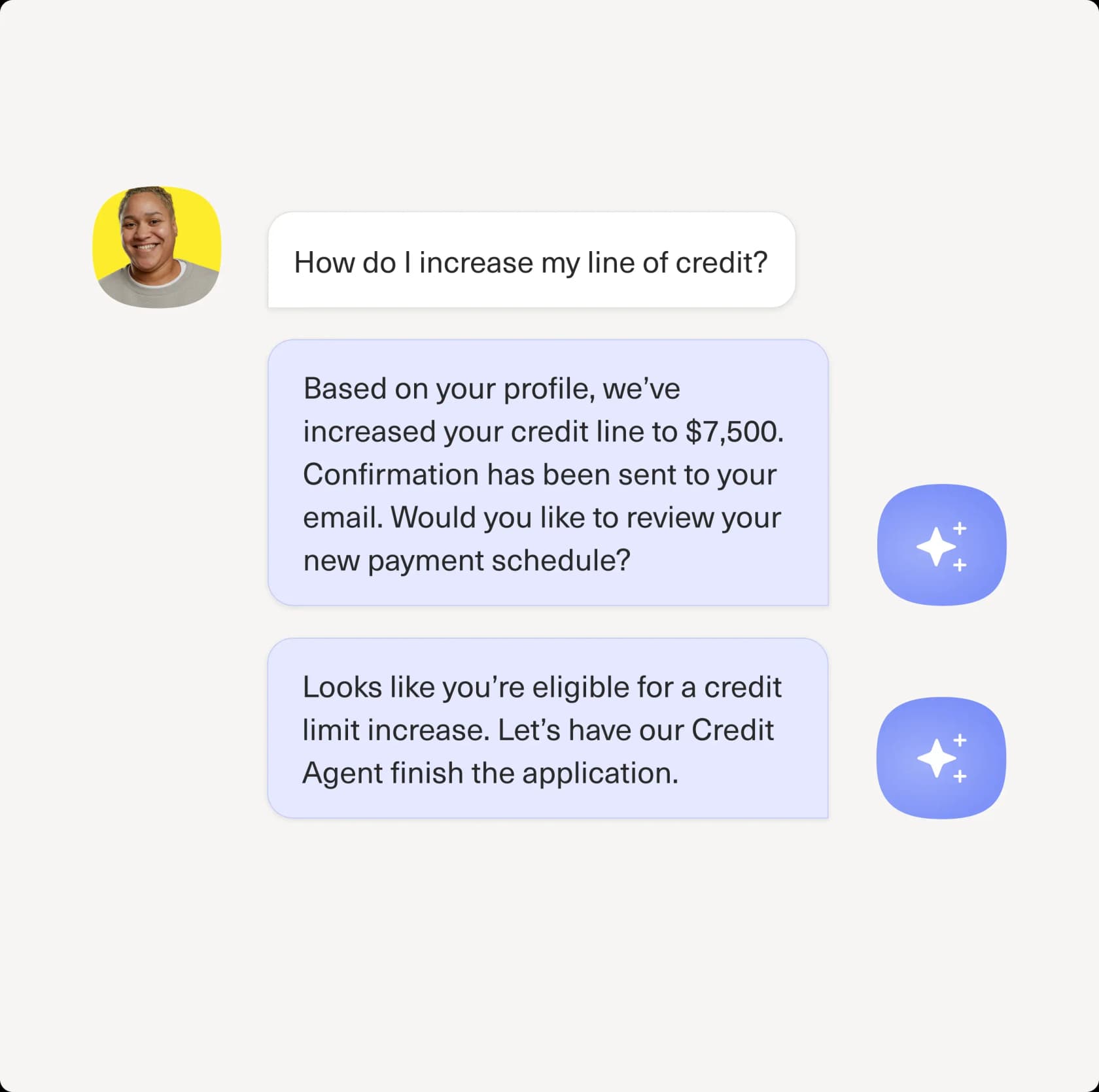
Here is Concierge doing the customer-facing job it is built for, resolving a credit-line request and handing off cleanly when it hits the edge of its remit:
For most teams reading this, "set up AI in Kustomer" means Concierge plus Architect: a customer-facing automation that you build in the no-code builder. So that is what the bulk of this guide walks through. One heads-up: everything below is admin-only. Every AI setup page in Kustomer's docs opens with a line like "Admins can access the AI Agent Studio page."
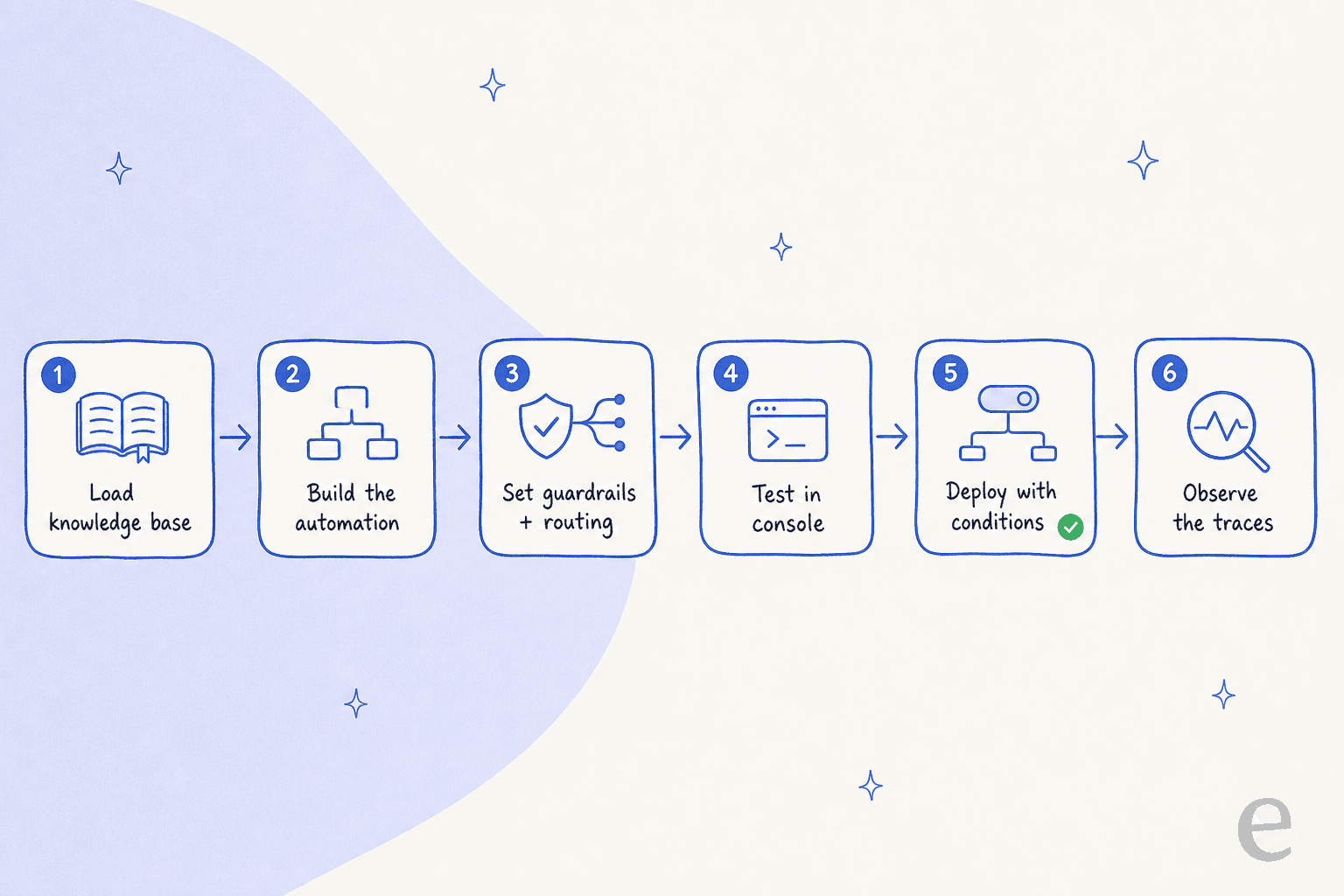
Here is the whole sequence at a glance, so you know what is coming:
Step 1: get your knowledge base ready first
This is the step that decides whether the whole thing works, so do not rush it. Kustomer's Creating AI Automations doc has a short "before you start" list: add the knowledge your agent will reference to your Kustomer knowledge base, and decide the agent's role and tools.
Two details that trip people up:
- AI Agents reference only published, public articles. Drafts, internal notes, and unpublished content are never used. If the answer lives in a draft, the AI cannot see it.
- The agent retrieves on article title and body only. It does not use tags or categories when finding knowledge. So put the actual answer in the title and body, not in metadata.
If you want the AI to pull from public web pages too, create a data source for those URLs. This audience mismatch is a real trap, by the way. One pattern I hear constantly is a knowledge base written for admins while the tickets come from end users, which produces confident-but-confusing answers. Clean knowledge in, useful answers out.
Step 2: build your first AI automation
Once knowledge is in, head to Kustomer AI in the left navigation, which opens the AI Automations screen. You have three ways to build, depending on how much control you want.
The simple single-agent path
For a straightforward customer-facing agent, click Add Automation and, per the Creating AI Automations doc:
- Enter a name and description.
- Give it guidance, which is where the real configuration happens. Guidance covers the knowledge source it can reference, step-by-step procedures it must follow, the tone it speaks in, free-form instructions for edge cases, and guardrails for how it handles competitors or sensitive data.
- Click Save Changes and move to testing.
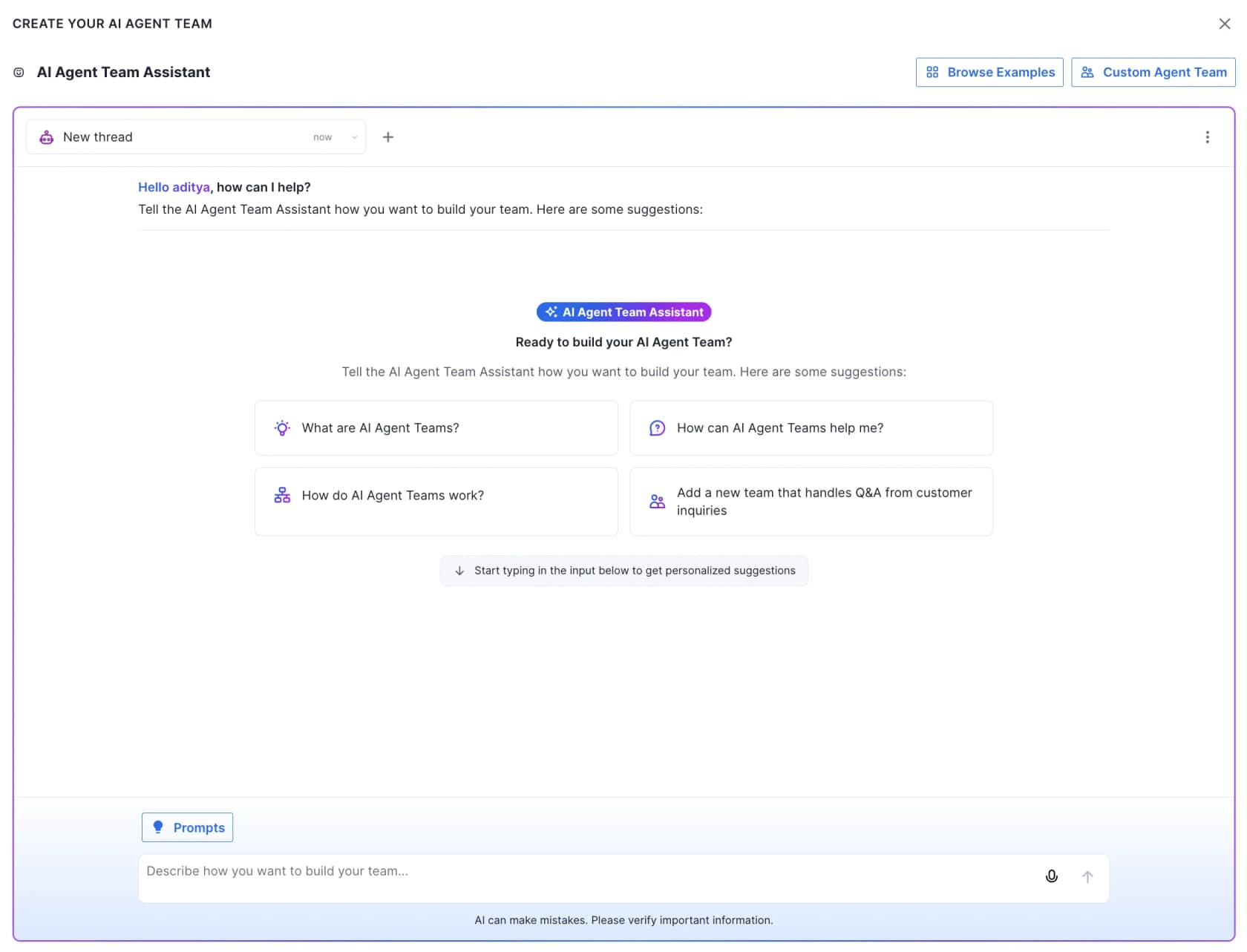
If writing procedures from scratch feels daunting, Architect turns it into a conversation. You describe the goal and it drafts the procedures, selects knowledge sources, and configures the automation for you. Kustomer's team builder shows this conversational approach well:
The multi-agent path (for anything complex)
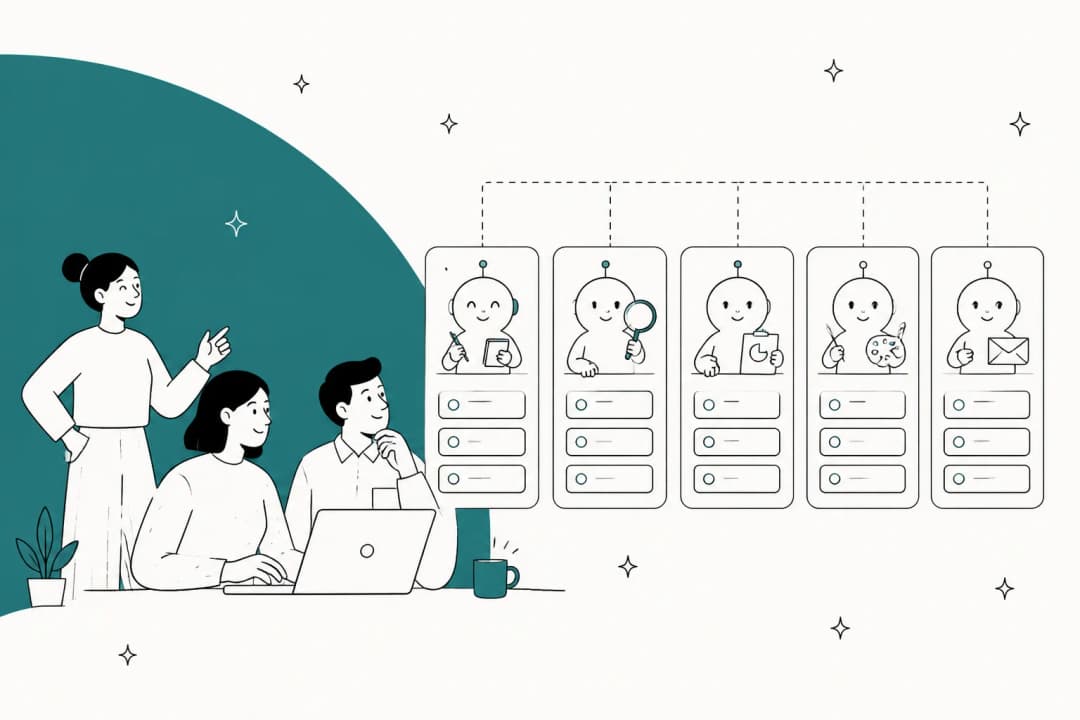
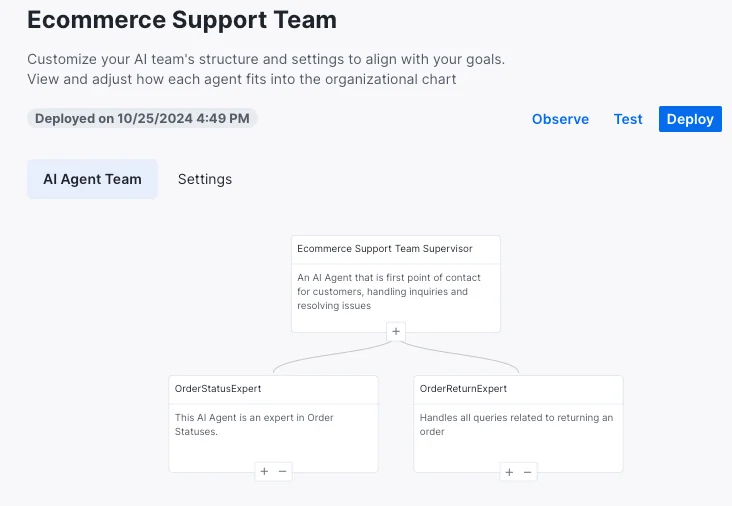
If your support spans several distinct domains, Kustomer recommends multiple specialist agents, not one mega-agent. As their docs put it, "a refund agent should govern refunds while a shipping agent should govern changes to shipping status." Each team gets a Supervisor agent that greets the customer and delegates to specialists behind the scenes:
To unlock custom code, OpenAPI calls, and handoffs between agents, click Multi-agent Mode and then Switch to Multi-agent Mode. One warning worth reading twice, straight from the Multi-agent doc: "Once you've switched an AI automation to multi-agent mode, you are not able to return it to Single-agent mode." So commit to it only when you actually need the extra power. From there you assemble the flow block by block: a Start block for the greeting, plus Triage, Send Message, Tool, and Existing Agent blocks.
Step 3: give the AI tools so it can do more than talk
An agent that can only quote help articles is a glorified search bar. The useful version can look up an order, check loyalty status, or start a return. In Kustomer those actions are tools, managed under Kustomer AI > Tools.
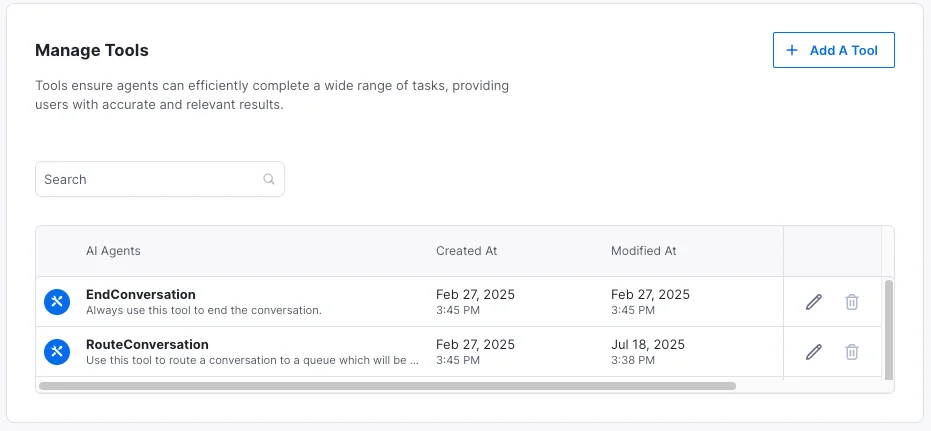
Every org starts with two default tools: EndConversation and RouteConversation. Click Add A Tool to build more, choosing from date/time comparisons, Klass data (your org-specific customer and order data), or OpenAPI to reach external systems. There is also a Shopify search-order tool in beta that connects straight to a storefront.
Here is the gotcha that will waste your afternoon if you miss it: "When you make changes to a tool, the changes do not take effect automatically. You must relaunch your automation for the updated tool to be used." So after editing any tool, go back to your automation settings and relaunch the team. Same goes for assistant changes, which need a republish to apply.
Step 4: set guardrails, routing, and the human handoff
This is the section I would not skimp on, because it is where AI support either earns trust or quietly burns it.
Guardrails are set in the guidance step (or via Architect). Use them to restrict sensitive topics, prevent competitor mentions, and limit disclosure of confidential information. Architect exposes them as competitor guardrails and secrets guardrails.
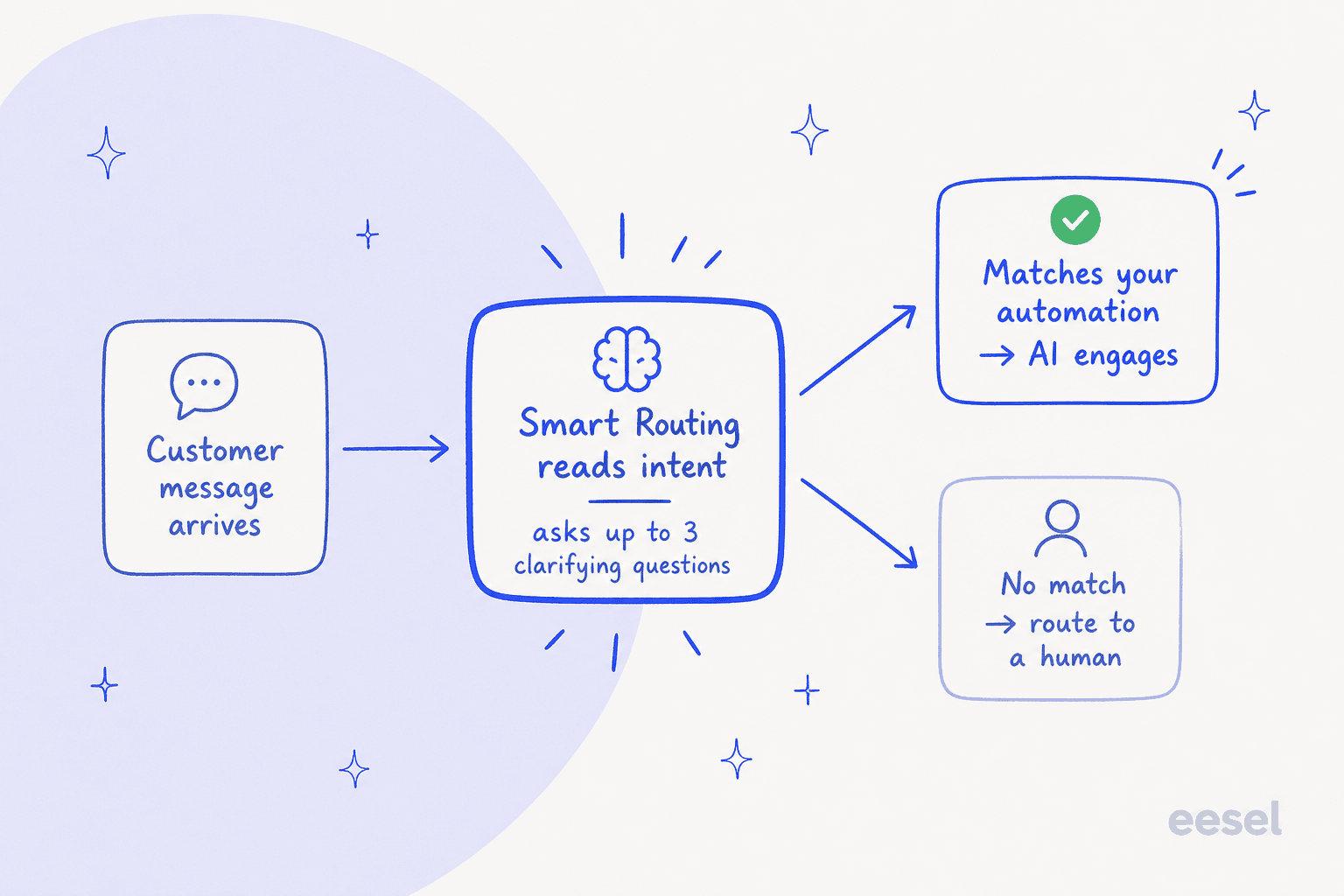
Now the thing worth understanding before you go live: Kustomer 2.0 does not give you a numeric confidence threshold. Instead, Smart Routing reads the customer's intent on each incoming message and only marks the conversation engaged (the billable state) if the intent should be handled by your automation. Anything that does not match is sent to a human. Smart Routing can ask up to three clarifying questions before it decides.
I flag this because the fear behind it is universal. One ops lead at a DTC supplements brand running roughly 7,000 Gorgias tickets a month put it to me plainly: "The AI will never be able to answer 100% of the questions, but if it tries and just answers 'sorry I don't know this,' I cannot go and check all my 7,000 tickets to see if the AI actually made a good answer. I need an AI who is only handling the tickets that it's confident to handle and all the other ones, leave them alone." That instinct is exactly right, and it is why you should pressure-test Kustomer's intent routing hard rather than assume a confidence slider has your back. (The old Conversation Classification feature did expose a 0-100 quality score, but it is deprecated and not available to new customers, so do not build around it.)
For the handoff itself, use RouteConversation rather than EndConversation when you want to transfer instead of close. Kustomer's guidance is to remove the EndConversation tool from agents that should escalate, and to instruct the supervisor not to close a conversation when a routing tool has already run. Watch for one real-world loop: if RouteConversation fires and no human is available, the conversation can bounce back to the AI. The fix is to add a workflow condition in Settings > Platform > Workflows that checks assistant.status does not equal transferred.
Finally, configure AI disclosure so the agent identifies itself as AI at the start of a conversation, set per channel. Getting handoffs and disclosure right is the same discipline behind good agent handoff practices on any platform.
Step 5: test it before a single customer sees it
Editing an agent creates a draft team, a sandbox that is not deployed. Open it, click the Test icon, and you get the Test Console: a fresh test customer and conversation created just for you, where you can pick a channel and start chatting.
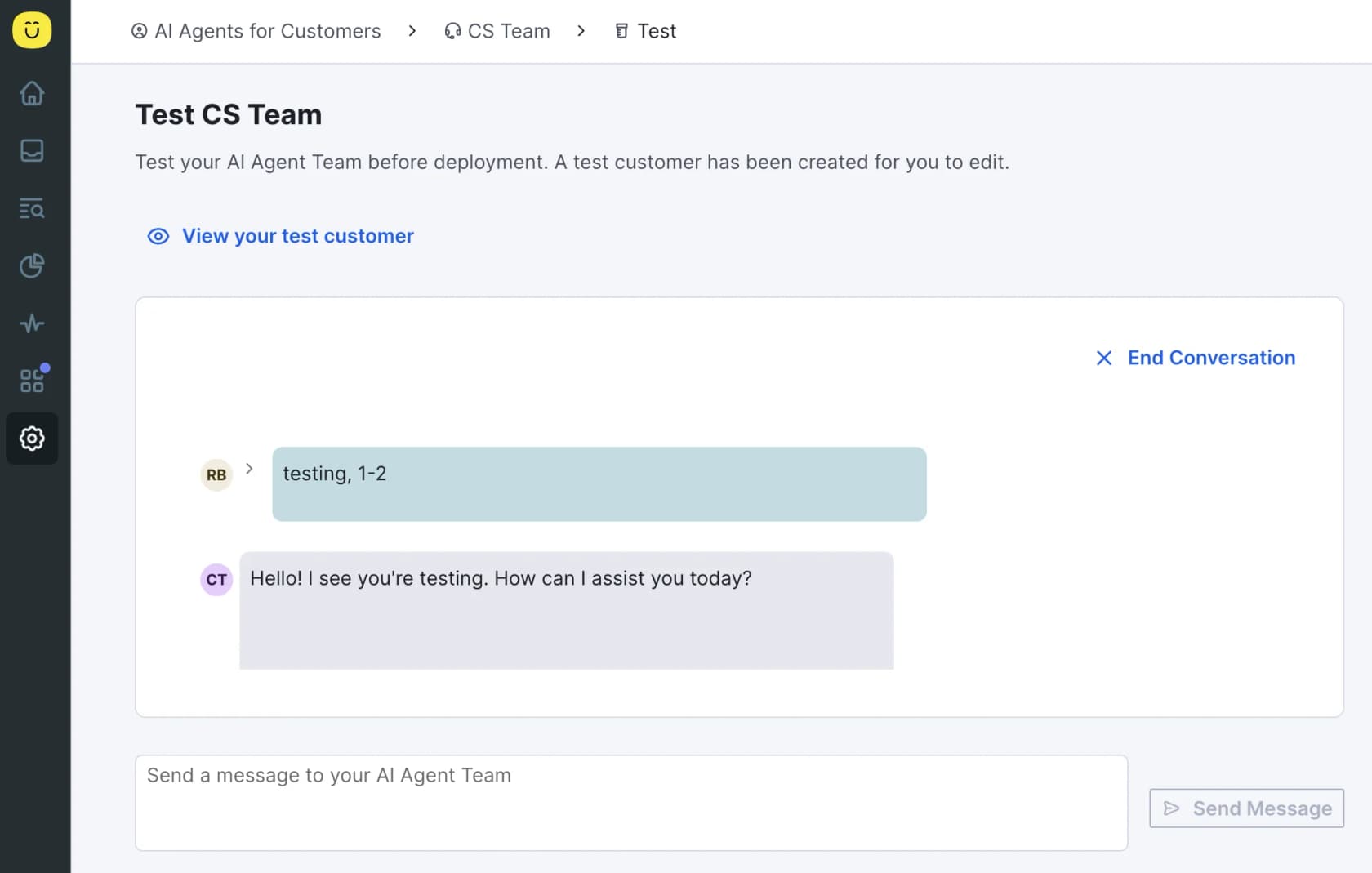
One requirement that catches people: the console will not work unless chat is enabled and you have authorized at least one domain to use Kustomer chat. For consistency at scale, run Evaluations, which test the automation against specific test cases (for example, "refund requests always end positive") so you catch regressions before they ship.
Here is the honest limitation of console testing: a handful of scripted chats is not the same as your real ticket history. You will not know how the agent handles the weird 5% until it meets them. This is the single biggest reason I lean on simulation against past tickets elsewhere, replaying thousands of real conversations to get a resolution-rate number before go-live, rather than eyeballing a few sandbox chats and hoping.
Step 6: deploy and choose your channels
When testing looks good, deploy. In 2.0 you add deployment notes (these double as a changelog for rollback), define the trigger conditions that decide which conversations the automation handles, and set smart routing conditions as short intent statements like "Product returns" or "Shipping issues."
AI Agents support chat, email, SMS, WhatsApp, Facebook Messenger, and forms. But there is a setup step here that is easy to treat as an afterthought: verification. Whether the AI can use a tool depends on the channel and whether the customer is verified.
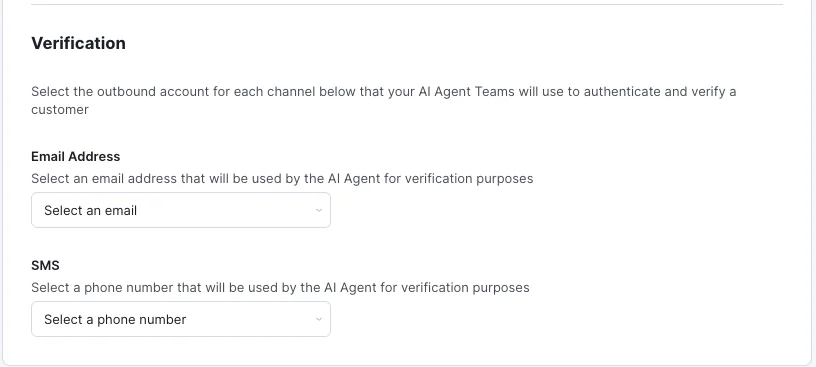
Authenticated email, authenticated chat, Facebook, and WhatsApp have built-in verification. Anonymous chat and unauthenticated email, forms, or SMS need the customer to verify before tools that touch customer data will run. Verification windows are channel-specific: 15 minutes for SMS and WhatsApp, 30 for chat and voice, 60 for email, Facebook, and forms. If a tool needs verification and you have not configured a channel for it, the AI tells the customer it cannot continue and routes to a human, so set this up deliberately.
Step 7: watch the traces after launch
Go-live is the start of tuning, not the end of setup. Kustomer's Traces page logs every AI interaction, the timestamps, customer inputs, tools used, responses, and the knowledge articles referenced. You can open Observe or View Traces from the AI Agent Teams page at any time.
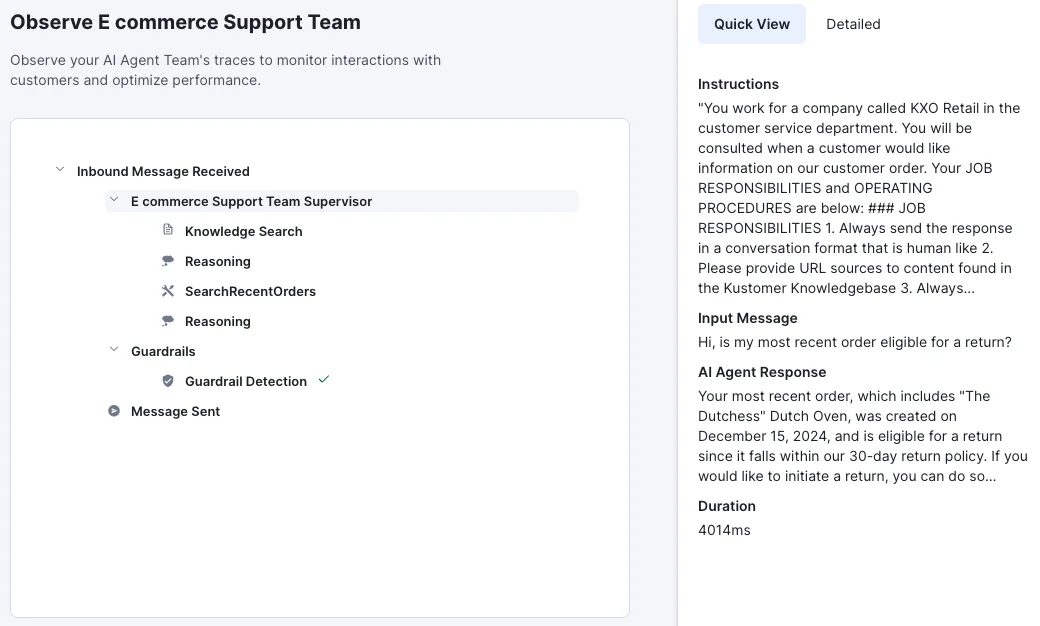
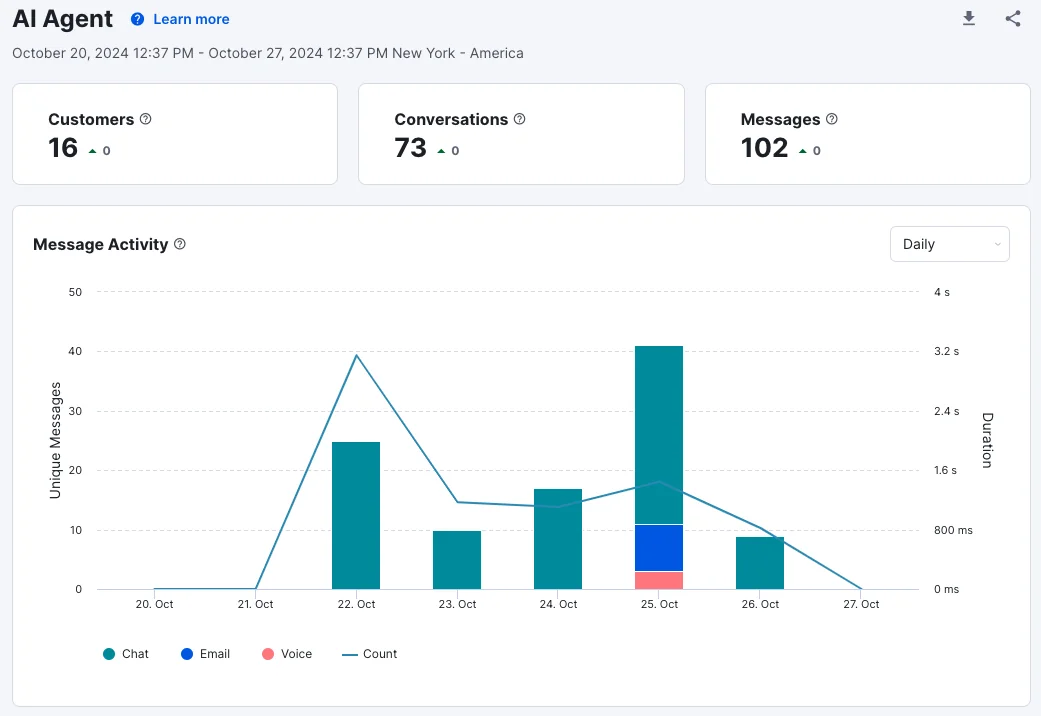
Traces are genuinely useful for debugging a bad answer, because you can see exactly which article the AI pulled and where its reasoning went sideways. For the volume view, reporting lives under Reporting > AI Agents for Customers 2.0, with conversation, message, and channel breakdowns:
Plan to spend your first few weeks reading traces, finding the questions the AI fumbled, fixing the underlying knowledge or guidance, and relaunching. That feedback loop is the actual work of training an AI support agent, on any platform.
Common mistakes when setting up Kustomer AI
A few traps I see repeatedly, beyond the ones already flagged:
- Forgetting to relaunch after a change. Tool and assistant edits do not apply until you relaunch or republish. If your "fix" is not working, this is the first thing to check.
- Leaving knowledge in drafts. The AI cannot read unpublished articles. A surprising number of "the AI does not know this" tickets trace back to an article that was never published.
- Switching to multi-agent mode too early. It is a one-way door. Stay in single-agent mode until you genuinely need OpenAPI calls or specialist handoffs.
- Underestimating the platform itself. Kustomer is powerful but not light. As one operator wrote on Reddit: "for some unknown and very odd reason, they display emails in RAW format vs. HTML by default... it's so downright odd that it defies logic." The AI sits on top of a CRM with a learning curve, and that curve is part of your setup time.
It is also worth being clear-eyed on cost. Kustomer publishes no public pricing; everything routes to sales. Competitor teardowns put it around $89 to $139 per seat per month on an 8-seat minimum, billed annually, with AI metered on top per engaged conversation. That is the backdrop against which a lot of teams start asking whether the native AI is the most cost-effective path. Our full Kustomer pricing guide digs into the numbers, and our Kustomer review covers where it shines and where it does not.
If you are still choosing: a lighter AI layer
I will be straight with you, because it is the most useful thing I can say: eesel does not integrate with Kustomer. If you are committed to Kustomer's stack, the steps above are your path, and they work.
But a lot of people land on "how to set up AI in Kustomer" while they are still deciding whether to commit to the platform at all, often after weighing the per-seat-plus-metered-AI pricing and the heavier setup. If that is you, it is worth knowing what a dedicated AI layer does differently. eesel drops onto the helpdesks it does support, Zendesk, Freshdesk, Gorgias, Front, Help Scout, and more, and learns from your past tickets and help docs on day one.
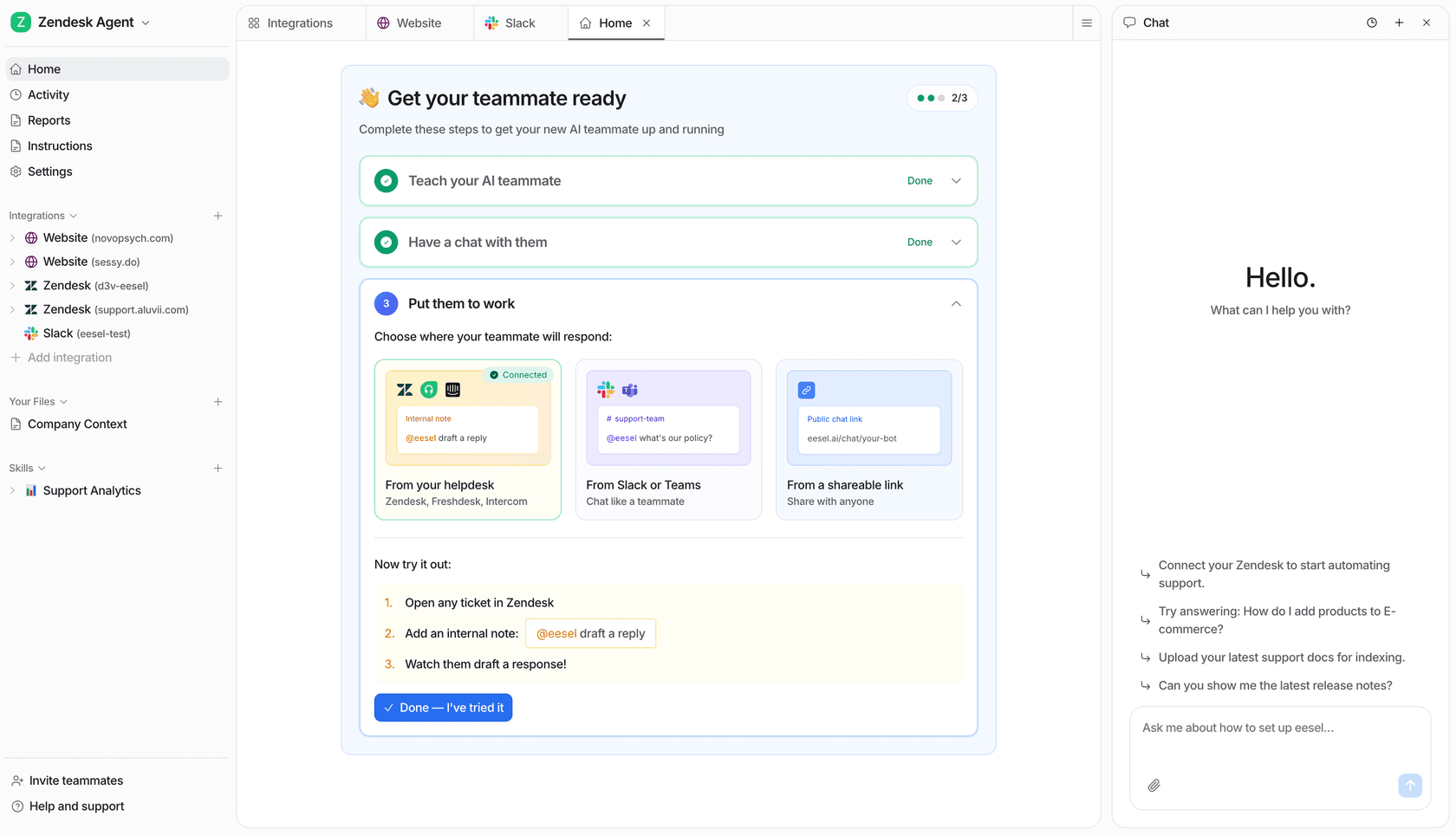
The two things I would point a Kustomer-curious team to: first, a simulation mode that replays thousands of your historical tickets and reports a resolution rate before you ever go live, which is the answer to that "I cannot check 7,000 tickets" fear; and second, usage-based pricing that starts at a flat rate per resolution with no per-seat fees and no minimums. We have spent years watching confident-sounding bots give wrong answers on live queues, which is exactly why that simulate-first step exists. It is also why teams like Gridwise saw 73% of tier-1 requests resolved in the first month. You can try eesel free, and if Kustomer is the right home for you, this guide still has you covered.
Frequently Asked Questions
What do I need before I can set up AI in Kustomer?
How long does it take to set up Kustomer AI?
Does Kustomer AI have a confidence threshold setting?
How much does Kustomer AI cost to run?
Can I test a Kustomer AI agent before it goes live?


Article by
Rama Adi Nugraha
Rama is a software engineer at eesel AI with two years of experience writing about B2B SaaS, AI tools, and customer support technology. Based in Bali, Indonesia, he brings a developer's perspective to product comparisons — cutting through marketing copy to what the integrations and APIs actually do.