How to automate Microsoft Teams support

Rama Adi

Katelin Teen
Last edited July 17, 2026
First, get clear on what "Teams support" even means
I build integrations for a living, and the single biggest reason a Teams automation project stalls is that nobody defined which kind of support they were automating before they started clicking around in the admin center.
There was a support lead at a public-sector IT services firm who came to us because two senior agents with deep product knowledge were leaving that year. His actual goal was not "add AI to Teams." It was to capture their tribal knowledge before it walked out the door and let the rest of the team ask for it in the tool they already lived in. That is a real, specific problem. "Automate Teams support" is not, until you split it in two.
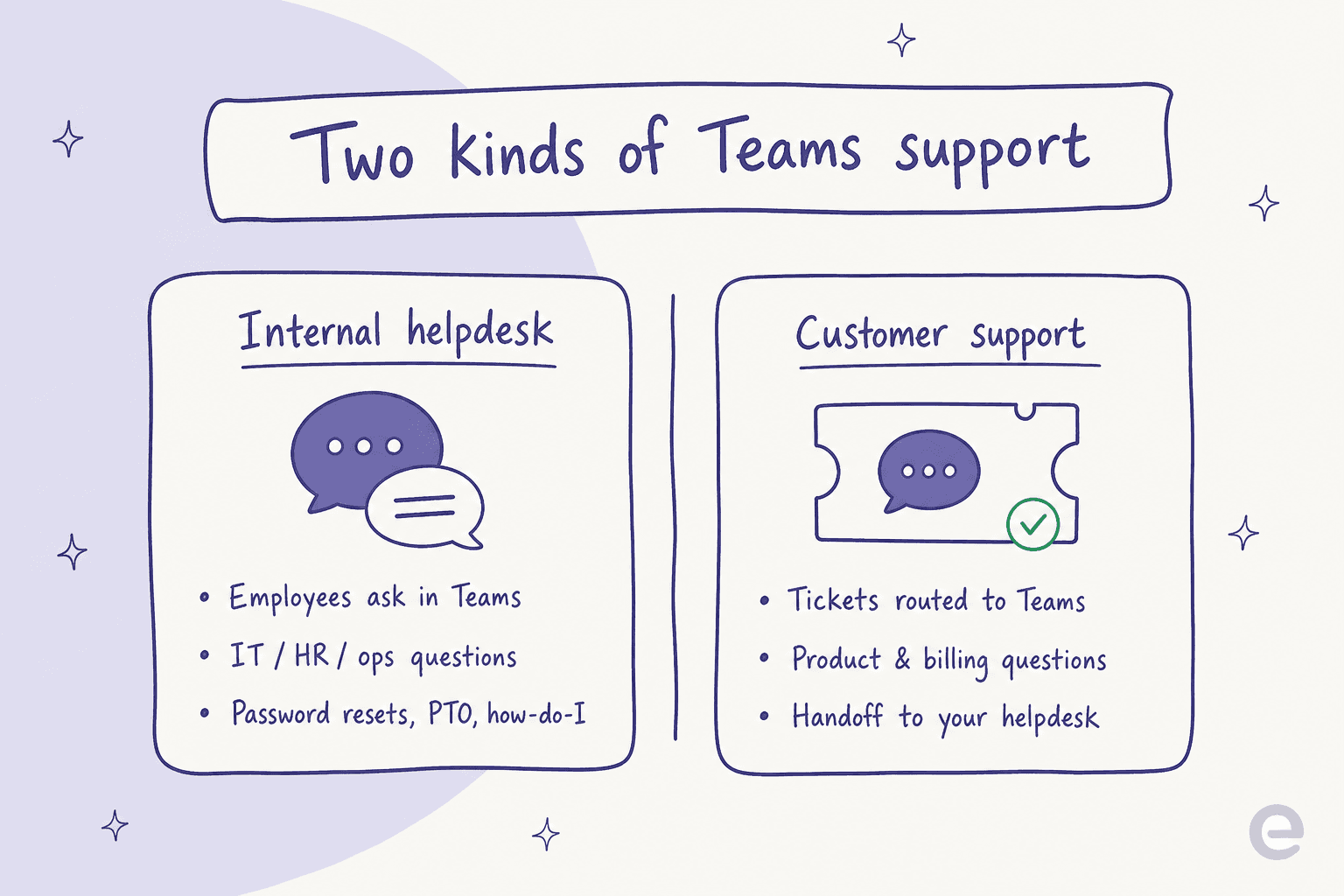
Internal helpdesk. Your own employees ask questions in Teams: password resets, PTO policy, "how do I expense this," "where's the deployment runbook." IT, HR, and ops field the same handful of questions on repeat. This is the most common Teams automation, and it maps cleanly to an internal AI helpdesk.
Customer support. External tickets or chats get routed into Teams channels so agents can collaborate, or your team uses Teams as the place they discuss and resolve customer issues that live in a helpdesk like Zendesk or Freshdesk.
The mechanics of automating each are similar, but the knowledge sources and the "who's asking" differ completely. Decide which one you're solving first. The rest of this guide works for both.
Option 1: the native route (Microsoft 365 Copilot agents)
Microsoft's own answer is Microsoft 365 Copilot, the paid AI layer that sits across Teams, Outlook, and the rest of Microsoft 365. It is a genuinely capable platform, and if you're deep in the Microsoft stack it deserves a real look. Let me be fair about what it does well before I get to the friction.
What it's good at: meeting intelligence. Copilot's meeting summaries, action-item extraction, and "who said what" recaps are the most praised feature by a wide margin, and for good reason. If your support team runs a lot of internal calls, that alone is useful.
The trap almost everyone hits
Here's the thing that catches teams out, and it's worth internalizing before you spend a week on setup. Teams Copilot has two completely separate modes:
- The meeting and chat Copilot you already see. It is scoped to the current meeting transcript or recent chat, and by design it will not answer from your knowledge base. Microsoft's own guidance is blunt about it:
"Limit questions to topics covered in the chat or meeting. Copilot will not answer unrelated questions."
- The agent Copilot, built separately in Agent Builder or Copilot Studio and deployed as a Teams bot. This is the one that can actually connect to SharePoint, Confluence, and other sources to answer org-wide questions.
People assume the Copilot in their meeting can answer "what's our refund policy," get a shrug, and conclude the AI is useless. It isn't, they were just talking to the wrong mode. Answering support questions is an agent-building project, not a toggle.
What the agent can connect to (and the fine print)
Once you build an agent, it can be grounded in a real spread of sources, each with its own ceiling:
| Knowledge source | Limit per agent |
|---|---|
| SharePoint files | Up to 100 |
| OneDrive files | Up to 50 |
| Teams chats | Up to 5 specific chats |
| Public websites | 4 URLs (max 2 path levels) |
| Uploaded files | 20 files, up to 512 MB each |
| Confluence Cloud | Via official connector, scoped by Space |
| Notion | No official connector |
The Confluence Cloud connector respects your existing space permissions, which is a genuine plus. But the fine print is where rollouts slow down: it's Confluence Cloud only (not Server or Data Center), permission changes take up to 24 hours to propagate, and every Confluence user's email has to match their Microsoft Entra ID, or an admin has to configure identity mapping by hand. Teams chat only became usable as a knowledge source in June 2025, and Notion users are left without a supported path entirely.
The pricing reality
None of this comes with standard Teams. Copilot is a per-user add-on:
| Plan | Price | Notes |
|---|---|---|
| Copilot Chat | Free (included) | Web-grounded chat only; no meeting Copilot; agents are metered |
| Copilot Business | $18/user/mo (promo to June 2026), then $21/user/mo annual | Up to 300 users; full Teams + M365 Copilot; agent creation |
| Copilot Enterprise | $30/user/mo | Requires an E1/E3/E5 base plan ($36 to $57/user/mo) |
| E3 + Copilot | ~$66/user/mo | Realistic enterprise total |
| E5 + Copilot | ~$87/user/mo | Enterprise with advanced compliance |
For a 50-person team, Copilot Business alone is roughly $10,800 a year before your base Microsoft 365 licenses, and there's no free trial to test it first. If everyone who touches the agent needs a license, the math climbs fast.
Option 2: plug in an AI teammate that already knows your stuff
The other route skips the connector project. Instead of building an agent from scratch and licensing every seat, you connect an AI support agent that learns from your existing tickets and help docs on day one and answers inside Teams, Slack, your helpdesk, or a chat widget.
This is the path I'd point most teams to, and it maps to what people actually ask for. One B2B SaaS support team told us they wanted the AI to cross-reference their user guide, Slack, internal knowledge base, and past tickets all at once, then flag the gaps and draft new articles to fill them. Copilot Studio makes you wire each of those up as a separate connector, if it supports them at all. An AI teammate treats them as one pooled knowledge source.
Here's how an AI teammate handles a question that lands in Teams:
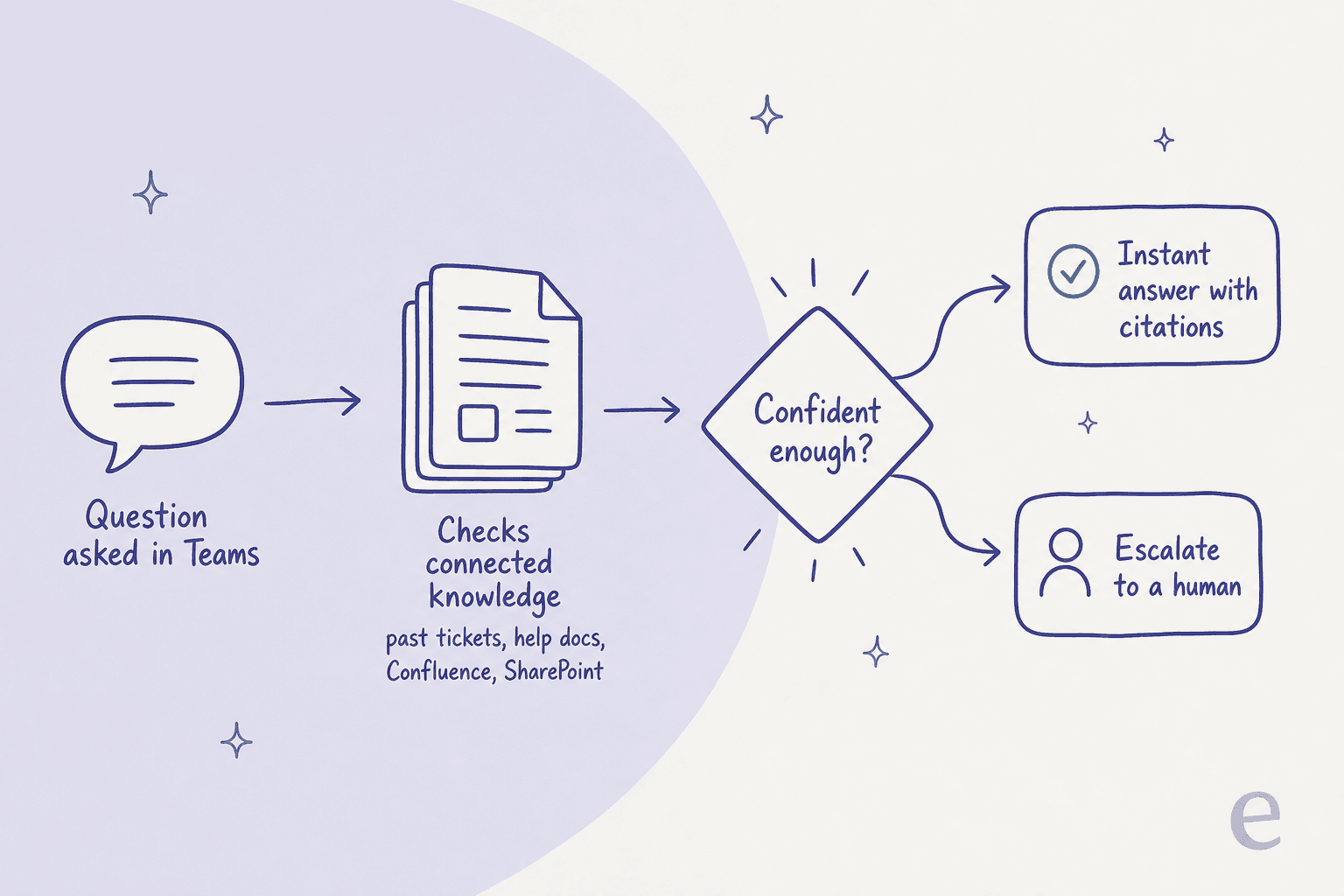
The important part is that last fork. A good agent doesn't answer everything. It answers what it's confident about, cites the source, and quietly hands off anything it's unsure about to a person. That confidence gate is the whole game, and it's what I'll come back to in the mistakes section.
How to automate Teams support in 5 steps
This is the rollout that works, whichever tool you land on. It's written around eesel because that's what I know best, but the shape holds for any serious AI support setup.
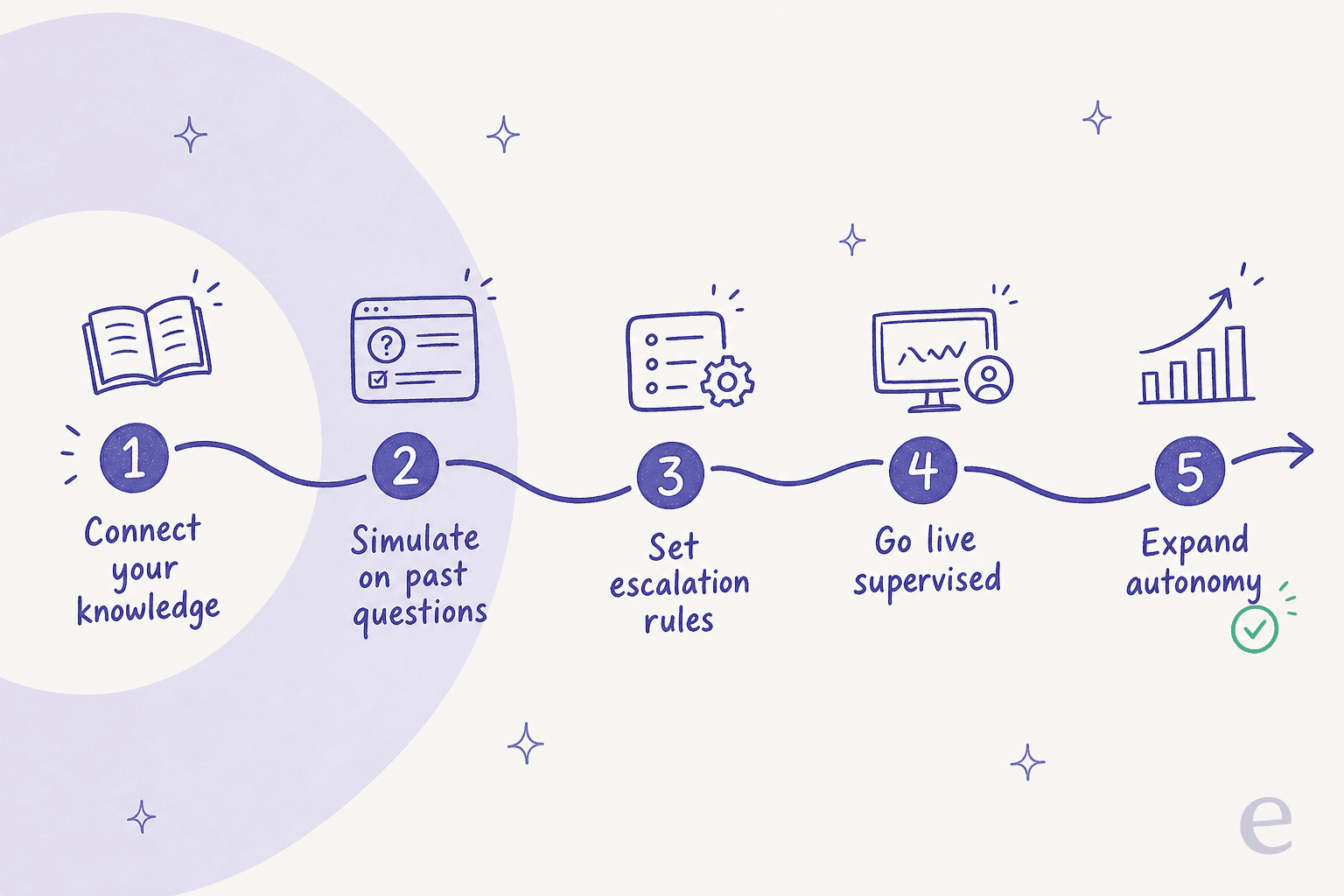
Step 1: connect your knowledge
Point the AI at everything it should learn from: your help center, Confluence, SharePoint, Google Docs, and crucially your past resolved tickets. History matters more than help docs here, because your solved tickets show how questions get answered in practice, not just what the manual says. eesel imports 100+ sources and keeps them in sync, so this is a matter of clicking connect, not building connectors.
Step 2: simulate on past questions before anyone sees it
This is the step teams skip and regret. Before you let the AI reply to a single real person, run it against your last few thousand actual questions and see what it would have said. You get a coverage estimate by topic, you spot the gaps, you fill them, and you re-run. It turns "I hope this works" into a number you can defend to your boss.
Step 3: set your escalation rules
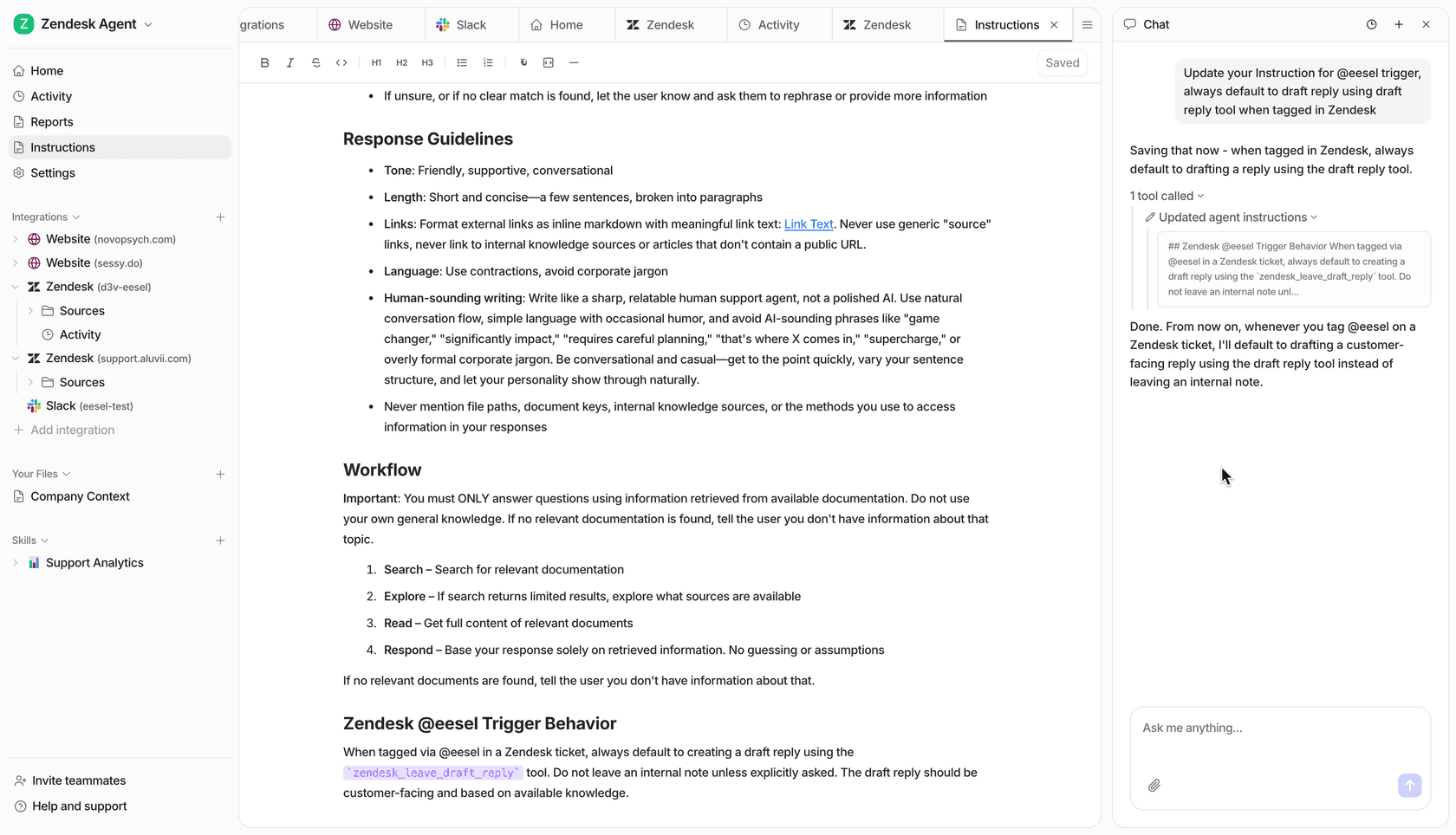
Decide in plain language when the AI should act and when it should step back. "Answer anything about passwords and PTO. For anything involving a refund over $500, loop in a human. If you're not confident, draft instead of sending." This is where confidence-based routing earns its keep, and it's how you train the agent to know its own limits.
Step 4: go live, supervised
Turn it on in draft or supervised mode first. The AI proposes answers, a human approves them, and every correction teaches it. You get the speed benefit immediately while keeping a person in the loop, which is exactly the reassurance most teams need for the first couple of weeks.
Step 5: expand autonomy
As the numbers hold, hand it more. Let it auto-resolve the easy, high-confidence topics on its own and keep humans on the hard ones. Gridwise got to 73% of tier-1 requests resolved in the first month doing exactly this. You're not flipping a switch to full autonomy, you're earning it one topic at a time.
Common mistakes to avoid
I've watched enough of these go sideways to know where the landmines are.
Trusting an AI that answers confidently but wrongly. A B2B hardware team we worked with had a bot that cheerfully told customers "yes, we support your model" for products that weren't in their database, because the knowledge base said "we support all models." A confident wrong answer is worse than "I don't know," because people act on it. This is the entire reason preventing hallucinations and citing sources on every answer matters. Never ship an agent that can't say "I'm not sure."
Confusing the meeting Copilot with a knowledge agent. Covered above, but it bears repeating because it wastes so much time. If your test is "ask the Copilot in a meeting about company policy," you're testing the wrong thing.
Boiling the ocean on day one. Don't try to automate every question type at once. Start with the repetitive, easily-answered stuff (the ticket volume you want to reduce) and expand. A narrow agent that's right beats a broad one that's shaky.
No clean handoff. If the AI can't smoothly pass a conversation to a human with context attached, your customers feel stuck and your agents get half-finished threads. The handoff design is not an afterthought.
Try eesel for Microsoft Teams support
If you want the second route, eesel is an AI teammate that plugs into Microsoft Teams and your helpdesk, learns from your past tickets and docs, and starts answering the repetitive questions your team fields every day. The differentiator that matters here: you can simulate it on thousands of your real past tickets before it ever talks to a person, so you go live on evidence, not hope.
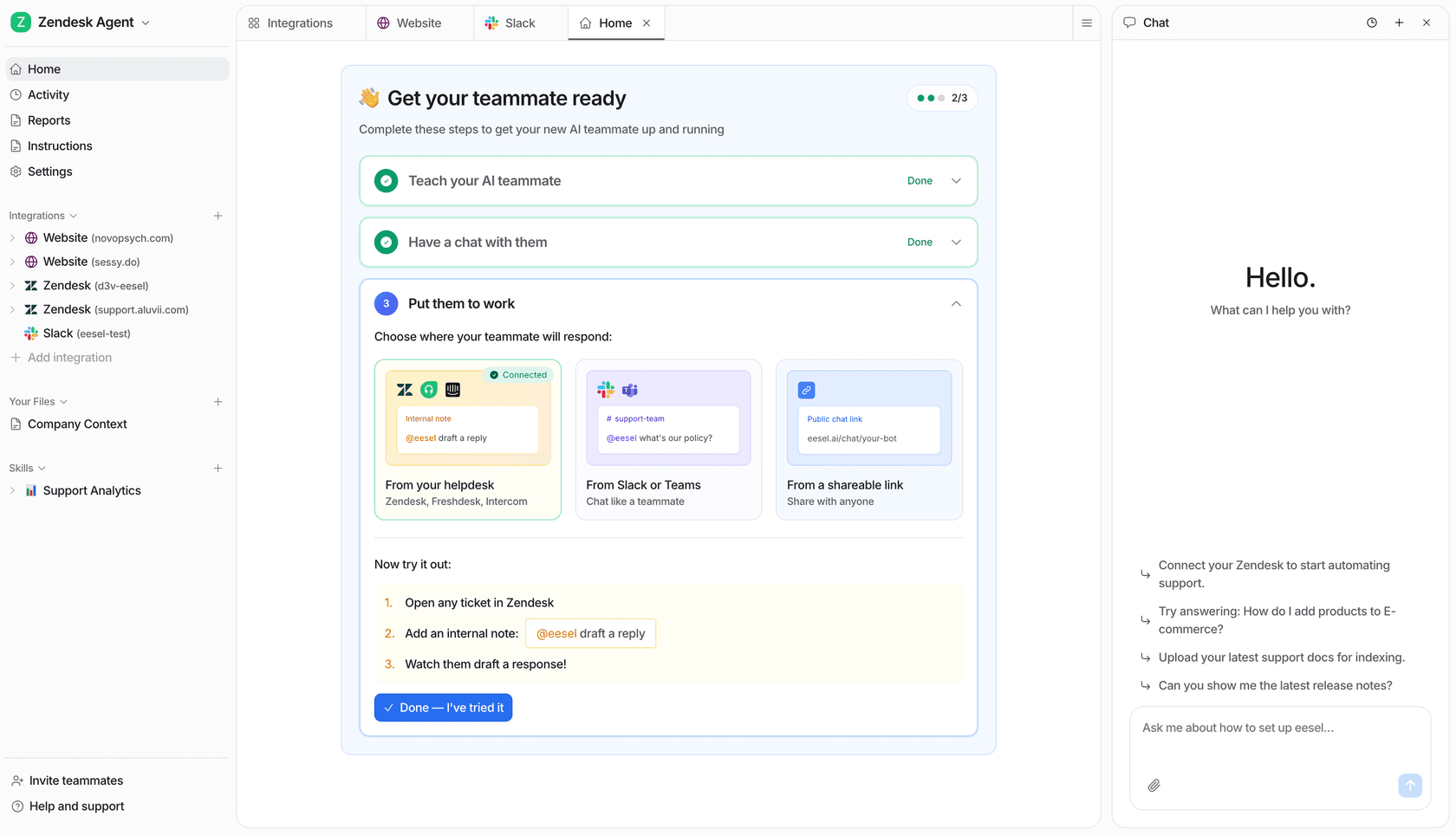
There's no per-seat license to worry about (one fixed monthly price from $299/month for 500 credits, with 100 free credits and no card), it speaks 80+ languages out of the box, and for regulated teams there's HIPAA support as an add-on. If your goal is to capture your team's knowledge and answer questions where people already work, that's the whole idea.