A deep dive into Zendesk Talk queue and routing rules

Kenneth Pangan

Katelin Teen
Last edited February 6, 2026
Expert Verified
Effectively managing high volumes of customer calls requires getting callers to the right agent quickly to avoid long waits and customer frustration. In customer support, connecting a customer to the right agent on the first try is crucial for a positive experience.
Optimizing call routing can shorten wait times, reduce transfers, and improve the overall customer experience. This guide explains how Zendesk Talk queue and routing rules work, covering basic setup and advanced strategies to help you manage call flows efficiently.
What are Zendesk Talk queue and routing rules?
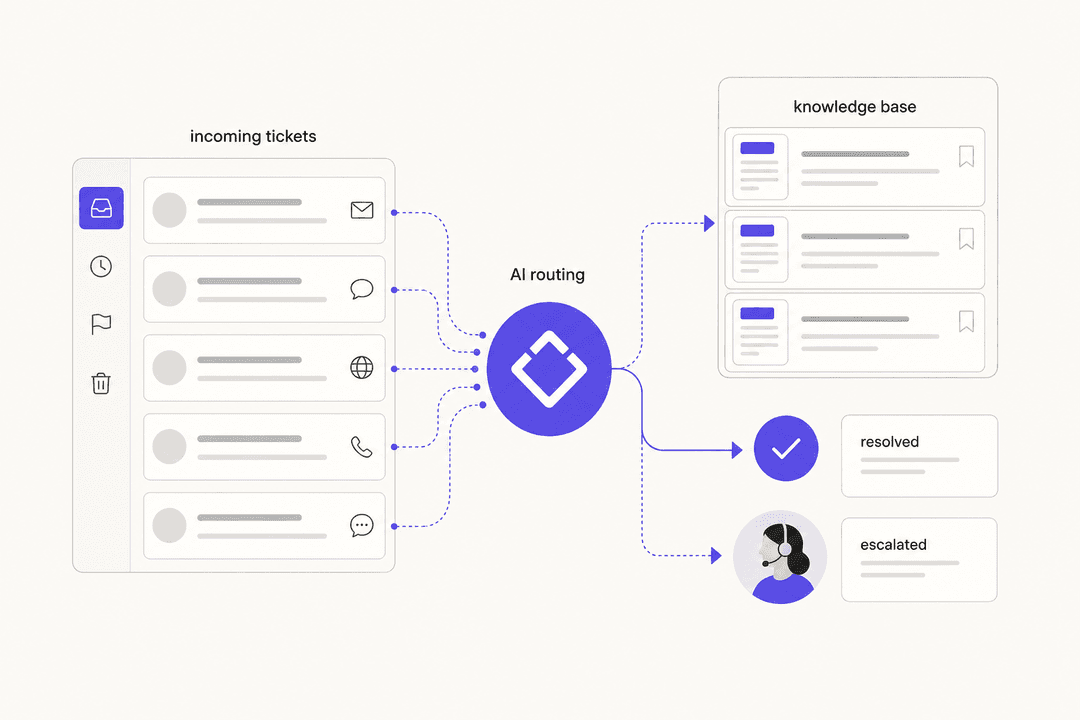
Ticket routing in Zendesk is the process of automatically directing incoming support requests to the appropriate person or team. A queue is the virtual waiting area where requests are held until an agent is available.
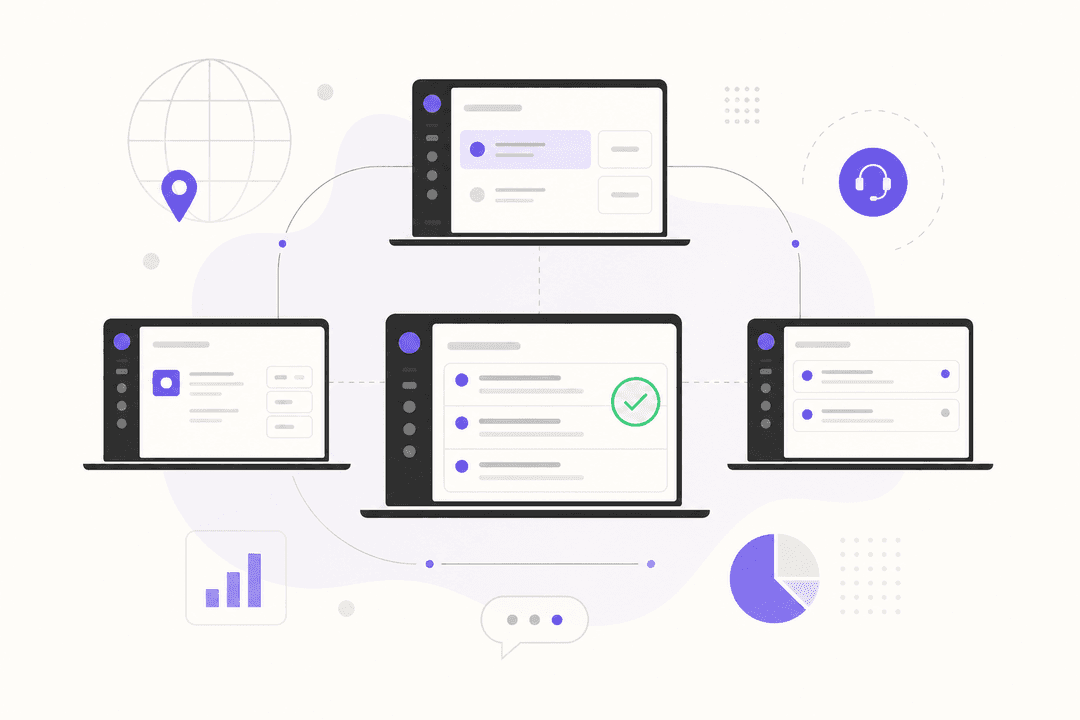
Zendesk's Omnichannel Routing system handles requests from all channels, including email, chat, social media, and phone calls, in a unified platform. For voice support, this is particularly impactful. When a call enters the system, Zendesk creates a ticket. This allows for automations and rules to be applied before an agent answers, enabling more intelligent routing.
Core components of Zendesk Talk queue and routing rules
To configure Zendesk’s routing engine effectively, it's important to understand a few key components that work together. To use most of these advanced features, you'll need to have the Zendesk Agent Workspace activated.
Group-based vs. skills-based routing
You have two main ways to approach this.
Group-based routing is the traditional method. You set up groups like "Billing," "Tech Support," or "Tier 1," and tickets are sent to the relevant group. It's straightforward and works well for many teams. However, this approach may be less efficient when a call requires an agent with a specific combination of skills, such as language proficiency and product expertise.
Skills-based routing (SBR) is a more advanced option, available on Suite Professional plans and higher. Instead of routing to a team, you route to an agent with a specific set of skills. For example, SBR can identify an agent who speaks Spanish and is a product expert. The setup is a manual process. You have to define every skill you might need (like "Spanish," "Enterprise Plan," or "Refunds"), assign those skills to your agents, and then build triggers that tag incoming calls with the right skill requirements.
Omnichannel routing and unified agent status
Omnichannel routing brings all your channels under one roof with a single set of rules. This is necessary if you want to use SBR for calls.
It also introduces the Unified Agent Status. Instead of agents setting their availability separately for chat, email, and phone, they can set one status, like "Online" or "Away," that applies across all channels. This helps in managing an agent's workload and ensuring they only receive work they can handle at that moment.
Triggers and automation
Triggers are the conditional logic that tells Zendesk what to do with an incoming ticket. They provide a high degree of control to customize your workflow.
For example, you could create a trigger that says: "IF a ticket is created from our VIP phone number, THEN set the priority to Urgent AND add the 'VIP' skill."
This level of control requires you to build and maintain each of these rules. The system's effectiveness depends on the logic you create, which involves planning and ongoing adjustments to keep everything running smoothly.
Key features and configuration options
Beyond the core building blocks, Zendesk offers several options to fine-tune how calls and tickets are distributed. Many of these features are tied to specific subscription plans.
Standard vs. custom queues
You have a couple of options for your virtual waiting rooms.
- Standard Queue: This is the default queue where all routed work waits. For non-call tickets to end up here, you need to create a trigger that adds a specific
auto-routingtag to them. - Custom Queues: On a Professional or Enterprise plan, you can create multiple, prioritized queues. This is useful for creating a separate, faster line for certain customers. For example, you could have a "VIP Customer" queue that is always prioritized. According to Zendesk, tickets are always checked against your custom queue conditions first, so your most important issues are addressed first.
Call assignment methods: Capacity vs. round robin
Once a call is in the right queue, how does Zendesk decide which agent gets it?
- Capacity-based: This method identifies the agent with the most available bandwidth. It helps balance workloads. You need to set up your capacity rules to define how much work each agent can handle at once.
- Round Robin: This method assigns the next call to the agent who has gone the longest without one, ensuring an even distribution of work.
Prioritization and focus mode
A couple more tools for managing the flow of work:
- Prioritization: On higher-tier plans, you can configure Zendesk to route tickets based on their priority level or proximity to an SLA breach. This helps your team address the most time-sensitive issues first.
- Focus Mode: This feature prevents agents from being offered multiple real-time conversations simultaneously. When an agent is on a call, Focus Mode ensures they won't be offered a new live chat, allowing them to focus on the customer on the line.
Here’s a quick breakdown of which features are available on which plans:
| Feature | Best For | Plan Availability |
|---|---|---|
| Group-Based Routing | Simple, team-based ticket assignment. | All Suite Plans |
| SLA-Based Sorting | Teams with strict response time agreements. | Suite Professional & Higher |
| Skills-Based Routing | Connecting customers to agents with specific expertise. | Suite Professional & Higher |
| Custom Queues | Creating tiered support or prioritizing specific ticket types. | Suite Professional & Higher |
| Ticket Queues (anti-cherry-picking) | Ensuring agents work on the highest priority tickets first. | Suite Enterprise |
Considerations for native Zendesk routing
Zendesk provides a solid set of tools for routing. Its reliance on manual, "if-this-then-that" rules offers granular control but also presents some considerations, especially as your team grows.
Manual setup and maintenance
Building an effective routing system in Zendesk involves creating and managing numerous triggers, skills, and group assignments. This requires significant administrative work. Careful configuration is important, as an error in a trigger's logic could route tickets incorrectly.
Keyword-based vs. intent-based logic
Standard Zendesk routing is based on observable data like keywords, the channel a ticket came from, or custom fields. It does not analyze the underlying intent of a customer's message. It can identify the word "refund," but it may not distinguish between a question about a refund policy and a request for a refund on a specific product.
Zendesk offers an "intelligent triage" feature to address this as part of its Copilot add-on, which is available at an additional cost.
An AI-powered alternative can offer a different approach. For example, eesel AI's Triage learns from past conversations to understand customer intent, sentiment, and urgency. It can then tag, prioritize, and route tickets based on this understanding, operating without manually defined rules.

Real-time adaptability
Zendesk's routing rules typically fire when a ticket is created or updated. However, conversations can evolve. A simple question might become a complex technical issue. When this happens, the initial routing may no longer be appropriate, requiring the agent to manually transfer the ticket.
An AI system like eesel AI can analyze the ongoing context of a conversation, not just the initial trigger. This can lead to more adaptive routing and reduce the need for manual transfers.
Pricing for Zendesk Talk queue and routing rules
Zendesk's routing features are bundled into their Suite plans, so available features depend on the chosen tier. Advanced capabilities like skills-based routing and custom queues are included in higher-priced plans.
Here’s a look at the costs, based on their public pricing page:
| Plan | Pricing (per agent/month, billed annually) | Key Routing Features Included |
|---|---|---|
| Suite Team | $55 | Group-based routing, unified agent status. |
| Suite Professional | $115 | + Skills-based routing, custom queues, IVR phone tree, SLA-based sorting. |
| Suite Enterprise | $169 | + Customizable ticket queues to prevent cherry-picking. |
It's also important to note that Zendesk's native AI features for intelligent triage require the Copilot add-on, which costs an additional $50 per agent, per month.
Moving beyond rule-based routing
Zendesk provides a flexible framework for building queue and routing rules for Zendesk Talk. You can control many aspects of how work is assigned to your team.
For a detailed walkthrough of how to configure these settings within the Zendesk interface, the following video provides a comprehensive guide to setting up and managing omnichannel routing.
A video explaining the setup and features of Zendesk Talk queue and routing rules using omnichannel routing.
This control is based on a manual, rule-based logic. This approach requires administrative work to set up and maintain. As businesses grow and customer expectations for fast, accurate answers increase, teams may consider whether a rule-based system is the most sustainable approach or if an AI-based solution could better handle the complexity.
AI-powered routing for Zendesk
Building and tweaking Zendesk triggers can be time-intensive. An AI-powered solution can supplement this process.
eesel AI's Triage works as an AI teammate inside Zendesk. It learns from your past tickets to automatically tag, prioritize, and route conversations based on customer needs, without requiring complex rule-building.
See how eesel AI can bring intelligent, automated routing to your Zendesk workflow.
Frequently Asked Questions
Share this post

Article by
Kenneth Pangan
Writer and marketer for over ten years, Kenneth Pangan splits his time between history, politics, and art with plenty of interruptions from his dogs demanding attention.