How to get started with Zendesk Sunshine Conversations in 2026
Zendesk Sunshine Conversations brings all your customer messaging channels into one unified API. Whether customers reach out via WhatsApp, Facebook Messenger, Instagram, or your website chat, Sunshine Conversations lets you manage every conversation from a single place. But setting it up isn't straightforward. This technical guide breaks down exactly what you need, step-by-step, to get it working without the usual trial and error.
This guide covers everything you need to set up Sunshine Conversations from scratch: the prerequisites, API configuration, webhook setup, channel connections, and bot handoffs. We'll also look at how tools like eesel AI can simplify Zendesk integrations for teams that don't want to build custom API solutions.
Fair warning: this is a technical guide. You'll need developer resources to implement Sunshine Conversations fully. But even if you're a project manager or business stakeholder evaluating the platform, you'll walk away understanding what's involved.
What is Zendesk Sunshine Conversations?
Sunshine Conversations is Zendesk's multi-channel messaging platform that unifies customer conversations across 14+ messaging channels through a single REST API. Originally a standalone product called Smooch.io, it's now fully integrated into the Zendesk Suite.
The platform follows an API-first architecture. Instead of managing separate integrations for WhatsApp, Facebook Messenger, SMS, and in-app chat, you connect them all to Sunshine Conversations and handle messages programmatically through one unified API.
Here's where Sunshine Conversations fits in the Zendesk ecosystem:
| Component | What It Does |
|---|---|
| Sunshine Conversations API | Unified messaging API for all channels |
| Web Widget for Messaging | Customer-facing chat widget for websites |
| Switchboard | Routes conversations between bots and human agents |
| Agent Workspace | Where your support team handles escalated conversations |
The Switchboard is particularly important. It controls which system (your bot, a third-party AI, or a human agent) handles each conversation at any moment. When a customer asks a question your bot can't answer, the Switchboard passes control to a human agent while preserving the full conversation history.
Prerequisites for Zendesk Sunshine Conversations setup
Before you start configuring Sunshine Conversations, you'll need to meet several requirements. Getting these sorted upfront saves headaches later.
Zendesk plan requirements
Not every Zendesk plan includes full Sunshine Conversations access. Here's what you need to know:
| Plan | Price (Annual) | Sunshine Conversations Access | MAUs Included |
|---|---|---|---|
| Suite Team | $55/agent/month | Basic messaging only | N/A |
| Suite Growth | $89/agent/month | Basic messaging only | N/A |
| Suite Professional | $115/agent/month | Full API access | 1,000 MAUs |
| Suite Enterprise | $169/agent/month | Full API access | 1,000 MAUs |
Monthly Active Users (MAUs) count any unique user who sends or receives a message within a 30-day period. The baseline 1,000 MAUs are included with Professional and above. If you need more, add-on packs of 2,500 MAUs cost approximately $50 each.
If you're on Suite Team or Growth, you get basic messaging through the Web Widget, but you won't have full access to the Conversations API. For custom integrations and the full Switchboard functionality, you need Suite Professional or higher.
Technical requirements
You'll need:
- Zendesk Agent Workspace enabled in your account
- Admin access to Zendesk Admin Center
- A server or cloud function to receive webhook events
- Basic understanding of REST APIs and authentication
- Development environment (Node.js is recommended based on official examples)
For local development, ngrok is invaluable. It creates a public URL that tunnels to your local machine, so you can test webhooks without deploying to production.
Step-by-step Zendesk Sunshine Conversations setup guide
Now for the hands-on part. We'll walk through each step to get a basic Sunshine Conversations integration working.
Step 1: Install the Web Widget for messaging
The Web Widget is the customer-facing component that appears on your website or help center.
To install on a website:
- In Admin Center, click Channels > Messaging and social > Messaging
- Click the widget name you want to configure
- Scroll down and expand the Installation section
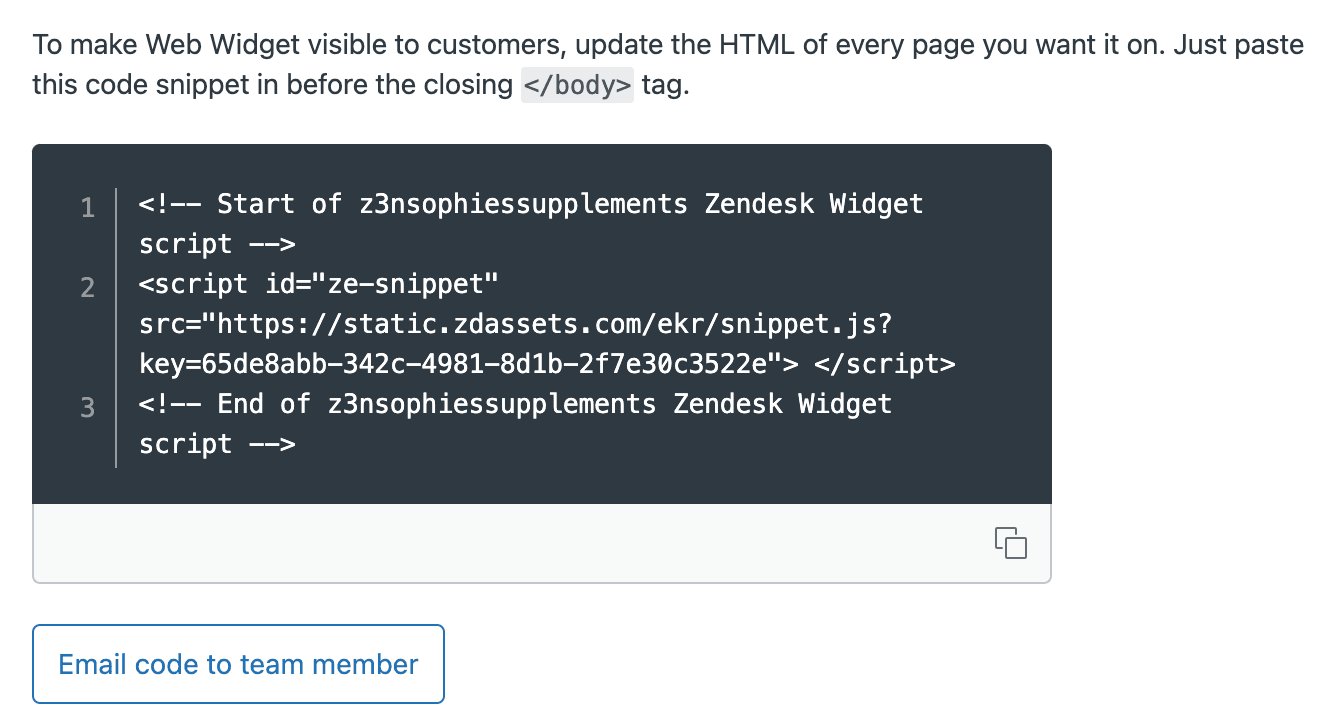
- Copy the code snippet
- Paste it before the closing
</body>tag on every page where you want the widget
To install on a help center:
- Navigate to the same Messaging settings
- Expand Installation
- Check "Automatically embed Web Widget in your Help Center"
- Click Save
The help center installation is a one-click process. No code required.
For advanced layouts (like embedding the widget in a specific container rather than a floating overlay), you can use embedded mode:
window.zEMessenger = {
  autorender: false
}

zE('messenger', 'render', {
  mode: 'embedded',
  widget: {
    targetElement: '#messaging-container'
  }
});
Step 2: Create API keys for authentication
Every API call to Sunshine Conversations requires authentication. You'll need three credentials:
- App ID: Identifies your Sunshine Conversations app
- Key ID: Used as the username for Basic Auth
- Secret Key: Used as the password (shown only once at creation)
To create API keys:
- Go to Admin Center > Apps and integrations > APIs > Conversations API
- Click Create API key
- Enter a descriptive name (e.g., "Production Bot Integration")
- Copy the App ID, Key ID, and Secret Key immediately
The Secret Key is displayed only once. Store it securely in your secrets manager or environment variables. If you lose it, you'll need to create a new API key.
Step 3: Set up a webhook integration
Webhooks let your server receive real-time notifications when messages arrive or events occur.
To create a webhook:
- Navigate to Admin Center > Apps and integrations > Integrations > Conversations integrations
- Click Create integration
- Enter your webhook endpoint URL (e.g.,
https://your-domain.com/messages) - Select webhook triggers (at minimum, enable
conversation:message) - Save the integration
- Note the Webhook ID and Shared Secret for signature verification
Common webhook triggers you'll want to enable:
| Trigger | When It Fires |
|---|---|
conversation:message | Customer or agent sends a message |
postback | Customer clicks a button or quick reply |
conversation:created | New conversation starts |
conversation:typing | User is typing |
Step 4: Deploy your webhook server
Your server needs to expose a POST endpoint that receives webhook payloads from Sunshine Conversations.
Here's a minimal example using Node.js:
const express = require('express');
const app = express();

app.use(express.json());

app.post('/messages', (req, res) => {
  const payload = req.body;
  console.log('Received webhook:', JSON.stringify(payload, null, 2));

  // Handle the message based on type
  if (payload.trigger === 'conversation:message') {
    const message = payload.payload.message;
    console.log(`Message from ${message.author.type}: ${message.content.text}`);
  }

  res.status(200).send('OK');
});

app.listen(8000, () => console.log('Webhook server running on port 8000'));
For local development, use ngrok to create a public tunnel:
ngrok http 8000
Copy the HTTPS URL ngrok provides and use it as your webhook endpoint in Step 3.
Step 5: Send your first API message
Now test sending a message from your server to a customer conversation.
The endpoint format is:
POST https://{subdomain}.zendesk.com/sc/v2/apps/{app_id}/conversations/{conversation_id}/messages
Here's an example using curl:
curl -X POST \
  "https://yourcompany.zendesk.com/sc/v2/apps/YOUR_APP_ID/conversations/CONVERSATION_ID/messages" \
  -u "KEY_ID:SECRET_KEY" \
  -H "Content-Type: application/json" \
  -d '{
    "author": {
      "type": "business"
    },
    "content": {
      "type": "text",
      "text": "Hello! Thanks for reaching out. How can I help you today?"
    }
  }'
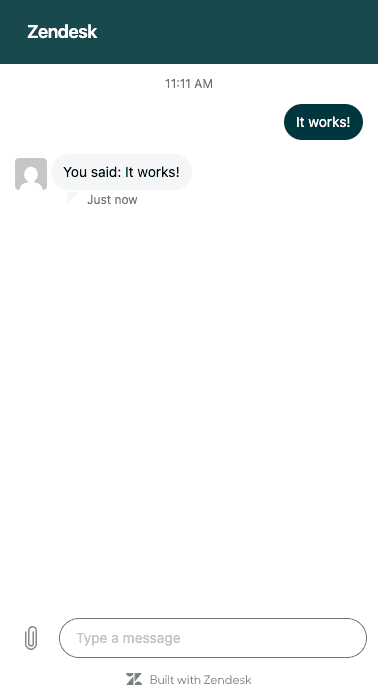
Replace the placeholders with your actual credentials and conversation ID. The conversation ID comes from the webhook payload when a customer initiates a chat.
Connecting messaging channels to Zendesk Sunshine Conversations
Once your basic integration is working, you can connect additional messaging channels. Sunshine Conversations supports a wide range of platforms.
| Channel Type | Examples |
|---|---|
| Social messaging | WhatsApp, Facebook Messenger, Instagram, Twitter DM |
| Chat apps | LINE, Telegram, WeChat, Viber |
| SMS providers | Twilio, MessageBird |
| Native SDKs | iOS SDK, Android SDK, Web Messenger |
| Business messaging | Apple Messages for Business |
To add a channel:
- Go to Admin Center > Channels > Messaging and social > Messaging
- Select the channel type you want to add
- Complete the platform-specific authentication
- Link the channel to your Sunshine Conversations app
Each channel has its own requirements. WhatsApp requires Business API approval from Meta. Facebook and Instagram require Meta Business verification. SMS channels incur per-message costs from your provider (Twilio, MessageBird, etc.).
The advantage is that once connected, all channels flow through the same API. Your bot logic and agent workflows handle messages the same way regardless of where they originated.
For teams managing complex omnichannel support, this unified approach simplifies both development and operations. Teams can also explore AI chatbots for Zendesk as an alternative to custom development.
Configuring Switchboard for bot-to-agent handoffs in Zendesk Sunshine Conversations
The Switchboard is what makes Sunshine Conversations powerful for teams using AI bots alongside human agents. It controls which integration handles each conversation and enables smooth handoffs.
Key Switchboard operations
| Operation | Purpose | Use Case |
|---|---|---|
| Pass Control | Immediately transfers ownership | Bot escalates to human agent |
| Offer Control | Shares control until target accepts | Gradual handoff with acceptance |
| Release Control | Returns to default state | Conversation concluded |
Finding your Switchboard and responder IDs
Before configuring handoffs, you need your Switchboard ID and the responder IDs for each integration.
Step 1: Get your Switchboard ID
Use the List Switchboards API:
GET https://api.smooch.io/v2/apps/{appId}/switchboards
For EU data residency:
GET https://api.eu-1.smooch.io/v2/apps/{appId}/switchboards
Licensed Zendesk customers use a different host:
GET https://{subdomain}.zendesk.com/sc/v2/apps/{appId}/switchboards
Step 2: Get your responder IDs
GET https://{subdomain}.zendesk.com/sc/v2/apps/{appId}/switchboards/{switchboardId}/switchboardIntegrations
This returns all integrations registered on your Switchboard, including your bot and the Zendesk Agent Workspace.
Implementing bot-to-agent handoff
When your bot determines it should escalate to a human, call the Pass Control endpoint:
POST /v2/apps/{appId}/conversations/{conversationId}/passControl
Include metadata to populate ticket fields during handoff:
{
  "switchboardIntegration": "next",
  "metadata": {
    "zendesk:ticket_subject": "Customer needs help with billing",
    "zendesk:ticket_tags": "escalation, billing"
  }
}
Handoff and handback behavior
When control passes to a human agent:
- A ticket is created automatically in Agent Workspace
- Agents see the full conversation history from the bot interaction
- The agent remains the first responder until the ticket status changes to Closed
The default time from Solved to Closed is 4 days. During that time, if the customer returns, they're still connected to the same conversation with the human agent.
To close tickets faster for immediate handback to the bot, create a trigger:
- Condition: Tags contains "close"
- Action: Set Status to Closed
Add the "close" tag when marking tickets as Solved, and they'll close immediately.
eesel AI: A simpler alternative for getting started with Zendesk messaging
Sunshine Conversations is powerful, but it requires significant development resources. You need engineers to build the webhook server, implement the API calls, handle errors, and maintain the integration over time.
Not every team has that capacity. If you want AI-powered messaging without building a custom integration, eesel's AI agent for Zendesk offers a different approach.
How we simplify Zendesk integration
We connect directly to your Zendesk instance without custom API development. You don't need to build webhook servers or manage API credentials. Setup takes minutes, not weeks.
Here's how it works:
- Connect eesel to your Zendesk account
- We learn from your existing help center, past tickets, and macros
- Configure escalation rules in plain English (no code)
- Test with simulations on historical tickets
- Go live with AI-powered responses
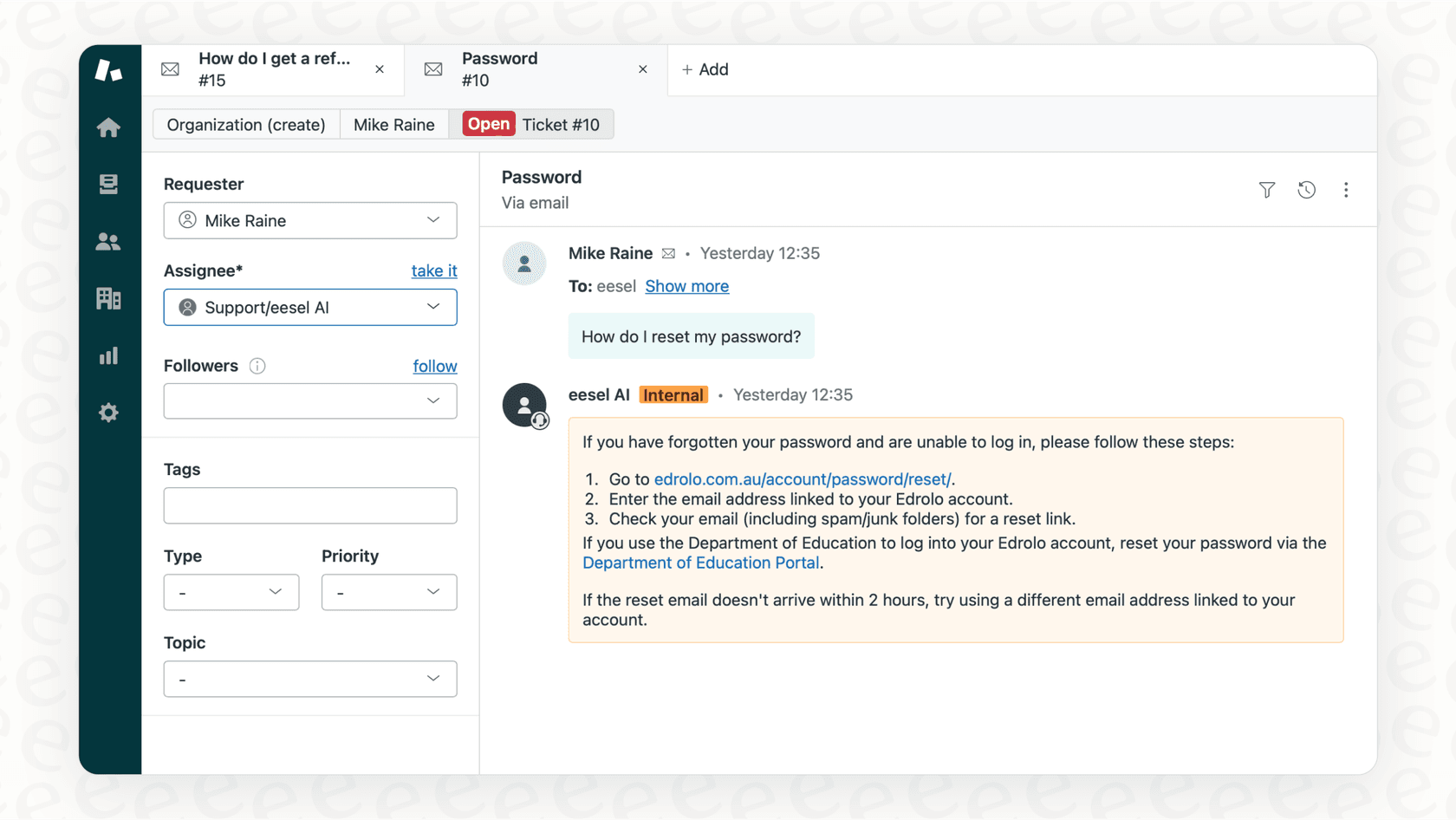
Our AI Agent handles frontline tickets autonomously. It reads incoming messages, drafts responses grounded in your knowledge base, and sends them. When it encounters something it can't handle, it escalates to a human agent with the full context preserved.
When to choose each approach
| Use Case | Best Option |
|---|---|
| Custom messaging workflows | Sunshine Conversations API |
| Quick AI support automation | eesel AI |
| High-volume multi-channel (14+ channels) | Sunshine Conversations + developer resources |
| Teams without engineering capacity | eesel AI |
| Complex bot orchestration | Sunshine Conversations Switchboard |
| Simple bot-to-agent handoffs | eesel AI |
If you need the full power of Sunshine Conversations (custom integrations, multiple channels beyond web chat, complex routing logic), the API approach makes sense. But if your goal is automating Zendesk support with AI without building infrastructure, eesel AI handles that out of the box.
For teams already using Zendesk's ticketing system, we integrate directly with your existing workflows. No separate API to maintain.
Common troubleshooting issues with Zendesk Sunshine Conversations
Even with careful setup, you'll likely encounter a few common issues. Here's how to troubleshoot them.
Webhook signature verification failures
If your webhook endpoint rejects Zendesk's requests due to invalid signatures, verify:
- You're using the correct Shared Secret from your webhook integration settings
- The signature validation logic matches Zendesk's specification (HMAC SHA256)
- Your server receives the
X-API-Keyheader correctly
Example Node.js validation:
const crypto = require('crypto');

function validateSignature(req) {
  const signature = req.headers['x-api-key'];
  const secret = process.env.WEBHOOK_SECRET;
  const payload = JSON.stringify(req.body);

  const hash = crypto
    .createHmac('sha256', secret)
    .update(payload)
    .digest('hex');

  return signature === hash;
}
CORS errors with Web Widget
If your widget won't load due to CORS policy violations, check:
- Your website domain is added to the allowed origins in Admin Center
- The widget script is loaded from Zendesk's CDN, not self-hosted
- Your Content Security Policy headers allow
*.zdassets.comand*.zendesk.com
Rate limiting and API throttling
Sunshine Conversations API has rate limits per account:
- Standard tier: 120 requests per minute
- High-volume tier: Custom limits available on request
If you're hitting rate limits:
- Implement exponential backoff in your retry logic
- Batch operations where possible
- Cache conversation IDs and user data to reduce lookup calls
- Contact Zendesk support to request higher limits if needed
Messages not appearing in Agent Workspace
If messages sent via API aren't visible to agents:
- Verify the conversation is properly created before sending messages
- Check that the message
author.typeis set tobusinessorusercorrectly - Ensure Agent Workspace is enabled for your account
- Confirm the conversation hasn't been archived or closed
Getting started with Zendesk Sunshine Conversations today
Here's a quick checklist to get Sunshine Conversations running:
| Step | Action |
|---|---|
| 1 | Verify you have Suite Professional or higher ($115/agent/month minimum) |
| 2 | Enable Agent Workspace in Admin Center |
| 3 | Create API keys and store credentials securely |
| 4 | Install Web Widget on your site or help center |
| 5 | Set up webhook integration for message handling |
| 6 | Test with a sandbox environment before production |
| 7 | Monitor MAU usage against your included limits (1,000 baseline) |
Next steps for advanced implementation
Once the basics are working, explore:
- Rich message types: Carousels, buttons, quick replies for interactive conversations
- User authentication: JWT-based auth for personalized experiences
- Custom bot flows: Implement conversation trees with the Switchboard
- Channel expansion: Connect WhatsApp, Facebook Messenger, or SMS
- AI automation: Consider integrating AI-powered customer support to reduce manual workload
Try eesel AI for faster results
If you'd rather skip the development work and get AI-powered Zendesk support running quickly, start a free trial with eesel AI. Connect your knowledge sources, configure escalation rules, and go live without writing a single line of code.
For teams evaluating Zendesk AI pricing and capabilities, we offer a straightforward alternative: pay per interaction, not per agent seat. No API development required.