Your support team just resolved a billing issue, but the customer churned before you could tell them. A shipping delay notification sits unsent while complaints pile up. Payment reminders go undelivered, and appointment no-shows cost you revenue.
The problem isn't your support quality. It's that you're stuck waiting for customers to come to you.
Outbound messaging flips this dynamic. Instead of reactive support, you proactively reach customers on channels they actually check, like WhatsApp and SMS. Appointment reminders, shipping updates, fraud alerts, payment notifications: these messages reduce inbound ticket volume and improve customer satisfaction before issues escalate.
Zendesk supports outbound messaging through multiple methods, from native APIs for developers to free no-code apps for support teams. This guide walks through every option: the native Notification API and Create Client API, the free Relay app from Zendesk Labs, and third-party integrations like MessageBird. We'll also cover how eesel AI can handle the responses that flow back from your outbound campaigns.
What is Zendesk outbound messaging?
Zendesk outbound messaging lets you send proactive messages to customers without waiting for them to contact you first. Rather than only responding to incoming tickets, you initiate conversations on WhatsApp, SMS, and other channels.
This sits on top of the Sunshine Conversations API, which is Zendesk's underlying platform for programmable messaging. Think of Sunshine Conversations as the infrastructure layer, and outbound messaging as one specific capability it enables.
The difference between inbound and outbound is straightforward. Inbound messaging is when customers message you first, creating a ticket or conversation. Outbound messaging is when you initiate contact, whether that's a shipping update, appointment reminder, or payment alert.
Zendesk officially supports these outbound use cases:
- Scheduled appointment updates and reminders
- Real-time flight updates and check-in reminders
- Fraud alerts for credit cards and checking accounts
- Product shipment and delivery confirmations
- Account activity alerts
- Ticket purchase confirmation and electronic delivery
- Monthly invoice updates and payment reminders
The catch with WhatsApp is the 24-hour messaging window. If more than 24 hours have passed since the customer's last message, you can only send pre-approved template messages (called HSMs). More on that below.
How to send outbound messages with eesel AI and Zendesk
Outbound messaging creates a new challenge: handling the responses. When you send appointment reminders or shipping updates to thousands of customers, some will reply with questions, complaints, or requests. Your team needs to manage these inbound responses efficiently.
This is where eesel AI fits into your Zendesk workflow. While Zendesk handles the outbound message delivery, eesel AI can operate as an AI teammate that handles the inbound responses automatically.
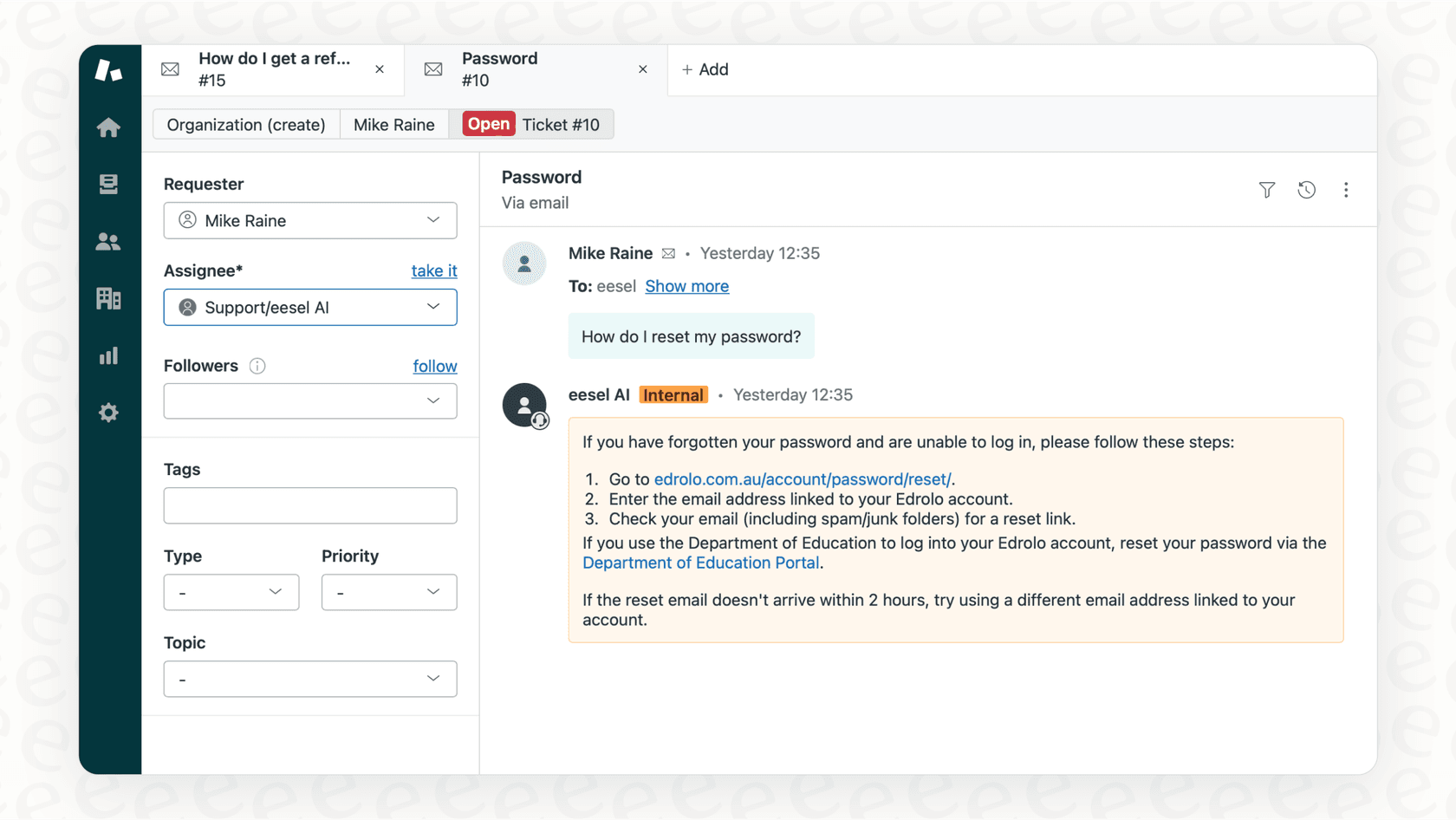
Here's how we complement your outbound messaging setup:
Autonomous ticket handling: When customers reply to your outbound WhatsApp or SMS messages, their responses create tickets in Zendesk. Our AI agent reads these tickets, drafts responses grounded in your knowledge base, and can send them autonomously or route them to agents based on rules you define in plain English.
Intelligent triage and routing: Not every response needs the same treatment. A customer confirming an appointment doesn't need the same handling as someone disputing a fraud alert. Our AI triage automatically tags, routes, and prioritizes incoming tickets so your team focuses on what matters.
Response drafting for complex cases: For tickets that need human review, we draft responses based on your past tickets, macros, and help center. Agents approve, edit, or regenerate rather than writing from scratch.
The integration works alongside your existing Zendesk workflows. Connect eesel to your help desk, train it on your knowledge sources, and start handling tickets. We charge per interaction (not per agent seat), which keeps costs predictable when you're dealing with high volumes from outbound campaigns.
Try eesel AI free to see how it handles responses to your outbound messages.
Native Zendesk methods for outbound messaging
Zendesk provides two APIs for outbound messaging: the Notification API for simple use cases, and the Create Client API for scenarios requiring more control.
Notification API
The Notification API is the simplest way to send outbound messages. You target users by phone number, and Zendesk handles the rest automatically.
When you invoke the Notification API, the platform:
- Checks if a user with that phone number already exists
- Matches to an existing conversation if one is open
- Creates a new user and conversation if needed
- Delivers your message
This eliminates the need to track user IDs or conversation IDs yourself. You provide the phone number and message content, and Zendesk routes it appropriately.
Here's a basic API call structure:
POST https://{subdomain}.zendesk.com/sc/v1.1/apps/{app_id}/notifications

{
  "destination": {
    "integrationId": "your-whatsapp-integration-id",
    "destinationId": "+15145555333"
  },
  "author": {
    "role": "appMaker"
  },
  "message": {
    "type": "text",
    "text": "Your order has shipped! Track it here: https://..."
  }
}
The API returns a notification ID for tracking delivery status through webhooks.
Create Client API
The Create Client API gives you more granular control when you need to link messages to specific users or conversations.
Use this approach when:
- You authenticate users with external IDs and need to maintain that connection
- You want outbound messages attributed to specific existing conversations
- You're managing complex user scenarios with multiple identities
The process requires more steps:
- Create a user (or reference an existing one by externalId)
- Create a conversation for that user
- Create a client linking the channel (WhatsApp, SMS) to the user
- Send your message to the conversation
This is more work than the Notification API, but necessary when you need precise control over where messages land in your system.
WhatsApp 24-hour rule and templates
WhatsApp restricts business-initiated messaging outside of active conversations. Here's how it works:
- Within 24 hours of a customer's last message: You can send free-form text, images, or any content
- After 24 hours: You can only send pre-approved template messages (HSMs)
Template messages must be submitted to Meta for approval before use. The good news is approval typically takes minutes, not days.
Templates fall into four categories:
| Category | Use Case | Approval Speed |
|---|---|---|
| Marketing | Promotions, offers, newsletters | Standard review |
| Utility | Order confirmations, shipping updates, appointments | Fast approval |
| Authentication | OTPs, verification codes | Fast approval |
| Service | Customer service responses | Fast approval |
To send a WhatsApp template via the Notification API, include the messageSchema: "whatsapp" parameter and structure your message according to WhatsApp's template format. Zendesk automatically reconstructs the template and delivers it through WhatsApp's Cloud API.
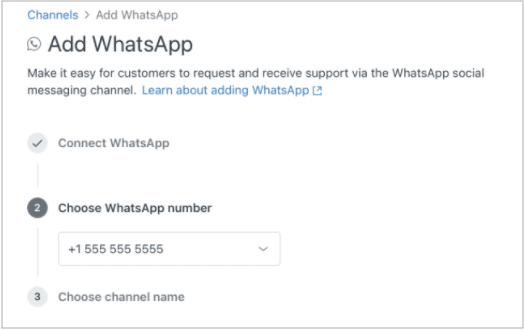
Setting up the Relay app for bulk WhatsApp and SMS
If you don't want to write code, the Relay app from Zendesk Labs provides a no-code solution for bulk outbound messaging.
What is the Relay app?
Relay is a free Zendesk Marketplace app that enables bulk WhatsApp and SMS campaigns using templates. It's built by Zendesk Labs, which means it's experimental but actively maintained (last updated February 2026, version 3.9.19).
Common use cases include:
- Service incident notifications to affected customers
- VIP customer outreach for special events or promotions
- Event attendee communications
- Feedback requests to loyal customers
Prerequisites
Before installing Relay, verify you have:
Zendesk requirements:
- Zendesk Suite Professional or higher (the Conversations API access is required)
- Custom Objects enabled in your Zendesk instance
- Admin access to install Marketplace apps
WhatsApp requirements:
- WhatsApp Business Account connected to Meta Business Manager
- At least one phone number verified and connected to WhatsApp Business API
- Meta Business Manager verification completed (for full messaging access)
SMS requirements:
- Integration with Twilio, MessageBird, or Zendesk Talk Text
Step-by-step installation
-
Install from Zendesk Marketplace
Navigate to the Zendesk Marketplace, search for "Relay" from Zendesk Labs, and click Install. Select your Zendesk account.
-
Create your Conversations API credentials
Go to Admin Center, then Apps and Integrations, then Conversations API. Click "Create API" and save your App ID, Key ID, and Secret Key.
-
Generate your authorization token
The Relay app requires a base64-encoded token. Combine your Key ID and Secret Key by encoding them in base64 format (Key ID:Secret Key).
-
Get your WhatsApp Namespace ID
In Meta Business Manager, navigate to your WhatsApp Business Account settings to find your Namespace ID. You'll need this for template creation.
-
Configure app settings
Enter your App ID and Authorization Token in the Relay app settings. Set your blackout period (prevents sending duplicate templates to the same person within X days). Optionally restrict access by role or group.
Creating and managing templates
Relay lets you create WhatsApp templates directly within Zendesk and submit them to Meta for approval.
Template components include:
- Header (optional): Text, image, video, or document
- Body: Main message with dynamic placeholders like
{{1}},{{2}} - Footer (optional): Additional text
- Buttons (optional): Quick replies or call-to-action links
For example, a shipping notification template might look like:
Header: Your order is on the way!
Body: Hi {{1}}, your order #{{2}} shipped via {{3}} and will arrive by {{4}}.
Footer: Track at example.com/track
Button: [Track Package]
After creating a template, submit it to Meta. Monitor the approval status in the Relay app interface. Once approved, the template is ready for campaigns.
Sending bulk messages
To send a campaign:
- Select your approved template and channel (WhatsApp or SMS)
- Define your audience using Zendesk search syntax (e.g.,
tags:viporcustom_field:region:west) - Map template placeholders to user fields or enter static values
- Preview recipients and exclude any contacts
- Send the campaign
Relay processes up to 10,000 users per campaign. You can track delivery status in real-time as messages go out.
Current limitations
Relay's a Zendesk Labs product, which means it's still evolving. Current limitations include:
- Same placeholder values for bulk sends: You can't personalize each message with different dynamic values beyond what's stored in user fields
- No scheduling: Campaigns send immediately, no future scheduling
- Manual token encoding: No OAuth flow, you must manually generate and paste credentials
- Limited error messaging: Troubleshooting failed sends can be difficult
- No A/B testing: Basic campaign comparison only
For teams needing more advanced features, third-party integrations may be a better fit.
Third-party integrations for Zendesk WhatsApp and SMS
Several third-party tools extend Zendesk's outbound messaging capabilities beyond what native options provide.
MessageBird via Ulgebra
The MessageBird integration for Zendesk Support connects MessageBird's communication channels to your help desk.
Supported channels:
- SMS
- Viber
- Facebook Messenger
- Line
- Telegram
Key features:
- Two-way messaging with automatic ticket creation
- Bulk messaging to multiple contacts
- Message templates with placeholders
- Conversation dashboard within Zendesk
- Real-time and desktop notifications
- Reply to tickets via public comments
Pricing:
| Plan | Price | Credits/Month | Key Features |
|---|---|---|---|
| Classic | $5/user/month | 250 | Two-way messaging, message history, all channels |
| Business | $10/user/month | 500 | All Classic features plus proactive messaging, workflow automation, instant notifications |
Note: MessageBird messaging costs apply separately. The Ulgebra pricing covers the integration itself.
Zapier integrations with Chat-Tonic
For no-code automation, Zapier's Chat-Tonic integration enables trigger-based WhatsApp messaging.
Example workflow:
- Trigger: New ticket created in Zendesk view
- Action: Send WhatsApp outbound message (HSM) via Chat-Tonic
This is useful for simple automated notifications, like sending a WhatsApp confirmation when a ticket's created or resolved. The limitation is that it's event-driven rather than bulk campaign-oriented.
When to choose third-party vs native
| Scenario | Recommended Option |
|---|---|
| Free, basic bulk messaging | Relay app |
| API-level control, custom integrations | Notification API / Create Client API |
| Multi-channel beyond WhatsApp/SMS | MessageBird integration |
| Simple event-triggered automation | Zapier + Chat-Tonic |
| Need scheduling and advanced features | Third-party platforms |
For most teams starting with outbound messaging, the free Relay app is sufficient. Graduate to third-party tools when you hit its limitations.
WhatsApp vs SMS: Which channel should you use?
Both channels have their place. The right choice depends on your audience, use case, and market.
| Factor | SMS | |
|---|---|---|
| Open rates | 98%+ (exceptional) | ~20% (variable) |
| Cost model | Per conversation (varies by country) | Per message |
| Rich media | Images, buttons, carousels, documents | Text only (MMS adds cost) |
| 24-hour rule | Yes, templates required after window | No restrictions |
| Global reach | Strong in Europe, LATAM, Asia | Universal |
| Setup complexity | Meta Business Manager required | Phone number only |
When to use WhatsApp
WhatsApp excels for engagement-focused messages where you want customers to interact, not just receive information. The rich media support (product carousels, quick reply buttons, document attachments) makes it ideal for:
- Appointment confirmations with "Confirm" / "Reschedule" buttons
- Order updates with product images
- Interactive customer surveys
- Promotional campaigns with CTAs
WhatsApp also dominates in markets where SMS adoption is lower, particularly Europe, Latin America, and parts of Asia.
When to use SMS
SMS is better for critical alerts where delivery reliability matters more than engagement. SMS works on every phone, requires no app installation, and has no 24-hour restrictions.
Use SMS for:
- Time-sensitive fraud alerts
- Authentication codes (2FA)
- Critical system notifications
- Markets with low WhatsApp adoption (parts of North America)
Cost considerations (2026 pricing)
WhatsApp Business API moved to per-message pricing in July 2025, replacing the previous conversation-based model. Current rates:
| Message Type | Price Range |
|---|---|
| Marketing | $0.025 - $0.14 per message |
| Utility | $0.004 - $0.05 per message |
| Authentication | $0.004 - $0.05 per message |
| Service (within 24h) | Free |
Prices vary significantly by recipient country. Check WhatsApp's official Business API pricing documentation for specific rates in your region.
SMS pricing depends on your provider (Twilio, MessageBird, Zendesk Talk Text) and destination. Domestic US SMS typically runs $0.0075-$0.02 per message, with international rates varying widely.
For more on optimizing your support channels, see our guide to Zendesk omnichannel support.
Getting started with Zendesk outbound messaging
Here's a practical roadmap based on your technical resources and needs.
For API developers
Use the Notification API or Create Client API when you need custom integrations, precise control, or high-volume programmatic sending.
First steps:
- Enable Sunshine Conversations API access in Admin Center
- Create API credentials (Key ID and Secret Key)
- Review the outbound messaging documentation
- Start with simple notifications before building complex workflows
For no-code teams
The Relay app's your best starting point. It's free, handles template management, and integrates directly with your Zendesk user data.
First steps:
- Verify your Meta Business Manager
- Connect your WhatsApp Business Account to Zendesk (setup guide)
- Install the Relay app from Marketplace
- Create and approve your first templates
- Test with a small audience before scaling
For multi-channel needs
If you need channels beyond WhatsApp and SMS (Viber, Instagram, Facebook Messenger), consider the MessageBird integration. The $5-10/user/month cost adds up, but it'll consolidate multiple channels into one interface.
Handling response volume
Outbound messaging generates inbound responses. As your campaigns scale, consider how you'll handle the increased ticket volume.
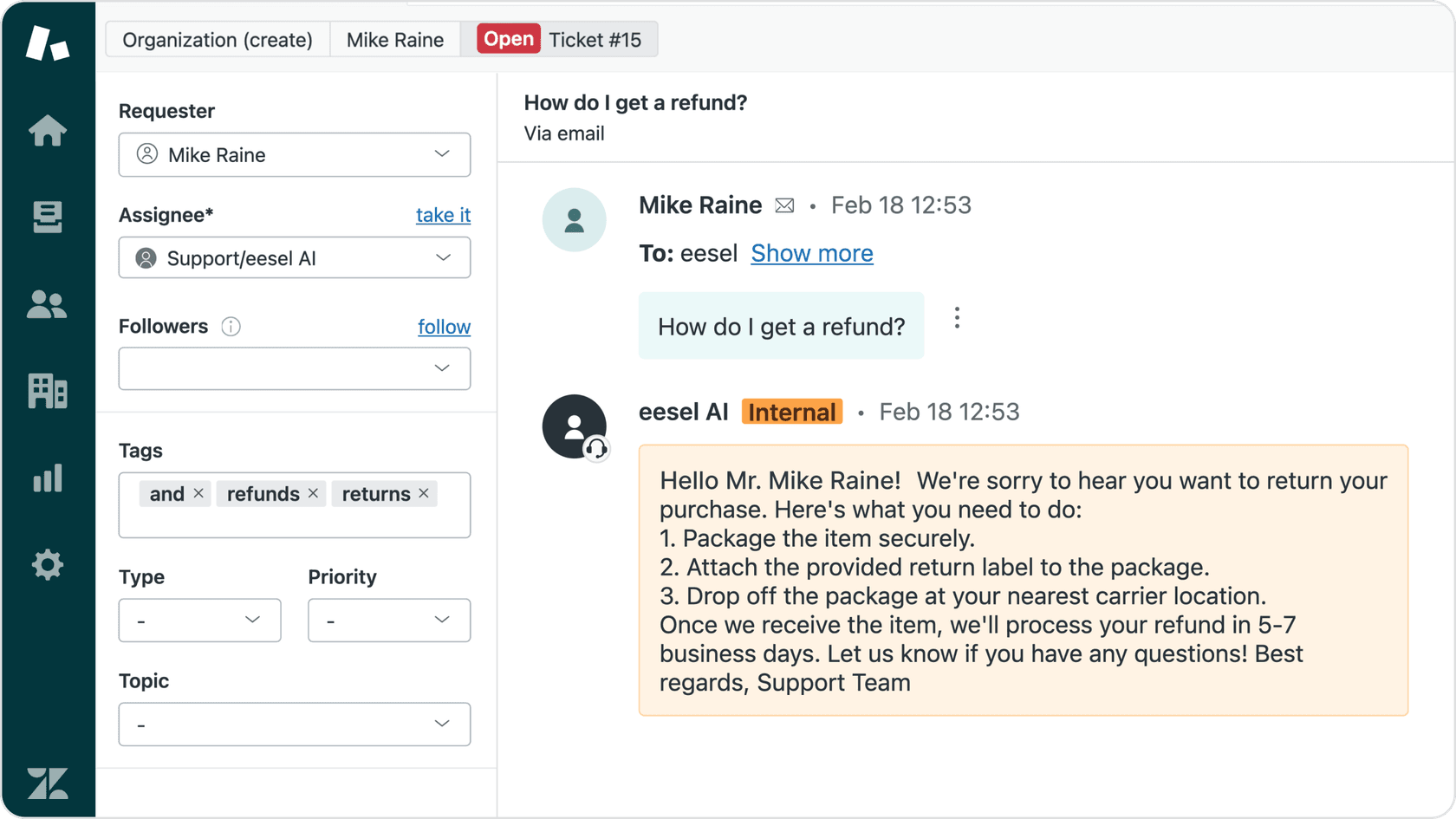
eesel AI can absorb much of this load automatically. Our AI agent handles routine responses (appointment confirmations, tracking inquiries, simple questions) while routing complex issues to your team. Pay-per-interaction pricing means costs scale with your actual usage, not agent headcount.
For teams already using Zendesk AI, eesel AI works alongside existing automation, handling cases that fall outside your configured workflows.