The Zendesk customer portal is where your users go to submit tickets, track their requests, and find answers on their own. Getting the sign-in configuration right matters because it directly impacts both security and user experience. Too restrictive and you frustrate customers who just want help. Too open and you risk exposing sensitive information.
This guide walks you through configuring the Zendesk Guide customer portal sign in from start to finish. We'll cover the basic setup, the three different access modes, authentication options including single sign-on, and common troubleshooting scenarios. If you're looking for alternatives that go beyond Zendesk's native capabilities, we'll also touch on how AI-powered solutions can enhance your self-service strategy.

What you'll need
Before you start, make sure you have:
- A Zendesk account with admin access
- Suite Team plan or higher (the customer portal requires Guide, which starts at the Suite Team tier at $55 per agent per month billed annually)
- A clear understanding of your organization's access requirements (do you need public self-service, internal-only access, or something in between?)
If you're still evaluating options, our Zendesk support pricing guide breaks down the different tiers and what you actually get at each level.
Step 1: Enable your help center
The customer portal lives inside your Zendesk help center, so you need to activate Guide first.
- Click the Zendesk Products icon in the top navigation bar
- Select Knowledge from the dropdown menu
- Click Get started to activate your help center
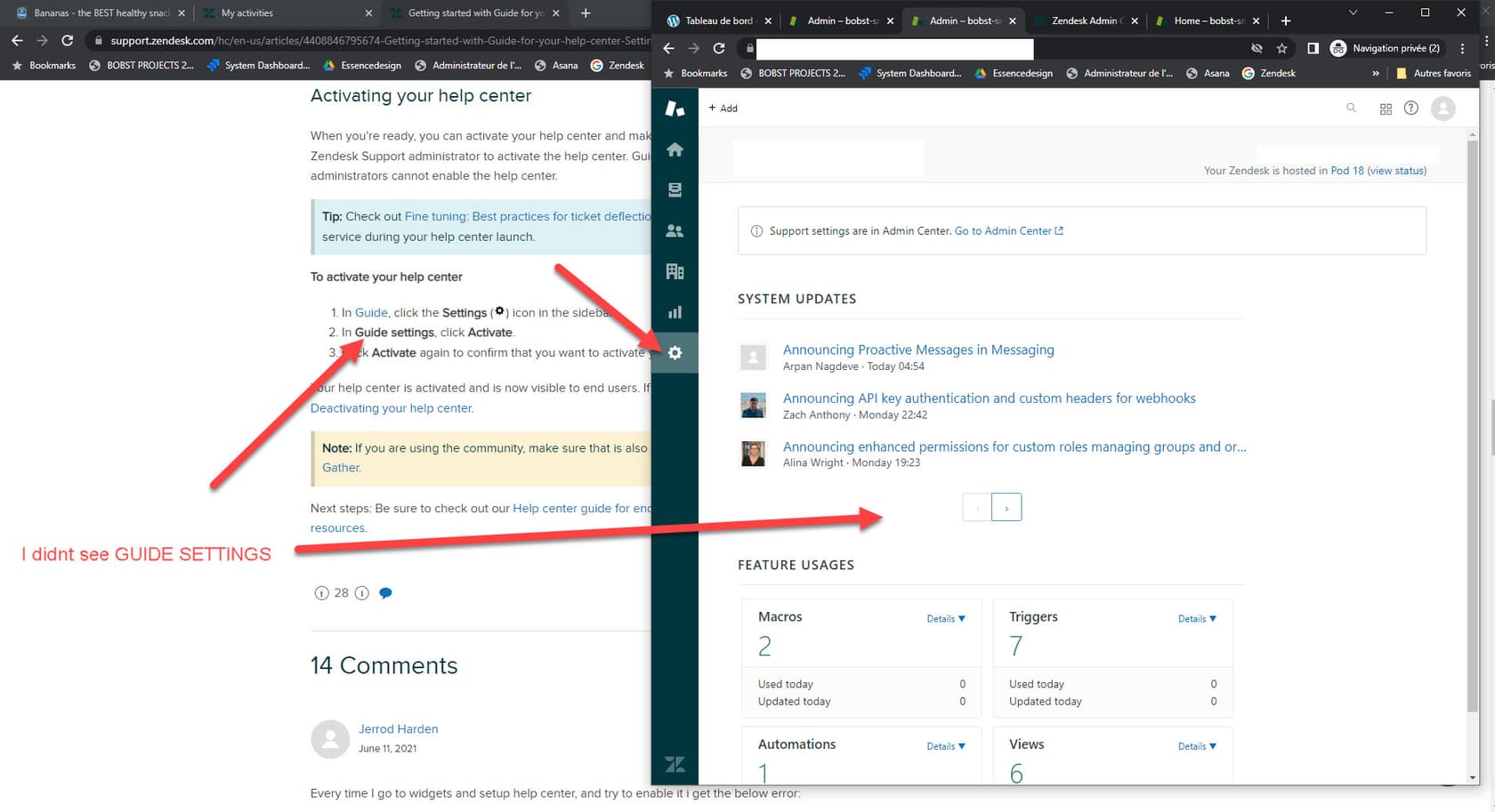
Your help center starts in setup mode with a default theme. While in setup mode, only admins can see it. This gives you time to customize the look and feel before making it public. The default theme is functional but generic, so most teams customize it with their branding before launch.
Important: Only the account owner can enable the help center initially. If you don't see the option, check that you're logged in as the account owner or contact them to complete this step.
Step 2: Configure end-user access settings for Zendesk Guide customer portal sign in
Once your help center is active, you need to decide who can access what. Zendesk offers three access modes, and your choice here shapes the entire customer experience.
Open access
Anyone can view your help center articles and submit tickets without signing in. This is the default and works well if you want maximum self-service adoption. Users can still create accounts to track their tickets, but it's optional.
Closed access
Your help center content is visible to everyone, but only users you explicitly add to your Zendesk account can sign in and submit tickets. This works for internal support portals or situations where you want tight control over who can request help.
Restricted access
Only users with email addresses from approved domains can submit tickets. This sits between open and closed: more controlled than open, but less manual work than closed since users can self-register if their domain is on the list.
To configure these settings:
- In Admin Center, click People in the sidebar
- Select Configuration > End users
- Choose your access option under "Anybody can submit tickets"
- If using restricted access, add approved domains in the field provided
- Decide whether to require registration (recommended for most setups)
- Click Save tab
Which should you choose? Open access is best for most customer-facing scenarios. It removes friction and lets people get help immediately. Closed makes sense for internal IT help desks. Restricted works when you support specific organizations (like partners or enterprise clients) but want to keep out the general public.
Step 3: Set up authentication methods
With access configured, you now decide how users prove their identity. Zendesk offers several options ranging from simple to enterprise-grade.
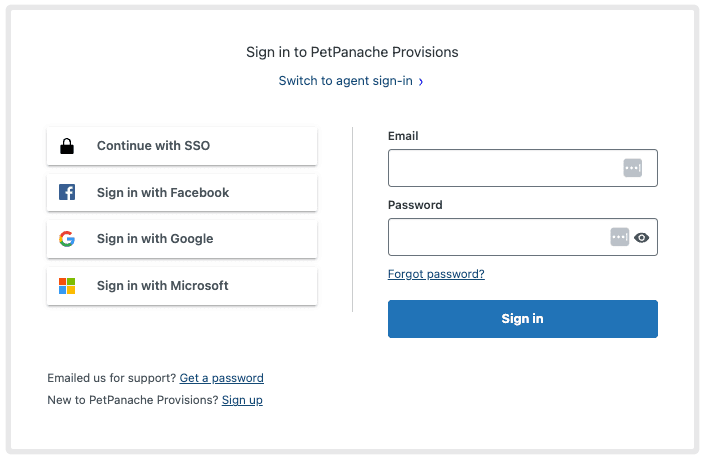
Standard Zendesk authentication
The default option: users create accounts with email and password. Zendesk handles verification and password management. This works fine for smaller teams or when you don't have an existing identity system.
Social single sign-on
Let users sign in with existing accounts from Google, Microsoft, or Facebook. This reduces password fatigue and speeds up registration. To enable:
- Go to Admin Center > Account > Security > End user authentication
- Select External authentication
- Enable the social providers you want to support
- Configure each provider's settings (you'll need API credentials from each platform)
Password security settings
Under Admin Center > Account > Security > End user authentication, you can set password requirements including minimum length, complexity rules, and expiration policies. For most teams, requiring 8+ characters with mixed case and numbers strikes the right balance between security and usability.
Step 4: Configure advanced SSO for Zendesk Guide customer portal sign in
For organizations with existing identity infrastructure, Zendesk supports enterprise single sign-on through SAML and JWT. These options let users access the portal using their corporate credentials.
SAML SSO
SAML integrates with identity providers like Okta, OneLogin, Azure Active Directory, and PingIdentity. When a user tries to access your portal, Zendesk redirects them to your identity provider for authentication, then accepts a signed assertion confirming their identity.
To set up SAML:
- In Admin Center, go to Account > Security > Single sign-on
- Click Create SSO configuration and select SAML
- Enter your SAML SSO URL, certificate fingerprint, and remote logout URL
- Save the configuration
- Assign it to end users, team members, or both under the authentication settings
JWT SSO
JWT (JSON Web Token) works well when you have a custom authentication system. Your server generates a signed token containing user details, which Zendesk validates to grant access. This requires development work to implement the token generation on your side.
The key difference: SAML is typically used with commercial identity providers, while JWT is for custom-built authentication systems. SAML is more "plug and play" if you already use a major identity provider. JWT gives you more control but requires engineering effort.
When is advanced SSO necessary? If your users already sign into other company systems, SSO creates a seamless experience and reduces password management overhead. It's almost mandatory for internal employee portals and increasingly expected by enterprise customers.
Step 5: Customize the sign-in experience
With authentication configured, make the portal feel like yours.
- Branding: Upload your logo and set brand colors under Admin Center > Guide > Settings > Brand
- Welcome messages: Customize the text users see on the sign-in page through Guide theme customization
- Mobile optimization: Zendesk themes are responsive by default, but test on mobile devices to ensure your customizations work well on smaller screens
The sign-in page is often the first interaction users have with your support experience. A branded, professional portal builds trust and sets expectations for the quality of support you'll provide.
Common issues and troubleshooting
Even with proper setup, users occasionally hit snags. Here's how to handle the most common problems.
Users can't sign in: First, check if they're using the correct email address. If they've forgotten their password, the reset flow is available from the sign-in page. For SSO users, verify your identity provider is accessible and that the user's account exists there.
SSO errors: Certificate expiration is a frequent culprit. SAML certificates need periodic renewal, and when they expire, authentication fails with cryptic errors. Check your certificate validity in Admin Center > Security > Single sign-on. JWT errors often trace back to clock skew: ensure your authentication server's time is synchronized.
Email verification problems: Some users don't receive verification emails. Check spam folders first. If emails consistently fail, verify your Zendesk email settings and consider whitelisting Zendesk's sending domains.
Third-party cookie requirements: Zendesk requires third-party cookies for user registration. Users in private browsing mode or with aggressive cookie blocking may need to adjust their browser settings or use a regular browsing window.
Enhancing your portal with AI-powered support
Zendesk's customer portal handles the basics well, but there's a gap between what users can find in your knowledge base and what they actually need. That's where AI can help.

At eesel AI, we've built an AI teammate that integrates directly with your Zendesk setup via eesel's Zendesk integration. Instead of just searching articles, users get conversational answers pulled from your entire knowledge ecosystem: help center articles, past tickets, macros, and even connected documents from Confluence or Google Docs.
Here's how it works: you connect eesel AI to your Zendesk account in minutes (no engineering required). Our AI learns from your existing data and starts answering questions immediately. You can run it alongside your portal, offering AI-powered assistance before users ever submit a ticket. When they do need human help, our AI Agent can handle the frontline, drafting responses or resolving common issues autonomously.

The key difference is that eesel AI learns continuously. Every ticket resolution, every agent edit, every new document: it all feeds back into the system. Unlike static knowledge bases that go stale, an AI teammate gets smarter over time.
You can test everything before going live. Run simulations on thousands of past tickets to see how the AI would have performed. Only flip the switch when you're confident it meets your quality standards.
If you're evaluating ways to improve your self-service experience beyond Zendesk's native capabilities, our guide to Zendesk self-service portals explores the options in more detail.