Every support team has been there. A customer submits a ticket, hours pass, and somehow it slips through the cracks. No one has replied yet. The customer's waiting. Your SLA clock is ticking.
Tracking unreplied tickets isn't just about good customer service. It's about catching problems before they become complaints. When you can see exactly which tickets are still awaiting that first response, you can prioritize effectively and keep your team accountable. For teams looking to improve their overall support efficiency, check out our guide on AI-powered help desk software.
This guide walks you through creating a Zendesk Explore report that identifies tickets with no replies. You'll learn the exact steps to build this report, plus some tips for using it effectively. We'll also look at how you can go beyond manual reporting to automate this tracking entirely.
What you'll need
Before you start building this report, make sure you've got the right setup:
- Zendesk Suite plan: You'll need to be on a Professional, Enterprise, or Enterprise Plus plan. Check out our Zendesk pricing guide for more details.
- Zendesk Explore access: This requires Explore Professional or Enterprise (the Lite version that comes with some plans won't work for custom reports)
- Editor or Admin permissions: You'll need the right permissions to create and save reports in Explore
The key to this recipe is something called Agent replies brackets. This is a built-in attribute in Zendesk Explore that automatically categorizes tickets based on how many replies they've received. The brackets include 0 (no replies), 1, 2-5, 6-10, and so on. We'll be filtering for that "0" bracket to find tickets that haven't been touched yet.
Step 1: Create a new report in Explore
Let's get started by creating the report framework.
Navigate to Explore from your Zendesk dashboard. You'll find it in the main navigation menu. Once you're in Explore, click the reports icon and then select New report from the Reports library.
You'll see a "Select a dataset" page. This matters because different datasets contain different types of data. For tracking unreplied tickets, you want Support > Support - Tickets. This dataset contains ticket-level information including reply counts, status, and creation dates. Click Start report once you've selected it.
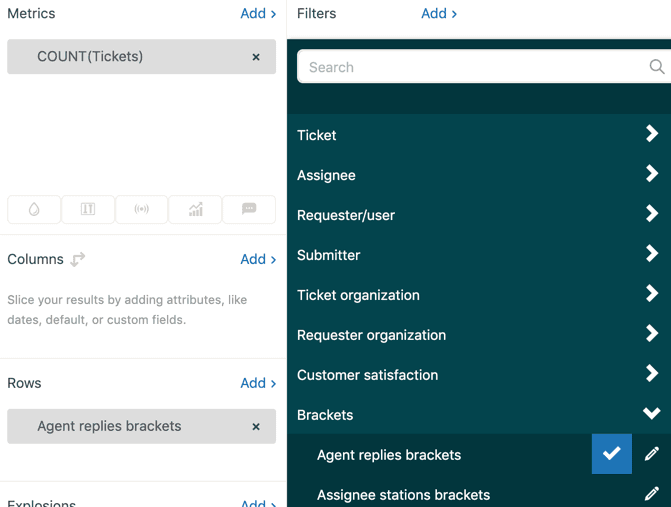
The report builder will open. You'll see panels on the right side for Metrics, Rows, Columns, and Filters. These are the building blocks of your report.
Step 2: Add the tickets metric
Now we need to tell the report what to count. In this case, we want to count tickets.
In the Metrics panel on the right, click Add. You'll see a list of available metrics. Navigate to Tickets > Tickets and select it, then click Apply.
This adds the basic count of tickets to your report. Right now it's counting all tickets in your dataset, but we'll narrow that down in the next steps. The Tickets metric is the foundation of most support reports because it gives you the raw volume numbers you need. Learn more about AI-powered ticket management to see how automation can complement your reporting.
Step 3: Configure agent replies brackets
Now for the key step. We need to break down those ticket counts by how many replies they've received.
In the Rows panel, click Add. From the list of attributes, find Brackets > Agent replies brackets and select it, then click Apply.
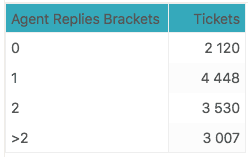
You'll now see your tickets organized into reply brackets. The default brackets include:
- 0 (no replies yet)
- 1 (one reply)
- 2-5 (two to five replies)
- 6-10 (six to ten replies)
- 10+ (more than ten replies)
This distribution tells you a lot about your support volume. Ideally, you want most tickets in the 0-2 reply range, which suggests your team is resolving issues efficiently. A large number of tickets in the higher brackets might indicate complex issues or back-and-forth confusion.
Step 4: Filter for tickets with no replies
Now let's narrow this down to just the tickets that need attention: those with zero replies.
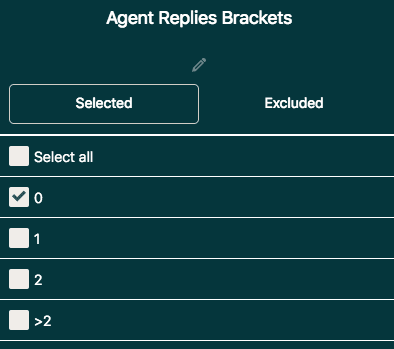
Click on the Agent replies brackets attribute in your Rows panel. You'll see a filter dialog with all the bracket options. Uncheck everything except 0, then click Apply.
Your report now shows only tickets with no replies. But we're not quite done. This includes tickets that might already be solved or closed without a reply (which happens sometimes with spam or self-solved issues).
To focus on active tickets that actually need a response, let's add another filter. In the Filters panel, click Add. Find Ticket > Ticket status and select it. Now click on the Ticket status filter and exclude Solved and Closed statuses.
This gives you a clean view of tickets that are currently open, pending, or on-hold and have not received any agent response yet. These are the tickets you need to prioritize.
Step 5: Visualize and save your report
Raw numbers are useful, but a good visualization makes the data instantly understandable.
Click the Visualization type icon on the right menu. For a single number showing your current unreplied ticket count, select KPI. This gives you a big, bold number that's perfect for dashboard display.
If you want to see trends over time, switch to a Column or Line chart and add a time attribute like Ticket created - Date to your Columns or Rows panel.
From the Chart configuration menu, you can customize colors, labels, and display options. For a KPI, you might want to set conditional formatting (like turning red when the number gets too high).
Once you're happy with the report, click Save. Give it a clear name like "Tickets with no replies" and add it to a dashboard if you want it visible to your team. You might also want to explore how AI for customer service can work alongside your reports to handle routine tickets automatically.
Pro tips for monitoring unreplied tickets
Building the report is just the start. Here's how to use it effectively:
Set up a review schedule. Check this report at consistent intervals, whether that's every hour, twice a day, or at the start of every shift. Consistency is key so nothing slips through.
Combine with first reply time metrics. Use this report alongside your first reply time tracking. If you see tickets approaching your SLA threshold, prioritize those first. For more on this, check out our guide on Zendesk first reply time explore recipe setup.
Watch for patterns. If you consistently see certain ticket types or channels with longer times to first reply, that might indicate a routing problem or a need for better triage. Learn about using AI to classify and tag support tickets to automate this process.
Be aware of the internal notes issue. Zendesk counts internal notes (visible only to agents) separately from public replies. A ticket might show "0" in the Agent replies brackets even if an agent has added an internal note. Make sure your team knows to actually send a public reply to the customer.
Handle merged tickets carefully. When tickets are merged, the reply count behavior can be inconsistent. Keep an eye out for anomalies and adjust your process accordingly.
Going beyond reporting: Automated tracking with eesel AI
The report you just built has one limitation: it's reactive. You have to remember to check it. You have to manually prioritize. You hope nothing gets missed during busy periods.
What if instead of checking a report, you could get automatic alerts when tickets go unreplied for too long?
That's where we can help. At eesel AI, we build AI teammates that work inside your existing tools. Our AI Agent integrates directly with Zendesk and monitors your queue in real-time.

Instead of building reports and checking them manually, you can set up rules in plain English:
- "If a ticket has been unreplied for more than 2 hours, alert the team lead"
- "For VIP customers, escalate if no reply within 30 minutes"
- "Tag all tickets that have been waiting 4+ hours as 'SLA at risk'"
The AI watches your queue continuously and takes action automatically. No more manual monitoring. No more tickets slipping through cracks. You get proactive visibility without the overhead of constant report checking.
This doesn't replace your Zendesk Explore reports. Those are still valuable for analysis and trends. But it removes the manual work of monitoring and lets you focus on actually helping customers instead of watching dashboards.
Start improving your first reply times today
You now have a working Zendesk Explore recipe that shows you exactly which tickets need attention. The report you built will help you identify unreplied tickets quickly and keep your team accountable to response time goals.
The steps are straightforward: create the report, add the Tickets metric, configure the Agent replies brackets, filter for zero replies, and visualize the results. Save it to your dashboard and make checking it part of your daily routine.
If you're ready to go beyond manual reporting and want automatic monitoring that catches issues before they become problems, explore what eesel AI can do for your support team. We help teams move from reactive reporting to proactive support.
Either way, the important thing is that no ticket sits waiting for a reply that never comes. Your customers will notice the difference.