
Managing who gets notified about ticket updates might seem like a small detail, but it directly impacts response times, customer satisfaction, and team coordination. In Zendesk, you have two main tools for keeping people in the loop: CCs and followers. Each serves a different purpose, and knowing when to use which (plus how to customize their notifications) can transform how your support team operates.
This guide walks you through everything you need to know about Zendesk email CC followers notification settings. We'll cover the differences between CCs and followers, how notifications work under the hood, how to customize them for your needs, and ways to automate the process. Whether you're setting up Zendesk for the first time or optimizing an existing configuration, you'll find actionable steps you can implement today.

Understanding CCs vs followers in Zendesk
Before diving into notification settings, let's clarify what CCs and followers actually are. They sound similar but function very differently.
What are CCs?
CCs (carbon copies) in Zendesk work much like they do in email. When you add someone as a CC on a ticket, they become visible to everyone involved in the conversation. This includes:
- External visibility: CC'd users appear in the ticket header, and their email addresses are visible to other participants
- Reply capabilities: CCs can respond to ticket notifications, and their replies become public comments on the ticket
- Participant limit: You can have up to 48 email CCs on a single ticket
- Use cases: Involving customers who need updates, looping in external stakeholders, or including partners in a support conversation
CCs are ideal when transparency matters and you want everyone to see who's involved in resolving an issue.
What are followers?
Followers are an internal-only feature designed for team coordination. Here's how they differ:
- Internal only: Only agents and administrators can be followers
- Hidden from customers: Followers receive all updates but remain invisible to end users and other CCs
- Unlimited count: There's no limit to how many followers a ticket can have
- Full visibility: Followers see both public comments and internal notes
- Use cases: Manager oversight, cross-team collaboration, keeping specialists informed without cluttering the customer-facing thread
Followers are perfect when you need internal coordination without exposing your team's internal processes to customers.
Key differences at a glance
| Feature | CCs | Followers |
|---|---|---|
| Visibility | Visible to all participants | Hidden from customers |
| Who can be added | End users and agents | Agents and admins only |
| Reply capability | Can reply publicly | Can reply publicly or privately |
| Limit | 48 per ticket | Unlimited |
| Best for | External coordination | Internal team updates |
How Zendesk email notifications work for CCs and followers
Now that you understand the difference between CCs and followers, let's look at how Zendesk actually sends email notifications to each group.
Default triggers for CC notifications
By default, Zendesk uses two standard triggers to control email notifications for CCs:
- "Notify requester and CCs of received request": Fires when a new ticket is created
- "Notify requester and CCs of comment update": Fires when a public comment is added to an existing ticket
Both triggers use the action "Email user + (requester and CCs)". This specific action is what causes CCs to receive email notifications. If you remove or modify these triggers without understanding the implications, CCs may stop receiving updates entirely.
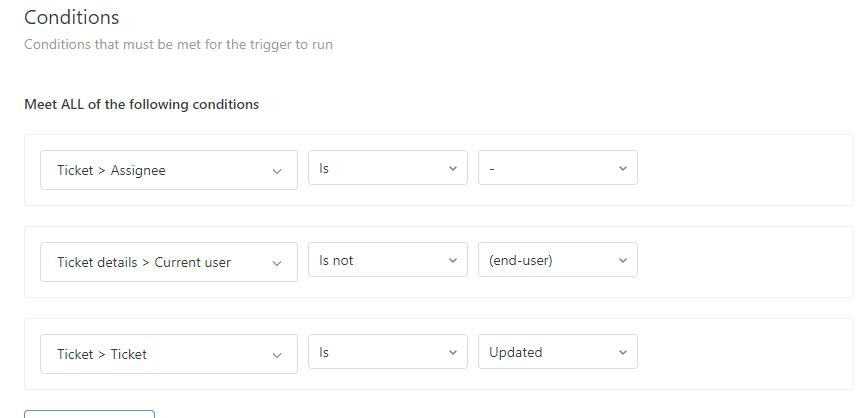
Important note: The "Email user + (requester and CCs)" action is suppressed when internal notes are added to a ticket. The trigger still fires and performs any other actions you've configured, but no email is sent. If you want CCs to receive notifications, you must include a public comment.
Follower notification mechanics
Followers work differently from CCs. Instead of triggers, followers receive notifications through a dedicated email template. Here's what you need to know:
- Followers receive email notifications when comments (public or internal) are added to tickets they follow
- Followers do NOT receive notifications for their own comments
- There's no way to disable follower email notifications without turning off the followers feature entirely
- The follower email template can be customized separately from CC notification triggers
This means followers are always in the loop once added, which is great for coordination but requires some discipline to avoid notification fatigue.
When notifications are suppressed
Understanding when notifications don't get sent is just as important as knowing when they do:
- Internal notes suppress CC notifications: When an agent adds an internal note, the "Email user + (requester and CCs)" action is suppressed. CCs won't receive an email even though the trigger fires.
- Private comments require public follow-up: If you need CCs to see an update after an internal note, you'll need to add a public comment to trigger the notification.
- Follower notifications are never suppressed: Followers receive notifications for all comments, regardless of whether they're public or internal.
Customizing Zendesk email CC followers notification settings
Out-of-the-box notification settings work for many teams, but most organizations eventually need to customize them to match their brand voice and workflow requirements.
Customizing CC notification triggers
You can customize the text in email notifications to requesters and CCs by editing the default triggers. Here's how:
- Navigate to Admin Center > Objects and rules > Business rules > Triggers
- Click on "Notify requester and CCs of received request" or "Notify requester and CCs of comment update"
- Modify the email subject and body text as needed
- Use placeholders to dynamically insert ticket information
- Save your changes
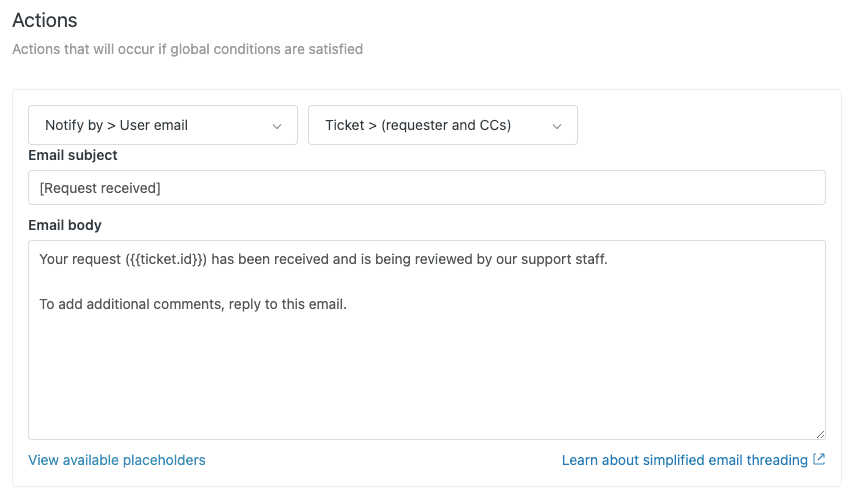
Useful placeholders for CC notifications:
{{ticket.cc_names}}or{{email_cc_names}}: Returns the names of all CCs on the ticket{{ticket.title}}: The ticket subject line{{ticket.description}}: The original ticket description{{ticket.url}}: A link to the ticket (for agents)
Customizing the follower email template
The follower email template is configured separately from CC triggers. To customize it:
- Go to Admin Center > Objects and rules > Tickets > Settings
- Click CCs and followers on tickets to expand the section
- Make sure Allow followers is checked
- In Customize your follower email, edit the subject line
- In Create your email text, edit the body content
- Click Save
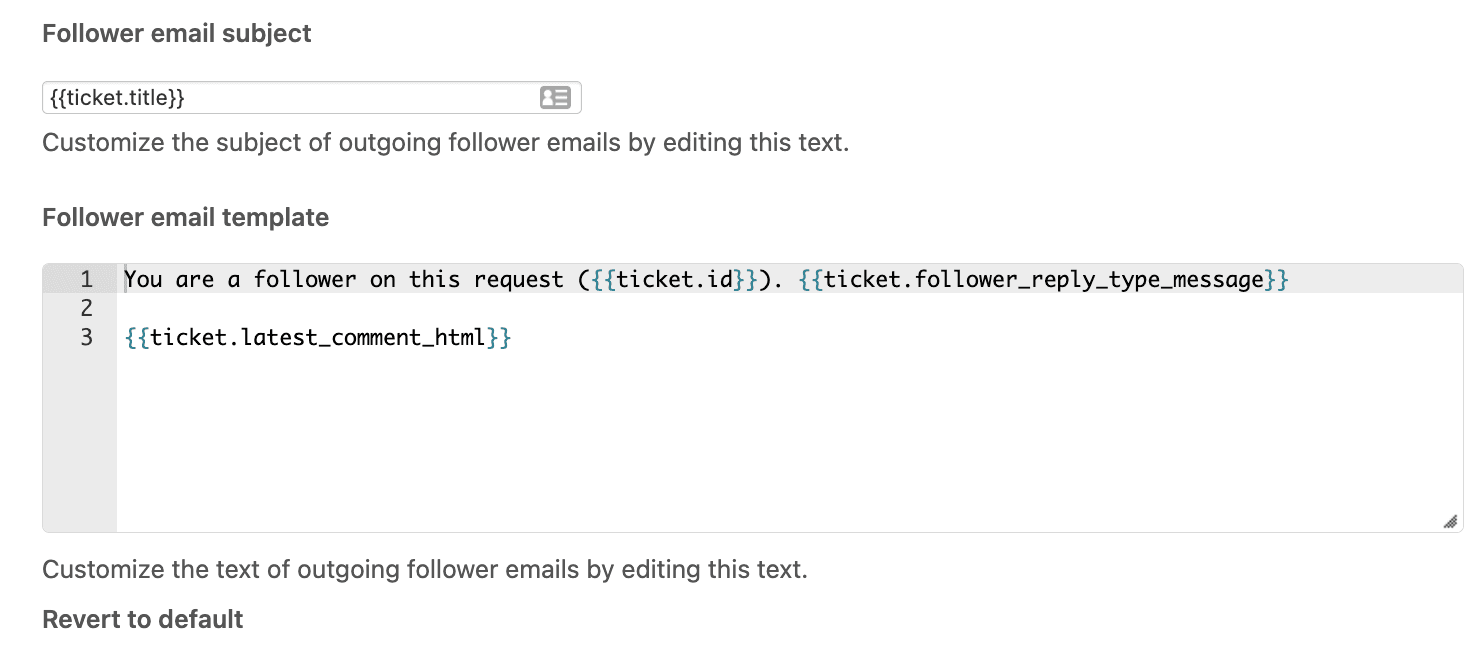
Available placeholders for follower emails:
{{ticket.follower_names}}: Returns the names of followers on the ticket{{ticket.follower_reply_type_message}}: Shows whether replying will add a public comment or internal note{{ticket.cc_names}}: Also available in follower templates
Best practices for follower email content:
- Keep it professional but brief
- Remind followers that replies may be public or private depending on context
- Include clear links back to the ticket for quick access
Placeholder reference for notifications
Here's a quick reference for the most useful placeholders when customizing notifications:
| Placeholder | What it returns | Best used in |
|---|---|---|
{{ticket.cc_names}} | Names of CC'd users | CC notifications, follower emails |
{{ticket.follower_names}} | Names of followers | Follower emails |
{{ticket.follower_reply_type_message}} | Reply instructions | Follower emails |
{{ticket.title}} | Ticket subject | All notification types |
{{ticket.description}} | Original request | New ticket notifications |
Automating CC and follower management
Manually adding CCs and followers to every ticket gets old fast. Fortunately, Zendesk offers several ways to automate this process.
Using triggers for automatic addition
Triggers let you add followers or CCs automatically based on ticket conditions. This works well for predictable scenarios where you always want the same outcome.
Common trigger use cases:
- Add an account manager as a follower for all tickets from a specific organization
- CC a technical team when tickets are tagged with "bug"
- Add a manager as a follower for high-priority tickets
To create a trigger that adds followers:
- Go to Admin Center > Objects and rules > Business rules > Triggers
- Click Create trigger
- Set your conditions (e.g., Organization is "Acme Corp")
- Add the action Add follower and select the agent
- Save the trigger
When to use triggers: Use triggers when the condition is always the same and doesn't require agent judgment.
Using macros for agent-initiated addition
Macros are one-click shortcuts that agents apply when they determine a follower is needed. Unlike triggers, macros require human judgment.
For example, you might create macros for:
- Escalating to Tier 2 support
- Looping in an account manager
- Notifying a team lead
Our guide on how to use Zendesk macros to add followers automatically walks through the complete setup process, including ready-to-use templates for common scenarios.
When to use macros: Use macros when an agent needs to evaluate the ticket first before deciding who to add.
Advanced automation with webhooks
When you need dynamic follower assignment (like adding "whoever is the account manager for this organization"), Zendesk's native features hit their limit. The "Add follower" action only accepts static user selections.
For these scenarios, you can use webhooks with the Zendesk API:
- Store account manager emails in an organization custom field
- Create a webhook that calls the Zendesk API
- Use Liquid markup to dynamically build the follower list
- Trigger the webhook when tickets are created
Our article on adding followers by custom field in Zendesk provides a complete walkthrough of this approach.
When to use webhooks: Use webhooks when you need dynamic, data-driven follower assignment that changes based on organization fields or other variables.
Best practices and troubleshooting
Even with the right setup, things can go wrong. Here are best practices to follow and solutions to common issues.
Best practices for admins
- Train agents on the CC vs follower distinction: Make sure your team understands when to use each. Internal coordination should almost always use followers to protect agent email privacy.
- Monitor follower counts: Too many followers on a ticket creates notification fatigue. If tickets regularly accumulate dozens of followers, review whether all of them need to be there.
- Document your automation rules: Create a simple reference doc explaining what triggers and macros exist and when to use them. This helps new agents and prevents confusion.
- Test in sandbox first: Always verify new notification configurations in your Zendesk sandbox before deploying to production.
Best practices for agents
- Use Reply (not Reply all) for private comments: When you want to add an internal note via email, use Reply instead of Reply all. This keeps your comment internal.
- Be protective of confidential information: Followers don't show in email headers, so your conversation may appear more private than it actually is. Convert public comments to internal notes if you don't want information exposed.
- Pay attention to third-party replies: If someone not on the ticket replies to a notification, a warning appears in the ticket interface. You may need to manually add them as a CC.
Common issues and solutions
CCs not receiving notifications
- Check that the default triggers are active
- Verify the ticket has a public comment (internal notes suppress notifications)
- Ensure the CC was properly added to the ticket
Followers getting too many notifications
- Review follower counts on high-volume tickets
- Consider removing followers who no longer need updates
- Use internal notes strategically to reduce noise
Template changes not applying
- Remember that follower templates require the "Allow followers" setting to be enabled
- Clear your browser cache and try again
- Verify you're editing the correct trigger or template
Scaling beyond Zendesk's native capabilities with eesel AI
Zendesk's built-in automation works well for straightforward scenarios, but it has limitations. The "Add follower" action only accepts static user selections. You can't use placeholders or custom field values to dynamically select who gets added. This becomes a real problem when you're managing hundreds of organizations with complex routing rules.
That's where we come in. At eesel AI for Zendesk, we've built an AI teammate that integrates directly with Zendesk to handle follower automation that goes beyond static macro actions.
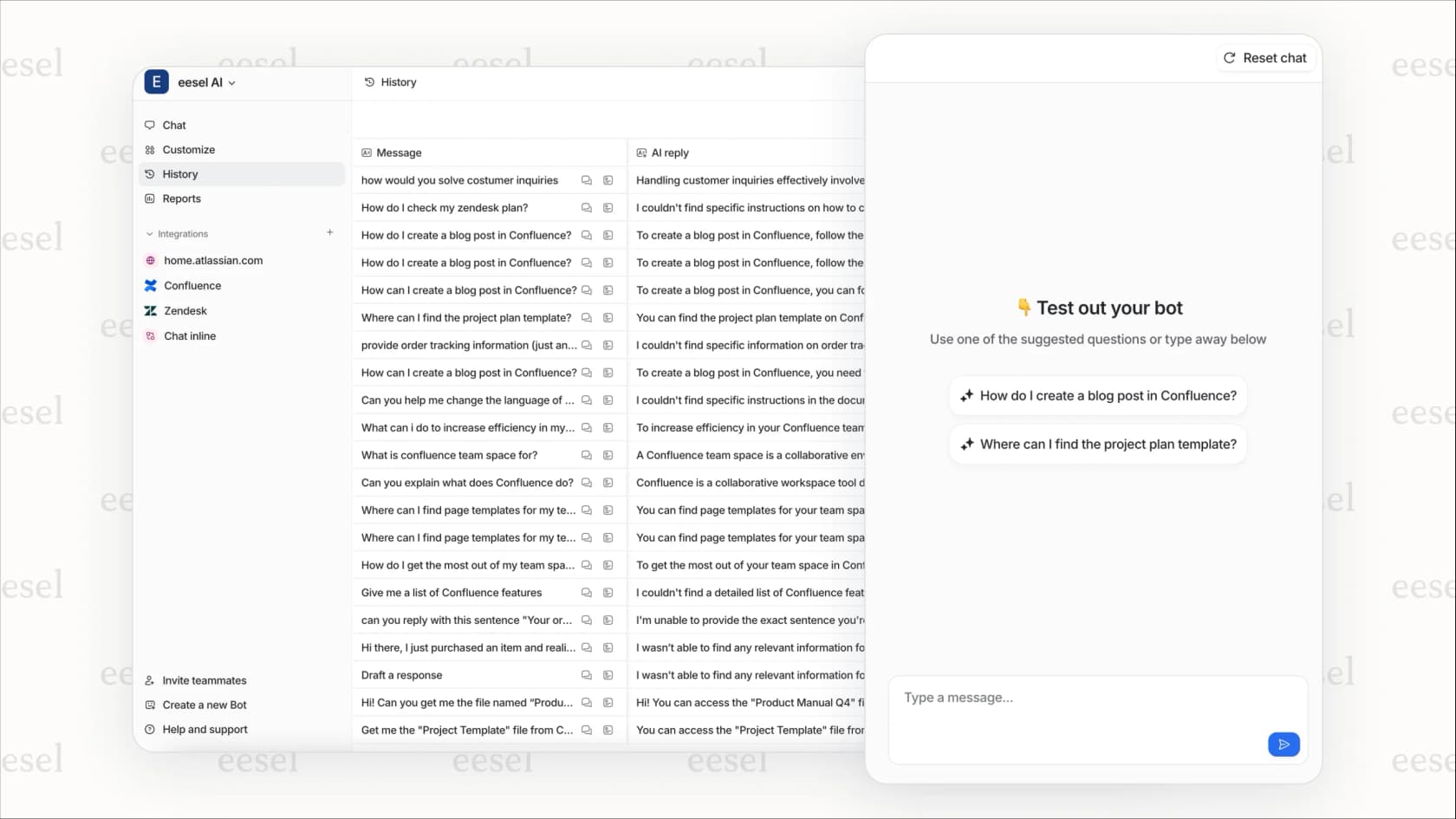
Here's how we complement Zendesk's native features:
- Natural language rules instead of rigid configurations. Define rules like "add the enterprise account manager for tickets from organizations with over 500 employees" in plain English.
- AI-powered routing based on ticket content. Our AI Triage reads ticket content to understand context, not just match field values. This means you can route based on sentiment, urgency signals, or complex combinations of factors.
- No-code setup for complex logic. No JSON, Liquid markup, or API tokens required. Business users can create and modify rules without technical help.
- Built-in error handling. We handle retries, edge cases, and failures automatically.
If you're already using Zendesk macros for follower management and finding they don't scale with your growth, we've got a path forward. You can start with our simple setup, test against your historical tickets, and deploy with confidence.
Start optimizing your Zendesk email CC followers notification setup today
Managing email notifications for CCs and followers isn't just about keeping people informed. It's about creating the right visibility for the right people at the right time. When configured well, your notification setup helps teams coordinate without overwhelming anyone with irrelevant updates.
Here's what to do next:
- Audit your current trigger configuration. Are the default CC notification triggers still active and appropriate for your workflow?
- Review your follower email template. Does it match your brand voice and provide clear guidance?
- Identify opportunities for automation. Which tickets always need the same followers or CCs added?
- Document your setup. Make sure your team knows when to use CCs vs followers and how your automation works.
If you find yourself creating dozens of macros to handle different scenarios, or if you need dynamic follower assignment that Zendesk can't provide natively, try eesel AI. We'll handle the complexity of intelligent follower routing so you can focus on delivering better customer experiences.