
Manually adding followers to tickets is one of those small tasks that somehow always gets forgotten. You need to keep an account manager in the loop on a key client's issue or make sure a technical specialist sees a bug report. But in the rush of handling tickets, it's easy to skip.
The good news is that Zendesk has a built-in way to handle this. With macros, you can create one-click shortcuts that add the right followers automatically. Unlike triggers (which fire based on ticket conditions), macros are applied by agents when they need them. This gives you control over when followers get added while removing the repetitive work.
This guide walks you through exactly how to set up Zendesk macros that add followers automatically. We'll cover when macros make more sense than triggers, how to create them step by step, and provide ready-to-use templates for common scenarios. We'll also look at what to do when you outgrow Zendesk's native capabilities and need something more scalable.
Understanding followers vs CCs in Zendesk
Before diving into macros, let's clarify the difference between followers and CCs. These two features often get confused, but they serve very different purposes.
Followers are internal users (agents or admins) who receive updates on a ticket without being visible to the customer. When you add someone as a follower, the end user has no idea they're there. Followers can see all ticket activity and get notified when comments are added. There's no limit to how many followers a ticket can have.
CCs are different. When you CC someone on a ticket, they become visible to everyone in the conversation. CCs can be internal users or external end users, and they can reply to ticket notifications. Tickets are limited to 48 email CCs.
Here's the short version: use CCs when you want someone to be part of the visible conversation, and use followers when you need to keep someone informed privately. For internal coordination (like looping in a manager or specialist), followers are usually the better choice because they keep the customer-facing thread clean.
When to use macros vs triggers for adding followers
Zendesk gives you two ways to automate follower assignment: macros and triggers. Each has its place.
Macros are agent-initiated. An agent reviews a ticket, decides a follower is needed, and clicks the macro. This works well when the decision to add a follower requires human judgment. For example, an agent might apply an "Escalate to Tier 2" macro after determining a ticket is too complex for frontline support.
Triggers fire automatically based on ticket conditions. When a ticket meets your criteria (like being from a VIP organization), the trigger adds the follower without any agent action. This works well for predictable scenarios where you always want the same outcome.
So which should you use? Here's a simple rule: if an agent needs to evaluate the ticket first, use a macro. If the condition's always the same (like "all tickets from Acme Corp"), use a trigger.
This guide focuses specifically on macros because they're underutilized for follower management. Most teams default to triggers for everything, but macros give you flexibility that triggers can't match. They let agents apply context-aware follower additions as part of their workflow.
Creating a macro to add followers in Zendesk
Let's walk through creating your first follower macro. You'll need a Zendesk Suite or Support plan (Team level or higher) and admin or agent permissions to create macros.
Prerequisites
Before you start, make sure you've got:
- A Zendesk Suite or Support plan (Team, Growth, Professional, or Enterprise)
- Admin or agent permissions to create macros
- The followers feature enabled in your settings
Step 1: Enable followers in your Zendesk settings
First, check that followers are turned on in your account.
- Click the gear icon to open Admin Center
- Navigate to Objects and rules → Tickets → Settings
- Scroll to the CCs and followers section
- Check the box for Allow followers
- Click Save
Once it's enabled, you'll see the Followers field on tickets and get access to the "Add follower" action in macros.
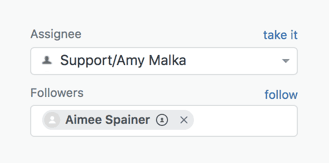
Step 2: Navigate to macros
Now let's create the macro.
- In Admin Center, click Workspaces in the sidebar
- Select Agent tools → Macros
- Click Create macro
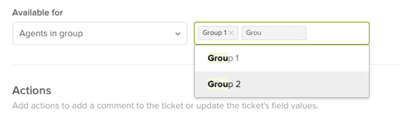
Step 3: Configure the macro
Here's where you define what the macro does.
- Name your macro Use something descriptive like "Add Account Manager as Follower" or "Escalate to Tier 2"
- Add a description (optional) Explain when agents should use this macro
- Set availability Choose who can use this macro (all agents, specific groups, or just you)
- Add the "Add follower" action Click Add action, then select Add follower from the dropdown
- Select the user Start typing the agent's name and select them from the list
- Add additional actions (optional) You can combine multiple actions in one macro
Common companion actions include:
- Adding a tag (like "escalated" or "manager_notified")
- Setting priority to High
- Adding an internal note for context
Step 4: Save and test
Click Create to save your macro. Now test it:
- Open a test ticket in your Zendesk instance
- Apply the macro from the ticket interface
- Verify the follower was added to the ticket's Followers field
- Check that any additional actions (tags, comments) worked as expected
Pro tip: Test in your Zendesk sandbox first if you have one. This lets you verify everything works before agents start using it on real tickets.
Common macro templates for adding followers
To get you started, here are four ready-to-use macro templates for common scenarios. You can copy these and adjust the names and users to match your team.
Template 1: Escalation to specialist
Macro name: Escalate to Tier 2
Actions:
- Add follower: [Tier 2 lead name]
- Add tags: escalated, tier2
- Add internal comment: "Escalated to Tier 2 for specialized handling."
- Set priority: High
Use this when frontline agents identify tickets that need specialist attention. The macro adds the Tier 2 lead as a follower, tags the ticket for tracking, and documents the escalation.
Template 2: Account manager notification
Macro name: Add Account Manager
Actions:
- Add follower: [Account manager name]
- Set priority: High
- Add tags: am_notified
Use this for tickets from key accounts where the account manager needs visibility. The high priority ensures the ticket gets attention, and the tag lets you report on how often account managers are looped in.
Template 3: Cross-team collaboration
Macro name: Loop in Engineering
Actions:
- Add follower: [Engineering lead name]
- Add tags: engineering, bug_report
- Add internal comment: "Engineering team notified for technical review."
Use this for bug reports or technical issues that need engineering input. The internal comment provides context for why engineering was added.
Template 4: Manager oversight
Macro name: Notify Manager
Actions:
- Add follower: [Team manager name]
- Add tags: manager_notified
- Add internal comment: [Leave blank for agent to fill in context]
Use this for sensitive situations or escalations where management needs awareness. Leave the internal comment action in the macro but empty, so agents add context specific to each situation.
Workarounds for Zendesk's macro limitations
There's one significant limitation you should know about: Zendesk's "Add follower" action only accepts static user selections. You can't use placeholders or custom field values to dynamically select who gets added. The dropdown shows specific users, and you pick one.
This becomes a problem when you want a macro that adds "whoever's the account manager for this organization." Zendesk macros can't do that natively.
Here are three workarounds, ordered from simplest to most complex:
Workaround 1: Create multiple macros for different scenarios
If you have five account managers, create five macros ("Add AM - Sarah," "Add AM - Mike," etc.). Agents select the appropriate macro based on the organization. This works for small teams but doesn't scale well.
Workaround 2: Combine macros with tags and triggers
Create a macro that adds a tag (like "needs_am_follower") and an internal note with the account manager's name. Then create a trigger that fires when that tag is present, reads the organization, and adds the correct follower. This splits the work between the macro (agent-initiated) and trigger (automatic).
Workaround 3: Use organization fields with webhooks
Store account manager emails in an organization custom field, then use a webhook to call the Zendesk API and add followers dynamically. This requires technical setup (JSON, Liquid markup, API tokens) but scales to hundreds of organizations. For a complete walkthrough, see our guide on adding followers by custom field in Zendesk.
Which workaround makes sense depends on your team size. If you have fewer than 20 organizations, individual macros or the tag-plus-trigger approach works fine. If you're managing 50+ organizations with frequent account reassignments, the webhook approach becomes worth the technical investment.
Best practices for follower macros
After setting up your macros, keep these practices in mind:
-
Use clear, descriptive names. Agents should know exactly what a macro does from its name. "Add Account Manager" is better than "AM Follower."
-
Document your macros. Create a simple reference doc explaining when to use each macro. This helps new agents and prevents misuse.
-
Test in sandbox first. Always verify new macros work as expected before agents use them on real tickets.
-
Combine actions for complete workflows. The best macros do more than just add followers. They tag, comment, and update fields to create a complete workflow.
-
Monitor follower counts. Too many followers on a ticket creates notification fatigue. If you notice tickets accumulating dozens of followers, review whether all of them need to be there.
-
Review and update quarterly. Account managers change, teams reorganize, and workflows evolve. Schedule a quarterly review of your follower macros to keep them current.
Scaling beyond Zendesk's native capabilities
Zendesk macros work well for straightforward follower assignment, but they hit limits as you scale. If you're managing hundreds of organizations with complex routing rules, you need something more dynamic.
This is where we can help. At eesel AI, we've built an AI teammate that integrates directly with Zendesk to handle follower automation that goes beyond static macro actions.
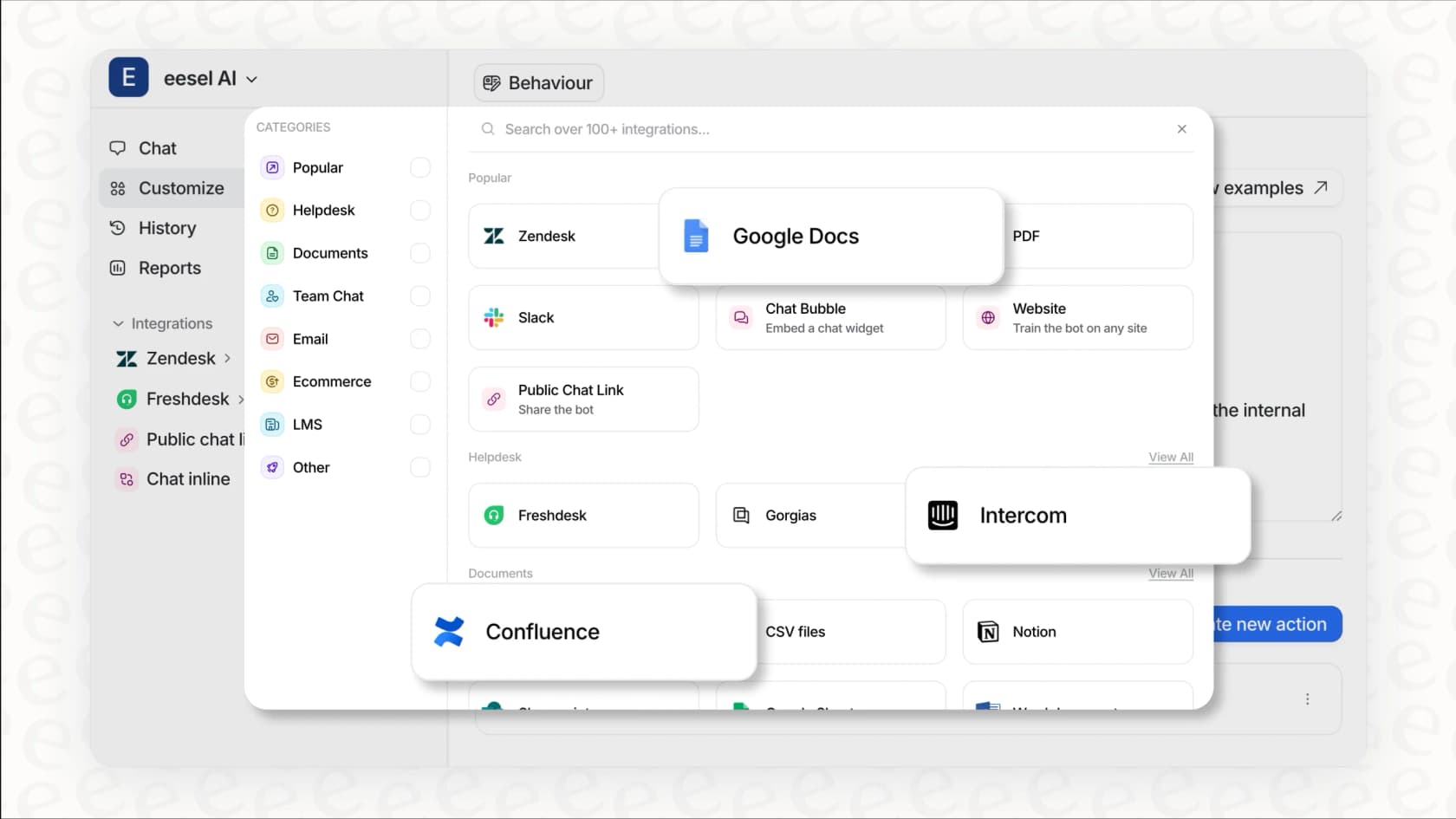
Here's how we complement Zendesk's native features:
-
Natural language rules instead of static selections. Define rules like "add the enterprise account manager for tickets from organizations with over 500 employees" in plain English.
-
AI-powered routing based on ticket content. Our AI Triage reads ticket content to understand context, not just match field values. This means you can route based on sentiment, urgency signals, or complex combinations of factors.
-
No-code setup for complex logic. No JSON, Liquid markup, or API tokens required. Business users can create and modify rules without technical help.
-
Built-in error handling. We handle retries, edge cases, and failures automatically, so there's no need to monitor webhook logs.
If you're already using Zendesk macros for follower management and finding they don't scale with your growth, we've got a path forward. You can start with our simple setup, test against your historical tickets, and deploy with confidence.
Start automating your follower assignments
You now have everything you need to create Zendesk macros that add followers automatically. Whether you're setting up simple escalation workflows or building comprehensive account management processes, macros give you a flexible, agent-controlled way to keep the right people informed.
Remember the key principles:
- Use macros when agents need to apply judgment before adding followers
- Use triggers when the conditions are always the same
- Start simple and add complexity only when needed
- Document your setup so your team knows when to use each macro
If you find yourself creating dozens of macros to handle different scenarios, or if you need dynamic follower assignment that Zendesk can't provide natively, try eesel AI. We'll handle the complexity of intelligent follower routing so you can focus on delivering better customer experiences.