
If you've ever faced the daunting task of updating hundreds of tickets one by one, you know the pain. Maybe a product launch went sideways and you need to reassign tickets. Perhaps a policy changed and you need to add a new tag across a whole category. Or maybe you simply selected the wrong status on a batch of tickets and need to fix it fast.
Whatever the reason, manually updating tickets individually is a time sink your support team can't afford. The good news? Zendesk offers several ways to handle bulk updates. The not-so-good news? Each approach has its limitations, and the native tool caps you at 100 tickets per action.
In this guide, we'll walk through how to bulk update ticket status in Zendesk, explore the limitations you'll hit, and look at alternatives when the native approach falls short.

Understanding Zendesk's native bulk update feature
Before diving into the steps, let's clarify what Zendesk's built-in bulk update can actually do.
The feature lives inside your ticket views. When you select one or more tickets, a toolbar appears at the bottom of the list with options to edit, delete, merge, or mark as spam. The edit option is what you'll use for bulk status changes.
Here's what you can update in bulk:
- Ticket status (New, Open, Pending, Solved, On-hold)
- Assignee (agent or group)
- Tags (add or remove)
- Priority (Low, Normal, High, Urgent)
- Custom fields
- Add comments to multiple tickets
But there are important constraints. The maximum number of tickets you can update at once is 100. You cannot bulk update closed tickets (they're locked for good). And once a ticket moves from "New" to another status, you can't change it back to "New" through the UI (though the API offers a workaround).
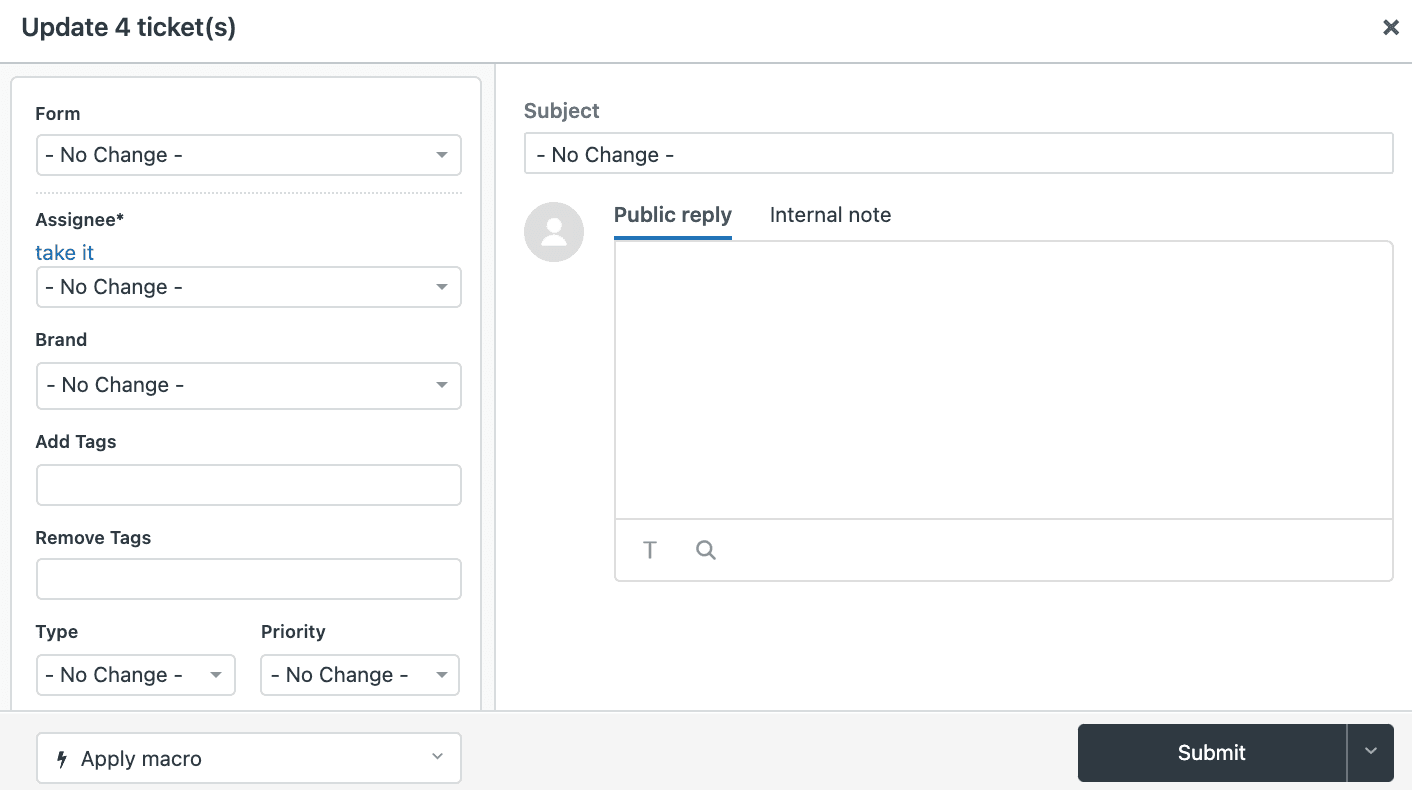
Also worth noting: bulk updates are recorded as "Web Service (API)" events in the ticket history. If you have triggers based on "Ticket: Updated via" conditions, factor this in as it may fire automation you weren't expecting.
How to bulk update ticket status step by step
Ready to actually do this? Here's the complete process.
Step 1: Create or open a ticket view
First, you need to get the tickets you want to update into a single view. You can use an existing view or create a new one with filters that capture exactly the tickets you need to change.
Navigate to your views list and either select an existing view or click "Add view" to create a new one. If creating new, set conditions like "Status is Pending" or "Tags contain X" to isolate the tickets you want to update.

Step 2: Select tickets for bulk update
Once your view is loaded, you'll see checkboxes next to each ticket. You have two options for selection:
- Select individual tickets by checking their boxes
- Click the checkbox at the top-left of the list to select all visible tickets
Here's where the 100-ticket limit comes into play. If your view has more than 100 tickets, you'll need to process them in batches. The good news: if you navigate to different pages, your selections remain checked, so you can work through large volumes methodically.
When you select tickets, a toolbar appears at the bottom of the screen showing how many tickets are selected and your available actions.

Step 3: Apply the bulk status change
Click "Edit" in the toolbar to open the bulk update dialog. This looks similar to a single ticket edit screen but applies to all selected tickets.
To change status:
- Find the Status field in the dialog
- Select the new status from the dropdown
- Add a comment if you want to document why these tickets were updated (optional but recommended for audit trails)
- Review any other fields you want to update while you're here
One quirk to watch for: if you apply a macro that uses dynamic content or placeholders in the subject line, the updated tickets may save with bracketed placeholders instead of rendered values. For example, you might see {{ticket.created_at}} instead of the actual date.
Step 4: Verify the update
Click "Submit" to apply your changes. Zendesk will process the update and show a confirmation message. The system compares each ticket's last-updated timestamp during the process. If a ticket was modified after you started the bulk action (meaning someone else edited it), that specific ticket gets skipped with an error, while the rest continue processing.
After submission, spot-check a few tickets to confirm the status change applied correctly. Check that any tags or custom fields updated as expected too.
Limitations of native bulk updates and workarounds
The 100-ticket limit is the biggest constraint support teams hit. If you need to update 1,000 tickets, you're looking at 10 separate bulk actions. That's tedious and time-consuming.
Other limitations to know about:
| Limitation | Impact | Workaround |
|---|---|---|
| 100 ticket maximum | Large updates require multiple batches | Use API or third-party apps |
| Cannot update closed tickets | Archived tickets stay as-is | Prevent closure until updates complete |
| Cannot revert to "New" status | Mistakes in status flow can't be undone via UI | Use API to change status back |
| No CC/follower support | Can't bulk add people to ticket conversations | Update tickets individually |
| Macro attachment issues | Attachments in macros don't apply in bulk | Add attachments separately |
For teams that regularly need bulk updates beyond 100 tickets, the native approach simply doesn't scale. That's where alternatives come in.
Alternative methods for bulk updating tickets
When the native 100-ticket limit becomes a bottleneck, you have three main alternatives.
Using the Zendesk API
For teams with technical resources, the Zendesk API offers the update_many endpoint. This lets you update up to 100 tickets per API call programmatically. While that sounds like the same limit, the difference is automation: you can script sequential API calls to process thousands of tickets without manual clicking.
The API approach requires:
- A developer or technically savvy team member
- Understanding of Zendesk's API authentication
- Scripting knowledge (Python, Ruby, or similar)
- Error handling for failed updates
For one-off bulk updates, this is probably overkill. But if your team regularly needs large-scale ticket changes, building a simple script can pay off quickly.
Automation and triggers
Sometimes the best bulk update is one that happens automatically. Zendesk's automations run on time-based conditions, while triggers fire on ticket events.
For example, instead of manually bulk-updating tickets from "Pending" to "Solved" after 72 hours, you could create an automation that does this automatically. Or use a trigger to add tags when tickets meet certain criteria.
This approach works best for predictable, recurring bulk changes rather than one-off situations.
Third-party apps
The Zendesk Marketplace offers apps that extend bulk update capabilities. Swifteq's Advanced Search Plus is one popular option that offers bulk updates beyond Zendesk's native limits, and it's free.

These apps typically provide:
- Higher ticket limits for bulk actions
- More flexible search and filtering
- CSV export capabilities
- Additional bulk operations
The trade-off is adding another tool to your stack and potentially granting it access to your ticket data.
Bulk update best practices
Before you start clicking that "Submit" button on hundreds of tickets, consider these recommendations:
-
Test on a small batch first. Select 5-10 tickets and run your update. Verify the results before processing larger volumes.
-
Double-check your view filters. Make sure your view is capturing exactly the tickets you want to update. A filter mistake could mean updating the wrong tickets.
-
Document your process. Write down the steps for your team. If someone needs to do this again in six months, they shouldn't have to figure it out from scratch.
-
Consider trigger impacts. Bulk updates fire as API events. If you have triggers that run on "Ticket: Updated via API," they will execute. Review your triggers before large bulk operations.
-
Communicate with customers. If your bulk update involves status changes that customers see (like moving to "Solved"), consider whether you need to notify them first.
-
Work outside business hours. For very large bulk updates, consider running them when ticket volume is low. This reduces the chance of timestamp conflicts where tickets get modified while your bulk action is processing.
A smarter approach: intelligent ticket automation with eesel AI
Bulk updates solve the symptom (tickets need changing) but not the cause (why do so many tickets need the same update?). This is where we think about the problem differently.
At eesel AI, we approach this as an AI teammate that learns your business and handles tickets intelligently, not just in bulk. Instead of manually updating 500 tickets from "Pending" to "Solved," what if an AI agent reviewed those tickets, determined which ones were actually resolved, and handled them automatically?
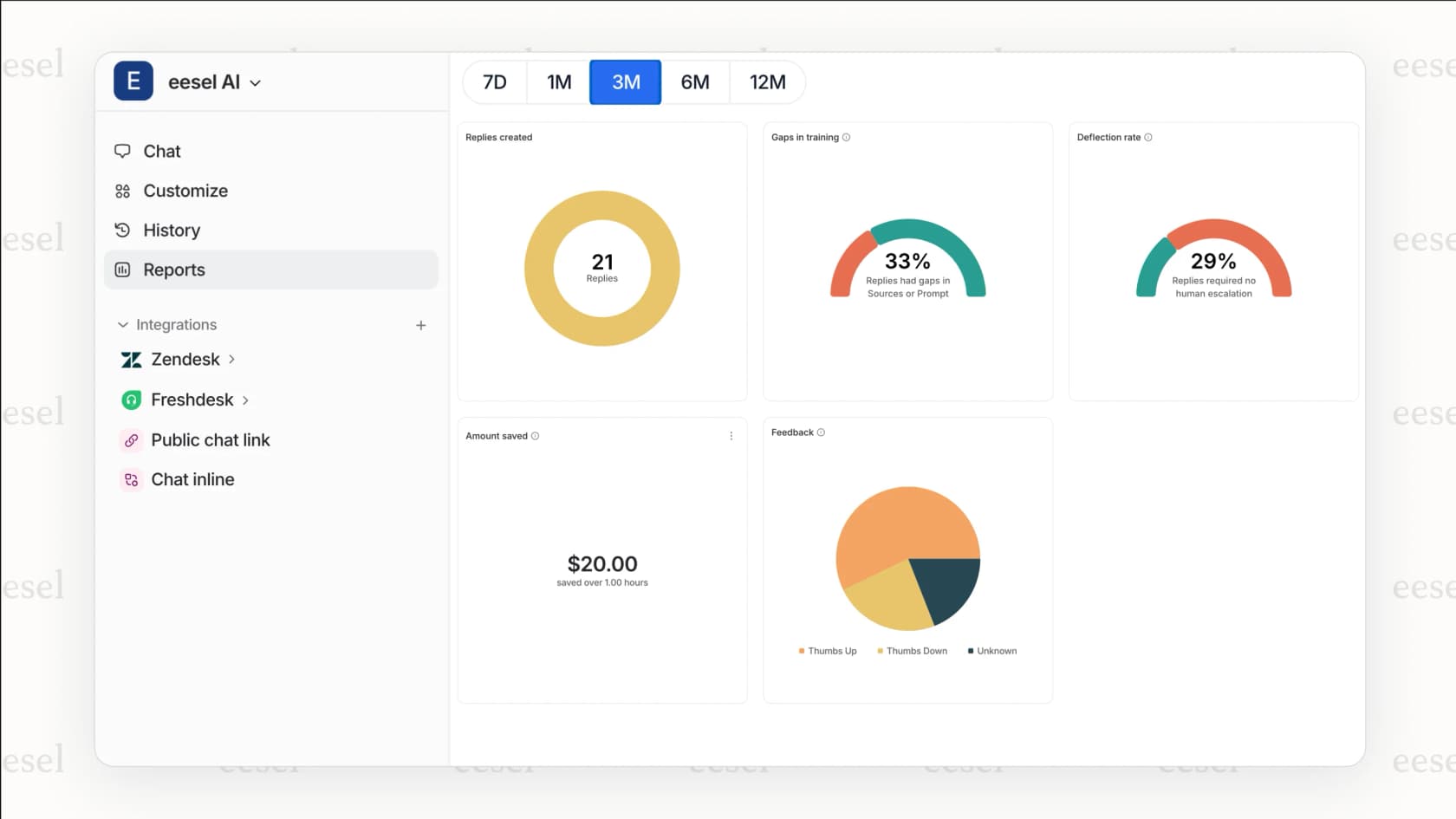
Here's how it works. You connect eesel AI to your Zendesk account. It immediately learns from your past tickets, help center articles, and macros. You start with eesel drafting replies for review. As it proves itself, you level up to full automation.
The key difference: eesel doesn't just bulk update based on simple rules. It reads each ticket, understands the context, and takes the appropriate action. Tickets that need escalation go to humans. Tickets that are routine get resolved automatically.
For bulk operations specifically, eesel can:
- Process unlimited tickets (no 100-ticket cap)
- Make context-aware decisions about status changes
- Apply your business rules in plain English ("If the refund request is over 30 days, politely decline")
- Learn from corrections so it gets better over time
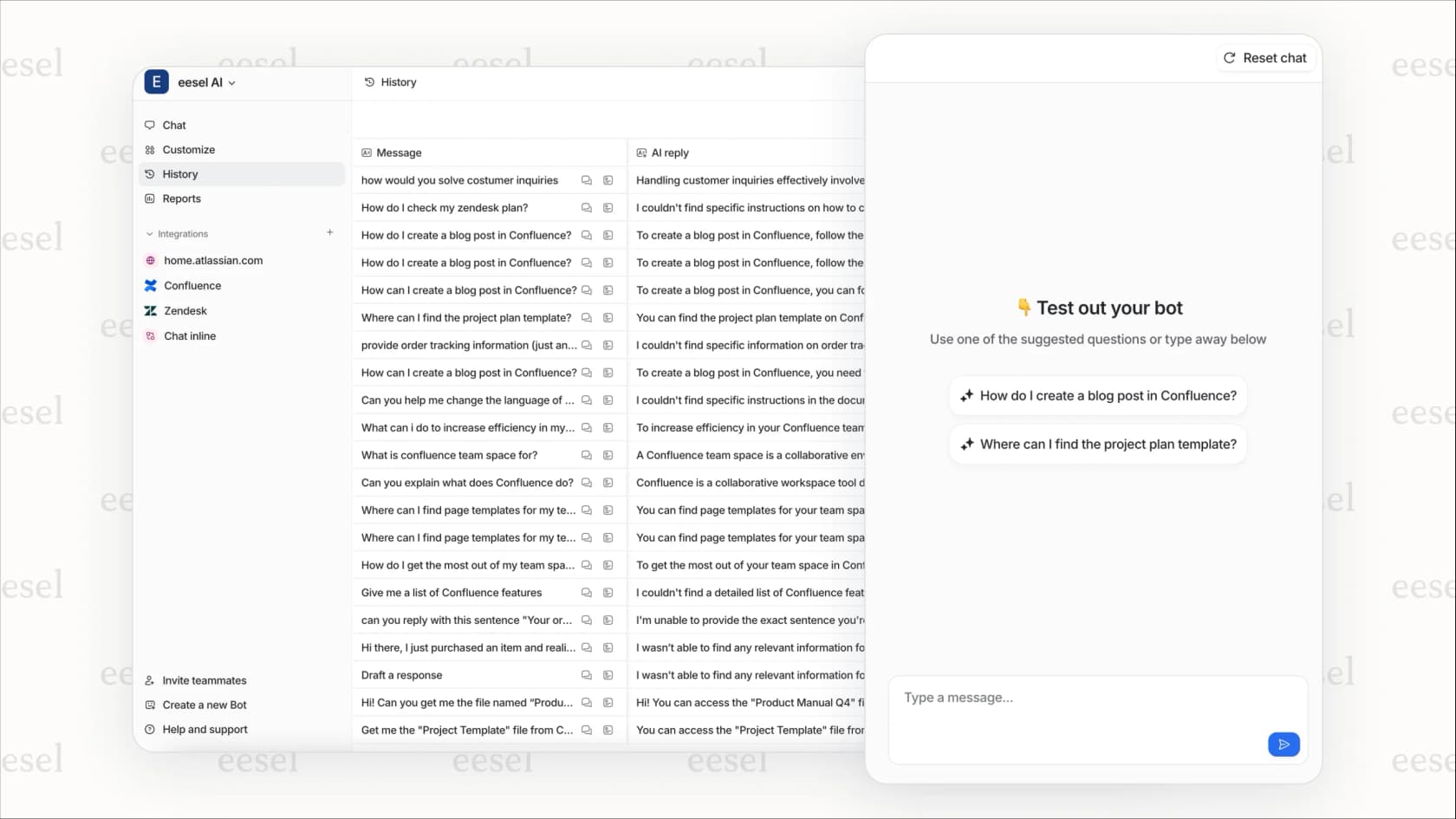
You can run simulations on past tickets before going live, so you see exactly how eesel would handle them. No surprises when it touches real customer conversations.
If you're regularly doing bulk updates because tickets are piling up in certain statuses, it might be worth exploring whether intelligent automation could handle those tickets individually as they arrive, eliminating the need for bulk fixes altogether.
Choosing the right bulk update method for your needs
Let's break down when each approach makes sense:
| Method | Best For | Limitations |
|---|---|---|
| Native bulk update | Occasional updates under 100 tickets | 100 ticket cap, manual process |
| Zendesk API | Technical teams with recurring bulk needs | Requires development resources |
| Automations/triggers | Predictable, recurring status changes | Only for time/event-based rules |
| Third-party apps | Frequent bulk operations without coding | Additional tool to manage |
| AI automation (eesel) | Ongoing intelligent ticket handling | Requires setup and training period |
For most teams, the native bulk update handles 80% of situations. When you hit that 100-ticket limit regularly, that's a signal you might need a different approach, whether that's API scripting, third-party apps, or rethinking your workflow with AI automation.
The bottom line? Bulk updates are a band-aid. They're useful for fixing problems, but if you find yourself using them weekly, it's worth examining why so many tickets need the same changes and whether automation could prevent the problem in the first place.