Zendesk Copilot side panel and summaries: A complete guide for 2026

Stevia Putri
Last edited February 26, 2026
Support agents face a daily challenge: understanding complex ticket histories quickly without spending ten minutes reading through every reply. Zendesk Copilot aims to solve this with AI-powered ticket summaries and a context-rich side panel. But how well does it actually work, and what should you know before adding it to your workflow?
Here's a breakdown of what Zendesk Copilot's side panel and summaries offer, how to set them up, and where they fit (or don't fit) in your support stack.

What is Zendesk Copilot?
Zendesk Copilot is an AI assistant built directly into the Zendesk Agent Workspace. Unlike AI agents that interact with customers directly, Copilot works behind the scenes to help your human agents resolve tickets faster.
Think of it as a smart assistant sitting next to your agents, offering suggestions, summarizing conversations, and surfacing relevant information without the agent having to hunt for it. It's not a standalone product. Copilot is a paid add-on that requires an existing Zendesk Suite subscription.
The key distinction is that Copilot augments your agents' capabilities rather than replacing them. It doesn't handle customer conversations autonomously. Instead, it provides context, drafts responses, and guides agents through procedures while keeping the human in control.
Understanding the Copilot side panel
The Copilot side panel lives on the right-hand side of the Zendesk Agent Workspace. It's designed to give agents instant context without scrolling through long ticket threads or switching between tools.
Here's what you'll find in the panel:
- Ticket summaries AI-generated recaps of the conversation so far
- Intelligent triage Automatic detection of customer intent, sentiment, and language
- Suggested macros AI-matched response templates with confidence scores
- Merge suggestions Alerts when related tickets could be combined
- Quick answers Relevant help center articles and internal documentation
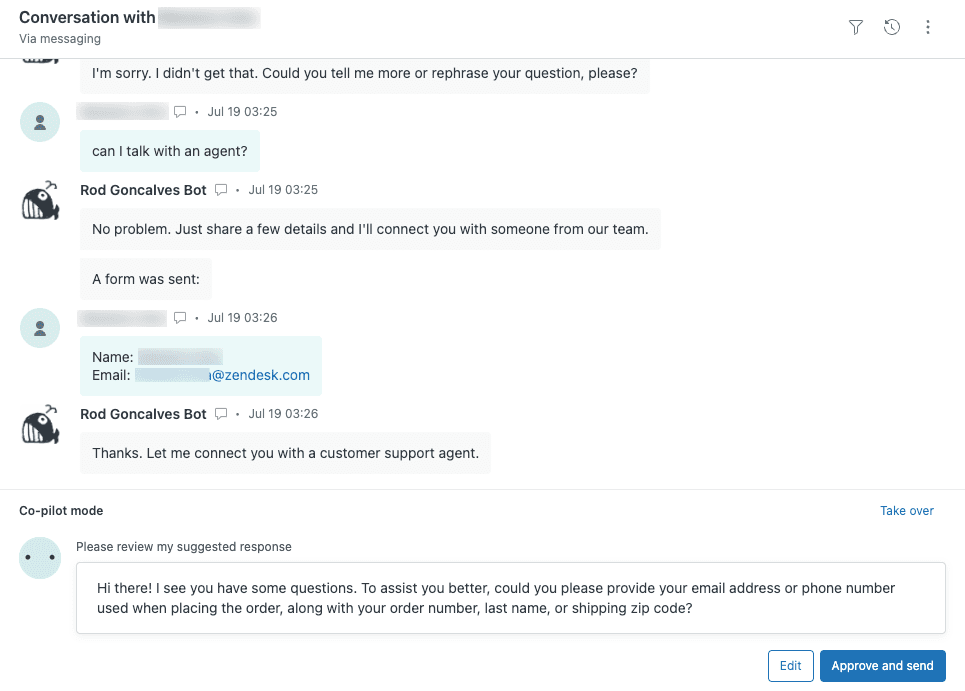
The panel updates dynamically as agents work through tickets. When a new message arrives, the summary can be refreshed. When sentiment shifts, the triage indicators reflect it. This real-time context helps agents understand what's happening at a glance rather than reconstructing the story from scratch.
For teams handling escalations or complex issues, this side panel becomes particularly valuable. An agent picking up a transferred ticket can see the key points immediately: what the customer wants, what's already been tried, and what the current status is.
AI-generated ticket summaries explained
The ticket summarization feature is one of Copilot's most useful capabilities. It scans all public comments on a ticket (and optionally internal notes) to generate a concise recap of up to 100 words.
Here's what a typical summary includes:
- The main problem or customer request
- Actions taken so far by agents
- Current status of the issue
- Any explicitly stated next steps
- Key details like order numbers or deadlines
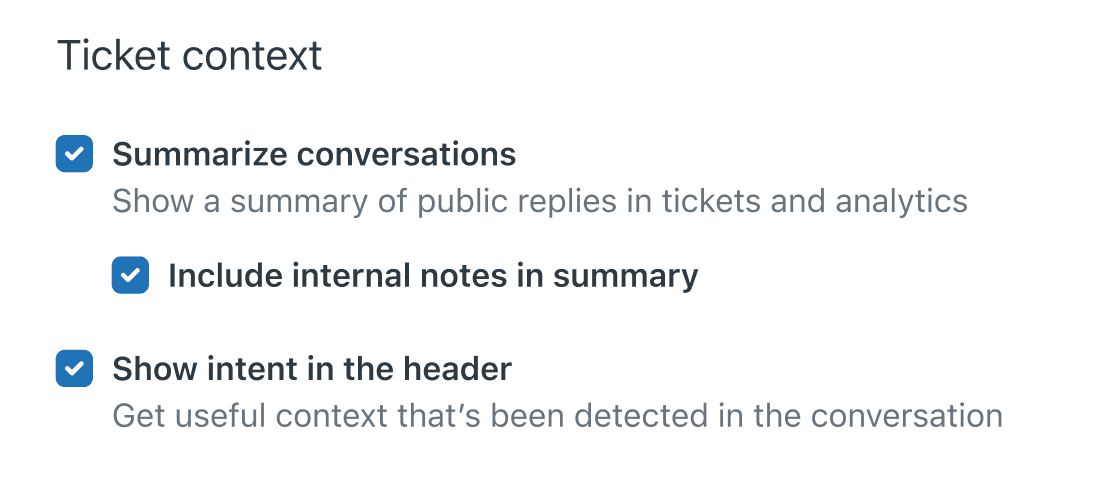
Summaries appear in the Copilot side panel and can be refreshed manually when new messages arrive. They're especially helpful in scenarios like:
- Escalation handoffs When a ticket moves from Tier 1 to Tier 2, the receiving agent gets instant context
- Long conversation threads No need to read 20+ replies to understand what's happening
- AI agent transfers When a customer escalates from a bot to a human, the summary captures the pre-escalation conversation
- Team collaboration Multiple agents working the same ticket stay aligned
The summaries are stored in custom ticket fields, which means they can be accessed via API, displayed in ticket views, and used as placeholders in macros and business rules. That opens up possibilities for reporting, automated workflows, and integrations with other tools.
Setup requirements and pricing
Getting started with Zendesk Copilot requires both the right plan and some configuration. Here's what you need to know.
Plan Requirements
Copilot is only available on Zendesk Suite Professional and higher. The Suite Team plan, which includes basic AI features, does not support the Copilot add-on.
| Plan | Base Cost (Annual) | Copilot Add-on | Total per Agent |
|---|---|---|---|
| Suite Team | $55/mo | Not available | N/A |
| Suite Professional | $115/mo | +$50/mo | $165/mo |
| Suite Enterprise | $169/mo | +$50/mo | $219/mo |
Source: Zendesk Pricing
Zendesk also offers bundled pricing. Suite + Copilot Professional runs $155/agent/month, and Suite + Copilot Enterprise is $209/agent/month (both billed annually).
Configuration Steps
Once you have the right plan, an admin needs to enable Copilot features in the Admin Center:
- Navigate to Admin Center > AI > Agent Copilot
- Toggle on the features you want (ticket summaries, intelligent triage, suggested macros)
- For summaries, decide whether to include internal notes (recommended for richer context)
- Save your settings
Ticket summaries are enabled by default once Copilot is active, but admins can toggle them off if needed. The internal notes inclusion is optional but generally recommended, as it gives agents visibility into troubleshooting steps, peer discussions, and escalation context.
Using summaries in your workflow
For agents, generating a summary is straightforward. Open any ticket with conversation history, look for the Copilot panel on the right, and click the Summarize button. The AI scans the thread and produces a recap within seconds.
Best Practices for Agents
- Generate early Get the summary as soon as you open a ticket to orient yourself
- Refresh when needed If new messages arrive, click refresh to update the summary
- Trust but verify Use the summary as a starting point, but read critical details directly if the issue is complex
- Copy to internal notes If you need to preserve a summary for handoffs, paste it into an internal note
Beyond the Side Panel
Summaries aren't limited to the Copilot panel. Since they're stored in ticket fields, you can:
- Add summary columns to your ticket views for at-a-glance context
- Use summary placeholders in macros and automated responses
- Pull summaries via API for reporting or integrations
- Include summaries in escalation notifications to other teams
For messaging and chat tickets, summaries work best after the conversation has ended or become inactive. That's when the transcript gets added to the ticket and becomes available for summarization.
Limitations and considerations
While Zendesk Copilot's summaries are genuinely useful, they come with constraints that affect how you can use them.
Key Limitations
- Manual generation required Summaries don't appear automatically. An agent must click the Summarize button for each ticket.
- Active tickets only Summaries aren't stored for closed tickets. Once a ticket closes, the summary field becomes inaccessible via API and views.
- No native automation You can't set up triggers or automations to generate summaries automatically when tickets are solved or escalated.
- 100-word limit Complex issues may not fit neatly into the summary length.
- Side conversations excluded If you use Zendesk's side conversations feature, that context won't appear in summaries.
- Plan lock-in The $50/agent/month add-on on top of Suite Professional pricing puts Copilot out of reach for smaller teams.
These limitations matter depending on your workflow. If you need every escalated ticket to have a summary attached automatically, Copilot's manual approach will create gaps. If you want to analyze summary data across historical tickets, the closed ticket limitation will block you.
When to consider alternatives
Zendesk Copilot works well for teams that want AI assistance within their existing Zendesk workflow. But it's not the right fit for every use case.
Consider alternatives if you:
- Need automated summarization without requiring agents to click a button every time
- Want summaries generated for every escalation as a standard practice
- Require the ability to test AI performance on historical tickets before going live
- Need summaries added automatically as internal notes for seamless handoffs
- Are looking for more affordable AI assistance options
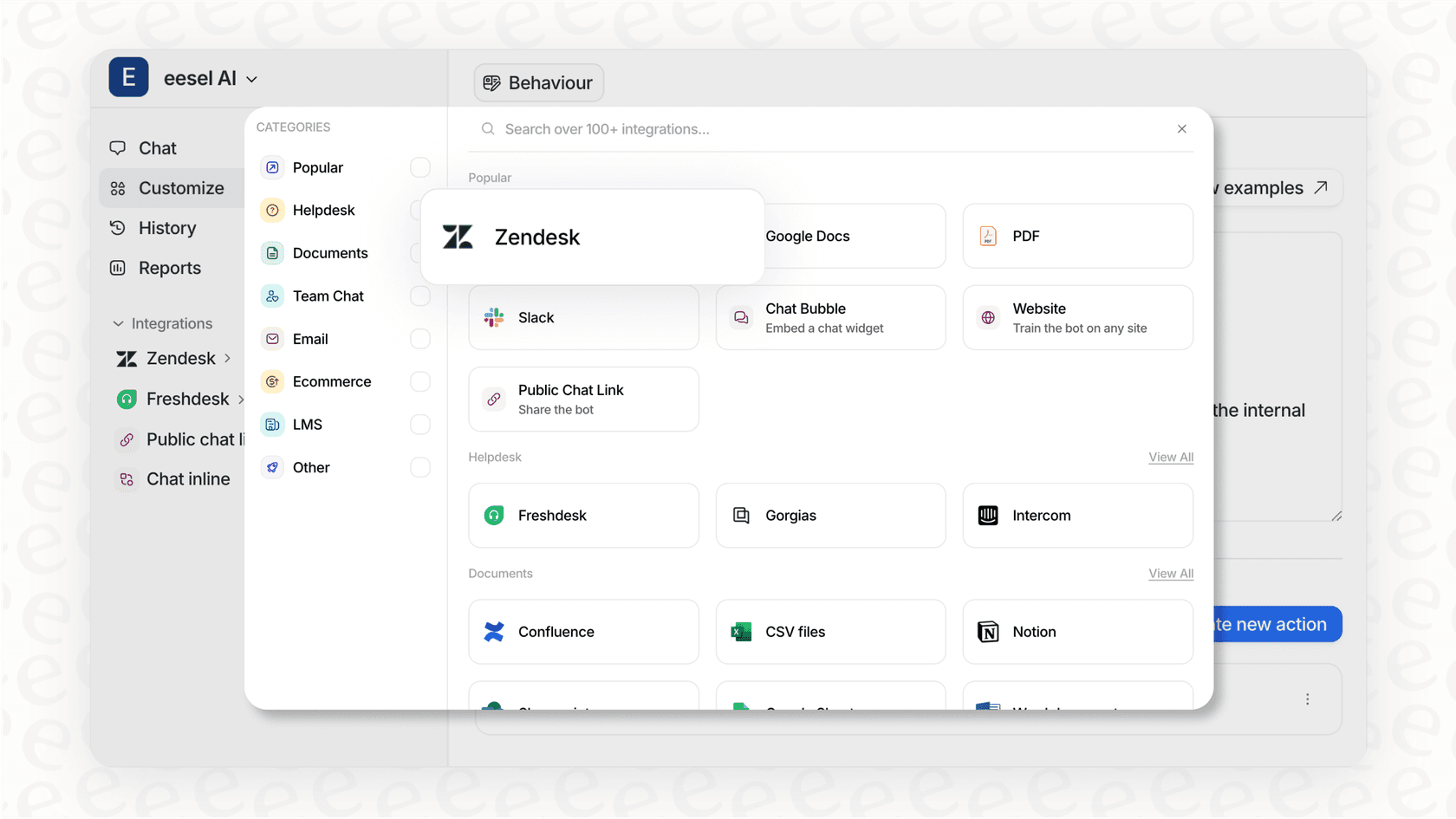
This is where we can help. At eesel AI, we've built an AI teammate that integrates with Zendesk to handle automated summarization and more. Unlike Copilot's manual approach, our AI Copilot can generate summaries automatically based on triggers you define (like when a ticket is tagged for escalation or assigned to a specific group).
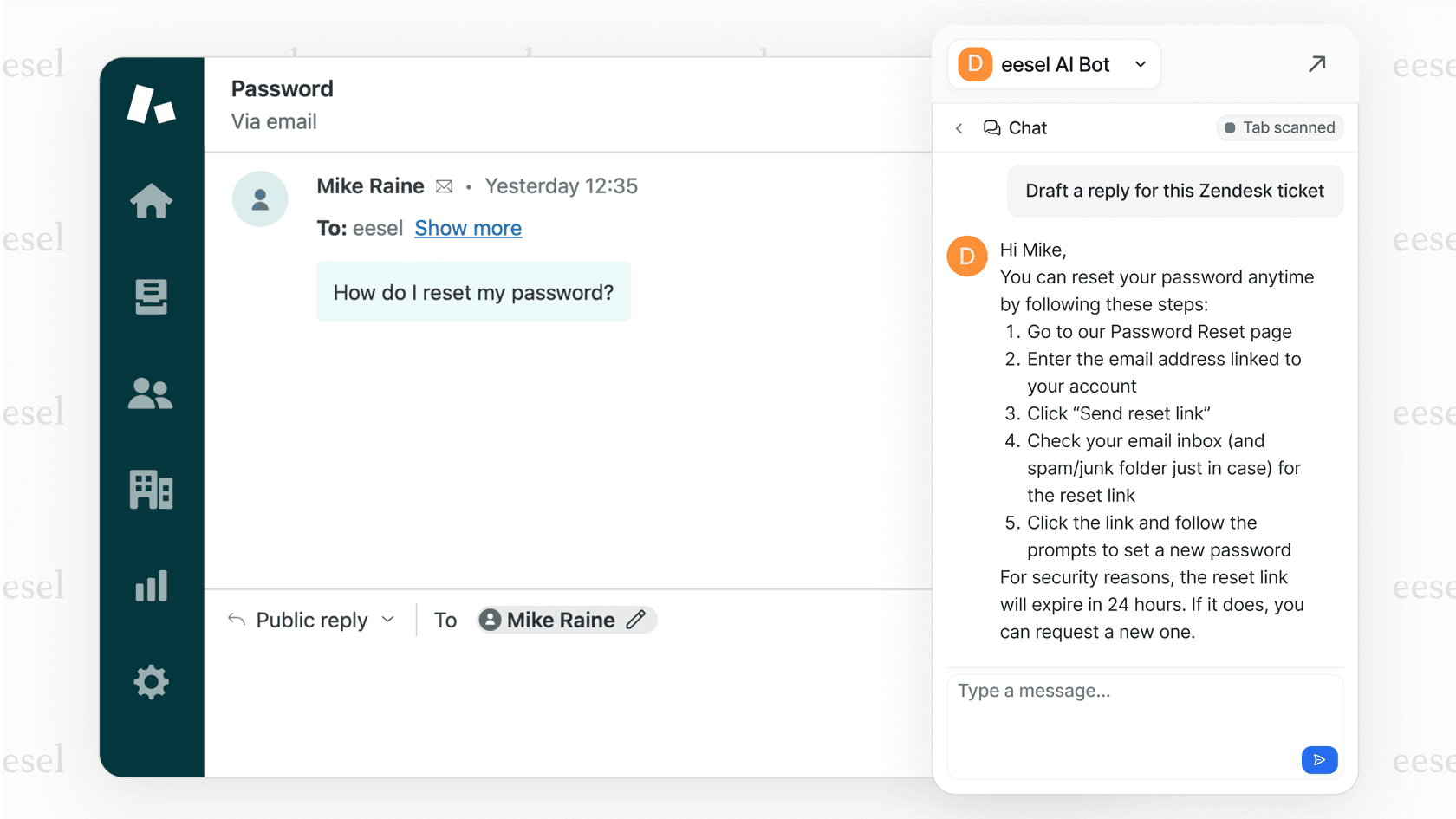
You can test your automation rules on thousands of past tickets before activating them, so you know exactly how the AI will perform. And because we integrate directly with Zendesk, setup takes minutes rather than months.
For a deeper look at automating summarization workflows, check out our guide on how to use Zendesk AI to summarize long threads before escalation.
Getting the most from Zendesk Copilot side panel and summaries
If you decide Zendesk Copilot is right for your team, here are some practical tips to maximize its value.
For Admins
- Enable internal notes in summaries for richer context
- Train agents on when to trust summaries versus when to read the full thread
- Consider creating a macro that copies summaries into internal notes for key handoff scenarios
- Use the API to pull summary data into your reporting dashboards
For Agents
- Make generating summaries a habit when picking up transferred tickets
- Refresh summaries after significant back-and-forth with customers
- Use the intelligent triage data (intent, sentiment) to prioritize your queue
- Combine summaries with merge suggestions to handle duplicate requests efficiently
Measuring Impact
Track metrics like time-to-first-response on escalated tickets, agent satisfaction with context availability, and resolution times for complex issues. While Zendesk doesn't provide built-in reporting for summary usage, you can monitor ticket field updates to gauge adoption.
If you're bumping against Copilot's limitations, particularly around automation and closed ticket access, it may be time to explore alternatives. We built eesel AI specifically for teams that need more flexibility in how AI assists their support operations, from automated summarization to full ticket resolution.
Ready to see how AI can transform your support workflow? Try eesel AI free and see the difference automated summarization makes.


Frequently Asked Questions
Share this article

Article by
Stevia Putri
Stevia Putri is a marketing generalist at eesel AI, where she helps turn powerful AI tools into stories that resonate. She’s driven by curiosity, clarity, and the human side of technology.
