How to set up Zendesk automation to close stale tickets

Stevia Putri
Written by

Stevia Putri

Reviewed by

Katelin Teen

Last edited February 24, 2026

Expert Verified

How to set up Zendesk automation to close stale tickets

Stale tickets are the clutter of customer support. They sit in your queue, untouched for days or weeks, artificially inflating your backlog and distorting the metrics your team uses to measure success. Every support team knows the feeling of opening their queue and seeing those unresponsive conversations that just won't go away.

The good news is that you don't have to manage these manually. Zendesk provides powerful automation capabilities that can handle stale ticket closure automatically. Whether you want a simple time-based workflow or something more sophisticated, there's an approach that fits your needs.

In this guide, I'll walk you through three methods to automate stale ticket closure in Zendesk: native automations with reminder workflows, bulk closure using the API, and AI-powered approaches that add context-awareness to the process.

What you'll need

Before diving into the setup, make sure you have the following:

  • A Zendesk account with admin access (automation features are available on all Suite plans starting at $55 per agent per month when billed annually)
  • Basic understanding of Zendesk ticket statuses: New, Open, Pending, Solved, and Closed
  • For the API method: An API token and Python environment set up
  • For the AI method: An eesel AI account connected to your Zendesk instance

Let's break down each approach so you can choose what works best for your team.

Method 1: Native Zendesk automation with reminders

The most common approach uses Zendesk's built-in automation rules to create a multi-step reminder workflow. This method sends customers a friendly nudge, then a final warning, before automatically solving the ticket.

Here's the short version: you'll create three separate automations that work together using tags to track progress. Each automation runs on a schedule (once per hour) and checks for tickets that meet specific time-based conditions.

Zendesk's automation creation interface displaying conditions and actions sections

Step 1: Create the first reminder automation

Start by navigating to Admin Center > Objects and rules > Business rules > Automations. Click Add automation and give it a clear name like "Stale Ticket - First Reminder." For more details, see Zendesk's automation documentation.

Under Meet ALL of the following conditions, add these rules:

  • Ticket: Status | Less than | Solved (this ensures the automation only affects active tickets)
  • Ticket: Hours since pending | Greater than | 48 (adjust this based on your preferred timeframe)
  • Ticket: Tags | Contains none of the following | "stale_ticket_reminder_1" (this prevents duplicate reminders)

Under Perform these actions, set up:

  • Notifications: Email user | (requester) with a friendly follow-up message
  • Ticket: Add tags | "stale_ticket_reminder_1"

The tag is crucial here. It marks that the ticket has received the first reminder, so the automation won't send it again.

Step 2: Set the final reminder automation

Create a second automation called "Stale Ticket - Final Reminder." This one targets tickets that received the first reminder but remain inactive.

Conditions:

  • Ticket: Status | Less than | Solved
  • Ticket: Hours since pending | Greater than | 120 (5 days total, or adjust to your preference)
  • Ticket: Tags | Contains at least one of the following | "stale_ticket_reminder_1"
  • Ticket: Tags | Contains none of the following | "stale_ticket_reminder_2"

Actions:

  • Notifications: Email user | (requester) with a message like: "We'll be closing this ticket in 48 hours if we don't hear back, but we're here if you still need help!"
  • Ticket: Add tags | "stale_ticket_reminder_2"

Step 3: Create the auto-solve automation

The final automation closes the loop by solving tickets that have hit the deadline after both reminders.

Conditions:

  • Ticket: Status | Less than | Solved
  • Ticket: Hours since pending | Greater than | 168 (7 days total)
  • Ticket: Tags | Contains at least one of the following | "stale_ticket_reminder_2"

Actions:

  • Ticket: Status | Solved

Zendesk automatically closes solved tickets after 28 days, or you can adjust the standard "Close ticket 4 days after solved" automation to close them sooner. Learn more about Zendesk's standard automations.

Zendesk automation configuration interface showing status change to 'Closed'

This three-step workflow gives customers multiple opportunities to respond while keeping your queue clean. The key is the tag system. It ensures each ticket progresses through the workflow exactly once.

Visual timeline of automated sequence for closing inactive tickets

Method 2: Bulk closing tickets with the API

Sometimes you need to close a large number of stale tickets at once, perhaps during a backlog cleanup or migration. The native automation approach works for ongoing maintenance, but for bulk operations, the Zendesk Tickets API is more efficient.

Here's when the API approach makes sense:

  • You have hundreds or thousands of old tickets to close
  • You need custom logic that native automations can't handle
  • You want to add specific comments or metadata during closure
  • You're comfortable with basic scripting

Setting up the API script

First, you'll need an API token from your Zendesk admin. Go to Admin Center > Apps and integrations > APIs > Zendesk API, then create a token under the Settings tab.

The Python script searches for tickets that haven't been updated in a specified number of days, then solves them with a public comment explaining the closure. You'll need Python installed along with the requests, arrow, and python-dotenv libraries.

Create a .env file in your project folder with your credentials:

ZENDESK_SUBDOMAIN=your_subdomain
ZENDESK_USER_EMAIL=your_email@example.com
ZENDESK_API_TOKEN=your_api_token

The script works by querying for tickets with status less than solved that haven't been updated in over your specified timeframe (typically 365 days for stale tickets). For each ticket found, it updates the status to solved and adds a public comment like: "This ticket was automatically closed due to inactivity."

Running the script outputs the number of tickets found and confirms each closure. This approach is powerful but requires technical expertise. It's best for one-time cleanups or scheduled maintenance scripts rather than day-to-day operations.

Method 3: AI-powered stale ticket management with eesel AI

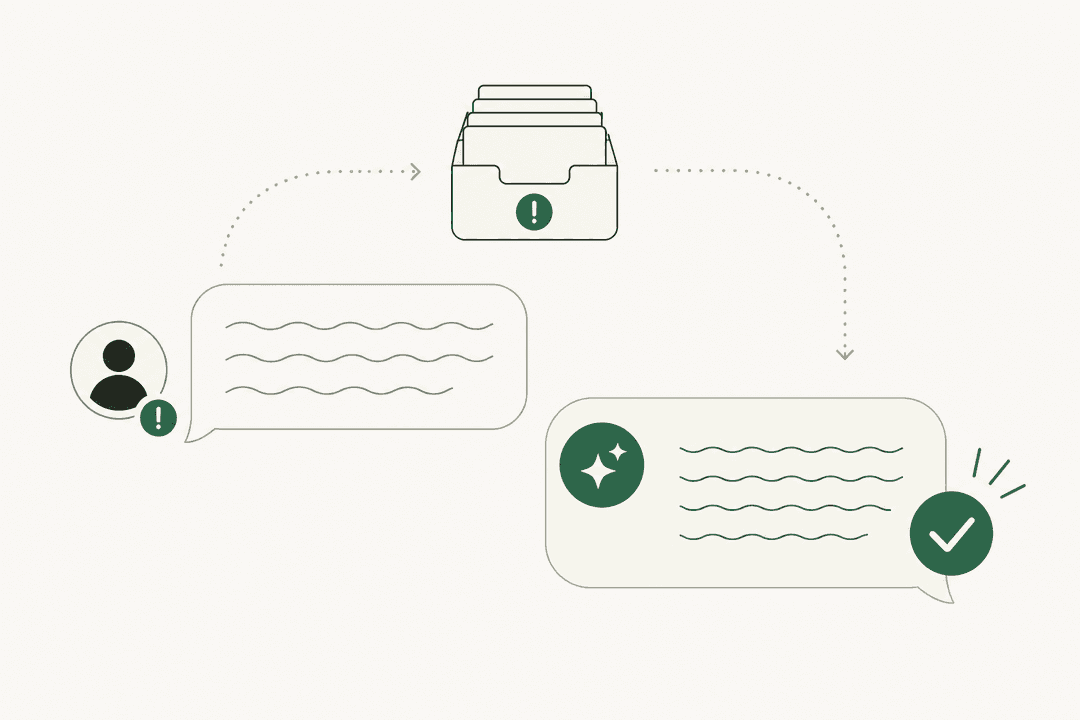
Native Zendesk automations work well for simple time-based rules, but they have limitations. They can't understand the context of a conversation, distinguish between a customer who needs more time versus one who has clearly disengaged, or adapt based on the ticket's content.

This is where eesel AI comes in. Rather than replacing your Zendesk setup, eesel AI works alongside it to add intelligence to your stale ticket workflows.

eesel AI operates as an AI teammate that learns your business from past tickets, help center articles, and macros. It handles frontline support autonomously, drafts replies for agents, triages conversations, and can achieve up to 81% autonomous resolution in mature deployments.

eesel AI dashboard for configuring the AI agent and subagent tools

How eesel AI enhances stale ticket management

Instead of relying solely on timers, eesel AI can analyze the conversation to understand context. For example:

  • It can identify tickets where the customer explicitly said "I'll get back to you" versus those that simply went silent
  • It can prioritize tickets differently based on sentiment, complexity, or customer value
  • It can suggest personalized follow-up messages rather than generic reminders
  • It can identify knowledge gaps that cause tickets to go stale in the first place

The setup is straightforward. Connect eesel AI to your Zendesk account, and it immediately begins learning from your past tickets, help center articles, and macros. Unlike traditional automations that require weeks of configuration, eesel AI understands your business context from day one.

Testing before going live

One of eesel AI's standout features is simulation mode. Before deploying any automation, you can run it against thousands of your historical tickets to see exactly how it would have performed. This lets you measure resolution rates, identify edge cases, and tune your approach without affecting real customers.

eesel AI simulation tool for testing on past tickets

This testing capability addresses one of the biggest risks with automation: the fear of closing the wrong tickets or sending inappropriate messages. You gain confidence through data before going live.

Pricing comparison

ApproachCost StructureBest For
Native ZendeskIncluded in Suite plans ($55-169/agent/month)Simple time-based workflows
API approachFree (requires technical resources)Bulk operations, custom logic
eesel AIFlat monthly fee based on interactions ($299-799/month)Context-aware automation, teams wanting intelligence beyond timers

eesel AI's pricing is based on AI interactions, not seats, which means your costs stay predictable as your team grows. There's also no per-resolution fee, so busy months don't blow your budget.

Best practices for stale ticket automation

Regardless of which approach you choose, these practices will help you avoid common pitfalls:

Use tags to prevent loops. Always include a tag condition that ensures each automation runs only once per ticket. Without this, you risk sending customers the same reminder repeatedly.

Create monitoring views. Build a ticket view that shows tickets affected by your stale automation (filtered by your reminder tags). This lets you verify the automation is working and spot any issues quickly.

Set appropriate timeframes. The 48-hour / 5-day / 7-day cadence in our example works for many teams, but adjust based on your business. B2B support might need longer windows than e-commerce.

Communicate clearly. When a ticket auto-solves, the customer should understand why. Include language like: "Since we haven't heard back, we're closing this ticket. Feel free to reply if you still need help and we'll reopen it."

Test before deploying. Whether using native automations or AI tools, test your workflow on a small subset of tickets first. Zendesk's automation logs show you exactly which tickets matched your conditions and when.

Choosing the right approach for your team

Here's how to decide which method fits your situation:

Choose native Zendesk automations if:

  • You have straightforward time-based rules
  • Your team is comfortable managing multiple automations and tags
  • You want the simplest setup without additional tools

Choose the API approach if:

  • You need to close a large backlog of tickets immediately
  • You have developers who can maintain scripts
  • You need custom logic that native automations can't handle

Choose eesel AI if:

  • You want to go beyond time-based rules to understand conversation context
  • You need to test workflows against historical data before going live
  • You're looking for insights into why tickets go stale in the first place
  • You prefer predictable pricing that doesn't scale with team size

The reality is that many teams benefit from combining approaches. You might use the API for an initial backlog cleanup, then rely on native automations for ongoing maintenance, while adding eesel AI for intelligent triage and context-aware handling of edge cases.

Comparison of automation methods for different team needs and technical resources

Automate your stale ticket workflow today

Stale tickets don't have to be a permanent fixture in your support queue. Whether you choose native Zendesk automations, the API approach, or an AI-powered solution like eesel AI, the key is taking action to keep your metrics accurate and your team focused on active conversations.

Start with the method that matches your technical comfort level and business needs. You can always evolve your approach as your requirements change.

If you're interested in adding intelligence to your stale ticket management beyond simple timers, try eesel AI. The simulation mode lets you see exactly how it would handle your historical tickets before making any changes to your live workflow. Connect your Zendesk account and see the difference context-aware automation can make.

For more information on support automation, check out our guides on AI for customer service and Zendesk AI integrations. You can also explore eesel AI's pricing to find a plan that fits your team's needs.

Frequently Asked Questions

Share this post

Stevia undefined

Article by

Stevia Putri

Stevia Putri is a marketing generalist at eesel AI, where she helps turn powerful AI tools into stories that resonate. She’s driven by curiosity, clarity, and the human side of technology.