How to set up Zendesk AI agent off hours messages: A complete guide

Stevia Putri
Last edited February 26, 2026
Customers don't stop needing help when your team clocks out. A customer messaging you at 11 PM about a billing issue doesn't want to wait until 9 AM for acknowledgment. They want to know their message was received, when to expect a response, and what they can do while waiting.
Off-hours messaging solves this, but configuring it in Zendesk isn't always straightforward. Depending on your setup (messaging triggers, AI agents, or a mix of both), the approach changes. This guide walks you through every option so you can set up automated off-hours responses that keep customers informed and reduce frustration.

What you'll need
Before diving into configuration, make sure you have:
- A Zendesk Support account with Messaging enabled
- Administrator permissions in your Zendesk instance
- Clarity on which AI agent tier you're using (Essential or Advanced)
- A business hours schedule already created (for some approaches)
If you're on the Team plan, note that business hours schedules aren't available. You'll need to use messaging triggers instead (we cover this in Step 2).
Understanding your options for Zendesk AI agent off hours message setup
Zendesk offers three main approaches for handling off-hours messaging. The right one depends on your current setup:
Option 1: Messaging triggers. This works when you're not using an AI agent, or when your AI agent is disabled. It uses the classic trigger system to send automated responses based on account status.
Option 2: AI agent standard responses. If you're using AI agents - Essential, you can configure standard responses that include after-hours messaging. This is simpler but less flexible.
Option 3: Dialogue Builder with availability checks. Available in AI agents - Advanced, this gives you visual workflow tools to create conditional flows based on business hours and agent availability.
Let's break down each approach so you can choose what fits your needs.
Step 1: Configure business hours in Zendesk
Business hours are the foundation of any time-based messaging strategy. They tell Zendesk when your team is officially available, which determines when off-hours messages should trigger.
Here's how to set them up:
- Navigate to Admin Center and click Objects and rules in the sidebar
- Select Business rules > Schedules
- Click Add schedule or edit an existing one
- Set your time zone and define your business hours for each day
- Save the schedule
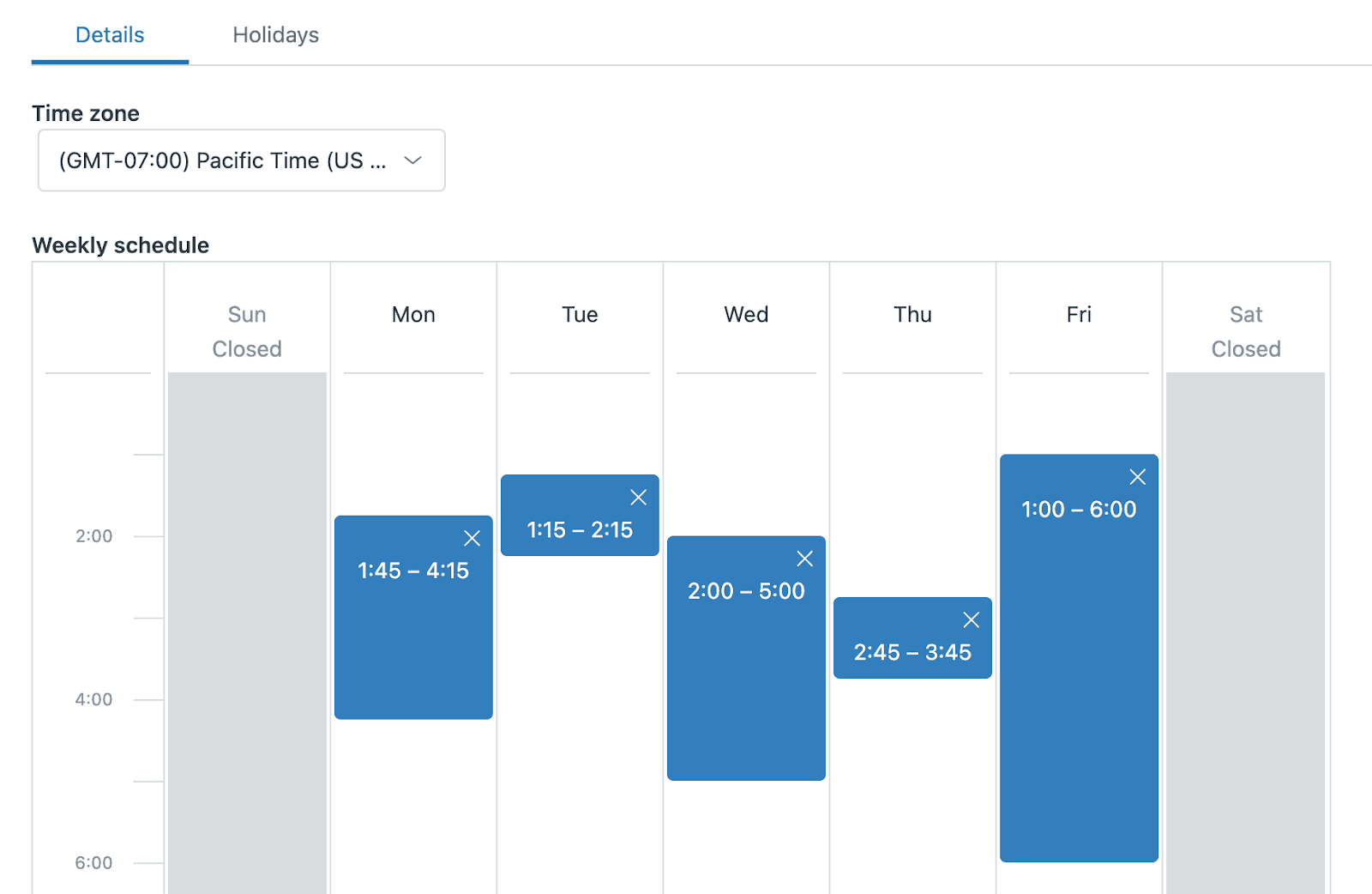
Once created, you can apply this schedule to your messaging channel. Go to Admin Center > Channels > Messaging and social > Messaging, select your channel, and choose your schedule under the Business hours section.
Important: Business hours schedules aren't available on the Team plan. If you're on Team, skip to Step 2 and use messaging triggers with the "Account status equals Offline" condition instead.
Step 2: Set up out-of-office messaging triggers
Messaging triggers are the most straightforward way to send automated off-hours responses. They work independently of AI agents, making them ideal if you're not using Zendesk's AI features or if you want a backup when your AI agent is disabled.
Here's the setup process:
- In Admin Center, click Objects and rules > Business rules > Messaging triggers
- Click Create trigger
- Give your trigger a descriptive name like "After-hours auto-response"
- Under Run trigger, select When a customer requests a conversation
- Under Conditions, set:
- Match ALL of the following conditions
- Account status | equals | Offline
- Under Actions, select:
- Send message to customer | Responder | [Your message text]
- Click Create
Your message might look something like: "Thanks for reaching out! Our team's currently offline. We've received your message and will respond first thing tomorrow morning."
Pro tip: Test this trigger before relying on it. Have a colleague start a conversation after hours (or temporarily change your schedule for testing) to verify the message is sent correctly.
Step 3: Configure AI agent standard responses for after-hours
If you're using Zendesk AI agents, the messaging trigger approach from Step 2 won't work. When an AI agent is active on your messaging channel, it takes over all automated responses. You'll need to configure off-hours messaging within the AI agent settings instead. For a broader look at AI options for Zendesk, see our guide to the best AI chatbots for Zendesk. You can also check out our detailed Zendesk AI agent escalations guide for more on managing handoffs.
For AI agents - Essential, here's how to set it up:
- Go to Admin Center > AI > AI agents
- Select the AI agent you want to configure
- Click the Messaging behavior tab
- Look for the Escalation section (this handles handoffs to human agents)
- Configure the message customers see when escalating outside business hours
- Click Publish to save changes
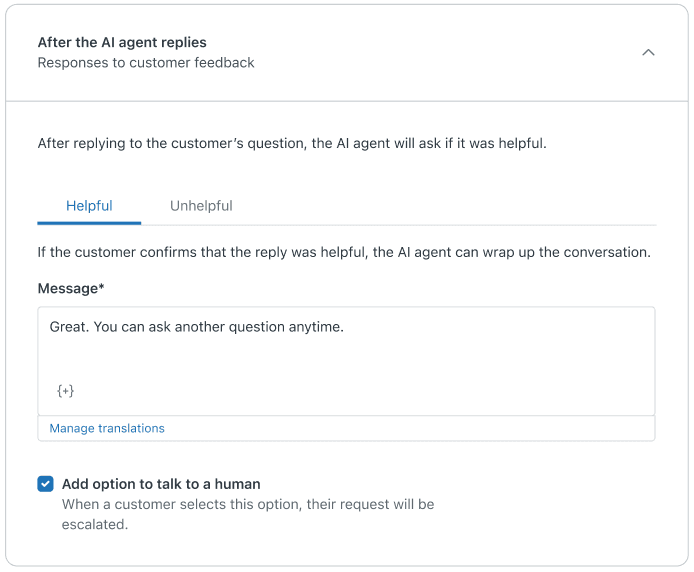
The Essential tier has limitations. You get a single escalation message that applies to all scenarios, and you can't create conditional logic based on time of day or agent availability. If you need more flexibility, you'll need to upgrade to Advanced or explore a third-party solution.
Step 4: Advanced setup with Dialogue Builder (Advanced tier only)
AI agents - Advanced unlocks the Dialogue Builder, a visual workflow tool that lets you create sophisticated off-hours messaging logic. This is where you can check agent availability, route conversations differently based on time, and create truly contextual experiences.
Here's how to build an off-hours flow:
- In AI agents - Advanced, select your AI agent
- Navigate to Content > Use cases
- Create a new reply or edit an existing escalation flow
- Add an Availability block to check business hours and agent status
- Connect the "Outside business hours" path to a Send message block
- Configure your after-hours message and add a Transfer block to create a ticket
- Validate and publish your dialogue
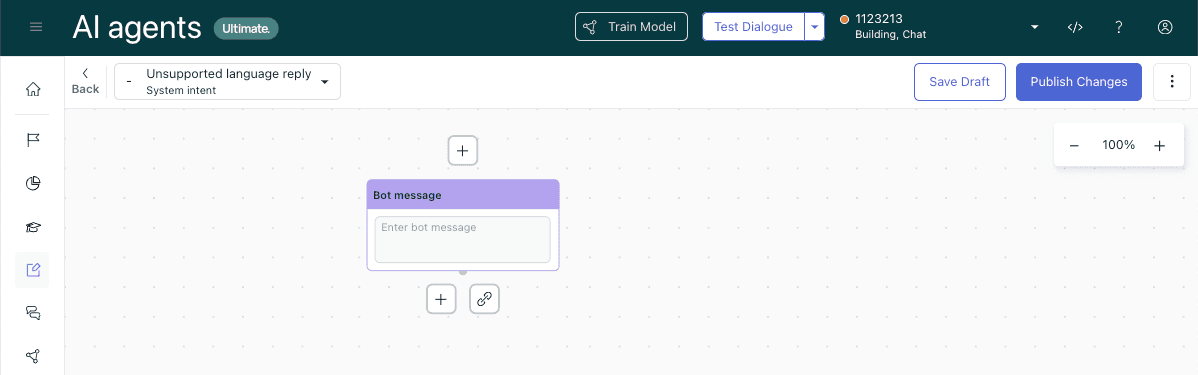
The Availability block is the key here. It splits your flow into two paths: one for when agents are available (within business hours and agents online) and one for when they're not. This lets you set different expectations and actions for each scenario.
For the off-hours path, consider including:
- A clear acknowledgment that no agents are available
- Expected response time (e.g., "We'll reply by 9 AM tomorrow")
- A ticket reference number for follow-up
- Optional self-service suggestions
Ready-to-use Zendesk AI agent off hours message templates
Not sure what to write? Here are templates you can adapt for different scenarios:
Standard after-hours message:
Thanks for reaching out! Our team is currently offline. We've received your message and will respond by 9 AM EST tomorrow. For urgent issues, check our help center at [link].
AI agent handoff when no agents are available:
I've created a ticket with all the details from our conversation. Our team will respond during business hours (9 AM - 6 PM EST). Your ticket number is #{{ticket.id}} for reference.
Weekend or extended holiday message:
We're currently away for the weekend. Your message is important to us and we'll reply first thing Monday morning. For immediate assistance, browse our help articles at [link].
With self-service option:
Our team is offline right now. While you wait, you might find a quick answer in our help center: [link]. We'll personally respond when we're back online during business hours.
Brief and direct:
We're currently offline. Your message has been logged and we'll respond during our next business hours (Monday-Friday, 9 AM - 5 PM PST).
Troubleshooting common off-hours message issues
Even with proper setup, things can go wrong. Here are the most common issues and how to fix them:
"We're offline" message appears when agents are available
This usually happens when your business hours schedule doesn't match your actual agent schedules. Double-check that your schedule reflects when agents are actually working. Also verify that agents have their status set to "Online" in Zendesk, not just "Available".
Conflicts between messaging triggers and AI agent responses
If you have both messaging triggers and an AI agent active, the AI agent takes precedence. Disable the AI agent temporarily if you need to use triggers, or move your off-hours logic into the AI agent configuration.
Business hours schedule not applying correctly
Make sure you've applied the schedule to the correct messaging channel. Go to Admin Center > Channels > Messaging and social > Messaging, select your channel, and verify the schedule is selected under Business hours.
Messages not sending to customers
Check that your trigger or AI agent is published. Changes don't take effect until you click Publish. Also verify that your account has at least two agents enabled, as some messaging features require this minimum.
Alternative: eesel AI for intelligent 24/7 support
If you've worked through this guide, you've probably noticed something: setting up off-hours messaging in Zendesk requires navigating multiple interfaces, understanding different tiers and their limitations, and often working around constraints. There's a simpler approach.
We built eesel AI to handle customer conversations intelligently without complex configuration. Instead of setting up triggers, schedules, and conditional flows, you connect eesel to your Zendesk workspace and it learns from your past tickets, help center, and macros.

Here's what changes:
- No trigger configuration: eesel handles after-hours conversations automatically, answering questions from your knowledge base even when agents are offline
- Plain English instructions: Instead of building dialogue flows, you write instructions like "If someone asks about refunds, check their order history and process eligible returns"
- Progressive rollout: Start with eesel drafting replies for your team to review, then level up to full autonomy when you're confident
- Context preservation: When escalation is needed, eesel summarizes the conversation so agents pick up where the customer left off
If you're spending more time configuring off-hours messaging than optimizing it, it might be worth exploring whether an AI teammate fits your workflow better than traditional trigger-based automation.
Start optimizing your Zendesk AI agent off hours messaging today
You now have multiple approaches for handling off-hours customer communication in Zendesk. The right choice depends on your plan, your AI agent tier, and how sophisticated you need your messaging to be.
Quick wins to implement today:
- Review your current business hours schedule and make sure it matches reality
- Update your off-hours message to set clear expectations about response times
- Test your setup by starting a conversation outside business hours
If you find yourself hitting the limitations of your current tier or spending too much time on configuration, consider whether upgrading to Advanced AI agents or exploring an alternative like eesel AI makes sense for your team.
The goal is simple: make customers feel informed and valued even when your team isn't available. Whether that's through carefully configured triggers, AI agent responses, or an AI teammate that handles conversations end-to-end, the right setup keeps customers happy and reduces the support burden when your team returns.


Frequently Asked Questions
Share this article

Article by
Stevia Putri
Stevia Putri is a marketing generalist at eesel AI, where she helps turn powerful AI tools into stories that resonate. She’s driven by curiosity, clarity, and the human side of technology.



