
Finding your Zendesk account suspended can stop your support operations cold. But here's the thing: "suspension" in Zendesk can mean three very different things, and each has its own fix. You might be dealing with a billing issue that locked out your entire organization, an admin who suspended a problematic user, or emails getting caught in spam filters.
This guide walks you through all three scenarios. We'll cover how to reactivate a suspended Zendesk account due to payment issues, unsuspend individual users, and recover suspended tickets before they disappear forever. Let's break it down so you can get back to helping your customers.
How to reactivate a suspended Zendesk account (billing)
If your account is suspended due to payment issues, you need to act fast. Every minute your help desk is down is a minute customers can't get support.
Step 1: Sign in as account owner
Only the account owner can update billing information and reactivate the account. If you're not the owner, find them immediately.
If you can't sign in at all, your account might be canceled rather than just suspended. In that case, skip to the section on contacting Zendesk support.
Step 2: Update your payment method
Once signed in as the account owner:
- Navigate to Admin Center > Account > Billing
- Review your current payment method
- Add a new card or update the existing one with current information
- Verify the billing address matches what your bank has on file
- Save your changes
Make sure the payment method is valid and has available credit. Zendesk will attempt to charge it immediately.
Step 3: Wait for automatic reactivation
Here's the good news: you don't need to do anything else. Once you update your payment information:
- Zendesk's payment gateway automatically attempts to recharge your account
- Upon successful payment, you'll receive a confirmation email
- Your account typically reactivates within minutes to a few hours
Check your email for the confirmation, then try accessing your Zendesk account again.
When to contact Zendesk support
Sometimes updating payment doesn't solve the problem. Contact Zendesk Customer Support if:
- Your account is canceled (you can't sign in at all)
- You've updated payment but the account hasn't reactivated after 24 hours
- You're having billing disputes or need to discuss charges
- There are technical issues preventing you from accessing billing settings
The account owner must be the one to contact support. They'll need to verify their identity and account ownership.
How to unsuspend end users in Zendesk
If you need to unsuspend a user, you have two options depending on how many users you're dealing with.
From the user profile
This works best for one-off unsuspensions:
- In Zendesk Support, click the Search icon
- Type the user's name or email to find them
- Click on their profile to open it
- Look for the Unsuspend button in the upper left corner
- Click it to immediately restore their access
The user can sign in again right away. There might be a short delay before they can interact with tickets normally.
From the suspended users list
For managing multiple suspended users:
- Click the Customers icon in the left sidebar
- Select Suspended users from the submenu
- Find the user you want to unsuspend
- Click the Options menu next to their name
- Select Unsuspend
You can also bulk unsuspend users by selecting multiple checkboxes and using the toolbar options.
Understanding permissions
Not everyone can suspend or unsuspend users. Here's who has access:
On non-Enterprise plans:
- Admins can suspend/unsuspend users
- Agents need explicit permission to suspend users (configured in their role)
On Enterprise plans:
- Admins can assign custom roles with suspend/unsuspend permissions
- You can granularly control who has this ability
If you can't see the suspend or unsuspend options, your role doesn't have permission. Contact your Zendesk admin to request access or have them unsuspend the user.
How to recover suspended tickets
The suspended tickets view is where legitimate emails sometimes get stuck. With a 14-day deletion window, checking this queue regularly is essential.
Accessing the suspended tickets view
To view suspended tickets:
- In Zendesk Support, click Views in the left sidebar
- Scroll down to find Suspended tickets at the bottom of the list
- Click to open the view
Permission requirements:
- On non-Enterprise plans, you need permission to view all tickets
- On Enterprise plans, you need a custom role with explicit permission to view, recover, and delete suspended tickets
- Agents with "Play views only" permission cannot access this view
Important note: agents who can access suspended tickets can also delete any tickets in that view, even if they don't have general ticket deletion rights elsewhere.
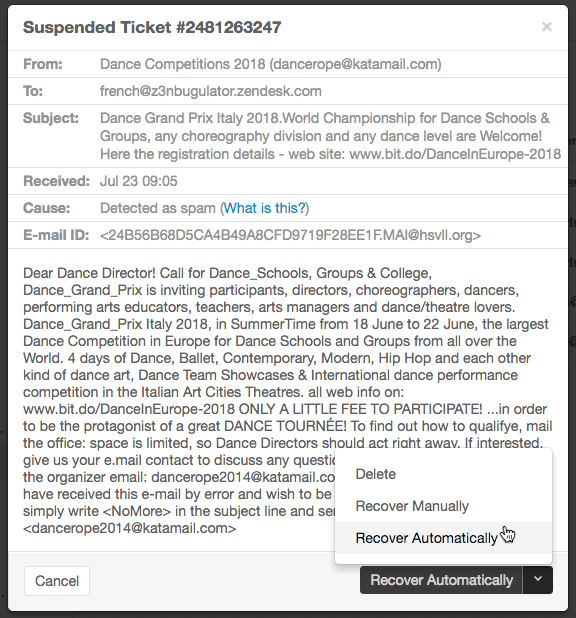
Automatic recovery
For tickets you're confident are legitimate:
- Click Recover Automatically on the ticket
- The suspended ticket immediately becomes a normal ticket with "New" status
- It appears unassigned in your standard views
Use this when the ticket looks legitimate and doesn't need any property changes before entering your queue.
Manual recovery
Sometimes automatic recovery fails or you need to modify the ticket before creating it:
- Click the arrow next to "Recover Automatically"
- Select Recover Manually
- The ticket opens in the editor as if it hadn't been submitted yet
- Modify properties as needed
- Submit to create the ticket
Important limitation: Manual recovery creates a plain text copy. You won't get the full HTML formatting or attachments from the original email. The original suspended ticket remains in the suspended view even after manual recovery.
Bulk recovery
When you have multiple legitimate tickets to recover:
- Select tickets using the checkboxes on the left
- Click the header checkbox to select all visible tickets
- A toolbar appears at the bottom of the list
- Click Recover to restore all selected tickets at once
Recovered tickets will have "New" status and appear unassigned in your standard views.
Preventing future suspensions
Reactivating accounts and recovering tickets is reactive. Here's how to be proactive.
For account suspension
- Set up automatic payments so you never miss a billing cycle
- Keep backup payment methods on file
- Monitor billing notification emails from Zendesk
- Update payment information promptly when cards expire
- Designate multiple billing contacts so notifications don't get missed
For user suspension
- Create clear policies about when users get suspended
- Document the reason every time you suspend someone
- Review your suspended users list monthly
- Unsuspend users promptly when issues are resolved
For suspended tickets
- Configure allowlists for trusted domains and email addresses (Admin Center > People > End Users)
- Fix contact form configurations (ensure forms don't send from your support address)
- Set up DMARC authentication for your domain
- Establish a weekly review schedule for the suspended tickets view
- Set up suspended ticket notifications so you never miss the 14-day window
When to escalate to Zendesk support
Some situations require Zendesk's help team. Here's when to reach out.
Account canceled vs suspended
If your account is suspended, you can usually still sign in and fix billing. If it's canceled, you can't sign in at all. Canceled accounts require contacting Zendesk Customer Support to reactivate.
Data recovery needs
If your account was canceled, you have a 90-day window to reactivate before data deletion begins. After 90 days, the automated deletion process starts and your data is gone permanently. If you're within that window and need your data, contact support immediately.
Billing disputes
If you believe charges are incorrect or you need to discuss billing adjustments, the account owner should contact Zendesk support directly.
Technical issues
If you've updated payment but the account hasn't reactivated, or if you're getting errors when trying to unsuspend users or recover tickets, it's time to contact support.
Reducing suspension issues with AI automation
Manual review of suspended tickets is necessary but time-consuming. Every minute your team spends checking for false positives is a minute not spent helping customers.
This is where AI-powered triage makes a real difference. Instead of relying solely on rule-based filters that suspend first and ask questions later, eesel AI analyzes ticket content, context, and patterns to make intelligent routing decisions.

Our AI can:
- Detect spam with higher accuracy than keyword filters
- Route tickets based on intent and urgency
- Identify and prioritize VIP customer messages
- Learn from your team's corrections to improve over time
For teams using Zendesk, eesel AI integrates directly into your workflow. We learn from your past tickets, help center articles, and agent responses to understand your business context. You start with AI-drafted replies for review, then level up to full automation as the AI proves itself.
The result? Fewer legitimate tickets caught in suspended status, less manual review time, and faster responses to your customers. Teams using our intelligent triage typically see significant reductions in the volume of tickets requiring manual suspended queue review.
Start managing Zendesk suspensions proactively
Zendesk suspensions, whether at the account, user, or ticket level, can disrupt your customer support operations. The key is knowing which type you're dealing with and acting quickly:
- Account suspension: Update billing as the account owner, or contact support if canceled
- User suspension: Unsuspend from the user profile or suspended users list
- Suspended tickets: Recover before the 14-day deletion window closes
Prevention is always better than reaction. Set up automatic payments, configure allowlists, and establish regular review schedules to minimize disruptions.
Want to reduce the time your team spends on manual ticket review? Try eesel AI and see how intelligent triage can keep legitimate tickets out of your suspended queue while maintaining strong spam protection.