Most support teams can't provide 24/7 coverage. That's where Zendesk business hours come in. They let you define when your team is available so the system can calculate SLAs correctly, route tickets appropriately, and set customer expectations with automated responses.
But here's the thing: a lot of teams either don't set up business hours at all, or they set them up incorrectly. This leads to SLA breaches, confused customers, and overworked agents. Let's fix that.

What are Zendesk business hours and why do they matter?
Zendesk business hours are schedule-based settings that tell your help desk when your support team is actually working. They're not just for show. These settings directly impact:
- SLA calculations timers pause outside business hours so you're not penalized for tickets that come in overnight
- Ticket routing automatically assign after-hours tickets to specific teams or regions
- Customer expectations send different auto-replies based on whether you're open or closed
- Reporting accuracy measure response times against actual working hours, not calendar time
Without proper business hours configured, your metrics are misleading and your customers get frustrated when they expect immediate responses at 2am.
For teams looking to extend coverage beyond traditional hours, AI-powered support tools can fill the gaps without requiring round-the-clock human staffing.
Business hours vs operating hours: Understanding the difference
This trips up almost everyone. Zendesk has two separate features with similar names:
| Feature | Location | Purpose |
|---|---|---|
| Business Hours | Admin Center > Schedules | Used for SLAs, triggers, automations, and reporting in Zendesk Support |
| Operating Hours | Chat settings | Controls when chat agents can receive messages in Zendesk Chat |
Business hours affect your entire Support instance. Operating hours only affect Chat. They're configured in completely different places and don't sync with each other.
If you're using both Support and Chat, you need to configure both separately. Many teams set up business hours in Support but forget about operating hours in Chat, leaving customers able to start chat conversations when no agents are actually available.
How to set up your business hours schedule
Setting up business hours in Zendesk is straightforward, but there are some nuances depending on your plan.
What you'll need
Before you start, make sure you have:
- Admin privileges in Zendesk
- Your team's actual working hours (including time zones)
- A list of company holidays for the next 12 months
- Professional plan or higher (multiple schedules require Professional+)
Step 1: Access your schedule settings
Navigate to Admin Center > Objects and rules > Business rules > Schedules.
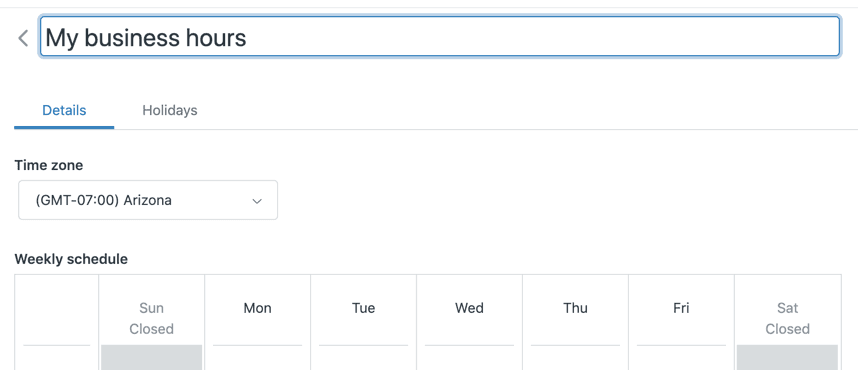
If you're on Enterprise, you can create multiple schedules here. On Professional, you'll work with a single schedule.
Step 2: Configure your time zone and weekly hours
Set your primary time zone first. This is critical. If your team works across multiple time zones, choose the one where your headquarters is located, or where the majority of your agents work.
Then define your business hours for each day of the week. The interface uses drag-and-drop time blocks. You can:
- Drag blocks up or down to change the time range
- Drag the edges to adjust start and end times
- Click the X to remove hours from a day (marking it as "Closed")
- Click on a closed day to add hours
Hours must be at least one hour long and can be set in 15-minute increments.
Step 3: Add holidays and exceptions
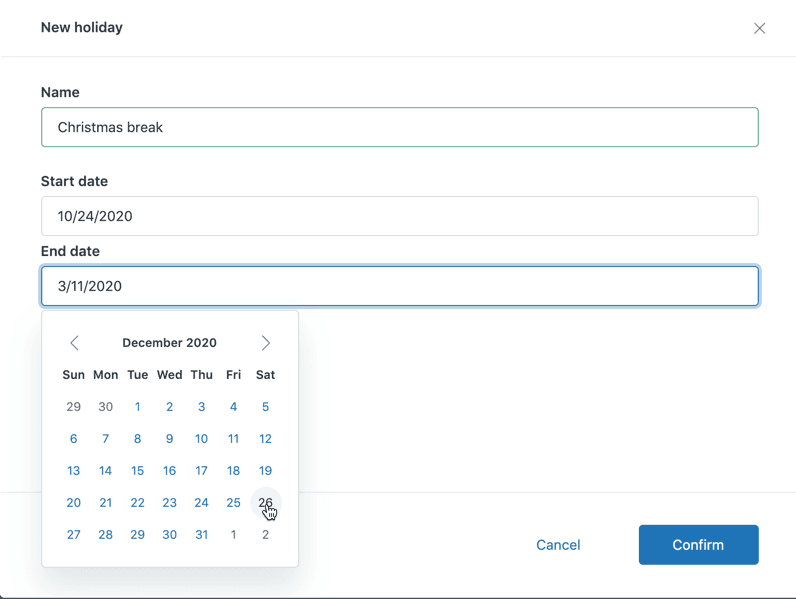
Click the Holidays tab to add exceptions to your regular schedule. You can schedule holidays up to two years in advance.
For each holiday:
- Enter a name (e.g., "Christmas Day")
- Select the start date
- Select the end date
You can set single-day holidays (same start and end date) or multi-day holiday periods. Partial-day holidays aren't supported.
Step 4: Save and apply your schedule
Click Save when you're done. If you're on Enterprise and creating multiple schedules, repeat this process for each team or region.
Important: Changes to business hours take effect immediately for new tickets. Existing tickets continue using the schedule that was active when they were created.
For teams using eesel AI with Zendesk, your AI teammate can reference these same business hours to decide when to handle tickets autonomously versus when to escalate to human agents.
Calendar hours vs business hours: What is the difference?
This distinction is crucial for SLA management. Here's how it works:
| Hours Type | How Time Counts | Example |
|---|---|---|
| Calendar hours | Continuous 24/7 counting | A ticket comes in Friday 4pm with an 8-hour SLA. It's due Saturday midnight. |
| Business hours | Only counts during your schedule | Same ticket, 9-5 M-F schedule. SLA pauses Friday 5pm, resumes Monday 9am. Due Monday 12pm. |
The difference is massive. Calendar hours assume you're working around the clock. Business hours respect your actual schedule.
To configure this, go to Admin Center > Objects and rules > Service level agreements. When setting up SLA targets, you'll see options for "Calendar hours" or "Business hours" on each metric.
Pro tip: Use business hours for response time SLAs (first reply, next reply) and calendar hours for resolution SLAs if you want to encourage faster overall resolution regardless of when tickets arrive.
If you're setting up auto-reply rules, make sure they reference your business hours so customers get appropriate expectations about response times.
Using business hours in triggers and automations
Once your schedule is configured, you can build powerful workflow rules around it.
After-hours auto-replies
Create a trigger that sends a different message when tickets arrive outside business hours:
- Go to Admin Center > Triggers
- Create a new trigger
- Add condition: Ticket > Within business hours? is No
- Add action: Email user with a message explaining your hours and expected response time
This sets expectations immediately. Customers know you received their request and when to expect a response.
Ticket routing
Route after-hours tickets to specific teams based on your coverage model:
- Follow-the-sun: Route to your APAC team when EMEA is offline
- Premium support: Route VIP customer tickets to on-call agents
- Escalation: Auto-escalate urgent issues to managers when they arrive after hours
Use the "Within business hours?" condition combined with tags, organizations, or custom fields to create sophisticated routing logic.
SLA policies
When creating SLA policies, choose "Business hours" for metrics where you only want time to count during working hours. This is the default for most response time metrics.

Liquid markup
For custom email notifications, use Liquid to reference business hours:
{% if ticket.within_business_hours == 'true' %}
  We're on it and will respond shortly.
{% else %}
  We received your message after hours. We'll respond when we're back online.
{% endif %}
This goes in the email body of your trigger actions for personalized messaging.
For teams looking to automate more of their workflow, eesel AI's agent can handle tickets autonomously during business hours or after, learning from your past tickets and help center to provide consistent responses. You can also explore AI-powered ticket classification to improve routing accuracy.
Best practices for global teams
Managing business hours across time zones adds complexity. Here's how to handle it:
Use multiple schedules (Enterprise)
If you're on Enterprise, create separate schedules for each major region:
- EMEA Schedule: GMT timezone, 9am-6pm local
- APAC Schedule: JST timezone, 9am-6pm local
- Americas Schedule: PST timezone, 9am-6pm local
Assign these schedules to different groups or use them in different SLA policies based on customer location.
Assign GMT offsets to companies
For localized SLAs, assign GMT offsets to organizations in Zendesk. This lets you create SLA policies that align with each customer's local business hours.
Handle regional holidays
Each schedule can have its own holiday calendar. Make sure to:
- Add local holidays for each region
- Account for different holiday dates (Thanksgiving is US-only, Boxing Day is UK/Commonwealth)
- Plan for different working week structures (some Middle Eastern countries work Sunday-Thursday)
Document your coverage model
Create a clear document showing:
- Which teams cover which hours
- How handoffs work between regions
- What happens during regional holidays
- Escalation paths for after-hours emergencies
If you're evaluating alternatives for global support, our Freshdesk vs Zendesk comparison covers how each platform handles multi-region setups.
Handling after-hours support with AI
Business hours work great for setting expectations and calculating SLAs. But they don't solve the underlying problem: customers still need help when you're closed.
That's where AI comes in. Instead of just telling customers "we'll get back to you tomorrow," you can actually help them immediately.

eesel's AI agent for Zendesk is an AI teammate that integrates directly with Zendesk. Here's how it works:
- Learns from your data: Connects to your past tickets, help center, and macros to understand your business
- Handles tickets autonomously: Resolves common issues during business hours or after
- Escalates intelligently: Knows when to hand off complex issues to human agents
- Works in any channel: Email, chat, social, messaging apps
Unlike simple chatbots that follow rigid scripts, eesel learns your tone, policies, and common solutions. It can look up orders, process refunds, and answer product questions based on your actual documentation.
The best part? You control the rollout. Start with eesel drafting replies for review, then expand to full autonomy as it proves itself. Teams using eesel AI's agent achieve up to 81% autonomous resolution rates.
Pricing starts at $299/month for 1,000 AI interactions, with no per-seat fees. You pay for what you use, not for headcount.
Troubleshooting common business hours issues
Even with proper setup, things can go wrong. Here are the most common issues and fixes:
SLA timers not pausing
Symptom: Tickets show SLA breaches for time outside business hours.
Fix: Check that your SLA policy is set to use "Business hours" not "Calendar hours." Also verify the ticket is assigned to the correct schedule.
Time zone confusion
Symptom: Business hours seem to start/end at the wrong times.
Fix: Double-check your schedule's time zone setting. Remember that Zendesk displays times in each user's local timezone, so what looks like 9am to you might be different for agents in other regions.
Holidays not applying
Symptom: SLAs calculate through scheduled holidays.
Fix: Verify the holiday is added to the correct schedule. If you have multiple schedules, holidays must be added to each one individually.
Multiple schedule conflicts
Symptom: Tickets get assigned to the wrong schedule.
Fix: Review your trigger logic. If you have automations that assign schedules, make sure they're targeting the right tickets. Check for conflicting triggers.
Get the most from Zendesk business hours
Let's wrap this up with some actionable takeaways:
- Audit your current setup. Are your business hours accurate? Do they reflect when your team actually works?
- Review your SLA policies. Make sure they're using business hours where appropriate.
- Test your triggers. Send test tickets at different times to verify your after-hours automations work correctly.
- Consider AI coverage. Where could an AI teammate fill gaps in your schedule?
Business hours are a foundational feature in Zendesk. When configured correctly, they give you accurate metrics, satisfied customers, and realistic expectations. When ignored or misconfigured, they create confusion and SLA breaches.
Take the time to set them up properly. Your future self (and your support metrics) will thank you.
If you're looking to extend your support capabilities beyond traditional business hours, eesel AI integrates seamlessly with Zendesk to provide 24/7 coverage. You can explore our best AI helpdesk tools guide for more options, or book a demo to see eesel in action.