
You set up your SLA policies, configured the targets, and expected those red and green badges to start appearing on tickets. But they didn't. Or maybe they show up on some tickets but not others. Or the breach times look completely wrong.
This is one of the most common frustrations for Zendesk administrators. The good news is that most SLA calculation issues fall into a handful of predictable categories. Once you know what to look for, you can usually diagnose and fix the problem in under 30 minutes.
We'll walk through the seven most common reasons your Zendesk SLA isn't calculating, and exactly how to fix each one.
Quick diagnostic: Why your Zendesk SLA isn't calculating
Before diving into specific fixes, run through this checklist to identify which issue you're dealing with:
- Does the ticket have a priority set? (Check the Priority field)
- Does the ticket match your SLA policy conditions? (Group, channel, tags)
- Are business hours configured correctly?
- Was the ticket created before the SLA policy existed?
- Is this a live chat or messaging ticket?
- Is the agent also the requester?
- Are your policies ordered correctly?
If you're unsure about any of these, the sections below show you exactly how to check and fix each one.
Fix 1: Set the priority field on all tickets
This is the single most common reason SLAs don't calculate. Zendesk SLAs are built around priority levels. Your policy defines different targets for Urgent, High, Normal, and Low priorities. If a ticket has no priority set, the SLA simply doesn't know which target to apply.
Here's how to check if this is your issue:
- Open a ticket where the SLA isn't showing
- Look at the Priority field in the ticket sidebar
- If it shows "-" or is blank, you've found the problem
The fix depends on whether you're dealing with new tickets or existing ones.
For new tickets: Create a trigger that sets priority automatically. Go to Admin Center > Objects and rules > Triggers. Create a trigger that fires on ticket creation and sets Priority to Normal (or whatever default makes sense for your workflow). See Zendesk's trigger documentation for detailed setup instructions.
For existing tickets: You'll need to bulk update them. You can use Zendesk's bulk edit feature or create a one-time automation that sets priority on all tickets that don't have one.
Pro tip: Set up that trigger even if you think agents will always set priority manually. It's a safety net that prevents tickets from slipping through without an SLA. For more tips on managing SLA visibility, see our guide on adding the SLA column to Zendesk views.
Fix 2: Check your SLA policy conditions
Even with priority set, your ticket might not match any policy's conditions. SLA policies use conditions to determine which tickets they apply to. Common conditions include:
- Group assignment
- Channel (email, chat, web form)
- Tags
- Organization
If your ticket doesn't meet ALL the conditions of any active policy, no SLA gets applied.
To troubleshoot this:
- Go to Admin Center > Objects and rules > Service level agreements
- Open each active policy and review its conditions
- Compare those conditions to a ticket where the SLA isn't calculating
For example, if your policy has a condition "Group is Support" but the ticket is assigned to the "Sales" group, that policy won't apply.
Policy ordering matters too. Zendesk evaluates policies from top to bottom and applies the first one that matches. If you have a general policy at the top with broad conditions, it might be catching tickets before your more specific policies get a chance to evaluate them.
Reorder your policies by dragging them in the list. Put your most specific policies (like those for VIP customers or specific organizations) at the top, and your catch-all policies at the bottom.
Fix 3: Configure business hours correctly
When you set up an SLA target, you choose between calendar hours and business hours. This choice has a big impact on how your SLA calculates.
- Calendar hours count every hour, 24/7
- Business hours only count during your defined schedule
If you select business hours but haven't set up a schedule, or if the ticket isn't assigned to the right schedule, your SLA won't calculate properly.
To check your business hours setup:
- Go to Admin Center > Objects and rules > Business hours
- Verify you have at least one schedule defined
- Check that the schedule includes the right days and times
- If you have multiple schedules, make sure tickets are being assigned to the correct one
If you're using multiple schedules (for different teams or time zones), you may need triggers to assign the right schedule to each ticket based on group or other criteria.
Fix 4: Handle retroactive SLA issues
Here's a scenario that trips up a lot of admins: You set up your SLA policies today, but you have hundreds of tickets that were created last week. You bulk-update those tickets to have the right priority, expecting SLAs to appear. Instead, you see strange breach times or no SLA at all.
This happens because SLAs can't be applied retroactively in the way most people expect.
When you apply an SLA policy to an existing ticket, Zendesk calculates the breach time from the moment the policy was applied, not from when the ticket was created. So a ticket that was created 48 hours ago might show a breach time of "2 hours ago" because that's when you applied the policy.
A Zendesk community member described this exact issue:
A breach can't be applied retroactively, so once you changed the priority for tickets that were already breached, the breach-time was defined as that instance.

The best practice: Update priority on all existing tickets BEFORE enabling your SLA policies. If you've already enabled them, consider temporarily deactivating the policies, fixing your ticket data, then reactivating.
For tickets that were already breached before you set up SLAs, there's no way to make the breach timestamp accurate. Focus on getting SLAs working correctly for new tickets going forward.
Fix 5: Address channel-specific limitations
Not all channels support the same SLA metrics. This is especially true for live chat and messaging.
Live chat SLAs are turned OFF by default. To enable them:
- Go to your Chat dashboard
- Navigate to Settings > Account > SLAs
- Turn on "Reply time SLAs for live chat"
Without this setting, live chat conversations won't generate SLA data even if your policies are configured correctly.
Messaging channels have different limitations. The messaging channel (which includes WhatsApp, Facebook Messenger, and the web widget) doesn't support First Reply Time or Next Reply Time metrics. It only supports Periodic Update Time, which measures the time between agent responses during an active conversation.
If your SLA policy only defines First Reply and Next Reply targets, it won't apply to messaging tickets at all. You need to add Periodic Update targets for messaging channels.
Fix 6: Handle edge cases
Some ticket scenarios have special SLA behaviors that aren't immediately obvious.
Tickets solved on creation: If a ticket is created with the status "Solved," SLAs don't apply at all. The solved status immediately satisfies all SLA targets, so the policy never activates. This commonly happens with automated tickets or spam filtering.
Agent as requester: Many SLA targets don't calculate when the agent is also the requester on the ticket. This prevents internal tickets from skewing your SLA metrics.
Internal notes affecting Next Reply Time: By default, Next Reply Time measures from the oldest unanswered customer comment to the next public agent comment. If a customer's reply becomes an internal note (through automation or manual action), it might not trigger the Next Reply target.
You can customize this behavior in your SLA policy's advanced settings. Enable the option "When any end user replies to a ticket and that reply is added as an internal note" to ensure these replies still activate your SLA targets.
Side conversations and child tickets: These don't automatically inherit the parent ticket's SLA. If you're using Zendesk's Jira integration or side conversations, those external interactions aren't counted toward your SLA targets unless you specifically configure them.
Fix 7: Verify and test your SLA setup
Once you've applied the fixes above, you need to verify everything is working correctly.
Create test tickets: The most reliable way to test is to create tickets that match each of your SLA policies. Check that:
- The SLA badge appears on the ticket
- The target time matches what you configured
- The countdown is calculating (not stuck)
Use Zendesk Explore: For a broader view, check the SLA dataset in Explore. Look for:
- Tickets with "No SLA applied" (indicates policy matching issues)
- Achievement rates by policy (shows if targets are realistic)
- Breach trends (helps identify systemic problems)
Monitor for a week: After making changes, watch your SLA metrics for a few days. Look for tickets that should have SLAs but don't, or tickets with unexpected breach times.
If you're still seeing issues after checking all seven fixes, it might be time to contact Zendesk support. They can investigate account-specific configuration problems that aren't visible in the admin interface.
Prevent SLA breaches with AI automation
Fixing why your Zendesk SLA isn't calculating is important. But even with perfect SLA configuration, you're still playing defense. You're tracking how long it takes to respond, but you're not necessarily responding faster.
AI changes the equation.
At eesel AI, we help teams prevent SLA breaches before they happen through automation. Instead of just monitoring your SLAs, you can meet them consistently by handling routine tickets instantly. Learn more about how our Zendesk integration works.
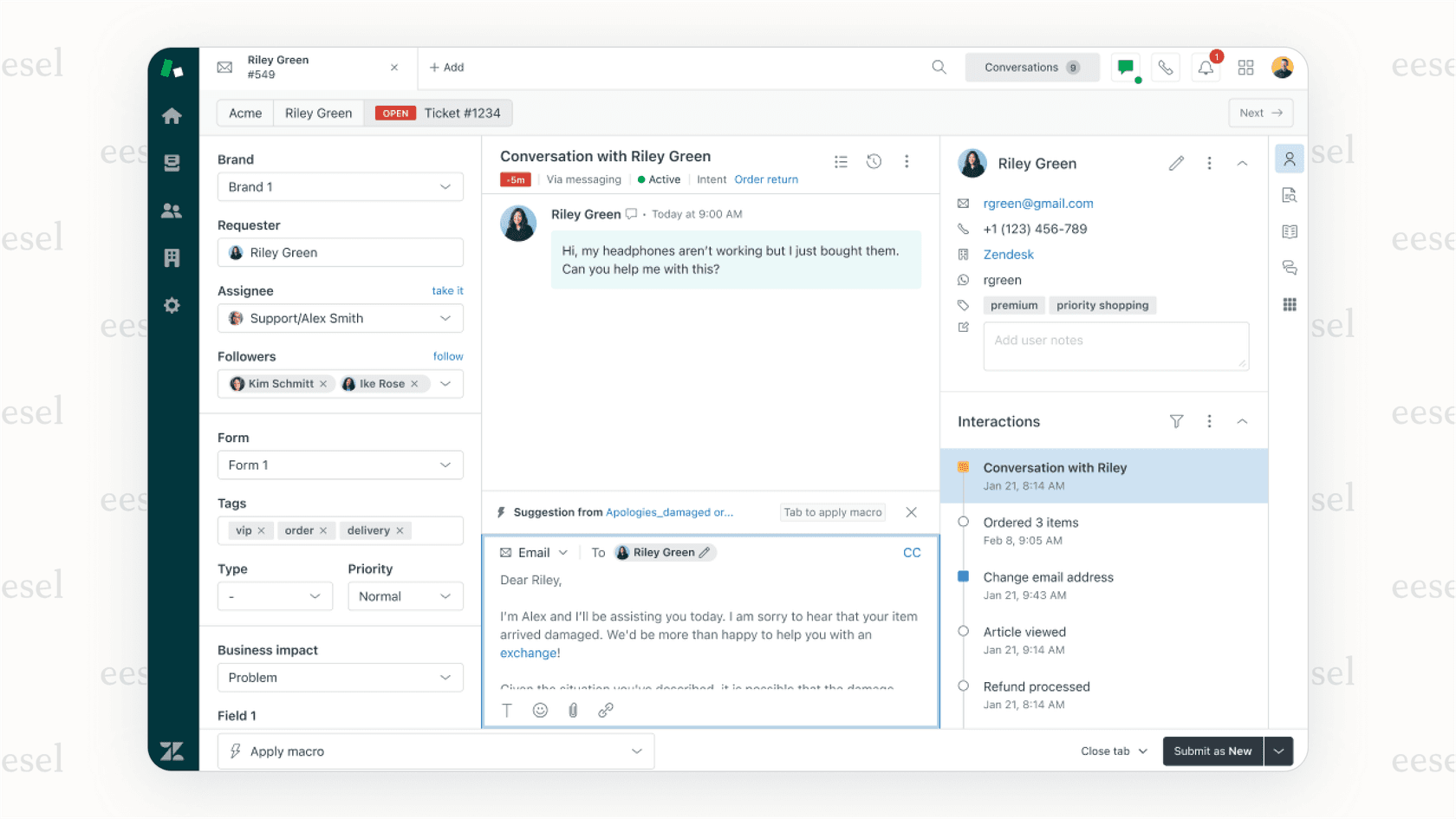
Here's how it works with our Zendesk integration:
Instant first replies with AI Agent: The most common SLA breach is first reply time. Our AI Agent integrates directly with Zendesk to respond to common tickets in seconds. Password resets, order status lookups, refund requests. These get handled immediately, not in hours.
Faster resolution with AI Copilot: For complex tickets that need human attention, our AI Copilot drafts replies and pulls relevant information from your knowledge base. Agents spend less time searching and more time solving. This directly improves your Next Reply Time and Total Resolution Time metrics.
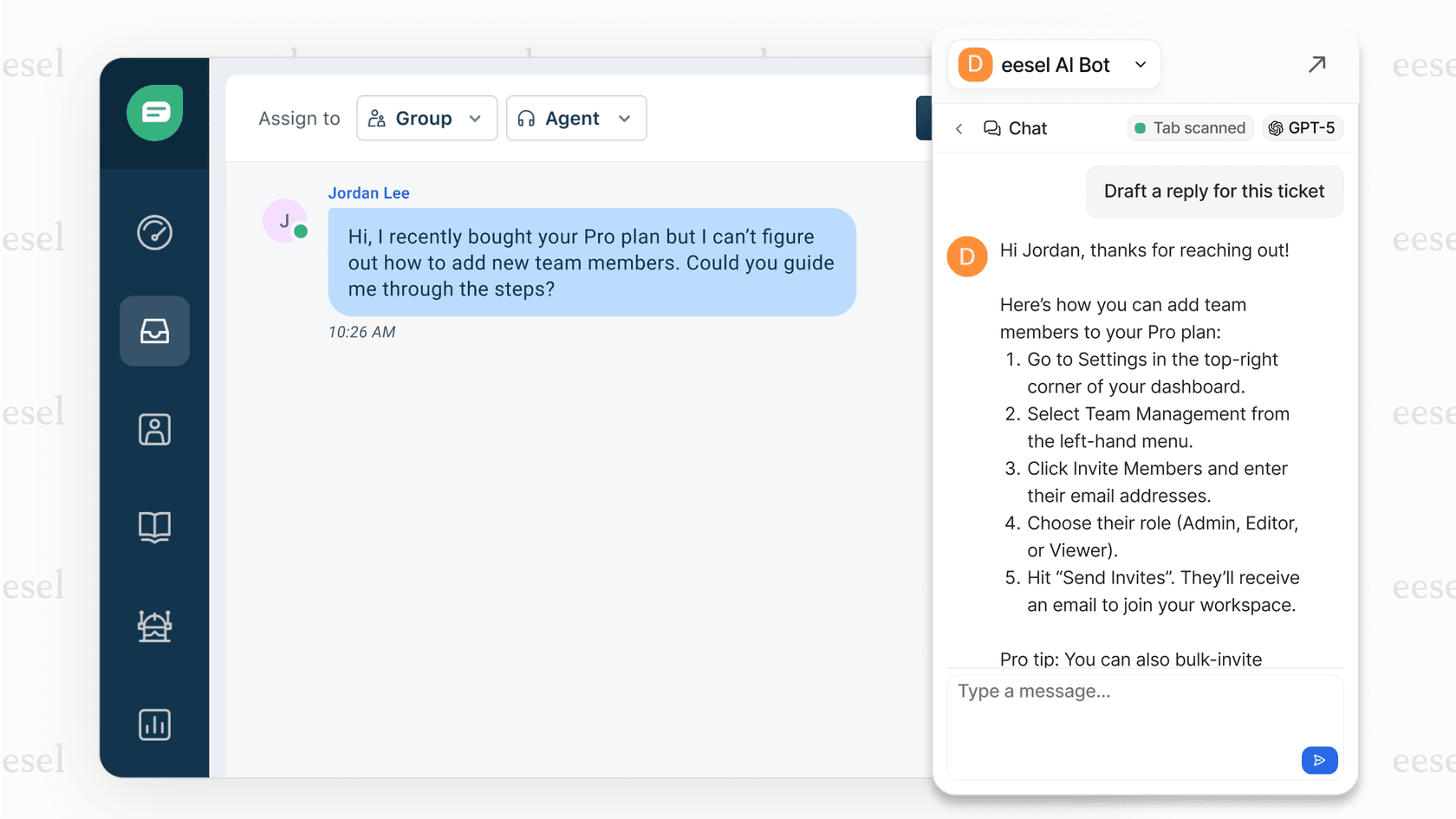
Zero-risk setup: You can test how eesel AI would perform on your historical tickets before going live. Run simulations to see the impact on your SLA metrics, then gradually increase automation as you gain confidence.
The shift here is from tracking breaches to preventing them. When your AI handles routine tickets instantly, your human agents gain capacity to handle complex issues within SLA targets.
Want to see how AI could impact your SLA performance? Check our pricing and try eesel AI on your historical tickets. You'll likely find that most of your breaches are preventable.


