
Every support team has been there. A customer emails about an urgent issue, but the ticket never shows up in your queue. Hours later, you discover it's been sitting in the suspended tickets view all along, waiting to be reviewed.
The Zendesk ticket suspended view is where emails go when Zendesk's filters flag them as potential spam, automated responses, or otherwise problematic. While this filtering protects your team from junk, it can also catch legitimate customer messages. And with a 14-day auto-deletion window, suspended tickets you don't review are gone for good.
Here's the short version: this guide will show you how to access the suspended tickets view, understand why tickets end up there, recover legitimate messages, and prevent important emails from being caught in the filter.
What are suspended tickets in Zendesk?
A suspended ticket is an email that Zendesk has flagged but not fully processed into a regular ticket. Unlike normal tickets, suspended tickets don't have a Ticket ID and can't be edited until you recover them.
Think of the suspended queue as a holding area for unprocessed emails. Zendesk places emails here when its algorithms detect something suspicious: spam patterns, automated out-of-office replies, potential email loops, or messages that fail authentication checks. The system is trying to protect your agents from wasting time on junk.
The key characteristics of suspended tickets:
- No Ticket ID assigned until recovered
- Cannot be edited or worked directly
- Automatically deleted after 14 days if not reviewed
- Visible only to admins and agents with specific permissions
That 14-day deletion rule is critical. If nobody checks the suspended view, legitimate customer emails simply disappear. This is why teams using eesel AI's Zendesk integration for intelligent ticket triage often see fewer tickets ending up in suspended status. Our AI analyzes patterns and context to make smarter routing decisions upfront.

How to access the Zendesk ticket suspended view

Getting to the suspended tickets view takes just a few clicks, but access depends on your Zendesk plan and permissions.
Step 1: Navigate to Views
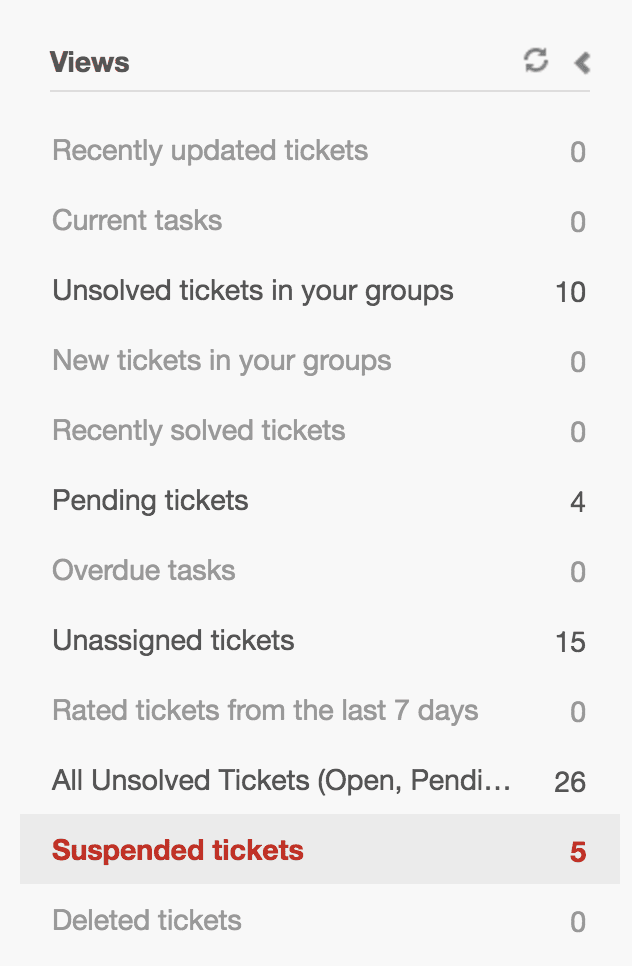
In Zendesk Support, click Views in the left sidebar. Scroll down past your custom views to find Suspended tickets at the bottom of the list. Click it to open the view. See Zendesk's documentation on viewing and recovering suspended tickets for more details.
Step 2: Verify your permissions
Access to suspended tickets isn't automatic for all agents:
- On non-Enterprise plans, agents need permission to view all tickets
- On Enterprise plans, admins must assign a custom role with permission to view, recover, and delete suspended tickets
- Agents with "Play views only" permission cannot access the suspended tickets view
One important note: agents who can access the suspended tickets view can delete any tickets in that view, even if they don't have general ticket deletion rights elsewhere in Zendesk.
Understanding why tickets get suspended
Not all suspended tickets are spam. Understanding the common causes helps you spot legitimate messages that need recovery.
Here are the main reasons Zendesk suspends tickets:
- Detected as spam Zendesk's spam filter flagged the email based on content patterns
- Automated response mail Out-of-office replies, auto-acknowledgments, and system-generated emails
- Email loops More than 20 emails from the same user within an hour triggers suspension for the next 20 updates; beyond 40, additional emails are rejected entirely
- Received from support address Emails sent from an address that matches your support email (common with misconfigured contact forms)
- Failed DMARC authentication The email failed domain authentication checks
- Malware detected Suspicious attachments triggered security filters
- Email too large The message exceeds Zendesk's inbound limit of 65,535 bytes
- Submitted by unverified user The sender hasn't verified their email address
When viewing a suspended ticket, you can see the specific cause listed. For deeper investigation, export the suspended ticket list to CSV to get the Cause ID for each ticket. You can cross-reference these IDs with Zendesk's suspension cause reference to understand patterns in your suspended queue.
How to recover suspended tickets
Once you've identified a legitimate ticket in the suspended view, you have three recovery options.
Automatic recovery
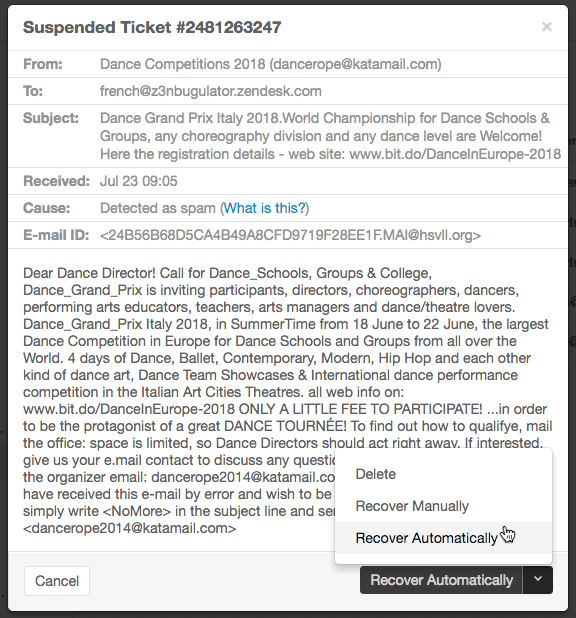
The fastest method is clicking Recover Automatically. This immediately converts the suspended ticket into a normal ticket with "New" status. The ticket becomes unassigned and appears in views that show unassigned tickets.
Use automatic recovery when you're confident the ticket is legitimate and doesn't need any property changes before entering your queue.
Manual recovery
Sometimes automatic recovery fails. In these cases, click the arrow next to "Recover Automatically" and select Recover Manually. This opens the ticket in the editor as if it hadn't been submitted yet, letting you modify properties before creating the ticket.
Important limitation: manual recovery creates a plain text copy of the original email. It won't include full HTML formatting or attachments from the original message. The original suspended ticket remains in the suspended view even after manual recovery.
Bulk recovery
For multiple legitimate tickets, use bulk recovery:
- Select tickets using the checkboxes on the left (click the header checkbox to select all visible tickets)
- A toolbar appears at the bottom of the list
- Click Recover to restore all selected tickets at once
Recovered tickets will have "New" status and appear unassigned in your standard views.
Managing suspended tickets at scale
If your organization receives hundreds of emails daily, manually reviewing suspended tickets becomes a real workload. Here's how to manage at scale.
Export for analysis
Click Export CSV in the upper-right corner of the suspended tickets view. The export includes additional data columns not visible in the interface, including the Cause ID for each ticket. Analyzing this data helps identify patterns (are most suspensions coming from a specific domain? a particular contact form?) so you can address root causes.
Set up notifications
Zendesk can notify you when tickets are suspended. Setting up suspended ticket notifications ensures you never miss the 14-day window. You can configure who receives these alerts and how frequently.
Establish a review schedule
Most teams benefit from a weekly suspended ticket review. During high-volume periods or after launching new contact forms, check more frequently until you're confident the filters are working correctly.
Use blocklist and allowlist controls
Navigate to Admin Center > People > End Users to configure:
- Blocklist: Email addresses or domains that should always go to suspended (useful for persistent spam sources)
- Allowlist: Email addresses or domains that should never be suspended (ensures important senders always get through)
Some organizations also use third-party apps for more advanced suspended ticket management. You can learn more about suspended ticket best practices in Zendesk's guidelines for reviewing suspended tickets.
Preventing legitimate tickets from being suspended
The best way to handle suspended tickets is to prevent legitimate ones from ending up there in the first place.
Fix contact form configuration
One of the most common causes of false positives is misconfigured contact forms. When a form uses your support email address as both the sender and recipient, Zendesk suspends it to prevent email loops.
The fix: configure your contact forms to use a different "from" address than your support address. The form should send from something like noreply@yourcompany.com to your support address.
Set up DMARC authentication
Configure DMARC records for your domain to help Zendesk authenticate legitimate emails from your organization. This reduces false positives from your own team.
Allowlist important domains
Add domains of key partners, customers, or internal systems to your allowlist. This ensures their emails never get suspended, even if content patterns might otherwise trigger filters.
Train the spam filter
When agents encounter spam that made it through to regular tickets, have them report it. Click the three dots in the ticket editor and select "Report as spam." Over time, this trains Zendesk's filters to be more accurate.
For teams looking to reduce manual review overhead, eesel AI's intelligent triage can help. Our AI analyzes incoming tickets for intent, sentiment, and urgency, routing them appropriately before they ever hit filters that might suspend them. You can also read our guide on how to use AI to classify or tag support tickets for more automation strategies.
Common mistakes to avoid
Even experienced Zendesk admins make these mistakes with suspended tickets:
- Not checking regularly The 14-day auto-deletion is unforgiving. Set a calendar reminder if needed.
- Recovering without checking the requester Always verify the sender email before recovery, especially for tickets suspended due to "received from support address."
- Overly aggressive blocklisting Blocking entire domains might catch legitimate emails later. Use specific email addresses when possible.
- Ignoring contact form issues If you see multiple tickets suspended for "received from support address," your contact form needs fixing, not just manual recovery.
- No notification setup Without alerts, you're relying on memory to check the suspended view.
Reducing suspended tickets with AI automation

Manual review of suspended tickets is necessary but time-consuming. Every minute your team spends checking for false positives is a minute not spent helping customers.
This is where AI-powered triage makes a real difference. Instead of relying solely on rule-based filters that suspend first and ask questions later, eesel AI analyzes ticket content, context, and patterns to make intelligent routing decisions.
Our AI can:
- Detect spam with higher accuracy than keyword filters
- Route tickets based on intent and urgency
- Identify and prioritize VIP customer messages
- Learn from your team's corrections to improve over time
For teams using Zendesk, eesel AI integrates directly into your workflow. The AI learns from your past tickets, help center articles, and agent responses to understand your business context. You start with AI-drafted replies for review, then level up to full automation as the AI proves itself.
The result? Fewer legitimate tickets caught in suspended status, less manual review time, and faster responses to your customers. Teams using eesel AI's intelligent triage typically see significant reductions in the volume of tickets requiring manual suspended queue review. Learn more about AI-powered customer support automation and how it can transform your workflow.