
Getting ticket routing right in Zendesk can save your team hours of manual work every week. One of the most fundamental (and most misunderstood) settings is the group default assignee configuration. If you've ever wondered why tickets aren't landing where you expect, or why agents keep manually changing their group assignments, this guide is for you.
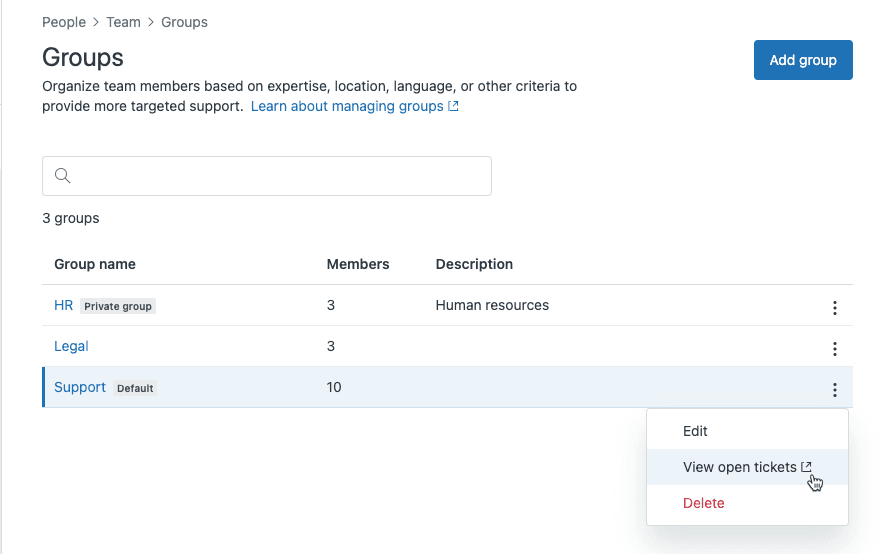
The confusion usually starts with a simple question: are we talking about the account's default group or the agent's default group? They're two different things, and understanding the distinction is key to setting up an efficient support workflow.
Understanding Zendesk default groups
Before diving into the configuration steps, it's worth clarifying what we're actually configuring. Zendesk has two types of default groups, and they serve different purposes.
Account default group vs agent default group
Your account's default group is the catch-all for new team members. When you add a new agent to your Zendesk account, they automatically get assigned to this group. Think of it as your onboarding default. Every account has one, and if you only have a single group, that's your default by definition.
Your agent's default group is more personal. It's the specific group where an individual agent's tickets get assigned when they're automatically routed. When a trigger assigns a ticket to an agent, it lands in their default group. If an agent manually grabs a ticket, they can choose any group they belong to, but the default is what the system falls back to.
Here's where it gets tricky: these two defaults don't automatically sync. Changing your account's default group won't update existing agents' individual defaults. Only new agents added after the change inherit the account default.
Why default groups matter
Default groups might seem like a small configuration detail, but they have outsized impact on your workflow:
- Automatic routing without manual work agents don't need to remember which group to select for every ticket
- Consistent reporting tickets land in predictable groups for accurate metrics
- Queue management group-based views and SLAs work reliably when assignments are consistent
When default groups aren't configured properly, you end up with tickets scattered across the wrong queues, agents spending time reassigning work, and reporting that doesn't reflect reality.
How to change your account's default group
Let's start with the account-level setting. You'll need admin access and at least two groups already created in your Zendesk instance.
Prerequisites:
- Admin access to Zendesk
- Multiple groups already created
- Zendesk Support Team plan or higher
Steps:
- Navigate to Admin Center → People → Team → Groups
- Look for the group labeled as your current default (Zendesk marks this clearly in the interface)
- Click the name of the group you want to set as the new default
- Select Set as default
- Click Save
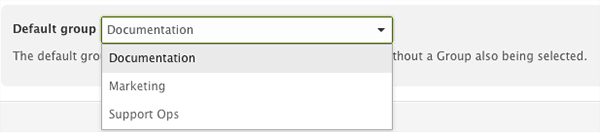
A few things to keep in mind: this change only affects agents you add after making the switch. Existing team members keep their current default group assignments. If you want to update existing agents, you'll need to change their individual defaults separately (covered in the next section).
Also, you can't delete a group that's set as the account default. If you need to remove a group, first set a different group as the default, then delete the old one.
How to change an agent's default group
Now for the individual level. This is what most admins actually need when they're troubleshooting "why isn't this agent's ticket going to the right group?"
Prerequisites:
- Admin access to Zendesk
- The agent already belongs to multiple groups (they need at least two to have a meaningful default)
Steps:
- In Zendesk Support, open the team member's profile
- Click the Groups tab
- You'll see a list of all groups the agent belongs to, with their current default highlighted
- Click the name of the current default group
- Select a new default from the dropdown menu
- Click Close to save
Best practices for agent defaults:
Set defaults based on an agent's primary function. If someone spends 80% of their time on billing issues, make Billing their default. Review defaults during role changes or team reorganizations. Document your group assignment strategy so future admins understand the logic.
If you find yourself constantly adjusting defaults as your team grows, it might be time to consider AI-powered routing that adapts to your ticket patterns automatically.

Troubleshooting common issues
Even with the right configuration, things don't always work as expected. Here are the most common problems and how to fix them.
"Zendesk group default assignee not working"
This is the search query that brings a lot of admins to this topic. If your default groups aren't behaving:
- Check agent group membership an agent needs to belong to multiple groups before they can have a meaningful default. If they're only in one group, that's their only option
- Review trigger order triggers run sequentially, and a later trigger might be overwriting your group assignment. Check Admin Center → Objects and rules → Triggers to see what's firing
- Verify agent permissions agents need explicit permission to be assigned tickets in a group. Double-check their role permissions
Tickets not routing to expected groups
When tickets consistently land in the wrong place:
- Check your triggers any trigger with a "Set group" action will override default group assignments
- Look at organization mapping if you're using organization-based group mapping (Professional+ plans), that takes precedence over agent defaults
- Verify ticket creation source tickets created via API or third-party integrations sometimes lack organization data, causing routing to fall through to defaults unexpectedly
Follow-up tickets losing group assignment
By default, follow-up tickets don't inherit the original ticket's group or assignee. You can change this:
- Go to Admin Center → Objects and rules → Tickets → Settings
- Click Assignments and notifications to expand
- Check Copy original assignee and group to follow-up ticket
- Click Save
This is particularly useful for teams handling complex issues where continuity matters. Just be aware that if the original group or assignee becomes invalid (group deleted, agent removed), Zendesk falls back to system rules.
Alternative approaches to group assignment
Default groups work well for straightforward setups, but they're not your only option. As your support operation grows, you might need more sophisticated routing.
Using triggers for conditional routing
Triggers let you route tickets based on conditions beyond just who's assigned to what group. For example:
- Route tickets from VIP customers to your senior agent group
- Send billing-related tickets to Finance regardless of who the agent is
- Override defaults for specific requesters or organizations
The key is trigger order. Zendesk processes triggers from top to bottom, so place your routing triggers early in the list. For a detailed walkthrough, see our guide on setting groups by organization using triggers.
Organization-based group mapping (Professional+)
If you're on Zendesk Professional or higher, you can map organizations directly to groups. When a user from a specific organization submits a ticket, it automatically routes to their mapped group. No triggers needed.
This works well for B2B support where you have dedicated teams for specific customers. The limitation is that it's a static mapping. It won't adapt if your team structure changes or if ticket volume shifts.
Queue-based assignment with Omnichannel Routing
Zendesk's newer Omnichannel Routing uses queues instead of triggers for assignment. You define queue conditions (like "Form is Support"), set priority levels, and Zendesk assigns tickets to available agents based on capacity and skills.
This approach is more dynamic than static group defaults. Tickets only get assigned when an agent actually has capacity, preventing queue buildup. The trade-off is that tickets sit unassigned until an agent becomes available, which can be confusing if you're used to immediate assignment.
AI-powered routing with eesel AI
For teams that have outgrown rule-based routing, we offer an alternative. Our Zendesk integration adds AI-powered triage that learns from your historical tickets.
Instead of writing complex trigger conditions, you give instructions in plain English: "Route angry customers from enterprise accounts to senior agents." The AI analyzes ticket content, sentiment, and your past routing decisions to make intelligent assignments.

You can test the routing logic on historical tickets before going live, so you know exactly how it will perform. If your trigger list is getting unwieldy or your routing needs are too nuanced for static rules, AI triage might be worth exploring.
Best practices for managing default groups
A few habits that will save you headaches down the road:
- Use consistent naming group names like "Support - Tier 1" and "Support - Tier 2" are clearer than "Team A" and "Team B"
- Document your strategy write down why you set up groups the way you did. Future you (or your successor) will thank you
- Audit regularly quarterly reviews of agent group memberships catch misconfigurations before they become problems
- Plan for scale if you're growing fast, start thinking about automation early. Static defaults work for 10 agents but become unwieldy at 100
Streamline your Zendesk routing with intelligent automation
Default groups are a solid foundation for ticket routing, but they're just that: a foundation. As your support operation grows, static rules become harder to maintain. Triggers multiply. Edge cases pile up. Before long, you're managing a complex web of conditions that made sense six months ago but don't reflect how your team actually works today.
That's where we can help. Instead of adding more rules, invite eesel AI to your team as an AI teammate that learns your routing patterns from historical data. You define the logic in natural language, test it on past tickets, and deploy when you're confident. No trigger chains to debug, no rigid conditions to maintain.
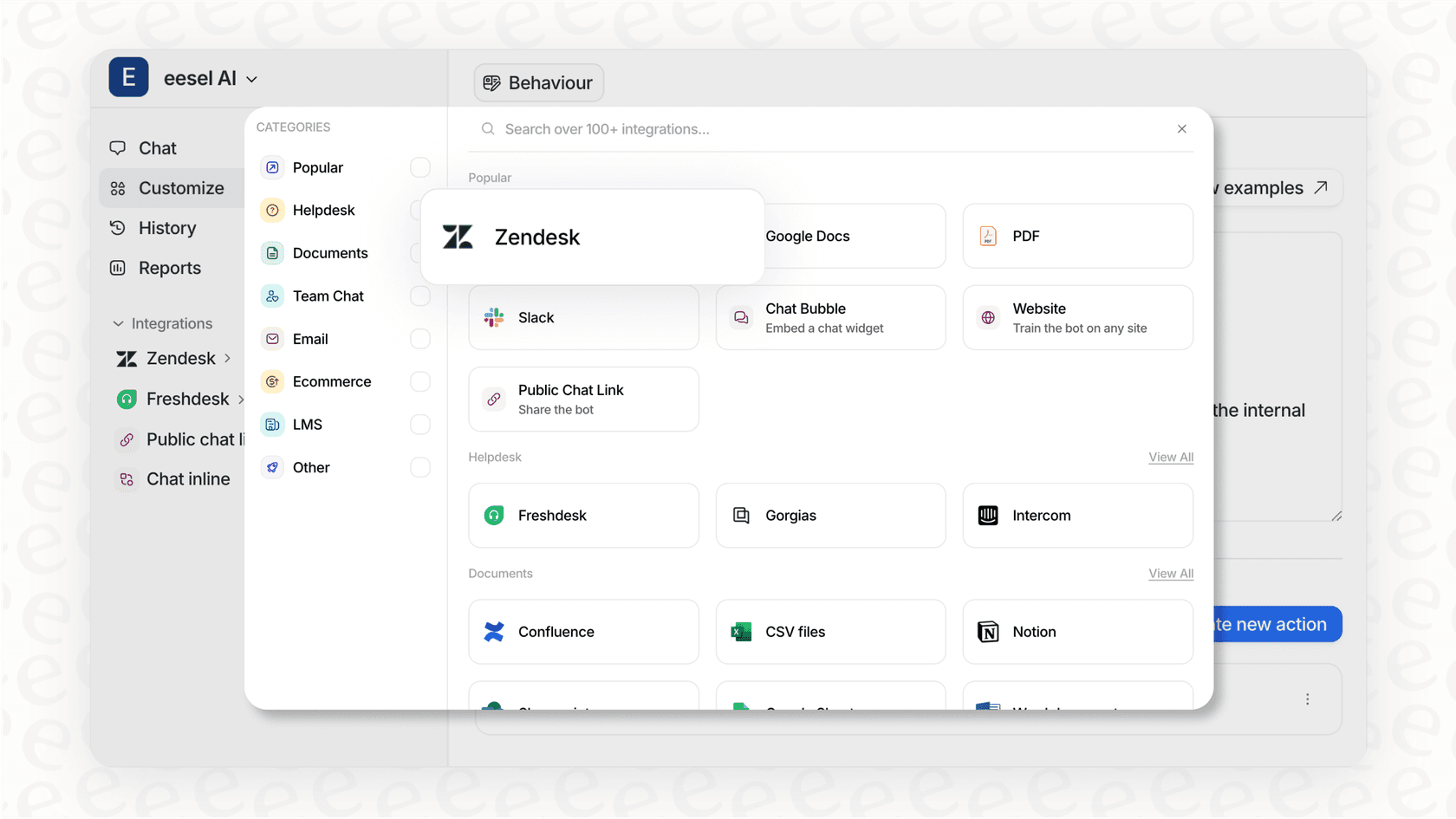
Ready to move beyond manual group assignment? Try eesel AI's AI agent for Zendesk or book a demo to see how intelligent routing works with your existing Zendesk setup.


