
Your voicemail greeting is often the first impression customers have when they can't reach a live agent. A clear, professional greeting sets expectations and ensures callers leave the information you need to help them effectively.
If you're using Zendesk Talk for phone support, configuring your voicemail greeting is straightforward once you know where to look. This guide walks you through the complete setup process, from basic configuration to advanced scenarios like business hours routing and IVR integration.
What you'll need to get started
Before configuring your voicemail greeting, make sure you have the following in place:
- A Zendesk Support account with Talk enabled
- Administrator permissions in your Zendesk account
- A supported Talk plan (Team, Professional, or Enterprise)
- Audio files ready if you plan to use custom recordings (MP3, WAV, or OGG format, under 10MB)
Note that IVR functionality requires Talk Professional or Enterprise. If you're on the Team plan, you can still use group routing and voicemail, but multi-level phone menus won't be available.
For a broader overview of setting up Talk, you might find our guide on how to set up Zendesk Talk greetings, voicemail, hold music, and IVR helpful.
Understanding Zendesk Talk voicemail basics
Voicemail in Zendesk Talk does more than just record messages. When a customer leaves a voicemail, Zendesk automatically creates a ticket with the audio file attached. This means voicemails enter the same workflow as your email, chat, and web tickets, making them easy to track, assign, and resolve.
Here are the key things to know:
- Voicemail is enabled by default on new phone numbers
- Maximum message length: 2 minutes per voicemail
- Transcription available: Optional feature that converts voice to text for $0.01 per minute
- Two greeting types: One for when voicemail is on, another for when it's off

The distinction between voicemail on and off greetings matters. When voicemail is enabled, your greeting should invite callers to leave a message. When disabled, the greeting should set different expectations, perhaps directing callers to call back during business hours or visit your help center.
Step-by-step: Configuring your Zendesk Talk voicemail greeting
Here is the complete configuration process. Each step builds on the previous one, so follow them in order.
Step 1: Access Talk settings
Start by navigating to the Admin Center. Click the Channels icon in the sidebar, then select Talk and email, then Talk. This opens the main Talk configuration area where you can manage all your phone settings.
Step 2: Select your phone number
Click the Lines tab to see all your configured phone numbers. Each number can have its own voicemail settings and greetings. Click on the specific phone number you want to configure.
Step 3: Enable voicemail
Open the Voicemail tab for your selected number. You'll see a toggle to turn voicemail on or off. When enabled, callers can press 1 at any time during the available agents greeting to jump directly to voicemail. They can also reach voicemail automatically if they wait in queue longer than your configured maximum wait time.

Step 4: Create or select a greeting
Now you need a greeting to play when voicemail is active. Navigate to the Greetings section by going to Admin Center, then Channels, then Talk, then Greetings. Click Add greeting to create a new one.
Give your greeting a descriptive name so you can identify it later. Something like "Support Line - Voicemail Greeting" or "After Hours - General Mailbox" works well.
Step 5: Configure greeting type and audio
Select Voicemail as the greeting type. Then choose how you want to create the audio:
Text-to-speech: Type your script and select a voice. Zendesk generates the audio instantly. This is the fastest option but sounds robotic.
Custom upload: Upload an MP3, WAV, or OGG file under 10MB. This gives you full control over tone and branding.
Step 6: Assign greeting to phone number
Return to your phone number's Voicemail tab. In the Greeting dropdown, select the voicemail greeting you just created. Save your changes.
Step 7: Test your configuration
Always test from an external phone line. Call your number, wait for the greeting to play, and leave a test message. Then check Zendesk to confirm a ticket was created with the voicemail attached.
Best practices for voicemail greeting scripts
What you say in your greeting matters. A good voicemail greeting sets clear expectations and gets you the information you need to help customers efficiently.
What to include in your greeting
Your voicemail greeting should cover these essentials:
- Company name and appreciation - Thank callers for reaching out
- Clear instructions - Tell them exactly what information to leave (name, phone number, issue details)
- Response timeframe - Set realistic expectations for when you'll call back
- Alternative options - Mention your help center, email, or business hours
Sample script templates
Here are three scripts you can adapt for your business:
Professional greeting: "Thank you for calling [Company Name]. Your call is important to us. Please leave your name, phone number, and a brief message after the tone, and we'll return your call within 24 business hours. You can also visit our help center at [website] for immediate assistance."
Casual/friendly greeting: "Hey there, thanks for calling [Company Name]. We're sorry we missed you. Leave your name, number, and how we can help, and we'll get back to you as soon as we can. Have a great day."
After-hours greeting: "You've reached [Company Name]. Our office is currently closed. Our business hours are [hours]. Please leave your name, number, and message, and we'll return your call when we reopen. For urgent issues, please email [email]."
Recording tips for quality audio
If you're recording a custom greeting, follow these guidelines:
- Use a quiet environment with no background noise or echo
- Speak slowly and clearly, slightly slower than normal conversation
- Test your recording levels before finalizing to avoid distortion
- Keep greetings under 30 seconds when possible
- Smile while recording, it comes through in your voice
Advanced voicemail configuration
Once you have basic voicemail working, you can layer on more sophisticated configurations.
Setting up business hours voicemail
If you have business hours configured in Zendesk, you can set different voicemail behaviors for in-hours versus after-hours calls. During business hours, you might want voicemails routed to specific groups. After hours, all voicemails might go to a general queue for the next business day.
When you apply a schedule to a phone number, you'll see multiple versions of voicemail settings: one for hours within the schedule, another for hours outside. Configure each separately with appropriate greetings.
Voicemail transcription setup
Transcription converts voice messages to text and adds them to the ticket conversation. This costs $0.01 per minute but can save agents time when triaging messages. You can also create triggers based on keywords in transcriptions. For example, automatically assign any voicemail containing the word "refund" to your billing team.
Transcriptions appear in the ticket conversation thread. Even if you later delete the audio file, the transcription remains.
Voicemail deletion policies
Zendesk lets you configure automatic deletion of voicemail audio files. Options include 7 days, 30 days, 90 days, or never. Consider your compliance requirements and storage needs when setting this. Note that transcriptions are not deleted when audio files are removed.
IVR integration with voicemail
If you're using IVR (Interactive Voice Response), you can route callers to voicemail through your phone menu. For example, pressing 5 might take callers directly to voicemail rather than waiting in a queue.
You can also set up "press 1 for voicemail" functionality during the available agents greeting. This gives callers the option to skip the queue and leave a message right away.

Troubleshooting common voicemail issues
Even with careful setup, you might encounter issues. Here's how to resolve the most common ones.
Voicemail not creating tickets
If voicemails aren't showing up as tickets:
- Verify voicemail is enabled on the phone number
- Check that a greeting is properly assigned
- Confirm your Zendesk account hasn't hit API limits or storage quotas
- Test by leaving a voicemail and checking the Tickets view immediately
Callers hear the wrong greeting
When the greeting doesn't match what you configured:
- Review your business hours schedule, if you have different greetings for in-hours vs. after-hours
- Verify the greeting assignment in the Voicemail tab
- Check if an IVR greeting is overriding the voicemail greeting for certain call paths
"Press 1" behavior issues
One common frustration is that callers can press 1 to go to voicemail at any time, which some teams feel hurts service metrics. Here is the limitation: you cannot disable the "press 1" behavior without turning off voicemail entirely.
Workarounds include the following:
- Don't mention the option in your greeting, so callers don't know they can press 1
- Turn off voicemail for that line and use a forward/rollover to an internal voicemail line
- Accept that some callers prefer voicemail and focus on response time instead
Voicemail transcription not appearing
If you enabled transcription but don't see text in tickets:
- Verify transcription is enabled in the voicemail settings
- Check that the voicemail language is supported
- Review your billing, as transcription charges appear separately
- Look in the ticket conversation thread, transcriptions appear as comments
Testing and verification tips
Make testing part of your regular routine:
- Always test from an external phone line, not your office phone
- Test during business hours and after hours to verify schedule-based routing
- If using IVR, test every menu path that leads to voicemail
- Verify ticket creation, audio attachment, and transcription (if enabled)
Managing voicemail tickets with AI
Once your voicemail system is running smoothly, you might wonder how to handle the tickets it creates more efficiently. This is where AI can help.
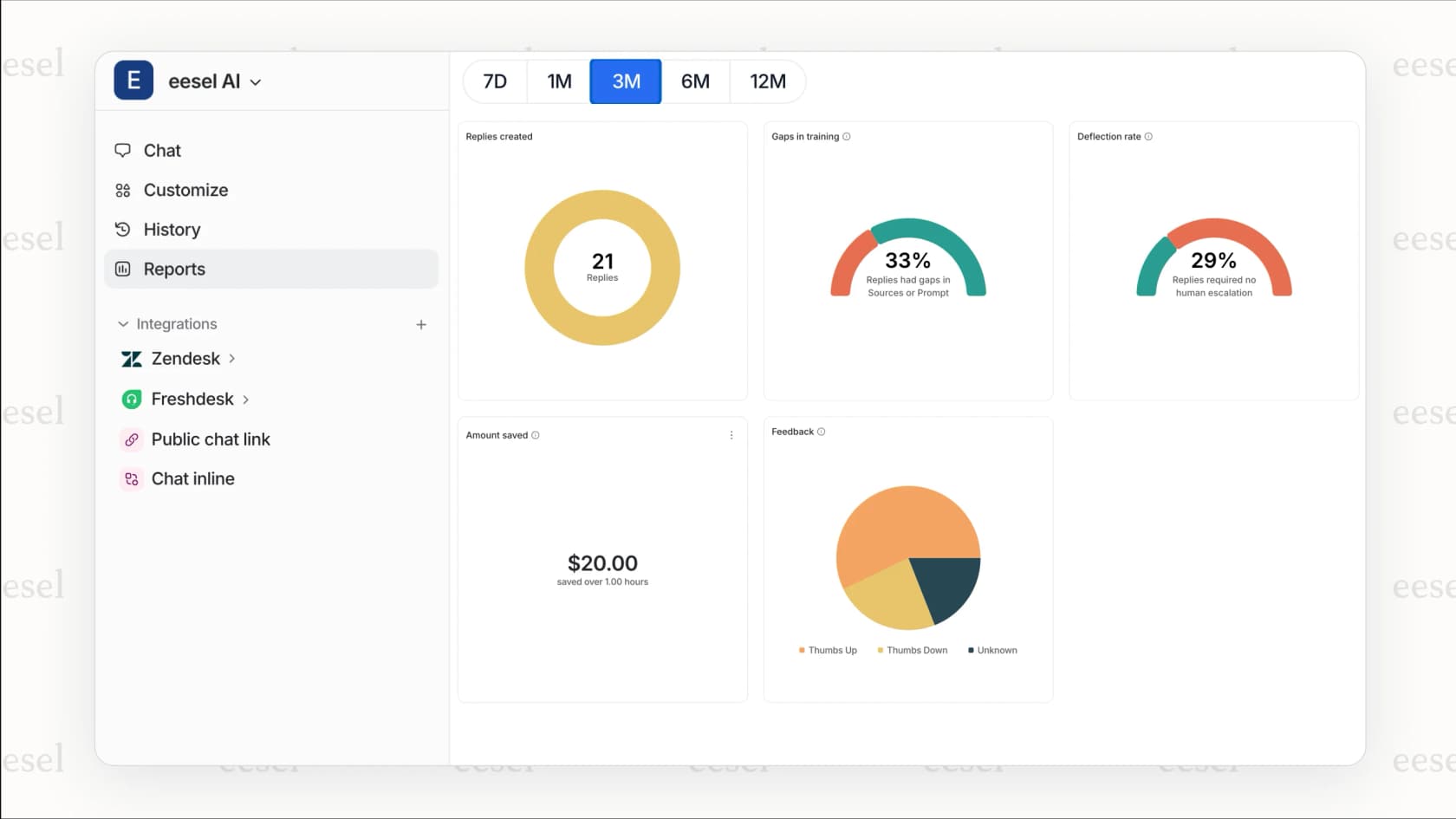
When a voicemail creates a ticket, eesel AI Triage can automatically tag it by topic, route it to the right team, and prioritize based on urgency signals in the message. For example, voicemails mentioning "urgent" or "down" get escalated immediately.
If you have transcription enabled, AI can analyze the text content to extract key information like order numbers, product names, or issue types. This lets you set up sophisticated triggers that are impossible with audio alone.
For teams looking to streamline their phone support workflow, our Zendesk integration connects voicemail-generated tickets to AI-powered routing and response drafting. Agents get context-rich tickets that are already categorized and prioritized, cutting down on manual triage time.