
Call recording is one of those features that sounds simple until you actually try to implement it. Suddenly you're dealing with compliance laws, consent notifications, storage policies, and agent workflows. If you're using Zendesk Talk for phone support, getting your recording setup right matters for quality assurance, training, and legal protection.
This guide walks you through everything you need to know about configuring and managing call recording in Zendesk Talk. We'll cover the technical setup, legal compliance requirements, and best practices that keep you on the right side of regulations. Whether you're setting up recording for the first time or refining an existing configuration, you'll find actionable steps you can implement today.
At eesel AI, we work with support teams to optimize their customer service operations. While this guide focuses specifically on Zendesk Talk's recording features, we also help teams reduce call volume through AI-powered automation. Here's how to get your recording setup right.

What you'll need
Before you start configuring call recording, make sure you have:
- A Zendesk Support account with Talk Professional or Enterprise (recording isn't available on Team plans)
- Admin permissions in your Zendesk account to access Talk settings
- A basic understanding of call recording laws in your jurisdiction (we'll cover this in detail later)
- Optional: API credentials if you plan to manage recordings programmatically
Step 1: Enable call recording in Admin Center
Let's start with the basics: turning on recording and configuring how it works.
First, navigate to Admin Center → Channels → Talk and email → Talk. This brings you to the main Talk configuration area where you can manage all your phone settings.
Click the Lines tab to see all your configured phone numbers. Select the number you want to configure for recording. Each number can have different recording settings, so you'll need to configure them individually if you have multiple lines.
On the number settings page, click the Call recording tab. Here's where the actual configuration happens.
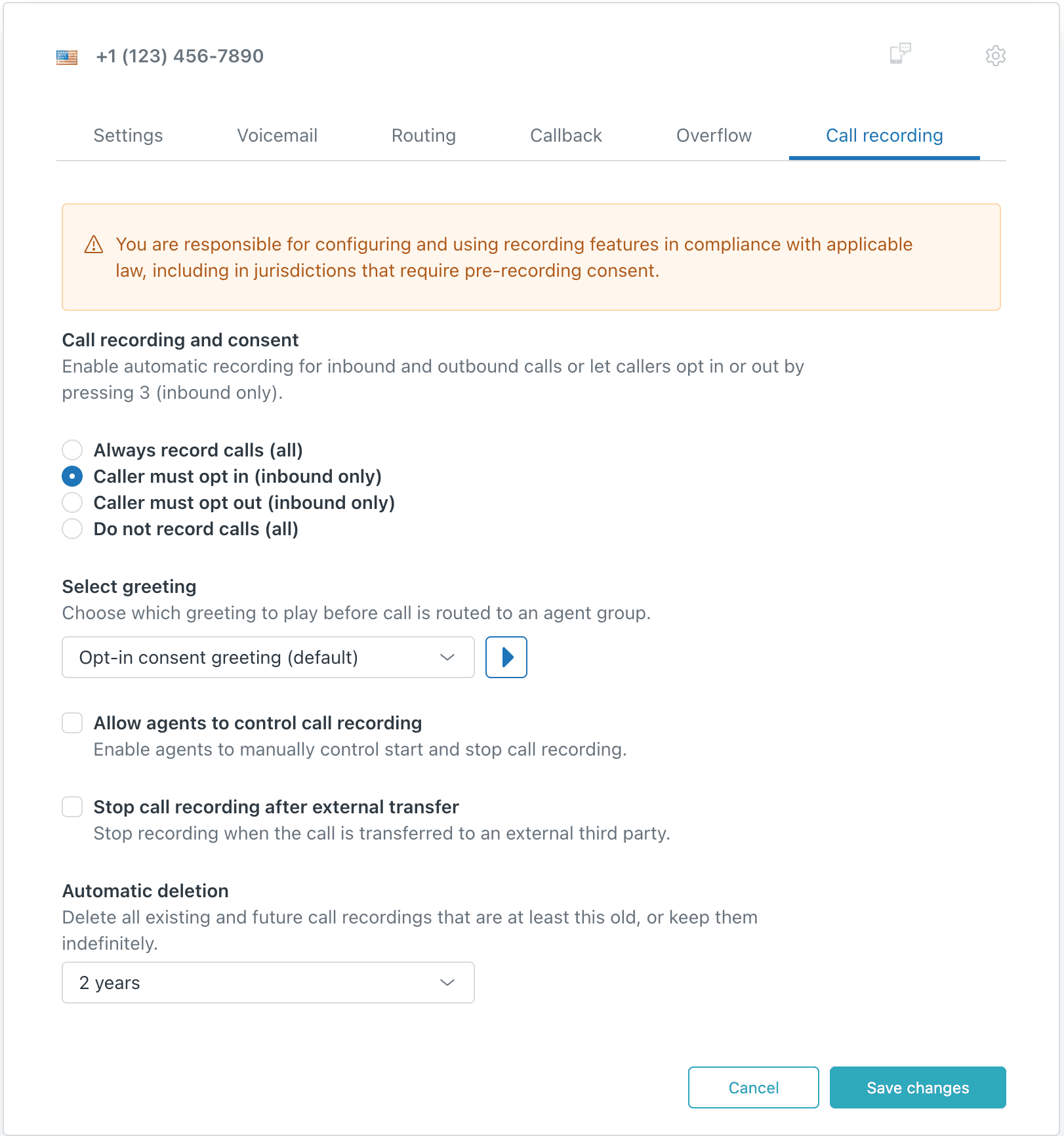
Enable the recording options you need. You'll see several settings:
- Call recording and consent: This controls the recording mode (we'll cover the options in Step 2)
- Record greeting: Choose a greeting to play when opt-in or opt-out is enabled
- Allow agents to control call recording: Lets agents pause and resume recordings during calls
- Stop call recording after transfer: Ends recording when calls transfer to external numbers
- Automatic deletion: Set how long to keep recordings (or choose "Never" to keep them indefinitely)
Click Save changes when you're done. The settings take effect immediately for new calls.
Step 2: Configure recording modes and consent
This is where things get important from a legal perspective. Zendesk Talk gives you four options for how recording works:
| Recording Mode | How It Works | Best For |
|---|---|---|
| Always record calls | All inbound and outbound calls recorded automatically | Teams with consistent compliance requirements |
| Caller must opt-in | Recording off by default, caller presses 3 to enable | High-privacy environments |
| Caller must opt-out | Recording on by default, caller presses 3 to disable | Standard business operations |
| Do not record calls | No recording enabled | Jurisdictions with strict restrictions |
Source: Zendesk - Managing call recording options
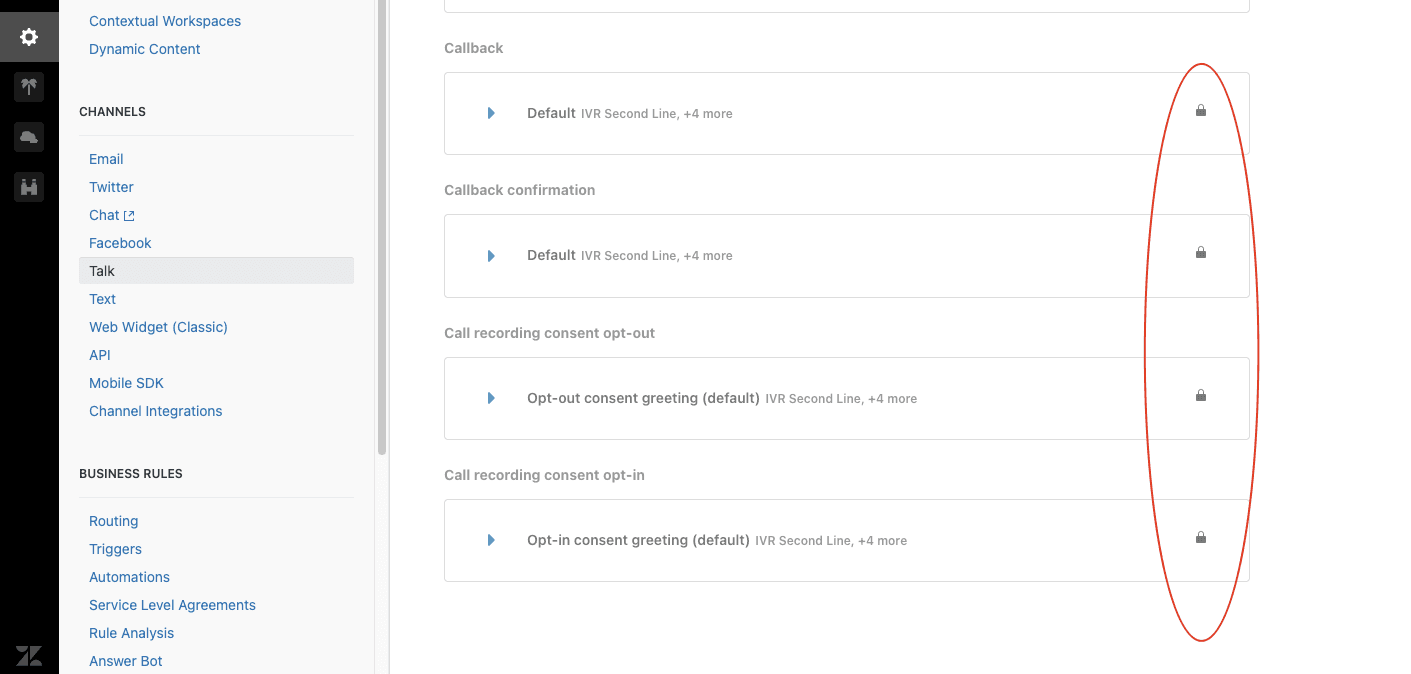
If you choose opt-in or opt-out mode, you need to set up a recording greeting. This is the message that plays to inform callers about recording. Navigate to Admin Center → Channels → Talk → Greetings and create a greeting in the "Call recording" category. Your greeting should clearly state:
- That the call is being (or may be) recorded
- Why you're recording (quality assurance, training, etc.)
- How to opt in or out (press 3)
For digital lines (Web Widget calls), callers can opt in or out using a checkbox in the interface instead of pressing a key.
Important note: Voicemails are always recorded regardless of these settings. When someone leaves a voicemail, Zendesk creates a ticket with the audio attached automatically.
Step 3: Set up agent recording controls
Professional and Enterprise plans include agent recording controls. This feature lets agents pause and resume recordings during calls, which is essential for handling sensitive information like payment details.
To enable this, check the Allow agents to control call recording option in the Call recording tab (from Step 1).
During a call, agents click the pause button in the ticket call bar or call console to pause recording. Clicking it again resumes recording. Both the agent and caller hear a beep to confirm the recording status changed.
This functionality helps you remain legally compliant by preventing sensitive personal data from being stored in call recordings. It also gives agents flexibility when handling privacy-sensitive situations.
Limitations to keep in mind: If you have opt-in/opt-out enabled and the caller has already made their choice, agents won't see the pause button. The caller's preference takes precedence.
Step 4: Configure customer access and storage
Now let's set who can access recordings and how long you keep them.
In Admin Center → Channels → Talk → Settings, you'll find the option "New live call recordings are public?" This controls whether customers can listen to call recordings attached to their tickets.
Think carefully about this setting. Making recordings public lets customers review their own calls, which can be helpful for dispute resolution. But it also means any customer with ticket access can listen to recordings, including potentially sensitive conversations.
For storage, set an automatic deletion timeframe that matches your compliance requirements. Options typically range from 30 days to several years, or "Never" if you need to keep recordings indefinitely. Remember that storage costs can add up if you're recording high call volumes and never deleting.
To download a recording for offline storage, open the ticket containing the recording, right-click the attached voicemail, and select Save as. You can also use the recording_URL parameter in the Zendesk API to download recordings programmatically.
Understanding compliance and legal requirements
Here's the part you can't skip. Call recording laws vary dramatically by location, and getting this wrong can expose your business to significant liability.
In the United States, federal law requires only one-party consent. That means only one person on the call needs to know it's being recorded. But many states, including California, Florida, and Pennsylvania, require two-party consent. Everyone on the call must be informed and agree.
The challenge? You often can't know where your callers are located. A customer might call from a two-party consent state while your agents work in a one-party consent state. For this reason, Zendesk recommends complying with the strictest consent laws and obtaining consent from all parties to any recorded call.
Outside the United States, regulations become even more stringent. The European Union's GDPR requires you to inform participants and obtain consent before recording calls. Article 13 specifically mandates providing information about data collection at the point of collection.
Best practices for compliance:
- Play a clear recording notification at the beginning of every call
- Keep records of your consent method
- Document your deletion policies
- Consult legal counsel familiar with your specific business and jurisdictions
This isn't just legal advice, it's business protection. Violating recording consent laws can result in significant penalties.
Managing and accessing recordings
Once recording is enabled, here's how to work with the actual recordings.
Recordings appear as voice comments attached to tickets. When you open a ticket with a recorded call, you'll see the recording player in the conversation thread. Click play to listen directly in Zendesk.
Only admins can delete recordings. To remove a recording from a ticket, locate the call recording in the conversation area and click delete recording. Confirm the deletion, and the recording is permanently removed and replaced with "recording not available."
For programmatic access, the Talk API lets you retrieve, manage, and delete recordings in bulk. This is useful if you need to integrate recordings with external systems or implement custom retention policies.
Some teams use third-party integrations like Yeastar or Five9 to enhance recording playback and management within Zendesk tickets.
Troubleshooting common issues
Even with proper setup, you might encounter issues. Here's how to handle the most common ones.
Recording not appearing on the ticket: Check that recording is enabled for the line the call came in on. Verify the call wasn't transferred from a line with different settings. Remember that calls on hold aren't recorded, so very short calls might not generate recordings.
Call length doesn't match recording length: This is usually normal. The recording excludes time on hold, consultation periods before transfers, and any paused segments. The recording length should be shorter than the total call duration.
Audio quality issues: If recordings sound distorted, check your phone line quality first. Zendesk stores recordings in their original quality, so poor call audio results in poor recordings.
Permission errors: Only admins can delete recordings. Agents can listen to recordings if they have ticket access, but deletion requires admin privileges.
Recordings not created: Check if the caller opted out (if using opt-out mode), if the agent paused recording for the entire call, or if the call was transferred from an external IVR that doesn't support recording.
Enhancing voice support with AI
While you're optimizing your Zendesk Talk setup, consider what happens to all those recordings after the call ends. Raw audio files aren't searchable, and manually reviewing calls for quality assurance is time-consuming.
This is where AI can help. At eesel AI, we build AI teammates that work alongside your voice support. Our AI can transcribe call recordings into searchable text, automatically analyze conversations for quality metrics, and identify training opportunities. Instead of randomly sampling calls, you can search transcripts for specific topics, sentiment patterns, or compliance keywords.

More importantly, our AI Agent can handle common questions through chat or email before they ever become phone calls. This reduces call volume while improving response times. When calls do come in, our AI Copilot drafts follow-up emails based on call summaries, saving your agents time on post-call work.
We integrate directly with Zendesk, learning from your past tickets, help center articles, and macros. The AI understands your team's voice and policies from day one, so responses match your brand.
Start optimizing your voice support today
Setting up Zendesk Talk call recording involves more than just flipping a switch. You need to choose the right recording mode for your compliance requirements, configure proper consent notifications, set appropriate storage policies, and train your team on when to use agent controls.
The legal side matters just as much as the technical setup. Complying with the strictest consent laws protects your business and respects your customers' privacy. When in doubt, consult legal counsel familiar with your specific situation.
If you're investing time in professional phone support, consider how AI can enhance the entire experience. From transcribing recordings to handling routine inquiries automatically, the right AI teammate can transform how your support team operates.
Ready to see how AI can complement your voice support? Try eesel AI or book a demo to see our AI Agent and Copilot in action.


