
Managing customer support through a shared email inbox is like trying to organize a library with no catalog system. Emails get buried, conversations thread chaotically, and nothing is trackable. That's where Zendesk's email-to-ticket functionality comes in. It converts every incoming email into a structured, trackable ticket that your team can assign, prioritize, and resolve systematically.
This guide walks you through setting up Zendesk email to ticket, from basic configuration to advanced automation. Whether you're migrating from a simple support@ inbox or optimizing an existing setup, you'll learn how to turn email chaos into organized workflow. And once those tickets start flowing in, we'll show you how AI can help your team respond faster without sacrificing quality.
What you'll need
Before diving in, make sure you have the following ready:
- Zendesk Support account Team plan or higher (all plans support multiple email addresses)
- Admin access Only administrators can configure support addresses in Admin Center
- Domain access (for external emails) You'll need access to your DNS settings or email server to set up forwarding and SPF records
- A clear naming convention Decide whether you'll use addresses like support@, help@, or department-specific emails like billing@ and sales@
If you're planning to enhance your Zendesk setup with AI-powered responses, you'll also want an eesel AI account connected to your Zendesk workspace.
Setting up Zendesk email to ticket
Let's break down the setup process into manageable steps. Each builds on the previous one, so work through them in order.
Step 1: Access your email channel settings
Start by navigating to where email configuration lives in Zendesk.
Log into your Zendesk account and click the Admin Center icon in the top navigation bar. From there, select Channels in the left sidebar, then Talk and email, and finally Email. This opens the email channel configuration page where you'll manage all support addresses.
You'll see your default support address listed: support@yoursubdomain.zendesk.com. This address was created automatically when you set up your Zendesk account, and it works immediately. Any email sent to this address becomes a ticket.
The email settings page shows three main sections: Support addresses (where you add and manage email addresses), Email templates (for customizing notifications), and Email authentication (for SPF and DKIM configuration). For now, focus on the Support addresses section.

Step 2: Add a Zendesk support address
Now let's create additional native Zendesk addresses beyond the default.
Click Manage support addresses, then the Add address button. You'll see two options: Create new Zendesk address or Connect external address. Choose "Create new Zendesk address" for now.
If you use Zendesk's multibrand feature, select which brand this address should belong to from the dropdown. Then enter the local part of the email address (the part before the @ symbol). Common choices include help, support, info, or department names like sales or billing. The full address will be something like help@yourcompany.zendesk.com.
Click Save and the address appears in your list. The status shows as "Active" immediately, no verification needed for native Zendesk addresses.
Test it by sending an email from a personal account to your new address. Within a minute or two, you should see a ticket created in your Zendesk queue. The ticket's "Received at" field shows which email address the customer used, which becomes important for routing rules later.
You can add up to 3,000 support addresses per Zendesk account, though most teams need fewer than ten.
Step 3: Connect an external email address
Most established businesses already have a support email like support@mycompany.com. You don't need to abandon it. Instead, forward it to Zendesk so emails become tickets while customers continue using familiar addresses.
In the Support addresses section, click Add address and select Connect external address. Enter your existing email address (support@mycompany.com, for example) and click Go.
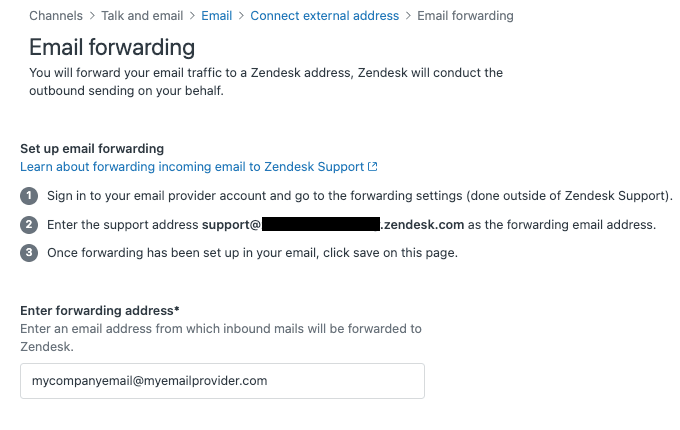
Zendesk will ask if you've already set up forwarding. If you haven't, that's fine. The system displays a unique Zendesk forwarding address, typically formatted as something like fwd-abc123@yoursubdomain.zendesk.com. Copy this address.
Now configure forwarding on your email server:
- For Gmail/Google Workspace: Go to Gmail settings → Forwarding and POP/IMAP → Add a forwarding address. Paste the Zendesk forwarding address and verify it via the confirmation email Zendesk sends.
- For Microsoft 365/Exchange: Use the Exchange admin center to create a mail flow rule that forwards messages to the Zendesk address.
- For other providers: Check your email service's documentation for automatic forwarding instructions.
Important: Set up forwarding at the server level, not in an email client like Outlook or Apple Mail. Client-side forwarding can cause issues with ticket attribution and create suspended tickets.
Once forwarding is active, return to Zendesk and click Yes, I finished, then Verify. Zendesk sends a test email to your external address. If forwarding is configured correctly, the test succeeds and your external address shows as verified.
If verification fails, check that forwarding is actually working by manually sending a test email from another account to your external address. You should see it appear as a ticket in Zendesk. Common issues include forwarding not being saved, spam filters blocking the test email, or the forwarding address being copied incorrectly.
Step 4: Configure SPF and email authentication
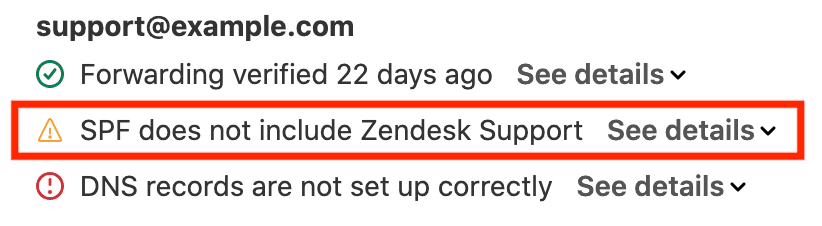
Without proper authentication, your Zendesk emails might land in spam folders. SPF records tell email providers that Zendesk is authorized to send email on behalf of your domain.
An SPF record is a DNS TXT record that lists which servers can send email for your domain. When you add Zendesk to your SPF record, receiving email servers know that messages coming from Zendesk's servers on your behalf are legitimate.
To update your SPF record, add include:mail.zendesk.com to your existing record. If you don't have an SPF record yet, create one:
v=spf1 include:mail.zendesk.com ~all
If you already have an SPF record (perhaps for Google Workspace or another email provider), add Zendesk's include statement before the final mechanism:
v=spf1 include:_spf.google.com include:mail.zendesk.com ~all
DKIM (DomainKeys Identified Mail) adds a digital signature to your outbound emails, proving they haven't been tampered with in transit. Zendesk supports DKIM signing for custom domains. In Admin Center, go to Channels → Email → Email authentication to generate DKIM records. Add the provided CNAME records to your DNS, then return to Zendesk to verify them.
After making DNS changes, remember that propagation can take up to 48 hours (though it's often much faster). You can test your SPF configuration using online tools like MXToolbox or Google's Admin Toolbox.
Step 5: Set up automation and routing rules
Now that emails are becoming tickets, let's organize them automatically based on which address received them.
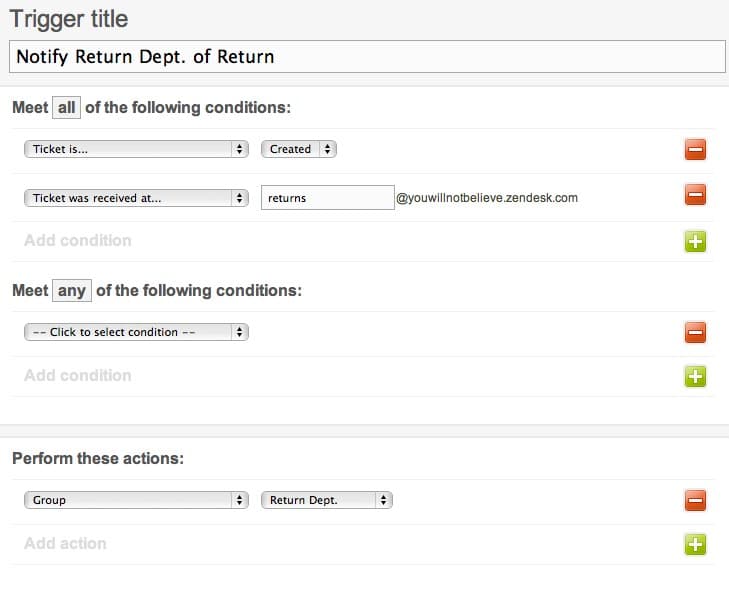
Zendesk triggers are business rules that fire when tickets are created or updated. You can create triggers that route tickets to specific groups based on the "Received at" condition.
Here's how to route billing emails to your finance team:
- Go to Admin Center → Objects and rules → Business rules → Triggers
- Click Add trigger
- Set the conditions: Ticket → Received at → Is → billing@yourcompany.com
- Set the actions: Group → Billing Team and optionally Tags → add "billing"
- Save the trigger
Repeat this process for other departments. You might route sales@ emails to your sales group with high priority, or returns@ emails to your fulfillment team.
You can also use multiple email addresses to categorize requests without creating separate triggers for each. Create a single trigger that checks if "Received at" contains "@yourcompany.zendesk.com" and adds a tag based on the specific address using placeholders.
For teams handling multiple brands, each support address can be associated with a specific brand. Tickets created via that address automatically inherit the brand's settings, including email templates, business hours, and SLA policies.
Consider setting up views (filtered ticket lists) for each email address so agents can focus on relevant tickets. A billing team view might show only tickets where "Received at" is the billing address, while a general support view shows everything else.
Common issues and troubleshooting
Even with careful setup, you might encounter these common problems:
Emails aren't creating tickets
Check your forwarding configuration first. Send a test email to your external address and check if it arrives at the Zendesk forwarding address. Look in Zendesk's Suspended tickets queue (Admin Center → Tickets → Suspended tickets) to see if emails are being held there. Common causes include sender authentication failures or the email being flagged as automated.
Tickets show the wrong requester
This usually happens when forwarding is misconfigured. If you manually forward an email from your email client rather than setting up automatic server-side forwarding, Zendesk sees your email address as the requester instead of the original sender. Fix this by setting up proper automatic forwarding.
Outbound emails land in spam
Verify your SPF record is correctly configured and has propagated. Check that you haven't accidentally created multiple SPF records (there should only be one TXT record starting with v=spf1 per domain). If using DKIM, ensure the CNAME records are correctly entered and verified in Zendesk.
Email threads are truncated
Zendesk has a 65,000 character limit per email. If a customer forwards a massive thread or includes huge attachments, the ticket comment gets truncated. There's no fix for this limit, but you can educate customers to start fresh tickets for long-running issues rather than endlessly forwarding the same thread.
"Suspended ticket" notifications
Zendesk suspends tickets that look suspicious, such as those from automated systems or with authentication issues. Review suspended tickets regularly and release legitimate ones. For automated emails you want to receive (like order notifications from your e-commerce platform), add the sender domain to your allowlist in Admin Center.
Enhancing Zendesk with AI-powered responses
Once your email-to-ticket flow is working smoothly, the next challenge is responding to those tickets efficiently. This is where we can help.
eesel AI connects directly to your Zendesk account and learns from your past tickets, help center articles, and macros. Instead of generic AI responses, eesel drafts replies that sound like your team wrote them.

Here's how it works: you start with eesel as a copilot, drafting responses for your agents to review and send. As eesel learns your voice and policies, you can level up to full autonomy, letting it handle routine tickets directly. Most teams see up to 81% autonomous resolution once eesel is fully trained.
The setup takes minutes, not weeks. Connect eesel to your Zendesk, and it immediately starts learning from your existing data. No manual training, no documentation uploads. You can even run simulations on past tickets to see how eesel would have handled them before going live.
For teams drowning in email tickets, this combination is powerful. Zendesk handles the collection (converting emails to tickets), and eesel handles the processing (drafting intelligent responses). Your customers get faster replies, and your team focuses on complex issues that actually need human attention.
Check out our Zendesk AI integration to see how it works, or read more about optimizing your Zendesk ticketing system for additional tips.
Start streamlining your email support
You now have a complete Zendesk email-to-ticket setup. Your customers can reach you at professional addresses like support@mycompany.com, their emails automatically become trackable tickets, and your team can focus on solving problems instead of managing inbox chaos.
The workflow is straightforward: emails arrive, tickets get created, triggers route them to the right teams, and your agents respond. With proper SPF configuration, your replies reach customer inboxes reliably. With automation rules, nothing falls through the cracks.
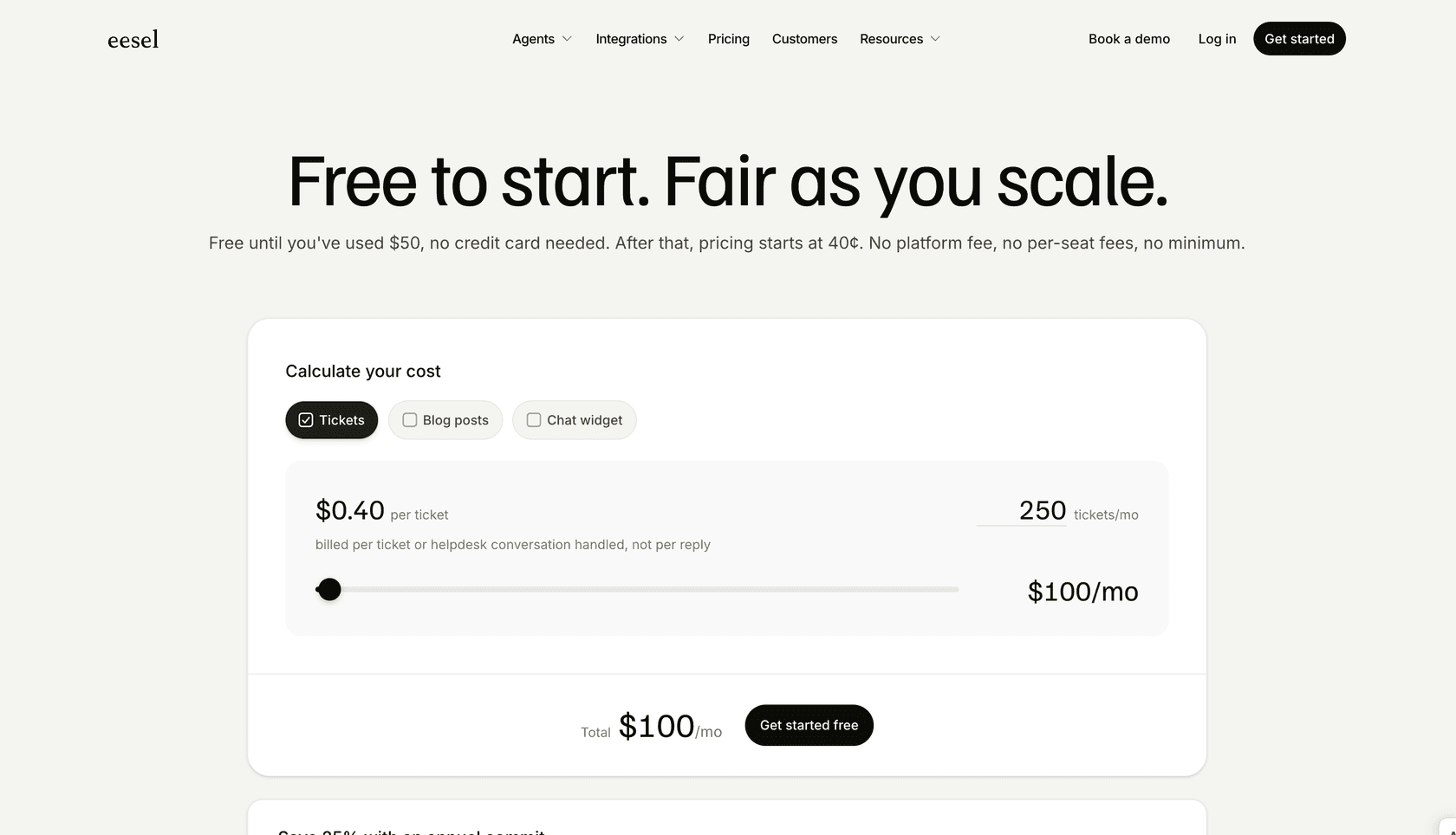
And if you're ready to take the next step, adding AI-powered response drafting can transform your team's efficiency. While Zendesk organizes your tickets, eesel AI can help you answer them faster. Start with our AI Agent product to see how autonomous ticket resolution works, or check our pricing to find a plan that fits your volume.
Your email support just got a major upgrade.


