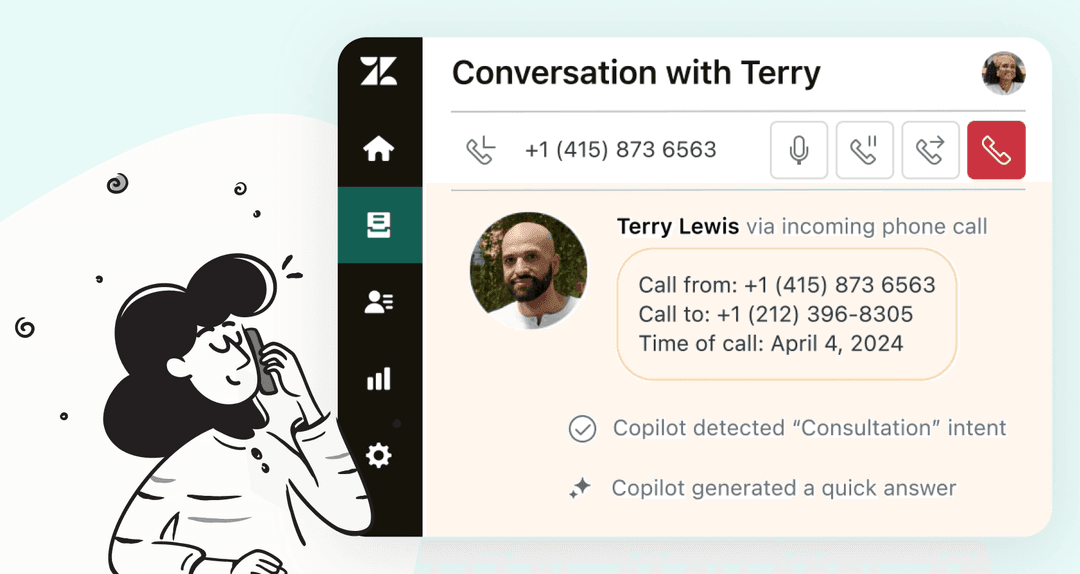
When a critical customer issue comes in, every minute counts. A billing error for a VIP client, a service outage affecting hundreds of users, or a security vulnerability report. These tickets demand immediate attention. But here's the problem: in a busy help desk, urgent tickets often blend into the queue. They sit unassigned for hours because no one realized the urgency.
Setting up effective urgent alerts in Zendesk can mean the difference between a quick resolution and a customer escalation. This guide walks you through everything you need to know: native Zendesk alerting with triggers and automations, third-party integrations for enhanced notifications, and AI-powered approaches that go beyond traditional alerting.
Understanding Zendesk's urgency framework
Before setting up alerts, you need to understand how Zendesk categorizes ticket urgency. The platform uses a 4-level priority system that should align with your business impact assessment.

Urgent tickets represent complete system failure or critical security issues. Think: customers can't sign in, payment processing is down, or a data breach is reported. These need immediate response, typically within 15-30 minutes.
High priority covers significant feature degradation where workarounds exist but require substantial effort. Examples include major functionality broken for multiple users or performance issues affecting productivity.
Normal priority is for issues that slow operations but have acceptable workarounds. These are your typical support tickets that need attention within a few hours.
Low priority handles informational requests, feature suggestions, or minor cosmetic issues. These can wait for standard queue processing.
The key distinction: priority in Zendesk is a field that agents or triggers set manually. It doesn't automatically detect urgency from ticket content. That's an important limitation we will address later.
Setting up urgent alerts with Zendesk triggers
Triggers are your first line of defense for urgent alerts. They fire immediately when tickets are created or updated, making them perfect for real-time notifications.
Step 1: Access the triggers settings
Navigate to Admin Center > Objects and rules > Triggers. You'll see a list of existing triggers that Zendesk includes by default.
Step 2: Create a new trigger for urgent tickets
Click "Add trigger" and give it a descriptive name like "Urgent ticket notification." Now configure your conditions:
- Condition: Priority is Urgent
- Condition: Status is New
You can add more conditions for specific scenarios:
- Ticket channel is Email (to catch urgent emails)
- Organization is VIP (for your high-value customers)
- Subject text contains "outage" or "emergency"
Step 3: Set notification actions
Under "Actions," configure what happens when conditions are met:
- Email notification to specific agents or groups
- Webhook notification to Slack or Microsoft Teams
- Add a tag for tracking urgent tickets
- Set the ticket status to Open and assign to a specific agent
Common trigger conditions for urgent alerts
Here are practical trigger setups that teams use:
- VIP customer alert: Organization is VIP AND Priority is High or Urgent
- Keyword-based urgency: Subject or description contains "outage," "down," "emergency," or "critical"
- SLA breach warning: Hours until next SLA breach is less than 1
- Unassigned urgent: Priority is Urgent AND Assignee is -
Pro tip: Test your triggers before relying on them. Create a test ticket that meets your conditions and verify the notification fires correctly.
Using automations for time-based urgent alerts
While triggers respond to events, automations run on a schedule. They check your tickets hourly and act on time-based conditions. This is perfect for escalation workflows.
When to use automations vs triggers
Use triggers when you need immediate notification. Ticket created with urgent priority? Fire the alert now.
Use automations for time-based escalation. Ticket still unassigned after 2 hours? Escalate to the manager.
Step 1: Create an automation for stale urgent tickets
Navigate to Admin Center > Objects and rules > Automations. Click "Add automation."
Step 2: Configure time-based conditions
Set up conditions like:
- Priority is Urgent
- Hours since created is greater than 2
- Assignee is -
This catches urgent tickets that have been sitting unassigned for over 2 hours.
Step 3: Set escalation actions
When conditions are met, the automation can:
- Email the team lead or manager
- Add an "escalated" tag for reporting
- Change priority to Urgent (if it wasn't already)
- Post to a Slack channel using webhooks
Important limitation: Automations run only once per hour and can act on a maximum of 1,000 tickets per run. If you have a massive backlog, some tickets might not get processed immediately.
Enhancing alerts with third-party integrations
Native Zendesk alerts work well for basic needs, but they have limitations. Email notifications get buried. Webhooks require setup. That's where third-party integrations come in.
OnPage integration
OnPage specializes in critical alerting with mobile notifications that override Do Not Disturb settings. When integrated with Zendesk, urgent tickets trigger persistent mobile alerts that demand attention.
Key features:
- Mobile alerts with DND override
- On-call scheduling with automatic escalation
- Two-way messaging for status updates
- Pricing starts at $13.99 per user per month
Best for: IT operations teams handling after-hours critical alerts
xMatters integration
xMatters offers enterprise-grade incident management with AI-powered features. Their Zendesk integration creates sophisticated escalation chains and can automatically engage on-call responders.
Key features:
- Global on-call scheduling across time zones
- Automated escalation policies
- ChatOps integration with Slack and Teams
- AI-powered root cause suggestions
- Free plan for up to 10 users; paid plans from $9/user/month
Best for: Large teams with complex routing needs and 24/7 coverage requirements
Slack and Teams native webhooks
For simpler setups, you can configure Zendesk webhooks to post directly to Slack or Microsoft Teams channels. This gives your team visibility without additional tools.
Best for: Team coordination and visibility into ticket volume
Best practices for urgent alert workflows
More alerts aren't always better. Poorly configured alerts create noise that teams learn to ignore. Here are proven practices for effective alerting.
Start small and expand
Begin with 3-5 critical alert types. Common starting points:
- Urgent priority tickets from VIP customers
- Tickets containing keywords like "outage" or "emergency"
- Tickets unassigned for more than 2 hours
Review alert effectiveness monthly. Which alerts get immediate response? Which get ignored? Remove alerts that don't drive action and refine those that do.
Route alerts to the right channels
Not every alert needs to go to everyone. Match the channel to the urgency:
- Individual agents: Ticket-level alerts for their assigned queue
- Team leads: Queue health metrics and SLA risk warnings
- On-call engineers: Critical system alerts via mobile paging
- General team: Daily digests, not individual ticket alerts
Make alerts actionable
Every alert should answer three questions:
- Who responds?
- What's the expected response time?
- When should this escalate further?
An alert that says "Urgent ticket created" is less useful than one that says "Urgent ticket from VIP customer Acme Corp - respond within 30 minutes or escalate to Sarah."
Common mistakes to avoid
- Alerting on too many conditions: If everything is urgent, nothing is
- Sending all alerts to the same channel: Creates noise and reduces signal
- Not testing before going live: Always test your alert flows with sample tickets
- Ignoring mobile experience: Agents check email on phones; make alerts mobile-friendly
Going beyond alerts: AI-powered urgent ticket handling with eesel AI
Here's the fundamental limitation of traditional alerting: it relies on humans to set priority correctly. An agent rushing through tickets might miss the urgency in a customer's message. A VIP customer's ticket might sit in the queue because no one recognized the organization name.
AI can help solve this problem.

The limitation of rule-based alerts
Traditional triggers work on simple conditions: if X, then Y. They can't understand context or nuance. A ticket saying "We're experiencing a complete outage and losing $10K per hour" gets the same treatment as "Can you help me reset my password?" if both are marked Normal priority.
How eesel AI detects urgency automatically
eesel AI's AI Triage product reads ticket content using natural language understanding. It doesn't just look for keywords. It understands:
- Intent: What is the customer actually asking for?
- Sentiment: How frustrated or urgent is their tone?
- Context: Have they mentioned this issue before? Is this a follow-up?
- Customer tier: Is this a VIP customer based on your data?
The result: tickets get routed based on actual urgency, not just the priority field an agent clicked.
AI-powered routing vs traditional alerts
Instead of just alerting humans about urgent tickets, AI can take immediate action:
- Auto-assign based on content expertise and agent availability
- Draft immediate responses to acknowledge urgent issues and set expectations
- Escalate intelligently by understanding which issues truly need human attention
- Learn continuously from your historical tickets to improve accuracy over time
Setting up eesel AI for urgent ticket handling
Getting started is straightforward:
- Connect your Zendesk account: One-click integration, no complex setup
- Let eesel learn: eesel analyzes your past tickets and help center to understand your business
- Configure natural language rules: Tell eesel things like "If a VIP customer mentions outage, escalate immediately" in plain English
- Test with simulation mode: See how eesel would have handled your historical tickets before going live
- Start gradually: Begin with eesel drafting replies for review, then progress to full automation as confidence builds
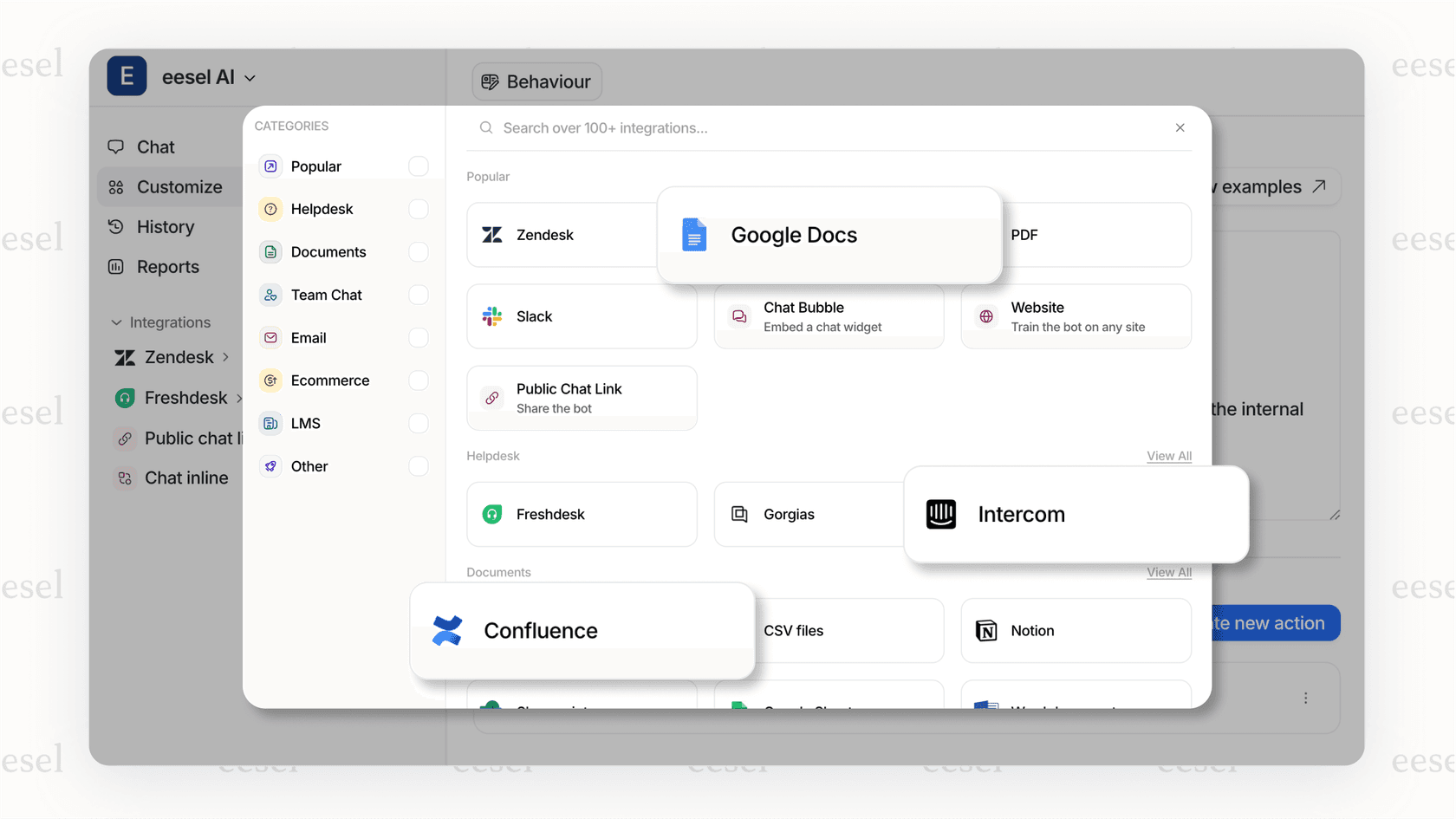
eesel AI's Zendesk integration works seamlessly with your existing setup. You don't replace Zendesk. You make it smarter.
Choosing the right urgent alert approach for your team
The right solution depends on your team size, ticket volume, and complexity.
Small teams (1-10 agents)
For smaller teams, native Zendesk triggers and automations usually suffice. Set up:
- Triggers for urgent/high priority tickets
- Slack or Teams notifications for visibility
- Simple escalation to a team lead or manager
Keep it simple. You don't need enterprise tools for straightforward workflows.
Mid-size teams (10-50 agents)
As volume grows, consider layering in:
- Third-party integrations like OnPage for after-hours critical alerts
- KPI-based team alerts through dashboards
- AI triage to handle routing as manual assignment becomes impractical
Enterprise teams (50+ agents)
Large organizations typically need:
- Full incident management platforms like xMatters or PagerDuty
- AI-powered triage and intelligent routing at scale
- Complex escalation chains across departments and time zones
- Integration with ITSM processes and change management
When to consider AI over traditional alerts
Think about AI-powered handling when:
- Ticket volume makes manual routing a bottleneck
- You need 24/7 coverage but can't expand the team proportionally
- Response time for urgent issues is consistently missing targets
- Agents spend more time triaging than resolving
The key question: are your alerts helping, or are they just creating more work?
Start handling urgent tickets more effectively today
You've now got a complete toolkit for Zendesk urgent alerts. Native triggers and automations handle the basics. Third-party integrations add power for specific use cases. And AI-powered solutions like eesel AI take you beyond alerting to intelligent handling.
The best approach often combines these tools. Start with native Zendesk features. Add integrations where you have specific gaps. And consider AI when manual processes start breaking down under volume.
Want to see how AI would handle your urgent tickets? Try eesel AI's simulation mode. Connect your Zendesk account, and eesel will show you exactly how it would have routed and responded to your historical tickets. No guesswork, no risk. Just data-driven insight into what's possible.
Check eesel AI pricing to see which plan fits your team, or book a demo to discuss your specific workflow needs.