If you've ever spent hours trying to figure out why a Zendesk trigger isn't firing, you're not alone. Trigger issues are one of the most common frustrations for Zendesk administrators. One minute everything's working fine, the next your automation has stopped and tickets are piling up unanswered.
The good news? Most trigger problems follow predictable patterns. Once you know what to look for, you can diagnose and fix issues systematically instead of guessing. This guide walks you through a proven troubleshooting methodology that will get your triggers working again.
Common reasons Zendesk triggers fail
Before diving into fixes, let's understand what typically goes wrong. Based on community discussions and Zendesk's own documentation, these are the most common culprits:
Condition mismatches are the biggest offender. Your trigger has a set of conditions that must all be met for it to fire. If even one condition doesn't match the ticket's actual properties, the trigger stays silent. This often happens when field values change or when conditions are more specific than you realize.
Impossible logic trips up even experienced admins. A classic example: putting multiple ticket statuses under "Meet ALL of the following conditions." Since a ticket can only have one status at a time, this condition can never be satisfied. These should go under "Meet ANY" instead.
Missing field references occur when someone deletes or renames a custom field that your trigger depends on. The trigger still looks for that field, but it no longer exists. As one admin noted in the n8n community: "I burned 2 hours on this, I really hope that someone takes an interest in sorting out these Zendesk Trigger issues, because it seems really impossible for users to debug."
Trigger order issues happen when one trigger depends on another. Triggers fire in sequence based on their position in your trigger list. If Trigger B depends on changes made by Trigger A, but B appears before A in the list, B will check its conditions before A has had a chance to make those changes.
Disabled triggers can be accidental (someone turns off a trigger without realizing others depend on it) or intentional (app-related triggers that get deactivated during maintenance). SweetHawk apps, for example, rely on specific triggers to communicate with their servers. If these get disabled, the app stops working properly.
Webhook and API issues affect integrations with external systems. The n8n community has documented cases where Zendesk triggers fail with cryptic "400 -" errors that provide no useful debugging information.
Step-by-step troubleshooting methodology
Now let's walk through a systematic approach to diagnosing trigger problems. Work through these steps in order, and you'll identify the issue faster than random guessing.
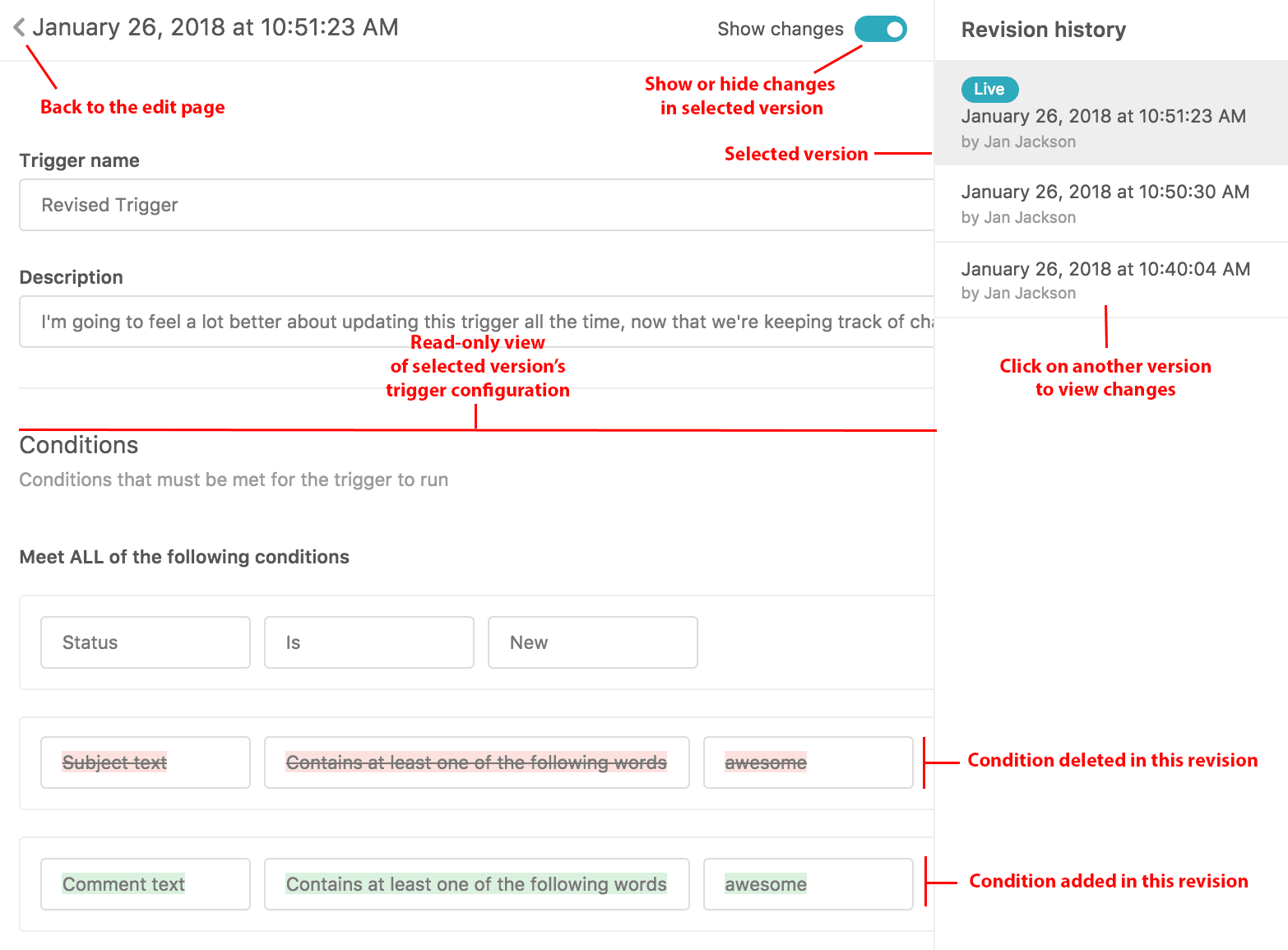
Step 1: Verify the trigger is active
It sounds obvious, but start by confirming your trigger is actually turned on. In Zendesk Admin Center, navigate to Objects and rules > Business rules > Triggers. Check that your trigger shows as "Active" and hasn't been accidentally deactivated by another team member.
If you're using third-party apps like SweetHawk's suite, look for triggers with names like "App - Tasks - Update parent task" or "App - Calendar - Update app server." These are essential for app functionality and can be re-enabled by deactivating and reactivating the app itself (don't uninstall, as that could cause data loss).
Step 2: Check ticket events
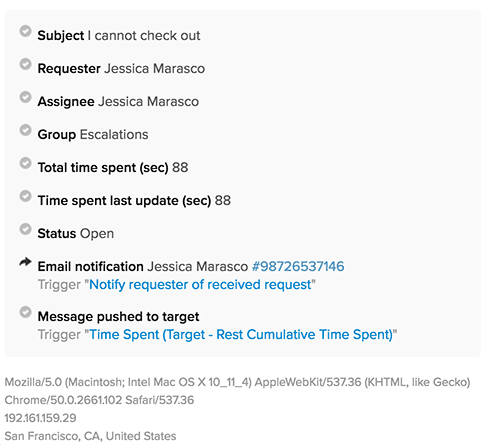
This is where the real detective work happens. Zendesk keeps a detailed log of everything that happens to a ticket, including which triggers ran and which didn't.
To access this log, open any ticket and add /events to the end of the URL. For example, if your ticket URL is https://yourdomain.zendesk.com/agent/tickets/12345, change it to https://yourdomain.zendesk.com/agent/tickets/12345/events.
Once you're viewing the events, use your browser's find function (Ctrl+F or Cmd+F) to search for the word "trigger." This will show you every trigger that fired on that ticket. If your trigger name doesn't appear, you know it didn't run at all. If it does appear, you can see exactly when it fired and what actions it took.
Step 3: Validate trigger conditions
If your trigger isn't appearing in the events log, the issue is likely with your conditions. Open your trigger in Admin Center and compare each condition against the ticket you're troubleshooting.
Pay special attention to:
- Field values: Do they match exactly? A condition looking for "High" priority won't match a ticket with "high" (lowercase).
- Organization and channel restrictions: If your trigger specifies these, verify the ticket actually meets them.
- "Meet ALL" vs "Meet ANY": Remember, ALL conditions must be true for "Meet ALL," while only one needs to be true for "Meet ANY."
- Mutually exclusive conditions: Multiple statuses, priorities, or types under "Meet ALL" will never work since tickets can only have one value for each.
Step 4: Review trigger execution order
Trigger order matters more than many admins realize. Zendesk processes triggers from top to bottom, and the order can change whether a trigger fires correctly.
If you have triggers that depend on each other (for example, Trigger A adds a tag that Trigger B looks for), the dependent trigger must appear lower in the list. You can drag and drop triggers in Admin Center to reorder them.
Also be aware that changes made by automations can cause triggers to run. If an automation updates a ticket, any triggers watching for those changes will fire. This can create unexpected behavior if you're not accounting for it.
Step 5: Test with a new ticket
Once you've made adjustments, create a test ticket that matches your trigger's conditions exactly. This lets you verify the fix without waiting for real tickets to come in.
After creating the test ticket, immediately check its events log to see if your trigger fired. If it did, great. If not, review the conditions again and iterate until you find the issue.
Preventing trigger issues
Fixing broken triggers is reactive. Here's how to be proactive:
- Document your trigger dependencies. If Trigger B needs Trigger A to run first, add a comment in Trigger B's description explaining this.
- Use clear naming conventions. Names like "Tag VIP customers" are more helpful than "Trigger 47."
- Test in staging first. If you have a sandbox environment, test trigger changes there before pushing to production.
- Audit regularly. Schedule quarterly reviews of your triggers to catch issues before they affect customers.
- Consider management tools. For complex setups with hundreds of triggers, tools like Salto can help identify broken references and dependencies automatically.
When to consider alternatives to manual trigger management
Sometimes the problem isn't individual triggers, it's the approach itself. If you find yourself with hundreds of triggers, complex interdependencies, and frequent breakages, it might be time to reconsider your automation strategy.
Here's where eesel AI offers a different approach. Instead of building rigid rule-based automation, you invite eesel AI to your team as an AI teammate. It learns from your past tickets, help center articles, and macros to understand how your team actually handles support.

The key difference is flexibility. With Zendesk triggers, you're building explicit "if this, then that" rules for every scenario. With eesel AI, you describe what you want in plain English: "If the refund request is over 30 days, politely decline and offer store credit" or "Always escalate billing disputes to a human."
You can start with eesel AI drafting replies for your agents to review, then gradually expand its role as it proves itself. Mature deployments achieve up to 81% autonomous resolution. And because it integrates directly with Zendesk, you don't need to replace your existing setup to benefit from AI-powered automation.

Our pricing starts at $299 per month for the Team plan, with no per-seat fees. You pay for AI interactions, not headcount.
Fix your Zendesk triggers today
Broken triggers don't have to be a mystery. By following this systematic approach (verify activation, check events, validate conditions, review order, test thoroughly), you can diagnose and fix most trigger issues without the guesswork.
Start with the ticket events log. It's the single most useful tool for understanding what's actually happening when your triggers run (or don't). From there, work through each condition methodically until you find the mismatch.
And if you're finding that trigger management is taking more time than it's saving, consider whether an AI-powered approach might be a better fit for your team's needs. Sometimes the best fix isn't debugging another trigger, it's moving to a system that handles complexity more gracefully.