
“Zendesk quick replies” can mean three different things. Choose the feature by who needs the next response.
| Feature | User | What it does |
|---|---|---|
| Quick answers | Support agent | Generates an answer above knowledge search results in Agent Workspace |
| AI-agent reply | Customer | Lets a Zendesk AI agent respond on a connected Messaging or Email channel |
| Dialogue button | Customer | Gives a Messaging customer a selectable reply that routes the next dialogue branch |
Do not configure one and expect the behavior of another.
Quick answers: help an agent find and check an answer
Quick answers are agent-facing. Zendesk says they are on by default and appear when an agent searches from the Knowledge section of the context panel. In a ticket, open Knowledge, click Search, enter a phrase or question, and review the Quick answer above the results. AI suggestion based on shows the source material; agents can copy the answer into a comment and submit feedback.
Support admins can manage the control at Admin Center > Workspaces > Agent tools > Context panel > Knowledge > Show a quick answer before search results. Zendesk’s Quick answers guide recommends questions or phrases over one-word queries. The control guide confirms the exact toggle.
This feature does not send a customer response. If auto assist replaces the ticket composer, Zendesk notes the Quick answer copy button is unavailable.
Customer-facing AI replies: create and connect the agent
Customer-facing replies come from an AI agent, not the Agent Workspace Quick answers setting. In Zendesk’s current AI-agent setup guide, a client admin opens Dashboard > Create AI agent in the AI agents workspace and chooses the channel type. For Messaging or Email, select the brand and knowledge base, add an optional web crawler, personalize the agent, and review its channel replies. Save and close keeps it off customer channels; Go to activation lets you select channels and activate it. Customers who bought Advanced before March 10, 2026 have a separate setup guide.
Test the real channel with a harmless representative question. Check the source used, the customer wording, the human handoff, and the resulting ticket. Do not describe a customer-facing AI reply as a Quick answer; one is an agent’s research aid and the other changes a customer conversation.
Dialogue buttons: make a customer choice explicit
For a messaging AI agent, a Customer message block can branch when a customer clicks a button with specified text. Zendesk’s Customer message block guide also supports link click, predicted intent, recognized entity, and free-text scenarios.
Use buttons for a small, real choice: “Track order,” “Change address,” or “Talk to support.” Pair each button path with a typed-input fallback. Zendesk allows at most ten buttons in a Customer message block. It checks scenarios left to right, so put the narrowest or most important condition first. Button-click and link-click cannot exist at the same level; use separate AI-agent messages if both matter.
A safe pilot
Pick one high-volume, low-risk job. For Quick answers, have agents inspect the source and record whether they used, edited, or rejected the suggestion. For customer AI replies, test the exact connected channel and handoff. For buttons, test every click, free-text response, unavailable route, and escalation path. A button that leads to an unowned queue is worse than no button.
Review the answer behind a quick reply with eesel CLI
The eesel CLI gives people, scripts, Claude Code, Codex, and Cursor access to the same eesel teammate and workspace as the dashboard. A support lead can ask a coding agent to check whether that teammate can give a short, sourced returns answer before the team uses similar wording in a customer response.
First get the workspace owner's permission and review connected action permissions. The coding agent can inspect the teammate's instructions, then ask it to draft from its approved sources in a fresh session:
npx @eesel/cli --agent "Support" instructions
npx @eesel/cli --agent "Support" new --name "short-returns-answer-review"
npx @eesel/cli --agent "Support" chat "Draft a short reply to this fictional question: can I return an opened item? Cite the approved policy and ask for missing details instead of promising eligibility. Do not send a customer message or change an order."
Node.js 18.17+ is required. The commands return JSON, which lets a script save the draft for review or a coding agent compare its wording with the cited policy. Check whether the source actually supports eligibility and whether the reply asks only for necessary details. If the instructions cause a premature promise, have the coding agent propose a correction, approve it, and repeat the question before using the answer.
Chat is real teammate work, not an isolated simulation; the prompt is not a permission boundary. Approval queues cover held actions, not every possible action. This workflow reviews the eesel teammate's answer. Zendesk Quick answers, native AI-agent replies, and dialogue buttons still need their own configuration and channel checks in Zendesk.
Give your team a quick answer it can check
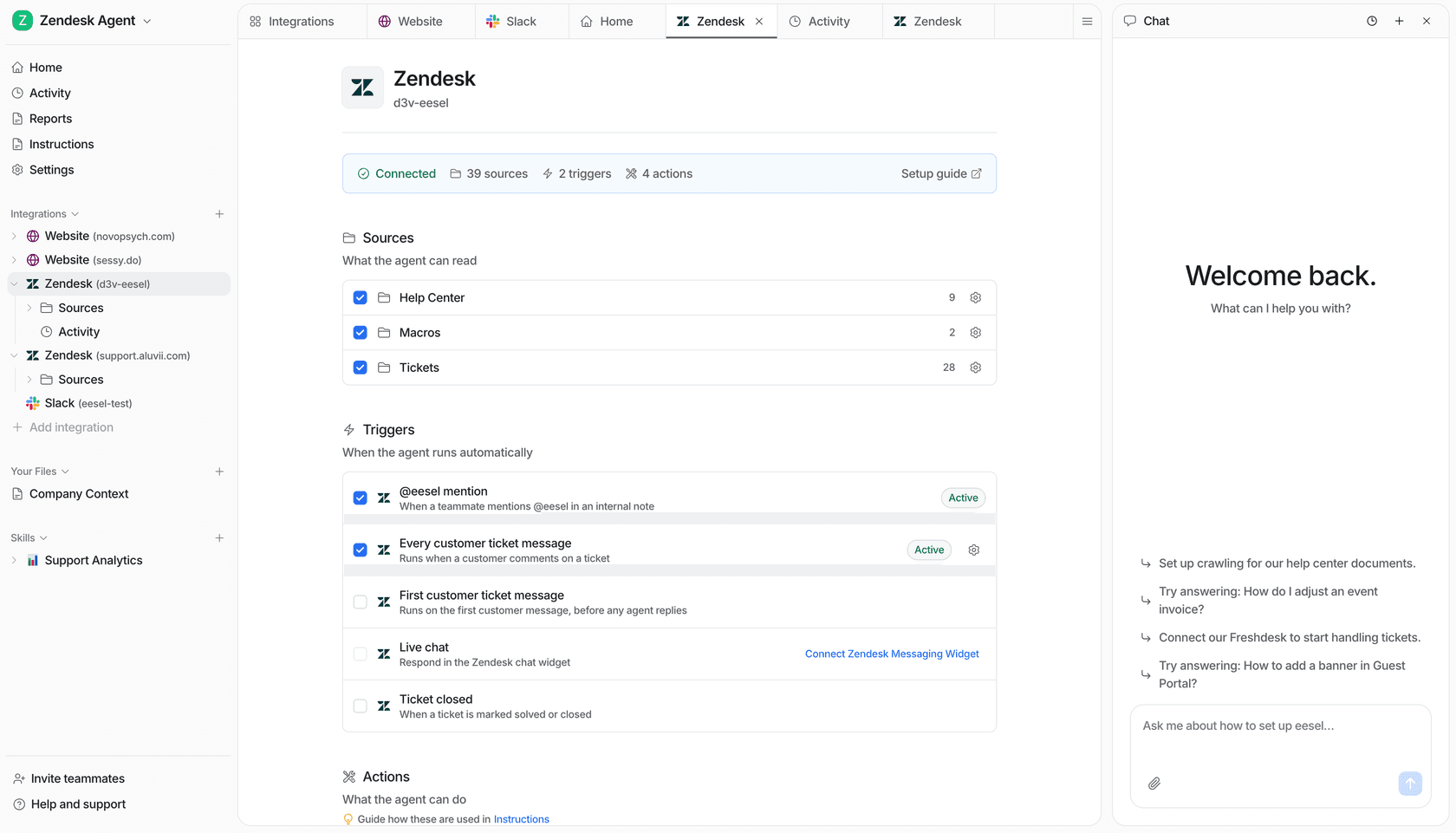
Try eesel alongside Zendesk when you need a support teammate whose sources, work, and proposed actions stay visible. Use the CLI from your terminal or coding agent to review a short answer, then check the source and customer context before sending it. Try eesel.
Frequently asked questions
What are Zendesk AI agent quick replies?
The phrase can mean agent-facing Quick answers, customer-facing AI replies, or selectable messaging buttons. These features have different users, controls, and safety checks.
What is a Zendesk Quick answer?
It is an AI-generated answer to an agent’s knowledge search in the Agent Workspace context panel. It is not automatically sent to the customer.
Can a Customer message block handle typed answers too?
Yes. It can use intent predicted, entity recognized, or free text written scenarios, in addition to button and link clicks where supported.
How do I create a current Zendesk AI agent?
A client admin creates it in the AI agents workspace, selects Messaging or Email, then connects the agent to a channel before it can interact with customers.
How can eesel CLI help review a quick support answer?
A person, script, or coding agent can inspect the same eesel teammate’s instructions and request a short, sourced draft for review. Check its policy support before sending. Configure native Zendesk Quick answers, AI-agent replies, and buttons in Zendesk.