Your customers are already on WhatsApp. With over two billion users, it's where they message friends, family, and increasingly, businesses. When they reach out for support, they expect the same seamless experience they get everywhere else: quick answers when possible, human help when needed.
That's where Zendesk WhatsApp handoff comes in. It lets you automate routine queries with AI agents while ensuring complex issues smoothly transition to your human team. But setting this up correctly requires understanding both the technical mechanics and the strategic approach.
Let's break down how to configure Zendesk WhatsApp handoff workflows that actually work.
What is Zendesk WhatsApp handoff and why it matters
Handoff is the transfer of a conversation from an AI agent or bot to a live human agent. When the handoff occurs, the AI stops being the "first responder" and a human takes over. Handback is the reverse: when a human agent closes a ticket, control returns to the AI for future conversations.
Here's why this matters for your customer experience:
- Customers hate repeating themselves. A smooth handoff preserves conversation context, so agents know what the customer already tried.
- Speed matters. AI handles routine queries instantly, 24/7. Humans focus on complex issues that actually need their expertise.
- Scale without sacrifice. You can support more customers without proportionally growing your team.
Companies using Zendesk's WhatsApp integration have seen impressive results. BAUHAUS achieved 96% CSAT across WhatsApp chats. Grupo SOMA increased CSAT from 69% to 95%. StashAway resolved half of all queries while boosting agent efficiency by 80%.

The key is getting the handoff mechanics right. A clunky transition frustrates customers. A smooth one feels invisible.
Understanding the WhatsApp Business Platform requirements
Before diving into Zendesk configuration, you need to understand the WhatsApp Business Platform rules. These are Meta's policies, not Zendesk's, and they affect how handoff works.
Meta Business Manager account
You'll need a verified Meta Business Manager account to access the WhatsApp Business Platform API. This is different from the WhatsApp Business app on your phone. The Platform API is designed for businesses handling high volumes of customer conversations.
The 24-hour messaging window
This is critical for handoff workflows. Here's how it works:
- When a customer messages you, a 24-hour window opens
- Within that window, you can send free-form messages (text, images, videos)
- After 24 hours, you can only use pre-approved message templates
- A customer response resets the 24-hour timer
What does this mean for handoff? If your AI agent escalates to a human, that human needs to respond within 24 hours of the customer's last message. Otherwise, they'll need to use a message template to re-engage.
Pricing model
WhatsApp Business Platform pricing is conversation-based. As of July 2025, Meta moved to per-template-message pricing:
| Conversation Type | Cost | When to Use |
|---|---|---|
| Service conversations (user-initiated) | Free within 24-hour window | Customer support, general inquiries |
| Utility templates | Charged per message | Order confirmations, shipping updates |
| Authentication templates | Charged per message | OTPs, account verification |
| Marketing templates | Always charged | Promotions, newsletters |
Zendesk includes WhatsApp integration on Suite Team plans and above, starting at $55 per agent per month (annual billing).
Step-by-step: Configuring Zendesk WhatsApp handoff
Step 1: Connect WhatsApp to Zendesk
Start in the Zendesk Admin Center. Navigate to Channels, then Messaging, and add a new channel. Select WhatsApp and follow the Meta Business Manager verification process.
You'll need to:
- Verify your business with Meta
- Connect your WhatsApp Business account
- Configure your phone number
- Set up your display name and profile
The verification process typically takes 1-3 business days. Meta reviews your business information to ensure compliance with their commerce policies.
Step 2: Configure AI agent handoff settings
Once WhatsApp is connected, configure your AI agent behavior. In the Admin Center, go to AI, then AI agents, then Messaging behavior.
Set up:
- "Talk to a human" escalation options. Define what triggers a handoff: customer request, AI confidence threshold, or specific keywords.
- Business hours vs after-hours messaging. Decide how the AI behaves when your team is offline. You might want different escalation rules during off-hours.
- Wait time messages. Set customer expectations about when a human will respond.
Zendesk AI agents come pre-trained on billions of customer interactions. They're designed to resolve common queries autonomously while recognizing when to escalate. On Suite Professional and Enterprise plans, you get advanced AI agent capabilities including custom personas and reasoning controls.
Step 3: Set up routing and assignment
Now configure where handed-off conversations go. In Zendesk, you can route based on:
- Departments or groups. Send billing questions to your billing team, technical issues to support.
- Agent skills. Route based on language, product expertise, or tier.
- Business hours. Different routing for in-hours vs after-hours.
Set queue limits and wait time messages so customers know what to expect. If queues are full or all agents are offline, configure fallback behavior (like leaving a message or scheduling a callback).
Managing handback and ticket closure
Here's where many teams stumble. The handback process has a critical timing issue that confuses customers if not handled properly.
The 4-day gap problem
By default, Zendesk waits 4 days between when a ticket is marked "Solved" and when it actually "Closes." During this window:
- The human agent remains the first responder
- If the customer messages again, they continue the same ticket thread
- The AI agent cannot respond because it's not the first responder
This creates a poor experience. A customer might return with a completely new issue, get connected to the same agent (who may be offline), and be unable to start fresh.
Solutions for faster handback
You have two options to fix this:
Option 1: Adjust the default automation
- Find the automation "Close ticket 4 days after status is set to solved"
- Edit the timeframe (anywhere from 1 hour to 28 days)
- Shorter times mean faster handback but less time for customers to reopen issues
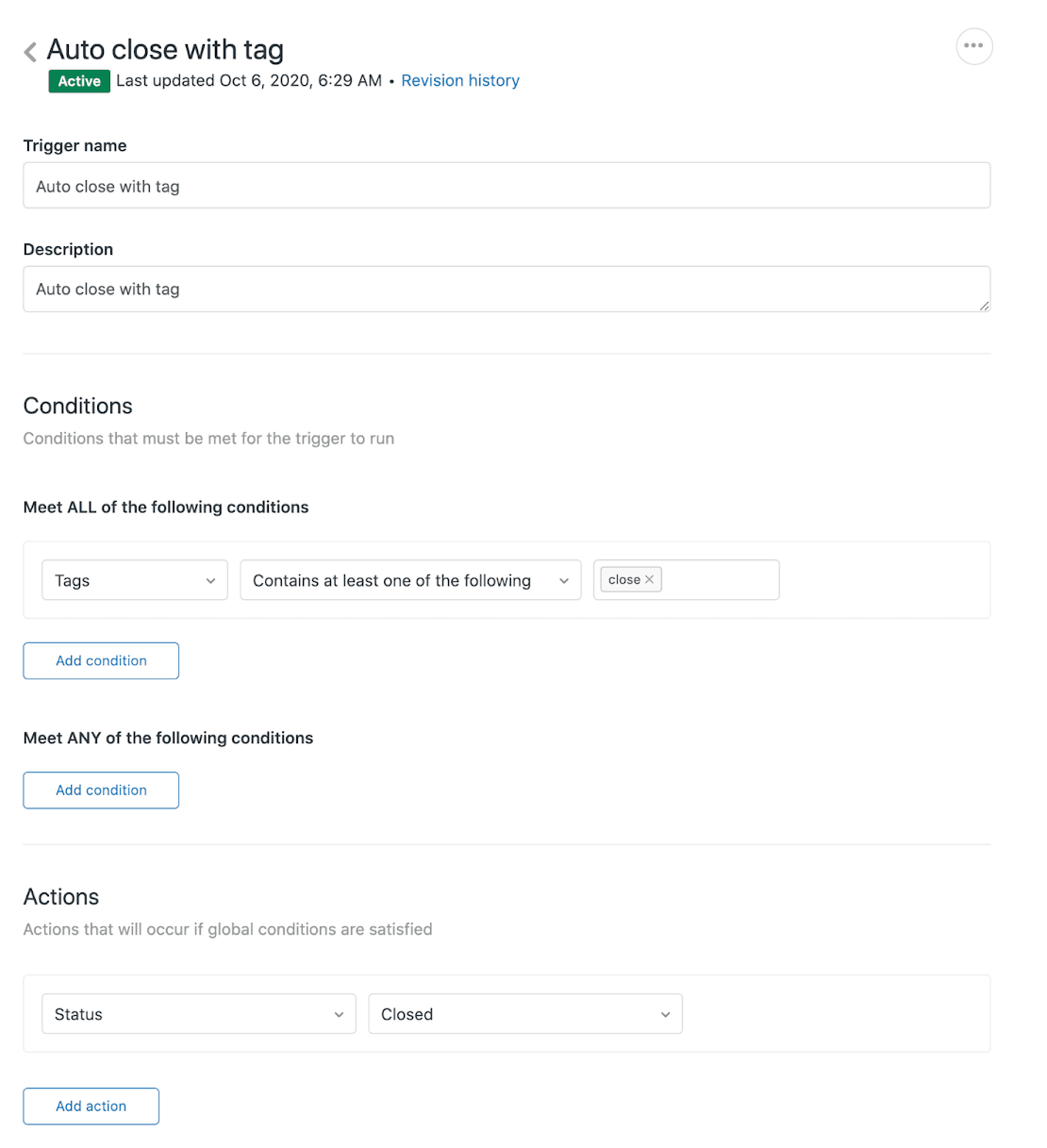
Option 2: Create an immediate closure trigger
- Add a tag (like "close") when ticket status changes to Solved
- Create a trigger that fires on tagged tickets to close immediately
- This overrides the default automation
Choose based on your business needs. If customers rarely reopen tickets, immediate closure works well. If they often follow up with related questions, keep a short buffer (a few hours).
Best practices for smooth Zendesk WhatsApp handoffs
Set clear expectations with customers
Tell customers what will happen when they escalate. A simple message like "I'm connecting you with a specialist who will respond within 10 minutes" reduces anxiety and prevents repeat messages.
Pass context to agents
Ensure your human agents receive:
- Full conversation transcript with the AI
- Customer information (name, account, previous tickets)
- Why the handoff occurred (customer request vs AI limitation)
- Any tags or categorization already applied
This prevents the dreaded "Can you explain your issue again?" moment.
Use message templates strategically
For the 24-hour window limitation, prepare approved message templates for common scenarios:
- "We need more information to help you. Please reply to continue."
- "Your specialist has a follow-up question. Please respond to reopen this conversation."
- "This conversation has been closed. Please start a new chat for assistance."
Monitor handoff metrics
Track these KPIs to optimize your handoff workflow:
- Handoff rate (what percentage escalate to humans)
- Time to human response
- Resolution rate after handoff
- Customer satisfaction by channel
Use this data to refine your AI training and escalation rules.
Troubleshooting common handoff issues
Conversations not routing to agents
If handoffs aren't reaching your team, check:
- Are agents online and available in the assigned department?
- Are business hours configured correctly for your timezone?
- Is the routing rule actually firing? (Check trigger conditions)
Tickets not closing properly
If handback isn't working:
- Verify the automation is active (not paused)
- Check if triggers are overriding the automation
- Ensure the ticket status actually changes to "Closed" (not just "Solved")
24-hour window expiration
If you can't respond within 24 hours:
- Use a message template to re-engage the customer
- Ask them to reply to reopen the conversation window
- Consider proactive messaging via Sunshine Conversations API (requires additional setup)
Agent availability and queue management
For high-volume periods:
- Set realistic queue wait times
- Offer callback options instead of waiting on hold
- Use AI to handle more tier-1 queries during peak times
Enhancing handoff with AI automation
While Zendesk provides solid native handoff capabilities, you can enhance the experience with additional AI layers. This is where tools like eesel AI complement your Zendesk setup.

Intelligent triage before handoff
Instead of escalating every complex query immediately, use AI to:
- Analyze the message content and sentiment
- Attempt one more automated solution with different phrasing
- Gather missing information before involving a human
- Route to the right specialist based on topic detection
Our AI Triage product can analyze incoming WhatsApp messages and automatically tag, route, or even resolve them before they reach a human agent.
Plain-English escalation rules
One advantage of modern AI tools is the ability to define escalation logic in natural language. Instead of complex trigger configurations, you can write:
"Escalate to billing team if the message mentions refund, charge, or payment dispute. Escalate to technical support if it mentions error, bug, or not working."
The AI interprets these instructions and handles the routing automatically.
Continuous learning from handoff patterns
Track which conversations get handed off and why. Over time, patterns emerge:
- Certain topics always escalate (opportunity for better AI training)
- Specific customer segments need human touch (VIP routing rules)
- Time-of-day affects escalation rates (staffing insights)
Use this data to continuously improve both your AI and your human workflows.
Simulation testing
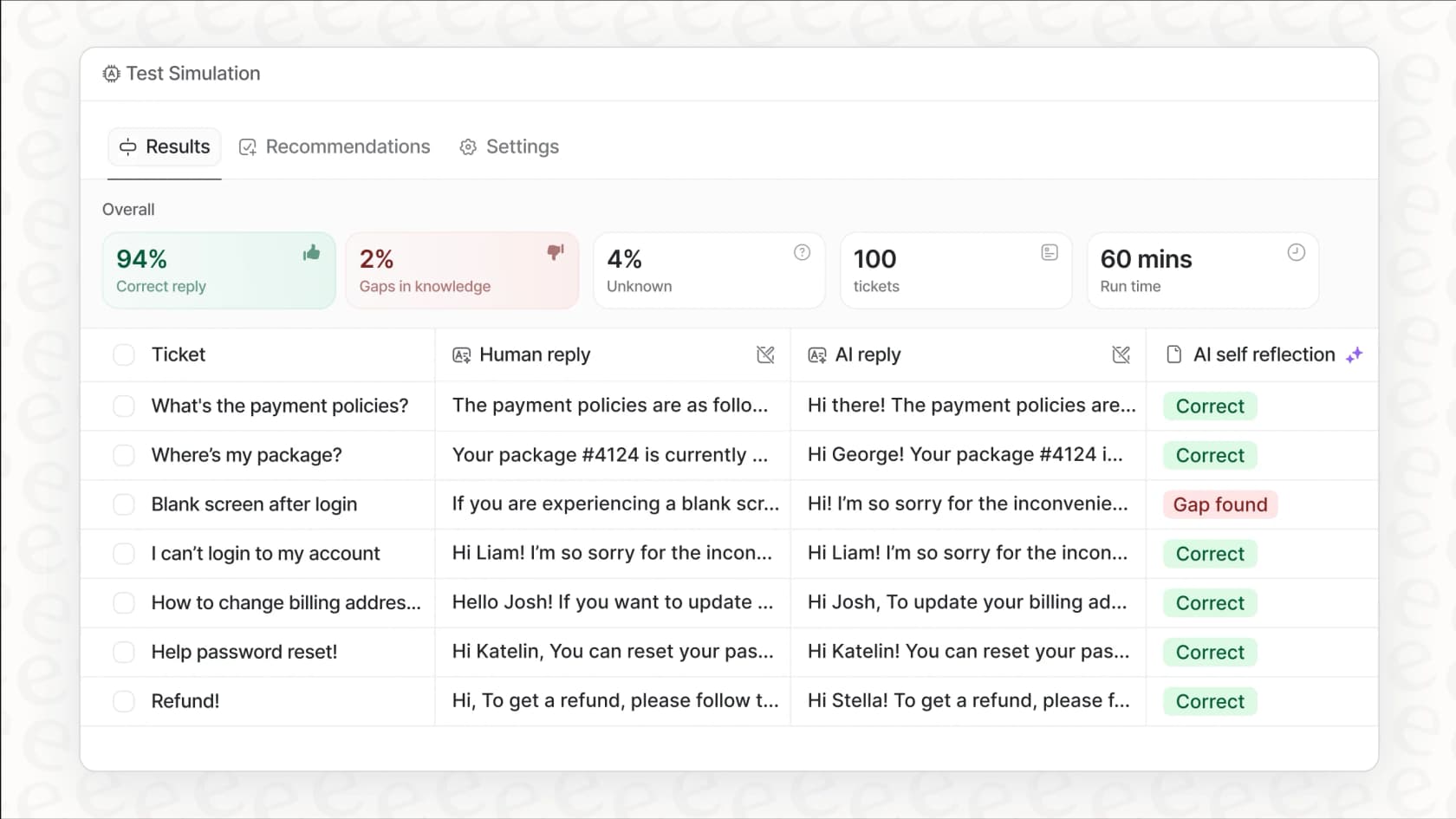
Before deploying handoff changes to production, test them on historical data. Our simulation feature lets you run your AI against past tickets to see how it would have performed. This helps you tune escalation thresholds without experimenting on real customers.