
When something breaks in your Zendesk account, you need to know what changed and when. That's where audit log events come in. They track every significant action in your account, from configuration changes to ticket updates.
Zendesk actually has two different types of audit logging, and they work in very different ways. One tracks account-level changes. The other tracks ticket-level activity. Understanding the distinction helps you use the right tool for the right job.
Here's what Zendesk audit log events are, how to access them, and how to use them effectively.
What are Zendesk audit log events?
Zendesk audit log events fall into two categories: account audit logs and ticket audit events.
Account audit logs track changes to your account configuration. This includes updates to users, business rules, apps, and settings. According to Zendesk's documentation, this feature is only available on Enterprise and Enterprise Plus plans.
Ticket audit events track activity on individual tickets: comments, status changes, field updates, and trigger fires. These are available via API on all paid plans (Team, Growth, Professional, and Enterprise).
The key difference? Account audit logs answer "who changed the configuration?" Ticket audit events answer "what happened to this specific ticket?"
Both serve important purposes for support teams. Account logs help with security and compliance. Ticket events help with troubleshooting and understanding customer interactions. If you're managing a support operation, you'll probably need both.
Account audit log: What it tracks and how to access it
The account audit log is your record of configuration changes across your Zendesk account. Zendesk saves these records indefinitely, so you can view the entire change history from when your account was created.
What it tracks
The audit log captures changes to:
- Account information and settings
- Users (updates to existing users only; creating new users is not logged)
- Apps and Web Widget configurations
- Business rules (triggers, automations, macros, views)
- Ticket settings
- Organizations
- Custom objects
Each log entry includes the timestamp, the user who made the change (the "actor"), their IP address, the specific item modified, and a description of what changed.
How to access it
To view your account audit log:
- Click the gear icon to open Admin Center
- Select Account from the left sidebar
- Click Logs to expand the submenu
- Select Audit log
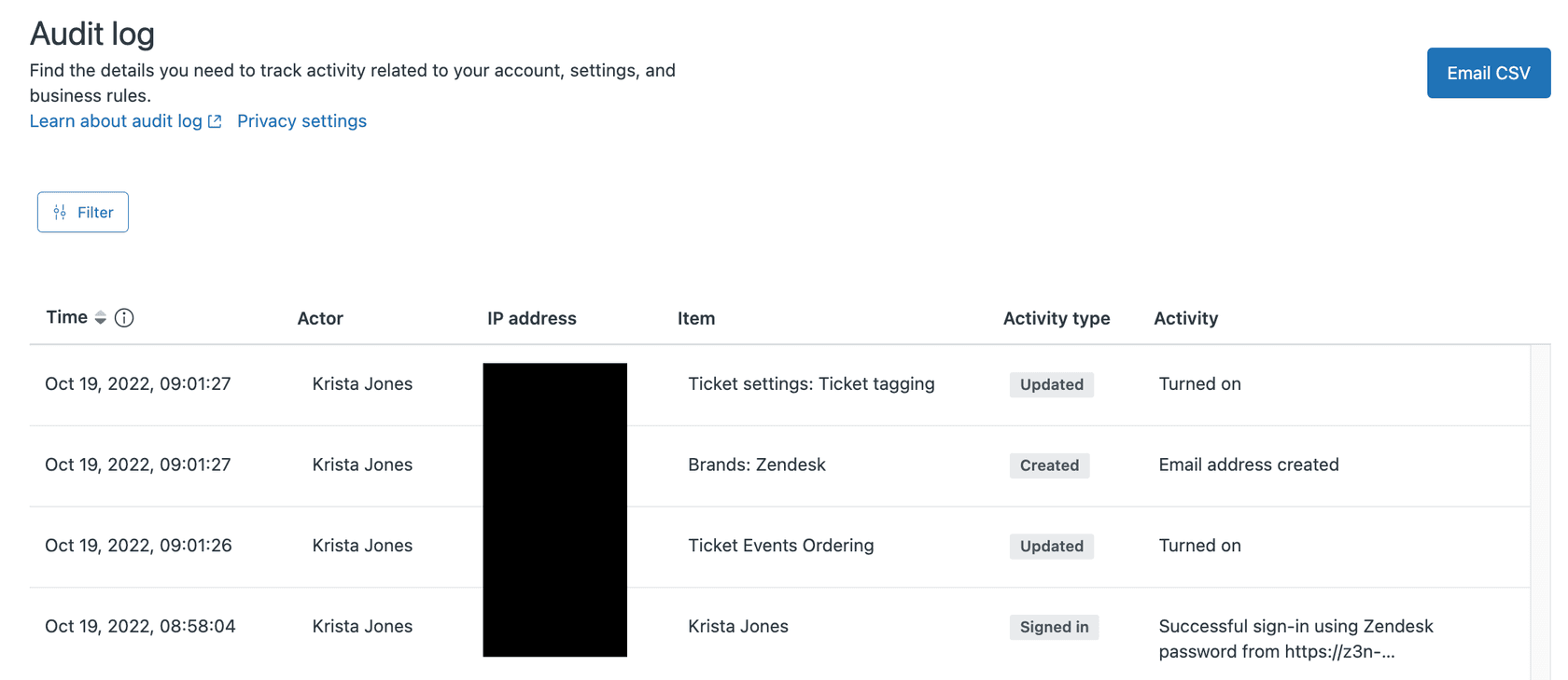
The interface displays entries in a sortable table. You can filter by date range, activity type (Created, Updated, Deleted, Exported, Signed in), or specific users. If you need to analyze the data outside Zendesk, you can export the log as a CSV file (one export per minute limit applies).
Timezone note: The Admin Center displays timestamps in your account's configured timezone. However, CSV exports use UTC. Keep this in mind when correlating audit log entries with other events.
Ticket audit events: The complete event reference
While account audit logs track configuration changes, ticket audit events track what happens to individual tickets. These events are available through the Ticket Audit API on all paid plans.
Key event types
The API covers dozens of event types. Here are the most common ones you'll encounter:
Create events A ticket property was set when the ticket was created. One event per property.
Change events A ticket property was updated. Includes both the previous and new value.
Comment events A comment was added to the ticket (public or private).
Notification events An email notification was sent to a customer or agent.
SLA target change events SLA policy targets were applied or updated.
Satisfaction rating events A customer satisfaction survey was offered or submitted.
Social media events Activity from integrated channels like Twitter or Facebook.
CC events Carbon copy recipients were added or removed.
How ticket events differ from account logs
Ticket events are more granular than account audit logs. While an account log might show "Trigger X was updated," ticket events show "Trigger X fired on ticket #12345 at 2:30 PM, changing status from New to Open."
This level of detail makes ticket events essential for troubleshooting. When a customer asks why they received three emails about the same issue, the ticket audit trail tells you exactly which triggers fired and when.
Accessing audit logs via the Zendesk API
For programmatic access or integration with external systems, you'll need the API. Both audit log types have dedicated endpoints.
Account audit log API
Endpoint: GET /api/v2/audit_logs
Authentication: Admin API token or OAuth
Key parameters:
filter[action]Filter by activity type (create, update, destroy, login, exported)filter[actor_id]Filter by the user who made the changefilter[created_at]Filter by date range (requires start and end timestamps)filter[source_type]Filter by item type (user, rule, ticket, etc.)
Pagination: Cursor-based pagination is recommended. Returns maximum 100 records per page.
Ticket audit API
Endpoint: GET /api/v2/tickets/{id}/audits
Authentication: Any valid API credentials
Use case: Retrieve the complete history of a specific ticket. Useful for building custom reporting or investigating specific issues.
CSV export limitations
The UI offers CSV export for account audit logs, but it has constraints:
- One export per minute per account
- Timestamps in UTC (not your account timezone)
- Limited to visible/filtered results
For comprehensive analysis, the API is more flexible. You can pull data into a data warehouse, set up automated monitoring, or integrate with SIEM tools.
Practical use cases for Zendesk audit logs
Knowing what audit logs capture is one thing. Knowing how to use them is another. Here are practical scenarios where audit logs save the day.
Troubleshooting automation issues
Automations are powerful but fragile. One small change to conditions can break an entire workflow. When an automation stops working, check the audit log for recent changes to that rule. You'll see exactly who modified it, when, and what changed.
For a deeper dive on this, see our guide on using the Zendesk automation audit log for troubleshooting.
Security monitoring
Audit logs help you spot suspicious activity:
- Account owner or admin role changes
- New API tokens created
- MFA settings modified
- Unusual login patterns
Some teams export audit logs to SIEM platforms like Panther for real-time monitoring and alerting.
Compliance and audit trails
For organizations in regulated industries, audit logs provide the paper trail required for compliance. You can demonstrate who had access to what, when permissions changed, and how configurations evolved over time.
Change management
Before making significant changes, review recent audit log activity. If something breaks, you'll know whether it was your change or someone else's.
While audit logs help you react to problems after they occur, we can complement this with proactive monitoring. Our AI Agent for Zendesk learns your automations and can catch issues before they impact your workflow.

Limitations and workarounds
Zendesk audit logging has some gaps you should know about.
Zendesk Explore has no audit logging
This is a significant gap. Zendesk Explore, the platform's analytics tool, has no audit capabilities for reports and dashboards. You can see who last updated a report and when, but not what changed. There's no version history or rollback option.
Workaround: Manually duplicate important dashboards before making changes. Document modifications in an external system.
Ticket audit trails are deletable
Unlike account audit logs, ticket-level audit trails disappear if the ticket is deleted. This creates compliance risks for some organizations.
Workaround: Export ticket data regularly via API to an external archive.
Limited UI filtering
The Admin Center interface only lets you filter by values currently visible on screen. You can't search the entire audit history from the UI.
Workaround: Use the API for complex filtering or export to a spreadsheet.
Timestamp precision
Audit log timestamps only go to the second, not millisecond. This rarely causes issues in practice, but it's worth knowing if you're matching logs from multiple systems.
Getting started with better audit practices
Audit logs are only useful if you actually use them. Here's how to build audit practices into your workflow.
Establish a review cadence. Schedule weekly or monthly audit log reviews. Look for unusual patterns, unexpected changes, or signs of configuration drift.
Set up API monitoring. For critical events (role changes, app installations), set up automated monitoring via the API. Trigger alerts when these events occur.
Document your changes. Even with audit logs, context matters. When you make significant changes, document the "why" in a change log or ticketing system.
Archive ticket data. If compliance requires immutable records, regularly export ticket audit data to external storage.
Consider complementary tools. While Zendesk's audit logs are reactive (they tell you what happened), an AI agent for Zendesk like eesel AI can be proactive. Our AI teammate learns your Zendesk setup, monitors for anomalies, and can even suggest fixes before problems escalate.

Audit logs are a safety net. They're essential for troubleshooting and compliance, but they don't prevent problems. For that, you need monitoring and automation that works alongside your audit practices.