
If you're searching for "Zendesk Explore audit events," here's the short version: they don't exist. At least, not yet.
Zendesk Explore, the platform's analytics and reporting tool, currently has no audit logging capabilities for reports and dashboards. You can see who last updated a report and when, but you cannot see what changed, view previous versions, or roll back modifications. This is a significant gap that Zendesk users have been requesting for years.
That said, Zendesk does offer audit capabilities elsewhere in the platform. This guide explains what's available, what's missing, and how to work around the current limitations.
What audit features are available in Zendesk?
While Zendesk Explore lacks audit functionality, other parts of the platform offer robust logging. Understanding the distinction helps you use what's available effectively.
Account audit log (Enterprise plans only)
The account audit log tracks configuration changes across your Zendesk account. According to Zendesk's documentation, this feature is available exclusively to Enterprise and Enterprise Plus customers.
The audit log captures changes to:
- Account information and settings
- User updates (note: user creations are not logged)
- Apps and Web Widget configurations
- Business rules (triggers, automations, macros)
- Ticket settings
- Organizations
- Custom objects
Each log entry includes the timestamp, the user who made the change, their IP address, the specific item modified, and a description of what changed. Data retention is indefinite, so you can view the entire change history from when your account was created.
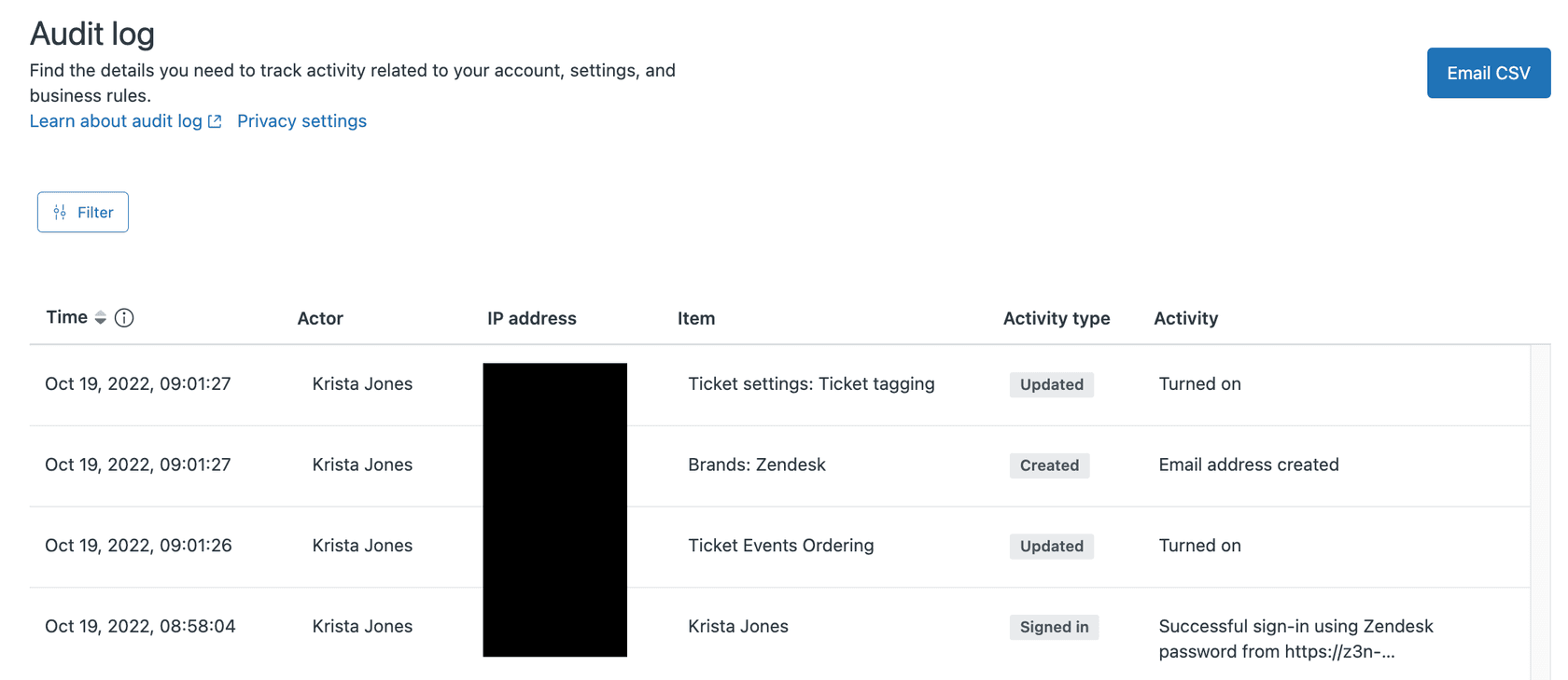
To access the audit log, navigate to Admin Center > Account > Logs > Audit log. The interface displays entries in a sortable table, and you can filter by date range, activity type, or specific users.
Ticket events (all plans)
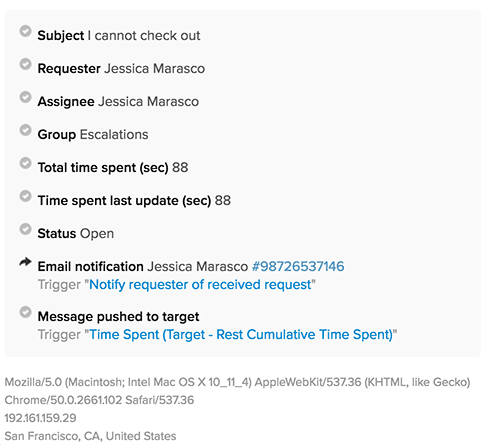
Ticket events show the complete history of activity on individual tickets. Unlike the account audit log, this feature is available on all paid plans (Team, Growth, Professional, and Enterprise).
Ticket events include:
- Property changes (status, priority, assignee, custom fields)
- Comments and communications
- Trigger and automation fires
- Email notifications sent
- User information updates
You can view ticket events by opening a ticket and clicking the events icon in the conversation header (Agent Workspace) or selecting Conversations > Events (classic interface).
Ticket Audit API
For developers and teams needing programmatic access, the Ticket Audit API provides detailed event data. This REST API supports incremental exports, making it suitable for building custom monitoring or data warehousing solutions.
The API covers events like Create, Change, Comment, Notification, and dozens of specialized event types for features like satisfaction ratings, SLA targets, and ticket sharing.
The Zendesk Explore audit gap
Now we come to the core issue: Zendesk Explore has no equivalent audit functionality. This creates real operational challenges for teams relying on Explore for business reporting.
What's missing
Currently, Zendesk Explore only shows:
- Who made the most recent update to a report or dashboard
- When that update occurred
What's not available:
- What specific changes were made
- Previous versions of reports or dashboards
- The ability to compare versions
- Rollback capabilities
- A history of who viewed or accessed reports
A product feedback post from January 2026 highlights this gap. Operations teams note that as they expand dashboard-editing permissions (especially with Light Agents now having editing capabilities), the lack of visibility into changes becomes a significant risk.
Why this matters
The absence of audit logging in Explore creates several problems:
Operational risk: When a business-critical dashboard suddenly shows different numbers, there's no way to identify what changed or when. Teams must manually investigate or rebuild reports from scratch.
Compliance concerns: Organizations in regulated industries often need audit trails for all reporting systems. The lack of change tracking in Explore can create compliance gaps.
Collaboration friction: Teams hesitate to grant editing permissions because any accidental or incorrect modification affects reporting without a traceable history. This creates bottlenecks where only a few people can make updates.
Troubleshooting difficulties: When reports behave unexpectedly, you cannot see if someone modified the filters, metrics, or calculations. This makes debugging time-consuming and often inconclusive.
Current workarounds
Until Zendesk implements native audit functionality, teams use these approaches:
Manual duplication: Before making significant changes, duplicate the dashboard or report. This creates a backup you can reference or revert to if needed.
External documentation: Maintain a change log in a separate system (Confluence, Google Docs, etc.) documenting who changed what and why.
Permission restrictions: Limit edit access to a small group of trusted users. While this reduces risk, it also creates bottlenecks.
Regular exports: Periodically export report definitions or take screenshots of dashboard configurations to create reference points.
None of these are ideal, but they're the only options available until Zendesk addresses the gap.
How to use Zendesk audit logs effectively
Since Explore lacks audit capabilities, making the most of the available audit features becomes essential. Here's how to use them for troubleshooting and governance.
Accessing the account audit log
To view your account audit log:
- Click the gear icon to open Admin Center
- Select Account from the left sidebar
- Click Logs to expand the submenu
- Select Audit log
You'll see a table with columns for Time, Actor, IP address, Item, Activity type, and Activity description.
Filtering for relevant events
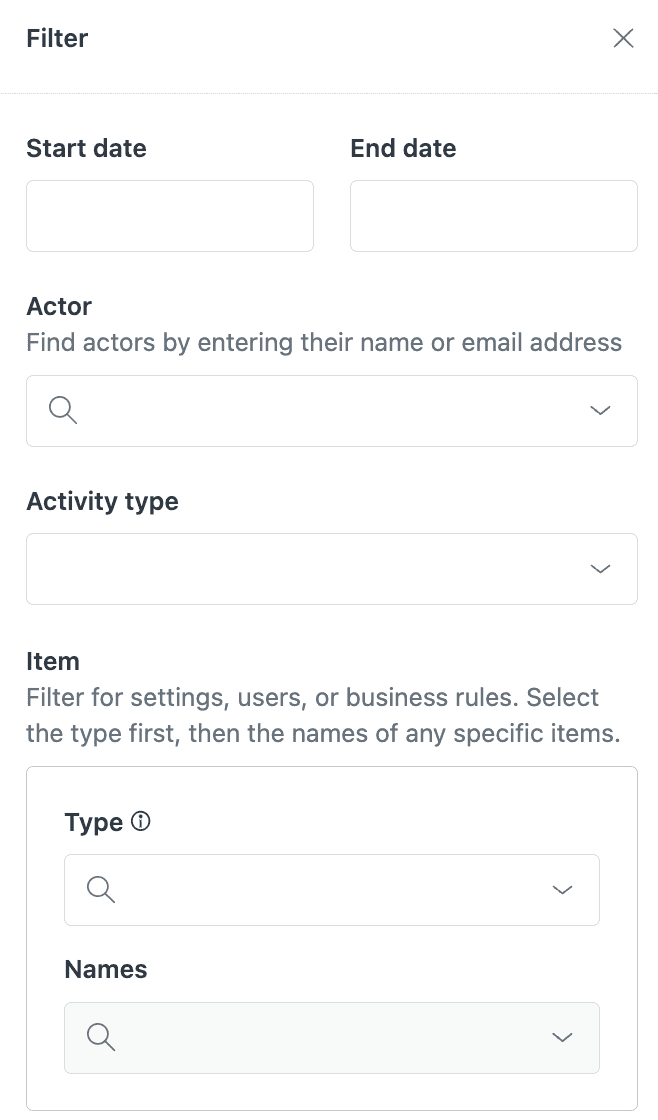
Raw audit logs can contain thousands of entries. Use filters to find what you need:
Date range: Narrow to the timeframe when you suspect a change occurred. If you're investigating an issue that started Monday morning, look at changes from the previous Friday through Monday.
Activity type: Filter by Created, Updated, Deleted, Exported, or Signed in to focus on specific actions.
Actor: Search for changes by specific users or filter to see only system actions (performed by "Zendesk").
Export to CSV: For complex analysis, export the log and work with it in a spreadsheet. Note that exported timestamps appear in UTC, while the Admin Center displays times in your account's configured timezone.
Correlating with ticket events
When troubleshooting automation issues, you often need both the account audit log and ticket events.
The account audit log shows configuration changes (someone modified a trigger). Ticket events show the impact on individual tickets (the trigger fired or didn't fire). By comparing timestamps, you can connect cause and effect.
For example, if agents report that high-priority tickets aren't being routed correctly:
- Check ticket events on affected tickets to see if the routing trigger fired
- If the trigger didn't fire, check the audit log for recent changes to that trigger
- Look for updates to trigger conditions or actions that might explain the behavior
Best practices for audit log management
Review regularly: Schedule monthly audits of your audit logs. Look for unexpected changes, unauthorized access, or patterns that might indicate issues.
Export and archive: For compliance purposes, regularly export audit logs and store them in a secure location. While Zendesk retains logs indefinitely, having your own copies provides additional security.
Document changes: Even though the audit log captures what happened, it doesn't capture why. Maintain documentation explaining the rationale for significant configuration changes.
Train your team: Ensure admins and agents with elevated permissions understand what gets logged. This promotes accountability and helps team members use the system responsibly.
Using eesel AI for automation monitoring
While audit logs help you investigate what happened after the fact, proactive monitoring can catch issues before they impact your customers. This is where we can help.
At eesel AI, we've built an AI teammate for customer service that works alongside Zendesk. Our approach differs from audit logs: instead of recording what changed, we help prevent problems and optimize your automations proactively.

How we complement Zendesk audit logs
Audit logs are reactive. They tell you what happened after an automation misfires or a trigger causes unexpected behavior. Our AI is proactive. We analyze patterns in your tickets, identify potential issues, and help you optimize your workflows before problems occur.
For example, while the audit log might show that someone modified a trigger last Tuesday, our AI can flag that the trigger is creating a backlog of tickets or routing issues to the wrong team.
eesel AI capabilities for Zendesk
We offer several products that integrate with Zendesk:
AI Agent: Handles frontline support tickets autonomously. It learns from your past tickets, macros, and help center, then resolves tickets end-to-end while escalating only what you define.
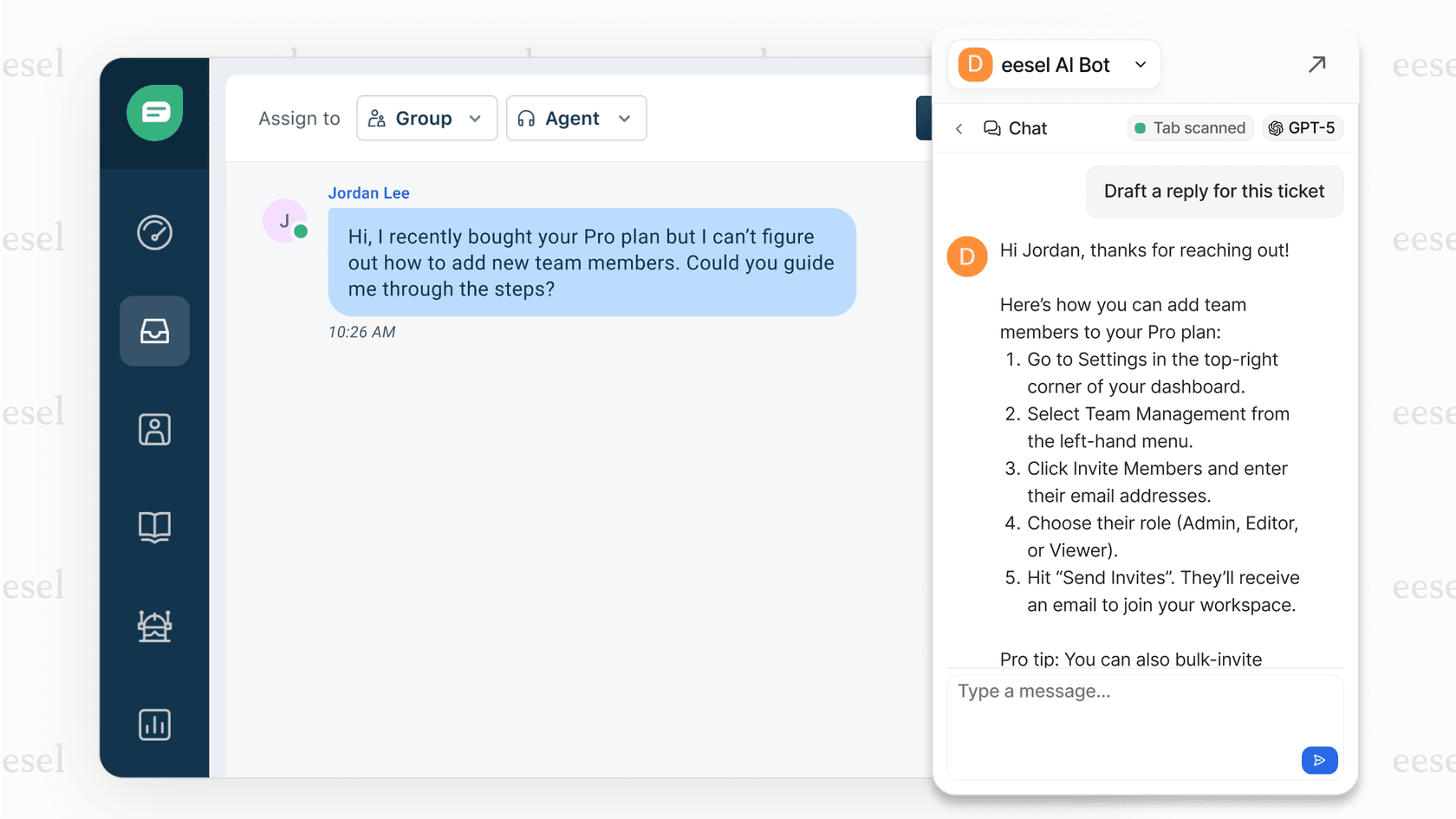
AI Copilot: Drafts replies for your agents to review and send. It grounds responses in your knowledge base and learns your team's tone from past interactions.
AI Triage: Automatically tags, routes, merges, and closes tickets based on content understanding rather than just keyword matching.
AI Internal Chat: Deploys in Slack or Microsoft Teams to answer employee questions from your internal documentation.
When to use audit logs vs. eesel AI
These tools serve different purposes:
-
Use audit logs when you need to investigate what configuration changed and when. They're essential for security, compliance, and troubleshooting specific incidents.
-
Use eesel AI when you want to prevent issues, optimize automations, and reduce the manual work your team handles. We help you catch problems before customers notice them.
If you're struggling with Zendesk automation management, we've written a complete guide on using the Zendesk automation audit log that complements this article.
Future outlook and recommendations
Will Zendesk add Explore audit logging?
The demand is clearly there. The product feedback post requesting this feature has significant community support, and a Zendesk product manager previously indicated that version control and audit capabilities were planned as part of the new Dashboard Builder. However, as of early 2026, these features have not been released.
There's no official timeline for implementation. If audit logging for Explore is critical to your operations, you should plan around its absence rather than waiting for it to arrive.
Immediate recommendations
Document your current setup: Create a comprehensive inventory of your Explore reports and dashboards. Include screenshots, filter configurations, and metric definitions. This gives you a baseline to compare against if issues arise.
Implement change tracking: Even without native audit logging, establish a process for documenting changes. Use a simple form or template that captures who made the change, what was modified, and why.
Limit edit permissions: Be strategic about who can edit reports and dashboards. Consider creating "viewer" and "editor" roles, and restrict editing to users who truly need it.
Consider alternatives for critical reporting: For business-critical dashboards where change tracking is essential, evaluate whether Zendesk Explore is the right tool or if you need a solution with built-in version control.
Getting started with better audit practices
Start by auditing your current Zendesk configuration. Review your triggers, automations, and business rules to ensure they're documented and aligned with your current workflows. Establish a regular review cycle (quarterly is a good rhythm) to catch issues before they become problems.
If you're on an Enterprise plan, make sure you're using the account audit log regularly. If you're on a lower-tier plan, consider whether the upgrade is worth it for the audit capabilities alone.
Ready to add proactive monitoring to your Zendesk setup? Try eesel AI free and see how our AI teammate can help you prevent issues before they impact your customers.