
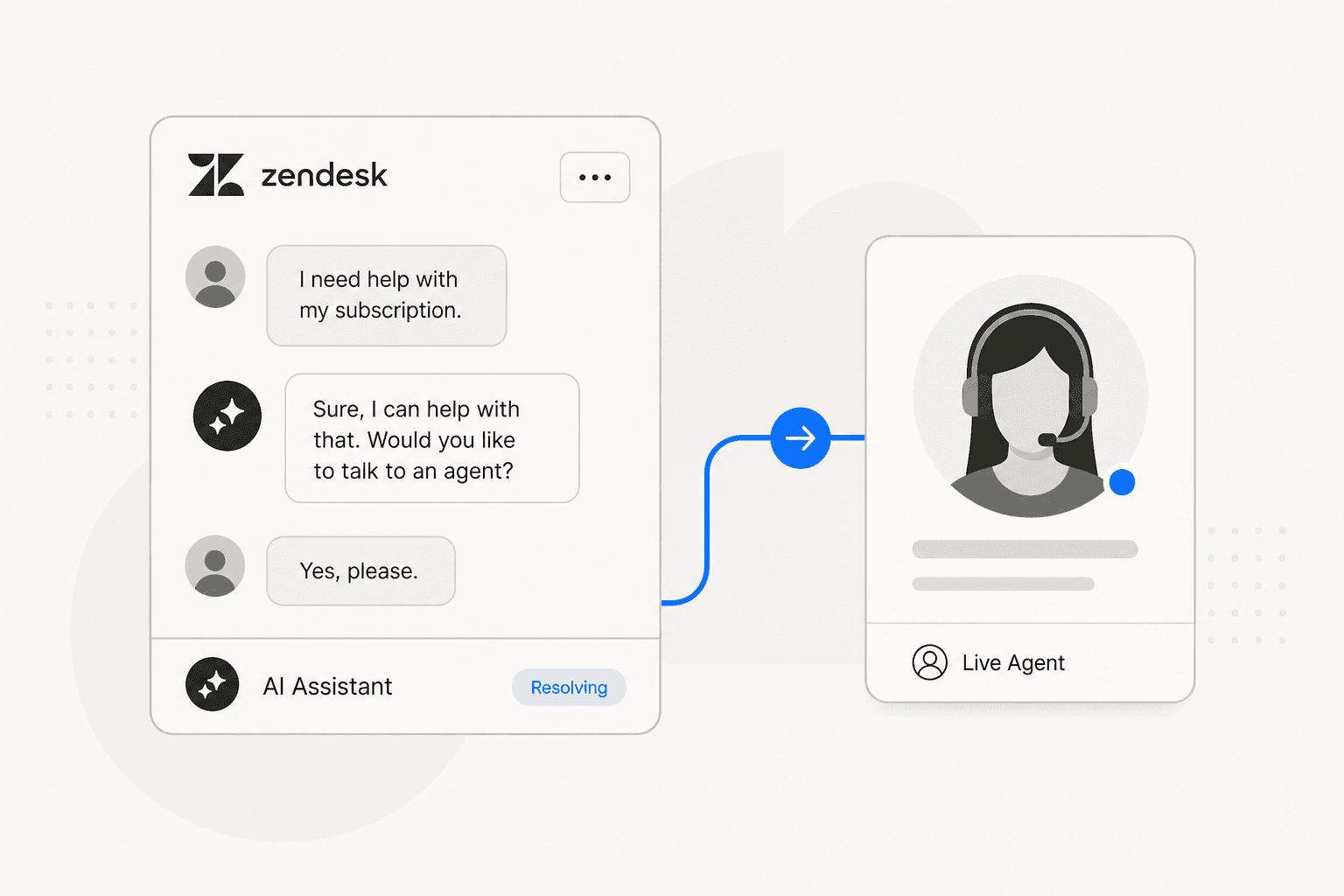
I would judge a handoff by what the receiving agent can do next, not by how politely the bot announces it. The request needs a destination, enough context, and a realistic next step for the customer.
This guide covers Zendesk's native messaging escalation first, then a separate eesel Messenger workflow prepared through the CLI. The examples are proposed configuration checks, not results from an executed customer rollout.
Start with the Zendesk experience in your account
Zendesk's current AI agent setup uses the AI agents workspace and creates new agents with agentic AI by default. That guide excludes customers who bought Advanced before March 10, 2026. Legacy Essential documentation is also separate. Avoid combining their menus into one supposed universal procedure.
For a new messaging agent, use Create AI agent > for Messaging, select the brand and knowledge, then configure its system replies. The current creation flow offers escalation options in the unhelpful wrap-up and fallback replies. Its escalation reply can collect name, email, and reason for contact.
Use Save and close while preparing the workflow. Activation is a separate step that selects customer-facing channels. Confirm your account's entitlement and current pricing before budgeting; this guide does not treat an older Suite price as proof of access to every AI feature.
Build the escalation path
In Zendesk's escalation flow guide, the dialogue builder supports both messaging and email paths:
- Open the relevant dialogue and choose where escalation should begin.
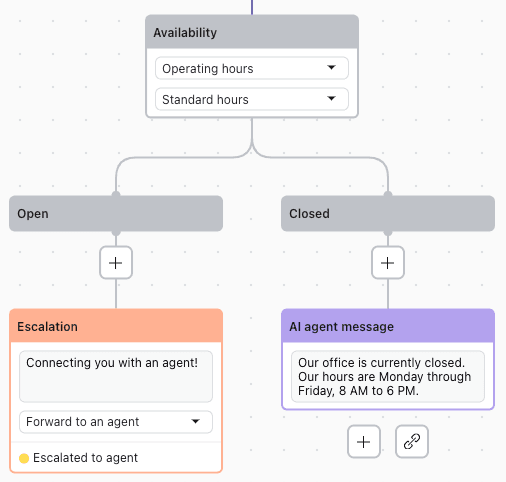
- Add an Availability block if the path needs to check hours or agent availability.
- Add an Escalation block and write the customer-facing explanation.
- Choose Send an email or Forward to an agent.
- For forwarding, check the escalation team and configure the fallback dialogue if transfer fails.
- Save the draft, or publish only when ready to make the change live.
Before this step, collect the information the receiving team actually needs. For a billing dispute, that could include the invoice reference, the reported problem, and whether identity has been verified. Do not ask for passwords or full payment-card details.
Instructions describe when escalation is appropriate, but they do not remove the need to configure and test the action. Include an explicit human request and an unresolved issue in your test set.
Keep collection, authentication, and routing distinct
Zendesk also documents an immediate escalation recipe. It uses the welcome dialogue to collect details before human support takes over, with different paths for authenticated visitors and people whose name and email still need collecting.
That distinction matters: a typed email address is not evidence of authenticated identity. Inspect the account's authentication mechanism and the fields the receiving agent will see.
| Setup question | What to establish before activation |
|---|---|
| Who needs to take over? | A named team and a monitored destination |
| What information is required? | The minimum fields for that issue, with unknowns explicit |
| What if nobody is available? | An approved follow-up path and honest customer message |
| What if transfer fails? | A configured fallback, not another unsupported promise |
The immediate-escalation recipe also has specific billing conditions. Do not generalize it into “all AI handoffs are free”: adding knowledge or use cases can change automated-resolution usage. Check the workflow and your account's usage records.
Test the customer and agent sides
A builder preview is useful for checking the dialogue. It does not replace a test of the published channel, routing, and receiving-agent experience.
Use fictional customer details on an approved test channel. Record the conversation and ticket identifiers so you can trace the result. Test a direct human request, a policy-defined escalation, an unavailable team, and a failed or unavailable destination.
On the receiving side, check the actual conversation history, collected fields, group assignment, and outstanding questions. Do not assume sentiment, intent, identity, or a complete summary will appear merely because a handoff occurred.
Check handback as well as handoff
Zendesk's handoff and handback guide distinguishes transfer from the later return to AI handling. In the documented native messaging flow, a human remains first responder until the associated ticket closes. Marking it Solved is not the same as Closed.
Test a returning customer while the ticket is still solved, then after closure. Inspect your closure automation before changing it; shortening the interval can affect the customer's opportunity to continue or complete a satisfaction survey.
A repeat conversation is part of the handoff test, not an optional cosmetic check. The customer needs to know whether they are continuing an existing request or starting another one.
Prepare a Zendesk Messenger handoff through eesel CLI
An eesel teammate can answer in Zendesk Messenger and hand a conversation to your team by creating a Zendesk ticket. The eesel CLI lets you inspect and prepare that same teammate from a terminal. Scripts and coding agents such as Claude Code, Cursor, or Codex can read its JSON output, check the connected knowledge, and help review its configuration.
The CLI is not a replacement for Zendesk's routing settings. There are two jobs to verify: eesel creates the handover ticket with the intended fields, and Zendesk routes it to someone who can respond. A chat message saying “I'll connect you” is not evidence that either happened.
Inspect the right teammate before changing channels
With Node.js 18.17 or newer, sign in and check the workspace:
npx @eesel/cli login
npx @eesel/cli whoami
npx @eesel/cli agents
npx @eesel/cli integrations --agent TEST_AGENT_ID
npx @eesel/cli status --agent TEST_AGENT_ID
npx @eesel/cli instructions --agent TEST_AGENT_ID
npx @eesel/cli automations --agent TEST_AGENT_ID
Replace TEST_AGENT_ID with the intended teammate. This selection is not a sandbox: it is the same agent used in the dashboard and connected channels. Inspect any existing live-chat or ticket automations and their action permissions first.
If the Zendesk connection is missing, start it from the terminal:
npx @eesel/cli integrations connect zendesk --agent TEST_AGENT_ID
Quick start reads only the public help center. Full connection adds tickets, macros, triggers, and actions through an authorization link that a person approves in the browser. For a specific brand, sign in with your Zendesk staff account first, then give the intended brand subdomain. Review the source scope and PII-redaction settings before importing historical tickets.
npx @eesel/cli integrations download list --agent TEST_AGENT_ID
npx @eesel/cli status --agent TEST_AGENT_ID
Check that the escalation policy is actually available to the teammate. A connected account does not prove its knowledge has finished downloading or includes the policy you need.
Rehearse the explanation, not the transfer
Before a fictional content test, disable customer sending and ticket-changing actions, including internal notes and live-chat handover. The following commands do not change those permissions.
npx @eesel/cli new --name "zendesk-handoff-policy" --agent TEST_AGENT_ID
npx @eesel/cli chat "Fictional scenario: a customer disputes two subscription charges and asks for a human. Use the approved billing-escalation policy to propose a short customer message and a handoff summary for review. State what is known and what remains unverified. Do not look up real records, promise a refund, create a ticket, send a reply, or change any configuration." --agent TEST_AGENT_ID
npx @eesel/cli chat "The billing team is offline. Revise the message without promising an immediate transfer or inventing a response time. Do not claim that a ticket has been created." --agent TEST_AGENT_ID
The second command continues the same conversation. Check whether the summary preserves the customer's request and distinguishes a reported duplicate charge from a verified one. The offline response should describe the approved follow-up process, not suggest that a human is already reading the chat.
CLI chats are billed work. They test written behavior, not the widget connection, ticket creation, or agent availability. Similarly, --dry-run previews a command's server call; it is not a handoff simulation.
Connect Messenger with a deliberate channel cutover
The Zendesk Messenger guide documents a separate live-chat connection. Under Integrations > Zendesk > Live chat, choose Connect Zendesk Messaging Widget and complete the browser authorization. A coding agent can help prepare the setup, but a person must approve the requested conversation and messaging access.
Keep the Live chat automation off while reviewing its settings. Set the greeting, handover instructions, and the channels eesel should answer. Confirm the destination fields and the staffed Zendesk group before activation.

Assigning eesel as the responder replaces the bot that previously answered that channel. Record the previous assignment before switching so you can restore it if the pilot fails.
When ready for an authorized pilot:
- Enable Chat reply and Hand off live chat to a human agent for the selected live-chat workflow.
- Select only the intended messaging channel in eesel's Live chat settings.
- In Zendesk Admin Center, open AI > AI agents > Manage Marketplace bots, select eesel AI, and save the intended channel assignment.
- Confirm that the channel's response type under Channels > Messaging is eesel AI, then enable the Live chat automation for the test.
Live chat has no ticket-style AI filter: while enabled, eesel answers conversations on the channels you turn on. Use a dedicated test channel or an explicitly approved production test window, not a ticket tag as the safety boundary.
Prove the handoff in the widget and the queue
Open the deployed widget and use fictional customer details. Ask a question covered by the knowledge, then request a person for the billing dispute.

| Check | Evidence to inspect |
|---|---|
| Correct responder | eesel answers only on the intended channel |
| Escalation wording | No unsupported refund or immediate-response promise |
| Ticket creation | The expected Zendesk ticket actually exists |
| Context | Its fields and conversation reference identify the issue and unresolved questions |
| Routing | Zendesk assigned the expected group and a human can pick it up |
| Continued conversation | A follow-up after handover behaves as intended, without unnoticed extra ticket work |
The documented handover action creates a ticket with pre-filled fields and a tag linking it to the chat. Inspect the actual ticket; do not assume every piece of information mentioned in the conversation became a structured field.
Test after-hours behavior separately. If you enable Auto-Handover, choose its idle delay, from 5 to 60 minutes, and verify the resulting ticket after that interval. It creates work for your team; it does not prove someone is online. Also test a customer who continues messaging after handover: the documentation says the same conversation can be handed over again.
Finally, inspect the teammate's activity:
npx @eesel/cli activity --agent TEST_AGENT_ID
npx @eesel/cli approvals --agent TEST_AGENT_ID
A held action is not a completed action. Review any pending work and compare the run with the actual Zendesk ticket and conversation. Also inspect ticket automations that could act on the new handover ticket: the live-chat handoff and subsequent ticket handling are separate workflows.
Verify the transfer, not just the message
For Zendesk's native AI, test its escalation flow and Zendesk routing together. For an eesel Messenger setup, use the CLI to prepare the same teammate your dashboard controls, then verify the real widget-to-ticket path.
Try eesel to prepare a Zendesk handoff pilot. Start with reviewed escalation wording and one approved channel, and expand only after your team can find and handle the resulting tickets.
Frequently Asked Questions
How do I configure Zendesk AI agent handoff?
Does writing a transfer message hand the conversation over?
Can eesel CLI operate my Zendesk teammate?
Can I filter eesel live chats with a test-ticket tag?
Does the CLI rehearsal test Zendesk ticket creation?


Article by
Kira
Kira is a writer at eesel AI with a Computer Science background and over a year of hands-on experience evaluating AI-powered customer service tools. She focuses on breaking down how helpdesk platforms and AI agents actually work so that support teams can make better buying decisions.