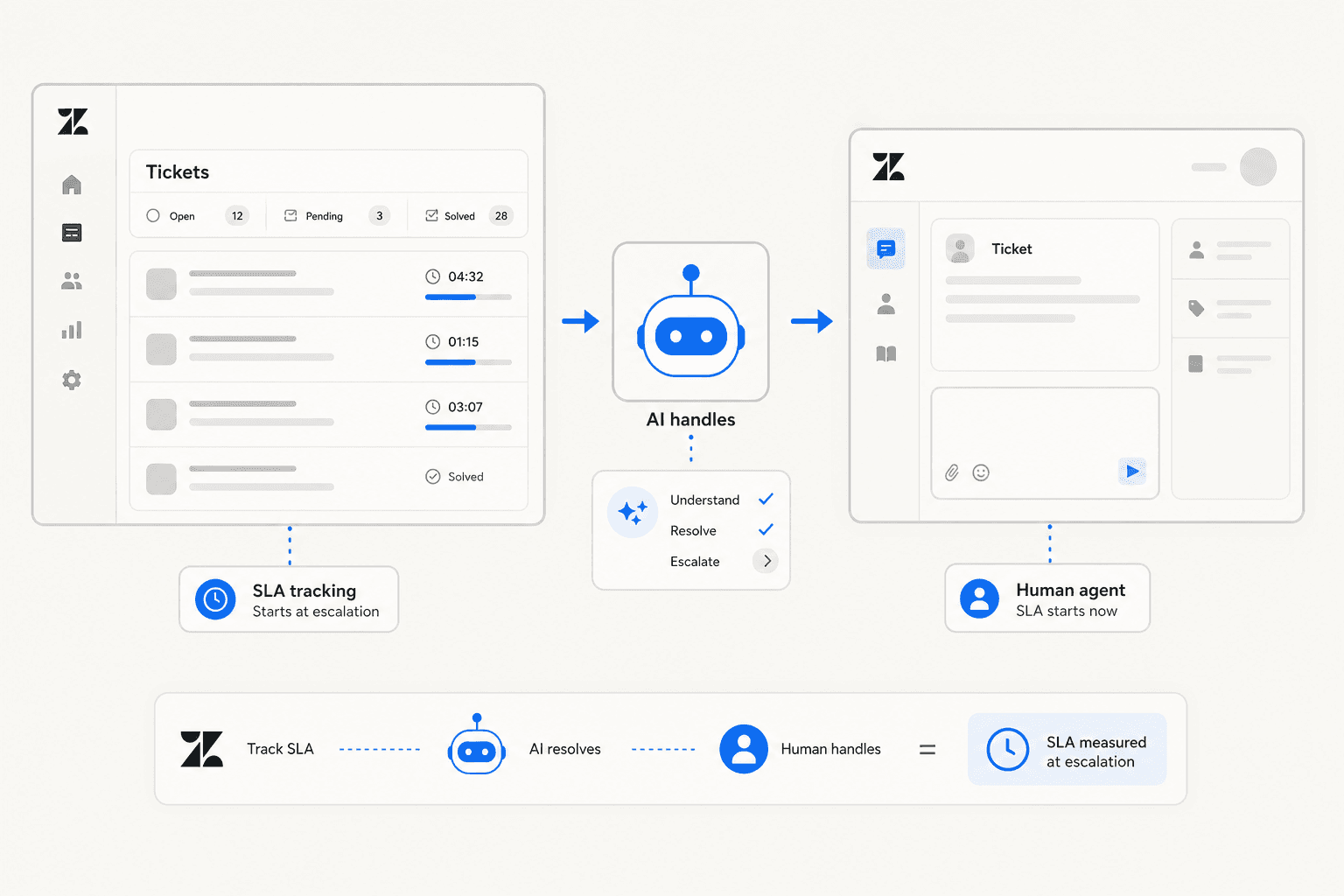
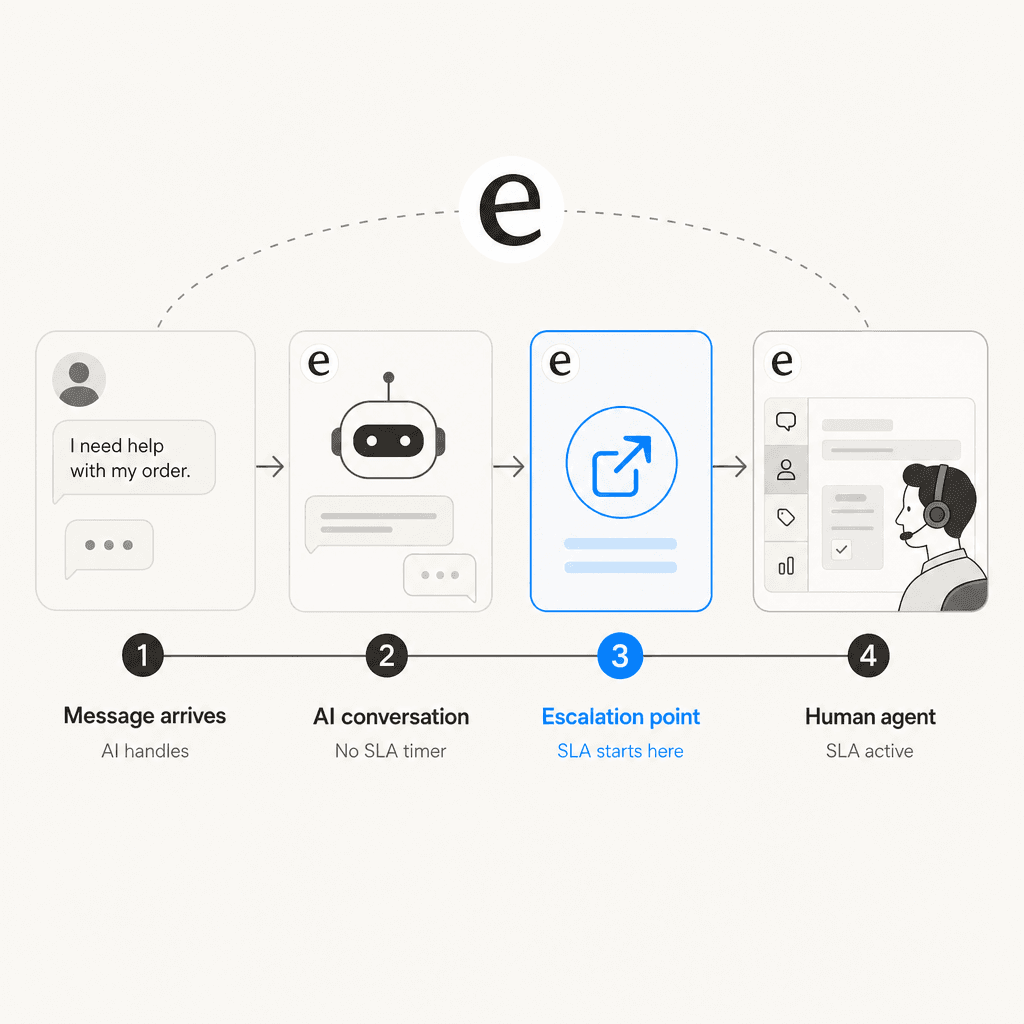
If you've searched for how Zendesk SLA policies work alongside AI agents, you've probably found advice that treats AI-handled and human-handled tickets as interchangeable. They're not. There's a specific behavior in Zendesk that changes the whole setup: SLAs don't apply to AI agent tickets until a human takes over. SLA timers sit dormant while the AI is handling the conversation, then start fresh the moment escalation happens.
Once you understand that behavior, the rest of the configuration becomes a lot clearer. This guide covers what's actually happening under the hood, how to set up SLA policies that fire correctly in an AI-augmented Zendesk environment, and how to build reporting that separates AI and human performance accurately.
If you're also deciding what AI layer to add on top of Zendesk, eesel AI is a Zendesk-native AI agent that handles tickets end-to-end -- with plain-language escalation rules that feed directly into your SLA setup. More on that at the end.
How SLAs and AI tickets work differently in Zendesk
The foundation for everything else in this guide is understanding the AI agent ticket lifecycle.
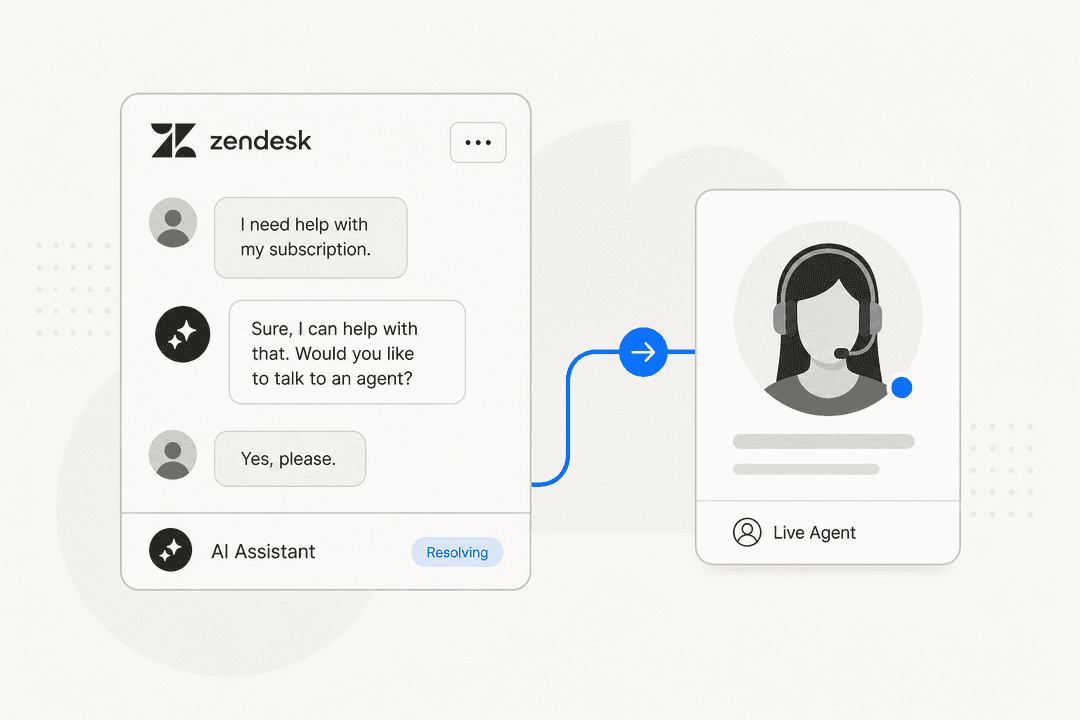
When a customer starts a messaging conversation with a Zendesk AI agent, an AI agent ticket is created and held in a read-only state. Most of Zendesk's standard infrastructure -- triggers, automations, macros, skills-based routing, and SLA policies -- doesn't touch these tickets. The conversation is entirely in the AI's hands until one of three things happens: the AI releases control, the customer requests a human, or 4 days of inactivity passes and the ticket auto-solves.
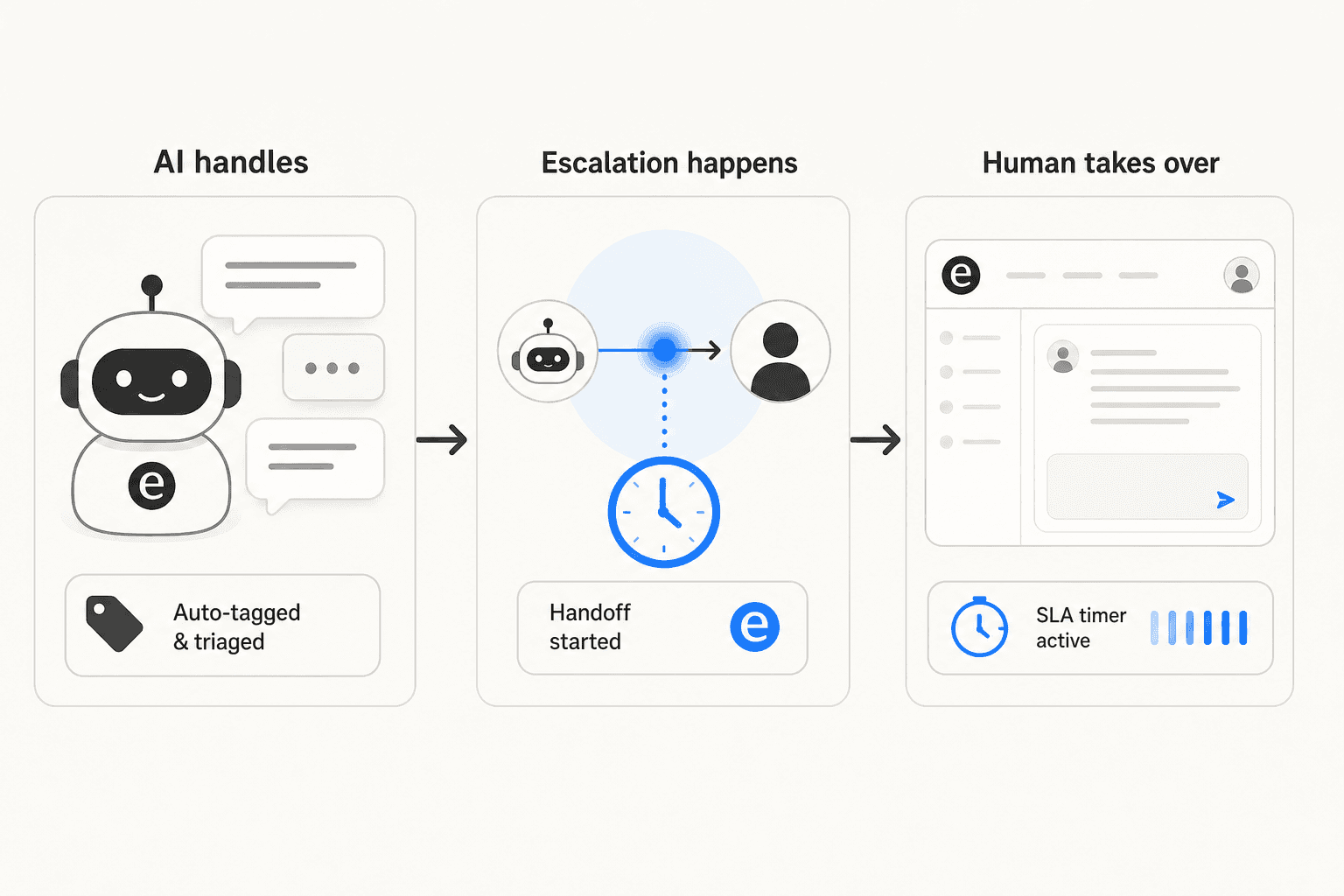
At escalation, the ticket's status resets to New and it becomes a normal, editable ticket. Triggers fire. Omnichannel routing kicks in. The SLA clock starts. The human agent gets the full SLA window, measured from the moment of escalation, not from when the customer first reached out.
One thing worth separating from SLA policies entirely: automated resolutions. Automated resolutions are a billing metric, not an SLA metric. They measure how many tickets your AI resolved without human intervention -- that's AI deflection volume. SLA policies measure response and resolution speed. The two systems run independently.
The behavior also differs by channel. Here's the full picture:
| Scenario | SLA applies? | What happens |
|---|---|---|
| Messaging ticket, AI handles fully | No | No SLA timers run at all |
| Messaging ticket, escalated to human | Yes | Ticket resets to New; SLA clock starts fresh |
| Email/web form with Copilot autoreply | Yes (FRT fulfilled) | Autoreply counts as first public agent reply |
| Email/web form, AI resolves, no human follow-up | N/A | Ticket auto-closes via automated resolution |
| Intelligent Triage autoreply, no human reply within 72h | N/A | Tagged ai_agent_automated_resolution |
AI agent tickets also don't appear in standard Explore reports, except through the Resolution type field. Your default SLA compliance dashboards automatically reflect only human-handled tickets for messaging channels -- there's no manual filtering needed to exclude pure AI conversations.
Before you build: two prerequisites
Two things need to exist before SLA policies will work reliably. Skip either and you'll have tickets falling through the cracks.
Business hours schedule. Set up at least one schedule before creating SLA policies. SLA targets should always be measured in business hours -- holding your team accountable for time when no one is working is pointless and demoralizing. Go to Admin Center > Account > Business hours to configure your schedule. If you run multiple teams with different working hours (say, 1st line works 7 days and 2nd line works Monday-Friday), you'll need multiple schedules, which requires an Enterprise plan.
Priority triggers. SLA policies require the system Priority field to have a value. If a ticket has no priority set, the SLA won't apply -- even if every other condition in your policy is met. The fix is a set of triggers that auto-assign priority the moment a ticket is created.
Build four triggers, in this order:
- Urgent -- triggered by keywords ("urgent," "broken," "site down"), VIP customer tags, or critical issue categories
- High -- triggered by specific product areas or premium customer tiers
- Low -- triggered by feedback submissions or feature request forms
- Normal (fallback) -- no conditions; runs after the others and catches everything not assigned above
If you're using Zendesk's Intelligent Triage, you can also use AI-detected intent and sentiment to drive priority. A ticket classified as "billing dispute" with negative sentiment can automatically receive Urgent priority without writing keyword rules. This is a powerful connection between Zendesk's AI layer and your SLA system -- Intelligent Triage triage feeds directly into the priority triggers that feed into SLA.
Step 1: Create your SLA policies in Admin Center
Go to Admin Center > Objects and rules > Business rules > Service level agreements. Click Create policy.
The wizard asks for: name, conditions, metrics, and targets.
Naming and conditions. Give each policy a logical name that reflects the channel and team it covers -- something like SLA - Support Tickets (Email) or SLA - Support (Messaging, Human Phase). For conditions, use channel and group as the core filters. A pattern that works cleanly:
- For email/ticketing:
Channel is Email+Group is Support - For messaging (post-escalation):
Channel is Messaging+Ticket is not AI agent ticket
Choosing metrics. You don't need to enable all seven metrics. For most teams, the right minimal set is:
- First Reply Time -- how long until the first public agent response. The most important metric for customer experience, and a good place to start if you're new to SLAs.
- Next Reply Time -- how long until the next public response after a customer follow-up. Keeps conversations moving.
- Periodic Update -- for messaging channels where first/next reply time concepts are less relevant.
- One resolution metric, at most. Pick either Requester Wait Time, Agent Work Time, or Total Resolution Time -- not multiple. Using more than one resolution metric creates overlapping timers that are hard to interpret.
Setting targets. Targets are per-priority. A starting framework for First Reply Time:
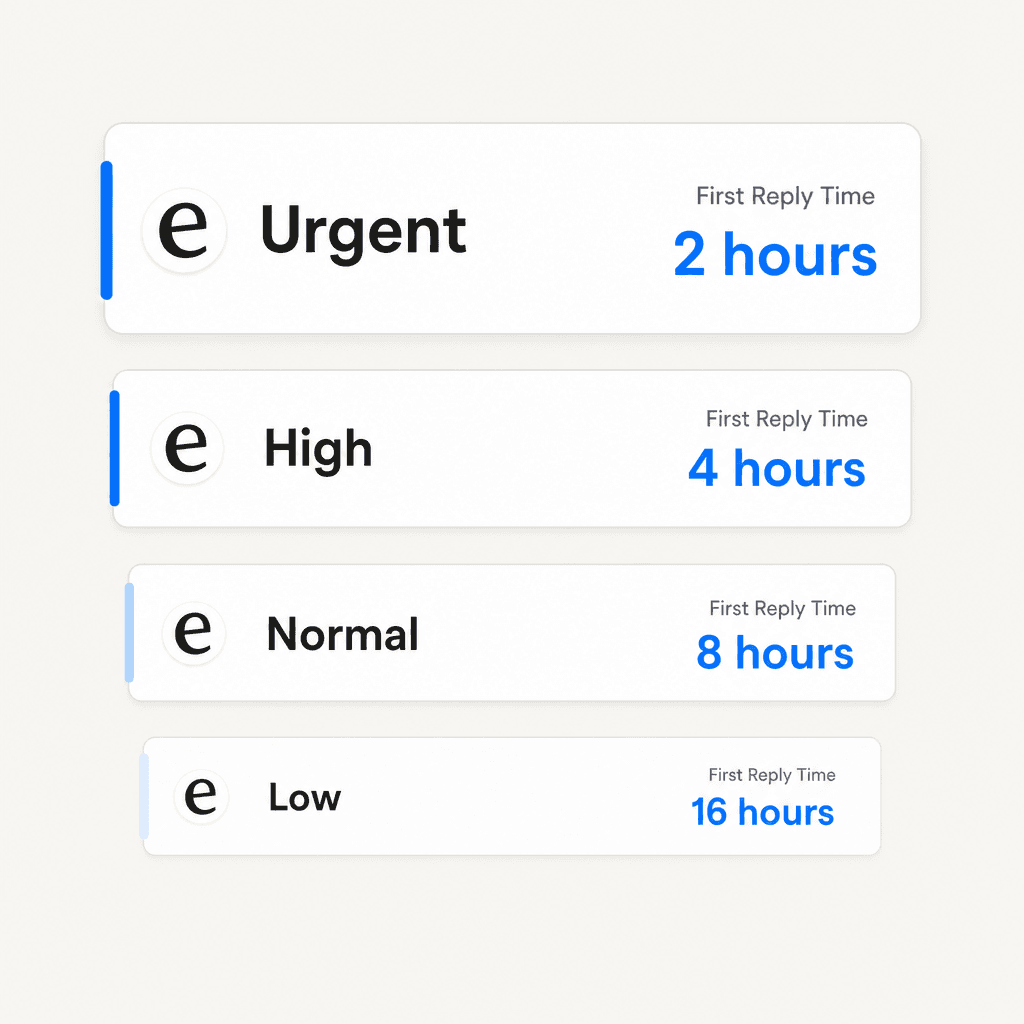
The 2-4-8-16 framework (2 hours for Urgent, 4 for High, 8 for Normal, 16 for Low) is a reasonable starting point for First Reply Time. Let these run for a month, then check Explore to see if the targets are realistic before committing to them with customers. For Next Reply Time, a common starting point is 4 business hours for Urgent/High and 8 for Normal/Low.
Policy ordering. Policies are applied top-down -- the first policy whose conditions match the ticket is applied. Order matters significantly. VIP customer policies (using tag or organization conditions) go at the top. Channel-and-group-specific policies come next. Generic fallback policies go at the bottom. Review the order every time you add a new policy -- a broad policy at the top will absorb tickets before your specific policies below it ever run.
Step 2: Configure your AI agent's escalation behavior
The escalation moment is where your SLA policy takes effect for human agents. Getting this right matters for both compliance and customer experience.
Two behaviors to configure:
Release control promptly. When the AI agent calls releaseControl, the ticket moves to Solved immediately without waiting for the 4-day inactivity window. Configure your AI agent to call releaseControl at the end of resolved conversations rather than relying on the timer. This closes out resolved tickets cleanly and prevents a 4-day backlog of technically open tickets that have actually been handled.
Write specific escalation rules. If your AI escalates too broadly, human agents inherit tickets that could have been fully resolved by AI, which adds unnecessary work and pressure on SLA targets. If it escalates too narrowly, customers wait longer than they should.
Specific, actionable escalation conditions work much better than broad ones:
- "Escalate if the customer mentions a refund over $100"
- "Escalate if the customer has replied more than 3 times without a resolution"
- "Always escalate billing disputes to the billing team"
- "If the customer mentions a legal complaint, escalate immediately"
These conditions also make your SLA targets more defensible. If you define exactly when AI hands off, you know exactly when the SLA clock starts -- and you can calibrate your SLA targets based on what's realistic for human agents handling those specific types of escalations.
Step 3: Build SLA views for your human agent queue
How agents see their queue determines whether they actually meet SLA targets. A poorly ordered view makes it easy to miss breaches that a well-sorted view would surface immediately.
Sort views by SLA breach time in ascending order, not by priority alone. Priority-only sorting always surfaces new Urgent tickets above older Normal tickets, even when the older Normal ticket is 15 minutes from breaching and the Urgent ticket has 6 hours left. SLA-sorted order means agents work the ticket closest to breaching first.
A concrete example: at 12 PM with four open tickets:
- Normal ticket from 9 AM (SLA expires 1 PM, 1 hour left)
- Urgent ticket from 10 AM (SLA expires 12 PM, already breached)
- Normal ticket from 10 AM (SLA expires 2 PM, 2 hours left)
- Urgent ticket from 11 AM (SLA expires 1 PM, 1 hour left)
SLA-sorted order: Urgent 10 AM → Normal 9 AM → Urgent 11 AM → Normal 10 AM. The 9 AM Normal ticket doesn't sit at the bottom of the queue just because it's not Urgent -- its SLA is expiring soon and agents see it.
Also build separate views for AI-escalated tickets versus pure human-direct tickets. Escalated tickets often arrive with context already gathered by the AI -- the customer's issue is usually well-documented by the time a human picks it up -- so they may resolve faster. Tracking them separately gives you an accurate read on human agent performance across both ticket types.
Step 4: Track AI vs human SLA performance in Explore
Your default Explore dashboards already exclude pure AI agent tickets. But you'll want custom reports that show the full picture of AI volume vs. human SLA compliance side by side.
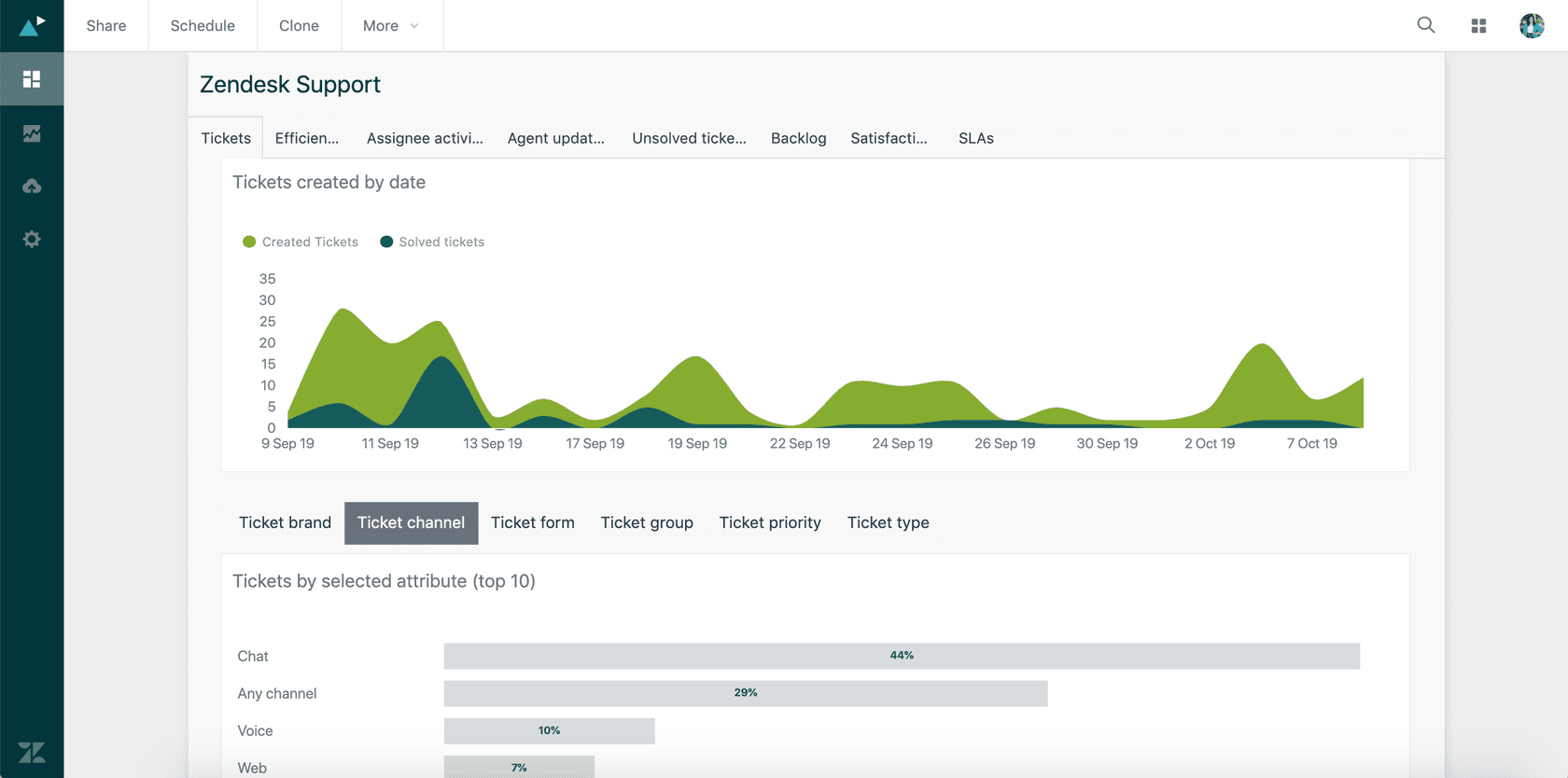
Two fields make this possible:
Resolution type field. Shows "Automated" for AI-resolved tickets. In Explore, add this as a row or column grouping on your ticket volume charts. A rising Automated percentage means AI is taking on more volume -- which should correspond to improved SLA compliance for human-handled tickets (fewer tickets, more time per ticket).
ai_agent_automated_resolution tag. Added to tickets 72 hours after an AI resolution is confirmed. Use this in Explore to filter AI-resolved tickets out of SLA breach reports, or to build a dedicated view for trend analysis.
For a monthly review, track three numbers: automated resolution rate, SLA compliance for human-handled tickets, and total human ticket volume. If AI deflection increases and human ticket volume drops, SLA compliance should improve. If it doesn't, that's a signal worth investigating -- usually it means the escalated tickets are harder than your SLA targets account for. Tools like eesel AI's analytics surface these patterns across your Zendesk activity without building custom Explore queries for everything.
Common mistakes that break SLA compliance
No fallback priority trigger. If a ticket has no system priority value, the SLA policy doesn't fire -- even if all other conditions match. A fallback trigger that sets Normal priority on any ticket that didn't match your other triggers is essential. Without it, you'll have untracked tickets sitting outside your SLA system.
Follow-up tickets causing First Reply Time breaches. When an agent creates a follow-up ticket in Open or Pending status, the First Reply Time SLA still runs -- even though there's no customer waiting for a first reply. Fix: add Ticket status is New as a condition on your First Reply Time SLA policy so it only applies to freshly created tickets.
SLA policy ordering errors. A permissive generic policy at the top of the list catches every ticket before more specific policies below it apply. Review policy order every time you add a new policy. VIP and custom-contract policies at the top, channel and group-specific in the middle, generic fallbacks at the bottom.
Next Reply Time doesn't pause on Pending. Many teams expect Next Reply Time to pause while waiting for a customer response in Pending status. It doesn't -- it keeps running. If you need a metric that pauses in Pending, use Pausable Update instead. Be aware of a related edge case: Pausable Update won't start if the agent replies and sets the ticket to Pending in the same event -- train agents to submit the public reply first, then set Pending separately.
Editing existing policies shifts historical data. When you change an SLA policy and a ticket is already breached, the breach records at the time of the update -- SLAs don't back-date breach events. Your historical Explore data can shift in ways that make before/after comparisons confusing. When making significant changes to targets, create a new policy with a new name rather than editing the old one.
AI autoreply on email fulfills FRT but not resolution metrics. If you use Zendesk Copilot autoreplies on email tickets, the automated first reply fulfills First Reply Time SLA. But if a human doesn't follow up and the ticket eventually closes via automated resolution, Requester Wait Time and Total Resolution Time keep running until the ticket closes. Worth checking in Explore whether any resolution time breaches are coming from email tickets where AI replied first and then the conversation dragged.
eesel AI for Zendesk
eesel AI connects to Zendesk and learns from your existing tickets, help center articles, and macros -- no manual training required. When a ticket comes in, eesel reads it, drafts a response grounded in your knowledge base, and sends it. When it can't resolve the ticket confidently, it escalates to a human agent.
Those escalation rules are written in plain English, which maps directly to what you'd want from an SLA standpoint:
- "If the customer mentions a refund over $100, escalate to billing"
- "If the issue involves account access, escalate immediately"
- "Always escalate VIP customers to a senior agent"
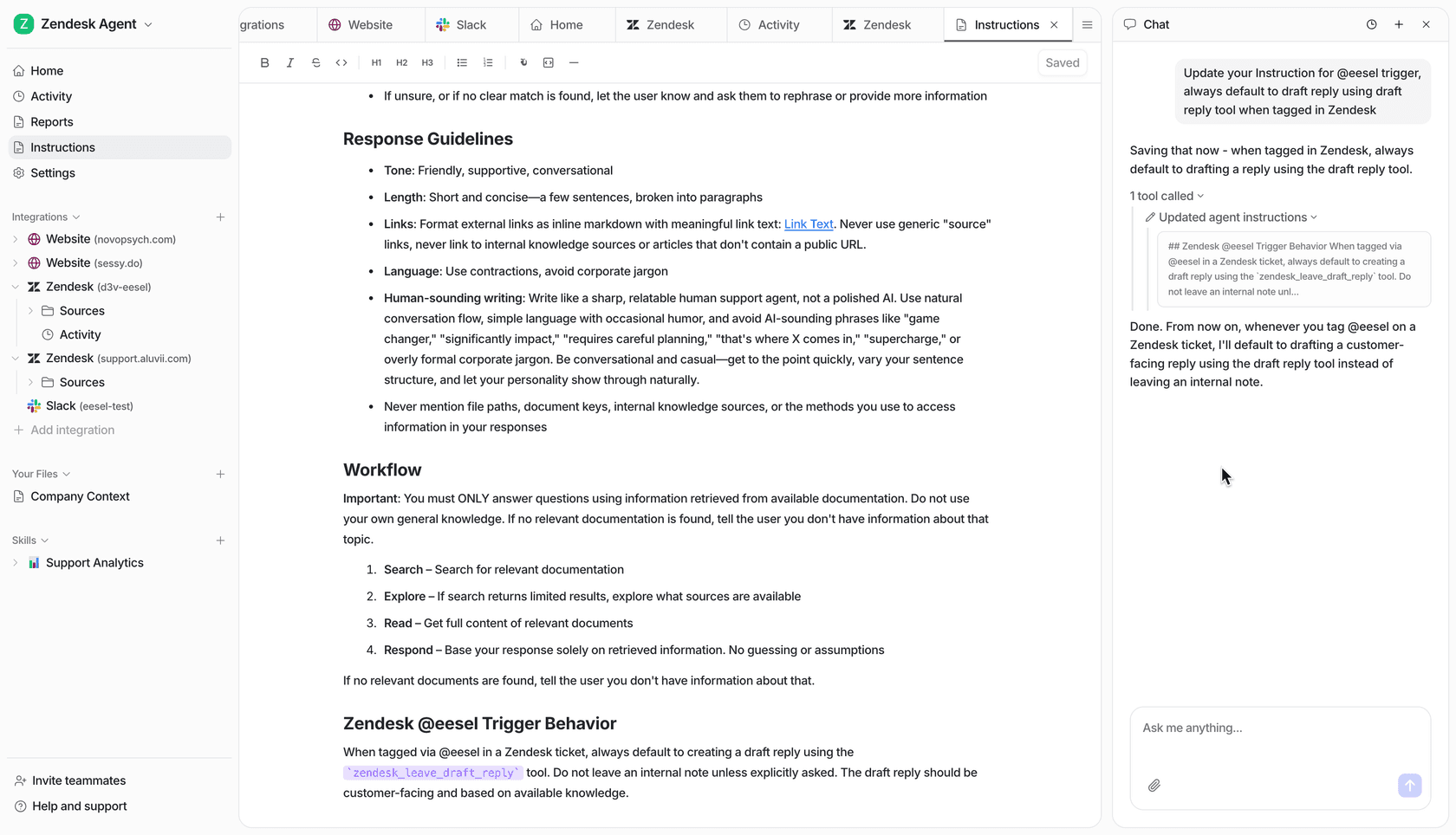
When eesel escalates, the ticket resets to New in Zendesk and your SLA policy fires. Human agents get the full SLA window from the moment of handoff. Because eesel has already read the ticket and attempted resolution, escalated tickets typically arrive with more context -- the customer's issue is documented, the conversation history is there, and agents can focus on solving rather than gathering information.
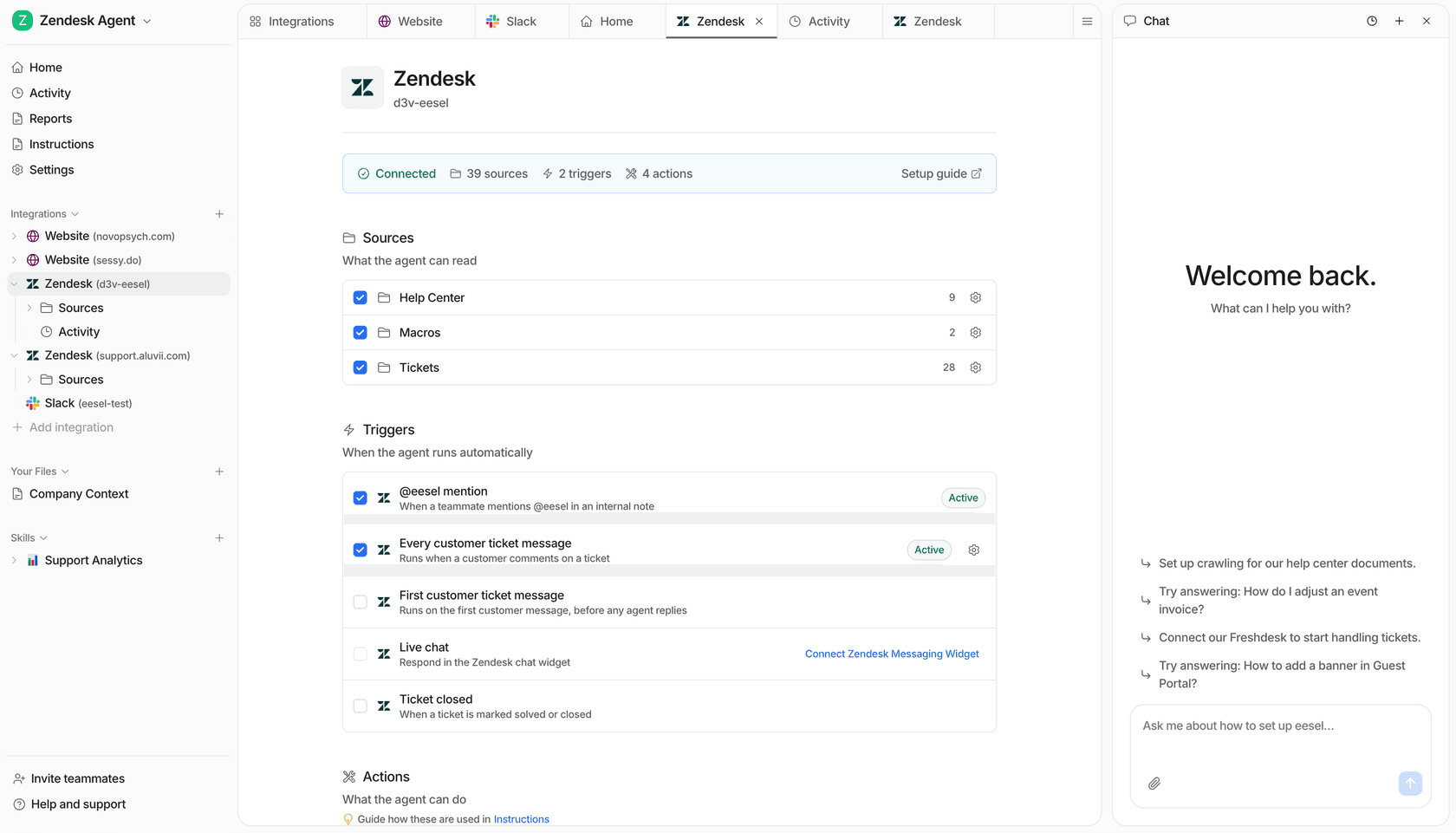
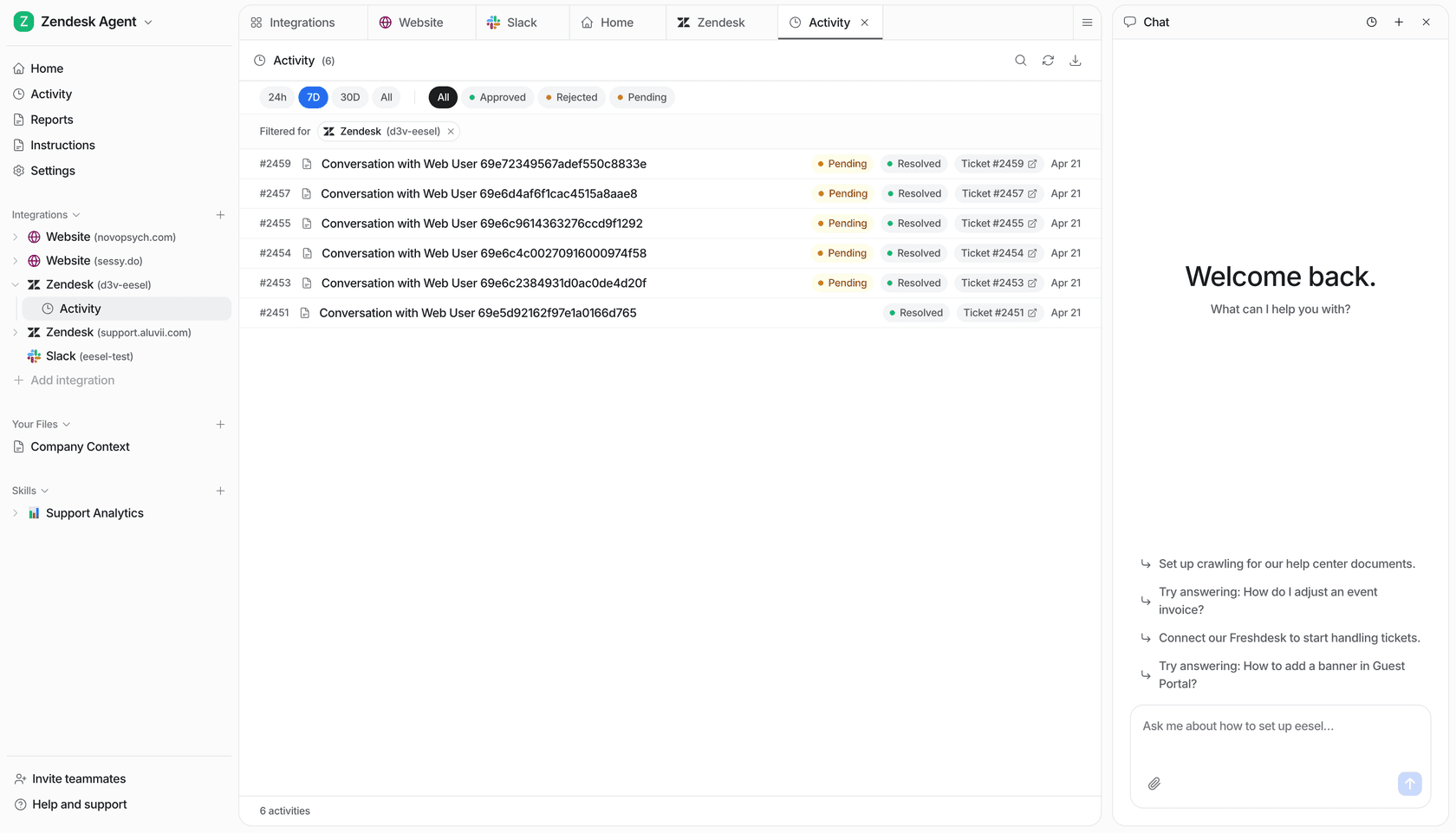
The activity dashboard shows AI resolution rates and ticket volume in real time. Running this alongside Zendesk Explore gives you the full picture: how much AI is deflecting, and how well human agents are performing on the tickets that do reach them.
eesel's pricing is usage-based: $0.40 per regular task (support tickets), with no per-seat fees. There's a $50 free trial with no credit card required. If you're already using Zendesk and want to add an AI layer that gives you clean control over escalation timing and SLA triggering, the Zendesk integration page has setup details.
For more on Zendesk automation more broadly, this guide on Zendesk AI agent handoff covers the escalation flow in more depth, and this ticket triage guide covers automated priority routing end-to-end.

Frequently Asked Questions
ai_agent_automated_resolution tag to tickets resolved by AI, 72 hours after the last interaction is confirmed. The Resolution type field in Explore also shows 'Automated' for AI-resolved tickets. Use these in custom Explore reports to build separate dashboards for AI vs human SLA performance.Share this article

Article by
Stevia Putri
Stevia Putri is a marketing generalist at eesel AI, where she helps turn powerful AI tools into stories that resonate. She’s driven by curiosity, clarity, and the human side of technology.