How Zendesk omnichannel handoff works: Complete guide for 2026

Stevia Putri
Written by

Stevia Putri

Reviewed by

Stanley Nicholas

Last edited March 5, 2026

Expert Verified

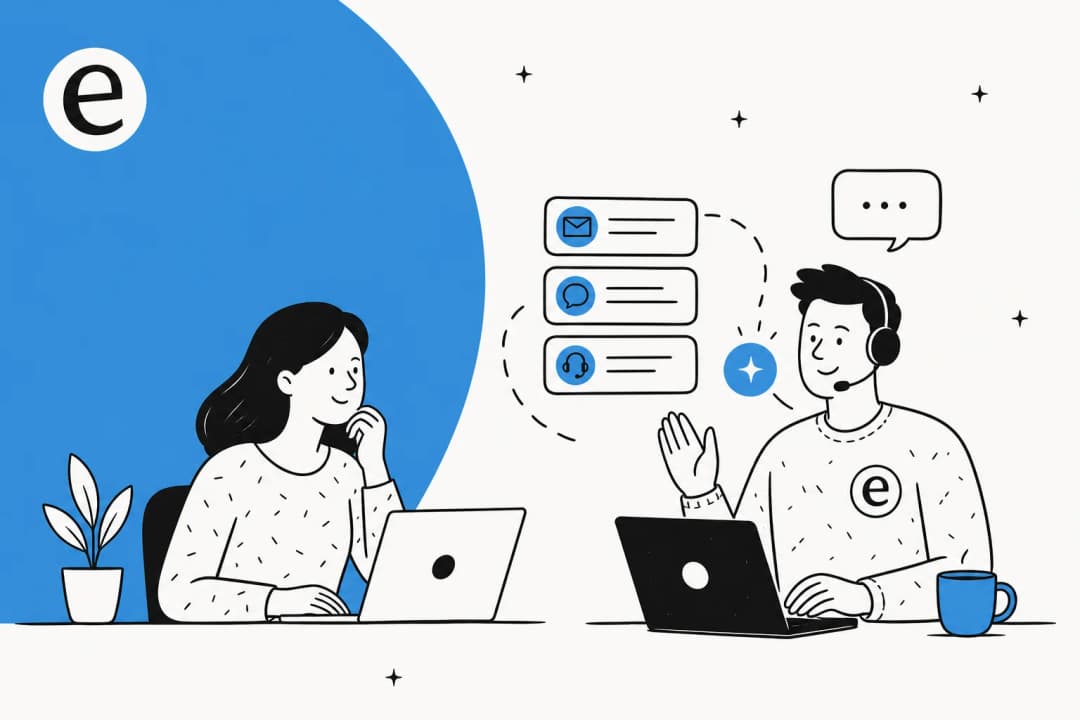
Banner image for How Zendesk omnichannel handoff works: Complete guide for 2026

When a customer starts a conversation with your AI agent but needs to speak with a human, what happens next? That transition, the moment when control passes from bot to agent, is what support teams call a handoff. In a Zendesk environment, this gets complicated fast because you're not just dealing with one channel. You're managing email, messaging, voice, and chat, all flowing into the same system.

This guide breaks down how Zendesk omnichannel handoff actually works. We'll cover the mechanics of routing, the common pitfalls that trip up support teams, and how to configure handoffs that don't leave customers frustrated or agents confused.

Zendesk landing page with navigation and product overview

For a broader look at conversation handoff strategies, see our guide on Zendesk conversation handoff to agents. You might also find our overview of Zendesk omnichannel support helpful for understanding the broader context.

What is Zendesk omnichannel handoff?

Omnichannel handoff is the process of transferring a customer conversation from one responder to another across different support channels. In Zendesk, this typically means moving from an AI agent to a human agent, or back again.

There are two distinct actions to understand:

  • Handoff: The AI agent is removed as the conversation's first responder, and a human agent takes over. Once this happens, the AI can no longer respond to that conversation.
  • Handback: When a ticket's status changes from Solved to Closed, the human agent is removed as first responder. This clears the way for the AI agent to handle new conversations from that customer.

The channels covered include email (including web forms and API submissions), native messaging, live chat, WhatsApp, Facebook Messenger, voice calls, SMS, and social media direct messages including X (Twitter), Instagram, and Telegram. Each channel has its own quirks when it comes to routing and handoff behavior.

Zendesk conversation continuity across channels during AI to human transition

Why does seamless handoff matter? Because customers don't think in channels. They start a chat, then send an email, then call when they get frustrated. If your agents can't see the full conversation history across those touchpoints, you're forcing customers to repeat themselves. That's a fast track to poor satisfaction scores.

How omnichannel routing works in Zendesk

At its core, omnichannel routing is a traffic controller for support tickets. It looks at incoming conversations from all channels and decides which agent should handle each one based on availability, capacity, and skills.

The routing engine

When a ticket becomes eligible for routing, Zendesk evaluates several factors in order:

  1. Queue assignment: Tickets are placed into either the standard omnichannel routing queue or custom queues (available on Professional and Enterprise plans). Custom queues let you route tickets meeting specific conditions to designated groups.

  2. Agent status: Agents set a single unified status across all channels (online, away, or offline). For messaging and calls, agents must be "online" to receive work. For email, "online" or "away" status qualifies.

  3. Capacity rules: These control how much work each agent can handle at once. You can define different capacity limits for email, messaging, and voice channels.

  4. Assignment method: Zendesk can assign based on highest spare capacity or round robin (whoever went longest without receiving work).

  5. Skills matching: On Professional plans and above, tickets can be routed only to agents with specific skills (like language proficiency or product expertise).

Standard vs. custom queues

The standard queue routes work to agents based on the ticket's assigned group. Custom queues, available on Professional and Enterprise plans, offer more control. You can create queues that route tickets to primary groups first, then fall back to secondary groups if no one is available. You can also prioritize certain ticket types over others.

Skills-based routing limitations

Here's something that catches many teams off guard: skills-based routing works for email tickets, but it has limitations with messaging. According to Zendesk's documentation, skills-based routing is not available for messaging tickets specifically. This means if you're running a messaging-heavy operation, you may need alternative routing strategies.

Configuring AI-to-agent handoff

Zendesk offers two tiers of AI agents: Essential and Advanced. The handoff configuration differs depending on which you're using.

Zendesk trigger configuration for auto-closing conversations based on tags

Native AI agent handoff options

Essential AI agents (included in Suite Team and above) handle basic conversations and can escalate to human agents using built-in dialogue flows.

Advanced AI agents (available as an add-on) offer more sophisticated reasoning, custom actions, and deeper integration capabilities. They use a dialogue builder where you can configure escalation blocks that trigger handoffs based on customer intent, sentiment, or specific requests.

The Solved vs. Closed timing trap

This is the most common handoff issue support teams encounter. By default, Zendesk waits four days between marking a ticket Solved and automatically closing it. During that window, if a customer returns to your messaging channel, they can't start a new conversation. Their messages go to the existing ticket, and the human agent remains the first responder.

The 4-day status gap that traps customers in old tickets when they need a fresh AI session

This creates a frustrating experience where customers think they're starting fresh, but they're actually reopening old tickets. The AI agent won't engage because it's not the first responder.

You have two ways to fix this:

Option 1: Adjust the default automation Edit the "Close ticket 4 days after status is set to solved" automation. You can reduce this to as little as one hour or extend it up to 28 days.

Option 2: Create an immediate-close trigger Add a tag (like "close") when a ticket is solved, then create a trigger that immediately closes any ticket with that tag. The trigger conditions would be:

  • Tags contains "close"
  • Action: Status set to Closed

If you're using CSAT surveys, keep at least a small buffer between solving and closing to avoid conflicts with survey delivery.

Preserving context across channels

Context loss is the silent killer of good handoffs. An AI agent might have gathered crucial details, customer history, and intent signals. If that information doesn't reach the human agent, you're starting from zero.

Here's how to maintain continuity:

Automatic transcript attachment: Zendesk automatically attaches conversation transcripts to tickets. Make sure your agents know where to find them.

Custom ticket fields: Use these to capture structured data during AI conversations, things like issue category, customer sentiment, or attempted resolutions. These fields carry forward to the human agent.

Metadata passing: For technical integrations, use Sunshine Conversations APIs to pass metadata between systems. This can include customer ID, conversation history, and custom attributes.

Internal notes: Train AI agents to summarize conversations in internal notes before handing off. A concise summary beats scrolling through 50 messages.

Agent training: Your agents need to know where context lives. Create a quick reference guide showing how to access transcripts, custom fields, and conversation history from the Agent Workspace.

Common omnichannel handoff challenges

Even with proper configuration, things go wrong. Here are the issues we see most often:

Customers unable to start new conversations: The Solved vs. Closed status gap we covered earlier. Customers return expecting a fresh start and get pulled into old tickets instead.

Wrong team receiving escalated tickets: Routing rules aren't specific enough, or custom queues aren't configured to match your organizational structure. Tickets meant for Tier 2 end up with Tier 1 agents who can't resolve them.

Agents missing conversation context: Agents don't check transcripts or custom fields before responding. They ask customers to repeat information the AI already collected.

Skills timeout and ticket stagnation: When skills-based routing is enabled without a timeout threshold, tickets can sit in the queue indefinitely if no agent with matching skills is available. Email and messaging tickets wait until someone with the right skills comes online.

Channel-specific limitations: Skills-based routing doesn't work for messaging tickets. Voice tickets can't be reassigned once assigned to an agent. Light agents can't be assigned tickets or set status.

Simplifying omnichannel handoff with eesel AI

Zendesk's native routing is powerful, but it requires significant configuration and ongoing maintenance. If you're looking for a simpler approach, eesel AI handles handoffs with less complexity.

eesel AI escalation workflow from AI to human agent with conversation history transfer

Instead of building dialogue trees in Zendesk's builder, you define escalation rules in plain English. For example: "If the customer asks about billing disputes, escalate immediately to the Finance team." No coding, no complex trigger configurations.

The Zendesk integration preserves context automatically. When eesel hands off to a Zendesk agent, the full conversation history, customer data, and AI-generated summary come with it. Agents see everything they need without hunting through multiple tabs.

eesel AI simulation results for Zendesk ChatGPT integration with predicted automation rates

Before going live, you can run simulations on thousands of past tickets to see exactly how handoffs would work. Test different escalation rules, measure resolution rates, and refine your approach without touching real customer conversations.

eesel also integrates with 100+ knowledge sources beyond Zendesk: your Confluence docs, Google Drive, Notion pages, and more. This means eesel has broader context for handling complex handoff scenarios.

Getting started with smarter omnichannel handoffs

If you're setting up or optimizing Zendesk omnichannel handoff, start with these steps:

  1. Audit your current routing configuration: Document which queues exist, how tickets flow between them, and where handoffs currently happen.

  2. Review Solved → Closed automation timing: Check that default 4-day window. If it's causing customer confusion, adjust it or create an immediate-close trigger.

  3. Test escalation flows with real scenarios: Run test conversations through your AI agents and verify they reach the right human agents with full context intact.

  4. Consider your complexity tolerance: If Zendesk's routing configuration feels overwhelming, tools like eesel AI offer a simpler path to effective handoffs.

Want to see how eesel AI handles handoffs? Try it free or book a demo to see it in action with your existing Zendesk setup.


Frequently Asked Questions

Handoff removes the AI agent as first responder and assigns a human agent. Handback occurs when a ticket status changes from Solved to Closed, removing the human agent and allowing the AI to respond to new conversations from that customer.
By default, Zendesk waits four days between Solved and Closed status. You can adjust this automation to anywhere from one hour to 28 days, or create a trigger for immediate closure.
No. According to Zendesk's documentation, skills-based routing is not available for messaging tickets. It works for email and voice channels on Professional plans and above.
Until the ticket status changes from Solved to Closed, the human agent remains the first responder. Customers returning during this window continue the existing conversation rather than starting fresh with the AI.
Email (including web forms and API), native messaging, live chat, WhatsApp, Facebook Messenger, voice calls, SMS, and social media direct messages including X (Twitter), Instagram, and Telegram.
No. Once a voice ticket is assigned to an agent, omnichannel routing will not reassign it, even if the ticket becomes unassigned or gets assigned back to a group.

Share this post

Stevia undefined

Article by

Stevia Putri

Stevia Putri is a marketing generalist at eesel AI, where she helps turn powerful AI tools into stories that resonate. She’s driven by curiosity, clarity, and the human side of technology.