
Connecting Zendesk to n8n opens up powerful automation possibilities for your support operations. Instead of manually copying data between systems or handling repetitive ticket tasks, you can build workflows that run automatically, 24/7.
This guide walks you through setting up the integration, understanding what's possible, and building practical workflows that save time. Whether you want to sync tickets to a spreadsheet, escalate urgent issues to Slack, or keep your CRM in sync, n8n gives you the tools to make it happen without writing complex code.

Here is what we will cover.
What you'll need to get started
Before you start building workflows, make sure you have a few things in place.
A Zendesk account with admin access. You will need administrator privileges to generate API tokens and configure integrations. If you are not an admin, coordinate with someone who is. The API token is what lets n8n authenticate with your Zendesk instance.
An n8n instance. You have two options here: n8n Cloud (hosted by n8n, starts at $24/month for the Starter plan) or self-hosted (free Community Edition, but you manage the infrastructure). For most teams starting out, the cloud option is simpler. You can always migrate later if you need self-hosting for compliance reasons.
Basic familiarity with APIs and JSON. You do not need to be a developer, but understanding what an API endpoint is and how JSON data is structured will help you troubleshoot when things do not work as expected. n8n's visual builder handles most of the complexity, but knowing how to read error messages saves time.
A clear use case. It is tempting to automate everything, but start with one specific problem. Maybe it is "create a ticket when someone fills out our contact form" or "notify the team in Slack when a high-priority ticket comes in." Pick something concrete and build from there.
Setting up the Zendesk n8n connection
The setup process takes about 10 minutes if you know where to look. Here is the exact sequence.
Step 1: Generate your Zendesk API token
Log into your Zendesk account and navigate to the Admin Center. Go to Apps and Integrations > APIs > Zendesk API. You will see a section called "Token Access" - make sure it is enabled. See the Zendesk API documentation for detailed instructions.
Click "Add API token" and give it a descriptive name like "n8n Integration" or "Workflow Automation." This helps you remember what the token is for if you need to audit access later.
Copy the token immediately. Zendesk only shows it once, and if you lose it, you will need to generate a new one. Store it somewhere secure like a password manager.
Pro tip: Create a dedicated Zendesk user account for API integrations rather than using a personal account. If the person who set up the integration leaves, your workflows will not break when their account is deactivated.
Step 2: Configure n8n credentials
In your n8n instance, go to the credentials section and click "Add credential." Search for "Zendesk" and select it.
You will need three pieces of information:
- Subdomain: This is the first part of your Zendesk URL. If your Zendesk is at
company.zendesk.com, your subdomain iscompany. - Email: The email address associated with the Zendesk account that generated the API token.
- API Token: The token you copied in Step 1.
Save the credential and n8n will test the connection automatically. If you see an error, double-check that the subdomain is correct (no .zendesk.com suffix) and that the token has not expired.
Step 3: Create your first workflow
Now for the fun part. Create a new workflow in n8n and add a Zendesk node. You can start with either a trigger (event-driven) or an action (on-demand).
For your first test, try the "Get Many Tickets" action. This retrieves a list of tickets from your Zendesk account. Configure it to return just 5 tickets to keep things manageable. Run the workflow and check the output - you should see real ticket data from your account.
Once that works, you are ready to build something more useful.
Understanding Zendesk triggers and actions in n8n
The Zendesk n8n integration gives you 1 trigger and 24 actions to work with. Let us look at what each does and when to use them.
The Zendesk trigger
The Zendesk Trigger is event-driven. Instead of checking for changes on a schedule, it receives a notification from Zendesk the moment something happens.
You can configure it to fire on:
- New Ticket: When someone creates a ticket
- Ticket Updated: When any ticket field changes
The trigger uses webhooks behind the scenes. When you activate the workflow, n8n generates a unique webhook URL that you paste into your Zendesk webhook configuration. From that point on, Zendesk sends data to n8n automatically. You can learn more about how this works in our guide on how to connect Zendesk to Slack using third-party AI apps.
You can also add filter criteria. For example, only trigger when a high-priority ticket is created, or when a ticket is assigned to a specific group. This prevents your workflow from running on every single ticket event. For more automation ideas, see our article on using AI to classify or tag support tickets.
Key actions available
The 24 actions are organized into four categories:
Ticket operations: Create, get, update, delete, recover suspended tickets, and retrieve multiple tickets with filtering. The "Get Many" action is particularly useful for reporting workflows where you need to export data.
User management: Create users, update profiles, delete accounts, search users, and retrieve organization memberships. This is essential for CRM sync workflows.
Organization handling: Full CRUD operations plus the ability to count organizations and fetch related data. If you use Zendesk's organization features to group customers, these actions keep everything in sync.
Ticket fields: Retrieve custom field definitions. This helps when you need to dynamically populate forms or validate data against your Zendesk configuration.
Common workflow patterns
Most Zendesk n8n workflows follow one of three patterns:
Trigger → Action chains: A ticket event triggers a series of actions across multiple systems. Example: New ticket → Create Slack notification → Add row to Google Sheets → Send email to manager.
Scheduled batch operations: Run on a schedule (hourly, daily) to sync data in bulk. Example: Every morning, fetch all tickets created yesterday and update a reporting dashboard.
Multi-app integrations: Zendesk is one node in a larger workflow. Example: Shopify order → Create Zendesk ticket → Notify fulfillment team in Asana.
Practical Zendesk n8n workflow examples
Theory is fine, but let us look at real workflows you can build today.
Auto-create tickets from form submissions
Many teams use Typeform, Google Forms, or custom web forms to collect customer inquiries. Instead of manually creating tickets from each submission, automate it.
The workflow: Webhook trigger (from your form) → Zendesk "Create Ticket" action
Map form fields to ticket fields:
- Form "email" → Ticket requester email
- Form "message" → Ticket description
- Form "category" → Ticket tags
Add logic to set priority based on form responses. If someone selects "Urgent issue," create a high-priority ticket. Otherwise, default to normal.
Sync tickets to Google Sheets for reporting
Zendesk's built-in reporting is good, but sometimes you need data in a spreadsheet for custom analysis or sharing with stakeholders who do not have Zendesk access.
The workflow: Schedule trigger (daily at 9 AM) → Zendesk "Get Many Tickets" → Google Sheets "Append" action
Configure the "Get Many Tickets" node with a filter for tickets created since the last run. Store the timestamp in a Google Sheet or n8n's global variables so each run only fetches new data.
Include these fields in your sheet: Ticket ID, Subject, Status, Priority, Created Date, Assignee, Tags. This gives you a searchable, filterable record of all support activity.
Escalate high-priority tickets to Slack
When a critical issue comes in, speed matters. Automatically notify the right people in Slack so nothing falls through the cracks.
The workflow: Zendesk Trigger (filter: priority = high OR tags contains "escalate") → Slack "Post Message" action
Format the Slack message to include:
- Ticket subject and link
- Requester name and organization
- Priority level
- Assigned agent (if any)
Route to different channels based on ticket criteria. Billing issues go to #finance-support, technical issues to #engineering-escalations.
CRM sync: Keep customer data updated
If your sales team lives in HubSpot and support lives in Zendesk, keeping customer records in sync prevents awkward moments where support does not know a customer is a VIP prospect. Our guide on HubSpot AI covers more ways to integrate support and sales tools.
The workflow (Zendesk → HubSpot): Zendesk Trigger (user updated) → HubSpot "Create or Update Contact" action
The workflow (HubSpot → Zendesk): HubSpot Trigger (contact updated) → Zendesk "Update User" action
Map key fields between systems: name, email, company, phone, and any custom fields that indicate customer tier or account status. Run this bidirectionally or pick one system as the source of truth.
Tips for reliable Zendesk n8n workflows
Once your workflows are running, you want them to stay running. Here are practices that prevent headaches.
Use dedicated service accounts. Create a specific Zendesk user for API access rather than using personal credentials. Name it something like "Automation Bot" so it is clear in audit logs which actions were performed by workflows versus humans. If you are looking for more robust automation options, check out our comparison of the best AI helpdesk tools.
Implement error handling. n8n lets you create "error workflows" that run when a node fails. At minimum, send yourself a notification when something breaks. Better: build retry logic with delays for transient failures like rate limiting. For more on support automation best practices, see our guide to AI macros.
Monitor API rate limits. Zendesk allows 700 requests per minute. For most workflows this is plenty, but if you are doing bulk operations or have multiple workflows running simultaneously, you might hit the limit. Add a "Wait" node between batches if needed. You might also be interested in our Zendesk AI agent advanced review for alternative approaches.
Test in development first. n8n's "Execute Node" feature lets you test individual steps without running the whole workflow. Use this to verify your filters and data mappings before activating a workflow that touches real customer data. For more on testing AI solutions, read about our approach to ticket summarization.
Document your workflows. Add descriptions to each node explaining what it does and why. Future you (or your teammates) will thank you when something needs updating six months later. For more automation strategies, read about auto-reply rule best practices.
When to consider a purpose-built alternative
n8n is powerful, but it is a general-purpose automation tool. For support-specific AI and automation, you might hit limitations.
Building AI-powered ticket responses in n8n requires connecting to OpenAI or another LLM service, then manually configuring prompts and context. It works, but you are essentially building a support AI from scratch. You need to handle conversation history, manage token limits, and train the model on your knowledge base.
This is where eesel AI fits in. Instead of building support automation yourself, you get a purpose-built AI that plugs directly into Zendesk. We learn from your help center articles and past tickets automatically. You can test eesel AI in simulation mode before it ever talks to a real customer. And you control exactly which tickets eesel handles versus which ones escalate to your team.
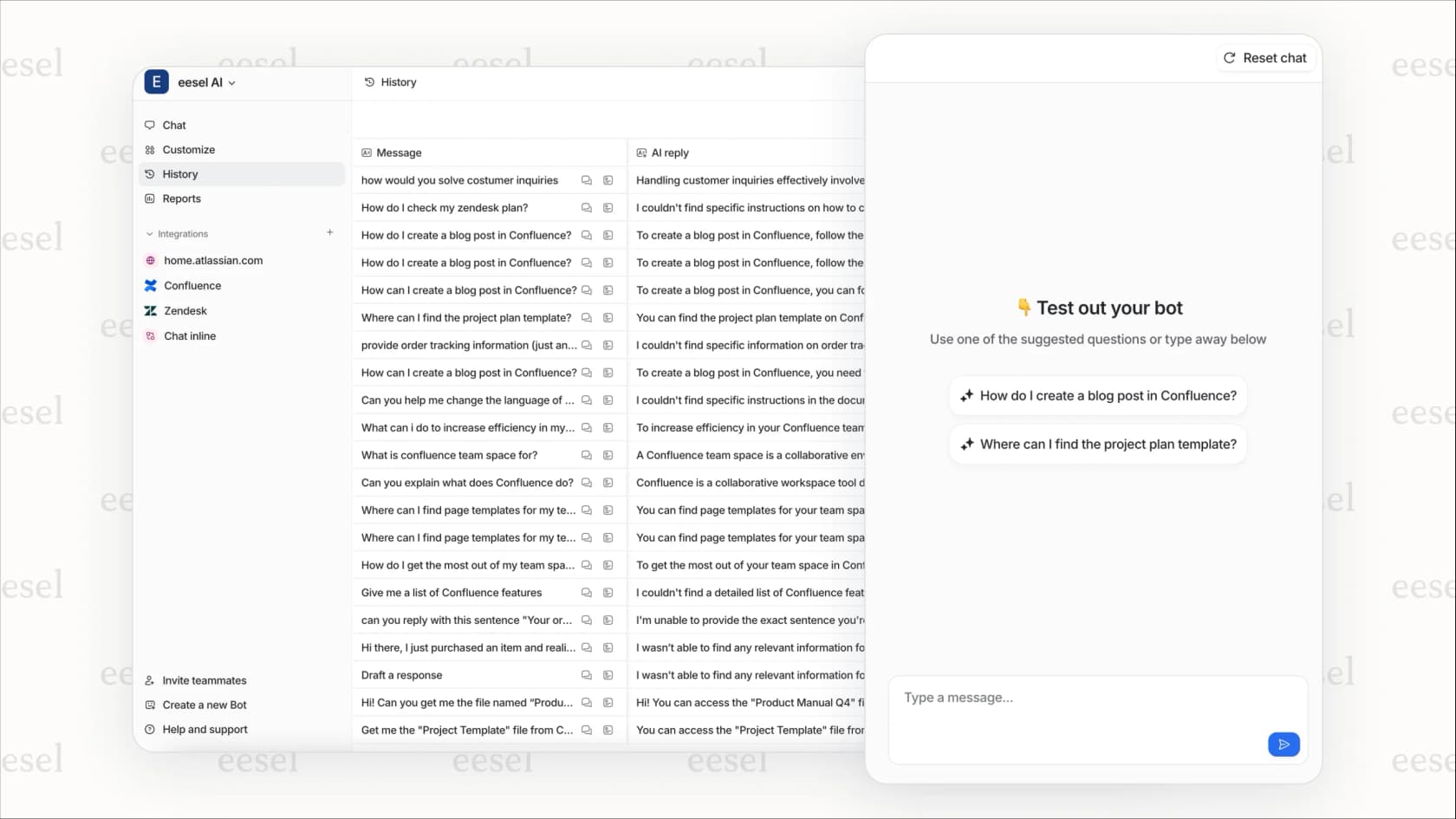
For teams that need sophisticated support automation without the technical overhead of building and maintaining custom workflows, a dedicated solution often makes more sense. You can still use n8n for cross-system integrations (syncing Zendesk to your CRM, for example) while letting eesel handle the AI-powered support conversations.
If you are curious how this approach compares to building it yourself, we have written about Zendesk integrations with n8n and when each approach makes sense. Our customer support automation solution is designed specifically for teams that want AI handling frontline support without the DIY complexity.