
Connecting your help desk data to spreadsheets is one of those tasks that sounds simple until you actually try to do it. Teams want to analyze ticket trends, create custom reports, or bulk-import data back into their support system. The challenge isn't just getting the data out. It's keeping it current, formatted correctly, and actually useful.
This guide covers five proven methods to integrate Zendesk and Google Sheets. Whether you need a quick one-time export, automated reporting, or a two-way sync, you'll find an approach that matches your technical skills and budget. We'll also look at an alternative that might eliminate the need for spreadsheets altogether.
What you'll need
Before diving into any integration method, make sure you have:
- A Zendesk account on any plan (Team, Professional, or Enterprise)
- A Google Workspace account (Business Starter or higher)
- Admin access to install add-ons or connectors
- Clarity on your use case: Do you need one-way data export or two-way sync? Real-time updates or daily summaries?
Optional but helpful: A budget range if you're considering paid automation tools.
Method 1: Google's official Zendesk Connector
The simplest place to start is Google's own connector, available free in the Google Workspace Marketplace. It's a native integration that doesn't require coding and works entirely within Google Sheets.
Setup process
- Open Google Sheets and navigate to Extensions > Add-ons > Get add-ons
- Search for "Zendesk" and install the official Google data connector
- Authorize the app and connect your Zendesk subdomain
- Select what data to import: tickets, metrics, or custom queries
- Configure refresh settings (minimum 4-hour intervals)
What it does well
The connector handles basic imports cleanly. You can pull ticket data, view metrics, and even run custom Zendesk queries directly from Sheets. Since it's free and built by Google, there's no additional cost beyond your existing Workspace subscription.
Limitations to know
The 4-hour minimum refresh interval is the biggest constraint. If you need near real-time data, this won't work. It's also strictly one-way: you can pull data from Zendesk into Sheets, but you can't push updates back. Some users report occasional authentication issues and UI confusion with Google's smart chips feature.
This method works best for teams that need simple, scheduled reports without complex requirements. If you're building executive dashboards or need data fresher than four hours, check out the next options.
Method 2: Coefficient app
Coefficient is a dedicated data connector app that lives in Google Sheets and specializes in syncing business data. With 700,000+ users including Spotify, Uber, and Docker, it's become a popular choice for teams that outgrow basic connectors.
Setup process
- Install Coefficient from the Google Workspace Marketplace
- Launch the sidebar from Extensions > Coefficient
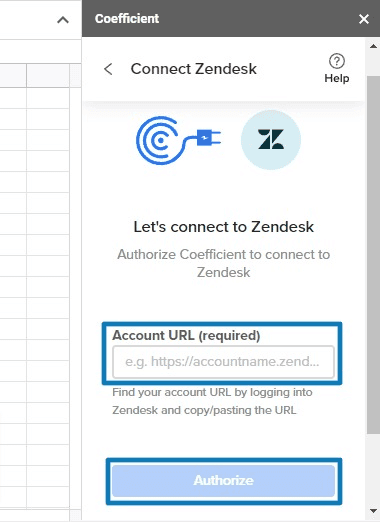
- Connect your Zendesk account (one connection serves your whole team)
- Build your import using the point-and-click interface or select a Saved View
- Schedule automatic refreshes (hourly, daily, or weekly)
Key features
Coefficient adds several capabilities that Google's connector lacks:
- Custom report builder: Create imports from scratch or use existing Zendesk Views
- Automated refreshes: Schedule updates hourly, daily, or weekly
- Data snapshots: Automatically save copies before each refresh for historical tracking
- Slack and email alerts: Get notified when data changes or thresholds are met
- Formula auto-fill: Formulas copy down automatically as new rows arrive
- Google Slides integration: Embed live data directly into presentations
Pricing
| Plan | Price | Key Limits |
|---|---|---|
| Free | $0/month | 3 data sources, 5,000 rows, 50 refreshes/month, manual only |
| Starter | $49/month | 5 accounts, 500 refreshes/month, daily auto-refresh |
| Pro | $99/user/month | Unlimited rows, 5,000 refreshes/month, hourly auto-refresh |
| Enterprise | Custom | Unlimited everything, SSO, dedicated support |
Source: Coefficient Pricing
The free tier is genuinely usable for small projects. Paid plans unlock the automation features that make Coefficient valuable for ongoing reporting. At $49-99/month, it's priced for teams that need reliable data syncing without the enterprise complexity.
Method 3: Zapier automation
Zapier takes a different approach. Instead of bulk data syncing, it focuses on workflow automation: triggering actions in one app based on events in another. This enables true two-way integration between Zendesk and Google Sheets.
How it works
Zapier uses "Zaps" (automated workflows) with a trigger and one or more actions. For Zendesk and Google Sheets, common configurations include:
- New ticket → Add row: Automatically log new Zendesk tickets to a spreadsheet
- New spreadsheet row → Create ticket: Generate Zendesk tickets from form submissions or bulk data
- Ticket update → Update row: Keep spreadsheet records synchronized with ticket status changes
Available triggers and actions
Zendesk triggers: New ticket, updated ticket, new organization, new user Zendesk actions: Create ticket, update ticket, add comment, create user Google Sheets triggers: New spreadsheet row, updated spreadsheet row Google Sheets actions: Create row, update row, find row
Pricing
| Plan | Monthly Price | Annual Price | Key Features |
|---|---|---|---|
| Free | $0 | $0 | 100 tasks/month, 2-step Zaps |
| Professional | ~$30 | $19.99 | Multi-step Zaps, unlimited Premium apps |
| Team | ~$103 | $69 | 25 users, shared Zaps, SAML SSO |
| Enterprise | Custom | Custom | Unlimited users, advanced admin |
Source: Zapier Pricing
Zapier's task-based pricing is important to understand. Each successful action counts as one task. Creating a ticket and then updating a row counts as two tasks. Triggers (checking for new data) are free, but the actions they trigger consume tasks. For high-volume operations, costs can add up fast.
This method excels when you need event-driven automation rather than bulk data sync. If your workflow is "when X happens in Zendesk, do Y in Sheets" (or vice versa), Zapier is the right tool.
Method 4: API and custom scripts
For developers or teams with specific requirements, the Zendesk API combined with Google Apps Script offers maximum flexibility.
The technical approach
Google Apps Script (built into Google Workspace) can make HTTP requests to the Zendesk API. This lets you:
- Query tickets with complex filters
- Bulk create or update tickets from spreadsheet data
- Schedule custom data pulls at any interval
- Transform data before it hits your sheet
Basic authentication
You'll need a Zendesk API token (found in Admin > Channels > API). Apps Script uses this token in request headers:
Authorization: Bearer YOUR_API_TOKEN
Common use case: Bulk ticket creation
A typical script reads rows from a Google Sheet and creates corresponding tickets in Zendesk. This is useful for:
- Migrating data from another system
- Running win-back campaigns
- Processing form submissions in bulk
- Creating tickets from CRM exports
Limitations
This approach requires JavaScript knowledge and ongoing maintenance. Zendesk's API has rate limits (700 requests per minute on most plans), so large operations need throttling. Error handling, authentication management, and script maintenance are your responsibility.
Use this method when you've got specific requirements that off-the-shelf tools can't meet, and you have the technical resources to build and maintain a custom solution.
Method 5: AI-native alternative with eesel AI
Here's a different way to think about the problem. Instead of moving data to spreadsheets for analysis, what if you got the insights directly in Zendesk? That's the approach we take at eesel AI.
How it differs from traditional integration
Traditional integrations focus on data movement: getting information from point A to point B. AI-native tools focus on intelligence: understanding what the data means and delivering actionable insights.
With eesel AI connected to your Zendesk account:
- Automated analysis: The AI reads your tickets, identifies trends, and surfaces insights without manual spreadsheet work
- Simulation mode: Test AI performance on past tickets before going live
- Continuous learning: The system improves as it processes more of your data
- Native integration: Everything happens inside Zendesk; no data export required

When to choose AI over spreadsheets
Spreadsheets make sense when you need raw data for custom analysis or external reporting. AI makes sense when you want:
- Automatic categorization and tagging of tickets
- Identification of emerging issues before they escalate
- Trend detection without building pivot tables
- Predictive insights about support volume and topics
Pricing
| Credits per month | Monthly Price | Key Features |
|---|---|---|
| Free plan: 100 credits | $0 (no card) | Every integration and channel |
| 500 credits | $299 | Unlimited agents and seats |
| 1,000 credits | $499 | Unlimited agents and seats |
| 2,500 credits | $999 | Unlimited agents and seats |
| 5,000 credits | $1,899 | Unlimited agents and seats |
| More than 5,000 | Talk to us | Custom volume |
1 credit = 1 ticket or 1 chat. Paying a year upfront gets you two months free.
Source: eesel AI Pricing
From $299 per month for 500 credits, eesel AI sits between mid-tier automation tools and enterprise platforms. The value proposition isn't just data syncing. It's reducing the manual analysis work that typically happens after syncing.
Comparison: Which Zendesk Google Sheets integration method is right for you?
| Method | Best For | Price | Sync Direction | Technical Level |
|---|---|---|---|---|
| Google Connector | Basic imports, tight budgets | Free | One-way (Zendesk → Sheets) | Beginner |
| Coefficient | Automated reporting, scheduled refreshes | $0-99/month | One-way (Zendesk → Sheets) | Beginner-Intermediate |
| Zapier | Workflow automation, two-way sync | $0-69+/month | Two-way | Intermediate |
| API/Scripts | Custom requirements, bulk operations | Free (development time) | Both | Advanced |
| eesel AI | AI-powered insights, automated analysis | From $299/mo (500 credits) | N/A (works in Zendesk) | Beginner |
Quick recommendations by use case
Weekly executive reporting: Coefficient's automated refreshes and scheduled exports Real-time ticket logging: Zapier's instant triggers Bulk data migration: Custom API scripts or Zapier with careful task planning Trend analysis without manual work: eesel AI's automated insights One-time data export: Google's free connector
Common issues and troubleshooting
Even with the right tool, integrations can hit snags. Here are the most common problems and how to avoid them.
Authentication failures: OAuth tokens expire. If your connection stops working, re-authenticate both sides. Google's connector in particular is prone to this.
Rate limiting: Zendesk limits API calls based on your plan: 200 per minute on Team, 400 on Professional, and 700 on Enterprise. Bulk operations need pacing. Zapier handles this automatically, but custom scripts need built-in delays.
Field mapping errors: Ticket custom fields don't always map cleanly to spreadsheet columns. Test with a small data set before running large imports.
Refresh schedule limitations: Google's 4-hour minimum refresh is hardcoded. If you need faster updates, switch to Coefficient (hourly) or Zapier (near real-time).
Data volume: Large ticket histories can timeout or hit row limits. Consider filtering by date range or ticket status rather than pulling everything.
Getting more from your Zendesk data
Spreadsheets are a stepping stone, not a destination. They help you organize data, but the real value comes from what you do with it.
If you find yourself spending more time building reports than acting on insights, consider whether you're using the right tool for the job. Traditional integrations move data. AI-native tools like eesel AI move understanding.
We built eesel AI because we saw teams drowning in data but starving for insights. The platform connects to your Zendesk account, learns from your tickets and help center, and starts delivering actionable intelligence without spreadsheet gymnastics.
Ready to see what's possible? Try eesel AI free with 100 credits, no card and discover what your support data is actually telling you.