How to embed Zendesk mobile SDK in your app: Complete 2026 guide

Stevia Putri
Last edited February 26, 2026
When your users hit a problem in your mobile app, the last thing you want is for them to leave to find help. Embedding support directly into your app keeps users engaged while giving them the assistance they need. The Zendesk mobile SDK provides a straightforward way to add this capability.

This guide walks you through embedding Zendesk's mobile SDK into your iOS or Android app. Whether you need a simple help center, real-time chat, or full ticket management, we'll cover the steps to get you up and running.
What you'll need
Before diving in, make sure you have the following ready:
- A Zendesk Support or Suite subscription (Suite Team or higher for mobile SDK access)
- An existing iOS app (iOS 14+) or Android app (API 21+)
- Admin access to your Zendesk account for configuration
- Xcode or Android Studio installed
- Basic familiarity with Swift/Objective-C or Kotlin/Java
Step 1: Choose the right Zendesk SDK for your needs
Zendesk offers three main SDK options, and picking the right one depends on what kind of support experience you want to provide.
Zendesk SDK for Messaging (Recommended)
This is Zendesk's modern, unified approach to in-app support. It provides a conversational messaging experience that works consistently across iOS, Android, and web. If you're starting fresh, this is the SDK to use.
Key features include:
- Asynchronous messaging (users can leave and return to conversations)
- AI agent support for automated responses
- Unified conversation history across devices
- Push notification support
Support SDK (Classic)
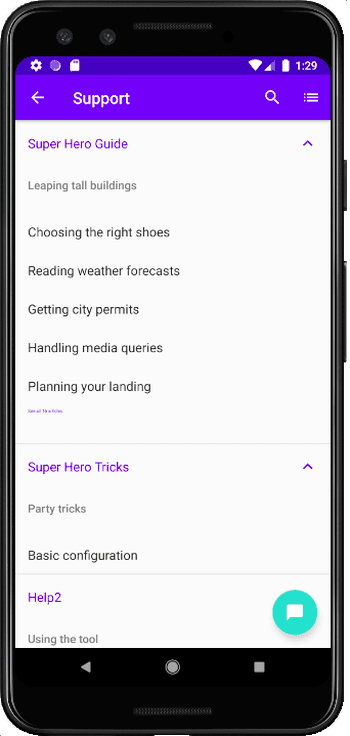
The Support SDK focuses on self-service and ticket creation. It's ideal if you have a robust help center and want users to find answers before contacting you.
Key features include:
- Browse and search help center articles
- Submit support tickets from within the app
- View ticket history and add comments
- Voice-to-text for ticket descriptions
Chat SDK v2
If you need real-time live chat with your support agents, the Chat SDK is what you're looking for. Note that this requires a separate Zendesk Chat subscription.
Key features include:
- Real-time live chat with agents
- Built on the Unified SDK foundation for reliability
- Queue position and wait time indicators
- File sharing within chat
Which one should you choose?
| If you need... | Choose... | Why |
|---|---|---|
| Modern messaging with AI support | Zendesk SDK for Messaging | Best long-term investment, unified experience |
| Self-service focused support | Support SDK | Great for knowledge base-heavy organizations |
| Real-time live chat | Chat SDK v2 | Direct agent interaction, but requires Chat subscription |
Step 2: Register your app in Zendesk Admin Center
Once you've chosen your SDK, you need to register your app in Zendesk before writing any code.
- Log into your Zendesk account and navigate to Admin Center
- Click Channels in the sidebar, then select Classic > Mobile SDK
- Click Add app (or Get Started if this is your first time)
- Enter a name for your app (this is for internal reference only)
- Choose your authentication method:
- Anonymous: Simplest option, users identified by device
- JWT: Secure authentication for identified users with ticket history access
- Copy the channel key and code snippet for your platform
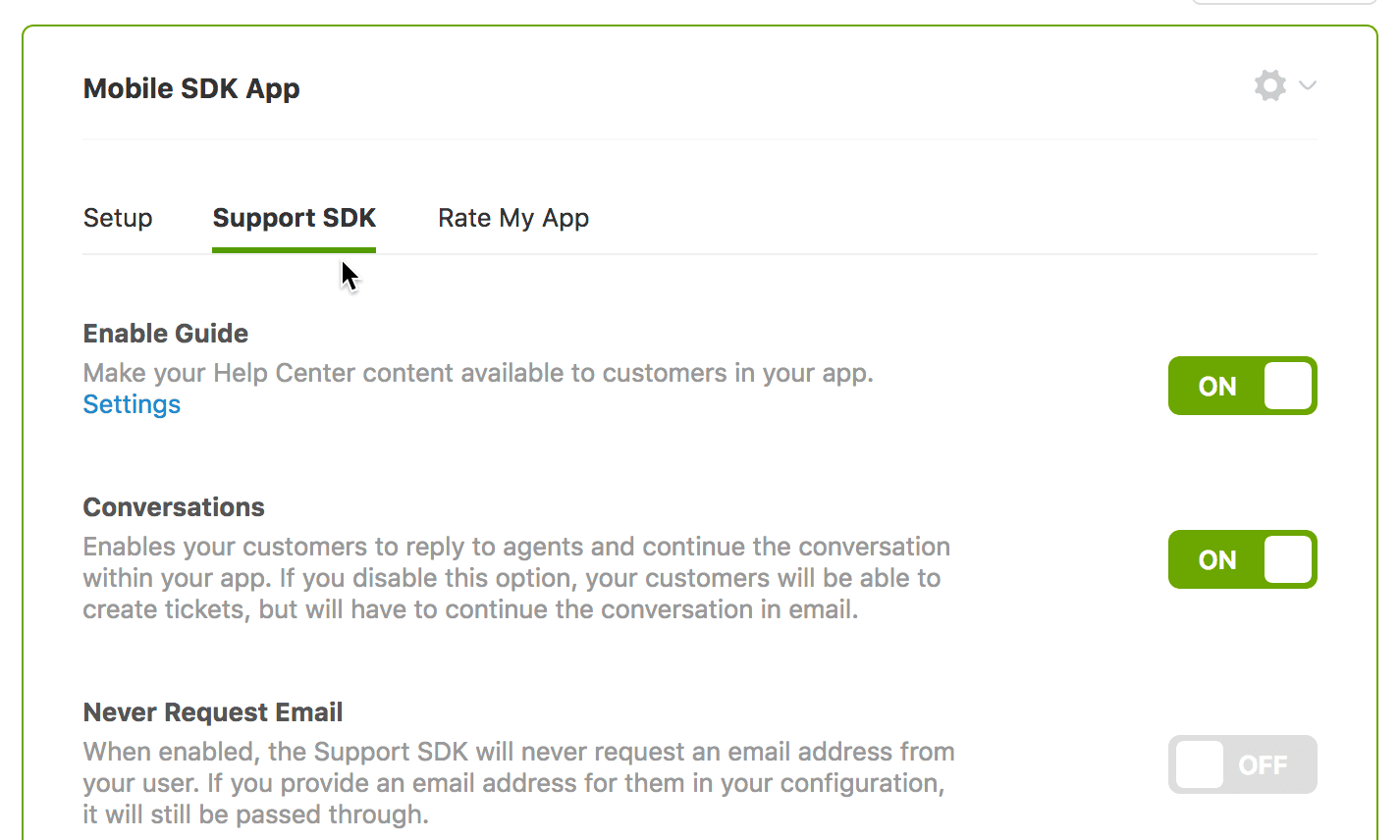
If you selected JWT authentication, you'll need to set up a JWT endpoint on your backend. Zendesk provides detailed documentation on building a dedicated JWT endpoint for secure authentication.
Step 3: Integrate the SDK into your iOS app
With your channel key in hand, it's time to add the SDK to your iOS project.
Installation
The recommended approach is Swift Package Manager:
- In Xcode, select File > Swift Packages > Add Package Dependency
- Add the repository
https://github.com/zendesk/sdk_messaging_ios/ - Follow Xcode's instructions to add ZendeskMessagingSDK as a dependency
Alternatively, you can use CocoaPods by adding this to your Podfile:
pod 'ZendeskSDKMessaging'
Then run pod install.
Basic implementation
Import the SDK and initialize it in your AppDelegate or at app launch:
import ZendeskSDKMessaging
import ZendeskSDK

Zendesk.initialize(withChannelKey: "<your_channel_key>",
                   messagingFactory: DefaultMessagingFactory()) { result in
    if case let .failure(error) = result {
        print("Messaging did not initialize. Error: \(error.localizedDescription)")
    }
}
To show the messaging interface from a view controller:
if let viewController = Zendesk.instance?.messaging?.messagingViewController() {
    self.navigationController?.show(viewController, sender: self)
}
Required permissions
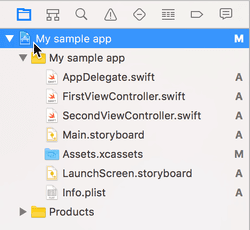
Add these keys to your Info.plist to enable camera, microphone, and photo library access:
NSCameraUsageDescription- for capturing images and videosNSMicrophoneUsageDescription- for recording video with audioNSPhotoLibraryUsageDescription- for accessing photos
Step 4: Integrate the SDK into your Android app
The Android integration follows a similar pattern with some platform-specific differences.
Installation
First, add the Zendesk Maven repository to your settings.gradle.kts:
repositories {
    maven {
        url = uri("https://zendesk.jfrog.io/artifactory/repo")
    }
}
Then add the dependency to your build.gradle.kts:
dependencies {
    implementation("zendesk.messaging:messaging-android:<latest_version>")
}
Check the Android release notes for the latest version.
Basic implementation
Initialize the SDK in your Application class:
Zendesk.initialize(
    context = this,
    channelKey = "<your_channel_key>",
    successCallback = { zendesk ->
        // SDK initialized successfully
    },
    failureCallback = { error ->
        // Handle initialization error
    },
    messagingFactory = DefaultMessagingFactory()
)
To show the messaging interface from an Activity:
Zendesk.instance.messaging.showMessaging(context)
The SDK automatically adds the necessary internet and network permissions to your manifest.
Step 5: Configure user authentication
Authentication determines how users are identified and what data they can access.
Anonymous authentication
This is the simplest approach. Users are identified by their device, and each installation creates a unique user record in Zendesk. There's no backend setup required, but users won't be able to see their ticket history if they switch devices or clear app data.
JWT authentication
For a more robust experience, JWT authentication lets you securely identify users and give them access to their full ticket history across devices.
To implement JWT:
-
Set up a JWT endpoint on your backend that generates tokens with four required fields:
iat(issued at timestamp)jti(unique token ID)name(user's display name)email(user's email address)
-
Provide the JWT endpoint URL to Zendesk in the Mobile SDK settings
-
In your app, obtain a JWT token from your backend before initializing the Zendesk SDK
A common mistake is missing one of the four required JWT fields. Double-check your payload if authentication fails.
For serverless implementations, you can use Firebase Cloud Functions or AWS Lambda to host your JWT endpoint. This avoids maintaining dedicated backend infrastructure.
Step 6: Customize the in-app experience
Once the basic integration works, you can tailor the experience to match your brand.
Branding options
In your Zendesk Admin Center, you can customize:
- Colors to match your brand
- Logo and launcher icon
- Welcome messages and automated responses
Feature configuration
You can enable or disable specific features:
- Help Center article browsing
- Ticket creation
- Conversation history
- File attachments
Push notifications
To notify users of new responses when your app is closed, set up push notifications:
- iOS: Upload your APNs certificate to Zendesk and implement the push notification delegate methods
- Android: Configure Firebase Cloud Messaging and provide your server key to Zendesk
Common integration challenges and solutions
Even with clear documentation, you might run into a few hurdles. Here's how to handle the most common ones.
App size impact The Zendesk SDK adds approximately 7.5 MB to your app size. For iOS, app thinning and bitcode stripping reduce the actual impact. On Android, ProGuard or R8 minification helps shrink the final size.
ProGuard/R8 configuration If you're using ProGuard or R8 on Android, you may need to add keep rules for Zendesk classes. Check the SDK documentation for the latest recommended rules.
Push notification conflicts If your app already uses push notifications, make sure your notification handling code differentiates between Zendesk messages and your own notifications. Both iOS and Android SDKs provide methods to check if a notification originated from Zendesk.
Migration from Classic SDKs If you're upgrading from older SDK versions, Zendesk provides dedicated migration guides for both iOS and Android. The new SDK uses a different initialization pattern, so plan for some refactoring time.
Testing in development Create a separate Zendesk sandbox or use a staging environment for development. This prevents test tickets from polluting your production support queue.
Alternative: eesel AI for in-app support
While Zendesk's mobile SDK is a solid choice for traditional support workflows, it's worth considering modern alternatives. At eesel AI, we take a different approach to in-app support.

Instead of routing users to human agents or static help articles, our AI chatbot handles conversations autonomously. It learns from your existing documentation, past tickets, and knowledge base to provide instant, accurate responses. When a situation requires human intervention, the AI seamlessly hands off to your team with full context.
The setup is straightforward: connect your knowledge sources, embed the chat widget, and the AI starts learning immediately. There's no complex SDK integration or authentication endpoint to build. We handle the heavy lifting while you focus on your product.
If you're looking for an AI-first approach to mobile support, explore our integrations to see how we connect with your existing tools.
Start building better in-app support today
Embedding customer support directly in your mobile app creates a better experience for users and reduces friction when they need help. With Zendesk's mobile SDK, you can provide help center access, ticket creation, or real-time chat without users ever leaving your app.
The steps are clear: choose your SDK, register your app in Zendesk Admin Center, integrate the SDK for your platform, configure authentication, and customize the experience. Each step builds on the previous one, and within a few hours you can have a working support experience.
For detailed technical documentation, refer to the Zendesk developer docs. The iOS getting started guide and Android documentation cover platform-specific implementation details. If you run into issues, their support team and community forums are solid resources.
And if you're curious about an AI-powered alternative that can resolve up to 81% of inquiries without human intervention, check out eesel AI's AI chatbot. We offer a Zendesk integration that works alongside your existing support infrastructure, giving you modern AI capabilities without replacing what you've already built.


Frequently Asked Questions
Share this article

Article by
Stevia Putri
Stevia Putri is a marketing generalist at eesel AI, where she helps turn powerful AI tools into stories that resonate. She’s driven by curiosity, clarity, and the human side of technology.