
Conversation tags are one of the most underutilized features in Zendesk messaging. When set up correctly, they can transform how your support team categorizes, routes, and analyzes customer interactions. Whether you're trying to identify which product pages generate the most support requests or route VIP customers to specialized agents, conversation tags make it possible. For teams looking to enhance their Zendesk setup with AI, eesel AI offers a complete customer service solution that works seamlessly with your existing help desk.
This guide covers everything you need to know about setting up and using Zendesk messaging conversation tags. We'll explore the technical implementation, common use cases, and how to integrate tagging with AI-powered workflows to automate your support operations.
What you'll need
Before diving in, make sure you have the following in place:
- A Zendesk account with messaging enabled (Suite Team plan or higher)
- Administrator access to configure tags and custom fields
- Basic familiarity with Zendesk's Admin Center
- Developer resources if you plan to implement the API (optional but recommended)
- Understanding of Zendesk chat tags if migrating from classic chat
If you're still using Zendesk's legacy live chat, you'll want to migrate to messaging first. The tagging system described here only works with the newer messaging platform.
Understanding classic chat vs. messaging tags
If you've been using Zendesk for a while, you might remember the old chat tagging system. The migration to messaging brought significant changes worth understanding.
Classic chat tags were added manually by agents during conversations or through JavaScript API calls using zE('webWidget', 'chat:addTags', ['tag']). These tags were straightforward but limited in flexibility.
Messaging conversation tags use a completely different API structure: zE('messenger:set', 'conversationTags', ['tag']). They work alongside conversation fields (custom ticket fields) to provide structured metadata about each interaction.
The key difference is timing. In classic chat, tags were applied immediately. In messaging, tags and fields are only applied when the user starts a conversation or sends a message. This async behavior trips up many developers during implementation.
Another important change: messaging tags are cleared when users log out or when you call the reset widget API. This is actually a feature, not a bug, as it ensures fresh context for each authenticated session.
How to set up conversation tags in Zendesk
Enable tags in Admin Center
Start by configuring your tag management settings in Zendesk.
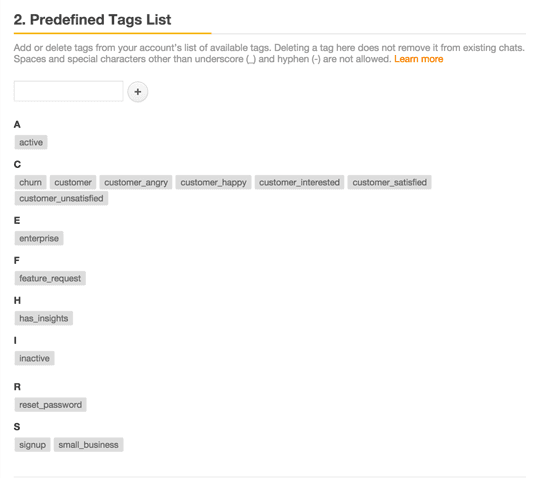
Navigate to Admin Center > Objects and rules > Tickets > Tags. This is where you'll create your predefined tag list and configure creation permissions.
The predefined tags list contains all tags available to your agents. Only administrators can add or remove tags from this list. However, you can enable the "Allow Tag Creation" setting to let administrators create new tags on the fly during chat sessions or when building shortcuts.
Here's the recommended approach for most teams:
- Define your core tag taxonomy before enabling tag creation
- Start with a limited set of tags (5-10) covering your main categories
- Enable tag creation for administrators only
- Review and consolidate tags monthly to prevent sprawl
Updates to the predefined tags list take effect in real-time. Agents see new tags immediately without needing to refresh or log out.
Create custom conversation fields
Tags are great for categorization, but conversation fields add structured data to your tickets. Think of tags as labels and fields as form data.
For example, you might use:
- Tags:
refund_request,vip_customer,technical_issue - Fields:
Order ID(text),Product Category(dropdown),Priority Level(dropdown)
To create a conversation field:
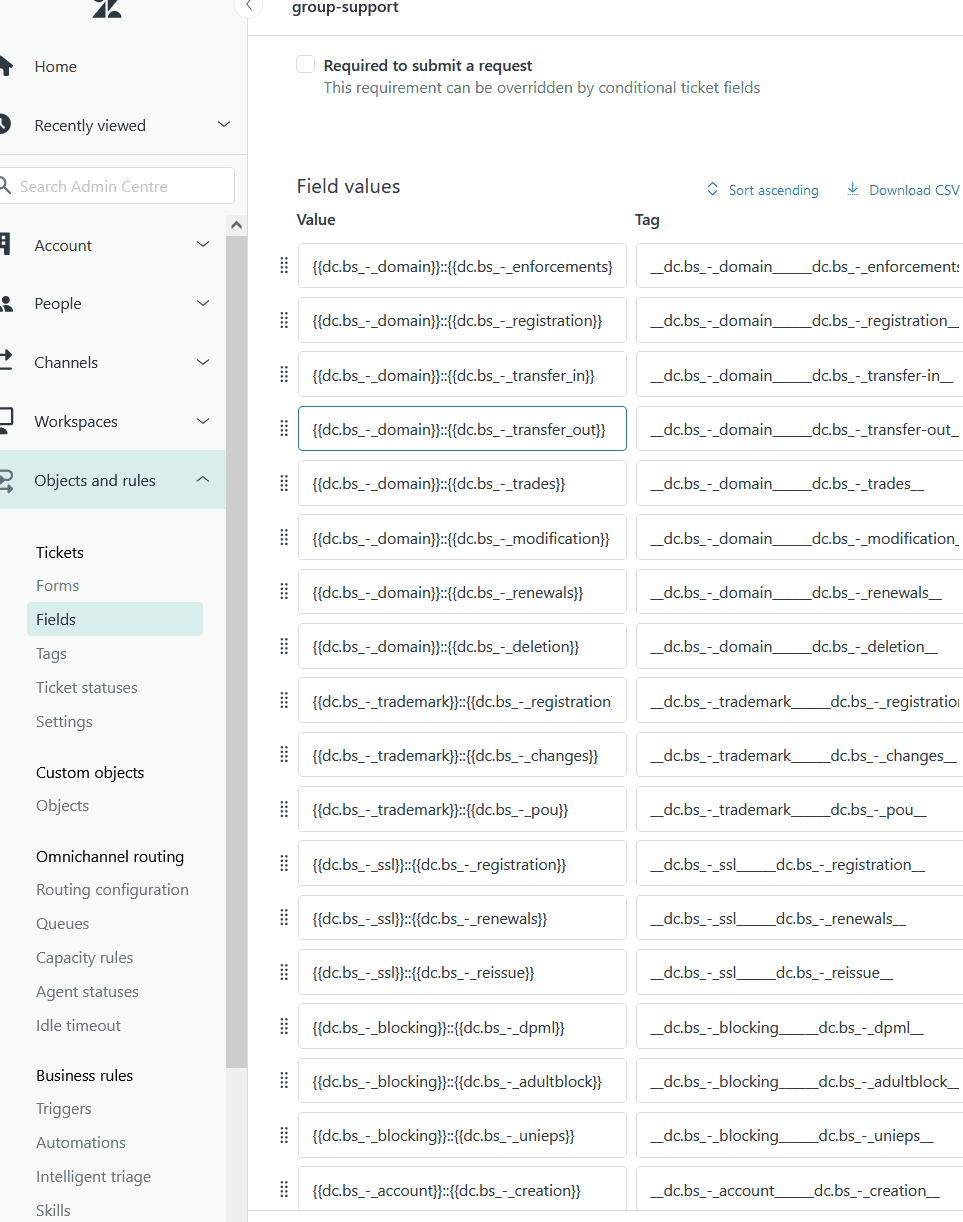
- Go to Admin Center > Objects and rules > Tickets > Fields
- Click Add field and select your field type
- Configure permissions to "Customers can edit" (this is required for API access)
- Save the field ID - you'll need it for the API
Important limitation: System fields like Priority aren't supported as conversation fields. Only custom ticket fields work with the messaging metadata API.
Add tags using Web Widget API
Now for the technical implementation. The JavaScript API for setting conversation tags is straightforward:
zE('messenger:set', 'conversationTags', ['promo_spring2026', 'returning_customer']);
Place this code on any page where you want to tag conversations. Common placements include:
- Product pages (tag with SKU or category)
- Checkout flow (tag with order information)
- Campaign landing pages (tag with UTM parameters)
- Account dashboards (tag with customer tier)
Critical timing note: The tags aren't applied immediately when you call the API. They're only attached to the ticket when the user actually starts a conversation or sends a message. This confuses many developers who expect immediate results.
You can verify tag application by checking the ticket in Zendesk after the conversation starts. The tags appear in the ticket's tag list alongside any other tags applied by triggers or automations.
Pass conversation fields via API
Setting conversation fields follows a similar pattern but requires the field ID:
zE('messenger:set', 'conversationFields', [
  { id: '123456789', value: 'SKU-12345' },
  { id: '987654321', value: 99.99 }
]);
The field ID must be a string, and the value can be a string, number, or boolean. For dropdown fields, use the tag value associated with the option you want to select.
Clearing fields when context changes is equally important:
zE('messenger', 'clearConversationFields');
zE('messenger', 'clearConversationTags');
Call these methods when users navigate away from a product page, log out, or switch contexts in your application.
Note on custom fields: Custom fields used for messaging metadata must be created as custom ticket fields first and configured to allow end-user input. These fields appear in the conversation details panel for agents to view, but are not visible to end users during the chat.
Implement in mobile SDKs
The same functionality extends to mobile apps through Zendesk's SDKs.
iOS (Swift):
Zendesk.instance.setConversationTags(["vip_customer", "ios_app"])
Zendesk.instance.setConversationFields(["field_id": "field_value"])
Android (Kotlin):
val tags = listOf("vip_customer", "android_app")
Zendesk.instance.setConversationTags(tags)

val fields = mapOf("123456789" to "value")
Zendesk.instance.setConversationFields(fields)
Unity:
var tags = new List<string>() {"vip_customer", "unity_game"};
ZendeskSdk.Instance.Messaging.SetConversationTags(tags);
The mobile implementations follow the same timing rules as the web widget. Tags apply when users start conversations, not immediately upon API call. For more details on implementing messaging across platforms, refer to the Zendesk developer documentation and Zendesk messaging best practices.
Common use cases and best practices
Use cases
Conversation tags shine in these scenarios:
Product page context: Pass SKU, category, or product name so agents know exactly what customers are asking about. This eliminates the "Which product are you referring to?" back-and-forth.
Customer segmentation: Tag customers by tier (VIP, enterprise, free trial) to trigger different routing rules or agent assignments.
Campaign tracking: Add UTM parameters or campaign IDs to measure which marketing efforts generate support requests.
Issue categorization: Pre-tag conversations based on the page URL (billing, technical docs, account settings) to route to specialized teams.
Proactive support: Tag based on behavior (cart_abandoner, frequent_returner) to trigger targeted AI agent responses.
Best practices
Naming conventions: Use lowercase with underscores (billing_issue) rather than spaces or camelCase. This prevents duplicate tags like "Billing Issue" and "billing issue."
Tag hierarchy: Create a simple taxonomy. For example:
- Product tags:
prod_ecommerce,prod_mobile_app - Issue tags:
issue_payment,issue_login,issue_feature - Priority tags:
p1_critical,p2_high,p3_normal
When to use fields vs. tags: Use fields when you need structured data for reporting or routing rules. Use tags for flexible categorization that might evolve over time.
Maintenance: Review your tag list monthly. Remove unused tags and consolidate duplicates. A messy tag system is worse than no system at all.
Troubleshooting common issues
Tags not appearing on tickets: This usually happens because the conversation hasn't started yet. Remember, tags only apply when users send messages, not when you call the API.
Tags disappearing: Check if you're calling the authentication logout API or reset widget method. Both clear conversation metadata by design.
Field permission errors: Ensure custom fields have "Customers can edit" permission enabled. Without this, the API can't set values.
Migration from classic chat: The API syntax is completely different. Update all your code from zE('webWidget', 'chat:addTags') to zE('messenger:set', 'conversationTags').
Timing issues: If you need tags applied immediately when a conversation opens, set them as early as possible in the page lifecycle, ideally before the user can click the widget.
Using conversation tags with eesel AI
This is where conversation tags become particularly powerful. When you combine Zendesk's tagging system with an AI teammate like eesel AI, you can automate complex workflows that would otherwise require manual routing rules.
How tags enable intelligent routing
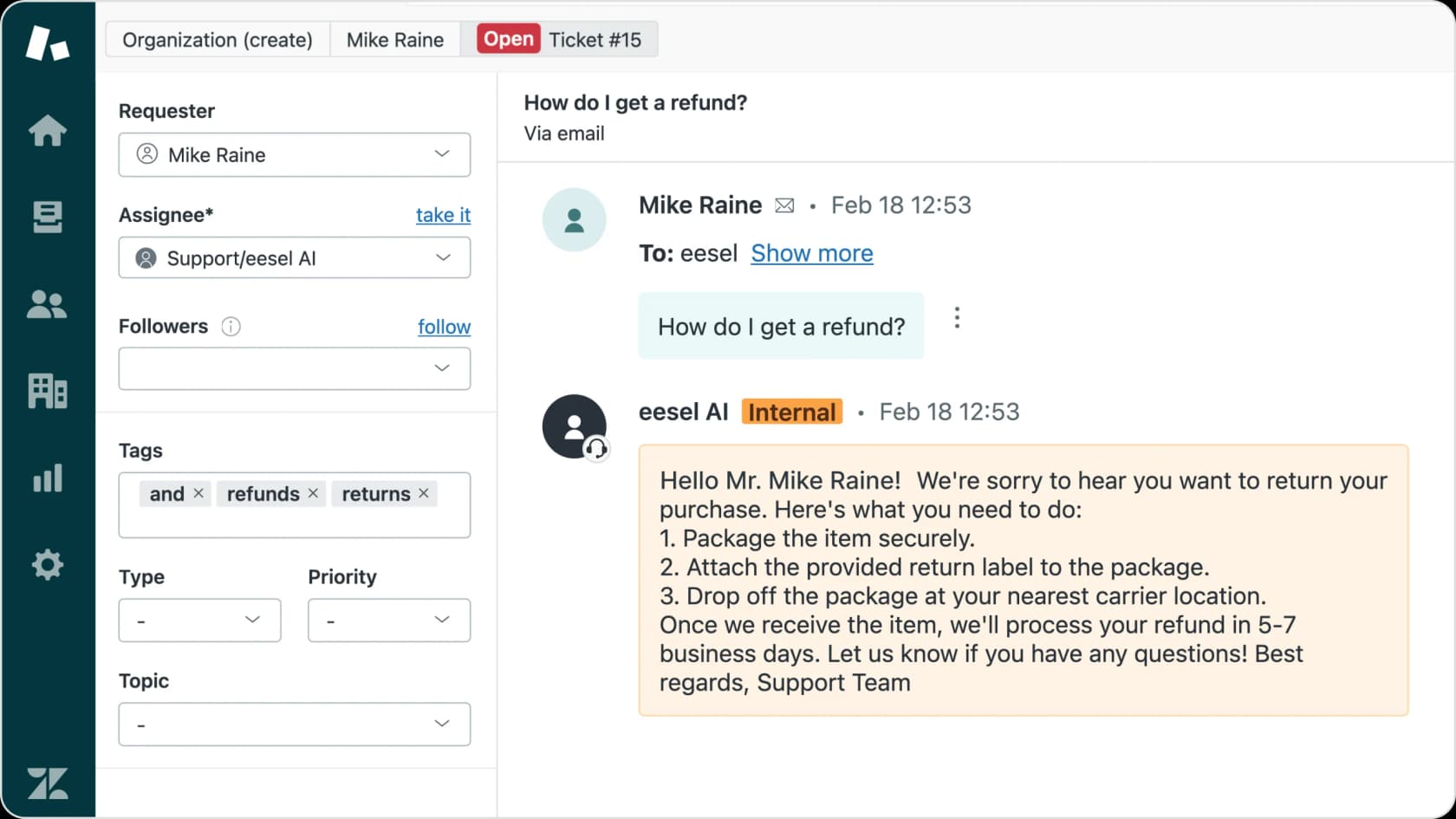
eesel AI reads your conversation tags and makes intelligent decisions about how to handle each ticket. Instead of building complex trigger rules in Zendesk, you describe your workflow in plain English:
- "If the tag is
vip_customer, assign to the Enterprise Support team" - "If tags include
billing_dispute, escalate to a human immediately" - "If the tag is
spam, close the ticket and don't respond"
The AI understands context, so it can handle nuanced situations that traditional automation rules struggle with.
Automated tagging with eesel AI Triage
Rather than relying solely on your JavaScript implementation, eesel AI Triage can automatically tag incoming tickets based on content analysis. The AI reads the conversation and applies relevant tags like urgent, refund_request, or technical_bug without any manual work.
This is especially useful for:
- Email tickets where you can't pre-tag via the widget
- Social media messages that bypass your website
- Conversations started by agents where context might be missed
Setting escalation rules based on tags
One of the most powerful workflows combines pre-set conversation tags with AI-driven escalation. For example:
- Your website tags conversations with
order_value:highfor carts over $500 - eesel AI reads this tag and immediately escalates to your premium support queue
- The customer gets faster service without any manual routing
This kind of dynamic routing based on conversation tags and AI understanding is hard to achieve with Zendesk's native automation alone.
Start organizing your Zendesk conversations with smart tagging
Conversation tags in Zendesk messaging give you a flexible way to categorize and route customer interactions. When implemented correctly, they provide the context agents need to resolve issues faster and the data you need to optimize your support operations.
The setup process involves three main steps: configure your tag taxonomy in Admin Center, implement the JavaScript or mobile SDK APIs to pass context from your app, and build workflows that use that context for routing and reporting.
For teams looking to take this further, combining Zendesk's tagging system with AI-powered triage opens up new possibilities. Instead of manually routing tickets or building complex trigger logic, you can describe your workflow in plain English and let AI handle the rest.
If you're interested in exploring how AI can automate your tag-based workflows, eesel AI integrates directly with Zendesk to provide intelligent triage, automated tagging, and smart escalation based on conversation context. You can try it free for 7 days and see how it works with your existing Zendesk setup.
Beyond triage and tagging, eesel AI offers AI Copilot for drafting replies, an AI Chatbot for your website, and over 100 integrations with popular business tools. Visit our pricing page to explore plans that fit your team's needs.