How to use Zendesk messaging bot templates with Sunshine Conversations

Stevia Putri
Last edited February 26, 2026
Messaging form templates in Zendesk let you collect structured information from customers without forcing them to type everything out. Instead of asking visitors to describe their issue in a text box, you can present them with dropdowns, date pickers, and predefined options. The result is faster resolution times and cleaner data for your support team.

This guide walks through setting up Zendesk messaging bot templates using Sunshine Conversations, the underlying platform that powers modern Zendesk messaging experiences. You will learn how to create different template types, add them to conversation flows, and apply best practices that keep customers engaged. For teams that want to skip the technical configuration entirely, we will also look at how eesel AI handles data collection conversationally without any template setup.
What you'll need
Before you start building templates, make sure you have the right Zendesk plan and features enabled:
| Requirement | Plan | Notes |
|---|---|---|
| Zendesk AI Agents | Suite Team or higher | Essential AI agents included; Advanced add-on required for structured message templates |
| Messaging | Included in Suite | Must be enabled for your account |
| Sunshine Conversations | Suite Professional+ | Required for structured message templates |
| Admin access | Any | Need permissions to access AI agents - Advanced add-on |
If you are on Suite Team, you can use basic AI agents but will need to upgrade to Suite Professional and add the Advanced AI agents add-on to access structured message templates. The add-on pricing requires contacting Zendesk sales.
Understanding Zendesk messaging template types
Zendesk offers several template types depending on what you are trying to accomplish. Picking the right one upfront saves you from rebuilding later.
Form templates
Form templates present customers with structured input fields: email addresses, text boxes, and dropdown selections. These work well for lead capture, support request categorization, or any scenario where you need specific data points before routing to an agent.
Each form field is limited to 130 characters, and Zendesk recommends keeping forms to five fields or fewer for the best user experience. Form templates also support an optional "block messaging input" setting that prevents customers from continuing the conversation until they have completed the form.
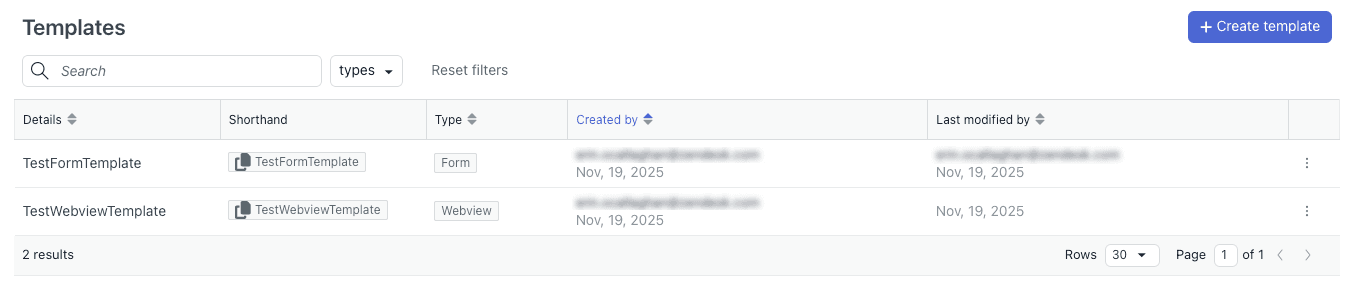
Webview templates
Webview templates embed external websites directly within the messaging widget. Use these when you need more complex forms than Zendesk's native options allow, or when you want to direct customers to an existing form or application without making them leave the conversation.
The webview displays a single primary website with one fallback URL available. For dynamic webviews that change based on customer data, you will want to use the "Add a webview" CRM action instead of templates.
Custom/JSON templates
Rich messages include carousels, quick replies, buttons, and list templates. These are ideal for product showcases, guided troubleshooting flows, or any interaction where you want to present options visually rather than asking customers to type responses.
Carousel templates display up to 10 scrollable items, each with an image, title, description, and up to three action buttons. Quick replies present up to 11 predefined response buttons that customers tap instead of typing.
Step 1: Access the template configuration
To create structured message templates, you first need to access the AI agents - Advanced add-on.
- Click the Zendesk products icon in the top navigation bar
- Select AI agents from the dropdown menu
- Choose the AI agent you want to work with from the top-right dropdown
- Click Settings in the sidebar, then select CRM Integration
- Click the Templates tab
Step 2: Create a form template
Once you are in the Templates section, you can start building your first form.
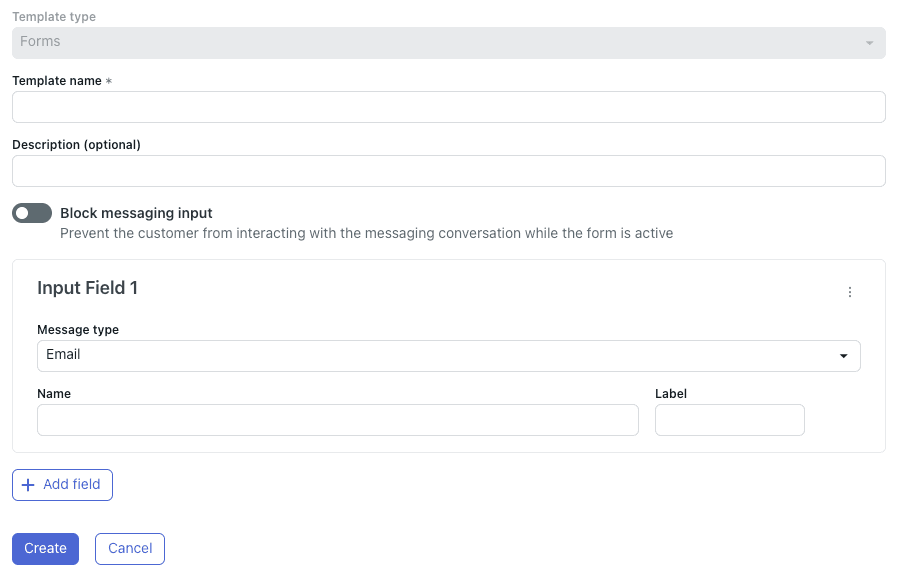
- Click Create your first template (or Create template if you have made one before)
- Select Forms from the template type options
- Enter a Template name using only letters, numbers, hyphens, and underscores (no spaces)
- Add an optional Description to help your team understand the template's purpose
- Enable Block messaging input if you want to prevent customers from typing until they complete the form
- Under Input Field, select the Message type: Email, Text, or Select
- Enter the Name (variable name for data capture) and Label (what customers see)
- For Select fields, click Add option and enter option names and labels
- Click Add field to include additional fields (remember: keep it to five or fewer)
- Click Create to save your template
Step 3: Add templates to conversation flows
After creating a template, you need to add it to an AI agent dialogue so it actually appears to customers.
- Navigate to your AI agent's dialogue builder
- Open the dialogue where you want to use the template
- Add a Send structured message action at the appropriate point in the flow
- Select your created template from the dropdown
- Configure any conditional logic for when the template should appear
- Save the dialogue and test it in the preview mode
- Publish when you are satisfied with the experience
Template best practices
Templates can improve the customer experience, but only if implemented thoughtfully. Here are some guidelines we have found work well:
- Keep forms short: Stick to five fields or fewer. Every additional field reduces completion rates.
- Use clear labels: Avoid jargon. "What is your email address?" beats "Primary contact identifier."
- Test across devices: Preview templates on mobile and desktop to ensure they display correctly.
- Consider fallbacks: Not all channels support all template types. Have a text-based backup ready.
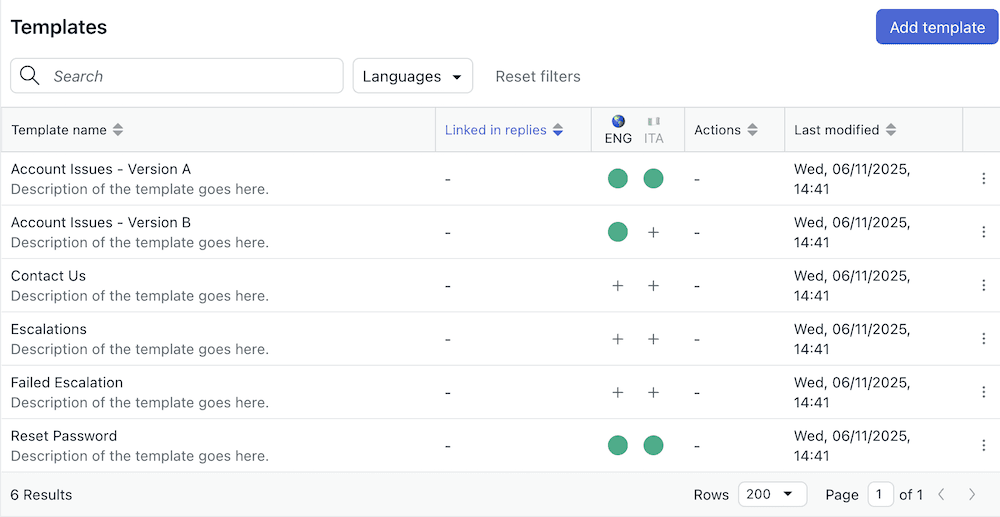
- Document your templates: Add descriptions so other admins understand when to use each template.
Alternative: Third-party template apps
If Zendesk's native templates feel limiting, the Interactive Messaging Templates app by Zenplates adds additional capabilities. This app enables:
- Carousels with up to 10 scrollable items
- Quick replies and rich links for Apple Messages for Business
- List pickers and time pickers
- Form messages with multipage flows
- Template shortcodes for easier bot workflow integration
The app requires Zendesk Suite Professional or higher and an active Sunshine Conversations license. Pricing varies based on your Zendesk plan and usage.
Simplifying messaging with eesel AI
Templates work well for structured data collection, but they require upfront configuration and ongoing maintenance. Every new use case means building a new template, testing it, and updating it when your processes change.

We take a different approach at eesel AI. Instead of pre-built templates, our AI learns from your existing support data: past tickets, help center articles, macros, and any connected documentation. It understands your business context and tone from day one, then handles data collection conversationally.
Here is how it works:
- No template configuration: The AI asks follow-up questions naturally based on what the customer says, not predefined form fields.
- Progressive rollout: Start with the AI drafting replies for your agents to review. Once you are confident in its performance, let it respond directly to customers.
- Plain English instructions: Define escalation rules and behavior in natural language. "If the refund request is over 30 days, politely decline and offer store credit" actually works.
- Simulation testing: Run the AI on thousands of past tickets before going live. See exactly how it would respond and measure resolution rates.
Our customers typically see up to 81% autonomous resolution rates with a payback period under two months. If you are interested in exploring a different approach to automated support, you can try eesel AI for free or book a demo to see it in action.
Start creating better customer interactions
Zendesk messaging bot templates give you a structured way to collect customer information and guide conversations. Whether you use native form templates, webviews for complex interactions, or third-party apps for richer messaging, the key is matching the template type to your specific use case.

Start with simple form templates for lead capture and basic data collection. Expand to webviews when you need more complex interactions. And if you find yourself building dozens of templates to handle every possible scenario, consider whether a conversational AI approach might simplify your workflow.
Ready to explore an alternative to template-based automation? See how eesel AI works with Zendesk to handle support conversations without the configuration overhead.


Frequently Asked Questions
Share this article

Article by
Stevia Putri
Stevia Putri is a marketing generalist at eesel AI, where she helps turn powerful AI tools into stories that resonate. She’s driven by curiosity, clarity, and the human side of technology.



