How to copy and duplicate Zendesk Guide themes

Stevia Putri
Last edited February 25, 2026
Editing your live help center theme is like performing surgery on a patient that's awake. One wrong move and your customers see broken layouts, missing images, or formatting errors. That's why smart Zendesk admins always work on copies.
This guide walks you through everything you need to know about copying and duplicating Zendesk Guide themes. You'll learn the quick copy method for same-brand changes, the download/upload approach for cross-brand migration, and best practices to keep your help center looking professional.
What you'll need
Before you start copying themes, make sure you've got:
- A Zendesk account with Guide Professional or Enterprise (theme copying isn't available on lower tiers)
- Guide admin permissions
- A basic understanding of the difference between themes (the visual design) and content (your articles and categories)
- Optional but helpful: some familiarity with HTML and CSS if you plan to edit code
If you're not sure which plan you've got, check with your Zendesk admin or look for the "Customize design" option in your Guide admin sidebar. If it's not there, you'll likely need a plan upgrade.
Step 1: Access your themes page
Everything starts in the Guide admin interface. Here's how to get there:
- Log into your Zendesk account
- Click the Guide icon in the top navigation
- In the sidebar, click Customize design
- The Themes page opens, showing all your available themes
You'll see your current live theme at the top, marked with a "Live" badge. Below that are any draft themes you've created or copied. Zendesk allows up to 10 themes total, which gives you plenty of room for backups, test versions, and seasonal variations.
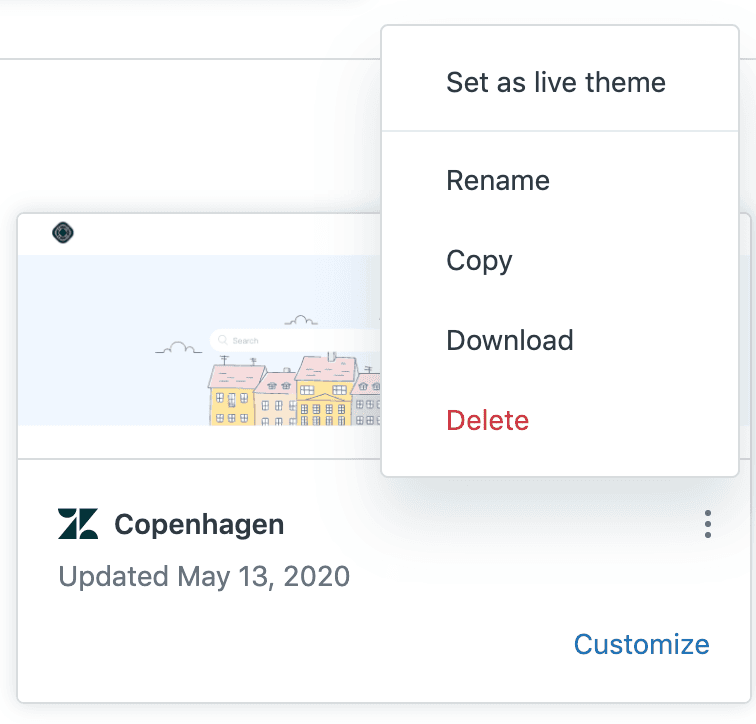
Take a moment to familiarize yourself with the layout. Each theme card shows a thumbnail preview, the theme name, and when it was last updated. The options menu (three dots) is where you'll find the copy function. For more details, see Zendesk's guide on managing help center themes.
Step 2: Copy your theme
Now for the main event. Copying a theme takes about 10 seconds:
- Find the theme you want to duplicate on the Themes page
- Hover over the theme card
- Click the options menu (three vertical dots)
- Select Copy from the dropdown
- The page refreshes and your copied theme appears in the list
Zendesk automatically names the copy "Copy of [Original Theme Name]" and sets it as a draft. This means it's safe to edit, customize, and preview without any risk to your live help center.
The copy includes everything: all templates, CSS files, JavaScript, images, and custom code. It's an exact duplicate at the moment of copying. From there, the two themes become independent. Changes to one won't affect the other.
Pro tip: Copy your live theme before making any changes, even small ones. It's free insurance against mistakes.
Step 3: Rename your copied theme
"Copy of Copenhagen" isn't very descriptive. Good naming helps you stay organized, especially when you have multiple themes. Here's how to rename:
- Hover over the copied theme
- Click the options menu
- Select Rename
- Type a new name
- Press Enter to save
Use a naming convention that works for your team. Some popular approaches:
- Version-based: Copenhagen_v2, Copenhagen_v3
- Date-based: Copenhagen_March2026, Copenhagen_Q1_2026
- Purpose-based: Copenhagen_Backup, Copenhagen_HolidayTheme, Copenhagen_Test
- Hybrid: Copenhagen_v2_March2026
The key is consistency. When you've got 6 themes and need to find the backup quickly, you'll thank yourself for clear naming.
Step 4: Edit your copied theme safely
With your theme copied and renamed, it's time to make changes. Click Customize on your copied theme to open the theme editor.
The editor has two modes:
Visual customization lets you adjust colors, fonts, logos, and basic branding without touching code. It's perfect for quick updates and non-technical users.
Edit code opens the full theme files where you can modify HTML templates, CSS stylesheets, and JavaScript. This is where the real power lies for advanced customization. Learn more in Zendesk's documentation on editing theme code.
Here's the safe editing workflow:
- Make your changes in the copied theme
- Click Save regularly (you must save before previewing)
- Click Preview to see changes in a new tab
- Test thoroughly: check different page types, user roles, and devices
- Only publish when you're completely satisfied
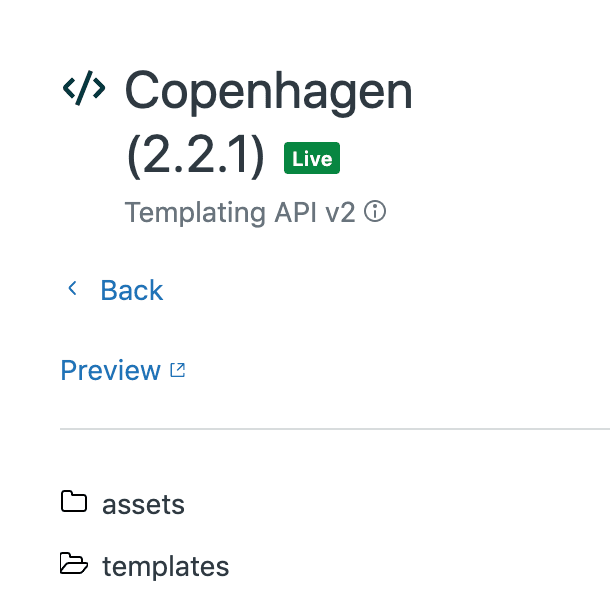
Important: If you're editing the live theme directly (not recommended), you must click Publish to preview changes. That's why copying first is so valuable. You can preview without making anything public.
Step 5: Set your updated theme live
Once your copied theme is ready, making it live is straightforward:
- Return to the Themes page
- Find your updated theme (the copy you've been editing)
- Click the options menu
- Select Set as live theme
- Confirm when prompted
The theme immediately moves to the top of the page with the "Live" badge. Your help center updates within seconds. The previous live theme becomes a draft, so you can always roll back if needed. See Zendesk's guide on changing live themes for more information.
What happens to the old theme? It stays in your themes list as a draft. Many admins keep the previous version for a few days as a backup, then delete it to stay organized.
Alternative method: Download and upload themes
Sometimes you need to move a theme between brands or keep an external backup. That's where download/upload comes in.
To download a theme:
- On the Themes page, click the options menu
- Select Download
- Save the ZIP file to your computer
To upload a theme:
- Click Add theme on the Themes page
- Select Upload theme
- Choose your ZIP file
- Name the theme and click Add
This method works across brands, but there's a catch. When you upload a theme to a different brand, some customizations may not transfer. Guide admin settings, custom fields, and certain brand-specific configurations stay behind.
Best practice: Before migrating themes between brands, document all your customizations. Take screenshots of settings, note any custom fields, and keep a list of modifications. You'll need to reapply these manually after upload.
Understanding the cross-brand customization issue
Let's talk about why theme copying between brands sometimes disappoints. When you download and upload a theme, you're transferring the base files: templates, CSS, JavaScript, and assets. But themes don't exist in isolation.
What transfers:
- HTML templates and Curlybars code
- CSS stylesheets and SCSS files
- JavaScript files
- Images and fonts in the theme assets
- Basic theme structure
What doesn't transfer:
- Guide admin settings (colors set in the visual editor)
- Custom ticket fields referenced in templates
- Brand-specific variables
- Some third-party integrations configured per brand
This is why a theme might look perfect in Brand A but broken in Brand B. The templates are there, but the underlying data they reference isn't.
How to handle it:
- Document all Guide admin customizations before migration
- Export settings where possible
- Plan time to reconfigure the visual settings after upload
- Test every page type and template after migration
- Keep the original brand's theme as reference until everything works
Best practices for theme management
After working with dozens of help centers, here are the habits that separate organized admins from chaotic ones:
Keep a "golden master" backup. Always have one untouched copy of your live theme. If something goes wrong, you've got a clean starting point.
Use consistent naming. Pick a convention and stick with it. Your future self (and your teammates) will thank you.
Document everything. Keep a running list of customizations, third-party scripts, and special modifications. A simple shared doc works wonders.
Test before going live. Preview isn't enough. Click through every major page type, test search, submit a ticket, and view on mobile.
Limit your theme count. Zendesk allows 10 themes, but that doesn't mean you should use them all. Too many themes create confusion. Delete old versions you no longer need.
Version control for code. If you're doing heavy customization, consider keeping theme files in GitHub or another version control system. It makes tracking changes and collaborating much easier.
Regular cleanup. Once a quarter, review your themes list. Delete outdated backups and consolidate test versions.
Troubleshooting common issues
Even simple processes hit snags. Here's how to handle the most common problems:
Copy option doesn't appear. Check your permissions. You'll need Guide admin rights to copy themes. If you're an agent or light agent, you won't see the option.
Theme won't set as live. This usually means there's an error in your code. Check for syntax errors in CSS or JavaScript. The theme editor often highlights issues.
Customizations missing after copy. Remember that copying within the same brand preserves everything, but downloading/uploading between brands has limitations. Review the cross-brand section above.
Preview not updating. Clear your browser cache or try an incognito window. Sometimes browsers hold onto old stylesheets.
Upload fails. Make sure your ZIP file has the correct structure. The theme files should be at the root level, not nested inside another folder.
Managing help center content and themes together
Copying themes is just one piece of the help center management puzzle. Your theme controls how information looks, but you'll also need to manage what information exists.
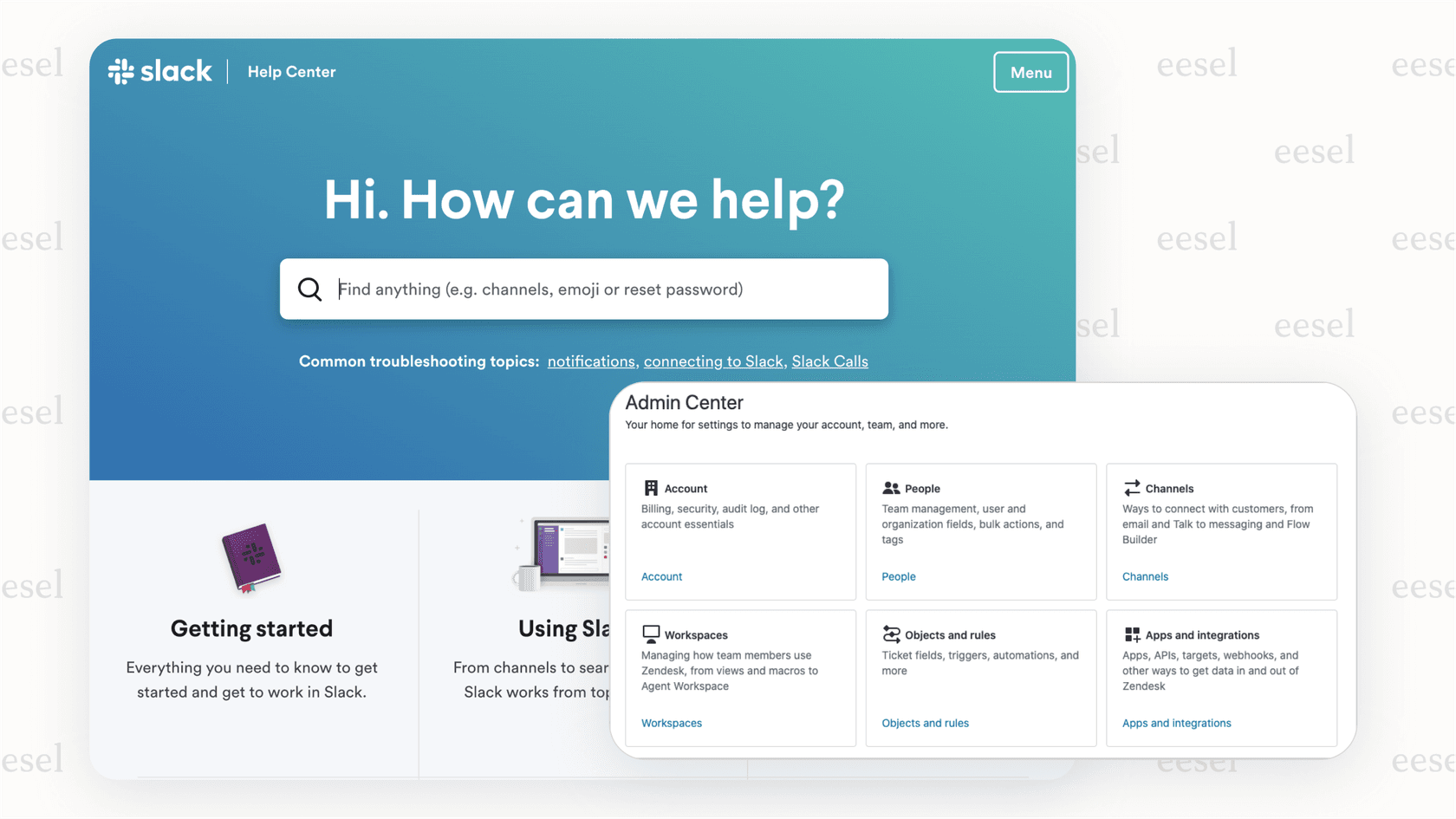
This is where AI tools can help. At eesel AI, we've built an AI teammate that learns your help center content and helps manage it alongside your themes. Instead of just copying themes between brands, imagine having an AI that understands your content and can help maintain consistency across all of them.
Our AI Agent can handle frontline support tickets while your team focuses on bigger projects. The AI Copilot drafts replies for your agents based on your help center content. And AI Triage keeps your ticket queues organized automatically.

The connection to themes? A well-organized help center with consistent branding (thanks to proper theme management) combined with AI-powered content handling creates a better experience for both customers and agents.
Copying and duplicating Zendesk Guide themes is a simple process that prevents major headaches. Whether you're making minor color tweaks or overhauling your entire design, always work on a copy first. The 30 seconds it takes to duplicate a theme could save you hours of fixing a broken live site.
Remember: copy, customize, test, then go live. That's the formula for safe theme management in Zendesk Guide.


Frequently Asked Questions
Share this article

Article by
Stevia Putri
Stevia Putri is a marketing generalist at eesel AI, where she helps turn powerful AI tools into stories that resonate. She’s driven by curiosity, clarity, and the human side of technology.



