How to set up Zendesk Guide community post approval

Stevia Putri
Written by

Stevia Putri

Reviewed by

Stanley Nicholas

Last edited February 25, 2026

Expert Verified

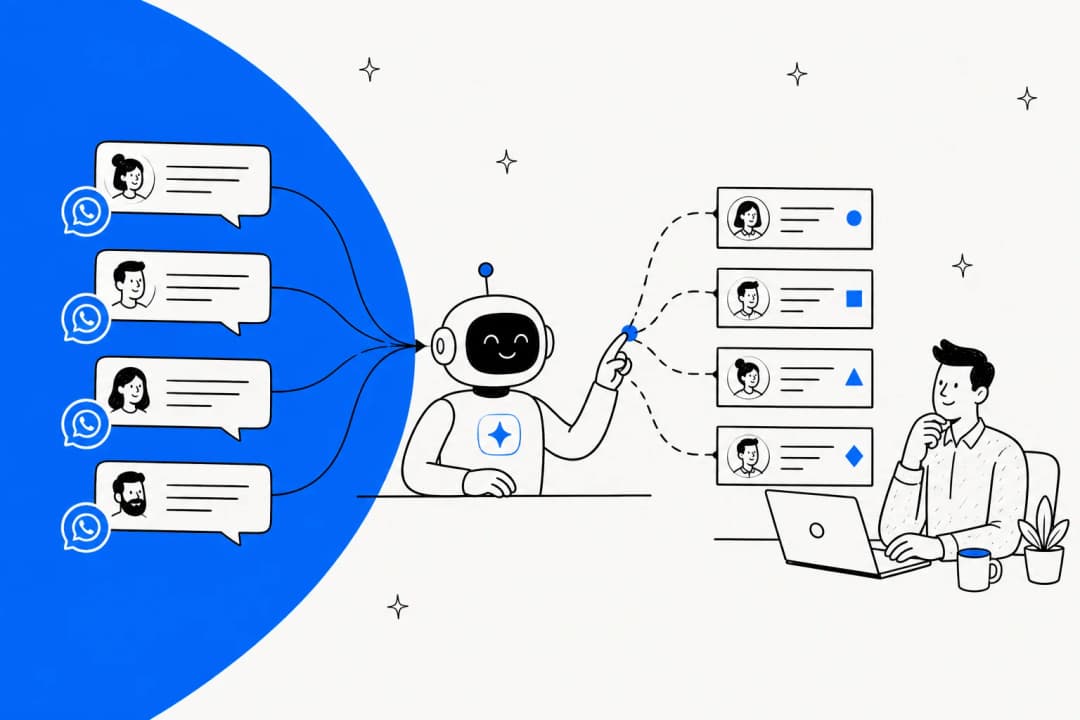
Banner image for How to set up Zendesk Guide community post approval

Community forums give your customers a space to help each other, share ideas, and build relationships. But without proper oversight, they can quickly fill with spam, off-topic posts, or content that doesn't reflect your brand.

Community post approval helps you maintain quality. This feature lets you review posts before they go live, giving you control over what appears in your Zendesk Guide community.

There's often confusion between article approval workflows and community post approval. Article approval manages your knowledge base content (help center articles), while community post approval handles user-generated posts and comments in your forum. This guide focuses on setting up community post approval.

Comparison of article approval and community post approval workflows in Zendesk

What you'll need before starting

Before diving into configuration, make sure you've got the basics covered:

  • Zendesk Suite Professional, Enterprise, or Enterprise Plus Gather communities are available on these plans
  • Guide Professional or Enterprise Content moderation specifically requires these plan levels
  • Knowledge admin permissions Only Knowledge admins can enable and manage content moderation
  • A clear moderation policy Decide what content is acceptable and how quickly you'll review posts

If you're still planning your overall community strategy, our guide on how to set up Zendesk community forums covers the broader setup process.

Step 1: Enable content moderation in Gather settings

The first step is turning on the moderation feature itself. You'll configure this in Zendesk's content moderation settings. Here's how to access them:

  1. In Knowledge admin, click the Settings icon (gear symbol) in the sidebar
  2. Select Content moderation
  3. Choose your moderation approach:
    • Moderate all content Every new post and comment goes to the queue
    • Moderate words Only posts containing specific keywords trigger moderation
  4. If using keyword moderation, enter your keywords (up to 15,000 characters, separated by commas)
  5. Click Update

Zendesk content moderation settings panel with keyword and all-content options

Which approach should you choose? Moderating all content gives you complete control but requires a responsive team. Zendesk's data shows that users who get a response within 5 hours have a 53% chance of re-engaging. Wait 24 hours and that drops to 10%.

Keyword moderation is less restrictive. Posts without trigger words go live immediately, keeping conversations flowing. But you might miss problematic content until someone reports it.

Step 2: Configure user segments for posting permissions

User segments control who can see and post in your community topics. By default, Zendesk provides two built-in segments: "Signed-in users" and "Agents and managers." But you can create custom segments for more granular control.

To create a custom user segment:

  1. Go to GuideUser permissionsUser segments
  2. Click Add user segment
  3. Choose the segment type:
    • Staff Based on tags and support groups
    • End-users Based on tags and organizations
  4. Define your criteria and save

Once you've got segments set up, apply them to specific topics. This lets you create private areas for certain customer tiers or restrict posting to verified users only.

Zendesk user segment configuration based on organizations and users

Step 3: Set up moderator groups

You don't want every moderation decision falling on one person. Moderator groups let you distribute the workload while maintaining consistent standards.

To create a moderator group (requires Gather Professional):

  1. Go to GuideUser permissionsCommunity moderators
  2. Click Add moderator group
  3. Name your group and select permissions:
    • Mark as answered Indicate a comment answers the post
    • Pin to top Move important posts to the top
    • Feature post Highlight posts in featured sections
    • Move post Relocate posts between topics
    • Hide for moderation Send live posts back to the queue
    • Approve pending content Publish moderated posts
  4. Assign a user segment to determine who can join this group
  5. Add specific users to the group

Zendesk community moderator group creation with permission checkboxes

Moderators can be agents or trusted end-users. Many communities benefit from empowering active customers as moderators. It builds investment and distributes the workload.

Step 4: Manage the moderation queue

Once moderation is active, posts start appearing in your queue. Here's how to handle them efficiently:

  1. In Knowledge admin, click Moderate content in the sidebar
  2. Select the User content tab
  3. Review pending posts and comments
  4. Select items and choose an action:
    • Approve Publish the content
    • Reject Delete the content
    • Mark as spam Move to spam queue

Zendesk content moderation queue with approve, reject, and spam options

You can process multiple items at once by selecting their checkboxes. This helps when you've got a backlog to clear.

Important: Users aren't automatically notified when their content is approved or rejected. They'll see a "pending approval" tag on their posts, but won't receive an update on your decision. Consider building this into your community guidelines so users know what to expect.

Setting up notifications

To avoid constantly checking the queue, subscribe to notifications:

  1. In the User content tab, click Follow in the upper-right corner
  2. You'll receive email alerts every 4 hours if content is waiting
  3. This also subscribes you to spam queue notifications

Step 5: Create community guidelines

Clear community guidelines set expectations and reduce moderation headaches. They should cover:

  • What's acceptable to post
  • What will be rejected
  • Expected response times
  • How to appeal a rejection
  • Consequences for repeated violations

Post your guidelines prominently. Pin them to the top of your main topic so users see them before posting. The guidelines should tell users what you want them to do, not just what they shouldn't do.

For example, if you want users to include specific information when reporting bugs, spell that out. If you encourage voting on feature requests, explain how the voting system works.

Best practices for community post approval

Getting the mechanics right is just the start. Here are strategies that make moderation work:

Balance control with engagement

Heavy moderation can kill community momentum. If every post waits hours for approval, users stop participating. Consider starting with keyword moderation and switching to all-post moderation only if spam becomes a problem.

Respond quickly

Zendesk's research is clear: speed matters. Aim to clear your queue within a few hours during business hours. If you can't commit to that, keyword moderation might be a better fit.

Document your decisions

When you reject a post, note why. Over time, you'll see patterns that help refine your guidelines. You might discover certain topics always cause problems, or that users consistently misunderstand particular rules.

Review and adjust

Your moderation needs will change as your community grows. A small community might need tight control. A mature community with active moderators might handle lighter oversight. Check your queue metrics monthly and adjust your approach.

Know the limitations

Zendesk's moderation has some constraints worth noting. Light agents can't approve posts (only full agents and Knowledge admins can). You can't create tickets directly from the moderation queue (you'd need to approve the post first, then convert it). And previously approved users still have their content sent to the queue if you're using all-post moderation.

Scaling community moderation with AI

Manual moderation doesn't scale forever. As your community grows, the volume of posts can overwhelm even a dedicated team. AI can help here.

AI handles the routine work so your team can focus on edge cases. Here's what AI-powered moderation can do:

  • Auto-classify incoming posts Route technical questions to your product team, billing issues to finance, and general how-tos to community managers
  • Flag potential spam Identify suspicious patterns before they hit your queue
  • Draft initial responses Generate helpful replies based on your knowledge base
  • Escalate intelligently Surface posts that need human attention based on sentiment or complexity

eesel AI agent working within the Zendesk interface

eesel AI handles exactly this kind of work. It learns from your existing community content, help center articles, and past tickets to provide responses that sound like they came from your team. When something needs a human touch, it escalates gracefully.

If you're already using Zendesk, eesel AI works alongside your existing setup. No rip-and-replace required.

Start managing your Zendesk community with confidence

Setting up community post approval takes some initial configuration, but it's worth the effort. You get a forum that reflects your brand standards while still encouraging authentic customer conversations.

Start with the basics: enable moderation, set up your moderator groups, and establish clear guidelines. Then refine your approach based on what you learn from your queue.

Remember that moderation is just one piece of community management. For the posts that do come through, having AI that can draft responses, route issues, and handle routine questions lets your team focus on the conversations that really need human expertise.

eesel AI pricing page showing transparent public pricing

If that sounds useful, check out eesel AI's pricing and see how it fits into your support stack. Or book a demo to see it in action alongside your Zendesk setup.


Frequently Asked Questions

Yes, content moderation requires Guide Professional or Enterprise, which are available as part of Zendesk Suite Professional ($89/agent/month) or higher. The Team plan ($19/agent/month) includes basic community access but not moderation features.
Not exactly. Even users you've previously approved will have their content sent to the moderation queue if you're using 'moderate all content.' There's no automatic approval based on user history. However, you can use keyword moderation as a lighter alternative, which only triggers moderation for posts containing specific words.
Zendesk provides a separate spam queue alongside the content moderation queue. When reviewing posts, you can mark content as spam instead of just rejecting it. This helps Zendesk's spam filter learn and improve. You can also subscribe to spam queue notifications to stay on top of suspicious activity.
Article approval workflows manage your knowledge base content (help center articles written by your team). These require Zendesk Enterprise and include editorial workflows with review stages. Community post approval handles user-generated content in your forum and is available on Guide Professional. The two systems work independently.
No, all moderators need appropriate Zendesk permissions. Knowledge admins have full moderation capabilities. For more limited permissions, you can create moderator groups (requires Gather Professional) and assign users to them. However, these users still need Zendesk agent access. Light agents specifically cannot approve community posts.
Zendesk checks the queue every 4 hours and sends email notifications if there's content waiting. For best results, aim to respond faster than that. Zendesk's data shows users who get a response within 5 hours have a 53% chance of re-engaging. During business hours, check at least twice daily. For communities with high activity, hourly checks might be necessary.
Rejected posts are deleted and cannot be recovered. The user is not automatically notified of the rejection. This is why clear community guidelines are important. Users should understand what content is acceptable before they post. If you need to explain a rejection, you'd need to contact the user separately through a support ticket.

Share this post

Stevia undefined

Article by

Stevia Putri

Stevia Putri is a marketing generalist at eesel AI, where she helps turn powerful AI tools into stories that resonate. She’s driven by curiosity, clarity, and the human side of technology.