
If you're managing a help center in Zendesk Guide, you've probably wondered about version control. What happens when someone accidentally deletes important content? Can you see who made changes and when? And why does the "Updated" date sometimes show recent activity even when the article content hasn't changed?
Version management in Zendesk Guide isn't as straightforward as it could be. The platform offers native revision tracking, but it's got significant limitations that aren't always obvious from the official documentation. This guide walks you through what's actually possible, what's not, and how to work around the gaps.
What you'll need to get started
Before diving into article revisions, make sure you have the right setup. See Zendesk's official documentation on article revisions for the latest plan requirements:
Required plans:
- Zendesk Suite: Growth, Professional, Enterprise, or Enterprise Plus
- OR Guide Professional/Enterprise if using Support separately
Permissions:
- Regular agent or Knowledge admin role
- Light agents cannot view or work with article revisions
Plan differences:
- Enterprise: Enhanced revision sidebar with collapsible panel for easier navigation
- Professional: Access to revisions through article settings (slightly less convenient interface)
If you're on a lower-tier plan without Guide Professional, you won't have access to revision history at all. In that case, your only option's manual backups before making significant changes.
Understanding Zendesk Guide's revision system
Let's break down what the revision system actually tracks.
What gets tracked:
- Body content changes (text, formatting, images)
- Title changes
- Each save creates a new version
What does NOT get tracked:
- Metadata changes (who "Manages" the article, permissions)
- Inline CSS modifications
- Label additions or removals
- Section or category moves
Here's where it gets confusing. The "Updated" date that customers see on your help center doesn't always match the revision history. If you do a bulk update to reassign management permissions on dozens of articles, the end-user facing "Updated" date changes, but no revision entry gets created. Your customers see recent activity, but your revision history shows nothing.
A Zendesk community member described this exact frustration:
On Sept. 19, 2022, I did a bulk update to reassign management permissions on our articles (Managed By). Now, on the end user pages, the 'Updated' date reflects the date that I reassigned who manages those articles (Sept. 19, 2022). When I go into the articles in Zendesk, neither the History nor Revisions features show any record of the change. The end user pages say the articles were Updated Sept. 19, 2022, but the article history shows no updates since Jan. 26, 2021.
Zendesk Community
Revision history vs. article event history:
- Revisions: Show content changes (body and title only)
- Article history: Shows publishing events, author changes, label changes, and section changes
You'll need to check both places to get a complete picture of what happened to an article. Understanding how Zendesk Guide article history version tracking works helps you avoid confusion when auditing changes.
How to view article revisions
Step 1: Navigate to the article editor
First, access your help center and locate the article you want to review. Click Edit article in the top menu bar to open the editor.
Step 2: Open the Revisions panel
On Enterprise plans, click the Revisions icon on the collapsible panel to open the Revisions view in the article sidebar.
On Professional plans, access revisions through the article settings menu.
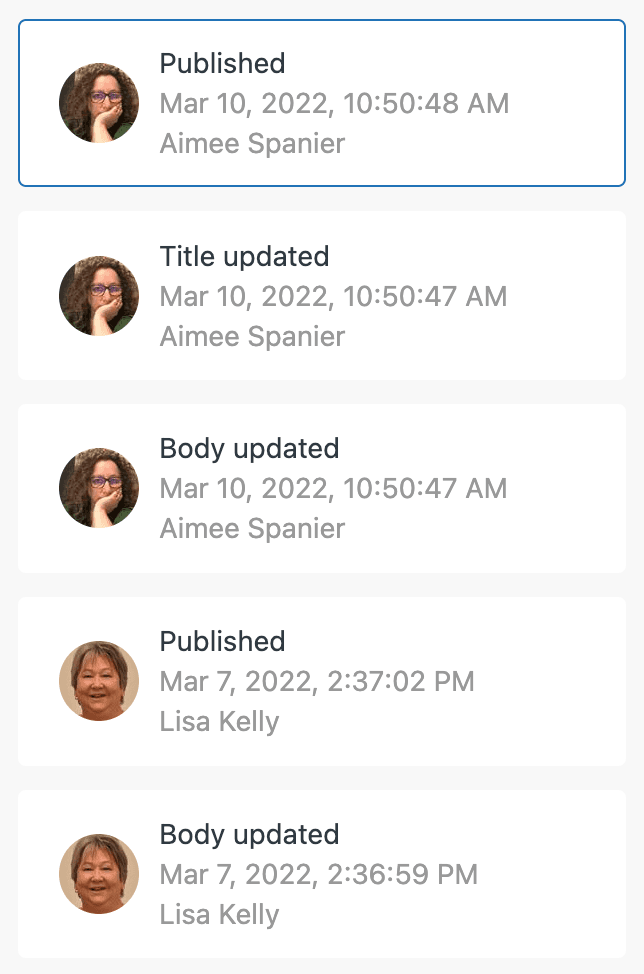
The sidebar will show all saved versions of the article, with timestamps and author information.
Step 3: Review version differences
Select any version in the sidebar to see what changed. The comparison view shows:
- Red text: Content that was removed
- Green text: Content that was added
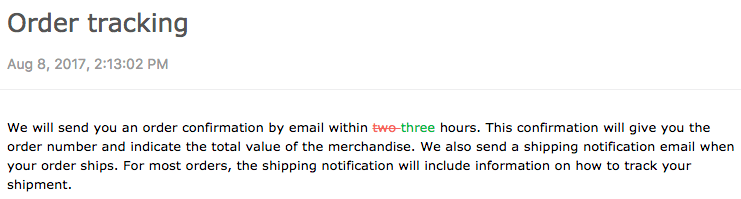
Toggle Show changes on or off depending on whether you want to see the differences highlighted or just view the content as it appeared at that point in time.
Click Back when you're done reviewing to return to the current published version.
How to restore a previous version
Made a mistake? Here's how to roll back to a previous Zendesk Guide article history version.
Step 1: Select the version to restore
In the Revisions panel, find the version you want to restore. Click the Restore button next to that version.
Remember: you can only restore entire versions, not individual revisions within a version. This is an important limitation of the Zendesk Guide article history version system.
Step 2: Confirm and publish
Click Restore again to confirm. The article editor will load the selected version. Review the content to make sure it's what you want.
When you're ready, click Save or (on Enterprise plans) click the Save dropdown and select Publish.
Important caveat about content blocks: If the original version contained a content block, restoring that version unlinks the content block and inlines the content instead. You'll lose the connection to the shared content block.
Legacy editor note: Once an article's migrated to the new article editor, you can't restore it to the legacy editor, even if you're restoring a version that was originally created in the legacy editor.
Understanding what's not tracked (and workarounds)
The limitations of Zendesk's revision system create real operational challenges. Here's what's missing and how to handle it.
The "Updated" date problem: As noted earlier, bulk metadata changes update the customer-facing timestamp without creating a revision entry. This creates confusion for customers who see "Updated yesterday" on articles that haven't had content changes in months.
Workaround options:
-
Manual documentation: Keep a separate changelog for significant administrative changes. A simple spreadsheet with date, article, and change description goes a long way.
-
Use article labels: Create labels like "major-update-jan-2026" to track significant content revisions. Labels appear in article lists and can be filtered.
-
Internal notes: Leave internal notes on tickets or articles explaining major changes. These are visible to agents but not customers.
When to consider third-party tools:
If you need more robust version control, tools like Salto offer advanced configuration management for Zendesk Guide:
- Rollback entire Help Center configurations to previous states
- Deploy changes from sandbox to production
- Bulk find and replace across articles
- Compare environments
Salto treats your Help Center configuration like code, with proper version control and change management. This is overkill for small teams, but valuable if you're managing multiple Zendesk instances or have complex approval workflows. Learn more about Salto's Zendesk Guide support.
Best practices for article version management
Based on common pain points and what actually works, here are practical recommendations for managing your Zendesk Guide article history version workflow:
Before major changes:
- Duplicate your article before significant edits (name it "Article Name - BACKUP")
- Test substantial changes in a sandbox environment first
- Document what you're changing and why
During editing:
- Save incrementally, but not excessively (every save creates a version)
- Use the "Show changes" toggle to verify your edits before publishing
- For collaborative editing, communicate who's working on what to avoid version conflicts
After publishing:
- Review the published article on the customer-facing help center
- Check that formatting, images, and links work correctly
- Monitor for customer feedback about missing or incorrect information
When to duplicate vs. restore:
- Duplicate when you want to create a variant of an article (different audience, seasonal version, A/B test)
- Restore when you need to undo changes and revert to a previous Zendesk Guide article history version
Content quality alongside version management:
While you're managing article versions, don't forget about the actual content quality. We integrate with Zendesk to help teams maintain consistent, accurate help center content. Our AI learns from your existing articles and can help identify gaps, suggest improvements, and ensure your content stays current alongside your version control efforts.

Start managing your Zendesk Guide content more effectively
Zendesk Guide's revision system gives you basic version control, but it's not a complete solution. You can track content changes and restore previous versions, which covers the essential use cases. However, the lack of metadata tracking and the confusing "Updated" date behavior means you'll need workarounds for more sophisticated Zendesk Guide article history version management.
For most teams, the native features are sufficient for day-to-day editing and occasional rollbacks. If you find yourself needing more (bulk operations, environment management, detailed audit trails), that's when third-party tools become worth considering.
The key's understanding what the system can and can't do, then building your workflows accordingly. Document your changes, use labels strategically, and keep backups of critical content before major edits.
If you're looking to improve your help center content beyond version control, we can help. Explore how eesel AI works with Zendesk Guide to keep your knowledge base accurate, up-to-date, and genuinely useful for your customers. You can also see eesel in action or try eesel free to experience how an AI teammate can transform your help center management.