
Attachments can make or break your knowledge base. A well-placed screenshot clarifies a complex process. A PDF manual gives customers the deep reference they need. But when attachments are poorly organized (or missing when customers expect them), you end up with confused users and unnecessary support tickets.
If you're managing a Zendesk Guide knowledge base, you need to understand how attachments work, what the limits are, and how to keep everything organized as you scale. This guide covers everything from basic uploads to automation workflows that save hours of manual work.
What you'll need
Before diving in, make sure you have:
- A Zendesk Support account with Guide Professional or Enterprise plan (attachment features aren't available on lower tiers)
- Admin or agent permissions to create and edit articles
- Basic familiarity with your help center structure
- Optional: API access if you plan to automate uploads
Understanding Zendesk Guide attachments
How attachments work in Zendesk Guide
Zendesk Guide uses a Media Library to store all attachments. Think of it as a central repository: upload a file once, and you can attach it to multiple articles. This is a significant improvement over older systems where each attachment was tied to a single article.
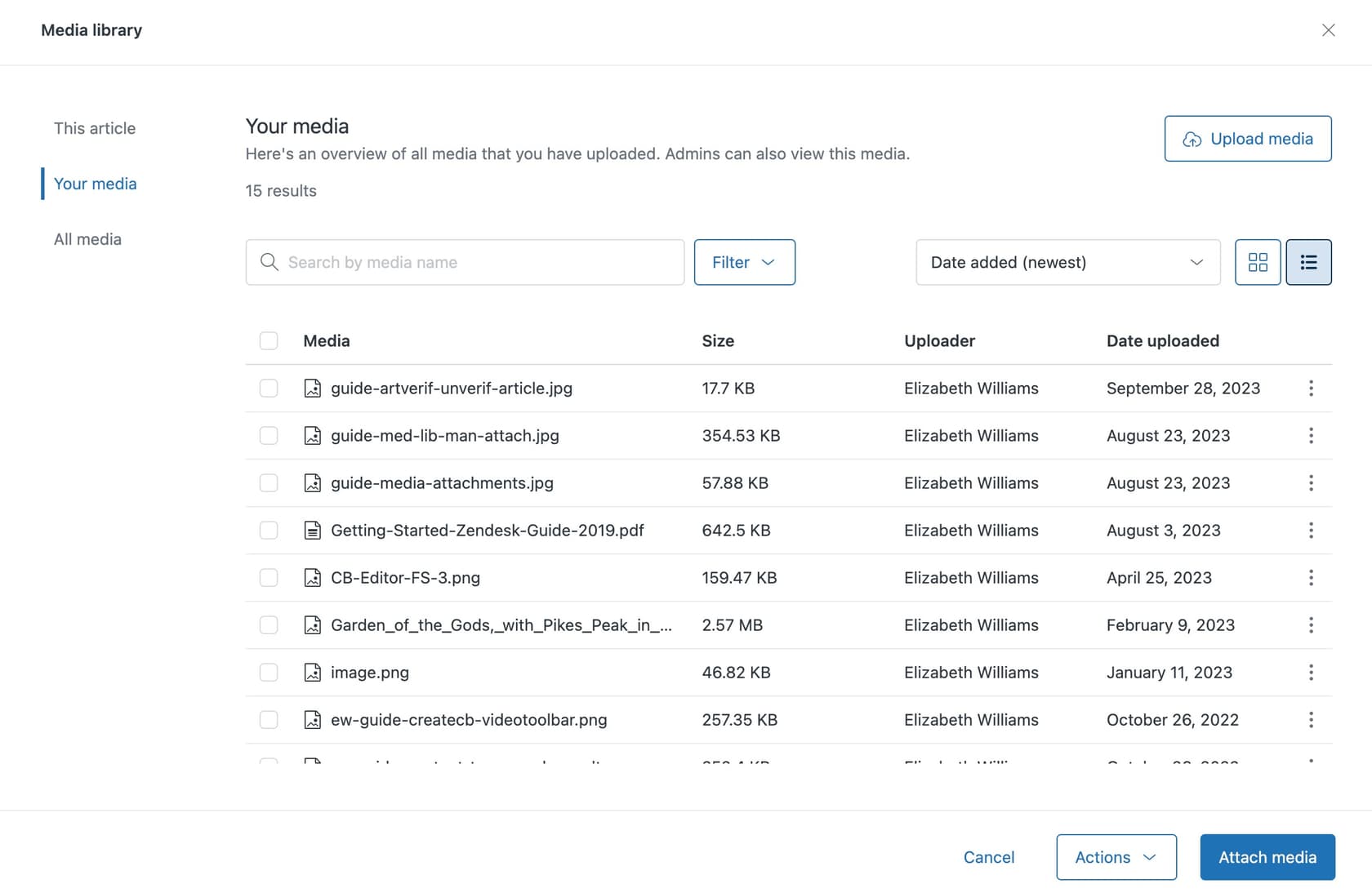
The Media Library gives you three views:
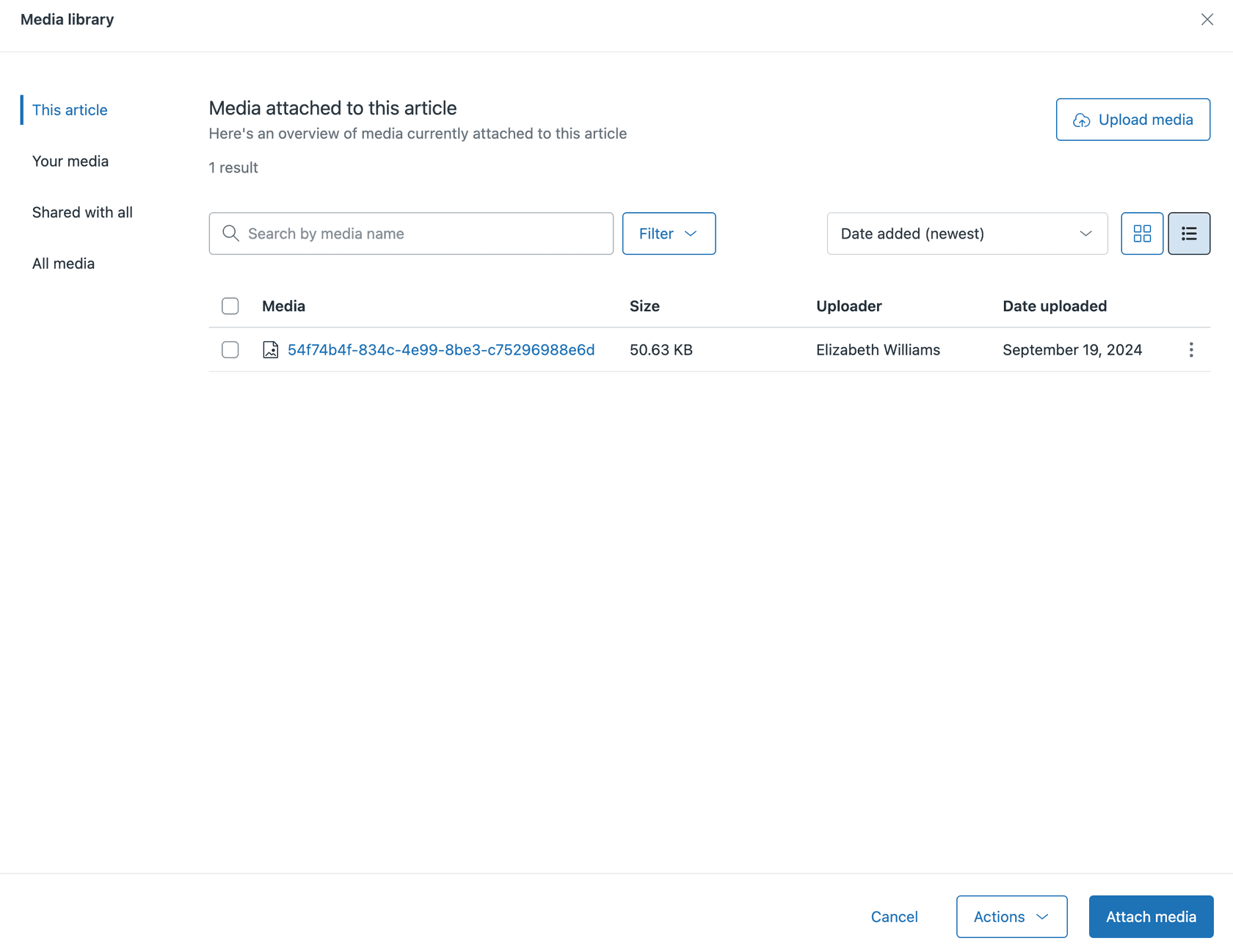
- This article shows only media attached to the article you're currently editing
- Your media shows everything you've uploaded to your account
- All media available to Knowledge admins, shows all media across your entire account
Inline vs. block attachments
Zendesk Guide handles attachments in two ways:
Inline attachments are embedded directly in your article content. These are typically images that appear as part of the article text, like screenshots or diagrams. When you insert an image into the article body, it becomes an inline attachment.
Block attachments appear as downloadable files at the bottom of your article. These are PDFs, Word documents, spreadsheets, or any file customers need to download rather than view inline.
The distinction matters because inline attachments are automatically assigned a locale based on the translation they're embedded in. Block attachments work across all translations of an article.
File size limits and supported formats
Here's the key constraint: 20MB maximum per attachment. This applies to all file types and all Zendesk plans. You cannot pay more to increase this limit.
Zendesk supports most common file formats including:
- Images: PNG, JPG, GIF, SVG
- Documents: PDF, DOC, DOCX, XLS, XLSX, PPT, PPTX
- Archives: ZIP, RAR
- And many others
If you need to share files larger than 20MB, you'll need to host them externally (Google Drive, Dropbox, etc.) and link to them from your article.
Step 1: Upload media to the Media Library
Let's start with the basics. Here's how to get files into your Media Library:
-
Navigate to an article either create a new article or edit an existing one in your help center or Knowledge admin interface.
-
Open Article settings look for the Article settings icon in the sidebar. If the panel isn't visible, click the icon to expand it.
-
Access the Media Library click the Placement card to expand it, then scroll to the Attachments section. Click Manage attached media to open the Media Library.
-
Upload your file click Upload media and browse to select your file. You can also drag and drop files directly into the Media Library window.
-
Wait for the upload larger files may take a moment. Once complete, your file appears in the Media Library and is ready to attach.
A few tips for smoother uploads:
- Use descriptive file names. "invoice-template-v2.pdf" is better than "document.pdf"
- Optimize images before uploading. A 5MB screenshot loads faster than a 15MB one
- The Media Library accepts multiple file formats, but stick to common ones your customers can actually open
Step 2: Attach media to your article
Once your files are in the Media Library, attaching them to articles is straightforward:
-
Open the Media Library from the Attachments section in Article settings (as described in Step 1).
-
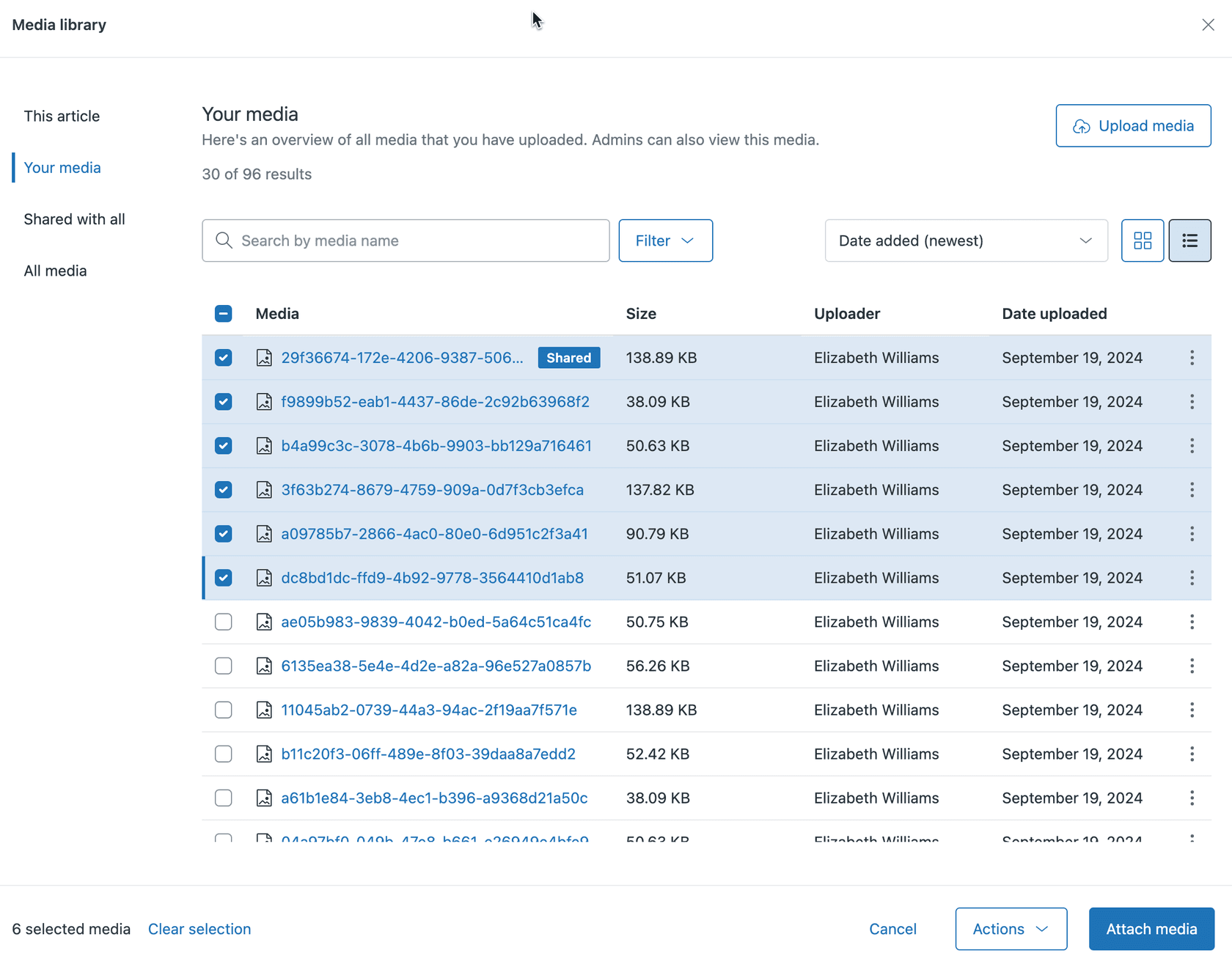
Select your files browse the tabs to find what you need:
- Use "This article" to see what's already attached
- Use "Your media" to find files you've uploaded
- Use "All media" (admin only) to access anything in your account
-
Attach the media select the file(s) you want, then click Attach media. The files appear in the Attachments section of your Article settings.
-
Save your changes click Update settings to finalize. If the article is published, attachments now appear at the bottom of the article as downloadable links.
For inline images (embedded in the article body rather than attached at the bottom), the process is slightly different. Use the article editor's image insertion tool, which automatically adds the image to your Media Library and embeds it inline.
Step 3: Manage and organize your attachments
As your knowledge base grows, attachment management becomes critical. Here's how to stay organized:
View where attachments are used
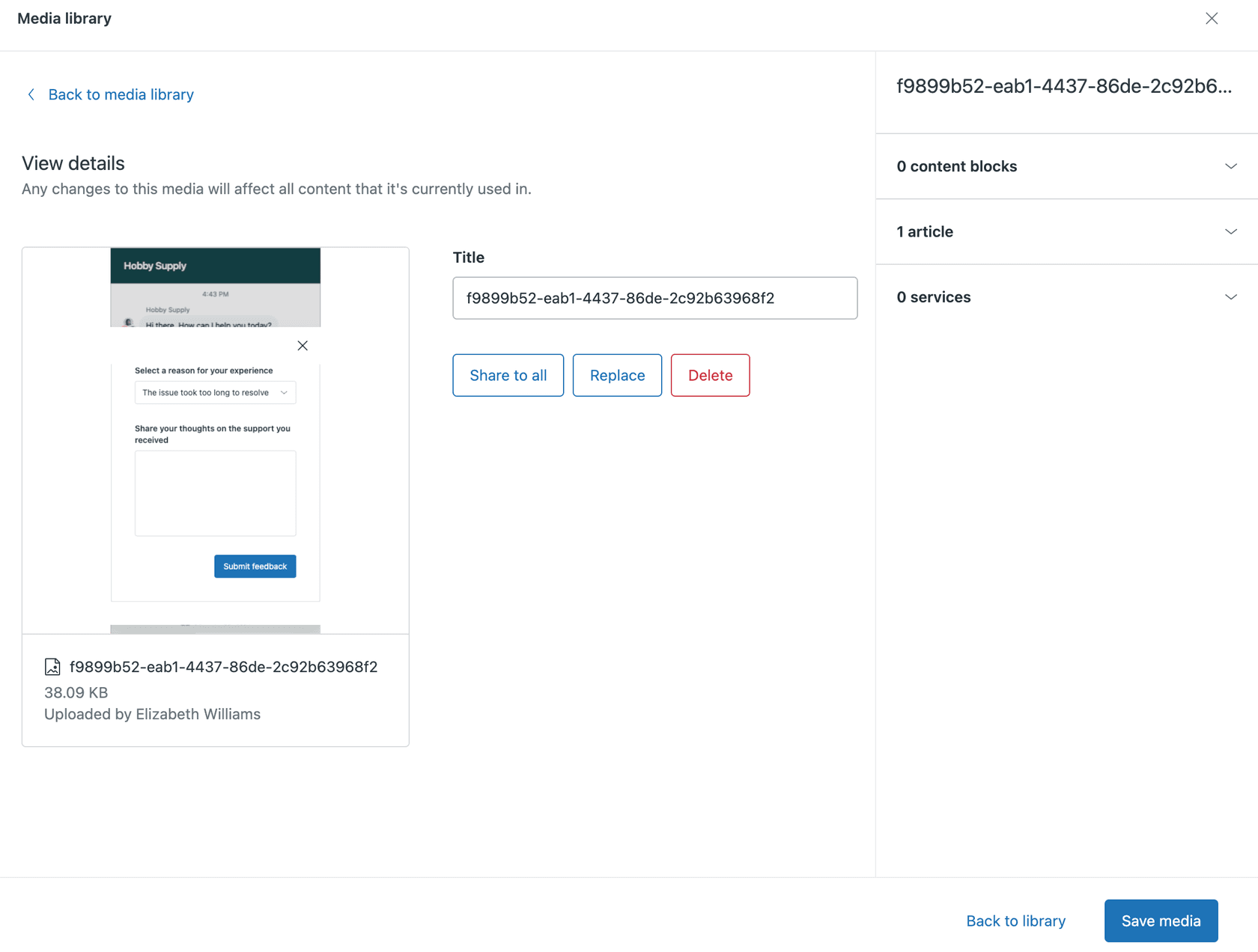
Click the menu icon on any media file in the Media Library and select View details. This shows you:
- File name, size, and type
- Where the file is used (which articles reference it)
- Whether it's shared with other agents
This is invaluable when you're considering deleting or replacing a file. You need to know what articles will be affected.
Rename, replace, and delete
From the same menu, you can:
- Rename change the display name without affecting the file itself
- Replace swap the file with a new version of the same type. This updates the file across all articles that use it, which is perfect for updating screenshots or templates
- Delete permanently remove the file. This also removes it from any published articles, so use with caution
Share attachments with your team
By default, media you upload is only visible to you. To make it available to other agents:
- Open the file's menu in the Media Library
- Select Share to all
- The file now appears in the "Shared with all" tab for other agents
Shared files can be used in any article. Only the agent who shared the file (or a Knowledge admin) can unshare or delete it.
Bulk operations
Need to clean up multiple files at once? The Media Library supports bulk deletion:
- Select up to 30 files (checkboxes appear on hover)
- Click Actions > Delete selection
- Review the list of affected articles
- Confirm to permanently delete
This is useful for periodic cleanup of unused attachments, which helps manage your storage allocation.
Understanding file limits and storage
Storage allocation by plan
Beyond the 20MB per-file limit, Zendesk also enforces total storage limits based on your plan:
| Plan | Data Storage | File Storage |
|---|---|---|
| Support Team | 10 GB + 50 MB/agent | 10 GB + 2 GB/agent |
| Suite Team | 10 GB + 50 MB/agent | 10 GB + 2 GB/agent |
| Suite Professional | 10 GB + 100 MB/agent | 10 GB + 5 GB/agent |
| Suite Enterprise | 10 GB + 200 MB/agent | 10 GB + 10 GB/agent |
For example, a Suite Professional plan with 10 agents gets 60 GB of File Storage (10 GB base + 50 GB from agents).
Managing storage proactively
If you exceed your storage allocation, Zendesk displays a notice in the Admin Center. You then have two options:
- Reduce usage delete old tickets, redact attachments, or remove unused media
- Purchase additional storage buy Storage Units (500 MB Data + 25 GB File) on a per-unit, per-month basis
The storage dashboard shows your current usage and trends, though it doesn't identify which specific tickets or attachments consume the most space. For that, you'll need to use API queries or third-party tools.
For more details on Zendesk's file attachment limits across all channels (not just Guide), see our complete guide to Zendesk messaging file attachment limits.
Automating attachment workflows
For teams managing large volumes of attachments, manual uploads become tedious. The Guide Media API enables automation.
What you can automate
Common automation scenarios include:
- Bulk uploads from Google Drive automatically sync new marketing assets to your Media Library
- Figma to Zendesk workflows design teams save assets to a shared folder, which triggers automatic uploads
- Scheduled replacements update screenshots or templates across all articles on a schedule
How the API works
The Media API uses a three-step process:
- Create an upload URL tell Zendesk what file type and size you're uploading
- Upload the file send the actual file data to the provided URL
- Create the media object register the uploaded file in your Media Library
This process requires API authentication and some technical setup. For detailed implementation, Zendesk's Article Attachments API documentation provides code samples in multiple languages.
No-code alternatives
If API work isn't your thing, tools like Zapier or Make can handle the automation using webhooks. You set up a trigger (new file in Google Drive) and an action (upload to Zendesk Media Library) without writing code.
Best practices for Zendesk Guide attachments
Naming conventions
Use consistent, descriptive file names:
- ✅
invoice-template-q1-2026.pdf - ✅
dashboard-overview-screenshot.png - ❌
document.pdf - ❌
image1.png
Include version numbers or dates for files that change over time. This prevents confusion when you have multiple versions in your Media Library.
Choosing attachment types
Use inline images when:
- The visual is essential to understanding the text
- It's a screenshot illustrating a specific step
- The image is small enough to load quickly
Use block attachments when:
- The file is a document customers need to download
- The file is large (approaching the 20MB limit)
- Customers need to save or print the content
Optimizing file sizes
Large attachments slow page loads and consume storage. Before uploading:
- Compress images using tools like TinyPNG or ImageOptim
- Use PDF compression for document-heavy files
- Consider whether that 4K screenshot is necessary, or if 1080p would suffice
Regular cleanup
Schedule quarterly reviews of your Media Library:
- Delete unused attachments
- Replace outdated screenshots
- Consolidate duplicate files
- Check that shared files are still relevant
This keeps your storage usage manageable and ensures customers always see current, accurate assets.
Streamlining your knowledge base with eesel AI
Managing attachments is just one piece of a well-run knowledge base. At eesel AI, we approach knowledge management differently. Rather than treating it as a configuration task, we treat it as a collaboration with an AI teammate.
When you invite eesel AI to your team, it connects to your existing tools (including Zendesk) and learns from your past conversations, help center articles, and documentation. It can then handle customer inquiries that reference attachments without the same constraints you'd face manually.
For example, eesel AI can:
- Guide customers to the right attachment based on their question
- Process and analyze file references within conversations
- Maintain context across interactions even when files are hosted externally
- Learn continuously from corrections and feedback
The key difference is flexibility. Rather than working within rigid system limits, eesel AI adapts to how your team actually works. You can start with eesel drafting replies for review, then expand to more autonomous handling as it learns your business.

If you're already using Zendesk Guide for your knowledge base, eesel AI works alongside it. Our AI Agent can handle frontline support while your knowledge base continues serving self-service customers. You decide when to escalate based on your own criteria, in plain English.
Start optimizing your Zendesk Guide attachments today
Managing attachments in Zendesk Guide doesn't have to be complicated. With the Media Library, you have a centralized system for organizing, sharing, and reusing files across your knowledge base. The 20MB limit is manageable for most use cases, and automation options exist for teams with more complex needs.
The key takeaways:
- Use the Media Library to centralize your attachments
- Choose inline vs. block attachments based on use case
- Monitor your storage usage to avoid overage surprises
- Consider automation for high-volume workflows
- Clean up unused attachments regularly
If you're looking for a teammate that can help streamline your entire support operation (including how you handle file sharing and knowledge base management), you can try eesel AI free or book a demo to see how it works with your existing Zendesk setup.


