
File sharing is a core part of customer support. Whether it's a screenshot of an error, a PDF invoice, or a video demonstrating a bug, customers need to send files to get help. But every support platform has limits, and Zendesk is no exception.
If you're hitting Zendesk's file attachment limits and wondering what your options are, this guide breaks down exactly what you need to know. We'll cover the specific limits across different Zendesk channels, explain why they exist, and walk through practical workarounds including how eesel AI handles file sharing without these constraints.
Understanding Zendesk's file attachment limits
Zendesk imposes file size limits to maintain platform performance, control storage costs, and ensure security. These limits vary depending on which channel the customer uses to contact you: help center, tickets, messaging, or email.
Here's the key thing to remember: these limits are fixed. You can't pay more or upgrade to a higher plan to increase them. Zendesk explicitly states that "it is not possible to increase the attachment size limits" across all subscription tiers. If you need to send files larger than the limits allow, you'll need to use workarounds or third-party solutions.
Let's look at the specific limits for each channel.
Zendesk messaging file attachment limits by channel
Help center articles and community posts
For content in your Zendesk help center, the limits are straightforward:
| Content Type | File Size Limit | Notes |
|---|---|---|
| Article images and attachments | 20MB per file | Applies to inline images and file attachments |
| Community posts and comments | 2MB per image | Lower limit for user-generated content |
| Number of attachments | No established limit | Use cloud storage for large collections |
The 20MB limit for articles is generally sufficient for screenshots, diagrams, and most PDFs. However, if you need to host larger files like video tutorials or high-resolution assets, Zendesk recommends using a cloud storage service and linking to them rather than uploading directly.
For community posts, the 2MB limit is more restrictive. This is primarily for spam prevention and to keep community discussions focused on text rather than media sharing.
Tickets and web forms
The ticket channel has more generous limits, reflecting its role as the primary support channel for most businesses:
| User Type | File Size Limit | File Count Limit | Notes |
|---|---|---|---|
| Authenticated users | 50MB per file | Up to 500 files | Linked attachments |
| Unauthenticated users | 50MB per file | 5 attachments | Hard-coded spam prevention |
Authenticated users (those logged into your help center) can attach up to 500 files per ticket, with each file capped at 50MB. This accommodates most business use cases, though it still blocks very large files like uncompressed videos or large datasets.
Unauthenticated users submitting through web forms face a stricter 5-attachment limit. This is a spam prevention measure that Zendesk doesn't allow admins to change. If anonymous submissions with multiple attachments are important for your workflow, you'll need to require login or use a different submission method.
Messaging (Web Widget and mobile SDKs)
Messaging has the same 50MB file size limit as tickets, but with additional constraints:
| Limit Type | Value | Notes |
|---|---|---|
| File size | 50MB per file | Same as tickets |
| Attachments per message | One file only | Multiple messages needed for multiple files |
| Supported file types | 50+ types | Includes images, documents, audio, video, archives |
| Private attachments | Not available | Different from ticket attachments |
The "one attachment per message" rule is important. If a customer needs to send three screenshots, they must send three separate messages. This differs from tickets where multiple files can be attached to a single comment.
Messaging also supports a fixed list of file types. While the list is extensive (covering common formats like PDF, DOCX, JPG, PNG, MP4, and ZIP), it excludes certain file types that might pose security risks.
Email channel
For outbound emails sent through Zendesk, the attachment limit is 50MB for a single linked file. However, email clients themselves often impose lower limits:
- Gmail converts attachments over 25MB to Google Drive links automatically
- Outlook has varying limits depending on the organization's Exchange configuration
- Many corporate email servers block attachments over 10-20MB
This means even if Zendesk allows a 50MB attachment, the recipient's email system may reject it or strip the attachment entirely.
The storage limit problem
In November 2023, Zendesk announced a significant change: they began enforcing storage limits with overage charges. This affects how you think about file attachments beyond just the per-file size limits.
How storage works in Zendesk
Zendesk tracks two types of storage:
| Storage Type | What Counts | Example |
|---|---|---|
| File Storage | Attachments linked to tickets | PDFs, images, signatures |
| Data Storage | Ticket objects, comments, metadata | Ticket fields, user records, tags |
When a customer emails three 5MB attachments, that consumes 15MB of File Storage. A ticket with multiple comments and custom fields might consume about 5KB of Data Storage.
Storage allocation by plan
Your available storage depends on your Zendesk plan and agent count:
| Plan | Data Storage | File Storage | Formula |
|---|---|---|---|
| Support Team | 10 GB + 50 MB/agent | 10 GB + 2 GB/agent | Base + per-agent allocation |
| Suite Team | 10 GB + 50 MB/agent | 10 GB + 2 GB/agent | Base + per-agent allocation |
| Suite Professional | 10 GB + 100 MB/agent | 10 GB + 5 GB/agent | Base + per-agent allocation |
| Suite Enterprise | 10 GB + 200 MB/agent | 10 GB + 10 GB/agent | Base + per-agent allocation |
For example, a Suite Professional plan with 10 agents gets:
- Data Storage: 10 GB + (10 × 100 MB) = 11 GB
- File Storage: 10 GB + (10 × 5 GB) = 60 GB
Overage charges
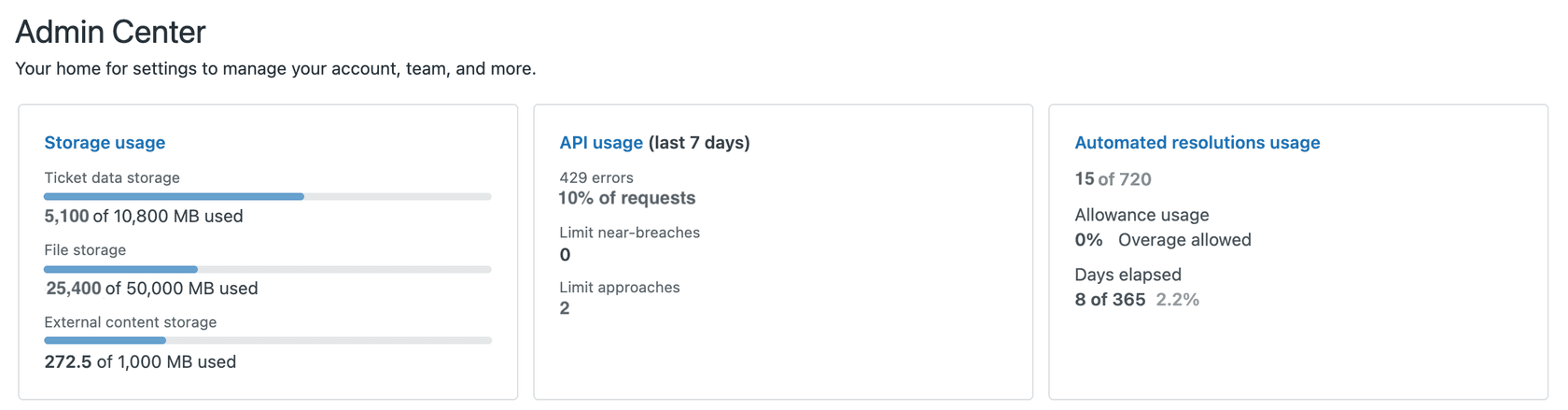
If you exceed your allocated storage, Zendesk displays a notice in the Admin Center. You then have two options:
- Reduce usage by deleting old tickets or redacting attachments
- Purchase additional Storage Units (500 MB Data + 25 GB File) on a per-unit, per-month basis
The storage dashboard in Admin Center shows your current usage and trends over time, though it doesn't identify which specific tickets or attachments are consuming the most space. To find large attachments, you'll need to use API queries or third-party tools.
Workarounds for Zendesk attachment limits
Since Zendesk's limits are fixed, here are practical approaches for handling larger files:
Cloud storage links
The simplest workaround is hosting files externally and sharing links:
- Google Drive: Automatically converts files over 25MB to shareable links in Gmail
- OneDrive: Integrated with Microsoft ecosystems, supports files up to 250GB
- Dropbox: Direct sharing links with password protection options
- Box: Popular for business use with enterprise security features
Best practices when using cloud storage:
- Set appropriate permissions (view-only vs. download)
- Use expiration dates for sensitive files
- Include the link in your Zendesk response rather than the attachment field
- Consider requiring authentication for access to sensitive documents
Third-party apps and integrations
Several apps in the Zendesk Marketplace extend file handling capabilities:
SendSafely
SendSafely offers a Zendesk integration that supports files up to 10GB with end-to-end encryption. Unlike standard Zendesk attachments, files never touch Zendesk's servers. They're encrypted client-side and stored on SendSafely's infrastructure.
Key features:
- 10GB file size limit (vs. Zendesk's 50MB)
- End-to-end encryption using OpenPGP with AES-256
- Identity verification via one-time passcode
- Files never stored on Zendesk servers
For teams handling sensitive documents (health records, financial data, legal files), this provides both larger capacity and enhanced security. SendSafely is available through the Zendesk Marketplace and works within the agent interface.
Box for Zendesk
Box integration allows agents to access and share Box files directly from tickets. While it doesn't increase attachment size limits, it streamlines the workflow of sharing large files stored in Box.
Attachment Storage Offload
This category of apps moves attachments from Zendesk to external cloud storage (AWS S3, Azure Blob, etc.) while keeping reference links in tickets. This reduces File Storage usage without losing access to the files.
Managing storage proactively
If you're concerned about storage overages, consider these approaches:
Delete old tickets
Zendesk's Timed Ticket Deletion feature (in early access) automatically removes tickets older than a specified number of days. You can also use the Bulk Delete Tickets API endpoint, though API rate limits mean large deletions take time.
Redact attachments
The Zendesk API includes a redaction endpoint that removes the file content while preserving a 5KB reference file. This frees File Storage while maintaining ticket history for reporting purposes. However, this requires API scripting or a marketplace app like GDPR Search and Destroy.
Export and delete
For compliance reasons, you may need to retain ticket data without keeping it in Zendesk. Tools like the Exporter app (Enterprise plans) can export ticket data including attachments, which you can then store in a document management system before deleting from Zendesk.
Alternative approaches to handling file sharing in support
While Zendesk provides a reliable platform for customer support, the rigid attachment limits can create friction. Teams that frequently handle large files may want to consider approaches that don't treat file sharing as an afterthought.
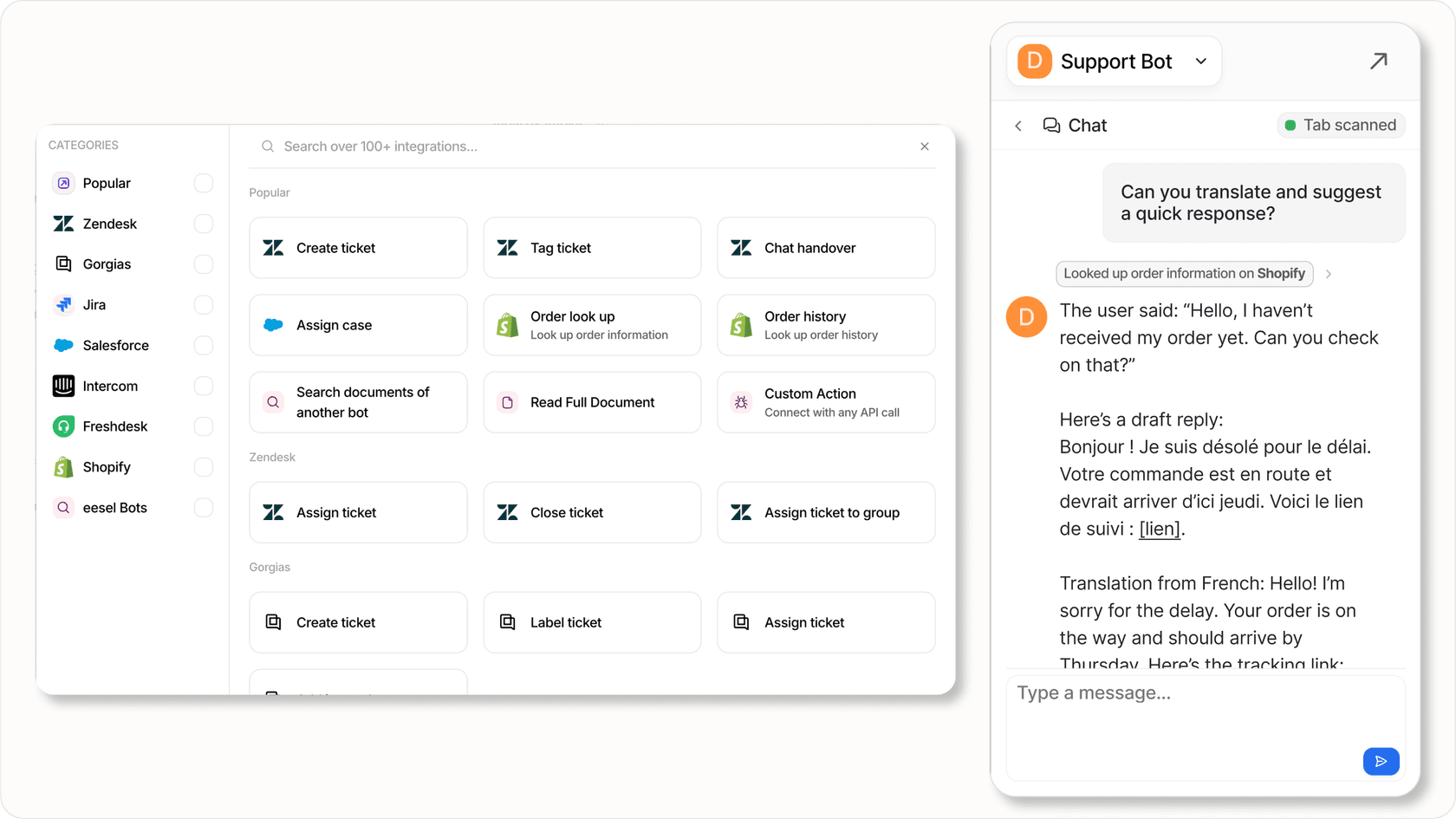
At eesel AI, we approach this differently. Rather than bolting file sharing onto a ticketing system, our AI teammate integrates with your existing workflows and handles file sharing through the channels you're already using.
How eesel AI works with file sharing
When you invite eesel AI to your team, it connects to your existing tools (including Zendesk, if that's what you use) and learns from your past conversations, help center articles, and documentation. It can then handle customer inquiries across channels without the same attachment constraints.
For file sharing specifically, eesel AI can:
- Guide customers to upload large files through appropriate channels based on file type and size
- Process and analyze attachments within conversations without hard size limits
- Integrate with cloud storage providers to handle file transfer workflows
- Maintain context across conversations even when files are hosted externally
The key difference is flexibility. Rather than working within rigid system limits, eesel AI adapts to how your team actually works. You can start with eesel drafting replies for review, then expand to more autonomous handling as it learns your business.
Comparing approaches
| Approach | File Size Limit | Setup Complexity | Best For |
|---|---|---|---|
| Native Zendesk attachments | 50MB | None | Small files, simple workflows |
| Cloud storage links | Cloud provider limits | Low | Occasional large files |
| SendSafely integration | 10GB | Medium | Sensitive large files |
| eesel AI | Flexible | Low | Teams wanting integrated workflows |
For teams already using Zendesk, eesel AI can work alongside your existing setup, handling conversations that involve complex file sharing while your Zendesk system continues managing standard tickets. You can explore how eesel's AI agent for Zendesk handles these workflows and more.
Choosing the right file sharing strategy for your support team
Let's summarize the key points and provide a framework for deciding what works for your situation.
Quick reference: Zendesk attachment limits
| Channel | File Size | File Count | Special Notes |
|---|---|---|---|
| Help Center articles | 20MB | No limit | 2MB for community posts |
| Tickets (authenticated) | 50MB | 500 files | Per ticket |
| Tickets (anonymous) | 50MB | 5 files | Spam prevention |
| Messaging | 50MB | 1 per message | 50+ supported file types |
| Email (outbound) | 50MB | N/A | Email client limits may apply |
Decision framework
Use native Zendesk attachments if:
- Most of your files are screenshots or small documents under 50MB
- Your team handles a low volume of file-related tickets
- Simplicity is more important than handling edge cases
Use cloud storage links if:
- You occasionally need to share files larger than 50MB
- Your team is comfortable managing file permissions externally
- Cost is a primary concern (most cloud storage has free tiers)
Consider SendSafely if:
- You handle sensitive files requiring encryption
- Files over 50MB are common in your support workflow
- Security and compliance are priorities
Consider eesel AI if:
- You want an integrated approach that adapts to your workflows
- File handling is just one of several support friction points you want to address
- You're looking for a teammate that learns your business rather than a tool you configure
The bottom line is that Zendesk's attachment limits are manageable for most use cases, but they're rigid. If your team frequently bumps against these limits, the time spent on workarounds (uploading to cloud storage, managing permissions, explaining processes to customers) may outweigh the cost of a solution that handles file sharing more gracefully.
Whatever approach you choose, make sure your team documents the process so customers get consistent guidance. Nothing frustrates customers more than being told to "just email the file" only to have it bounce back due to size limits.
If you're curious about how eesel AI could streamline your support workflows including file handling, you can try eesel AI free or book a demo to see it in action.


