How to set up Zendesk Generative Search Extender: A complete guide

Stevia Putri
Last edited February 26, 2026
If your customers are searching your help center more than 100,000 times per month, you've probably hit a wall with Zendesk's generative search. The feature works great until it doesn't, and suddenly you're looking at the Generative Search Extender add-on wondering how to actually get it running.
This guide walks you through the complete Zendesk generative search extender setup process. We'll cover everything from determining if you actually need the add-on, through purchasing, to technical configuration. Whether you're dealing with standard themes or custom help center designs, you'll find specific steps to get your AI-powered search running smoothly.
For teams looking to go beyond search and automate actual ticket responses, we'll also look at how eesel AI works alongside Zendesk to handle the full support workflow.

What you'll need before starting
Before diving into the Zendesk generative search extender setup, make sure you have these basics covered:
- Eligible Zendesk plan: You need either a Zendesk Suite plan (any tier) or Zendesk Support with Guide Professional or Enterprise. The add-on isn't available on lower-tier plans.
- Admin access: You'll need knowledge admin or account admin permissions to modify help center settings and purchase add-ons.
- Usage data: Check your current generative search usage so you know where you stand against the 100,000 monthly limit.
- Theme access: If you're using a custom theme, you'll need access to edit your theme files, specifically the
search_results.hbstemplate. - Budget approval: Since the Extender requires contacting sales for custom pricing, have your procurement process ready.
Step 1: Determine if you need the Extender add-on
The first step in your Zendesk generative search extender setup is figuring out whether you actually need it yet.
Check your current usage
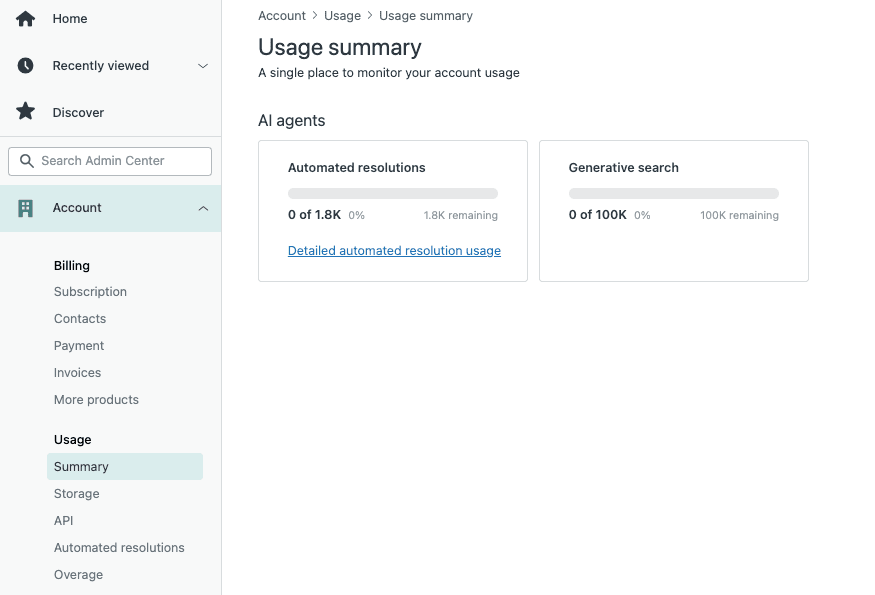
Navigate to Admin Center > Account > Usage > Summary. Look for the "Generative search" box, which shows:
- Number of eligible search queries performed this month
- Number of searches remaining in your quota
- Historical usage trends
Understanding the 100,000 search limit
All Zendesk Suite and Guide plans include 100,000 eligible generative searches per month. Here's what counts toward that limit:
- Searches that successfully display a generated answer
- Queries in supported languages
- Searches where the user has permission to view the source articles
Regular searches that don't trigger AI-generated answers don't count against your limit.
Signs you're approaching your limit
- Usage consistently above 80% by mid-month
- Seasonal spikes (like product launches or holidays) pushing you over
- Plans to expand help center content that will drive more search traffic
If you're consistently hitting 80,000+ searches monthly, it's time to consider the Extender.
Step 2: Contact Zendesk Sales to purchase
Here's where the Zendesk generative search extender setup differs from most software purchases: you can't just click "buy" in your admin panel.
Why you can't self-serve purchase
The Generative Search Extender is classified as a capacity add-on, not a self-serve feature upgrade. Zendesk handles these through their sales team to customize pricing based on your specific volume needs.
What to prepare before contacting sales
When you reach out to Zendesk Sales, have this information ready:
- Your current monthly generative search usage (from Admin Center)
- Projected growth in search volume
- Your Zendesk plan type and number of agents
- Preferred timeline for activation
Typical pricing structure
While exact pricing isn't public, the Extender follows Zendesk's standard add-on model:
- Custom quotes based on additional search volume needed
- Billed annually or monthly depending on your main plan
- Usually activated within 1-2 business days of purchase
Alternative: Optimize first
Before purchasing, consider whether you can reduce usage:
- Review which searches are triggering generative answers unnecessarily
- Optimize your knowledge base to reduce duplicate or low-value searches
- Check if federated search (Enterprise only) is inflating your counts with external content
Step 3: Enable generative search in Agent Workspace
Once you have the Extender (or if you're still within your base limit), the next step in your Zendesk generative search extender setup is enabling the feature for your agents.
Enabling for Agent Workspace
- Go to Admin Center > Channels > AI agents
- Find the generative search toggle for Agent Workspace
- Enable the feature
How agents see Quick Answers
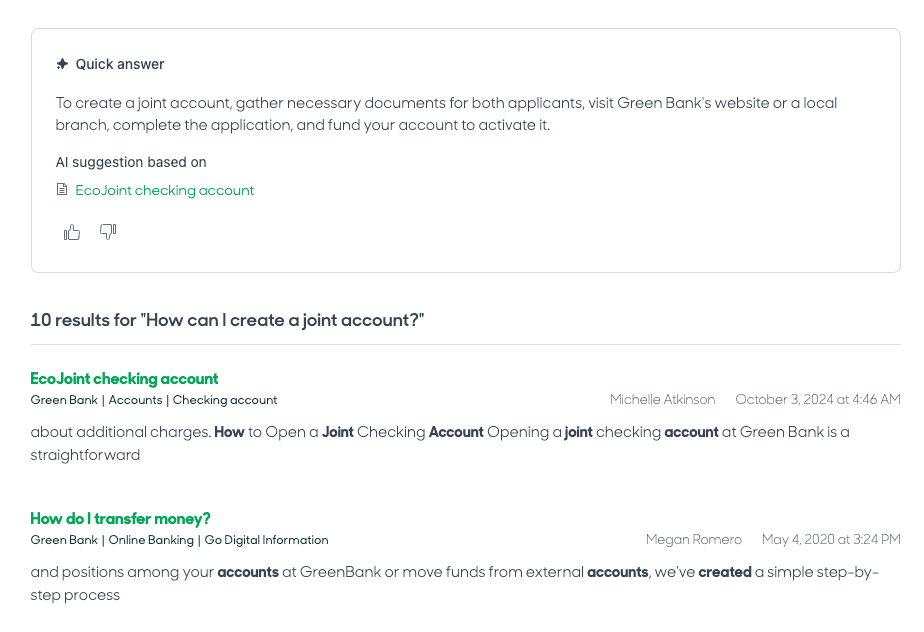
Once enabled, agents see AI-generated "Quick answers" in the Knowledge Panel when viewing tickets. The answer appears at the top with:
- A summarized response based on your knowledge base
- Links to the source articles
- Thumbs up/down buttons to provide feedback
Agents can copy the answer directly into ticket replies or use it as a reference while crafting their own response.
Testing the feature
Before rolling out to your full team:
- Have a few agents test with common search queries
- Verify the answers are accurate and helpful
- Check that source article links work correctly
- Confirm the styling matches your brand
Step 4: Configure generative search for your help center
Now for the customer-facing side of your Zendesk generative search extender setup. The process differs depending on your help center theme.
For standard themes
If your help center uses a standard Zendesk theme released after March 26, 2025, generative search works automatically. No configuration needed.
If your help center was created before that date, you may need to update your theme. Check if you're eligible for the automatic theme updater.
For custom themes
Custom themes require manual configuration. Here's how to add the necessary placeholder:
- Go to Guide Admin > Customize > Theme
- Click Edit code on your active theme
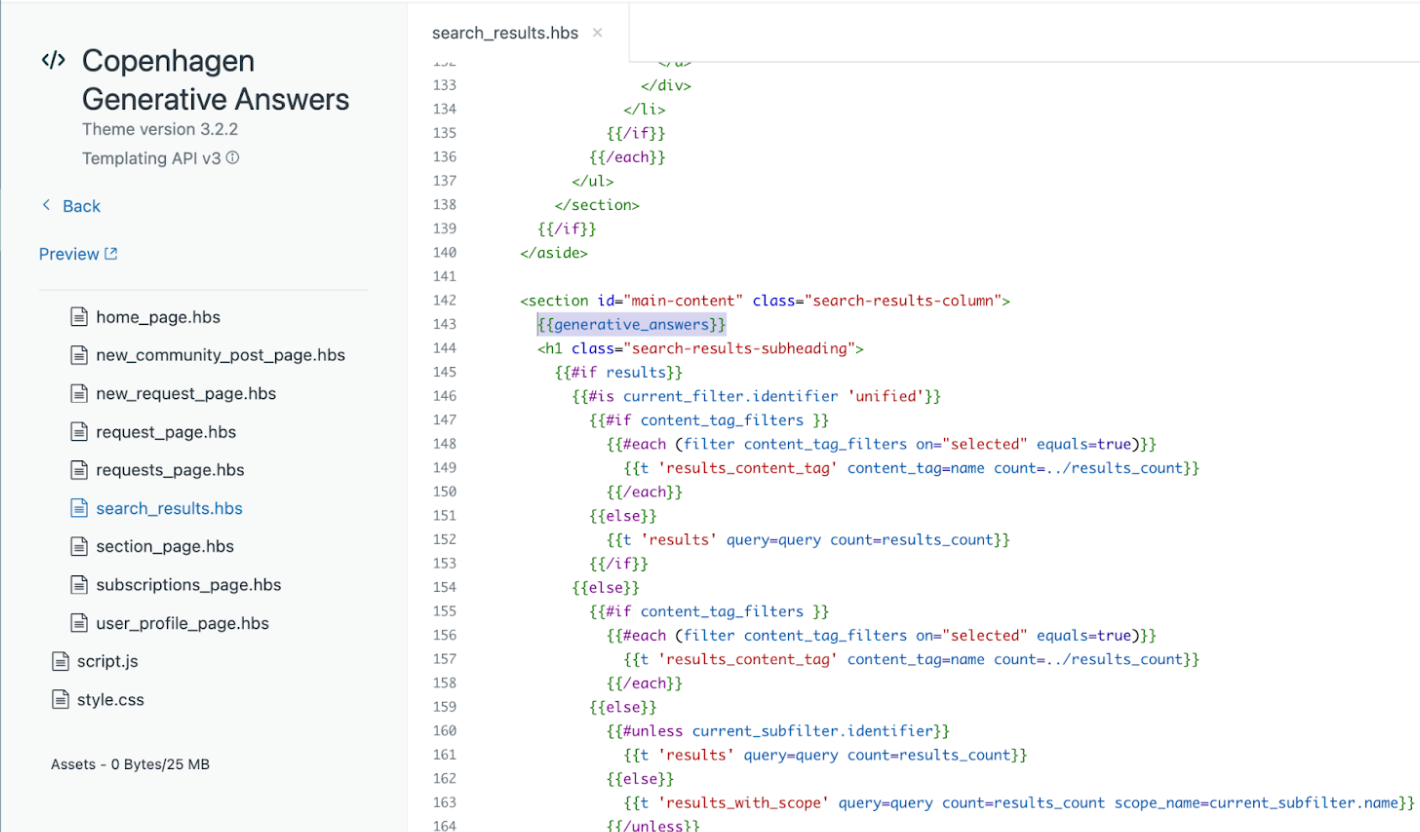
- Locate the
search_results.hbstemplate - Add the
{{generative_answers}}placeholder above the{{#if results}}section
Best placement for the placeholder
The placeholder should appear:
- Above the standard search results list
- Below the search input field
- In a position where customers will see it immediately
The exact location depends on your theme structure, but placing it just before {{#if results}} typically works best.
Publishing and testing
After adding the placeholder:
- Save your changes
- Preview the theme
- Test with several search queries
- Publish when satisfied
Note that the Quick Answer box inherits styling from your theme's text_color, link_color, heading_font, and text_font settings. If your theme uses different variable names, the box may display with default styling.
Step 5: Monitor usage and optimize
Your Zendesk generative search extender setup isn't complete without ongoing monitoring. Here's how to stay on top of usage.
Setting up regular monitoring
Add a recurring calendar reminder to check your usage stats weekly. Look for:
- Sudden spikes that might indicate a problem
- Gradual increases that suggest you need more capacity
- Patterns tied to product releases or marketing campaigns
Understanding what counts toward your limit
Not all searches consume your generative search quota:
| Counts toward limit | Does NOT count |
|---|---|
| Searches displaying AI-generated answers | Searches with no matching content |
| Supported language queries | Unsupported language searches |
| User has article permissions | User lacks permissions |
Tips for reducing unnecessary usage
- Improve article titles and SEO to reduce failed searches
- Use content tags to organize articles more effectively
- Consider whether federated search (Enterprise) is adding unnecessary volume
- Monitor for bot traffic that might be inflating search counts
When to consider additional capacity
If you're consistently using 80%+ of your limit by the third week of each month, contact Zendesk Sales about increasing your Extender capacity.
Troubleshooting common setup issues
Even with careful planning, you might hit snags during your Zendesk generative search extender setup. Here are solutions to common problems.
Theme placeholder not showing answers
If you added the {{generative_answers}} placeholder but don't see Quick Answers:
- Verify you're using a v3 theme (older themes don't support the feature)
- Check that the placeholder is spelled correctly:
{{generative_answers}} - Ensure generative search is enabled in your search settings
- Confirm your account has available generative search capacity
Custom styling conflicts
The Quick Answer box uses a shadow DOM, which limits CSS customization. If styling looks off:
- Check that your theme defines standard variables:
text_color,link_color,heading_font,text_font - The box will use default styling if these variables aren't found
- You cannot remove the "generated using AI" disclosure text
Search results not generating AI answers
If searches return results but no Quick Answer appears:
- Try longer, question-style queries instead of 1-2 word searches
- Verify the user has permission to view the matching articles
- Check that your knowledge base content is substantial enough to generate meaningful answers
Usage discrepancies
If your usage numbers don't match expectations:
- Remember that usage reporting may have a 24-hour delay
- Check if federated search is enabled (Enterprise only)
- Review whether multiple help centers are sharing the same quota
When to contact support vs. your developer
Contact Zendesk Support for:
- Add-on billing or activation issues
- Feature not working as documented
- Usage reporting problems
Contact your developer or theme designer for:
- Custom theme integration issues
- Styling or placement problems
- Template customization questions
Taking your AI support further with eesel AI
Once your Zendesk generative search extender setup is complete, you might wonder what else is possible with AI in your support workflow. That's where eesel AI comes in.

What eesel AI adds beyond search
While Zendesk's generative search helps customers find answers, eesel AI goes further by actually resolving tickets. Here's how we complement your Zendesk setup:
- Unified knowledge: Connect Zendesk with Confluence, Google Docs, Notion, Slack, and 100+ other sources. Your AI learns from everywhere, not just your help center.
- Ticket automation: Our AI Agent drafts and sends responses, not just search results. It can resolve tickets end-to-end.
- Simulation before deployment: Test the AI on your historical tickets before going live. See exactly how it would perform without risking customer experience.
- Actions, not just answers: Look up orders in Shopify, process refunds, update ticket fields, create Jira issues. The AI actually does things.
How we work alongside Zendesk
eesel AI integrates directly into your existing Zendesk workflow:
- Works with your Zendesk tickets, macros, and help center
- Respects your existing permissions and workflows
- Escalates to human agents when appropriate
- Learns continuously from corrections and feedback
If you're already investing in the Generative Search Extender to scale your self-service, adding eesel AI for ticket automation is a natural next step.
Start scaling your Zendesk AI support today
You've now got a complete roadmap for your Zendesk generative search extender setup. Let's recap the key steps:
- Check your usage in Admin Center to confirm you need the Extender
- Contact Zendesk Sales with your volume requirements for custom pricing
- Enable for Agent Workspace so your team gets Quick Answers in tickets
- Configure your help center by adding the placeholder to custom themes
- Monitor and optimize to make the most of your search capacity
The Generative Search Extender is a solid solution for scaling self-service, but it's just one piece of the AI support puzzle. For teams ready to automate beyond search, eesel AI offers a complementary layer that handles ticket resolution, not just information retrieval.
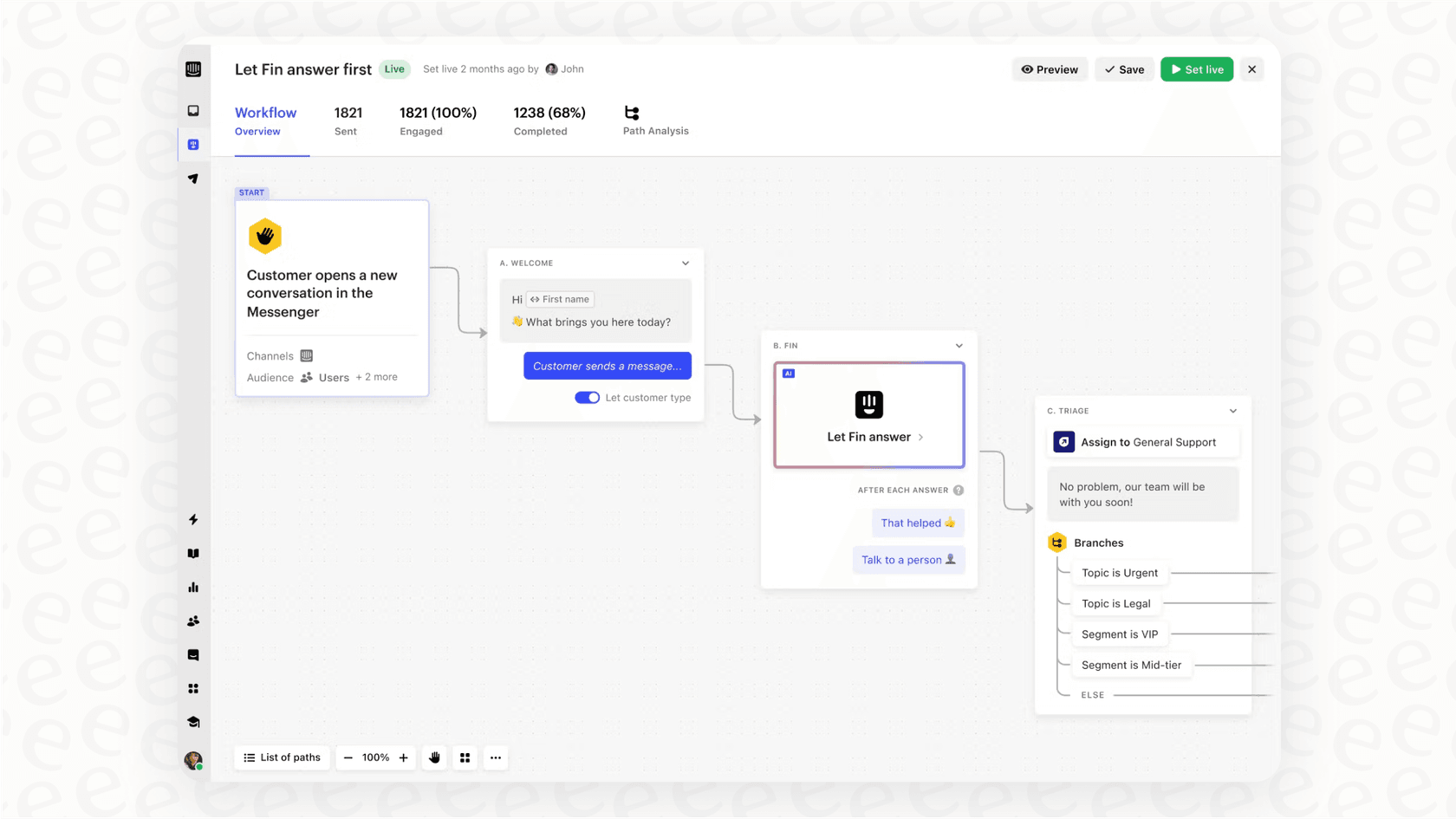
Ready to see how AI can transform your entire support operation? Try eesel AI and discover what end-to-end automation looks like.


Frequently Asked Questions
Share this article

Article by
Stevia Putri
Stevia Putri is a marketing generalist at eesel AI, where she helps turn powerful AI tools into stories that resonate. She’s driven by curiosity, clarity, and the human side of technology.



