Your brand voice is how customers recognize you. It's the difference between sounding like a helpful friend or a faceless corporation. When you hand customer conversations to an AI, keeping that voice consistent becomes critical.
Research backs this up. According to Zendesk's Customer Experience Trends Report 2026, 66% of customers report being more loyal to companies that show empathy and understanding. Another 61% say they'll spend more with empathetic companies. Your AI's tone directly impacts these numbers.
This guide walks you through configuring Zendesk AI tone and brand voice settings step by step. You'll learn how to set up personas, customize tone, and fine-tune responses so your AI sounds like an extension of your team.
For teams that need additional flexibility beyond what Zendesk offers natively, we'll also cover how eesel AI can complement your setup with advanced customization options.

What you'll need
Before diving in, make sure you've got:
- A Zendesk account with either Suite Team ($55/agent/month) or higher for basic AI features, or the Advanced AI Agents add-on for full tone customization
- Admin access to configure AI agent settings
- A clear understanding of your brand voice guidelines (formal, casual, enthusiastic, etc.)
- Optional: An eesel AI account if you want to explore expanded tone customization and multi-source knowledge integration
Step 1: Access your AI agent settings
Start by navigating to the right place in your Zendesk admin panel:
- Log into your Zendesk account and go to Admin Center
- Click AI in the left sidebar
- Select AI agents
- Choose the AI agent you want to configure
- Click the Settings tab
- Navigate to the Persona section
This is your control center for everything related to how your AI presents itself to customers. The Settings tab contains multiple sections: Identity, Persona, Language, and Brand and channels. For tone and voice configuration, we'll focus primarily on the Persona section.
If you're looking for more advanced AI capabilities beyond Zendesk's native features, consider exploring eesel AI's Zendesk integration for expanded customization options.
Step 2: Configure the AI agent persona
The persona establishes your AI's foundational identity. Think of it as answering "Who are you?" when a customer asks. Getting this right ensures your AI feels like a natural extension of your team from the first interaction.
-
Set the AI agent name: This is what customers see in conversations. Choose something that fits your brand (your company name, a friendly character, or just "Support").
-
Enter your company name: This helps the AI understand what organization it represents when customers ask about the brand.
-
Write a business profile: Keep this to 1-2 factual sentences describing what your company does. For example: "We're a premium coffee subscription service delivering ethically sourced beans to cafes and home baristas worldwide."
-
Test the persona: Click the Test button to open a preview window. Try asking "Who are you?" or "What company do you work for?" to see how your AI responds.
-
Save your changes
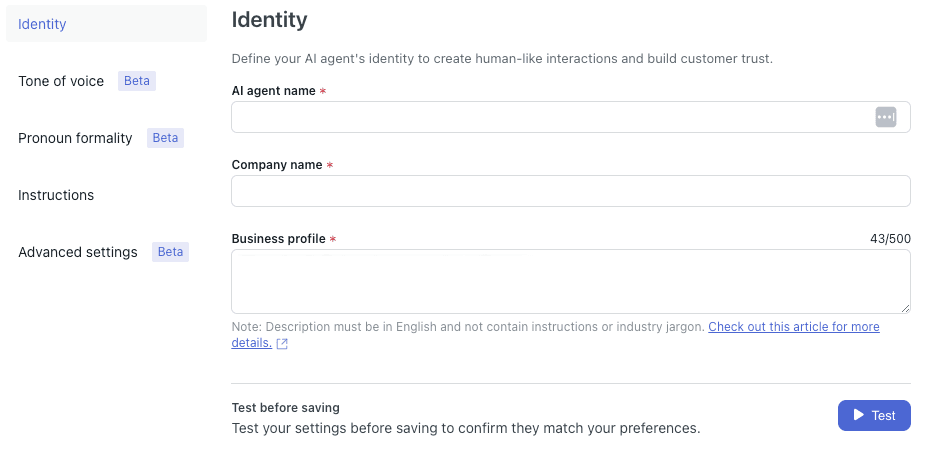
Important note from Zendesk's documentation: Don't add instructions to the business profile. Keep it focused on factual context about your company's business domain rather than behavioral instructions, which could lead to unexpected errors. For teams needing more granular control over AI behavior, eesel AI offers advanced prompt customization that works alongside your Zendesk setup.
Step 3: Select and customize tone of voice
Now for the part that shapes how your AI actually sounds when it writes to customers.
-
In the Persona section, select the Tone of voice tab
-
Choose your base tone:
- Professional: Patient and informative (default)
- Informal: Casual and friendly
- Enthusiastic: Upbeat and conversational
- Custom: Create your own tone description
-
If you select Custom, write a tone description that captures your brand voice. Examples that work well:
- "You maintain a polite, approachable, and conversational tone throughout the conversation."
- "You are helpful, professional, and encouraging. Use clear language and avoid jargon."
- "You speak warmly and casually, like a knowledgeable friend helping out."
-
Set your Answer length:
- For messaging AI agents: Short (30-60 words), Medium (60-90 words), Long (90-120 words), or Very Long (120-150 words)
- For email AI agents: Short (150 words), Medium (300 words), Long (600 words), or Very Long (unlimited)
-
Test different combinations in the preview window until you find what sounds right for your brand
-
Save your settings
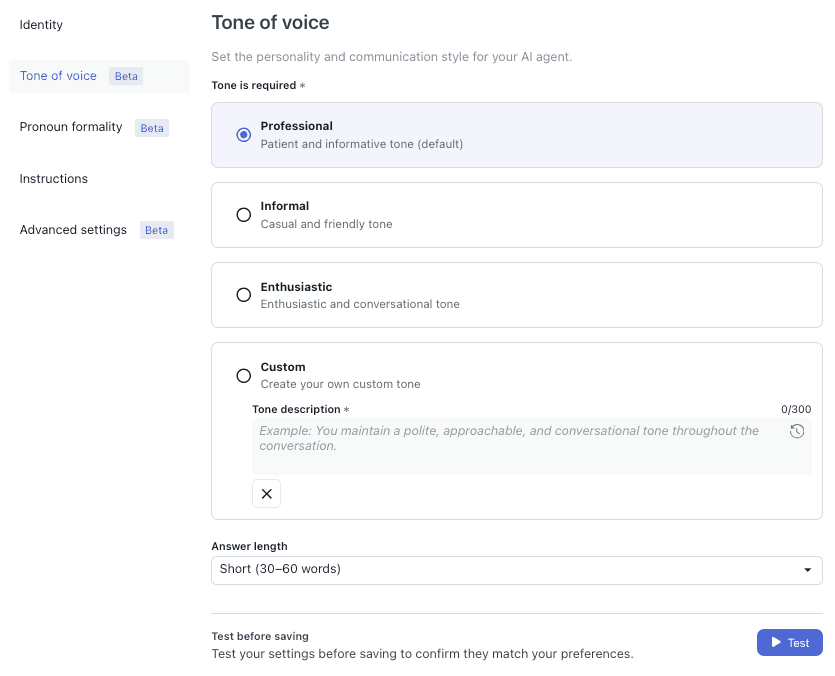
The answer length setting only affects responses where the AI consults a knowledge source. Conversational responses are left up to the AI's discretion, which helps maintain natural dialogue flow. If you need more sophisticated control over response length and content based on specific customer contexts, eesel AI's AI Agent provides advanced customization options.
Step 4: Set pronoun formality for multilingual support
If you serve customers in languages with formal and informal pronoun distinctions, this step ensures your AI respects cultural communication norms and local expectations.
-
In the Persona section, select the Pronoun formality tab
-
For each supported language you've added, choose:
- Use formal pronouns: Conveys respect (default)
- Use informal pronouns: Conveys familiarity
-
Languages with pronoun formality support include German, French, Spanish, and others that distinguish between formal and informal "you"
-
Test formality settings by switching languages in the preview window to see how responses adapt
-
Save your changes
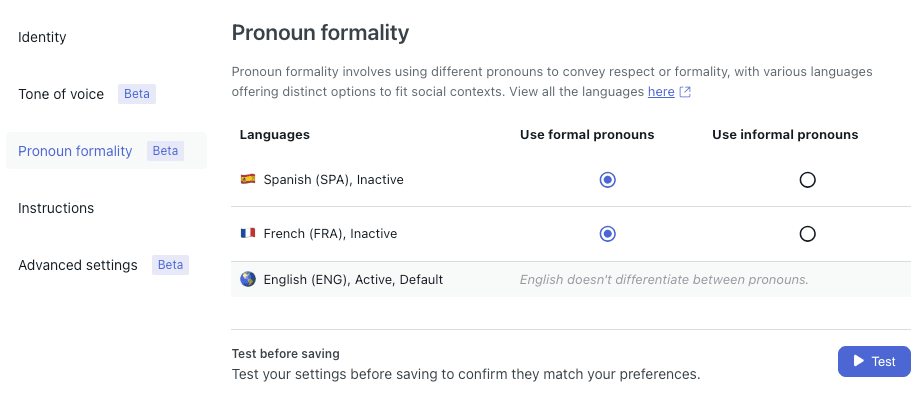
For languages that don't distinguish between formal and informal pronouns (like English), neither option will be selectable. The system handles this automatically. Teams managing multilingual support at scale might benefit from eesel AI's AI Copilot, which offers enhanced translation and tone adaptation features.
Step 5: Add custom instructions for specific behaviors
Instructions let you fine-tune your AI's behavior beyond the preset tone options. This is where you can enforce brand-specific rules and guidelines.
-
Navigate to the Instructions section in your AI agent settings
-
Write clear, direct commands. Based on Zendesk's best practices:
- Use one instruction per directive (don't bundle multiple rules)
- Be specific: "ALWAYS use 'Acme Labs™' instead of 'Acme'" works better than "I want the AI to use our brand name"
- Use capitalization for emphasis on critical behaviors: "ALWAYS include a tracking link"
-
Avoid conflicting instructions. Don't tell the AI to end messages with smiley faces in one instruction and prohibit emojis in another. Consistency is key to maintaining your brand voice.
-
Don't duplicate built-in features. Use the persona and tone settings for personality, and instructions for specific behavioral rules.
-
Test each instruction individually, then test them all together to ensure they work harmoniously
Here are some examples of effective instructions we've seen work well:
- "If the user asks about regulatory information, send this response verbatim: 'Thank you for reaching out. Please see our regulatory information at [URL].'"
- "ALWAYS say 'Enjoy your flight!' at the end of your message when helping with travel bookings."
- "NEVER provide medical advice. Always escalate health-related questions to a human agent."
Best practices for Zendesk AI tone settings
Getting the configuration right is only half the battle. Here's how to ensure your AI maintains the right voice over time, plus some tips from our experience building AI teammates at eesel AI:
-
Always test before publishing: Use the built-in test window extensively. Try edge cases, difficult questions, and scenarios where tone matters most. Better yet, run your configuration against historical tickets to see how it would've performed.
-
Monitor real-world performance: After going live, review actual customer conversations regularly. Look for places where the tone felt off or where customers seemed confused. Don't just rely on automated metrics; read the actual conversations.
-
Keep instructions simple: Complex, multi-part instructions are harder for the AI to follow consistently. Break them down into single-directive statements that are easy to understand and follow.
-
Align tone with customer expectations: Research from Software Advice found that 65% of customers prefer a casual tone in support interactions. But context matters: 78% would be dissatisfied if their request was denied using a casual tone.
-
Consider the situation: Formal tone works better for sensitive issues (billing disputes, complaints), while casual tone fits routine questions and friendly interactions. Match your tone to the customer's emotional state and the severity of their issue.
-
Iterate based on feedback: Customer satisfaction scores and direct feedback will tell you when your tone is hitting or missing the mark. Adjust accordingly. At eesel AI, we've found that teams who regularly review and refine their AI's tone see up to 81% autonomous resolution rates once they find the right balance.
Troubleshooting common issues
Even with careful setup, you might run into some challenges. Here's how to handle the most common ones:
AI not following custom tone descriptions This usually means the description is too vague or conflicts with other settings. Try making it more specific, and check that your instructions don't contradict your tone choice. If you're still having trouble, eesel AI's AI Agent offers more granular tone control through its advanced prompt editor.
Inconsistent response lengths Remember that answer length settings only apply when the AI consults knowledge sources. Conversational responses follow their own logic. If length is critical, consider adding an instruction like "ALWAYS keep responses under 100 words." For more precise control over response length and structure, you might want to explore eesel AI as an alternative.
Tone conflicts with instructions If your tone is set to "Professional" but you've got instructions pushing casual language, the AI may produce inconsistent results. Align your tone preset with your instruction style so everything works together smoothly.
When to use built-in features vs. custom instructions Use persona settings for identity, tone settings for communication style, and instructions only for specific behavioral rules that aren't covered by the built-in options. If you find yourself writing dozens of instructions to achieve the tone you want, that's a sign you might benefit from a more flexible platform like eesel AI.
Refining tone descriptions If your AI's tone isn't quite right, try rephrasing your custom description. Small wording changes can have significant effects. Test variations until you find the sweet spot. The key is to be specific about observable behaviors rather than abstract concepts.
Expanding your AI capabilities with eesel AI
Zendesk's tone customization works well for many teams, but some need more advanced options. That's where eesel AI comes in as a complementary solution.
eesel AI integrates directly with Zendesk while adding capabilities that go beyond the native tone settings:
- Multi-source knowledge: Pull information from Confluence, Google Docs, Notion, and other sources (not just your Zendesk help center)
- Advanced prompt editor: Create complex tone logic that changes based on customer context, order status, or other variables
- Simulation mode: Test tone configurations against thousands of historical tickets before going live
- Plain-English control: Define escalation rules and tone adjustments using natural language rather than rigid configurations

Think of it this way: Zendesk gives you solid tone presets and basic customization. eesel AI adds a layer of advanced flexibility for teams that need their AI to handle more nuanced scenarios or pull from broader knowledge sources.
Testing and refining your AI's tone
Configuration isn't a one-time task. The best AI implementations involve continuous refinement and iteration:
-
Use Zendesk's testing features: The preview window is your friend. Test regularly, especially after making changes. Don't just test the happy path try edge cases and difficult scenarios.
-
Run simulations on historical tickets: Look at how your AI would have handled past conversations. Would the tone have been appropriate? This is where tools like eesel AI's simulation mode really shine you can test against thousands of tickets before going live.
-
Gather customer feedback: Pay attention to CSAT scores and comments specifically about the AI experience. Customers will tell you when something feels off. Take their feedback seriously and iterate quickly.
-
A/B test configurations: If you have multiple AI agents, try different tone settings and compare performance metrics.
-
Document what works: Keep a record of which tone descriptions and instructions produce the best results. This helps maintain consistency as your team grows.
Ready to take your AI tone to the next level?
Configuring Zendesk AI tone and brand voice settings is a great starting point for delivering consistent, on-brand customer experiences. The built-in presets and customization options work well for many teams, especially those just getting started with AI-powered support.
But if you're looking for more advanced capabilities like pulling knowledge from multiple sources, running large-scale simulations before going live, or defining complex tone logic based on customer context consider exploring eesel AI. Our AI teammates integrate seamlessly with Zendesk while adding the flexibility and control that growing teams need.
Try eesel AI free or book a demo to see how we can help you build an AI that truly sounds like your brand.