Zendesk Explore report table vs line chart: When to use each

Stevia Putri
Last edited February 26, 2026
If you're building reports in Zendesk Explore, you've probably stared at the visualization selector wondering whether to go with a table or a line chart. Both show your support data, but they tell very different stories.
The choice matters more than you might think. Pick the wrong visualization and your team misses the point. Pick the right one and patterns jump off the screen. Here's when to use each for your Zendesk Explore report table vs line chart decisions.
Understanding the difference between tables and line charts
At the most basic level, tables and line charts serve opposite purposes in data visualization.
Tables show exact figures. They're spreadsheets rendered in your report, displaying every data point with precision. When you need to know that Agent Smith solved 47 tickets on Tuesday, a table delivers that number directly. Data visualization best practices consistently show that tables outperform charts when viewers need to reference specific values.
Line charts show trends. They connect data points across time, making direction and momentum immediately visible. When you want to see whether ticket volume is climbing or falling over the past quarter, a line chart makes that pattern obvious at a glance.
Here's the short version: tables are for detail, line charts are for direction. Your job is figuring out which one your audience actually needs. For most Zendesk Explore report table vs line chart decisions, it comes down to whether you're presenting precise numbers or visual trends.
When to use a table in Zendesk Explore
Tables shine when precision matters more than pattern recognition. They're the workhorses of data reporting, showing raw numbers without interpretation. When you're deciding between a Zendesk Explore report table vs line chart, tables win for detailed analysis.

Best use cases for tables
- Comparing exact metrics across categories. When you need to see specific ticket counts by agent, channel, or priority, tables deliver unambiguous numbers.
- Troubleshooting report structure. Before you visualize data as a chart, viewing it as a table reveals how Zendesk is computing your metrics and attributes.
- Exporting data for external analysis. Tables copy cleanly into Excel or Google Sheets for further manipulation.
- Presenting detailed data to stakeholders who need precision. Executives reviewing specific performance numbers often prefer tables they can reference exactly.
As Jude Kriwald, a Zendesk consultant, notes: "Select the Visualisation type button, then select Table. Now, you can quite simply see where all four of your elements play their part on the output of the graph. Just like a spreadsheet, columns go along the top, rows down the side, with the metric in the middle." It's a straightforward way to verify your data structure.
Table configuration options
Zendesk Explore offers extensive customization for tables. According to Zendesk's table documentation, under Chart configuration, you can adjust:
- Text style and formatting customize size, color, and formatting for headers, results, totals, and subtotals
- Column width and row height set specific pixel dimensions or fit to content
- Color customization edit background, header, row, total, and subtotal colors
- Sorting options allow or disable column sorting for report viewers
- Row numbers display sequential numbering for easy reference
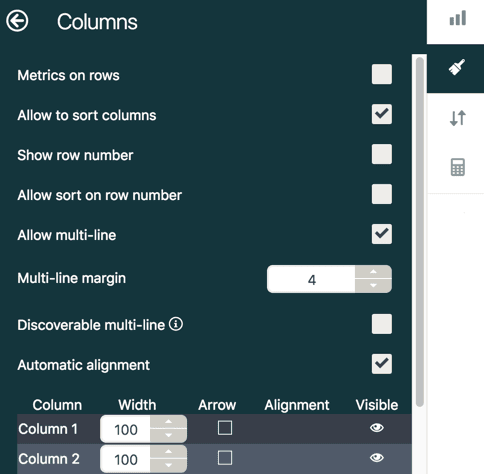
One particularly useful feature is the ability to add metrics to rows rather than columns, which can make wide reports more readable. You can also hide columns that contain intermediate calculations you don't want visible in the final report. It's a handy way to keep reports clean while preserving your calculations.
When to use a line chart in Zendesk Explore
Line charts are built for time-series data. When your question involves "how are we trending," line charts are almost always the right choice. In the Zendesk Explore report table vs line chart debate, line charts win for tracking changes over time.
Best use cases for line charts
- Tracking ticket volume trends over time. See whether your support load is growing, shrinking, or cycling seasonally.
- Monitoring response time changes. Visualize whether your team's first reply times are improving or degrading week over week.
- Showing SLA performance trends. Display how your percentage of tickets meeting SLA targets changes over months.
- Visualizing seasonal patterns in support demand. Spot predictable spikes (like holiday rushes) to inform staffing decisions.
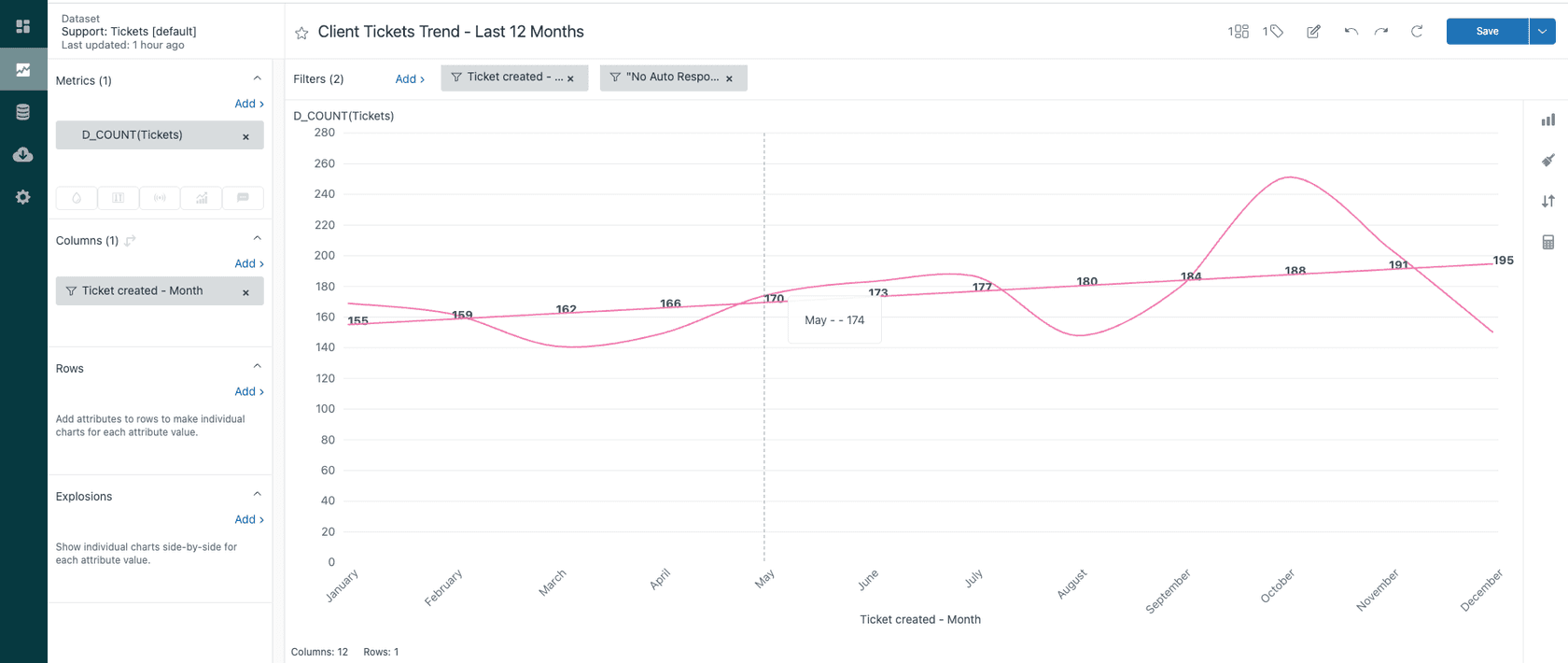
According to Zendesk's documentation, "A line chart is the best option for looking at a detailed time series or for adding trend lines." When you add a trend line to a line chart, it appears in the same color as the metric it represents, making correlation obvious.
Line chart configuration options
Line charts in Explore offer several customization options:
- Curve shape choose between straight lines and curved interpolations
- Stroke width adjust line thickness for better visibility
- Grid display show or hide background grid lines
- Trend line additions add calculated trend lines to highlight direction
- Interpolation for missing values handle gaps in your data gracefully
- Point renderers represent data points with different shapes for emphasis
You can also place metrics on dual axes when comparing two metrics with different scales, like ticket count alongside average resolution time. This prevents one metric from overwhelming the other visually.
How to choose: a simple decision framework
Still not sure which to pick? Ask yourself these questions when deciding on your Zendesk Explore report table vs line chart:
Do you need exact numbers or visual trends? If someone will ask "what's the specific number," use a table. If they'll ask "are we improving," use a line chart.
Is this for presentation or analysis? Tables work better for detailed analysis where viewers dig into specifics. Line charts win for presentations where you want immediate visual impact.
Will stakeholders export this data? If the report feeds into Excel for further manipulation, start with a table.
Are you showing time-based changes? Any metric tracked over days, weeks, or months generally works better as a line chart.
Bottom line? When in doubt, build both. Zendesk makes it easy to switch between visualizations, and seeing the same data both ways often reveals insights you'd miss with just one. Many teams find that testing both approaches helps them understand their Zendesk Explore report table vs line chart needs better.
Pro tip: Start with tables, then convert
Here's a workflow that'll save you frustration: always build your report as a table first, verify the data structure is correct, then switch to your final visualization.
As Zendesk explains in their chart configuration guide: "Tables are also the go-to when you first start building your report as they allow you to see the underlying data before you turn your report into a chart. For example, if your bar chart doesn't look right, turn it into a table first to see how Zendesk is computing your data."
This approach helps you catch issues early. If your line chart shows unexpected spikes, viewing the underlying table reveals whether the data's actually wrong or just being visualized in a misleading way.
Common issues and limitations
Table formatting limitations
One persistent complaint in the Zendesk community is the lack of full grid line customization. As one user explained: "You will only get a vertical line between the attributes (on rows) and the metrics as a whole, the vertical line is used only to separate attributes from metrics, but not from each other."
For teams presenting reports to executive leadership, this cosmetic limitation can be frustrating. The alternative row colors feature helps, but community feedback indicates it doesn't apply to the first column, which limits its usefulness. It's a small detail, but it matters when you're building polished reports.
Line chart considerations
Line charts can become cluttered when displaying too many metrics simultaneously. If you're tracking more than three or four data series, consider using multiple charts or switching to a different visualization type like a column chart.
Also, line charts assume continuous time intervals. If your data has significant gaps, the interpolation feature can help, but be aware that it creates estimated values rather than showing true zeros. You'll want to check your underlying data if accuracy is critical.
Enhancing your Zendesk reporting with eesel AI
While Zendesk Explore excels at showing what happened in your support environment, we can add a layer of proactive insight. At eesel AI, we connect to your Zendesk data alongside other knowledge sources to identify patterns Explore might miss. If you're investing time in your Zendesk Explore report table vs line chart setup, you'll want to make sure you're capturing insights that drive action.

For example, we can flag when an AI agent couldn't find an answer, essentially creating a to-do list for improving your documentation. This complements your Zendesk Explore report table vs line chart analysis by highlighting knowledge gaps before they become recurring issues.
We also offer simulation mode, which lets you test AI agent performance on historical tickets before going live. This helps you forecast resolution rates and potential savings with confidence. You can see exactly how an AI agent would handle your existing ticket patterns.
If you're looking to get more from your Zendesk data beyond your Zendesk Explore report table vs line chart decisions, explore how we integrate with Zendesk or learn about our AI agent capabilities designed specifically for support teams.
Making the right visualization choice for your reports
Choosing between tables and line charts in Zendesk Explore comes down to understanding your audience and your data story. Tables deliver precision for teams who need exact figures. Line charts reveal patterns for stakeholders who need to see the bigger picture. The right Zendesk Explore report table vs line chart choice depends on what you're trying to communicate.
The best reports often use both: line charts for executive summaries showing trends, tables for appendix pages with detailed breakdowns. Zendesk Explore makes this multi-format approach easy to implement. You don't have to choose just one for your Zendesk Explore report table vs line chart strategy.
Start with the decision framework above, test both visualizations with your actual data, and let your specific use case guide the final choice. The right visualization doesn't just display data, it reveals insight.


Frequently Asked Questions
Share this article

Article by
Stevia Putri
Stevia Putri is a marketing generalist at eesel AI, where she helps turn powerful AI tools into stories that resonate. She’s driven by curiosity, clarity, and the human side of technology.



