
Not everyone on your support team needs the same level of access to analytics. Some people need to build reports. Others just need to read them. Getting this wrong means either bottlenecks (too many Viewer requests to too few Editors) or security risks (giving everyone full Admin access because it is easier).
Zendesk Explore uses role-based permissions to control who can see, create, and manage your support data. The three roles (Viewer, Editor, and Admin) each serve different purposes. But the official documentation spreads this information across multiple articles, making it hard to get a clear picture of what each role actually does.
This guide brings it all together. You'll learn the exact differences between editor and viewer roles, which Zendesk Explore plan you need for each, and how to assign the right permissions to your team. We'll also look at when it makes sense to upgrade your plan for better role flexibility, and how AI-powered analytics tools can simplify access management altogether.

What is Zendesk Explore?
Zendesk Explore is the analytics and reporting platform built into Zendesk. It pulls data from your Support tickets, Chat conversations, Talk calls, and Guide knowledge base articles to give you a unified view of your customer experience. Explore provides prebuilt dashboards and custom reporting capabilities depending on your plan tier.
Think of it as the difference between having raw ingredients and having a cooked meal. Your Zendesk products generate the data (ingredients). Explore turns that data into dashboards and reports (meals) that your team can actually use to make decisions.
Explore comes in three plan tiers:
| Plan | Included with | Key features |
|---|---|---|
| Explore Lite | Suite Team, Suite Growth, most Support plans | Prebuilt dashboards with view-only access |
| Explore Professional | Suite Professional | Custom report creation and full role management |
| Explore Enterprise | Suite Enterprise, Suite Enterprise Plus | Live data, custom roles, and granular data restrictions |
If you're building dashboards, check out our guide on mastering Zendesk Explore dashboard layout for best practices on arranging components and organizing information.
Understanding the three Explore roles
Zendesk Explore offers three standard roles based on Zendesk's user role documentation. Each role builds on the previous one, adding more capabilities and responsibilities.
Viewer role
The Viewer role is the most restrictive. Viewers can:
- View dashboards that have been shared with them
- Interact with filters on dashboards (date ranges, ticket status, etc.)
- Access prebuilt dashboards (depending on plan)
Viewers cannot create reports, edit dashboards, or share content with others. They are consumers of analytics, not producers.
This role works best for executives who need monthly metrics, agents who want to check their personal performance, or team members who need insights but don't have time to learn the report builder.
Editor role
The Editor role adds creation capabilities. Editors can do everything Viewers can, plus:
- Create and customize dashboards
- Build custom reports and queries
- Create datasets for specialized reporting
- Share dashboards with individual users or groups
- Set up scheduled email deliveries for dashboards
Editors are your report builders. They create the analytics that Viewers consume. This role suits team leads who build performance dashboards for their agents, analysts who dig into support trends, or managers who need custom views for different stakeholders.
Admin role
The Admin role provides full control. Admins have all Editor permissions, plus:
- Update permissions for datasets
- Change default colors for charts and color-encoded metrics
- Edit Excel export settings (separators, decimal precision)
- Manage dashboard delivery schedules for all users
- View and edit all dashboards across the account, regardless of who created them
Admins oversee your entire Explore environment. They manage data access, standardize reporting formats, and can step in to fix or update any dashboard. This role should be limited to Zendesk administrators and data owners.
Zendesk Explore editor vs viewer: Key differences
The choice between Editor and Viewer comes down to one question: does this person need to create analytics, or just consume them?
| Capability | Viewer | Editor | Admin |
|---|---|---|---|
| View shared dashboards | ✅ | ✅ | ✅ |
| Interact with filters | ✅ | ✅ | ✅ |
| Create dashboards | ❌ | ✅ | ✅ |
| Build custom reports | ❌ | ✅ | ✅ |
| Share dashboards | ❌ | ✅ | ✅ |
| Schedule email deliveries | ❌ | ✅ | ✅ |
| Manage dataset permissions | ❌ | ❌ | ✅ |
| Edit all account dashboards | ❌ | ❌ | ✅ |
| Configure export settings | ❌ | ❌ | ✅ |
Data access works differently too. Viewers only see dashboards explicitly shared with them, plus any prebuilt dashboards their plan includes. Editors can view any dashboard they created or that was shared with them. Admins can see everything across the entire account.
When should you choose each role?
-
Assign Viewer to people who need regular access to metrics but don't have time to build reports. Executives reviewing weekly summaries, agents checking personal stats, or customer success managers monitoring account health.
-
Assign Editor to people who build reports for others. Team leads creating performance dashboards, analysts investigating trends, or operations managers building monitoring views.
-
Assign Admin sparingly. Only to people who need to manage the entire Explore environment, enforce reporting standards, or troubleshoot access issues across teams.
Plan requirements and limitations
Your ability to assign roles depends entirely on your Explore plan. Here is what each plan actually offers.
Explore Lite
Lite comes with Suite Team, Suite Growth, and most standalone Support plans. It provides:
- Access to prebuilt dashboards only
- View-only permissions for all users
- No custom report creation
- No role assignment (everyone is effectively a Viewer)
If you're on Lite, you cannot assign Editor or Admin roles. Everyone sees the same prebuilt dashboards with the same level of access. This works for small teams with basic reporting needs, but becomes limiting as you grow.
Explore Professional
Professional comes with Suite Professional. It unlocks:
- Full Viewer, Editor, and Admin roles
- Custom dashboard and report creation
- Light agents automatically get Viewer access
- Staff and Contributors need manual access grants
This is where role management becomes meaningful. You can assign Editors to build reports and Viewers to consume them. Light agents (who cannot modify tickets) still get analytics access, which is useful for teams with external contractors or part-time staff.
Explore Enterprise
Enterprise comes with Suite Enterprise and Suite Enterprise Plus. It adds:
- Custom roles with granular Explore permissions
- Data restrictions by groups and brands
- Live data components for real-time monitoring
- External dashboard sharing (with non-Zendesk users)
Enterprise is worth considering if you have strict data governance requirements. You can create custom roles that limit data access to specific ticket groups or brands, ensuring agents only see metrics for customers they actually support.
How to assign Explore roles to your team
Setting up roles takes a few minutes per user. Here is the process.
Step 1: Check your Explore plan
Navigate to Admin Center > Account > Billing > Subscription. Look for your Explore plan type (Lite, Professional, or Enterprise). If you're on Lite, you cannot assign custom roles. You'll need to upgrade to Professional or Enterprise first. See Zendesk's guide on granting Explore access for detailed steps.
Step 2: Access the roles settings
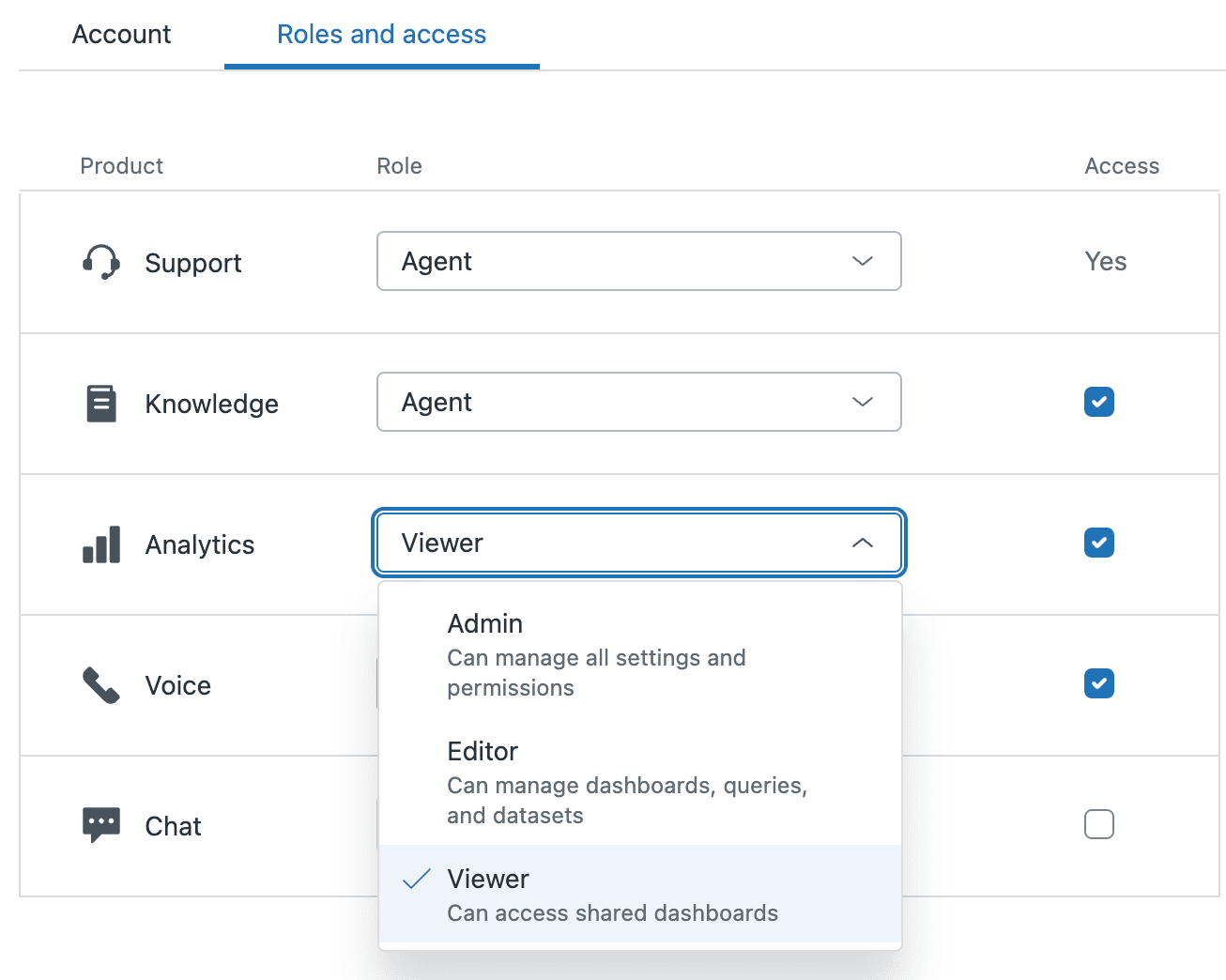
Step 3: Enable Analytics access
Check the Access checkbox next to Analytics. This is the master switch. Without it enabled, the user cannot access Explore at all, regardless of what role you assign.
Step 4: Select the appropriate role
In the Role dropdown, choose Viewer, Editor, or Admin. Click Save to apply the changes. The user will see the updated permissions the next time they log into Explore.
For Enterprise plans: Custom role configuration
If you're on Enterprise, you can create custom roles with specific Explore permissions:
- Navigate to Admin Center > People > Roles
- Click the options menu on a custom role and select Edit
- Scroll to the Reporting and analytics section
- Configure Explore settings: No access, View dashboards, Manage reports and dashboards, or Manage reports, dashboards and dataset permissions
- Set data access levels: All data, selected groups, or groups they belong to only
- Save the custom role
Now when you assign this custom role to users, they get the specific Explore permissions you configured.
Common role assignment scenarios
Here is how real teams typically assign roles.
Scenario 1: Support manager who needs to build team reports Assign the Editor role. They need to create dashboards showing team performance, agent productivity, and SLA compliance. They will share these dashboards with their team leads and executives.
Scenario 2: Executive who reviews monthly metrics Assign the Viewer role. They need to see high-level summaries but don't have time to learn the report builder. An Editor on their team creates and shares the executive dashboard with them.
Scenario 3: Agent who only needs to see their own performance Assign the Viewer role with data restrictions (Enterprise only). They can view dashboards shared with them, but data restrictions ensure they only see tickets assigned to them or their group.
Scenario 4: Data analyst who manages multiple team dashboards Assign the Admin role. They create standardized dashboards for different teams, manage dataset permissions, and troubleshoot when users cannot see expected data.
Troubleshooting access issues
Even with proper role assignment, users sometimes run into problems. Here is how to fix the most common issues.
User cannot see a dashboard Check two things: their role and the dashboard sharing settings. Viewers can only see dashboards explicitly shared with them. Go to the dashboard, click Share, and add the user or their group. Refer to Zendesk's troubleshooting guide for additional help.
User cannot create reports Verify they have Editor or Admin role. Viewers cannot create content. If they are an Editor but still cannot create reports, check that the Analytics access checkbox is enabled in their profile.
Data looks different between users This usually means data restrictions are in play. On Enterprise plans, users might be restricted to specific groups or brands. Check their custom role settings under Reporting and analytics > Data they can view and report on.
Analytics checkbox is disabled You are likely on Explore Lite. Lite does not support custom roles. Everyone gets view-only access to prebuilt dashboards. Upgrade to Professional or Enterprise to enable role management.
Going beyond Zendesk Explore roles with AI-powered analytics
Managing roles manually works, but it creates overhead. Every new team member needs role assignment. Every role change requires admin intervention. Every dashboard needs explicit sharing.
eesel AI takes a different approach. Instead of rigid role-based permissions, our AI learns what insights each team member needs based on their actual work. Support managers automatically see team performance trends. Agents see their personal metrics. Executives see high-level summaries.
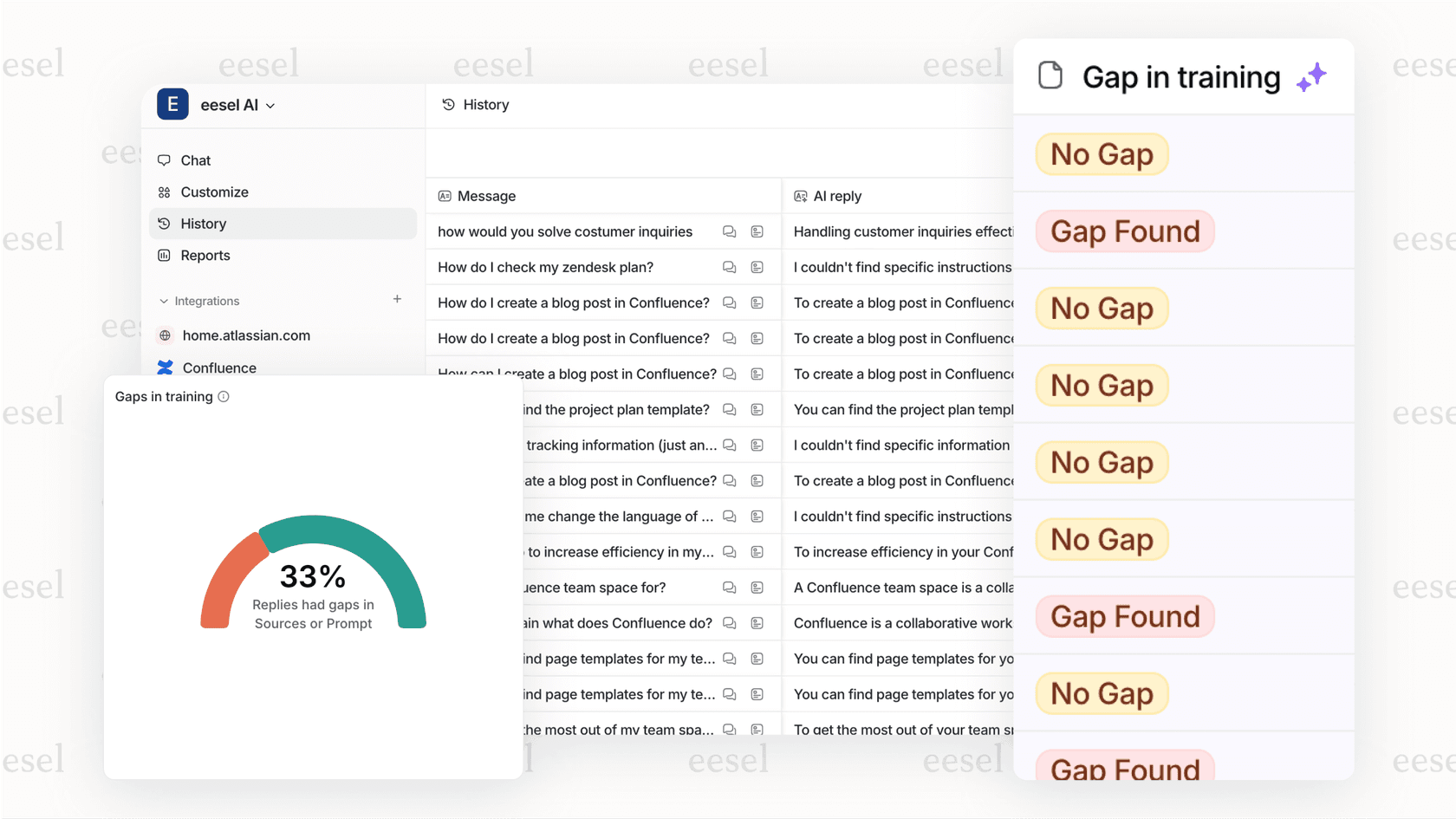
We integrate directly with Zendesk, learning from your past tickets and help center to understand your business. You ask questions in natural language instead of building reports. Our AI agent can even surface insights proactively, alerting you to trends before they become problems.
The difference is flexibility. Zendesk Explore requires you to predict every reporting need and assign permissions accordingly. eesel AI adapts to how your team actually works, delivering relevant insights without complex configuration.
Choosing the right Zendesk Explore role for your team
The right role structure depends on your team size and reporting maturity.
Small teams (under 10 people) can often get by with Explore Lite. Everyone sees the same prebuilt dashboards. It's simple and requires no management.
Growing teams need Professional. You'll want Editors who can build custom reports for different stakeholders, and Viewers who consume those reports without accidentally changing them.
Large or regulated teams need Enterprise. Custom roles let you enforce data governance. A support agent in the EMEA region can see EMEA metrics without accessing APAC data, all through automated role assignments.
If you're spending more time managing roles and permissions than actually using your analytics, it might be time to consider an alternative. Try eesel AI and see how AI-powered insights can reduce your reporting overhead while delivering more actionable intelligence.


