
Business hours in Zendesk tell your system when your team is actually working. Without them, every ticket operates on calendar time (24/7), which skews your SLA metrics and automation timing. But here's the catch: not every Zendesk plan lets you set up multiple schedules.
If you're managing a global team or running multiple brands with different operating hours, you might hit a wall. Let's break down how Zendesk's schedule system works, what you can do on your current plan, and how to work around the limitations if you're not on Enterprise.
Understanding Zendesk's schedule limitations
A schedule in Zendesk is essentially a time zone plus a weekly calendar showing when your team is available. Once you set one up, your triggers, automations, and SLA policies can reference it to make time-aware decisions.
The problem? Multiple schedules (the feature that lets you create different hours for different teams or brands) is locked behind the Enterprise plan. Here's the breakdown:
| Plan | Schedule Limit |
|---|---|
| Suite Growth | 1 schedule |
| Suite Professional | 1 schedule |
| Support Professional | 1 schedule |
| Enterprise | Unlimited |
Source: Zendesk help documentation
This matters because a single schedule might work fine if your entire team is in one time zone. But if you have support teams in London, Sydney, and New York, or if you run multiple brands with different operating hours, one schedule won't cut it. You can't accurately measure response times or route tickets based on who's actually working.
Tools like eesel AI can help fill some of these gaps by handling intelligent routing based on ticket content rather than just time-based rules. But first, let's look at how to set up what you have access to.

Setting up your first schedule in Zendesk
Before you can use multiple schedules (or work around not having them), you need to know how to create a basic schedule. Here's how it works on any Professional+ plan.
What you'll need:
- Admin access to your Zendesk account
- Professional plan or higher
Step 1: Navigate to the Schedules page
Go to Admin Center > Objects and rules > Business rules > Schedules.
Step 2: Create a new schedule
Click Add schedule. Give it a clear name (like "Support Team - US East") and select the appropriate time zone. This time zone setting is crucial; it determines when your business hours actually occur relative to your customers.
Step 3: Set your weekly business hours
In the Weekly schedule section, you'll see a visual interface with time blocks for each day. You can:
- Drag time blocks to adjust start and end times
- Extend or shrink blocks in 15-minute increments
- Remove hours from a day by clicking the X (the day shows as "Closed")
- Add hours to a closed day by clicking anywhere on that row
Important constraints:
- Each interval must be at least one hour long
- You can't have intervals that cross midnight. If your hours span midnight (like 10 PM to 6 AM), you need to create two separate intervals divided by the calendar day
Step 4: Add holidays
Click the Holidays tab, then Add holiday. Give it a name and select start and end dates. You can schedule holidays up to two years in advance, and they can span multiple days.
Note: Holidays cover full calendar days, not just your business hours. If Monday is a holiday, it's considered a holiday for the entire 24-hour period.
Step 5: Save your schedule
Click Save. Your schedule is now active and will be used for all business hours calculations in your account.
Creating multiple schedules on Enterprise plans
If you're on an Enterprise plan, you can create unlimited schedules. Here's how to use them effectively.
The first schedule you create becomes your default schedule. It applies to all tickets unless you specifically assign a different one. To assign different schedules to different tickets, you'll need to use triggers.
Setting up triggers for schedule assignment
- Create your additional schedules following the same process above
- Go to Admin Center > Objects and rules > Business rules > Triggers
- Click Add trigger
- Set conditions that determine which tickets get which schedule (for example: "Brand is X" or "Group is Y")
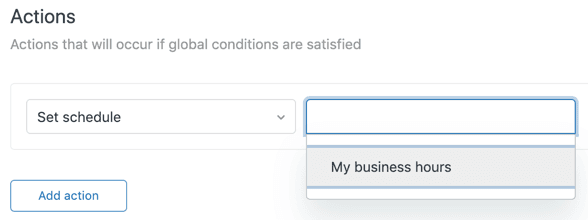
- Add the action Ticket: Set schedule and select the appropriate schedule from the dropdown
Common use cases for multiple schedules
- Global teams: Create separate schedules for each region (US East, EU Central, APAC) and assign tickets based on the customer's location
- VIP support: Create a 24/7 schedule for VIP customers and assign it based on organization tags
- Multi-brand: Different brands often have different support hours. Create a schedule per brand and assign based on the ticket's brand field
Workarounds for single schedule limitations
If you're on Growth or Professional and need multiple schedule functionality, you have a few options.
Workaround 1: Creative trigger conditions
You can simulate multiple schedules using time-based triggers. For example:
- Create triggers that check the current time and assign tickets to different groups based on hour ranges
- Use tags to mark tickets that came in during specific time windows
- Combine "Within business hours?" conditions with other criteria to approximate schedule-based routing
This isn't as clean as true multiple schedules, but it can handle basic routing needs.
Workaround 2: Multiple groups with views
Instead of trying to manage everything through schedules, organize your workflow around groups:
- Create separate groups for each team/region
- Use views filtered by group plus time conditions to show agents only the tickets they should handle
- Set up triggers to assign tickets to the right group based on criteria other than schedule
Workaround 3: AI-powered routing
This is where eesel AI comes in. Instead of relying solely on time-based rules, you can use AI to route tickets based on their content:
- AI Triage can automatically tag, route, and prioritize tickets based on what the customer is actually asking about
- Intent-based routing doesn't care about schedules; it sends tickets to the right team based on issue type, sentiment, and urgency
- You define escalation rules in plain English (like "If the refund request is over 30 days, escalate to billing")
This approach complements Zendesk's scheduling rather than replacing it. Your schedules handle "when," and AI handles "what."
Using business hours in automations and SLAs
Once you have schedules set up, you can leverage them across your Zendesk workflow.
Automation conditions
Zendesk provides several schedule-aware conditions for automations:
- Hours since created/open/pending/etc. (business) - Calculates time only during your business hours
- Ticket: Within business hours? - Yes/No based on when the ticket event occurred
- Ticket: On a holiday? - Yes for the full calendar day of any scheduled holiday
These are powerful for time-based workflows. For example, you can auto-solve pending tickets after 48 business hours of customer inactivity, or escalate urgent tickets that come in outside business hours.
SLA policies
When creating an SLA policy, you can set Hours of operation to either Business hours or Calendar hours. For most teams, business hours is the right choice because it sets realistic expectations based on when you're actually working.
If you have multiple schedules on Enterprise, each ticket uses the schedule applied to it. This means your European customers can have SLA targets based on European business hours while US customers follow US hours, even if the same team handles both.
Common pitfalls to avoid
- The "is" condition timing issue: Using "Hours since solved is 24" is unreliable because automations run on an hourly cycle and might miss the exact moment. Always use "Greater than" instead
- Missing nullifying conditions: Without a way to prevent repeated execution, your automation will run every hour on every matching ticket. Always include a tag-based nullifier
- The 28-day limitation: "Hours since" conditions can't look back more than 672 hours (28 days). Automations won't fire for ancient tickets
- Closed ticket immutability: Once a ticket is Closed, automations can't modify it
When to upgrade to Enterprise for multiple schedules
Sometimes the workarounds aren't enough. Here are signs you genuinely need multiple schedules:
- You're managing multiple brands with significantly different operating hours
- You have global team coverage and need accurate SLA tracking across time zones
- You offer different service tiers (like VIP 24/7 support vs. standard business hours)
- You need complex holiday calendars by region
If you're hitting these limits regularly, the Enterprise upgrade might be worth it. But consider alternatives first:
- Process adjustments: Can you restructure your groups or workflows to work within a single schedule?
- AI automation: eesel AI's pricing starts from $299/month for 500 credits (1 credit per ticket or chat), which might solve your routing problems without a full Zendesk upgrade
- Third-party integrations: Some workforce management tools can integrate with Zendesk to handle complex scheduling
The math depends on your specific situation. If you're on Professional and considering Enterprise primarily for multiple schedules, weigh the upgrade cost against what an AI layer could accomplish instead.

Start automating your Zendesk workflows with eesel AI
Zendesk's business hours feature handles the "when" of your support operation. It defines when your team is available and helps you measure performance against realistic timeframes. But it doesn't handle the "what" (what's in the ticket, what the customer needs, what action to take).
That's where we come in. eesel AI integrates directly with Zendesk to add intelligent, content-based automation on top of your time-based rules:
- Our AI Agent can handle frontline support autonomously, escalating only what you define
- AI Triage tags, routes, and prioritizes based on ticket content, not just metadata
- You define behavior in plain English, not complex trigger conditions
Think of it this way: Zendesk schedules make sure tickets are handled during working hours. eesel AI makes sure the right tickets get to the right people based on what customers are actually asking. Together, they create a complete automation strategy that covers both timing and intent.
If you're already using Zendesk business rules and schedule conditions, adding an AI layer can help you handle the edge cases and exceptions that rules alone can't address. You can see eesel in action or check out our guide to Zendesk business rules schedule conditions for more on combining time-based and AI-powered automation.